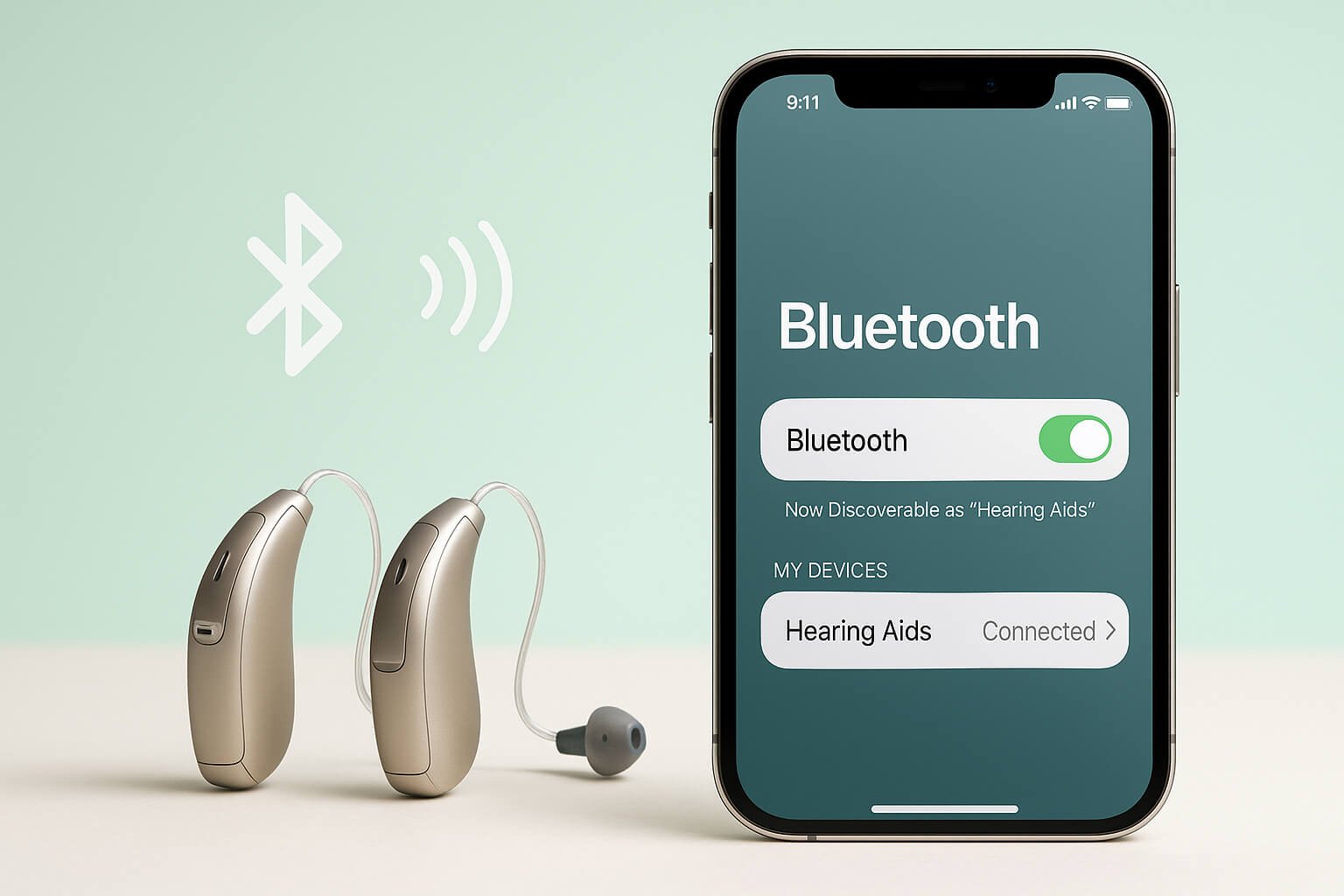
Phonak hearing aids can work well with iPhones when you pair them through the regular Bluetooth menu and use the myPhonak app for everyday control. This guide explains how the connection works, how to pair your hearing aids, what features you can use, and how to fix common connection problems.
Last updated: September 16, 2025
Quick Answer
Most current Phonak hearing aids connect to iPhones through standard Bluetooth, not Apple’s MFi Hearing Devices menu. Restart your hearing aids, open Settings > Bluetooth on your iPhone, select the hearing aids when they appear, and use the myPhonak app for volume, programs, sound adjustments, and remote support.
Key Takeaways
- Phonak hearing aids are compatible with many iPhones, allowing direct audio streaming, phone calls, app control, and personalized settings.
- Pair most current Phonak models through Settings > Bluetooth, not through Accessibility’s “Hearing Devices” menu, which is mainly for MFi hearing aids.
- Restarting the hearing aids usually activates pairing mode for about three minutes, giving your iPhone time to detect them.
- The myPhonak app helps you adjust volume, switch programs, fine-tune sound, access remote support, and manage compatible hearing aid features.
- Most connection problems come from low battery, outdated software, distance, interference, or the hearing aids already being connected to another device.
At a Glance
| Time Required | 5 to 10 minutes for pairing; longer if you need troubleshooting or app setup |
| Difficulty | Easy for basic Bluetooth pairing; moderate if your hearing aids were paired to another phone first |
| Tools Needed | Your iPhone, charged Phonak hearing aids, Bluetooth, and the myPhonak app for advanced controls |
| Cost | No extra cost for basic pairing or the free myPhonak app; older models may need an accessory |
Phonak, a leading manufacturer in the hearing aid industry, has made significant strides in integrating advanced technology into its devices. One of the most useful advancements is Phonak hearing aid compatibility with iPhones. This connection lets users stream audio, take phone calls, and use apps that make everyday listening easier.
The synergy between Phonak hearing aids and iPhones shows how modern assistive technology can improve daily life for people with hearing loss. Compatibility between Phonak hearing aids and iPhones is mainly supported through Bluetooth technology. This wireless standard allows direct audio streaming from the iPhone to many current Phonak models, including Marvel, Paradise, Lumity, and Infinio devices, without needing an intermediary streamer in most cases. See Phonak Bluetooth compatibility for model-specific details.
With a successful connection, users can enjoy music, phone calls, podcasts, videos, navigation prompts, and other audio content directly through their hearing aids. This creates a more personal listening experience and can reduce the need to hold the phone close to the ear. The myPhonak app adds another layer of control by letting users adjust settings from their iPhone. The app requires a compatible iPhone and iOS version, including iOS 15 or later for supported app versions. See the official Phonak myPhonak app page for current app requirements.
Steps to Pair Phonak Hearing Aids with iPhone
Pairing Phonak hearing aids with an iPhone is usually straightforward. Before you begin, make sure your hearing aids are charged, turned on, and close to the phone. Also check that Bluetooth is enabled on your iPhone and that the hearing aids are not already connected to another phone, tablet, or computer.
- Charge your Phonak hearing aids and keep them near your iPhone.
- Open the Settings app on your iPhone.
- Tap Bluetooth and make sure Bluetooth is turned on.
- Restart your hearing aids to place them into pairing mode. For rechargeable models, place them in the charger and remove them. For battery models, open and close the battery door.
- Wait for your hearing aids to appear under available Bluetooth devices.
- Tap the hearing aid name to start pairing.
- Accept any pairing request that appears on the screen.
- Open the myPhonak app after Bluetooth pairing if you want app-based controls and personalization.
Make sure Bluetooth is enabled before you restart the hearing aids. After restart, Phonak hearing aids are usually in pairing mode for about three minutes. During this short window, your iPhone should be close enough to detect them.
Once your hearing aids are in pairing mode, they should appear in the list of available devices on your iPhone. Tap the hearing aid name to begin pairing. After a few moments, your iPhone should confirm that the hearing aids are connected. Phonak’s official pairing instructions are available in the Phonak pairing guide.
Note: Most current Phonak hearing aids pair through the standard iPhone Bluetooth menu. Apple’s Accessibility > Hearing Devices menu is mainly for Made for iPhone hearing aids, so it may not show Phonak devices that use standard Bluetooth.
If you run into problems during pairing, restart both your iPhone and your hearing aids. This often clears temporary connection issues. Once the pairing is complete, your iPhone should remember the connection and reconnect more easily in the future. For a more detailed walkthrough, see our step-by-step pairing guide.
Troubleshooting Common Issues
Despite the generally smooth pairing process, users may occasionally encounter issues that disrupt connectivity or audio performance. One common problem is the iPhone not detecting the hearing aids during pairing. This often happens when Bluetooth is turned off, the hearing aids are not in pairing mode, the devices are too far apart, or the hearing aids are still connected to another device.
Start with the basics. Confirm that both devices have enough battery power, turn Bluetooth off and back on, and restart the hearing aids. Keep the hearing aids within a few feet of the iPhone during pairing. If the devices still do not appear, restart the iPhone and try again.
Another frequent issue involves choppy audio, dropouts, or poor sound quality during calls, music, or video playback. Distance, body position, wireless interference, low battery, and outdated software can all affect Bluetooth performance. Keeping both your iPhone and hearing aids updated helps ensure you have the latest connection improvements and bug fixes.
If problems persist, reset the Bluetooth connection. Open Settings > Bluetooth, tap the information icon next to the hearing aids, choose Forget This Device, restart the hearing aids, and pair them again. This removes the old connection profile and gives the iPhone a clean pairing attempt.
Warning: Do not reset or update your hearing aids during an active phone call or while the batteries are low. A failed update or interrupted connection can cause temporary pairing problems that may require help from your hearing care provider.
Common Pairing Problems and Fixes
| Problem | Likely Cause | What to Try |
|---|---|---|
| Hearing aids do not appear | Pairing mode expired or Bluetooth is off | Restart the hearing aids, keep them close, and check Settings > Bluetooth |
| Only one hearing aid connects | The pair did not sync correctly | Forget the device, restart both hearing aids, and pair again |
| Audio cuts in and out | Distance, interference, or low battery | Move closer, charge the hearing aids, and reduce nearby Bluetooth interference |
| myPhonak app cannot find hearing aids | Bluetooth pairing is incomplete or app permissions are blocked | Pair through Bluetooth first, then reopen the app and allow requested permissions |
Using Phonak Hearing Aids with iPhone Features
| Features | Benefits |
|---|---|
| Direct connectivity to iPhone | Seamless integration for calls, media, app controls, and everyday use |
| Phone call streaming | Clearer call audio routed directly through the hearing aids |
| Music streaming | Enjoy music, podcasts, videos, and other media through both hearing aids |
| Remote control app | Customize volume, programs, noise settings, and sound balance more easily |
The integration of Phonak hearing aids with iPhones unlocks a range of features that can improve the user experience. One of the most useful features is direct audio streaming. This allows users to listen to phone calls, music, podcasts, videos, and other audio directly through their hearing aids. For many users, this makes speech and media easier to hear than relying on the iPhone speaker alone.
Users can also enjoy a more personalized audio experience without needing extra accessories for many current Phonak models. In addition to audio streaming, users can take advantage of applications designed for managing hearing aids. The myPhonak app gives users control over hearing aid settings directly from their iPhones. As of 2025, myPhonak 7.1 adds remote hearing aid updates for select models, according to the Phonak Audiology Blog.
Through the app, users can adjust volume levels, switch listening programs, and fine-tune sound settings based on their surroundings. The app also supports features such as remote support from hearing care professionals, which can allow some adjustments without an in-person visit. Availability depends on the hearing aid model, app version, country, and hearing care provider setup.
Pro Tip: Pair the hearing aids in iPhone Bluetooth first, then open myPhonak. This order helps avoid app detection issues and gives the app a stable Bluetooth connection to work from.
Customizing Settings for Phonak Hearing Aids on iPhone
Customizing Phonak hearing aids through an iPhone is one of the best ways to improve comfort and clarity. The myPhonak app allows users to create personalized settings for different places and activities. For example, you may prefer one setting for a quiet room and another for a restaurant, car ride, office, or family gathering.
This level of customization helps users adapt their hearing aids to daily life. Through the app, users can adjust sound balance, change volume, switch programs, and fine-tune how they hear speech or background noise. These small changes can make a noticeable difference for people who struggle with clarity in certain environments.
The app may also provide access to features such as noise reduction, speech focus, feedback control, remote support, and select remote updates, depending on the hearing aid model. For app compatibility, Phonak lists requirements such as iPhone 6s or newer, iOS 15 or later, and Bluetooth Low Energy support on the official myPhonak app page.
Tips for Maintaining a Strong Connection
Proximity Matters
Keep your iPhone within a few feet of your hearing aids when using them together. Bluetooth connections can weaken with distance, walls, furniture, pockets, bags, and body position. If audio drops out, move the phone closer and keep it on the same side as the primary connected hearing aid if your provider has explained that setup.
Stay Up-to-Date
Regularly check for software updates on both your iPhone and your hearing aids. Updates often include improvements that affect Bluetooth stability, app performance, and overall reliability. You can update your iPhone through iOS settings. Hearing aid firmware updates may be handled through the myPhonak app for select models or through your hearing care professional.
Troubleshooting 101
If you experience connectivity issues, restart both devices first. This simple step can often resolve temporary glitches. If that does not work, forget the hearing aids in Bluetooth settings, restart the hearing aids, and pair them again from the beginning.
Battery Care Helps Connection Quality
Low battery levels can affect Bluetooth performance. Charge rechargeable Phonak hearing aids fully before long calls, travel, or streaming sessions. If your hearing aids use disposable batteries, keep spare batteries nearby and replace weak batteries before starting a long phone call or video meeting.
Reduce Wireless Interference
Bluetooth can compete with other wireless signals in crowded environments. If the connection becomes unstable, move away from dense wireless areas, turn off unused Bluetooth devices, or disconnect accessories you do not need. This can help the iPhone focus on the hearing aid connection.
Understanding Compatibility with Different iPhone Models
Phonak hearing aids are designed to work with a wide range of iPhone models. Streaming for calls and media uses standard Bluetooth Classic profiles such as HFP and A2DP, which are supported by many smartphones, including iPhones. Phonak explains these Bluetooth profiles in its Bluetooth compatibility resource. For app-based controls, the myPhonak app requires a compatible iPhone, iOS version, and Bluetooth Low Energy support. Because many Phonak models use universal Bluetooth rather than Apple’s Made for iPhone protocol, pairing is done through the iOS Bluetooth menu rather than the Accessibility “Hearing Devices” screen. Apple explains the MFi hearing aid menu in its iPhone hearing devices guide.
Newer iPhone models, such as the iPhone 15 or iPhone 16, may offer stronger overall performance, newer Bluetooth hardware, longer battery life, and faster app response. However, older compatible iPhones can still provide basic streaming and app control when they meet Phonak’s requirements. Users should always confirm details for their exact hearing aid model and iPhone version through Phonak’s official compatibility checker or their hearing care professional.
Compatibility can also differ by hearing aid generation. Current Marvel, Paradise, Lumity, and Infinio devices generally support direct Bluetooth pairing. Legacy Phonak models may require a separate streaming accessory, such as ComPilot, for some Bluetooth functions. If your hearing aids do not appear on your iPhone after several attempts, check the model name and ask your hearing care provider whether your specific device supports direct iPhone pairing.
Additional Resources for Phonak Hearing Aid and iPhone Integration
For those seeking further information on integrating Phonak hearing aids with iPhones, several resources can provide helpful support. The official Phonak website offers pairing instructions, Bluetooth compatibility details, app requirements, troubleshooting guidance, and a phone compatibility checker. User manuals for specific hearing aid models can also provide step-by-step instructions tailored to that device.
Online forums and hearing aid user communities can be useful for real-world tips, especially when users compare model behavior, app updates, and phone compatibility. However, personal experiences should not replace official guidance. If a connection issue affects daily communication, audiologists and hearing care professionals are the best resource for personalized support.
By understanding how Phonak hearing aids connect to iPhones, how to pair them correctly, and how to troubleshoot common issues, users can get more from their hearing technology. A stable setup can improve calls, media streaming, everyday listening, and control through the myPhonak app.
If you are looking for more information on pairing your Phonak hearing aids to your iPhone, you may also be interested in reading about the Samsung Galaxy Watch 5 vs Galaxy Watch 7 on this article. It discusses the differences between these two smartwatches and can help you make an informed decision on which one is right for you.
Related Guides
Frequently Asked Questions
What are Phonak hearing aids?
Phonak hearing aids are prescription hearing devices designed to help people with hearing loss hear speech, environmental sounds, phone calls, and media more clearly. Different models offer different features, including rechargeable batteries, Bluetooth streaming, app controls, noise management, and remote support.
How do Phonak hearing aids connect to an iPhone?
Many current Phonak hearing aids connect to an iPhone using standard Bluetooth technology. This allows the user to stream phone calls, music, podcasts, videos, and other audio directly to the hearing aids through Bluetooth profiles such as HFP and A2DP. You can review Phonak’s official details at Phonak Bluetooth compatibility.
What is the process for pairing Phonak hearing aids to an iPhone?
To pair Phonak hearing aids to an iPhone, make sure the hearing aids are charged and turned on. Open Settings > Bluetooth on the iPhone, restart the hearing aids to activate pairing mode, then select the hearing aids when they appear in the Bluetooth device list. Phonak provides more detail in its official pairing guide.
Should I pair Phonak hearing aids through Bluetooth or Accessibility?
Most current Phonak hearing aids should be paired through Settings > Bluetooth. The iPhone’s Accessibility “Hearing Devices” area is mainly for Made for iPhone hearing aids. Since many Phonak models use universal Bluetooth, they may not appear in that Accessibility menu.
Are there any specific apps or accessories needed to pair Phonak hearing aids to an iPhone?
The free myPhonak app can be used to control and adjust compatible Phonak hearing aids after they are connected to an iPhone. Many current Marvel, Paradise, Lumity, and Infinio devices pair directly without a separate streamer. Some legacy Phonak models may require an accessory such as ComPilot for certain Bluetooth functions. As of 2025, myPhonak 7.1 also supports remote hearing aid updates for select models, according to the Phonak Audiology Blog.
Can Phonak hearing aids be paired to other devices besides an iPhone?
Yes. Many Phonak hearing aids can pair with Android smartphones, tablets, computers, and televisions when those devices support compatible Bluetooth profiles. Exact compatibility depends on the hearing aid model, the phone or device, the operating system, and the app version.
Why does only one Phonak hearing aid connect to my iPhone?
This can happen when the hearing aid pair did not sync correctly during setup, one hearing aid has a lower battery, or an old Bluetooth profile is interfering. Forget the device in iPhone Bluetooth settings, restart both hearing aids, keep them close together, and pair again.
Do Phonak hearing aids work with iPhone 15 or iPhone 16?
Many current Phonak hearing aids can work with newer iPhones, including iPhone 15 and iPhone 16 models, when the hearing aids and app version are compatible. For the most accurate answer, check your exact hearing aid model in Phonak’s official phone compatibility checker or ask your hearing care provider.
Sources
- Phonak Bluetooth compatibility — supports Bluetooth profiles, direct streaming, and model compatibility guidance.
- Phonak iPhone pairing guide — supports the pairing process through iPhone Bluetooth settings.
- Phonak myPhonak app — supports app features, iPhone requirements, and app compatibility details.
- Apple Support: use hearing devices with iPhone — supports the distinction between iPhone hearing device controls and MFi hearing aid settings.
- Phonak Audiology Blog: myPhonak 7.1 — supports remote update information for select models.
- Phonak ComPilot information — supports legacy accessory context for older Phonak models.

