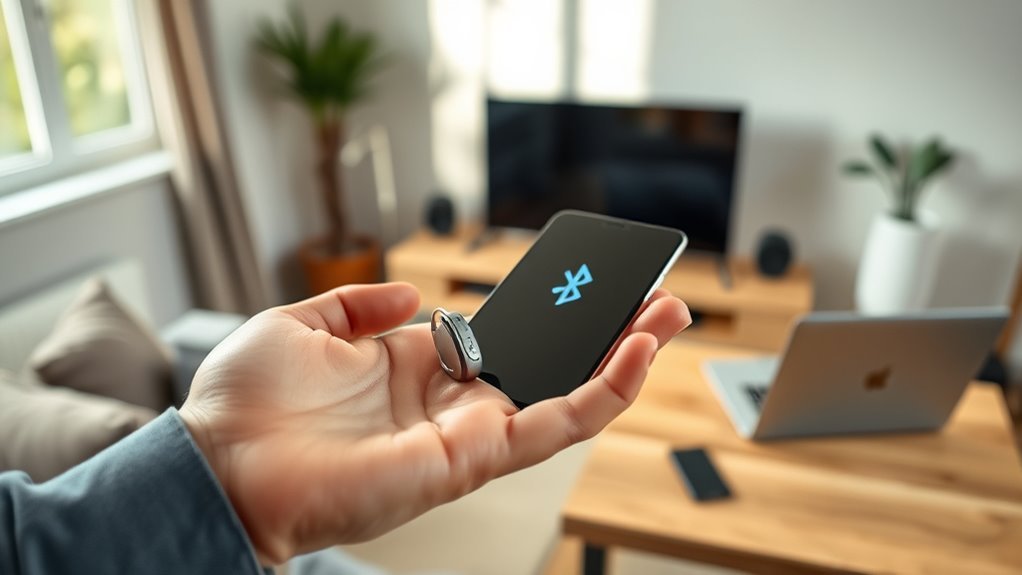
myPhonak compatibility depends on four things: the exact Phonak hearing aid, the smartphone, the phone’s operating system, and the current app or hearing-aid software. As of September 2026, Phonak’s U.S. guidance lists iOS 16 or newer for iPhone and Android 10 or newer on Google Mobile Services-certified devices with Bluetooth 4.2. Users should still verify their exact phone and hearing-aid model before buying or pairing because feature support can vary.
Quick Answer
myPhonak works with many Bluetooth-enabled Phonak hearing aids, but compatibility depends on the exact hearing-aid model, phone, OS, and app version. In the U.S., Phonak currently lists iOS 16+ or GMS-certified Android 10+ with Bluetooth 4.2. Check Phonak’s phone and hearing-aid compatibility pages before purchasing or pairing.
Key Takeaways
- Current U.S. requirements are iOS 16+ or a Google Mobile Services-certified Android device running Android 10+ with Bluetooth 4.2.
- Supported hearing aids include current EON and Infinio products plus many Lumity, Paradise, Marvel, CROS, Sky, Belong, and Terra+ models.
- Features such as health tracking, CROS controls, Remote Support, and advanced sound adjustments vary by hearing-aid model.
- Find My Hearing Aids can show the last known connected location and use signal strength to guide you toward a compatible hearing aid.
- If pairing fails, check internet access, Bluetooth, battery level, pairing mode, flight mode, permissions, phone software, and hearing-aid firmware before re-pairing.
Is Your Phone Compatible With myPhonak?
For the U.S. version of myPhonak, Phonak currently lists the following basic smartphone requirements:
- iPhone: iOS 16.0 or newer and Bluetooth Low Energy capability.
- Android: Android 10.0 or newer, Bluetooth 4.2 or newer, and Google Mobile Services certification.
- Hearing aids: A compatible Phonak model with Bluetooth connectivity.
These are minimum platform requirements, not a guarantee that every phone-and-hearing-aid combination will support every function. Phonak maintains a phone compatibility checker that covers app compatibility, Bluetooth calling, audio streaming, and model-specific connection information.
Note: Phonak publishes region-specific support information, and requirements can change with later app or operating-system releases. Check the compatibility page for your country as well as the App Store or Google Play listing before relying on an older requirement.
The myPhonak app can be installed on more than one smartphone, but a hearing aid can maintain only one myPhonak Bluetooth Low Energy connection at a time. If you regularly switch between two phones, disconnect the aids from myPhonak on the first phone before connecting from the second.
Pro Tip: If you use two phones, make one your primary myPhonak device. This reduces confusion when both phones are nearby and one of them already holds the active app connection.
Meeting the minimum OS requirement is only the first check; the exact phone, hearing-aid model, software version, and desired feature all affect compatibility.
What myPhonak Features Can You Use?
The myPhonak app can provide several types of control for compatible hearing aids. Depending on the model, users may be able to adjust volume, select programs, change equalizer or ambient-balance settings, check battery information, create customized programs, configure selected Bluetooth functions, and connect with a hearing care professional through Remote Support.
Remote control and program adjustments
Basic remote-control functions can include volume, mute, and program selection. More advanced controls depend on the hearing aid. For example, some current Audéo Sphere models offer controls related to their additional noise-reduction and speech-focused processing.
The app changes settings within the capabilities established by the hearing-aid fitting. It does not replace the initial professional fitting or every adjustment that a hearing care professional can make.
Health tracking
Health features are not universal. Phonak’s current support information shows different levels of health-data support depending on the hearing aid. Wearing time and activity-related metrics are available on selected rechargeable EON, Infinio, Lumity, Paradise, and Audéo Fit devices. Heart-rate tracking is specifically associated with Audéo Fit.
Users should therefore check the official health-feature compatibility list rather than assuming that every hearing aid shown in myPhonak provides the same measurements.
Find My Hearing Aids
The Find My Hearing Aids feature is available for hearing aids that Phonak lists as compatible with myPhonak in its current U.S. support documentation. It serves two related purposes:
- It can show the last known location where the hearing aids were connected to the app.
- When the hearing aids are powered and within Bluetooth range, the app can use signal-strength guidance to help the user move closer to them.
This makes the feature useful for a misplaced hearing aid, but the last-known-location display should not be confused with continuous GPS tracking.
CROS controls
Supported CROS systems can offer additional controls. Phonak currently documents CROS muting for selected CROS E, Infinio, Lumity, and Paradise devices when that function has been enabled during fitting. CROS balance adjustment is available on supported CROS Infinio, Lumity, and Paradise systems.
Remote Support
Remote Support can let a hearing care professional conduct a remote appointment and make hearing-aid adjustments in real time. Phonak notes that Remote Support is available in most, but not all, countries, and some older compatible hearing aids do not support every advanced remote function.
Which Hearing Aids Work With myPhonak?
Phonak’s current U.S. myPhonak compatible-hearing-aid list includes the following models:
EON
- Phonak Audéo E Sphere
- Phonak Audéo E
- Phonak CROS E
Infinio
- Phonak Audéo I Sphere
- Phonak Audéo I
- Phonak Virto I-R
- Phonak CROS I
Lumity
- Phonak Audéo L
- Phonak Audéo Fit
- Phonak Audéo Life
- Phonak CROS L
- Phonak Naída L
- Phonak Sky L
- Phonak Slim L
Paradise
- Phonak Audéo P
- Phonak Audéo Fit
- Phonak Audéo Life
- Phonak CROS P
- Phonak Naída P
- Phonak Virto P-312
Marvel and earlier compatible models
- Phonak Audéo M
- Phonak Bolero M
- Phonak Naída M-SP
- Phonak Naída Link M
- Phonak Virto M-312
- Phonak Audéo B-Direct
- Phonak Terra+
Being on the compatibility list does not mean every model receives every myPhonak feature. Advanced Remote Control, Remote Support, health metrics, CROS controls, and other functions can differ by device generation and configuration.
What About Phonak Sky and myPhonak Junior?
Sky Lumity appears on Phonak’s current myPhonak compatibility list, but Phonak also offers myPhonak Junior as its dedicated pediatric app. myPhonak Junior includes child- and caregiver-focused functions such as parental controls and is compatible with selected Sky, Audéo, Naída, CROS, and Bolero hearing aids.
For a child or teenager, the appropriate app should be selected with the hearing care professional based on the hearing aids, age, required controls, and caregiver needs rather than assuming that the standard myPhonak app is automatically the better option.
How Do You Fix Pairing and Connection Issues?
A failed myPhonak connection does not by itself prove that a hearing aid is defective. Setup errors, battery level, Bluetooth state, phone software, hearing-aid firmware, permissions, or wireless interference can all contribute.
Phonak’s current pairing troubleshooting guidance supports the following order:
- Check the internet connection. Internet access is required during the initial myPhonak setup.
- Turn Bluetooth on. Confirm Bluetooth is enabled on the smartphone.
- Check hearing-aid power. Both devices should be on and have enough battery charge.
- Put the aids into pairing mode. This normally involves turning the hearing aids off and back on; follow the model-specific instructions in the app.
- Check flight mode. A hearing aid placed into flight mode will have its wireless function disabled until it is restarted correctly.
- On Android, enable Location Services for initial setup. Phonak states that Location Services are needed during the first pairing process; they are not required for normal app use afterward.
- Restart the phone and hearing aids. This can clear temporary Bluetooth connection problems.
- Refresh Bluetooth. Turn Bluetooth off and back on if the app still cannot find the devices.
- Update the smartphone and myPhonak app. Install available operating-system and app updates.
- Check hearing-aid firmware. If needed, confirm with the hearing care professional that both aids are on supported and matching firmware.
- Forget and pair the hearing aids again. In myPhonak, remove the saved devices and repeat the in-app setup.
- Try another location. Moving away from heavy Bluetooth or wireless congestion can help rule out interference.
What If Only One Hearing Aid Connects?
First check that both hearing aids appear under the app’s device list and that neither has a low battery. Restart both aids and the phone, then refresh Bluetooth.
If only one aid was originally paired, use the app’s option to forget the hearing aids and pair them again together. Phonak also notes that two hearing aids intended to operate as a pair must have been fitted together as a compatible pair. If they cannot be recognized together, a hearing care professional may need to check the fitting configuration.
Both hearing aids should also use the same firmware version when they are intended to operate as a pair.
Why Does the App Work but Calls or Music Do Not?
App control and phone-call or media streaming are related but not always identical Bluetooth connections. On some earlier Phonak generations, successfully connecting the hearing aids to myPhonak does not complete every pairing step required for calls and audio streaming.
If myPhonak controls work but phone calls or music do not, open the app’s device or connection settings and follow the model-specific streaming instructions rather than repeatedly deleting the myPhonak pairing.
Note: Persistent fitting, firmware, or two-hearing-aid pairing problems are appropriate reasons to contact a hearing care professional. The app cannot correct every programming or hardware issue from the phone.
What Should You Do After an Android Update?
An Android update can change Bluetooth behavior, permissions, or audio profiles even when the hearing aids were working normally beforehand. If myPhonak becomes unreliable immediately after an update, work through the connection in a controlled order rather than repeatedly changing multiple settings at once.
- Install any additional Android patches offered for the phone.
- Update myPhonak through Google Play.
- Check that Bluetooth is enabled.
- Restart the phone and both hearing aids.
- Check for hearing-aid firmware updates.
- If necessary, forget the hearing aids in myPhonak and pair them again.
- Test app control and audio streaming separately.
Phonak’s U.S. phone compatibility page currently identifies Bluetooth disconnections or limited hearing-aid functionality on some Samsung Galaxy devices using Android with One UI 6.x. Phonak recommends updating the phone and hearing-aid firmware first and provides additional device-recovery guidance for affected phones if ordinary updating and re-pairing do not solve the problem.
Because recovery-mode button combinations and software behavior vary among phones, use Phonak’s current instructions for the exact device rather than applying an old Samsung workaround from an unrelated model.
Frequently Asked Questions
What Are the Compatibility Requirements for the myPhonak App?
As of September 2026, Phonak’s U.S. support information lists iOS 16.0 or newer for iPhone. For Android, it lists Android 10.0 or newer on a Google Mobile Services-certified device supporting Bluetooth 4.2. A compatible Bluetooth-enabled Phonak hearing aid is also required. Regional requirements can differ, so check Phonak’s compatibility page for your market.
Can I Use myPhonak on Two Phones?
Yes. myPhonak can be installed on more than one phone, but the hearing aids can maintain only one active myPhonak Bluetooth Low Energy connection at a time. Disconnect them from the app on one phone before switching control to the other.
Does Phonak Sky Work With myPhonak?
Phonak’s current U.S. compatible-device list includes Sky L, or Sky Lumity. Phonak also offers myPhonak Junior as its dedicated pediatric app. For a child or teenager, the preferred app depends on the hearing aids, needed controls, parental features, and the hearing care professional’s recommendation.
Why Did Costco Drop Phonak?
The public record does not support the claim that Costco dropped Phonak because of 2021 private-label margin data. In 2022, the Sonova-made Kirkland Signature 10 was removed amid reports involving rechargeability, and Sonova subsequently said it was focusing Phonak distribution on strategic channels and eliminating its offering in certain large retail chains. Costco did not publish a detailed explanation establishing the margin claim made in the original article.
What Are Common Phonak Hearing Aid Problems?
Users can encounter low battery or charging problems, app pairing failures, Bluetooth interruptions, streaming problems, blocked microphones or receivers, or changes in sound quality. Troubleshooting depends on the symptom. For myPhonak specifically, check battery power, Bluetooth, pairing mode, software, firmware, permissions, and the saved device connection before assuming the hearing aid itself has failed.
Which Phonak Model Is Considered the Best?
There is no single Phonak model that is best for every user. Current families include newer EON and Infinio products as well as Lumity and earlier compatible platforms. The right choice depends on the person’s hearing loss, fitting needs, preferred style, rechargeability, CROS requirements, health features, connectivity, and professional recommendation. Audéo Paradise remains compatible with myPhonak, but it should not automatically be described as Phonak’s best current model.
Sources
- Phonak — myPhonak App User Guide and Compatibility Requirements — supports current U.S. iOS, Android, Bluetooth, and device requirements.
- Phonak — Hearing Aids Compatible With myPhonak — supports the current compatible-hearing-aid list.
- Phonak — Phone Compatibility Checker — supports phone-specific compatibility checks and current Android/One UI troubleshooting guidance.
- Phonak — myPhonak Pairing and Connection Troubleshooting — supports internet, Bluetooth, battery, pairing-mode, flight-mode, and Android setup checks.
- Phonak — Find My Hearing Aids — supports the last-known-location and proximity-guidance explanation.
- Phonak — myPhonak Health Feature Compatibility — supports model-specific health tracking limitations.
Conclusion
myPhonak compatibility is broader than a simple yes-or-no phone check. The smartphone must meet the applicable OS and Bluetooth requirements, the hearing aid must be on Phonak’s supported list, and individual functions can still depend on the hearing-aid generation, firmware, app version, and region.
Before purchase, verify both the hearing aid and the exact phone through Phonak’s current compatibility resources. If an existing setup stops working, check power, Bluetooth, pairing mode, software updates, firmware, permissions, and the saved connection before starting over. A failed app connection may temporarily remove remote controls or connected functions, but it does not automatically mean the hearing aids themselves have stopped providing amplification. Persistent fitting, firmware, or device-pairing problems should be checked by a hearing care professional.

