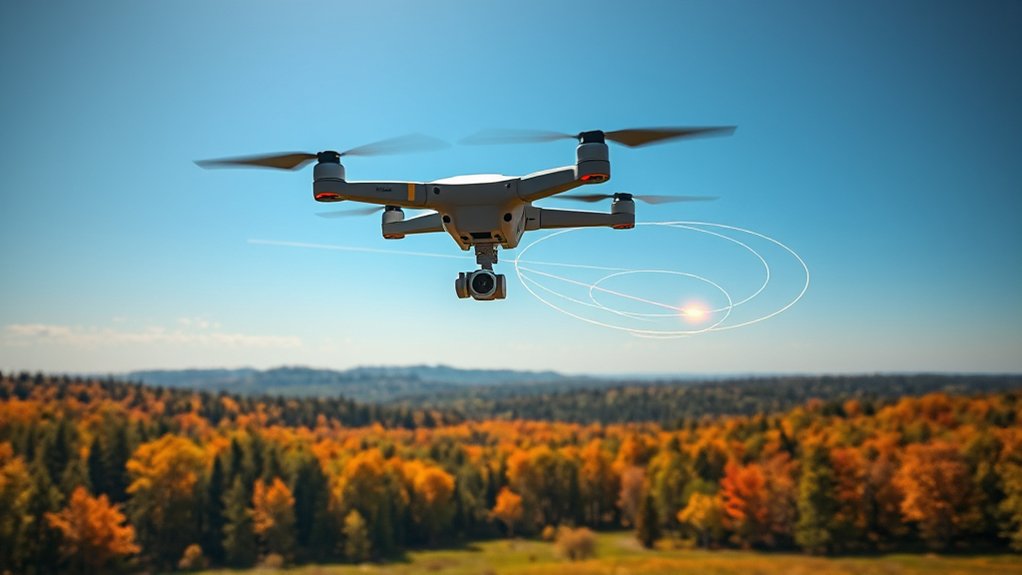
Drone flight modes can look confusing at first, but each one serves a clear job. Waypoints help you build a planned flight path, orbit mode helps you circle a subject, hovering gives you stable shots, and follow modes help track movement. When you understand how each mode works, you can plan safer flights and capture smoother aerial footage.
Quick Answer
Use waypoints for planned, repeatable drone routes. Use orbit mode when you want a smooth circle around a subject. Use hovering when you need a steady shot from one position. Use follow modes when you want the drone to track a moving person, bike, car, or other subject.
Key Takeaways
- Waypoints work best for repeatable routes, mapping, inspections, and planned camera moves.
- Orbit mode creates cinematic movement by circling a subject or point of interest.
- Hovering helps you capture stable photos, video clips, and detailed observations.
- Follow modes can track moving subjects, but they still need clear space, good GPS, and pilot attention.
- Always check local drone rules, obstacles, wind, battery level, and return-to-home settings before using automated modes.
At a Glance
| Best For | Choosing the right drone mode for aerial footage, mapping, inspections, and moving subjects |
| Difficulty | Beginner to intermediate, depending on drone model and flight environment |
| Tools Needed | Drone, controller, flight app, charged batteries, updated firmware, and a safe open test area |
| Safety Check | Confirm GPS lock, obstacle clearance, return-to-home altitude, airspace limits, and battery reserve before launch |
Understanding Waypoints
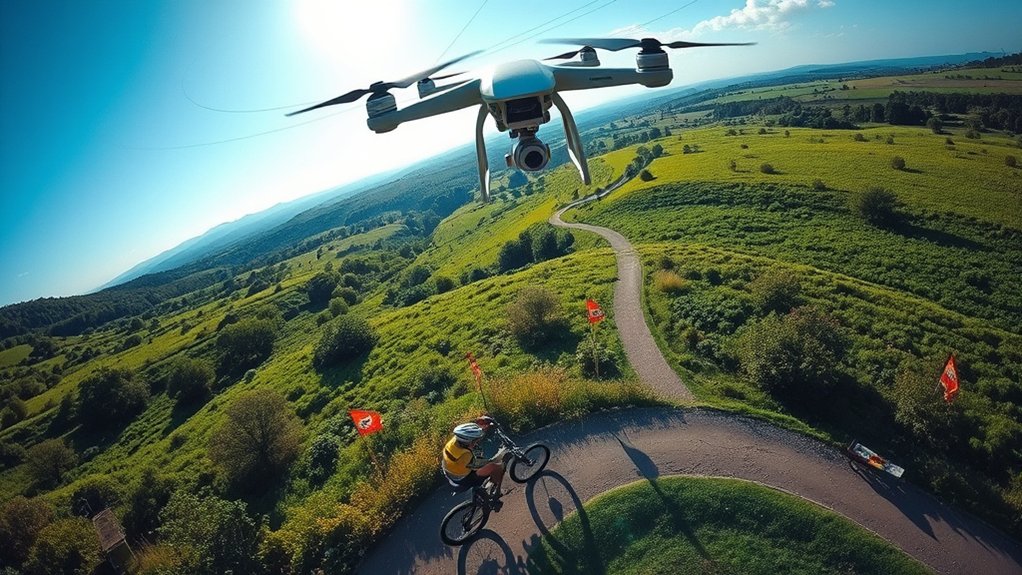
Waypoints serve as navigational markers for drones. They help your drone follow a planned route instead of relying only on manual stick control. In simple terms, each waypoint tells the drone where to go next.
You can use waypoints for autonomous flight tasks such as mapping, site checks, roof inspections, landscape footage, and construction progress videos. They are especially helpful when you need the drone to fly the same route more than once.
You can often customize waypoint missions by adjusting speed, altitude, heading, gimbal angle, and camera actions. Some advanced DJI waypoint systems support a very large number of waypoints, including up to 65,535 in supported Waypoints 2.0 workflows. However, the exact limit depends on your drone, app, firmware, and mission software.
To record waypoints, fly your drone to each desired location and save each point inside the flight app. Many DJI-style waypoint workflows recommend spacing points more than 16 feet apart, but you should always follow the limits shown in your own app. Good spacing helps create a smoother route and lowers the chance of sharp, unsafe changes in direction.
Some waypoint systems can continue the mission during a brief controller connection loss. That feature can improve mission reliability, but it does not remove your responsibility as the pilot. You still need to plan a safe route, maintain awareness, and know how to regain control.
Warning: Never use waypoints to fly beyond legal limits, into restricted airspace, near people, over roads, or around obstacles you have not checked in person. Automated flight still needs active pilot supervision.
How to Set Up Waypoints
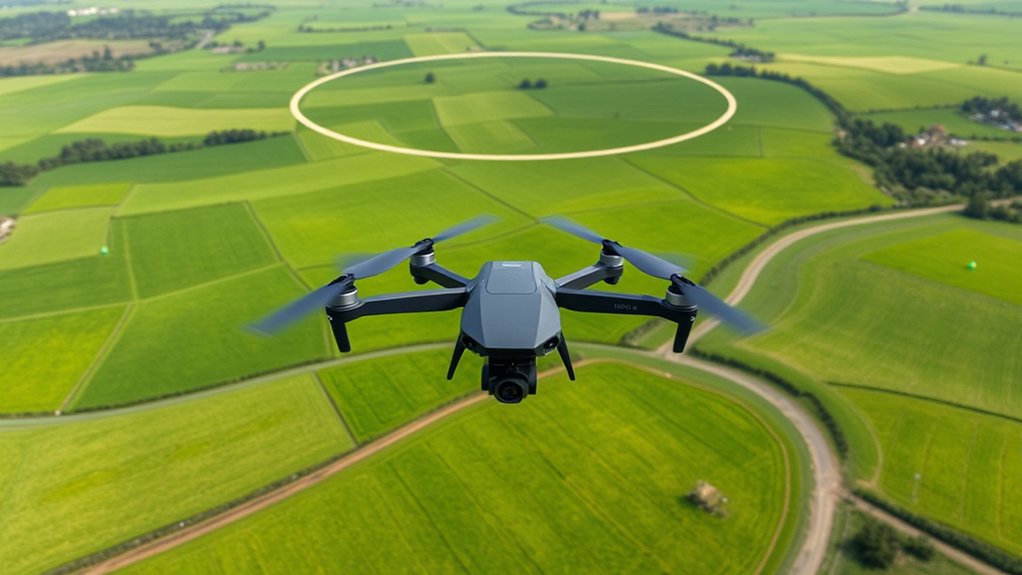
To set up waypoints effectively, start by powering on your drone and connecting it to the remote controller. Then open the correct flight app for your drone model. Older DJI drones may use DJI GO or DJI GO 4, while newer models may use DJI Fly, DJI Pilot, or another supported app.
Next, select the waypoint or mission-planning mode if your drone supports it. Not every drone model includes native waypoint flight, so check your app menu before planning a job. If your model does not support waypoints, you may need a different drone or compatible mission-planning software.
Confirm that waypoints are spaced safely apart. The original 16 ft spacing rule is useful for some DJI waypoint workflows, but you should also consider trees, buildings, poles, wires, terrain changes, and wind. A route that looks safe on a map can still be risky in the air.
Configure essential mission parameters before launch. These include speed, altitude, heading, camera angle, photo or video actions, route direction, return-to-home altitude, and what the drone should do when the mission ends. You can often start the mission from a selected waypoint, and the drone will climb to the set altitude before continuing.
Here’s a quick reference table for your waypoint settings:
| Parameter | Setting |
|---|---|
| Minimum Spacing | > 16 ft where supported or as required by your app |
| Speed | User-defined and safe for the area |
| Altitude | User-defined with obstacle clearance |
| Return-to-Home Alt. | User-defined above nearby obstacles |
| Start from | Any supported waypoint |
After completing the mission, exit intelligent flight mode using the flight mode switch or app control. Then confirm you have full manual control before moving the drone closer to obstacles, people, or landing areas.
Pro Tip: Run your first waypoint mission in a wide open field at a slow speed. Watch how the drone turns, climbs, stops, and points the camera before using the same settings on a real project.
Benefits of Using Waypoints
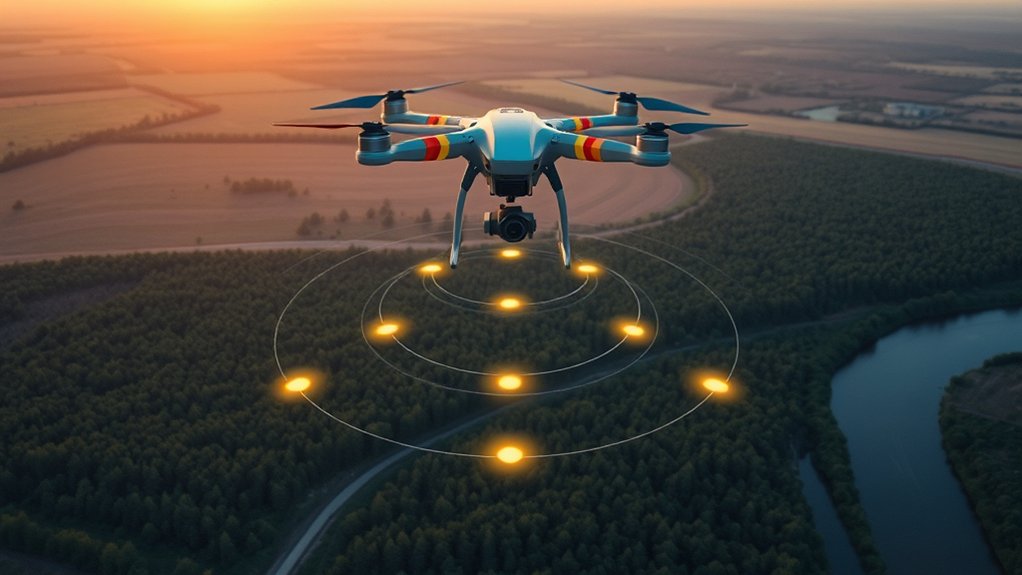
While planning autonomous flight paths, leveraging waypoints offers major advantages for drone operators. The biggest benefit is repeatability. You can send the drone along the same route again and compare footage, photos, or site data over time.
Waypoints help you plan flight paths by customizing speed, altitude, heading, gimbal angle, and camera settings for each waypoint. With supported advanced systems such as Waypoints 2.0, some workflows can use up to 65,535 waypoints, allowing more complex mission planning and execution.
This is especially useful for tasks that demand consistency, such as aerial mapping, construction site monitoring, roof checks, crop surveys, and property documentation. A planned route helps your drone follow the same path each time, which makes before-and-after comparisons easier.
Waypoint actions can also improve photo and video capture. You can tell the drone to take photos, start recording, stop recording, rotate the camera, hover, or change heading at set points. That reduces rushed manual inputs and helps you focus on the overall mission.
The system’s ability to maintain automated flight during a temporary controller connection loss can also improve mission reliability. Still, this feature should never be treated as a reason to ignore signal strength, battery level, or flight path safety.
Exploring Orbit Mode
Orbit mode enhances your drone’s capabilities by allowing it to circle around a designated point of interest. This creates dynamic visual perspectives that work well for aerial photography and videography.
You can use orbit mode for homes, landmarks, vehicles, boats, event spaces, towers, outdoor features, and scenic views. Instead of flying straight past the subject, the drone moves around it while the camera keeps the subject near the center of the frame.
You can usually set the altitude of the orbit relative to your takeoff point. The radius defines how far the drone will fly from the center. A wider radius gives a grander view, while a tighter radius feels more dramatic but needs more obstacle clearance.
Experimenting with yaw-smoothness settings can improve motion fluidity. A value around 10 may work well in some tested setups, while other drones and apps may use different scales. Start with slower, smoother settings before trying faster or tighter circles.
You may also be able to initiate orbiting from your current drone position using custom functions like “POI at device” and “Orbit at Aircraft.” These tools add flexibility because you can set the orbit center based on the controller, the aircraft, or a chosen subject.
For more advanced users, FPV mode can deliver smoother or more creative orbits. However, FPV-style movement requires more manual control and practice. Use it only after you can keep a safe line, steady speed, and clear obstacle margin.
Note: Orbit mode may not detect thin obstacles like wires, branches, poles, or cables. Walk the area first and keep the orbit radius clear before you start.
When to Use Orbit Mode
You should use orbit mode when you need to capture dynamic aerial photography. It lets your drone circle a subject and show varied visual perspectives without requiring constant manual steering.
This mode is also effective for monitoring moving subjects in controlled conditions. It can help you maintain focus while adjusting the camera angle, but it works best when the subject movement is predictable and the flight area is open.
Orbit mode can also help you capture complex perspectives that would be difficult to achieve with standard waypoint missions. It adds motion, depth, and context to shots that might otherwise look flat.
Dynamic Aerial Photography
When capturing dynamic aerial photography, using orbit mode can improve your footage by allowing the drone to circle around the subject. This technique provides diverse angles and perspectives, which helps with visual storytelling.
To optimize your orbit shots, consider the following settings:
| Setting | Recommended Value | Purpose |
|---|---|---|
| Yaw Smoothness | Around 10 where supported | Improves fluidity of motion |
| Radial Speed | About 3.5 degrees/sec for slow shots | Helps create smooth transitions |
| Altitude | Consistent | Maintains stability |
| Radius | Adjustable | Centers subject in frame |
| POI at Device | Enabled when useful | Focuses on specific subjects |
For the smoothest results, keep the orbit slow, avoid sudden altitude changes, and keep your subject centered. Fast orbits can look exciting, but they also increase blur, framing errors, and collision risk.
Monitoring Moving Subjects
Utilizing orbit mode is particularly effective for monitoring moving subjects when the movement is controlled and the area is clear. It keeps the focus centered while allowing the drone to move around the subject.
To achieve ideal results, set your altitude around 50 meters only when that height is legal, safe, and appropriate for your location. This can give a clear view of the subject while keeping the drone above many ground-level obstacles.
Maintain a radius of 30 to 50 meters for smoother orbits and to minimize collision risks. A slow yaw rate of approximately 3.5 degrees per second can help capture stable footage, especially when the subject is moving.
Using the “POI at device” function can help set the orbit center at your takeoff point or controller location, depending on your app. This improves control and precision in your monitoring efforts. It also allows dynamic perspectives while keeping the subject more consistently in focus.
Capturing Complex Perspectives
Orbit mode not only enhances monitoring of moving subjects but also excels in capturing complex perspectives during aerial photography and videography.
By allowing your drone to circle around a specific point of interest, you can create dynamic and engaging footage. Integrating an orbit mission component within your waypoint settings may also allow more intricate flight paths, resulting in unique visual narratives.
The altitude remains consistent relative to your takeoff point, while you can adjust the radius for varying distances. Using the “POI at device” function centers the orbit around your selected subject, whereas “Orbit at Aircraft” offers precise control from your current position.
Additionally, tweaking yaw-smoothness settings can enhance movement fluidity, ensuring smooth shifts and minimizing jitter in your shots. For best results, combine smooth yaw, slow speed, and a clean background that helps the subject stand out.
The Advantages of Hovering
Hovering presents several advantages that enhance aerial imaging and observation. Instead of moving along a route, the drone holds a fixed position while the camera captures a steady view.
By maintaining a fixed position, you can achieve high-quality results tailored to your mission’s requirements.
Here are some key benefits of hovering:
- Provides stable image and video capture, reducing motion blur.
- Default hover time of 3 seconds can be adjusted for flexibility in supported waypoint workflows.
- Enhances mission planning by integrating pauses between waypoints.
- Ideal for precise positioning in monitoring construction sites or environmental surveys.
- Gives you time to reframe the camera before the drone continues its route.
- Helps capture sharper still photos when lighting or wind conditions are challenging.
Utilizing hovering allows you to focus on detailed observations and captures, ensuring clearer, professional-quality images.
Hovering enables detailed observations, helping you capture clearer images and steadier video clips for inspections, mapping, and creative projects.
It’s a strategic tool for scenarios that demand accuracy and stability. Whether you’re surveying a landscape or documenting progress on a project, hovering helps you get better results from your aerial operations.
Hovering is also useful when you need to pause between complex camera moves. For example, you can fly to a waypoint, hover for five seconds, tilt the camera down, capture a photo, and then continue to the next point.
Follow Modes Explained
Follow modes are essential tools for automating drone tracking of moving subjects. Each mode is designed for a specific type of movement, framing, or camera control.
You’ll find modes like ActiveTrack and Spotlight cater to different filming needs. These features can improve your ability to capture dynamic content, especially when filming people, vehicles, bikes, boats, or outdoor activities.
However, follow modes are not fully hands-off. They rely on GPS, visual sensors, subject contrast, lighting, and clear surroundings. Dark scenes, similar-colored backgrounds, fast turns, thin obstacles, and crowded areas can reduce tracking performance.
Understanding their best use cases and limitations will optimize your drone operation and improve your overall filming experience.
Types of Follow Modes
Many drone enthusiasts appreciate the diverse range of follow modes available, as these features greatly enhance their filming capabilities.
Understanding the types of follow modes can improve your drone operation experience. Here’s a quick overview:
- Follow Me: Autonomously tracks and follows a moving subject, making it useful for action shots where supported.
- ActiveTrack: Maintains focus on the subject while executing more complex flight paths for creative shots.
- Profile Mode: Captures subjects from the side, providing a dynamic perspective.
- Spotlight Mode: Keeps the camera focused on a subject while you control the drone’s flight path.
Each mode uses a mix of GPS, visual sensors, and software processing for tracking. Still, knowing their limitations is vital for strong performance in different conditions.
Best Use Cases
Utilizing follow modes effectively can greatly enhance your drone’s filming potential, particularly in dynamic environments.
These modes excel when tracking moving subjects, like vehicles or people, while maintaining a consistent distance and altitude. The “Active Track” feature is useful for sports, hiking, biking, running, boating, and outdoor activities, allowing the drone to capture fast-paced action.
For landmark or event footage, the “Point of Interest” (POI) mode circles around a subject while keeping the camera focused. This creates smooth, polished visuals with less manual steering.
However, maintain a clear line of sight and stable GPS for better performance. Also set the drone’s altitude and speed appropriately to avoid obstacles and maintain smooth operation.
These considerations will maximize your drone’s capabilities in various filming scenarios. They also help protect your subject, your drone, and anyone nearby.
Follow Mode Limitations
Follow modes can feel impressive, but they have limits. Your drone may lose the subject if it moves behind trees, turns sharply, blends into the background, or moves too close to another object.
Obstacle avoidance can also vary by drone model. Some drones detect obstacles in several directions, while others detect them only in front, behind, or below. Thin objects such as power lines, fishing line, branches, and fence wire may not be detected reliably.
Before using follow mode, choose an open area, start at a slow speed, and keep your fingers near the controls. If the drone drifts, loses the subject, or approaches an obstacle, cancel the mode and take manual control.
Best Practices for Aerial Footage
When capturing aerial footage, employing waypoints can greatly enhance the consistency and quality of your shots. By using waypoints, you create precise and repeatable flight paths, which is vital for tasks like mapping, inspections, and monitoring structures.
Using waypoints helps create precise, repeatable flight paths, which can improve footage consistency for mapping, inspections, and monitoring tasks.
Here are some best practices to consider:
- Use orbit functionality to create dynamic shots that circle around your subjects and add visual interest.
- Implement hover components between waypoints to capture stable images or videos.
- Adjust your drone’s heading settings during waypoint missions to keep the camera focused on the subject.
- Test your techniques in open areas before actual missions to refine your approach.
- Check wind, battery level, GPS strength, compass status, and obstacle clearance before every automated flight.
- Set a safe return-to-home altitude that clears nearby trees, buildings, poles, and terrain.
- Keep camera moves slow unless you want a fast action style.
- Record a short test clip before the main shot to check exposure, framing, focus, and movement.
Good aerial footage usually comes from simple, controlled movement. Slow forward pushes, gentle climbs, steady orbits, and clean hover shots often look better than fast, complicated paths.
Choosing the Right Mode for Your Shot
How do you determine which flight mode best suits your aerial shooting needs? Start by asking what the shot must do. Do you need a repeatable route, a cinematic circle, a steady inspection view, or tracking for a moving subject?
Understanding the specific requirements of your shot is essential. Below is a table to help you choose the right mode effectively:
| Flight Mode | Best Use Case | Key Features |
|---|---|---|
| Waypoints | Aerial mapping, construction monitoring | Precise, repeatable paths; fixed altitude and speed |
| Orbit | Dynamic shots of subjects | 360-degree perspectives; enhances visual appeal |
| Follow | Tracking moving subjects | Maintains distance and orientation; ideal for people/vehicles |
| Hover | Stable observation | Short pauses for focused capture; useful between waypoints |
| Combination | Complex mission planning | Merges systematic coverage with dynamic subject shots |
If you are filming real estate, orbit mode can show the property from several angles. If you are documenting a job site every week, waypoints may work better. If you are filming a cyclist or runner, follow mode may be the right choice. If you need a clean inspection photo, hover mode often gives the sharpest result.
Pre-Flight Safety Checklist for Automated Modes
Automated drone modes can help you fly smoother routes, but they also make planning more important. Before launching a waypoint, orbit, hover, or follow mission, complete a basic safety check.
- Confirm the flight area is legal for drone use.
- Check airspace restrictions and local rules before takeoff.
- Inspect the drone, propellers, battery, gimbal, and controller.
- Confirm firmware and app settings are working correctly.
- Set a safe return-to-home altitude.
- Look for wires, trees, poles, buildings, people, animals, and vehicles.
- Check wind speed and weather conditions.
- Make sure your memory card has enough free space.
- Keep the drone within your visual line of sight where required.
- Be ready to pause, cancel, or take manual control at any time.
This checklist is especially important for waypoint and follow modes because the drone may continue moving while you are focused on the camera view. Keep watching both the screen and the actual aircraft.
Common Mistakes to Avoid
Many new drone pilots make the same mistakes when using intelligent flight modes. These errors can lead to shaky footage, missed shots, or unsafe flight paths.
- Flying too fast: Fast movement can make footage look rushed and can reduce reaction time.
- Setting return-to-home too low: The drone may not clear trees or buildings on its way back.
- Ignoring wind: Wind can push the drone off a planned route or drain the battery faster.
- Starting near obstacles: Orbit and follow modes need more open space than many pilots expect.
- Trusting obstacle avoidance too much: Sensors do not detect every object in every direction.
- Using the wrong mode: Waypoints, orbit, hover, and follow modes each solve different problems.
Start simple. A slow orbit, short waypoint route, or short follow-mode test can teach you more than a complex mission that tries to do everything at once.
Related Guides
Frequently Asked Questions
What is waypoint mode?
Waypoint mode lets you program your drone to fly between specific GPS locations or saved points. You can often set speed, altitude, heading, gimbal angle, and camera actions at each waypoint. It works well for mapping, inspections, progress videos, and repeatable routes.
What are the flight modes on the Mini 2?
The DJI Mini 2 includes Normal mode for standard flying, Sport mode for faster response, and CineSmooth mode for slower, steadier footage. It does not offer the same full intelligent tracking tools found on some higher-end DJI models.
What are the benefits of using waypoints?
Waypoints improve mission precision by letting your drone follow a planned route with set actions at each point. They are useful for aerial mapping, photography, construction monitoring, inspections, and any project where repeatable flight paths matter.
Does the DJI Mini SE have Follow Me mode?
No, the DJI Mini SE does not include a full built-in Follow Me mode like some more advanced drones. You can still create moving shots manually, but it does not provide the same automated subject-tracking experience.
Is orbit mode the same as Point of Interest mode?
They are closely related. Orbit mode usually describes the drone circling a subject, while Point of Interest mode often describes setting the center point the drone should circle. App names vary by drone model and software version.
Which drone mode is best for beginners?
Hovering and slow manual flight are best for beginners. Once you feel comfortable, try short orbit shots and simple waypoint routes in an open area. Save follow modes and complex missions for later, after you understand how your drone reacts.
Conclusion
In the end, choosing between waypoints, orbit mode, hover, or follow modes does not need to feel as complex as piloting a spaceship. Each mode has a simple purpose once you match it to the shot you want.
Use waypoints when you need a planned route. Use orbit mode when you want a smooth circle around a subject. Use hovering when you need stable detail. Use follow mode when your subject is moving and the area is open enough for safe tracking.
With a little practice, you’ll know when to let the drone do the work and when to take manual control. After all, every skilled drone pilot started with a simple hover, a safe open space, and a plan to improve one flight at a time.
Sources
- Federal Aviation Administration UAS — general U.S. drone safety and operating guidance.
- FAA Recreational Flyers and Community-Based Organizations — recreational drone rules and safety guidance.
- FAA Commercial Operators — commercial drone operation information for U.S. pilots.
- DJI Fly Safe — DJI safety, geofencing, and flight planning resources.

