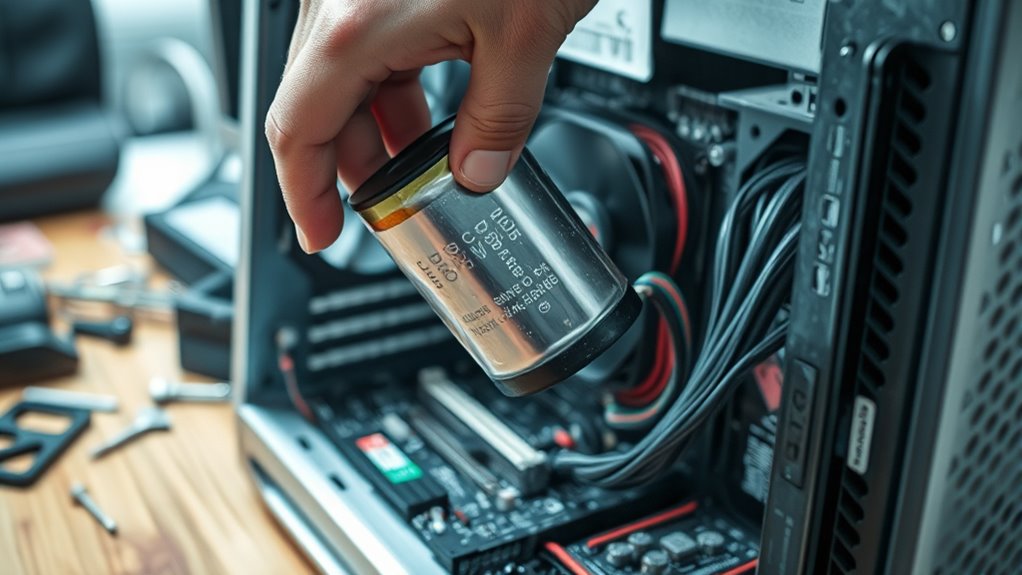
When checking a PC battery, the key result is its health status and remaining capacity. In Windows, BIOS/UEFI, or Dell tools, compare full charge capacity with design capacity and review cycle count. Excellent or Good means the battery is still serviceable. Fair means capacity is dropping and replacement should be planned. Poor or Unknown usually indicates a worn battery that should be replaced soon, especially if runtime is unstable or shutdowns occur. More detail follows below.
Key Takeaways
- Check the battery report or BIOS status to see capacity, cycle count, and health labels.
- Excellent or Good means the battery is still usable and only needs monitoring.
- Fair means capacity is dropping, so plan a replacement soon.
- Poor or Unknown means the battery should be replaced immediately.
- If battery life is shortening fast, reduce power use and consider using a new charger.
Why Your Laptop Battery Fails

Laptop batteries fail primarily because of age, as their capacity naturally declines over time and results in shorter run times and reduced performance. This aging process is the main driver of battery failure in portable systems.
Each full charge and discharge adds a charge cycles count, and repeated cycling steadily reduces usable capacity. Heat and cold also damage battery performance by stressing internal chemistry, making degradation faster.
Heavy applications increase power draw, forcing deeper drains and more frequent recharging, which can shorten service life when power management is weak. These factors combine silently, limiting mobility and control.
A battery that once supported freedom from the outlet may eventually deliver only brief operation. Practical maintenance focuses on limiting unnecessary strain, avoiding extreme temperatures, and recognizing that battery performance is finite.
Regular diagnostics can reveal decline early, before battery failure becomes disruptive.
Check Battery Health in Windows
Windows provides a straightforward way to assess battery condition before declining capacity becomes a larger problem. Open Command Prompt and run `powercfg /batteryreport`; Windows saves a detailed report in the user directory. That report shows design capacity, full charge capacity, and recent charge cycles, so one can judge whether the pack still behaves like a new battery or is losing endurance.
| Check | Value |
|---|---|
| Design capacity | Factory target |
| Full charge capacity | Current maximum |
| Charge cycles | Wear trend |
Windows Settings also helps: System > Power & battery > Battery usage by app. There, one can make sure power-hungry apps are not forcing the laptop run down faster than necessary. Review the list, adjust background activity, and reduce waste. Regular checks expose degradation early, making replacement decisions timely and deliberate. When capacity falls sharply, the battery is nearing the end of usable life, and a swap restores mobility and control.
Check Battery Health in BIOS or UEFI
Battery status can be accessed from BIOS or UEFI by entering setup during startup, typically with F2 or Delete.
In the battery information section, health indicators such as capacity, charge cycles, and status labels like Good or Poor are displayed.
Diagnostic warnings or replacement alerts from firmware can confirm whether the battery requires maintenance or replacement.
Access BIOS Battery Status
Entering the BIOS or UEFI settings offers a straightforward way to review battery health without additional software. In the battery or power management area, the system may report charge capacity, health state, and cycle count.
Such data supports independent judgment about laptop performance and battery longevity, without relying on vendor tools or operating-system overlays. Some interfaces also show current charge and remaining capacity in watt-hours, which helps quantify usable energy.
A status label such as Excellent, Good, Fair, Poor, or Unknown can indicate whether replacement is becoming necessary. Regular inspection in BIOS or UEFI keeps power management transparent and lets the user act early, preserving mobility and minimizing avoidable downtime.
Locate Health Indicators
After opening the BIOS or UEFI during startup, the user should locate the battery or power section to review the available health indicators. In this menu, the firmware may show charge capacity, voltage, and overall status, giving a direct read on battery condition.
A “Good” result indicates normal operation, while “Fair” or “Poor” reflects declining health. Some systems extend health report analysis with charge cycle counts and remaining-life estimates, which support disciplined maintenance decisions.
This approach supplements battery monitoring tools and diagnostic software options when operating systems are unavailable or restricted. Regular checks help identify degradation early, before performance drops or shutdowns disrupt work.
For users seeking autonomy over their machines, BIOS-based inspection remains a practical, low-level method.
Review Replacement Alerts
During BIOS or UEFI startup checks, the battery health report should be reviewed for replacement alerts and status labels such as “Excellent,” “Good,” “Fair,” or “Poor.” Some systems also display error codes, including 2000-0132, which can indicate the battery is nearing the end of its usable life.
These readings establish replacement criteria and support practical maintenance decisions.
- Check remaining capacity and cycle count.
- Compare current status against prior reports.
- Replace when diagnostic tools show persistent decline.
Regular inspection improves battery longevity by exposing degradation before failure. BIOS and UEFI screens provide direct, vendor-level diagnostics without reliance on operating-system software, helping users plan replacement on their own terms.
When health drops to Fair or Poor, timely action preserves mobility and reduces downtime.
Check Battery Status With Dell Tools
Dell laptops provide several built-in tools for checking battery status and health. Dell Optimizer displays real-time charge data and health metrics, helping users gauge whether the pack still meets daily demands.
Dell Power Manager exposes power management settings and performance profiles, enabling practical battery optimization tips for longer runtime without surrendering control. BIOS or UEFI screens add a fast view of charge cycles, maximum capacity, and comparison with original specifications, useful when independence from Windows is needed.
A Windows battery report, generated through Command Prompt, supplies historical capacity trends and usage patterns. Dell On-Board Diagnostics can also reveal error codes tied to installation status or end-of-life conditions.
Together, these utilities support informed decisions, while software updates importance remains clear because current firmware and drivers often improve battery monitoring accuracy and efficiency.
Run Dell Battery Diagnostics
Once basic battery status has been reviewed, Dell’s diagnostics can be used to confirm whether the pack is operating normally or showing signs of failure. SupportAssist is the fastest route; it automatically detects issues and applies software solutions for battery checks.
If deeper testing is needed, the BIOS/UEFI path is available by pressing F12 at startup and choosing diagnostics. This approach can surface Dell On-Board Diagnostics details, including codes such as 2000-0131, which indicates a battery not installed.
- Launch SupportAssist and run the battery test.
- Use BIOS/UEFI diagnostics for hardware-level confirmation.
- Record any error codes and health category for follow-up.
These troubleshooting techniques support battery maintenance tips by showing whether performance remains Excellent, Good, Fair, Poor, or Unknown.
Repeating diagnostics over time gives a clear record of degradation, helping users decide when maintenance is enough and when replacement becomes the practical path to restoring laptop autonomy.
What Battery Health Results Mean
Battery health results are typically grouped into status levels that reflect remaining capacity and operating condition.
Excellent and Good indicate usable charge retention, while Fair, Poor, and Unknown point to increasing loss of capacity and reduced reliability.
As the status declines, the need for battery replacement becomes more urgent.
Health Status Levels
Health status results provide a quick indication of overall battery condition and whether replacement is needed. Excellent means the battery is operating at maximum capacity with no immediate action required, while Good indicates normal charging but reduced capacity compared with new.
- Fair: The battery is nearing the end of its usable life; monitoring and planning for replacement are prudent.
- Poor: Power delivery is insufficient; immediate replacement is recommended to prevent performance loss.
- Unknown: The battery may be non-operational; replacement is the practical path to restore function.
These levels support battery maintenance tips, disciplined charging habits, and attention to environmental factors that can accelerate decline.
A clear status reading helps users act decisively, preserve device freedom, and avoid avoidable downtime.
Capacity Meaning
Capacity serves as a practical measure of how much charge a battery can retain, and it typically declines with age and repeated charge cycles.
In battery terminology, this capacity measurement reflects the gap between original design performance and current storage ability. An Excellent result means the pack still holds near its intended charge. Good indicates some loss, yet the system remains usable. Fair shows a clear reduction in reserve, with limited margin for sustained work. Poor signals that usable charge is too low for reliable operation.
These readings are shaped by lifespan factors such as aging, heat, and cycle count. Regular diagnostics help track capacity trends, supporting informed decisions and preserving device autonomy with minimal dependence on failing hardware.
Replacement Signals
The reported battery health result provides a direct indication of whether continued use is practical or replacement should be planned.
Excellent status means maximum capacity and no urgent action, supporting extended battery lifespan.
Good status remains serviceable, but monitoring helps anticipate replacement frequency and preserve autonomy.
Fair status marks declining reserve; replacement should be scheduled soon, with upgrade options reviewed before performance degrades further.
Poor status shows inadequate delivery and should trigger immediate battery replacement to prevent interruptions.
Unknown status indicates a non-operational pack and requires replacement to restore function.
- Excellent or Good: continue use, track trends.
- Fair: prepare replacement and compare upgrade options.
- Poor or Unknown: replace now to regain control.
Improve Battery Life or Replace It
To determine whether a Dell battery should be maintained or replaced, its health should be checked regularly using the Windows battery report or Dell Power Manager. If status reads Fair or Poor, replacement is the practical path to avoid shutdowns and preserve control over work.
| Action | Effect |
|---|---|
| Reduce brightness | Lowers drain |
| Disable Bluetooth/Wi‑Fi | Extends runtime |
These battery optimization tips support energy saving techniques without reducing autonomy. Calibrate the battery by fully charging and fully discharging it periodically; this can stabilize readings and improve performance. Charging habits also matter: use original Dell chargers to keep voltage correct and limit degradation. When the battery remains healthy, disciplined settings can stretch service life. When it no longer holds capacity, replacement restores reliability and frees the system from uncertainty. The decision should be based on measured health, not delay.
Frequently Asked Questions
How Do I Check My PC Battery?
It checks battery health by running `powercfg /batteryreport`, reviewing BIOS/UEFI, or using Dell diagnostics; these methods expose capacity, cycles, and status. Practical charging tips support lifespan extension, while poor readings suggest replacement.
How Do I Know if My PC Needs a New Battery?
A PC likely needs a new battery if battery life drops to 10–15 minutes, or health reads Fair, Poor, or Unknown. Such performance issues warrant troubleshooting tips: check capacity loss and diagnostic error codes.
How Much Does It Cost to Get a CMOS Battery Replaced?
A CMOS battery replacement typically costs $5–$20 for the battery alone, with $10–$100 extra for professional labor. The CMOS battery lifespan is long; the replacement process is simple, making DIY the best cost comparison.
How Do I Find the Battery in My PC?
Laptops usually place batteries beneath a bottom latch; desktops hide a coin-cell CMOS on the motherboard. About 80% of users can identify it in minutes. Knowing battery types, battery lifespan, and battery maintenance keeps systems autonomous.
Conclusion
In the end, checking a laptop battery is not just about finding a percentage; it is about finding a pattern, confirming a fault, and deciding the next step. Windows, BIOS, and Dell tools each reveal different signs of wear. Diagnostics verify the problem, battery health results explain the risk, and replacement or battery-saving settings provide the remedy. When the battery weakens, the response should be the same: measure it, interpret it, act on it.

