A frozen or unresponsive Toyota Tundra infotainment screen can often be restored with a simple reboot. However, the exact controls and menu names vary by model year and audio system. Start with the least disruptive steps, confirm whether the problem comes from the truck or your phone, and use a factory reset only after simpler fixes fail.
Quick Answer
Park your Tundra, set the parking brake, and press and hold the physical power or power-volume control until the screen turns off and the Toyota startup logo appears. The required time varies by model year. If the issue returns, check your phone, cable, software, paired devices, and open recalls before performing a factory reset.
Key Takeaways
- A forced reboot refreshes the infotainment system without normally deleting your saved settings.
- Reset procedures, button labels, and menus vary between Tundra model years and head units.
- A factory reset may remove paired phones, user profiles, presets, destinations, and personal information.
- Bluetooth, Apple CarPlay, and Android Auto problems may come from the phone, cable, permissions, or USB port rather than the truck.
- Check your VIN for open recalls or service campaigns when the display repeatedly freezes, goes black, or loses the rearview-camera image.
At a Glance
| Time Required | About 2–10 minutes for basic troubleshooting |
| Difficulty | Easy |
| Tools Needed | No tools for a reboot; your phone, a known-good USB cable, and the vehicle VIN may help |
| Cost | Usually $0 for a reboot or settings reset; dealer diagnosis and non-recall repairs vary |
Warning: Park safely and set the parking brake before operating menus, pairing a phone, or troubleshooting the display. Do not attempt these steps while driving. If the rearview-camera image does not appear when you shift into Reverse, use direct observation and mirrors, then arrange prompt inspection.
How to Perform a Basic Reset of the Toyota Tundra Infotainment System
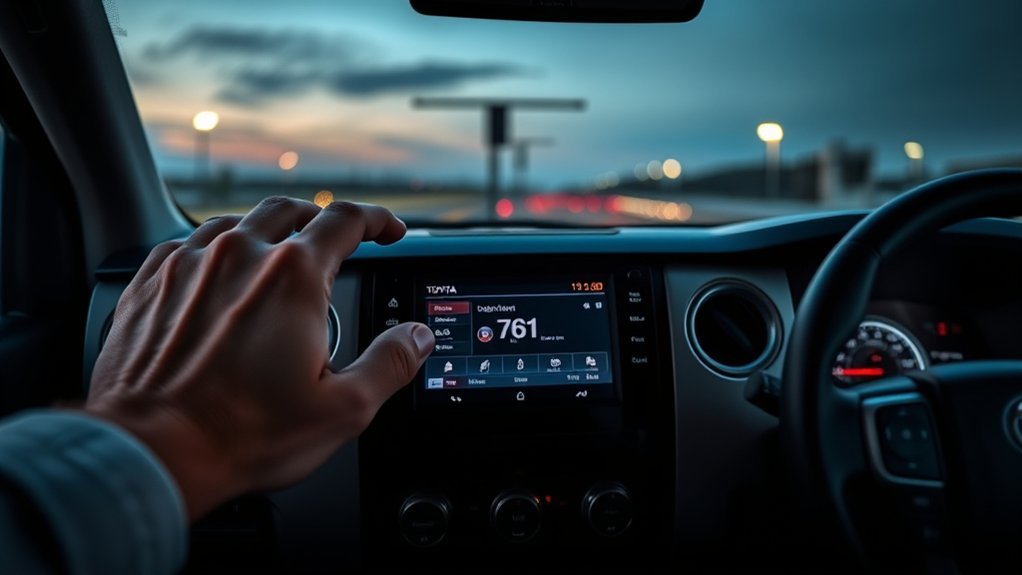
A basic reset, also called a forced reboot, restarts the infotainment software without normally erasing your paired phones, presets, or personal settings. It is a suitable first step for a frozen touchscreen, delayed controls, missing audio, or a temporary connection problem.
Tundra infotainment systems differ by model year and trim. Older trucks commonly use Entune-era systems, while newer trucks use Toyota Audio Multimedia. The power control may be a physical knob or button, and the time required to trigger a reboot can vary. Toyota recommends using the manual for your exact vehicle when a general procedure does not match the controls in front of you.
- Park the truck, shift into Park, and set the parking brake.
- Unplug phones, USB drives, and adapters from the multimedia ports.
- Turn the infotainment system on if it is responsive enough to do so.
- Press and hold the physical power or power-volume control.
- Continue holding it until the screen shuts down and the Toyota startup logo appears.
- Release the control and allow the system to finish loading before pressing other buttons.
- Test the touchscreen, audio, Bluetooth, camera display, and phone connection that caused the problem.
If holding the control does not restart the unit, turn the truck off, open and close the driver’s door, wait briefly for retained accessory power to shut down, and restart the vehicle. Consult the Toyota manual for your exact model year if the system still does not respond.
Pro Tip: Test the system once with every phone, USB cable, wireless adapter, and storage device disconnected. If the screen works normally, reconnect one item at a time to identify the source of the conflict.
[Amazon Products Picked for You]

FITMENT FOR DPS6 VEHICLES: Compatible with 2012-2018 Ford Focus and 2011-2019 Ford Fiesta equipped with the DPS6/6DCT250 PowerShift 6-speed dry dual-clutch automatic...
Common Symptoms Indicating a Need for a Reset
A reboot is most useful when the problem appears suddenly and the system was working normally before it occurred. The following symptoms may result from a temporary software or connection error.
| Symptom | What It May Mean | First Action |
|---|---|---|
| Frozen screen | Temporary software lockup or an attached-device conflict | Disconnect accessories and perform a reboot |
| Slow response | Software lag, incomplete startup, or a connected-device issue | Allow startup to finish, then reboot if needed |
| Bluetooth will not connect | Corrupted pairing, disabled permissions, or another connected phone | Restart both devices and remove the old pairing |
| CarPlay or Android Auto disconnects | Cable, USB port, phone software, permissions, or wireless interference | Try a known-good cable and check the phone settings |
| Black display | Software, power, display, wiring, or recall-related fault | Reboot once, check recalls, and seek service if it returns |
| Unexpected restarts | Software instability, voltage problem, overheating, or failing hardware | Disconnect accessories and arrange diagnosis if repeated |
A single reboot may restore normal operation after a temporary error. Repeated blackouts, camera-image failures, flickering, or restarts require more investigation because they can indicate a software campaign, power problem, damaged connection, or failed component.
Step-by-Step Infotainment Reset Guide
Use the following troubleshooting order to avoid erasing data unnecessarily. Test the system after each step and stop when normal operation returns.
[Amazon Products Picked for You]

Note: Car models with USB 2.0 ports may experience protocol mismatch with USB 3.2 Android Auto cable, potentially causing device recognition failure, slow charging speeds, or even complete charging failure.
![CONMDEX Android Auto USB Cable [3ft, 2-Pack] 10Gbps, 3A Fast Charging](https://m.media-amazon.com/images/I/41vy0X7qsdL._SL500_.jpg)
[Reliable Car Connectivity & Android Auto] Engineered specifically to solve "falling short" connection issues in vehicles. This cable provides a stable, high-speed link for Android Auto and Apple CarPlay, ensuring consistent navigation and music streaming in models like the Ford Raptor and other modern consoles

USB-A to USB-C Media Carplay, Android Auto, Navigation & Charger Cable Cord Wire for Samsung Galaxy/Note, Google Pixel, Motorola/Moto, LG, iPhone 17 16 15 & Other Android Phones with a USBC Port
1. Check the Simple Causes
- Increase the display brightness if the screen appears dark.
- Make sure the audio system is not muted or turned off.
- Remove USB drives, chargers, adapters, and cables.
- Confirm that the truck’s 12-volt electrical system starts normally.
- Check whether the problem affects the whole system or only one phone or app.
2. Restart the Phone and Infotainment System
Restart your phone first, then perform the infotainment reboot described above. Wait until both devices have fully restarted before reconnecting them.
3. Remove and Re-Pair the Phone
Delete the Tundra from the phone’s Bluetooth list and delete the phone from the truck’s paired-device list. Restart both devices, enable Bluetooth, and complete the pairing process again while the vehicle is parked.
4. Check CarPlay or Android Auto
For a wired connection, use a short, high-quality data cable rather than a charging-only cable. Try the designated media USB port and inspect it for looseness or debris. Confirm that Siri, Bluetooth, Wi-Fi, Android Auto, CarPlay, and the required permissions are enabled on the phone.
Apple provides current CarPlay troubleshooting instructions, while Google provides an official Android Auto setup guide.
5. Check for Updates and Recalls
Software-update availability depends on the Tundra’s model year and head unit. Some systems support connected updates, while others may require a dealer or a model-specific update procedure. Review Toyota’s Audio Multimedia and Connected Services resources and your owner’s manual.
Because some newer Tundras have had multimedia or rearview-display software campaigns, check the truck’s VIN through the Toyota recall lookup or the NHTSA recall database. A reboot cannot replace a required recall repair or dealer software update.
6. Use a Factory Reset Only When Needed
If the system still malfunctions after the earlier steps, consider resetting personal data through the infotainment settings. Menu wording varies and may appear as “Delete Personal Data,” “Reset Settings,” “Factory Reset,” or similar. Follow the instructions in the manual for your exact model year.
Warning: A factory reset may remove paired devices, saved destinations, radio presets, profiles, account information, and other personal settings. Record anything you need before confirming the reset.
Do not disconnect the 12-volt battery solely to reset the infotainment system unless the Toyota manual or a qualified technician specifically instructs you to do so. Battery disconnection may erase settings, create additional warning messages, and will not repair failed hardware or recalled software.
Effective Solutions for Ongoing Infotainment Problems
When a reboot helps only temporarily, look for a repeatable trigger. Note what the system was doing, which phone or accessory was connected, whether the truck had just started, and whether the problem affected audio, navigation, cameras, or the entire display.
[Amazon Products Picked for You]
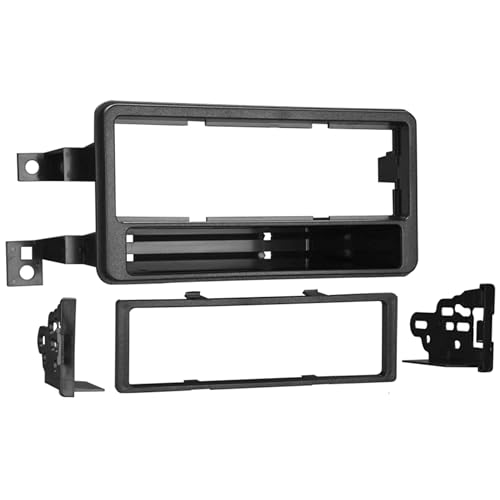
Stereo installation kit designed to fit any standard 2” tall aftermarket radio utilizing our patented quick-release, snap-in ISO mount system with custom trim ring

For vehicle specifics, see product description
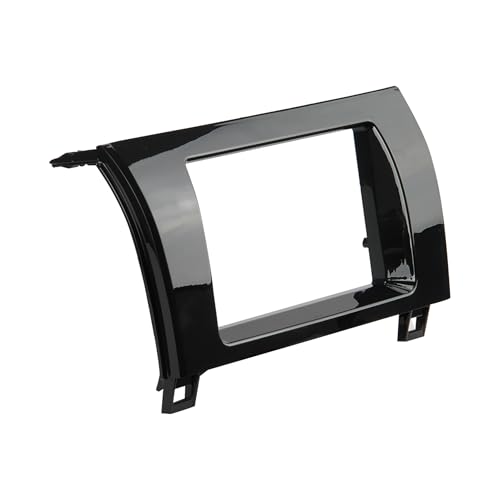
Perfect Fit - Designed specifically for 2007-2013 Toyota Tundra & 2008-2022 Toyota Sequoia, the TA2073B car radio installation dash kit ensures a seamless fit for your aftermarket car stereo. Accomidates Single DIN Radios with the included storage pocket.
Common Software Glitches
- Frozen home screen: Disconnect attached devices and force a reboot.
- Bluetooth connects without audio: Check the phone’s call and media-audio permissions, then remove and re-pair it.
- CarPlay or Android Auto fails: Restart the phone, replace the cable, try the correct USB media port, and confirm phone permissions.
- Navigation or connected features stop loading: Check cellular coverage, account status, and connected-services availability.
- The system repeatedly restarts: Remove all accessories and arrange diagnosis if the behavior continues.
- The rearview image is missing or distorted: Check the VIN for open recalls and contact a Toyota dealer promptly.
A phone-specific failure usually points to the phone, permissions, cable, or pairing data. A fault that affects every phone and every audio source is more likely to involve the truck’s software, USB hardware, power supply, wiring, display, or multimedia module.
Accessory Impact Considerations
Most exterior accessories, including tonneau covers and side steps, do not communicate with the infotainment system. However, an installation can create a problem if wiring, grounds, connectors, fuses, or power circuits were modified or disturbed.
Accessories more likely to affect multimedia performance include:
- Wireless CarPlay or Android Auto adapters
- Low-quality or damaged USB cables
- USB hubs and charging adapters
- Dash cams powered from multimedia or accessory circuits
- Aftermarket stereos, amplifiers, speakers, or remote-start equipment
- Phone mounts or chargers that create wireless interference
- Devices that remain connected to the media USB port
Disconnect these items before resetting the system. If the problem began immediately after an installation, ask the installer to inspect the affected power, data, and ground connections.
Note: Record a short video of an intermittent freeze, blackout, or error message when it is safe to do so while parked. Intermittent faults may disappear before a technician inspects the truck, and a clear recording can help explain the symptoms.
Distinguishing Between Factory Resets and System Reboots
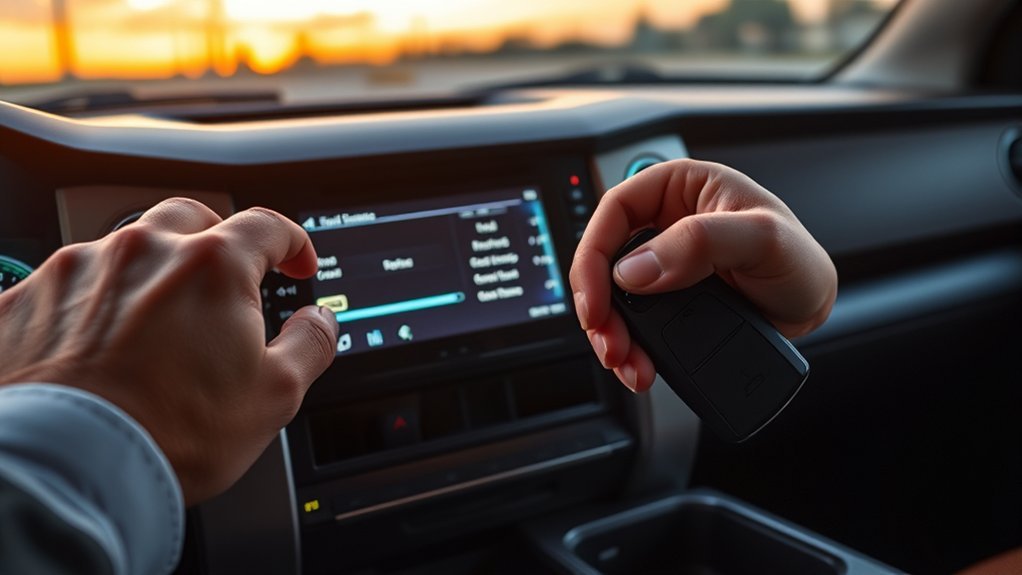
A reboot and a factory reset serve different purposes. Use a reboot first because it is faster and less disruptive.
| Action | What It Does | When to Use It | Data Loss |
|---|---|---|---|
| System reboot | Restarts the multimedia software | Frozen screen, lag, missing audio, or temporary connection error | Normally none |
| Ignition cycle | Shuts down and restarts vehicle systems after retained power ends | When a normal reboot does not complete | Normally none |
| Factory or personal-data reset | Returns supported multimedia settings to their defaults | Persistent software or pairing problems after simpler steps fail | May erase profiles, phones, presets, destinations, and personal data |
| Dealer software update or repair | Updates, diagnoses, or repairs the system | Recall, repeated blackout, camera fault, electrical problem, or failed hardware | Varies; ask whether settings will be retained |
The phrase “hard reset” can cause confusion because some people use it to mean a forced reboot, while others mean a complete factory reset. Confirm whether the instructions erase personal data before accepting any on-screen prompt.
Keep Your Infotainment System in Tip-Top Shape
Regular care can reduce connection failures and make troubleshooting easier:
- Keep your phone’s operating system and supported apps current.
- Install Toyota multimedia updates when they are available for your system.
- Use good-quality data cables and replace cables that disconnect when moved.
- Remove old phones from the paired-device list when you no longer use them.
- Avoid filling the media USB port with debris or forcing a loose connector.
- Clean the touchscreen with a soft microfiber cloth and a product approved for displays.
- Check open recalls whenever a safety-related display or camera problem appears.
- Keep a record of error messages, dates, connected devices, and recent installations.
Avoid spraying cleaner directly on the screen. Apply a small amount to the cloth instead, then wipe gently without pressing hard on the display.
When to Seek Professional Help for Infotainment Issues?
Professional diagnosis becomes appropriate when the problem affects safety features, repeatedly returns after a reboot, or appears to involve the truck’s electrical system rather than a paired device.
Signs of Serious Issues
Contact a Toyota dealer or qualified automotive electronics technician when you notice:
- A rearview-camera image that fails, freezes, remains on the screen, or appears black or distorted
- Repeated display blackouts or restarts
- A flickering screen or brightness that changes without input
- A burning smell, unusual heat, smoke, or electrical noise
- A multimedia fuse that blows more than once
- Loss of power to several dashboard systems at the same time
- Visible liquid damage or a loose, cracked, or damaged display
- Error messages that return after restarting the system
- A problem that began after wiring or aftermarket electrical work
Stop using the affected accessory and arrange immediate inspection if you notice heat, smoke, a burning smell, or repeated fuse failure.
When Basic Fixes Fail
A technician may need to check software versions, diagnostic trouble codes, power and ground circuits, connectors, fuses, the USB hub, display assembly, amplifier, or multimedia control module. A scan tool may assist with some faults, but it is only one part of the diagnosis.
Before approving a paid repair, check the VIN for open recalls and service campaigns. Tell the service adviser whether the problem affects the rearview camera, all phones, only one phone, one audio source, or the entire screen. Also mention any recent battery work, jump-start, software update, accessory installation, or water exposure.
Frequently Asked Questions
How do you reset a Toyota Tundra infotainment system?
Park the truck and hold the physical power or power-volume control until the screen shuts off and the Toyota startup logo appears. The required time and control layout vary by model year, so check the vehicle-specific manual if this procedure does not match your system.
How do you reboot a Toyota touchscreen?
Disconnect attached USB devices, then press and hold the multimedia system’s physical power control until the screen turns off and restarts. Allow the system to load completely before reconnecting your phone or accessories.
Will rebooting the Tundra infotainment system erase my settings?
A normal forced reboot should not erase paired phones, presets, profiles, or saved destinations. A factory reset or personal-data reset may erase them, so read the confirmation message carefully before proceeding.
How do you perform a factory reset on the infotainment system?
Open the system’s Settings or Setup menu and look for an option such as Delete Personal Data, Reset Settings, or Factory Reset. The menu path varies by year and equipment. Record your presets and account details first because the reset may remove personal data and paired devices.
Why does my Toyota Tundra screen keep freezing or going black?
Possible causes include a temporary software error, attached-device conflict, outdated software, power or ground problem, damaged wiring, a failed display or multimedia module, or a recall-covered condition. Reboot it once, disconnect accessories, check the VIN for recalls, and seek diagnosis if the problem returns.
Does the infotainment reset also reset the Toyota dashboard display?
No. The center infotainment screen and the instrument display in front of the driver are separate systems. Holding the audio power control does not normally clear warning lights or repair the instrument cluster. Diagnose dashboard warnings according to the owner’s manual.
Conclusion
Start a Toyota Tundra infotainment reset with the least disruptive option: disconnect accessories and force the multimedia unit to reboot. If the problem continues, restart and re-pair your phone, test a known-good cable, check software and recall information, and use a factory reset only after recording your personal settings. Repeated blackouts, rearview-camera failures, electrical symptoms, or unsuccessful resets require professional diagnosis.
Sources
- Toyota Manuals and Warranties — vehicle-specific operating instructions and manual lookup
- Toyota Audio Multimedia and Connected Services — official multimedia, Bluetooth, CarPlay, and Android Auto resources
- Toyota Safety Recall and Service Campaign Lookup — VIN and license-plate campaign search
- National Highway Traffic Safety Administration Recall Lookup — U.S. vehicle safety-recall database
- Apple Support: If You Need Help With CarPlay — official CarPlay troubleshooting
- Google Android Auto Help — official Android Auto setup guidance