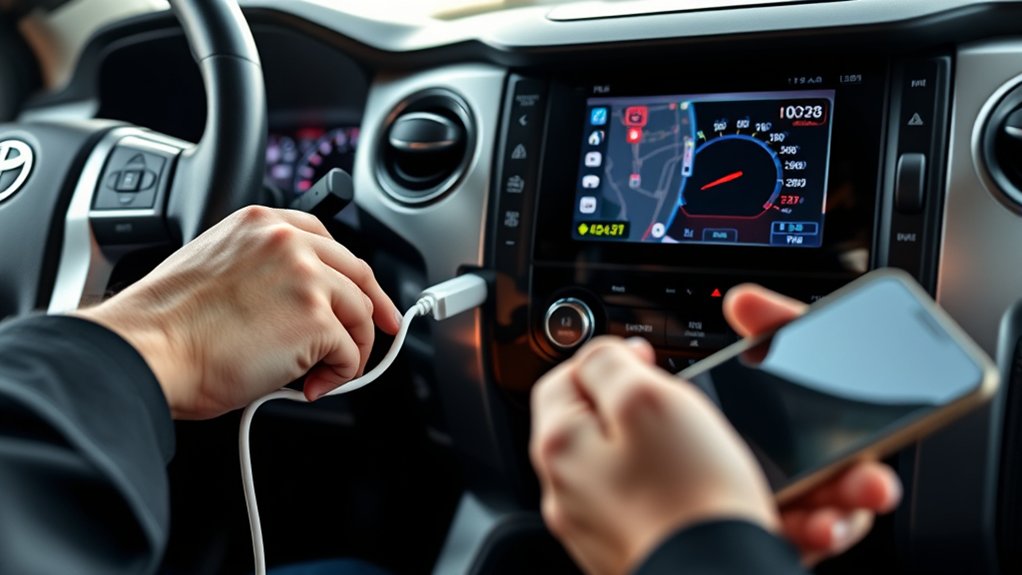
Setting up Apple CarPlay in a Toyota Tundra is usually straightforward once you confirm that the truck’s multimedia system supports it. The connection method can vary by model year and installed head unit, so first determine whether your Tundra offers wired CarPlay, wireless CarPlay, or both. Complete the initial setup while the truck is safely parked.
Quick Answer
Park your Tundra, enable Siri on your iPhone, and confirm that the truck supports Apple CarPlay. For wired CarPlay, connect the phone to the USB media port with a data-capable Lightning or USB-C cable. For wireless CarPlay, enable Bluetooth and Wi-Fi, pair the phone through the multimedia settings, and approve the CarPlay prompts.
Key Takeaways
- Apple’s current compatibility list identifies factory CarPlay support for 2020–2025 Toyota Tundra models. Check Toyota’s owner resources for other model years or markets.
- Wireless CarPlay is not the same as ordinary Bluetooth audio. It requires compatible vehicle hardware, Bluetooth, and Wi-Fi.
- Use the Tundra’s USB media port for wired CarPlay. A charge-only USB port may power the phone without launching CarPlay.
- Use a direct, data-capable cable that matches your iPhone’s Lightning or USB-C connector.
- If CarPlay fails, check the cable, media port, Wi-Fi, Siri, Screen Time restrictions, saved vehicle profile, and multimedia software.
At a Glance
| Time Required | About 5–10 minutes |
| Difficulty | Easy |
| Tools Needed | Compatible iPhone, supported Tundra multimedia system, and a data-capable cable for wired setup |
| Cost | No CarPlay subscription is normally required; you may need a suitable replacement cable |
Warning: Do not pair your phone, change settings, or troubleshoot CarPlay while driving. Park in a safe location and complete the setup before moving the truck. Even with voice control, you remain responsible for watching the road and controlling the vehicle.
Check Your Tundra’s Apple CarPlay Compatibility
Before changing your iPhone settings, confirm that your Tundra has a factory multimedia system that supports CarPlay. Apple’s current CarPlay vehicle list identifies the Toyota Tundra for model years 2020 through 2025. Availability can still vary by market, multimedia equipment, or an aftermarket head unit.
If you have a 2019 or older Tundra, the original factory radio is not included in Apple’s current Tundra compatibility listing. You may need a compatible aftermarket receiver rather than a phone setting or software update. For a 2026, imported, or differently equipped truck, check the multimedia section of the owner’s manual or enter the vehicle information in Toyota’s owner resources.
Determine Whether CarPlay Is Wired or Wireless
Do not assume that Bluetooth support means your truck has wireless CarPlay. Use the following signs to identify the connection type:
| What You See | Likely Connection Type | What to Do |
|---|---|---|
| CarPlay appears only after connecting to the USB media port | Wired CarPlay | Keep the iPhone connected with a suitable data cable |
| The Bluetooth pairing process offers an Apple CarPlay option | Wireless CarPlay | Keep both Bluetooth and Wi-Fi enabled |
| The screen offers Bluetooth calling and audio but no CarPlay option | CarPlay may be unsupported or disabled | Check the model-year multimedia manual and installed radio |
Preparing Your iPhone for Apple CarPlay Connection
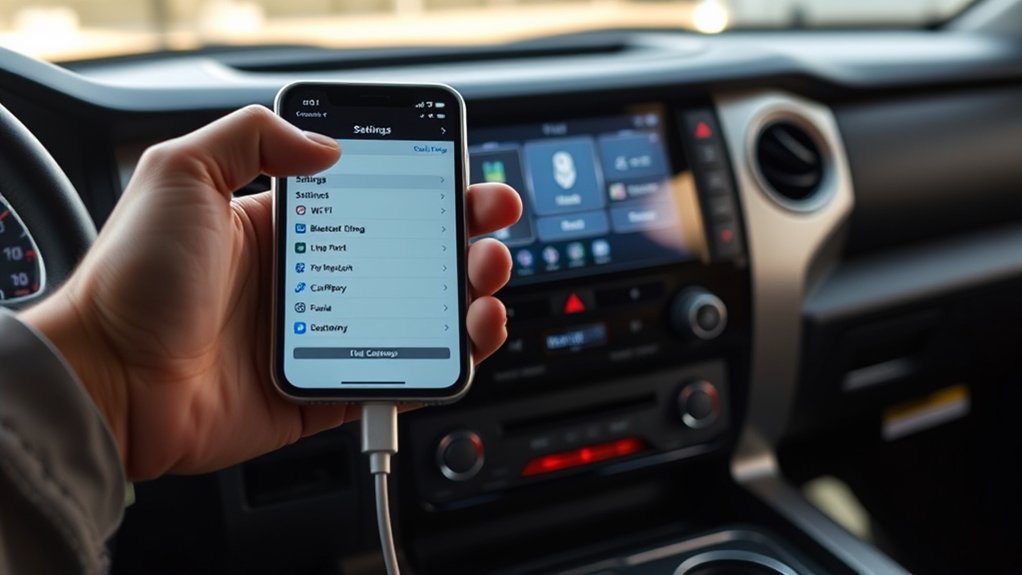
Prepare your iPhone before connecting it to the Tundra. Apple recommends using the latest iOS version available for your compatible device. You should also enable Siri because CarPlay uses it for voice-controlled calls, messages, navigation, and audio requests.
- Open Settings on the iPhone.
- Install any available iOS update before beginning the setup.
- Make sure Siri is enabled. Depending on your iOS version, the menu may appear as Siri, Siri & Search, or Apple Intelligence & Siri.
- Open Settings > General > CarPlay and remove an old Tundra profile if you are starting over.
- For wireless CarPlay, turn on both Bluetooth and Wi-Fi.
- Unlock the phone and keep it nearby during the first connection.
Apple’s official CarPlay setup guide provides the current iPhone-side instructions.
Pro Tip: Disconnect VPN software or a personal hotspot temporarily if wireless CarPlay will not pair. Wireless CarPlay needs the iPhone’s Wi-Fi connection to communicate with the truck.
How to Set Up Wired Apple CarPlay in Your Toyota Tundra
Wired CarPlay uses the truck’s USB media port to carry data between the iPhone and multimedia system. The cable also charges the phone during use. Park the Tundra, start the vehicle or place it in the appropriate accessory mode, and leave the transmission in Park.
Required Equipment Checklist
- A compatible Toyota Tundra multimedia system: Confirm CarPlay support in the owner’s manual.
- A compatible iPhone: Install current iOS updates and enable Siri.
- A data-capable cable: Use a Lightning or USB-C cable that matches your iPhone and the truck’s media port.
- The USB media port: Look for the port intended for smartphone projection, not a charge-only port.
Toyota recommends using a genuine Apple cable in good condition. A reputable data-capable cable can also work when it meets the required connector and data standards. Avoid damaged cables, loose connectors, and long chains of adapters.
Connecting Your iPhone
- Park the Tundra and turn on the multimedia system.
- Unlock the iPhone.
- Connect the phone directly to the truck’s USB media port.
- Wait for the Toyota screen to detect the device.
- Select Apple CarPlay, Connect, Yes, or Accept when prompted.
- Approve the CarPlay request on the iPhone.
- Choose whether to allow CarPlay while the phone is locked, if that prompt appears.
| Step | Action | What to Check |
|---|---|---|
| 1 | Park and turn on the multimedia system | The truck must remain stationary during setup |
| 2 | Connect a direct data cable | Use the USB media port, not a charge-only port |
| 3 | Approve the Toyota prompt | Select CarPlay rather than Bluetooth audio only |
| 4 | Approve the iPhone prompt | Allow access while locked if desired |
| 5 | Open CarPlay | Select the CarPlay icon if it does not open automatically |
Accessing CarPlay Features
After setup, the Tundra’s screen can display compatible navigation, phone, messaging, podcast, audiobook, and music apps. Open an app from the CarPlay Home screen or use Siri to request directions, place a call, dictate a message, or play audio.
If you need Toyota’s native radio, vehicle settings, camera display, or other built-in functions, select the Toyota icon shown within CarPlay or use the multimedia system’s physical Home or Menu control. The exact control depends on the installed head unit.
Troubleshooting Common Apple CarPlay Problems
Work through the following checks in order. Test CarPlay after each change so you can identify the actual cause rather than changing several settings at once.
| Problem | What to Do |
|---|---|
| The phone charges, but CarPlay does not open | Move the cable to the USB media port and confirm that the cable supports data |
| The connection drops or freezes | Inspect the cable and connectors, remove adapters, and test a different data cable |
| Wireless CarPlay does not appear | Confirm that the truck supports wireless CarPlay and turn on both Bluetooth and Wi-Fi |
| A different phone connects automatically | Disconnect the other phone, change the preferred device, or remove unused saved devices |
| CarPlay is connected but has no sound | Select CarPlay as the audio source and adjust media, call, and navigation volume separately |
| The CarPlay option is missing on the iPhone | Check Siri and Screen Time restrictions, then confirm that CarPlay is allowed |
Reset the Connection
If the basic checks do not work, use this reset sequence:
- Restart the iPhone.
- Turn the Tundra off, open and close the driver’s door if required for the multimedia system to shut down, and then restart the truck.
- On the iPhone, open Settings > General > CarPlay.
- Select the Tundra and tap Forget This Car.
- Remove the iPhone from the Toyota multimedia system’s saved-device list.
- Pair the devices again from the beginning.
Also check Settings > Screen Time > Content & Privacy Restrictions > Allowed Apps on the iPhone. Make sure CarPlay is allowed. Apple’s CarPlay troubleshooting guide also recommends checking vehicle firmware when connection and settings checks do not solve the problem.
Note: A phone can pair successfully for Bluetooth calls and music even when CarPlay is disabled or unsupported. Seeing the iPhone in the Bluetooth device list does not by itself confirm CarPlay compatibility.
How to Establish a Wireless Connection for Apple CarPlay
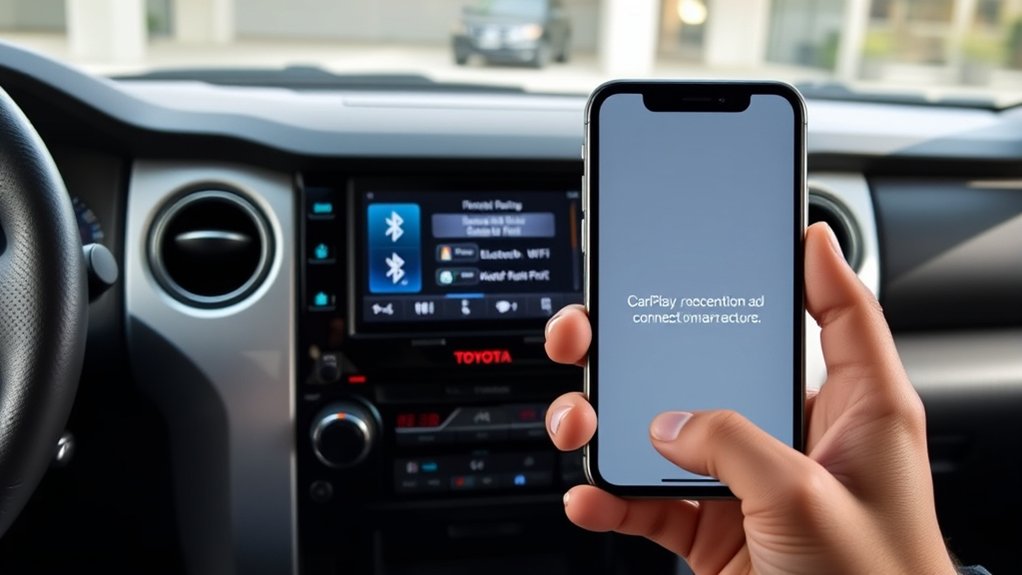
Use these steps only when the installed Toyota multimedia system offers wireless Apple CarPlay. Menu wording can vary slightly by software version.
- Park the Tundra and turn on its multimedia system.
- Enable Bluetooth and Wi-Fi on the iPhone.
- On the Toyota screen, open Settings.
- Select Bluetooth & Devices, Devices, or the phone-connection menu.
- Select Add Device or Search for Devices.
- Choose your iPhone from the available-device list.
- Confirm that the pairing code on the iPhone matches the code on the Toyota screen.
- Approve contact or notification permissions according to your preference.
- Select Use Apple CarPlay, Enable CarPlay, or the equivalent option.
- Approve the final CarPlay prompt on the iPhone.
Wireless CarPlay normally reconnects automatically on future drives. Keep Bluetooth and Wi-Fi enabled. If the iPhone connects for calls but not CarPlay, remove the pairing from both devices and repeat the complete setup instead of pairing through the Bluetooth menu alone.
Navigating the Apple CarPlay Interface
The CarPlay Dashboard combines navigation, audio controls, and relevant suggestions on one screen. Select the grid or Home button to view all compatible apps. Only apps designed to work with CarPlay appear on the vehicle display.
You can change the app order from the iPhone:
- Open Settings > General > CarPlay.
- Select your Tundra.
- Tap Customize.
- Add, remove, or drag supported apps into your preferred order.
To use Siri, press and hold the steering-wheel voice-command button. You may also touch and hold the CarPlay Home or Dashboard button. If the truck and iPhone settings support voice activation, you can use “Hey Siri” without touching the screen.
Using Navigation and Music Apps With Apple CarPlay
CarPlay supports compatible navigation, audio, communication, podcast, and audiobook apps installed on the iPhone. App availability and features can vary by country, iOS version, and app developer.
Accessing Navigation Features
Open Apple Maps or another compatible navigation app from the CarPlay screen. You can search through the touchscreen while parked or ask Siri for directions while driving.
- Ask Siri to navigate to a saved contact, address, business, or nearby service.
- Use the steering-wheel or dashboard controls to adjust spoken-direction volume while a prompt is playing.
- Mute voice guidance from the navigation app when you only need visual directions.
- Confirm the destination before moving whenever possible.
Navigation apps may use the iPhone’s cellular data and location services. Poor mobile coverage can limit searches, live traffic, and map updates even when CarPlay itself remains connected.
Utilizing Music Applications
Select a compatible music, podcast, or audiobook app from the CarPlay Home screen. You can browse simplified menus, resume recent audio, or ask Siri to play an artist, album, playlist, podcast, or station.
If the music is playing but you cannot hear it, check the Toyota audio source and raise the media volume. Navigation prompts, calls, Siri, and music can each use different volume levels, so adjust the volume while the affected audio is active.
Voice Commands Overview
Voice control reduces the need to touch the screen, but it does not remove the need for full attention. Depending on the selected apps and permissions, Siri can help you:
- Request turn-by-turn directions
- Place a call to a saved contact
- Read and dictate supported messages
- Play music, podcasts, or audiobooks
- Ask about calendar appointments
- Change or cancel a route
Use short, direct requests and wait for Siri to finish before repeating the command. If Siri does not respond, confirm that it is enabled and that the Tundra’s microphone works during ordinary hands-free calls.
Get Help With Apple CarPlay From Toyota Service
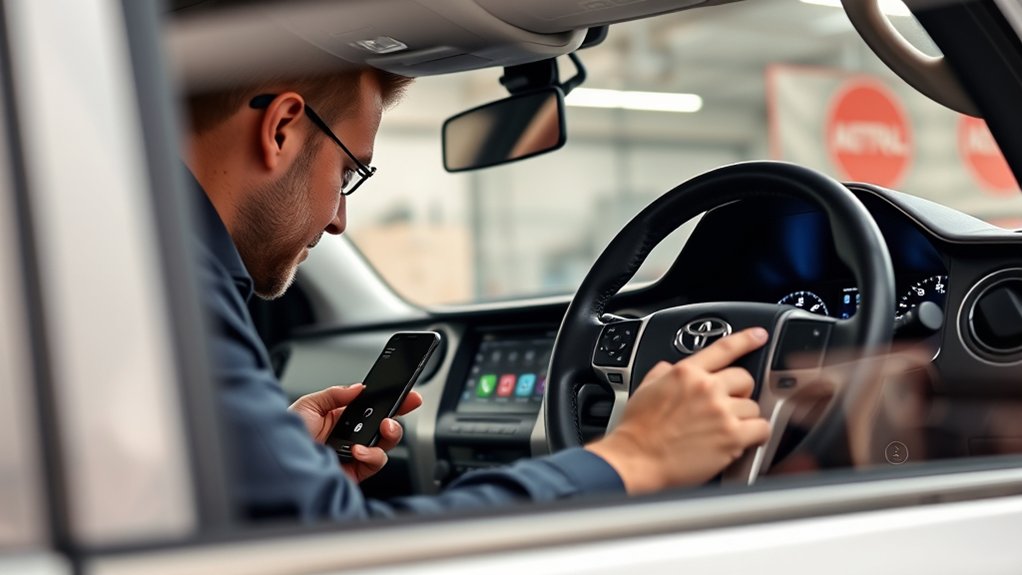
Seek additional help when the Tundra does not recognize any compatible iPhone after you have tested the correct media port, a known-good data cable, current iOS, and a complete pairing reset.
Use the following support path:
- Check the multimedia section of the Tundra owner’s manual.
- Review Toyota’s official Audio Multimedia and Connected Services information.
- Use Apple Support if CarPlay also fails in another compatible vehicle.
- Contact a Toyota dealer if the USB media port, microphone, touchscreen, or multimedia unit appears defective.
A dealer may also be able to check whether Toyota has released multimedia software for the installed head unit. Avoid assuming that ordinary engine maintenance or an iPhone update can add wireless CarPlay to hardware that was designed for wired CarPlay only.
Frequently Asked Questions
How do I set up CarPlay on a Toyota Tundra?
Park the truck, enable Siri, and verify that the multimedia system supports CarPlay. For a wired connection, plug the iPhone into the USB media port with a data-capable cable. For supported wireless systems, enable Bluetooth and Wi-Fi, pair the phone through the Toyota device menu, and approve the CarPlay prompts.
How do I turn on CarPlay in my Tundra?
Connect or pair the iPhone, then select Apple CarPlay when the Toyota screen asks which phone-projection service to use. If it does not open automatically, select the CarPlay or Projection icon on the multimedia screen.
Which Toyota Tundra model years have Apple CarPlay?
Apple’s current compatibility list identifies the Toyota Tundra for model years 2020 through 2025. Equipment and market differences may apply, so verify the feature in the multimedia manual for your specific truck. Check Toyota’s current owner resources for a 2026 or market-specific model.
Does every Tundra with Bluetooth have wireless CarPlay?
No. Standard Bluetooth calling and audio do not prove that wireless CarPlay is available. The multimedia system must specifically support wireless CarPlay, and the iPhone must connect through both Bluetooth and Wi-Fi.
Why does my iPhone charge without opening CarPlay?
The phone may be connected to a charge-only port, or the cable may not support data. Use the Tundra’s USB media port and test a direct, undamaged Lightning or USB-C data cable that matches your iPhone.
Why won’t my Tundra connect to CarPlay?
Common causes include an unsupported model or connection type, the wrong USB port, a charge-only or damaged cable, disabled Siri, disabled Wi-Fi, Screen Time restrictions, conflicting saved phones, or outdated multimedia software. Restart both devices, forget the vehicle on the iPhone, remove the phone from the Toyota system, and pair them again.
Conclusion
To set up Apple CarPlay successfully, first verify your Tundra’s model year, multimedia equipment, and supported connection type. Use the USB media port and a suitable data cable for wired CarPlay. For wireless CarPlay, keep Bluetooth and Wi-Fi enabled and complete the pairing through the Toyota multimedia screen.
If the connection fails, check the cable, media port, Siri, Wi-Fi, Screen Time permissions, saved devices, and multimedia software before requesting service. Once connected, use Siri and the simplified CarPlay interface to handle navigation, calls, messages, and audio while keeping your attention on driving.
Sources
- Apple CarPlay Available Models — identifies Toyota Tundra model years currently included in Apple’s compatibility list.
- Apple Support: Use CarPlay With Your iPhone — provides official wired, wireless, Siri, and app-customization instructions.
- Apple Support: If You Need Help With CarPlay — supports the connection, restriction, reset, cable, and firmware troubleshooting steps.
- Toyota Audio Multimedia and Connected Services — supports Toyota’s USB media-port, Siri, CarPlay, and parked-setup guidance.
- National Highway Traffic Safety Administration: Distracted Driving — supports the warning about interacting with phones, navigation, and entertainment systems while driving.