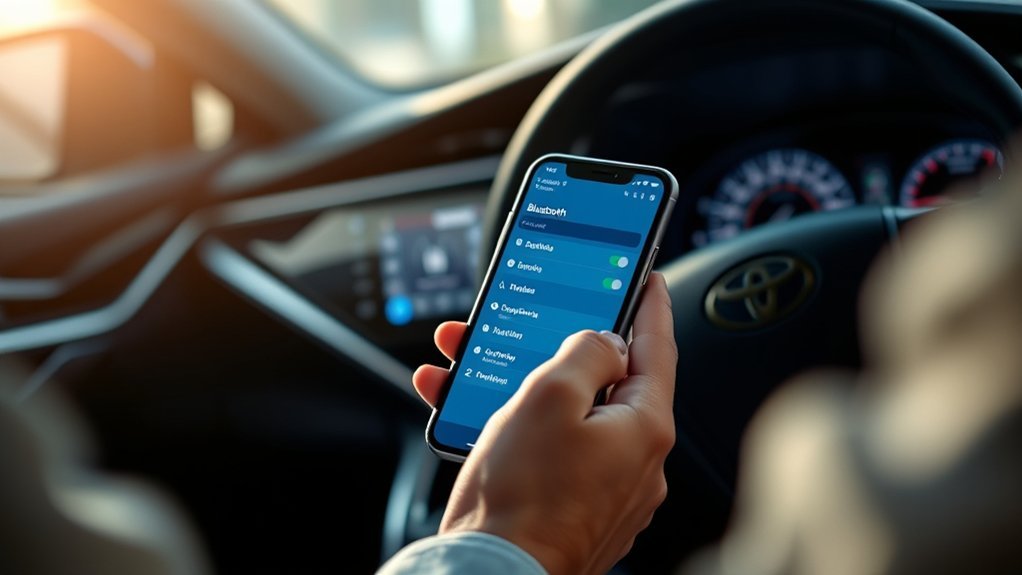
Pairing a phone with a Toyota Camry usually takes only a few minutes, but the correct menu path depends on the Camry’s model year and installed audio system. Newer Toyota Audio Multimedia systems use different controls from older Entune or Display Audio units, and a 2009 Camry may have factory Bluetooth only if it was equipped with the required audio or navigation package.
Quick Answer
Park the Camry, turn on Bluetooth on your phone, and open the vehicle’s device menu. On newer systems, select Settings, Bluetooth & Devices, and Search for devices. On many older systems, use Menu, Setup, Bluetooth, and Add Device. Select the phone, verify the matching code, and approve the requested permissions.
Key Takeaways
- Pair the phone only while the Camry is safely parked.
- The menu names vary among current Toyota Audio Multimedia, older Entune systems, and early factory Bluetooth equipment.
- Confirm that the code shown on the phone matches the code on the vehicle screen before accepting.
- Contact syncing, messaging, music streaming, Apple CarPlay, and Android Auto depend on the phone, permissions, vehicle equipment, and multimedia system.
At a Glance
| Time Required | About 3–5 minutes |
| Difficulty | Easy |
| Tools Needed | A compatible Bluetooth phone and the vehicle key |
| Cost | $0 when the Camry already has compatible factory Bluetooth |
Warning: Do not attempt Bluetooth pairing or troubleshoot menus while driving. Park in a safe location, shift into Park, and complete the setup before moving the vehicle. Hands-free operation can still distract a driver.
Preparing Your Smartphone for Bluetooth Connection
Before opening the Camry’s settings, prepare the phone and identify the type of multimedia system in the vehicle. Menu labels can change with the model year, trim, navigation package, and software version.
Enable Bluetooth on Your Smartphone
- Turn on the Camry’s ignition or accessory mode so the multimedia system is operating.
- Open the phone’s Settings app and turn on Bluetooth.
- On an iPhone, remain on the Bluetooth settings screen while pairing. On Android, open Pair new device, Scan, or the equivalent option.
- Keep the phone inside the vehicle and close to the multimedia display.
- Temporarily disconnect the phone from headphones or another vehicle if those devices keep reconnecting during setup.
Pro Tip: Give the phone a recognizable device name before pairing. A name such as “Alex’s iPhone” is easier to identify than a generic model number when several phones appear on the Camry’s screen.
Check Compatibility With the Vehicle
Do not rely on a generic list of phone models. Compatibility depends on the Camry’s model year, installed multimedia system, phone operating system, carrier, and the feature you want to use. Toyota provides a Bluetooth and multimedia support page for checking compatible equipment and finding model-specific instructions.
Basic hands-free calling may work even when messaging, contact transfer, album artwork, wireless projection, or other advanced features do not. Update the phone’s operating system before pairing, but avoid assuming that an update will add features the vehicle hardware does not support.
Accessing the Toyota Audio Multimedia System
Look at the icons and physical controls on the Camry before choosing a procedure. The following paths cover the most common factory systems, but the vehicle’s multimedia or navigation manual remains the final authority.
| System | Common Pairing Path | How to Recognize It |
|---|---|---|
| Latest Toyota Audio Multimedia | Settings → Bluetooth & Devices → Search for devices or Add another device | A newer touchscreen interface with a Settings gear and user-profile support |
| Entune or older Display Audio | Menu or Home → Setup → Bluetooth → Add | Older tile-based interface or physical Menu, Home, or Setup buttons |
| Early hands-free system | Steering-wheel phone or voice-command controls, followed by spoken prompts | Small radio display, no modern device-management touchscreen, and Bluetooth only if equipped |
Pairing With the Latest Toyota Audio Multimedia System
Toyota’s current Bluetooth pairing guide uses the following process:
- Select the Settings gear on the touchscreen.
- Select Bluetooth & Devices.
- Select Search for devices. If another device is already associated with the system, select Add another device.
- Choose the phone when it appears in the detected-device list.
- Check the number displayed on the phone and the Camry screen.
- If the numbers match, approve the pairing request on both devices.
- Approve any phone prompts for contacts, favorites, call history, messages, or notifications that you want the vehicle to access.
- If offered, choose whether to use the phone as a standard Bluetooth device or enable supported Apple CarPlay or Android Auto functions.
On Toyota’s latest-generation platform, the system may store up to five devices and connect two at the same time. This capacity does not necessarily apply to older Camry systems.
Navigating Bluetooth Options on Older Entune Systems
Many older Camrys use the route described in Toyota’s legacy Entune pairing guide:
- Press Home, Menu, or the physical Setup button, depending on the head unit.
- Select Setup on the display if it is not already open.
- Select Bluetooth.
- Select Add or Add Device.
- Open the phone’s Bluetooth device list and select the Toyota system when it appears.
- Enter the displayed PIN if the system requests one, or confirm that the codes match.
- Approve contact, phone-audio, media-audio, and messaging permissions as desired.
A confirmation should appear after the phone has paired and connected. Depending on the system, phone calling and media audio may be shown as separate services.
Add a New Device to Bluetooth
Pairing creates a trusted connection between the phone and the Camry. The exact wording differs, but the essential sequence is the same: make both devices available, select the correct device name, verify the code, and approve permissions.
Confirm Pairing on Both Devices
- Check that the phone name shown on the Camry is the phone you intend to connect.
- Compare the code on the vehicle display with the code on the phone.
- Accept only when the numbers match.
- On an older system that uses a fixed passkey, enter the exact passkey shown by the vehicle.
- Decline and restart the process if the codes differ or an unfamiliar pairing request appears.
Note: A pairing code confirms that the phone is connecting to the intended vehicle. Do not approve an unexpected Bluetooth request merely because the phone is near the Camry.
How to Connect Bluetooth to a 2009 Toyota Camry
A 2009 Camry did not necessarily include factory Bluetooth. Toyota’s 2009 Camry Quick Reference Guide identifies the telephone controls as “if equipped.” The system is described primarily as a hands-free telephone feature, so Bluetooth music streaming should not be assumed.
If the car has factory phone buttons on the steering wheel:
- Park the vehicle and turn the ignition to the accessory or On position.
- Turn on Bluetooth and device scanning on the phone.
- Press the steering-wheel phone or voice-command button.
- Follow the system’s spoken prompts to register or pair a phone.
- Select the vehicle’s hands-free system on the phone when it appears.
- Enter the announced or displayed passkey if requested.
If the Camry has a factory navigation screen, use the pairing instructions in its separate Navigation System Owner’s Manual. If no telephone controls, Bluetooth menu, or Bluetooth symbol is present, the factory radio may not have Bluetooth capability. An aftermarket radio or hands-free adapter requires its own manufacturer’s instructions.
Confirm Your Smartphone Connection
Do not stop after the screen says “paired.” Test each function you expect to use because calling, media audio, contacts, and messages may have separate permissions.
- Open the phone’s Bluetooth settings and confirm that the Toyota device shows as connected.
- Check the Camry’s device screen for a connected phone or media icon.
- While still parked, make a brief test call and verify that audio plays through the vehicle speakers.
- Play a short audio track and select Bluetooth Audio or the equivalent source on the Camry.
- Open the vehicle’s contacts screen and confirm that approved contacts appear.
- Check the phone for any unfinished permission request.
If calls work but music does not, open the phone’s Bluetooth settings for the Toyota device and confirm that both Phone calls and Media audio are enabled, when those controls are available. Also select Bluetooth Audio as the source on the vehicle.
Troubleshooting Common Pairing Issues
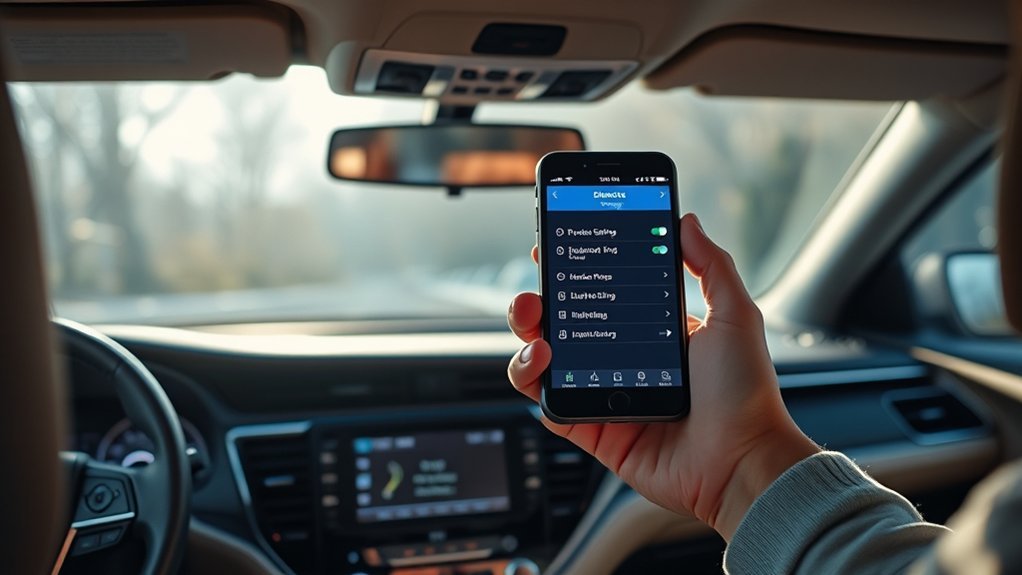
Most pairing failures come from an incomplete permission request, a saved connection conflict, a full device list, or the phone and vehicle searching at different times. Work through the following fixes while the Camry remains parked.
| Problem | What to Check | Recommended Fix |
|---|---|---|
| The phone does not appear on the Camry | The phone is not scanning, is connected to another device, or the vehicle search has timed out. | Reopen the phone’s Bluetooth screen, disconnect competing accessories, and restart Search for devices on the Camry. |
| The Toyota name does not appear on the phone | The vehicle is not in pairing mode. | Return to Bluetooth & Devices or Setup → Bluetooth and select Add, Pair, or Search again. |
| The codes do not match | The request may belong to another nearby device or an expired attempt. | Cancel on both screens and begin a new pairing session. Never approve mismatched codes. |
| The phone was paired before but will not reconnect | Another saved phone may have priority, or the saved record may be corrupted. | Manually select the phone in the vehicle’s device list. If that fails, forget the connection on both devices and pair again. |
| Calls work but music does not | Media audio may be disabled or the wrong source is selected. | Enable Media audio for the Toyota connection and select Bluetooth Audio on the Camry. |
| Contacts are missing | Contact sharing was denied or synchronization is still in progress. | Enable Sync Contacts or Share Contacts in the phone’s settings for the Toyota device, then reconnect. |
| The Camry will not accept another phone | The saved-device list may be full. | Delete an unused or former owner’s device from the vehicle, then try again. |
If these steps do not work, restart the phone and turn the vehicle fully off before trying again. Avoid performing an undocumented factory reset because it may erase radio presets, profiles, navigation destinations, and other stored settings. Consult the exact multimedia manual before resetting the head unit.
[Amazon Products Picked for You]

Versatile Car Phone Mount: Cell phone car mount boasts premium suction strength and an upgraded air vent clip, allowing for flexible installation options on windshields, dashboards, and air vents. Note!3M Dashboard Pad is NOT REQUIRED when using a phone holder on windshield

3 IN 1 Phone Holders for Your Car: Cell phone GPS navigation holder car is equipped with a suction cup and vent clip, which can be freely mounted on the windshield, dashboard, and air vent for feeding your different usage needs. Cell phone Camera Mounts holder is applied to most cars, pickup trucks, SUVs, taxis. A perfect assistant for Uber, Lyft drivers.

Upgrade Any Car Stereo Instantly: Turn your vehicle’s FM radio into a wireless Bluetooth audio system. This FM transmitter connects to your car radio and streams music, podcasts, and navigation from your smartphone—no stereo replacement required.
Remove and Re-Pair a Phone
- On the phone, open Bluetooth settings and choose Forget or Unpair for the Toyota connection.
- On the Camry, open the saved-device list and select the same phone.
- Select Forget, Remove, or Delete.
- Restart the phone.
- Begin a fresh pairing attempt and approve the required permissions.
Key Bluetooth Features of the Toyota Camry
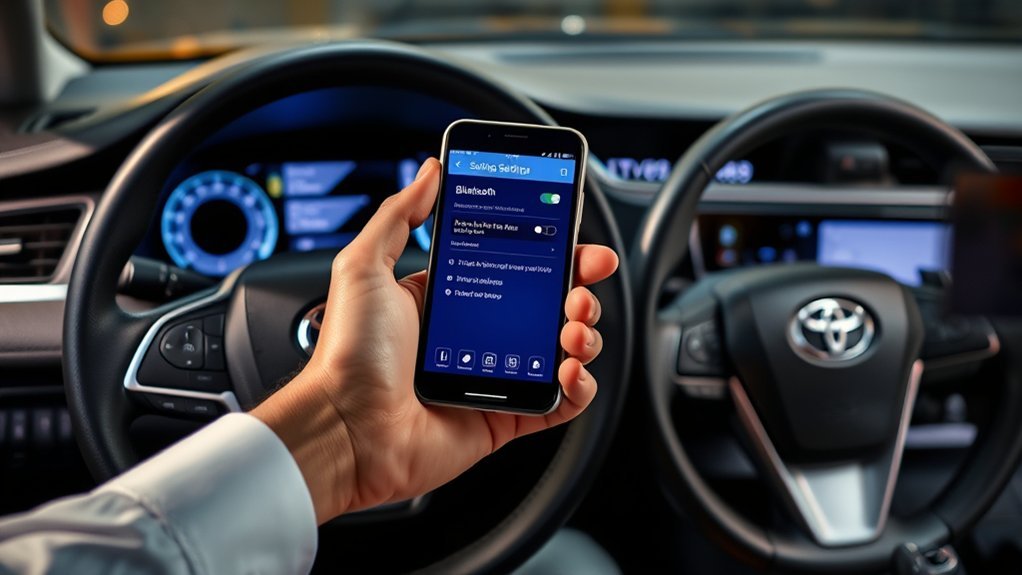
Available functions vary by model year and system. Pairing does not guarantee that every feature below will be supported by every phone.
| Feature | What It Does | Important Limitation |
|---|---|---|
| Hands-Free Calling | Routes supported calls through the vehicle microphone and speakers. | A conversation can still distract the driver. |
| Phonebook Sync | Copies supported contacts to the vehicle interface. | The phone must grant contact-sharing permission. |
| Bluetooth Audio | Streams music, podcasts, and other phone audio through the speakers. | Track information and controls vary by phone and head unit. |
| Call History and Favorites | Displays supported recent calls and favorite contacts. | Availability depends on permissions and system support. |
| Messaging Notifications | May display or read supported messages. | Phone restrictions and local laws may limit use. |
[Amazon Products Picked for You]

Car FM Transmitter: Experience superior sound quality and seamless connectivity with our FM Transmitter for Car. Effortlessly connecting to your car's FM radio, the Bluetooth car adapter enables wireless music streaming from your device via Bluetooth. It's the perfect solution to integrate Bluetooth for cars without Bluetooth.

HANDS FREE CAR SPEAKER: With Bluetooth V5.3, HD Audio voice, noise cancellation tech stereo speaker designed for Car,SUV,Truck,lorry,Mini Van,Pickup,Bus,any old Vehicle that not equipped with "HANDS FREE" telephone capibilitie.
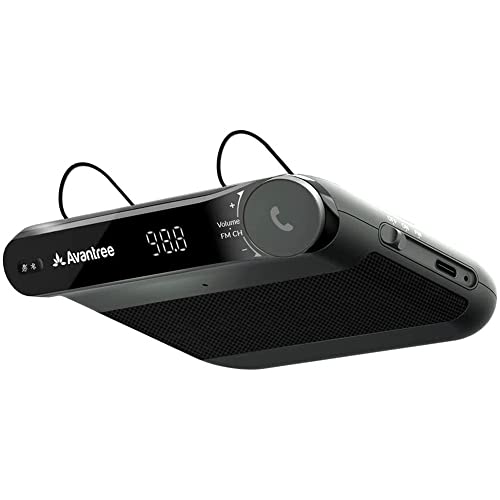
[2-IN-1 SPEAKER & FM TRANSMITTER] Use the Roadtrip as a Bluetooth speaker for calls, voice assistant activation, or directions, or use as an FM transmitter to stream audio from your phone to your car's stereo via FM.
Additional Functions of the Toyota Audio System
After pairing, the device-management screen may allow you to choose how a saved phone is used. Depending on the system, you may be able to:
- Enable or disable the phone-call connection.
- Enable or disable Bluetooth media audio.
- Set a phone as the primary device.
- Choose which saved device connects for calls or music.
- Disconnect a phone without deleting its pairing record.
- Clear call history stored in the multimedia system.
- Change contact sorting between first name and last name.
To switch phones on newer Toyota Audio Multimedia systems, open Settings → Bluetooth & Devices, select the saved device, and choose Connect. If another phone is active, the system may ask for confirmation before switching.
Bluetooth Compared With Apple CarPlay and Android Auto
Bluetooth, Apple CarPlay, and Android Auto are related but separate technologies:
- Bluetooth commonly provides phone calls, contact transfer, and basic audio streaming.
- Apple CarPlay projects supported iPhone apps and controls to the vehicle interface.
- Android Auto provides comparable projection for supported Android phones.
Pairing a phone by Bluetooth does not prove that the Camry supports CarPlay or Android Auto. Projection may require a USB cable, a separate wireless setup, compatible vehicle equipment, and additional phone permissions. Follow the prompt shown by the vehicle rather than assuming Bluetooth alone activates projection.
Is Your Smartphone Compatible?
A Bluetooth-enabled phone may support basic calling but not every multimedia feature. Instead of relying on a static phone-model table, check:
- The Camry’s model year and trim.
- The exact name or model number of the multimedia system.
- The phone model and current operating-system version.
- Whether you need calling, media audio, contacts, messaging, CarPlay, or Android Auto.
- Toyota’s current compatibility and multimedia support information.
If a phone is not listed or a particular feature is unavailable, basic Bluetooth functions may still work. Conversely, being able to pair does not guarantee support for messages, contact photos, album artwork, voice assistants, or smartphone projection.
[Amazon Products Picked for You]

THREE-IN-ONE BLUETOOTH CAR ADAPTER WITH PHONE STAND - Utilizing the latest Bluetooth 5.4 technology, it can complete pairing in just 1 second. Once the initial successful pairing is completed, no further pairing operations are required. The included phone stand fully demonstrates the multi-functionality of this device

📻【FM & AUX Bluetooth Car Adapter】 JOYROOM FM transmitter bluetooth can be easily used in cars without built-in bluetooth. Besides, if your car has a 3.5mm jack, its AUX mode definitely the easiest way to go, it can play straight through your car (no radio frequency required) with true zero distortion sound quality. (A 3.5mm AUX cable include)

【Enjoy Wireless Streaming Music】This car Bluetooth adapter can be connected to non-Bluetooth car audio systems, home stereos, speakers, wired headphones via the 3.5mm AUX adapter; And equipped with a Bluetooth 5.0 chip for stable connection / fast transmission / wide signal range. Just pair it with your phone and start listening to your favorite music!
Privacy When Using a Shared, Rental, or Used Camry
A paired vehicle may retain the phone’s name, contacts, favorites, and call history. When using a rental or shared vehicle, deny contact sharing unless it is necessary. Before selling, trading, or returning a Camry, remove your phone from the saved-device list and delete the Toyota connection from your phone.
Reach Out to Your Local Toyota Dealer for Assistance

Contact a Toyota dealer or Toyota support when the correct model-specific instructions do not solve the problem. Professional assistance is particularly useful when:
- The Bluetooth menu is missing even though the vehicle is supposed to have the feature.
- The multimedia system freezes, restarts, or cannot save any device.
- Several compatible phones fail in the same way.
- The system requires a software update that cannot be installed through the normal owner procedure.
- A used vehicle contains profiles or settings that cannot be removed.
- You are unsure which factory or aftermarket system is installed.
Bring the phone, charging cable, Camry model year, trim, and multimedia software information to the appointment. Those details make it easier to reproduce the problem.
Related Guides
Frequently Asked Questions
How do I connect Bluetooth to my Toyota Camry?
Park the Camry and turn on Bluetooth on the phone. On newer systems, select Settings, Bluetooth & Devices, and Search for devices. On many older systems, select Menu or Home, Setup, Bluetooth, and Add. Choose the phone, verify the matching code, and approve the requested permissions.
How do I put a Toyota Camry into Bluetooth pairing mode?
Open the vehicle’s Bluetooth device menu and select Search for devices, Add another device, Add, or Pair. The exact label depends on the multimedia system. Early hands-free systems may use a steering-wheel phone or voice-command button instead of a touchscreen menu.
How do I connect Bluetooth to a 2009 Toyota Camry?
First confirm that the 2009 Camry has factory Bluetooth because the feature was equipment-dependent. If it has steering-wheel phone controls, press the phone or voice-command button and follow the spoken registration prompts. Navigation-equipped models may use a separate screen procedure described in the Navigation System Owner’s Manual.
Why is my phone not connecting to my Toyota Camry?
Confirm that both devices are actively searching, disconnect the phone from other Bluetooth accessories, and manually select the phone in the Camry’s saved-device list. If it still fails, forget the Toyota connection on the phone, delete the phone from the vehicle, restart both systems, and pair again.
Why do calls work but Bluetooth music does not?
Media audio may be disabled even though phone-call audio is connected. Open the phone’s settings for the Toyota device and enable Media audio when available. Then select Bluetooth Audio as the source on the Camry. Some early factory systems support hands-free calling but not Bluetooth music streaming.
Does Bluetooth pairing automatically enable Apple CarPlay or Android Auto?
No. Bluetooth and smartphone projection are separate functions. A supported Camry may offer CarPlay or Android Auto during the pairing process, but projection can require compatible equipment, additional permissions, or a USB connection.
How do I delete an old phone from my Camry?
Open Bluetooth & Devices or the older Bluetooth setup menu, select the saved phone, and choose Forget, Remove, or Delete. Also forget the Toyota connection in the phone’s Bluetooth settings if you do not want the devices to reconnect.
Conclusion
Successful Toyota Camry Bluetooth pairing begins with identifying the vehicle’s multimedia system. Newer Toyota Audio Multimedia units generally use Settings and Bluetooth & Devices, while many older Entune systems use Menu or Home, Setup, Bluetooth, and Add. A 2009 Camry requires separate instructions and must first be confirmed to have factory Bluetooth equipment.
Pair only while parked, verify every pairing code, and approve only the permissions you need. After connecting, test calls, media audio, and contacts separately. If the phone still will not connect after both devices have been removed and paired again, use the exact multimedia manual or ask Toyota support to check the system.
Sources
- Toyota Bluetooth Pairing on Toyota Audio Multimedia — current-system pairing, device management, permissions, and primary-device guidance.
- Toyota Connected Services and Bluetooth Support — official compatibility and multimedia support resources.
- Toyota Support: Pairing a Smartphone by Bluetooth — the common Menu, Setup, Bluetooth, and Add Device route used by applicable systems.
- Toyota Legacy Entune Quick Reference Guide — older Entune pairing and permission procedures.
- 2009 Toyota Camry Quick Reference Guide — optional factory Bluetooth telephone controls and early-system limitations.
- National Highway Traffic Safety Administration: Distracted Driving — guidance on avoiding phone and infotainment distraction while driving.
