
Deleting an old phone from your Toyota Camry can stop unwanted automatic connections, free space in the saved-device list, and remove information associated with that pairing. The exact button names depend on the Camry’s model year and multimedia system, so look for terms such as Bluetooth & Devices, Forget, Remove Device, or Delete.
Last updated: September 19, 2026 — verified against Toyota’s 2025 Camry multimedia instructions and current Apple and Android Bluetooth guidance.
Quick Answer
Park the Camry, open the multimedia system’s settings, choose Bluetooth & Devices on newer systems or Menu > Setup > Bluetooth on older systems, select the saved phone, and tap Forget, Remove, or Delete. Confirm the prompt. For a complete reset of the pairing, also forget the Toyota connection in the phone’s Bluetooth settings.
Key Takeaways
- Perform all Bluetooth setup while the Camry is safely parked.
- Toyota’s 2025 Camry multimedia system uses Settings > Bluetooth & Devices > select the device > Forget.
- Older systems may use Menu > Setup > Bluetooth followed by Remove Device or a similar command.
- Disconnect ends the current connection, while Forget, Remove, or Delete erases the saved pairing from the vehicle.
- Remove the pairing from both the Camry and the phone when troubleshooting or preparing the vehicle for another owner.
At a Glance
| Typical Time | Usually a few minutes |
| Difficulty | Easy |
| Tools Needed | None |
| Cost | $0 |
Warning: Do not search through multimedia menus while driving. Park on a safe, level surface, shift into Park, and finish the procedure before returning to the road. The National Highway Traffic Safety Administration identifies adjusting a stereo, entertainment system, or navigation system as a form of distracted driving.
Know the Difference Between Disconnect and Forget
Toyota multimedia systems may display several controls for a saved phone. They do not all perform the same action:
- Disconnect ends the current Bluetooth session but keeps the device saved for later use.
- Forget, Remove, or Delete erases the saved pairing from the vehicle.
- Turn off phone, media, CarPlay, or Android Auto access may keep the pairing while preventing that device from handling a particular service.
Use Disconnect when the phone will be used again. Use Forget, Remove, or Delete when you want the saved pairing removed from the Camry.
Which Bluetooth Menu Should You Use?
Toyota has used more than one multimedia interface in the Camry. Instead of relying only on model year, match the instructions to the controls displayed on your screen.
| What You See | Removal Path |
| Settings gear and Bluetooth & Devices | Settings > Bluetooth & Devices > device > Forget |
| MENU, Setup, and Bluetooth controls | Menu > Setup > Bluetooth > Remove Device, Remove, or the paired-device list |
Find the Correct Bluetooth Menu in Your Toyota Camry
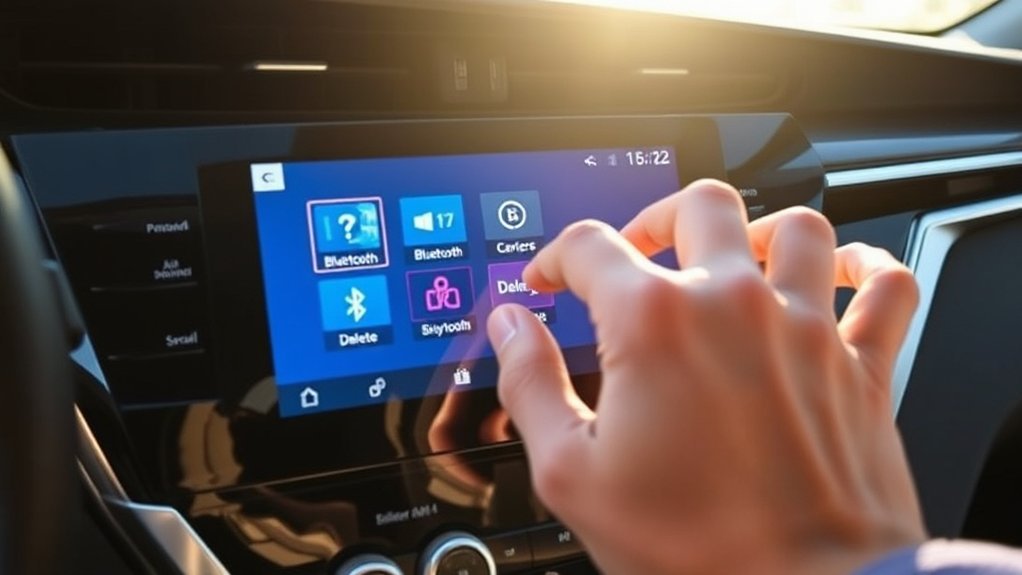
Toyota has used more than one multimedia interface in the Camry. Identify the path that matches the controls shown on your screen.
Newer Toyota Audio Multimedia Systems
On Toyota’s newer Audio Multimedia platform, the usual path is:
- Select the Settings gear on the touchscreen.
- Select Bluetooth & Devices.
- Choose the saved device from the list.
- Select Forget.
- Confirm the removal by selecting Forget again.
Toyota’s U.S. 2025 Camry Hybrid Multimedia Owner’s Manual confirms this exact sequence. It also notes that a device set as another user’s primary device cannot be deleted, a registered cellular phone cannot be deleted during an emergency call, and deletion may not succeed on the first attempt depending on the Bluetooth device’s status.
Toyota’s official Bluetooth Audio Multimedia guide also shows Disconnect and Forget controls on the device-management screen.
Older Toyota Multimedia Systems
Older Camry multimedia systems can use a path similar to:
- Press MENU on the faceplate or touchscreen.
- Select Setup.
- Select Bluetooth or Bluetooth Settings.
- Select Remove Device, Remove, Delete Device, or the paired-device list.
- Choose the phone and confirm Yes.
Toyota’s older Camry multimedia documentation identifies Remove Device as the control for deleting a registered Bluetooth device. On these systems, deleting a Bluetooth phone can also delete contact data stored by the multimedia unit.
Note: Menu names can vary by model year, trim, market, and multimedia unit. Use Toyota’s official manuals page to find the instructions for your exact Camry when the screen does not match either path.
How to Delete a Bluetooth Device From a Toyota Camry
- Park the vehicle. Shift into Park and leave the ignition or accessory power on so the multimedia display remains available.
- Open the Bluetooth device list. Use the newer or older menu path described above.
- Select the correct device. Check the phone name carefully, especially when several family members have paired similar devices.
- Choose the removal command. Tap Forget, Remove, or Delete rather than Disconnect.
- Confirm the prompt. Wait until the device disappears from the saved-device list.
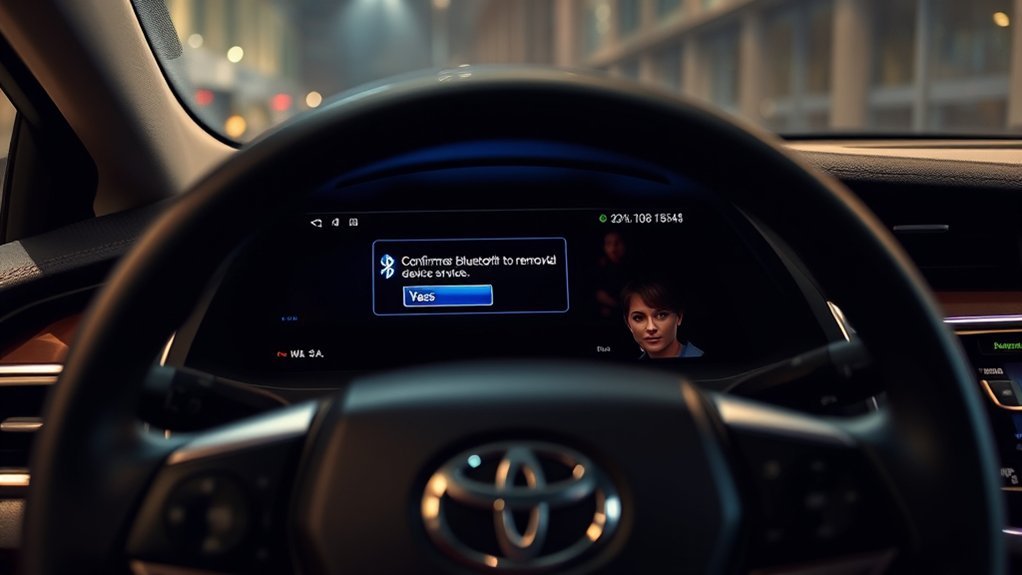
Deleting a registered phone removes the saved vehicle-side pairing. Depending on the multimedia system, information that the phone previously synchronized with the vehicle, such as contact data, may also be removed.
Pro Tip: Before deleting a device during troubleshooting, take a photo of the device name and any enabled phone, media, CarPlay, or Android Auto settings. This makes it easier to restore the same configuration after pairing again.
Remove the Toyota Pairing From Your Phone Too
Removing a phone from the Camry does not necessarily erase the vehicle from the phone’s saved Bluetooth list. Delete both sides of the pairing when a connection keeps returning, pairing repeatedly fails, or the vehicle is changing owners.
Forget the Camry on an iPhone
- Open Settings on the iPhone.
- Tap Bluetooth.
- Tap the information button beside the Toyota or multimedia-system name.
- Tap Forget This Device.
- Confirm the choice.
Apple’s current Bluetooth accessory instructions identify Forget This Device as the command for removing the saved Bluetooth accessory.
Forget the Camry on an Android Phone
- Open the phone’s Bluetooth or connected-device settings.
- Find the Toyota under connected or saved devices.
- Tap the settings icon beside the vehicle.
- Tap Forget or Unpair.
- Confirm the removal.
Android menu wording varies by phone manufacturer, but Google’s official Bluetooth help page identifies Forget as the command that removes a saved accessory completely.
Why Remove Old Bluetooth Devices?
You do not need to delete a working device simply because it has been saved for a while. Removal is useful in several specific situations:
- The saved-device list is full. Toyota’s latest-generation Audio Multimedia guide says that platform can store up to five devices and connect two at the same time. Do not assume the same capacity for every older Camry multimedia system.
- An old phone connects unexpectedly. Removing it prevents the Camry from using that saved pairing when the phone is nearby.
- You are selling, trading, returning, or sharing the vehicle. Forgetting personal devices helps remove information associated with those pairings.
- You are troubleshooting. Deleting the pairing from both sides creates a clean starting point before pairing again.
- The wrong phone is set as the primary device. You can either change the primary-device setting or remove the phone if it is no longer needed.
Deleting an old pairing is mainly a privacy and connection-management step. It should not be described as a repair that automatically improves Bluetooth speed or secures unrelated vehicle-control systems.
Selling or Trading the Camry? Check the Driver Profile Too
On Toyota Audio Multimedia systems that use driver profiles, deleting the Bluetooth pairing may not be the only cleanup step. Toyota’s change-of-ownership guide shows a profile-deletion workflow under Settings and the current profile’s Edit controls, with an option to forget linked Bluetooth devices when deleting a saved profile.
If your Camry has user profiles, review the saved-profile list before handing the vehicle to another owner. The exact profile controls vary by multimedia system, so confirm the deletion summary shown on the screen before proceeding.
What to Do If Bluetooth Device Removal Fails
Why Can’t I Delete the Bluetooth Device?
On Toyota’s 2025 Camry multimedia system, there are several documented reasons a removal may not work immediately. A device that is set as another user’s primary device cannot be deleted from the current context. A registered cellular phone also cannot be deleted during an emergency call. Toyota additionally notes that a Bluetooth device may not delete on the first attempt depending on its current status. Resolve the active call or user-profile issue, then return to Bluetooth & Devices and try Forget again.
Check Whether the Device Is Already Gone
If the phone is not shown in the vehicle’s paired-device list, it may already have been removed. Check whether the Camry uses multiple driver profiles, because the phone may be associated with another profile. Also check the phone’s Bluetooth list; the vehicle can remain saved there even after it disappears from the Camry.
Disconnect the Phone Before Trying Again
If Forget, Remove, or Delete is unavailable, turn off Bluetooth on the phone or select Disconnect on the Camry first. Return to the saved-device screen and try the removal command again. This is a troubleshooting step rather than a requirement on every Toyota system.
Restart the Phone and Multimedia System
Park safely, switch the vehicle off, and restart the phone. After the multimedia system has shut down, start the Camry again and return to the Bluetooth menu. A restart may clear a temporary interface problem, but it is not a guaranteed repair for a software or hardware fault.
Forget the Pairing on Both Sides and Pair Again
For recurring connection problems, remove the phone from the Camry and remove the Toyota entry from the phone. Restart both, turn Bluetooth back on, and complete a fresh pairing. Confirm any matching code and approve only the contact, message, media, Apple CarPlay, or Android Auto permissions you intend to use. See the full Toyota Camry Bluetooth pairing guide if you need the complete re-pairing sequence.
If deleting and re-pairing does not solve the original connection problem, work through the dedicated Toyota Camry Bluetooth troubleshooting guide instead of repeatedly deleting the same device.
Check Vehicle-Specific Software Information
Do not assume every Camry has a Setup > Software Update command. Update methods vary by multimedia unit. Consult the vehicle-specific manual through Toyota’s official manuals page or contact Toyota support or a dealer with the Camry’s model year and multimedia-system details.
Use a Multimedia Reset Only as a Last Resort
A reset can erase more than Bluetooth pairings. Exactly what is removed varies by multimedia unit, so read the on-screen confirmation and the model-specific manual before continuing. Do not use a full reset merely to remove one device when the normal Forget or Remove command is available. If a reset is actually required, see the Toyota Camry infotainment reset guide for the difference between a restart and a more destructive reset.
Frequently Asked Questions
How do I delete Bluetooth devices on my Toyota Camry?
Park the Camry and open the saved-device list. On newer systems, select Settings > Bluetooth & Devices, choose the phone, and tap Forget. On older systems, use Menu > Setup > Bluetooth and select Remove Device, Remove, or Delete Device. Confirm the prompt.
How do I forget a device on my Toyota Camry?
Open Settings on the Toyota touchscreen, select Bluetooth & Devices, choose the saved phone, and select Forget. If your Camry does not show those labels, look for Bluetooth Settings followed by Remove Device, Remove, or Delete Device.
How do I delete a device from my car Bluetooth completely?
Delete the pairing from the vehicle and then forget the Toyota connection in the phone’s Bluetooth settings. Removing both saved entries is especially useful when troubleshooting or preparing the vehicle for a new driver.
How do I delete all paired devices from my car Bluetooth?
Removing each device individually is the least destructive method. Some multimedia systems also offer reset or initialization controls, but those can erase settings beyond Bluetooth pairings. Check the exact Camry multimedia manual and read the on-screen deletion summary before using a full reset.
Why does a deleted phone reconnect to my Toyota Camry?
The Camry may still be stored on the phone, the phone may be associated with another Toyota user profile, or a wireless projection setting may remain active. Forget the pairing on both the vehicle and phone, restart both, and pair again only if you still want the connection.
Why can’t I delete a Bluetooth device from my Toyota Camry?
On Toyota’s 2025 Camry multimedia system, a device assigned as another user’s primary device cannot be deleted from the current context, and a registered cellular phone cannot be deleted during an emergency call. Toyota also notes that removal may not work on the first attempt depending on the Bluetooth device’s status.
Conclusion
To remove a Bluetooth device from a Toyota Camry, use the saved-device menu that matches your multimedia system and select Forget, Remove, or Delete—not merely Disconnect. On Toyota’s 2025 Camry system, the path is Settings > Bluetooth & Devices > device > Forget. Confirm that the phone disappears from the vehicle’s list, and remove the Toyota pairing from the phone as well when troubleshooting or changing vehicle users. If your screen uses different labels, check the multimedia manual for the exact Camry rather than forcing a generic sequence.
Sources
- Toyota 2025 Camry Hybrid Multimedia Owner’s Manual — Camry-specific Bluetooth & Devices menu, Forget sequence, primary-device limitation, emergency-call restriction, and deletion troubleshooting.
- Toyota Bluetooth Pairing on Toyota Audio Multimedia Guide — newer Bluetooth & Devices controls, device capacity, and simultaneous connections.
- Toyota Audio Multimedia Change of Ownership Guide — saved-profile deletion and forgetting linked Bluetooth devices.
- Toyota Manuals and Warranties — vehicle-specific owner and multimedia manuals.
- Apple Support: Connect a Third-Party Bluetooth Accessory — iPhone Forget This Device instructions.
- Android Help: Find and Set Up Bluetooth Devices — Android Forget control and saved-device management.
- NHTSA Distracted Driving — safety guidance concerning interaction with stereo, entertainment, and navigation systems while driving.

