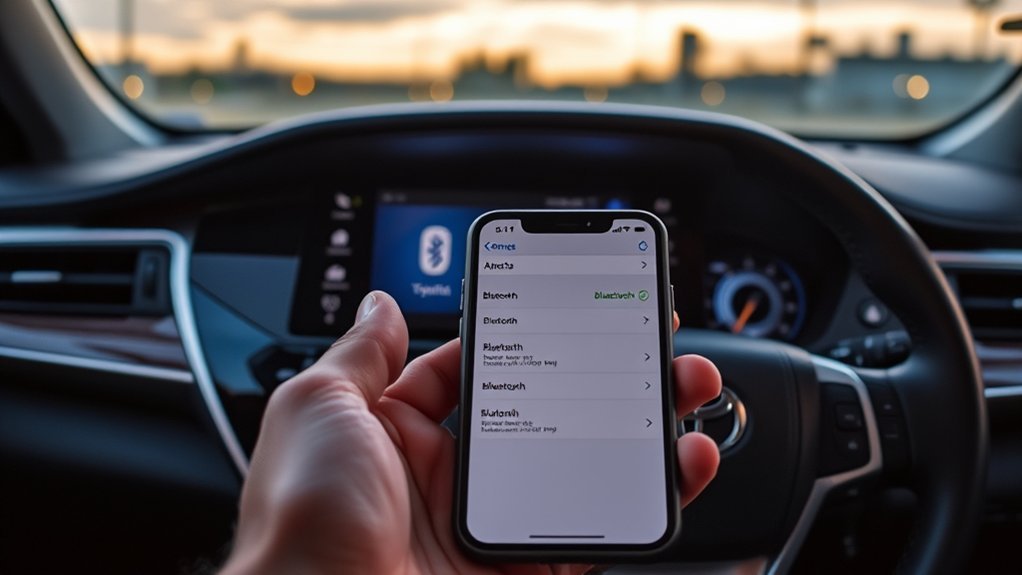
If your Toyota Camry’s Bluetooth will not pair, keeps disconnecting, or connects without calls or music, start with the phone-to-car pairing record rather than assuming the vehicle has a hardware fault. The exact menus vary by model year and audio system, but the safest troubleshooting order is consistent: check the active device and audio settings, restart both systems, remove the pairing on both sides, and pair again.
Quick Answer
If your Toyota Camry’s Bluetooth is not working, park safely, confirm Bluetooth is enabled, restart the phone and infotainment system, then forget the Camry on the phone and delete the phone from the car. Pair again, accept the matching code and permissions, and test calls and music separately.
Key Takeaways
- Toyota Camry Bluetooth menus and supported features vary by model year, trim, and multimedia system.
- The most useful reset is to delete the pairing from both the phone and the car, restart them, and pair again.
- Test calls, the vehicle microphone, contacts, and music separately because each function can fail for a different reason.
- If every phone fails or the infotainment system freezes, restarts, or loses its Bluetooth menu, professional diagnosis may be needed.
At a Glance
| Time Required | 10–30 minutes for basic troubleshooting |
| Difficulty | Easy |
| Tools Needed | Your phone, the vehicle owner’s manual, and optionally a second compatible phone for testing |
| Cost | $0 for basic troubleshooting; diagnostic or repair charges may apply if service is required |
Warning: Park the Camry in a safe location before changing Bluetooth, phone, or infotainment settings. Do not troubleshoot the touchscreen while driving, and do not pull fuses or disconnect the 12-volt battery as a generic Bluetooth reset.
Common Causes of Toyota Camry Bluetooth Problems
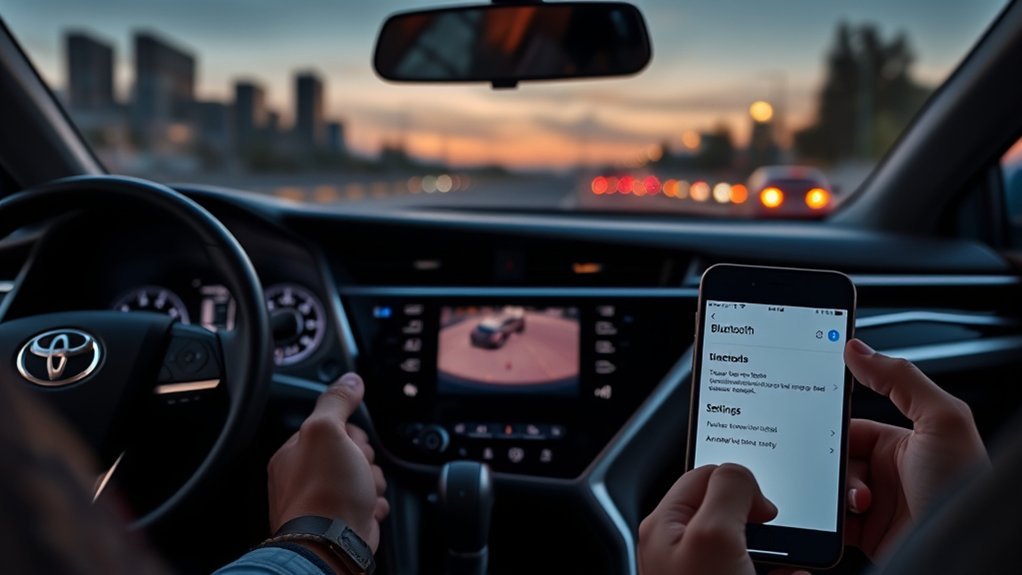
Most Toyota Camry Bluetooth problems come from the connection settings rather than damaged vehicle wiring. Start by identifying the exact symptom: the phone may not appear, it may pair without connecting, calls may work without music, music may work without calls, or the connection may drop after another phone enters the car.
- Old or conflicting pairing records: The phone and vehicle may retain different connection information after a phone update, infotainment restart, or previous pairing attempt.
- The wrong active device: A Camry that stores several phones may connect to a passenger’s phone or assign phone and media functions to different devices.
- Disabled audio profiles: The phone may be paired while phone-call audio, media audio, or both are disabled.
- Missing permissions: Contacts, call history, messages, notifications, or microphone-related functions may not work until you approve the prompts shown during pairing.
- Software compatibility: A new phone operating-system version may expose a compatibility problem in an older multimedia system.
- Bluetooth and projection confusion: Bluetooth calling may work even when Apple CarPlay or Android Auto does not, because projection uses additional USB or Wi-Fi connections.
- Vehicle-side fault: A head-unit, microphone, antenna, power, or software problem becomes more likely only when multiple compatible phones fail in the same way.
The most dependable first reset is to remove the saved connection from both the phone and the Camry, restart both systems, and pair them again from the beginning.
Steps to Troubleshoot Toyota Camry Bluetooth Connection Problems
- Park safely and identify the exact problem. Determine whether the Camry cannot find the phone, will not complete pairing, connects without sound, loses the connection, or fails only with calls, music, contacts, CarPlay, or Android Auto. This prevents unrelated resets.
- Confirm that your Camry supports the feature you are testing. Bluetooth availability and functions vary by model year, trim, and audio system. Check the Toyota owner’s manual portal and the Toyota phone compatibility resource for your exact vehicle and phone.
- Check basic phone settings. Turn Bluetooth off and back on from the phone’s Settings app, not only from a shortcut panel. Make sure Airplane Mode is off and keep the phone close to the infotainment display while pairing.
- Check which phone is active. Open the Camry’s Bluetooth device list and confirm that your phone is selected for the function you need. On systems that support multiple saved or connected devices, another phone may have priority for calls or media.
- Restart the phone and vehicle. Restart the phone normally. Turn the Camry off, allow the infotainment system to shut down, and start the vehicle again. Avoid pressing random button combinations unless your model-specific manual instructs you to do so.
- Delete the pairing from both sides. On the phone, open Bluetooth settings and choose Forget, Unpair, or Remove for the Camry. In the vehicle’s Bluetooth device list, choose Disconnect or Forget for the phone. Removing only one side can leave a stale record on the other.
- Pair the phone again. Put the Camry in pairing or device-search mode, select the vehicle on the phone or the phone on the vehicle display, and confirm that the code shown on both screens matches. Follow the prompts to approve contacts, call history, messages, notifications, and media access as needed. Toyota’s current pairing guide is available in its Bluetooth How-To Guide.
- Test phone and media functions separately. Place a short hands-free call and confirm that you can hear the other person and that the vehicle microphone works. Then select Bluetooth Audio as the source and play a downloaded song or other audio. Testing separately shows whether the problem affects the whole connection or only one profile.
- Check phone and multimedia updates. Install the latest operating-system update officially available for the phone. For the Camry, use only an update identified for the exact vehicle and multimedia system through Toyota’s official resources or a Toyota service center. Do not install firmware from an unofficial download site.
- Test with a second compatible phone. If another phone works normally, the original phone’s settings, permissions, operating system, or Bluetooth hardware are the likely cause. If every phone fails in the same way, the Camry’s multimedia system needs closer attention.
Pro Tip: After each change, test one call and one audio track before moving to the next step. This makes it easier to identify which action fixed the connection and which Bluetooth function was affected.
[Amazon Products Picked for You]

54W High Power Fast Charging, 4-Port Synchronous Charging: Nulaxy Bluetooth car adapter integrates PD36W and QC18W, offering a high-speed and efficient charging solution. Its innovative four-port design supports parallel charging of multiple devices, effortlessly overcoming battery anxiety and enhancing charging efficiency.
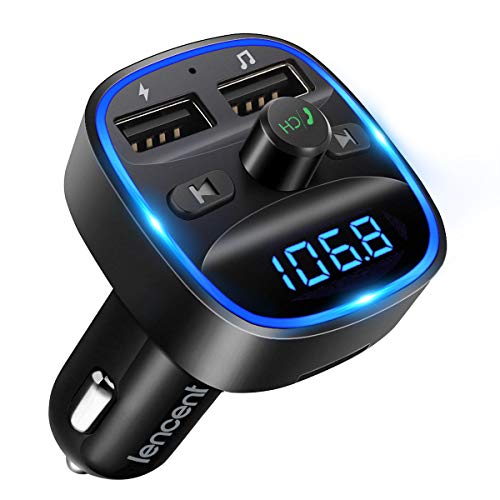
Crystal Clear Music Streaming: LENCENT T25 is anti- statics designed, and equipped with noise and wind suppressed by CVC technology that can achieve full duplex sound quality. You can stream music on your car stereo via Bluetooth/ USB Flash Drive (≤32GB) / microSD Card (≤32GB). WMA MP3 WAV APE FLAC music formats are all supported

【54W Super Fast Charging - 4 Charging Ports】- Equipped with 2*USB-C + 2*USB-A ports, this FM Bluetooth adapter delivers up to 54W max output, supporting fast charging protocols such as 5V–3A / 9V–3A / 12V–3A (device-dependent). Easily power your iPhone, Samsung, tablet, dashcam, and more – all at the same time.
Why Keeping Infotainment Software Updated Matters
Current phone and vehicle software can improve compatibility and stability, but an update is not a guaranteed cure for every Bluetooth problem. Check the phone first, then verify whether Toyota provides an update for your exact Camry multimedia system. Update availability and installation methods differ among vehicle years and head units.
Enhanced Connectivity Performance
A relevant update may correct a known pairing, reconnection, call-audio, or compatibility issue. It cannot repair damaged hardware, add a feature the head unit was never designed to support, or guarantee compatibility with every phone.
| Possible Benefit | What It May Address | Important Limitation |
|---|---|---|
| Compatibility correction | Pairing or reconnection trouble with a newer phone or operating system | Only applies when the update specifically supports the installed system |
| Bug fix | Freezing, dropped connections, or incorrect profile behavior | Will not fix a phone setting, missing permission, or hardware fault |
| Stability improvement | Faster reconnection or fewer system errors | Results depend on the phone, vehicle, and update release |
Access to New Features
Some Toyota updates add or change functions, but many updates only correct bugs or improve compatibility. A software update cannot add a feature that requires missing hardware. Before expecting wireless projection, messaging, or another new function, check the equipment list and update notes for your specific Camry.
Phone updates can also change permission prompts or connection behavior. After a major iPhone or Android update, review the saved Camry connection, approve any new prompts, and re-pair the devices if the problem began immediately after the update.
Improved Security Updates
Keeping the phone’s operating system current is a sensible security and compatibility practice. Vehicle firmware should come only from Toyota or an authorized service channel. Avoid generic firmware files, unofficial USB update packages, and instructions intended for a different model year or head unit.
| Update Source | Safe Action | Avoid |
|---|---|---|
| iPhone | Use Apple’s Software Update screen | Unofficial profiles or modified system software |
| Android phone | Use the manufacturer’s system-update screen | Firmware intended for another model or region |
| Toyota multimedia system | Use Toyota’s manual, owner resources, support channel, or service center | Unverified download sites or update files for a different head unit |
Note: If no update is listed for your exact vehicle and multimedia system, that does not automatically mean the system is outdated. Toyota may handle certain updates through a dealer or may not require an update for that unit.
Tips for Reducing Bluetooth Signal Interference in Your Camry
Wireless interference can affect a Bluetooth connection, but it should not be the first explanation for every pairing problem. Check saved devices, active-device priority, phone and media profiles, permissions, and software before treating the surrounding area as the main cause.
[Amazon Products Picked for You]

Add Bluetooth to Your Car: UGREEN Bluetooth receiver is designed to turn home or audio systems, or speakers into hands-free, Bluetooth-enabled devices. If you want to stream music or listen to phone conversations through car’s speakers, but your vehicle didn’t come with Bluetooth, UGREEN Bluetooth Car adapter is an effective solution.
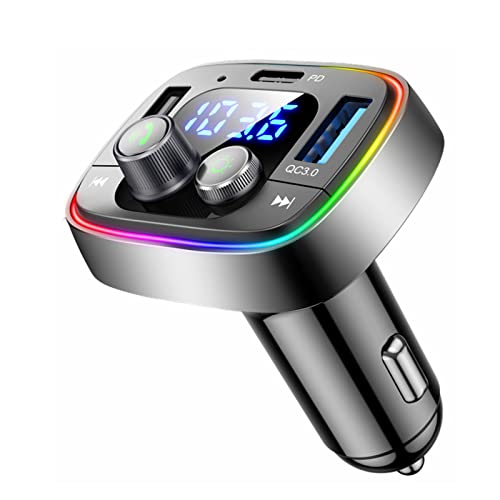
[Upgrade any non-Bluetooth or non-AUX jacks car in 30 seconds]: Turn any vehicle into a wireless Bluetooth audio system in seconds. No new stereo, No dongle hunting.

📻【FM & AUX Bluetooth Car Adapter】 JOYROOM FM transmitter bluetooth can be easily used in cars without built-in bluetooth. Besides, if your car has a 3.5mm jack, its AUX mode definitely the easiest way to go, it can play straight through your car (no radio frequency required) with true zero distortion sound quality. (A 3.5mm AUX cable include)
Turn Off or Disconnect Nearby Devices
A more useful test than turning off every electronic device is to disconnect phones, watches, earbuds, or adapters that are actively competing for the same phone or vehicle connection. Also check whether a passenger’s saved phone connects to the Camry before yours.
| Device or Situation | Practical Check |
|---|---|
| Another saved phone in the Camry | Disconnect it temporarily and select your phone for calls and media. |
| Earbuds, headphones, or smartwatch | Disconnect them if calls or media are being routed away from the vehicle. |
| Wireless CarPlay or Android Auto adapter | Remove it temporarily and test the factory Bluetooth connection directly. |
| Several failed pairing attempts | Delete the saved records from both sides before trying again. |
Move to a Less Crowded Area as a Diagnostic Test
If the connection works normally in one location but repeatedly fails in another, move the vehicle away from dense wireless equipment and test again. This can help identify an environmental factor, but it is not a substitute for correcting stale pairings, wrong device priority, or disabled audio profiles.
Keep the phone inside the passenger compartment and away from metal containers or a packed trunk while testing. Normal in-cabin distance should be sufficient for a healthy connection.
Reset Bluetooth Connections When Problems Recur
You do not need to erase and re-pair Bluetooth devices as routine maintenance. Use a pairing reset when the Camry stops reconnecting, the problem begins after a phone update, the wrong phone repeatedly takes priority, or calls and media behave differently from their saved settings.
Delete unused phones from the Camry’s device list when practical. A shorter device list makes it easier to see which phone is selected and reduces confusion when several drivers use the vehicle.
How to Check Toyota Camry Bluetooth Compatibility
Compatibility depends on the Camry’s model year, trim, installed multimedia system, phone model, operating-system version, and the feature you want to use. Successful pairing does not guarantee that every optional function—such as contact transfer, text-message display, album information, wireless projection, or simultaneous device use—will operate the same way.
- Identify the Camry’s model year and installed audio or navigation system.
- Open Toyota’s mobile-phone compatibility resource.
- Review the vehicle-specific owner’s manual for menu names and supported functions.
- Check the phone manufacturer’s current Bluetooth or vehicle-connection guidance.
- Confirm that the phone is running the latest officially available software for that device.
A phone can pair successfully while one feature—calls, music, contacts, messages, or projection—remains unsupported, disabled, or assigned to another device.
Note: The owner’s manual explains your Camry’s controls and procedures. Toyota’s separate compatibility resource is the better place to check phone-specific support.
[Amazon Products Picked for You]

[𝐔𝐏𝐆𝐑𝐀𝐃𝐄𝐃 𝐁𝐋𝐔𝐄𝐓𝐎𝐎𝐓𝐇 𝟔.𝟎 & 𝐔𝐋𝐓𝐑𝐀-𝐒𝐓𝐀𝐁𝐋𝐄] Say goodbye to audio lag and dropouts! JOYROOM Bluetooth 𝟔.𝟎 car adapter features an advanced chip that optimizes signal range and anti-interference. It delivers a rock-solid, faster connection for your bluetooth fm transmitter for car, ensuring uninterrupted music and hands-free calls. Enjoy 1-second quick pairing and instant auto-reconnect every time you start your engine. Supports Bluetooth & USB drive ( ≤64GB) playback. Perfect as a car bluetooth adapter for vehicles without built-in Bluetooth. (Adaptador bluetooth para carro)

【Enjoy Wireless Streaming Music】This car Bluetooth adapter can be connected to non-Bluetooth car audio systems, home stereos, speakers, wired headphones via the 3.5mm AUX adapter; And equipped with a Bluetooth 5.0 chip for stable connection / fast transmission / wide signal range. Just pair it with your phone and start listening to your favorite music!
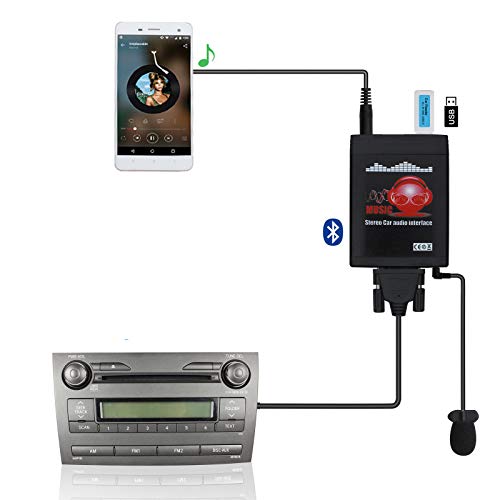
Turn your Toyota's factory radio into a Bluetooth-enabled system for hands-free calls and wireless music streaming — no need to replace the head unit. Built-in Bluetooth 5.0 chip and noise-suppressing microphone ensure crystal-clear conversations, keeping your focus on the road.
Bluetooth vs. Apple CarPlay and Android Auto
Bluetooth, Apple CarPlay, and Android Auto are related but separate connections. Basic Bluetooth commonly handles hands-free calls and audio streaming. Wired projection uses a USB data connection, while wireless projection may use Bluetooth during setup and Wi-Fi for the main connection.
If Bluetooth calls work but CarPlay does not, follow Apple’s CarPlay troubleshooting guidance and check the USB cable, USB port, Wi-Fi, Siri, restrictions, saved CarPlay vehicle, and vehicle firmware. If Android Auto fails while Bluetooth works, check whether your Camry supports wired or wireless Android Auto and follow the phone and Toyota setup instructions for that connection type.
Troubleshoot Toyota Camry Bluetooth by Symptom
The Camry Cannot Find the Phone
- Make sure the phone’s Bluetooth settings screen is open and the phone is discoverable.
- Confirm that the Camry is actively searching for a new device rather than only showing saved devices.
- Disconnect the phone from earbuds, another car, or another accessory that may be controlling the connection.
- Delete an old Camry entry from the phone before starting a new pairing attempt.
- Restart the phone and vehicle if neither device appears.
The Phone Is Paired but Music Does Not Play
- Select Bluetooth Audio, BT Audio, or the equivalent source on the Camry display.
- Raise the volume on both the phone and vehicle.
- Check whether the phone is sending audio to earbuds, a smartwatch, or another speaker.
- On Android, open the Camry’s saved-device settings and make sure Media audio is enabled.
- Test locally stored audio to rule out a streaming-app or mobile-data problem.
Music Works but Calls Do Not
- Confirm that the Camry is selected as the call-audio destination during a call.
- On Android, open the saved-device settings and enable Phone audio.
- Check whether another paired device is receiving the call.
- Delete and re-pair the connection, then approve contacts and call-history access.
- Place a test call and verify both speaker output and microphone input.
Calls Connect but the Other Person Cannot Hear You
- Make sure the call is routed through the Camry rather than the phone handset or another Bluetooth device.
- Check that the phone is not muted.
- Test another phone to determine whether the problem follows the phone.
- If every phone produces the same microphone failure, arrange professional diagnosis of the vehicle microphone or multimedia system.
Bluetooth Keeps Disconnecting
- Remove duplicate or unused Camry entries from the phone.
- Delete the phone from the Camry and perform a clean pairing.
- Confirm that a second saved phone is not taking priority.
- Restart both devices and check for official updates.
- Temporarily disconnect wireless projection adapters, watches, and earbuds.
- Test with another compatible phone.
Contacts or Messages Do Not Sync
- Review the permission prompts shown for the Camry in the phone’s Bluetooth settings.
- Allow contact and call-history access if you want those functions displayed in the vehicle.
- Approve message or notification access only if the phone and multimedia system support it.
- Delete and re-pair the phone if the original permission request was denied.
- Remember that available messaging features vary by phone, operating system, vehicle year, and multimedia system.
When to Get Professional Help With Bluetooth Problems
Professional help is reasonable after you have restarted both systems, removed both pairing records, paired again, checked the correct phone and media profiles, reviewed compatibility, and tested another phone.
Contact a Toyota service center when any of these conditions applies:
- No compatible phone can find or connect to the vehicle.
- The Bluetooth menu is missing, unavailable, or repeatedly becomes disabled.
- The infotainment system freezes, displays errors, restarts, or loses saved settings.
- Every phone connects but the vehicle microphone consistently fails.
- The problem began after multimedia-system repair, electrical work, water intrusion, impact damage, or battery-related service.
- Toyota identifies an update, service campaign, or diagnostic procedure that requires dealer equipment.
- A model-specific personal-data reset does not help.
A technician can confirm software versions, inspect the head unit and microphone system, check relevant power and communication circuits, and determine whether the fault is software-related or hardware-related.
Warning: Do not disconnect the 12-volt battery or remove infotainment fuses solely to reset Bluetooth unless the vehicle-specific repair information instructs you to do so. These actions can erase settings, create additional warning messages, or affect other vehicle systems.
Frequently Asked Questions
Why is my Toyota Camry Bluetooth not working?
The most common causes are a stale pairing record, the wrong active phone, disabled phone or media audio, denied permissions, or a compatibility problem after a phone update. Restart the phone and vehicle, forget the connection on both sides, pair again, and test calls and music separately.
Why did my car’s Bluetooth suddenly stop working?
A sudden failure can follow a phone update, an infotainment restart, a changed permission, another saved phone taking priority, or a corrupted connection record. Restart both systems and perform a clean re-pair before assuming the vehicle has a hardware fault.
How do I reset the Toyota Bluetooth system?
For a basic Bluetooth reset, forget the Camry on the phone, remove the phone from the Camry’s saved-device list, restart both systems, and pair again. Use a full personal-data or factory reset only when your model-specific manual recommends it because that action can erase profiles and other settings.
Why did Bluetooth stop working after a phone update?
A major phone update may change permissions, Bluetooth behavior, or compatibility with an older multimedia system. Review the Camry connection in the phone’s settings, install any follow-up phone update, remove the saved pairing from both devices, and pair again.
Why is my Camry paired but not playing music?
Select Bluetooth Audio as the vehicle source, raise both volume controls, and make sure the phone is not sending sound to another accessory. On Android, open the Camry’s saved-device settings and enable Media audio. Re-pair the devices if the profile remains unavailable.
Why do calls work but music does not?
Phone calls and music use different Bluetooth functions. The phone-call profile may be active while media audio is disabled, assigned to another device, or not supported by that particular system. Check the active media device, select Bluetooth Audio, and enable Media audio in the phone’s Bluetooth settings when available.
Conclusion
When Toyota Camry Bluetooth is not working, begin with the settings most likely to cause the problem: the active phone, saved pairing records, phone and media profiles, permissions, and software compatibility. Remove the connection from both the phone and vehicle, restart them, pair again, and test calls and music separately.
If a second compatible phone works, focus on the original phone. If every phone fails or the infotainment system freezes, restarts, loses its Bluetooth menu, or cannot use the vehicle microphone, contact a Toyota service center for model-specific diagnosis.
Sources
- Toyota Audio Multimedia and Connected Services — official Bluetooth, compatibility, pairing, and multimedia information.
- Toyota Bluetooth How-To Guide — official pairing, connecting, disconnecting, and forgetting-device instructions for Toyota Audio Multimedia.
- Toyota Manuals and Warranties — vehicle-specific owner’s manuals and feature instructions.
- Apple: If a Bluetooth Accessory Won’t Connect — official iPhone Bluetooth troubleshooting and re-pairing guidance.
- Apple: If You Need Help With CarPlay — official wired and wireless CarPlay connection, settings, restart, and firmware checks.
- Google Android Help: Fix Bluetooth Problems — official Android guidance for clearing pairings, re-pairing, phone audio, and media audio.
