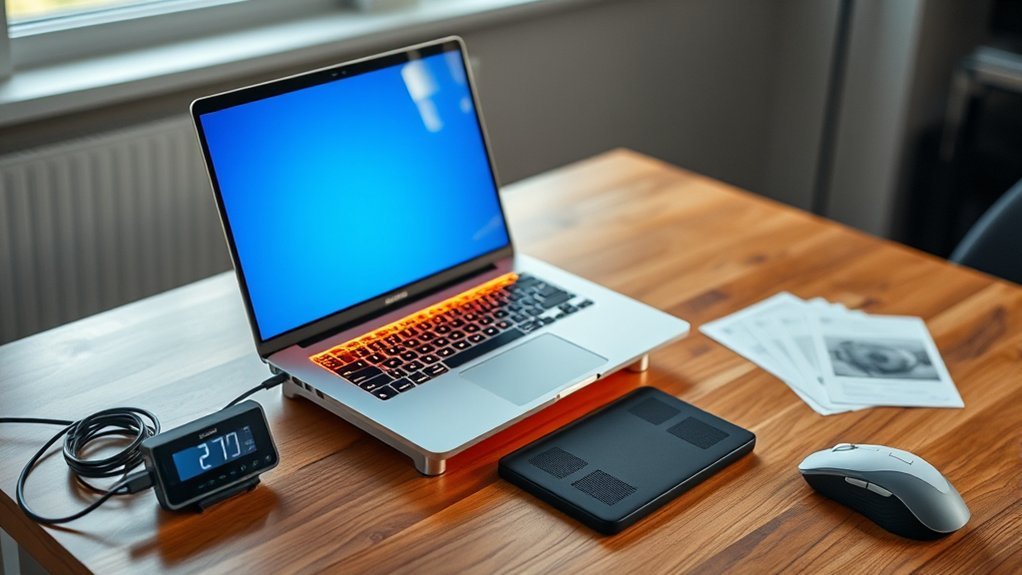
A laptop that feels warm or even fairly hot underneath is not automatically overheating. Processors, graphics chips, batteries, and charging circuits all produce heat during normal use. The real warning signs are persistent excessive heat during light work, nonstop fan noise, major performance slowdowns, thermal warnings, repeated crashes or shutdowns, or physical battery changes such as swelling. Start by improving airflow, reducing unnecessary workload, and checking the laptop manufacturer’s guidance rather than relying on one universal surface-temperature number.
Quick Answer
It is normal for the bottom of a laptop to become warm during charging, gaming, video editing, updates, or other demanding work. Worry when heat remains excessive during light use, fans stay unusually loud, performance drops, the laptop shuts down, or the battery or case begins to swell.
Key Takeaways
- Warmth underneath a laptop is normal when the CPU, GPU, battery, or charger is working hard.
- Do not use a universal case-temperature number to diagnose overheating; internal CPU/GPU limits are model-specific.
- Use the laptop on a hard, stable surface and keep every intake and exhaust vent clear.
- Reduce unnecessary CPU/GPU load, clean dusty vents safely, and install relevant operating-system, driver, firmware, and BIOS updates.
- Stop using the laptop and seek manufacturer guidance if the battery swells, the case separates, you notice unusual odor or smoke, or the machine repeatedly shuts down from apparent heat.
At a Glance
| Time Required | About 5–15 minutes for basic checks and external vent cleaning |
| Difficulty | Easy for external troubleshooting; advanced if the laptop must be opened |
| Tools Needed | Hard work surface, operating-system task monitor, and optionally electronics-safe compressed air or a laptop stand |
| Cost | Usually no cost for software and placement checks; compressed air, a stand, cooling pad, fan, or professional repair may add cost |
How to Cool a Hot Laptop Fast
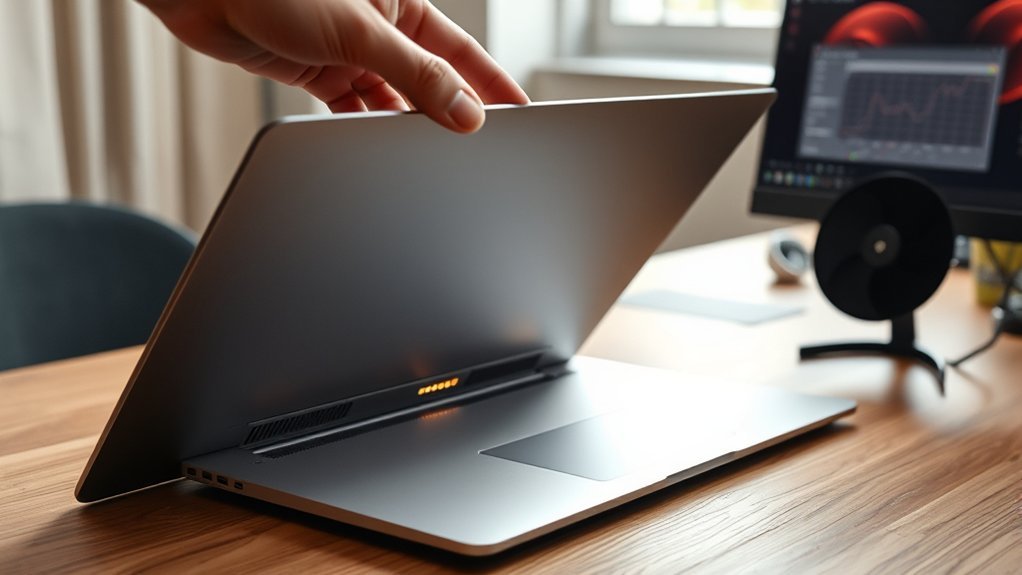
Start by moving the laptop to a hard, flat, stable surface. Beds, blankets, pillows, couches, clothing, and other soft materials can cover bottom or side vents and trap warm exhaust air. Both Apple and major PC manufacturers recommend using laptops where ventilation openings remain unobstructed.
- Move it off soft material. Place the laptop on a desk, table, lap tray, or stand that does not cover its vents.
- Reduce the workload. On Windows, open Task Manager with Ctrl+Shift+Esc and look for apps using unusually high CPU, GPU, disk, or memory resources. On macOS, use Activity Monitor to check CPU activity.
- Give it time to cool. If it is extremely hot or performance has dropped sharply, save your work and shut the laptop down until it cools.
- Inspect the vents. Look for dust, lint, or objects blocking intake and exhaust openings.
- Use a lower-power mode when appropriate. A Balanced or power-efficiency setting can reduce processor power consumption and heat during routine work.
Closing an unnecessary high-CPU or high-GPU process can reduce heat quickly because the processor no longer has to sustain the same workload.
If dust is visible, shut the laptop down and disconnect external power before cleaning. Dell’s current fan-cleaning guidance recommends short, controlled bursts of electronics-safe compressed air. Avoid spraying liquids into vents and avoid forcing a cooling fan to spin at excessive speed.
Pro Tip: Start with external vent cleaning before opening the laptop. Many models can be cleaned adequately from the vents, while opening an ultrathin laptop may require special tools and model-specific service instructions.
A cooling pad or stand can provide extra airflow beneath some laptops. The benefit varies because laptops place their intake vents in different locations. A simple stand that exposes the existing bottom vents may be enough, while active fans can help during sustained gaming or rendering on designs that draw air from below.
If the laptop remains unusually hot, install available operating-system updates and check the manufacturer’s support page for current drivers, firmware, and BIOS/UEFI updates. Dell’s current overheating guide also recommends power-mode adjustments, thermal settings where supported, and hardware diagnostics for persistent problems.
Note: Temperature-monitoring programs normally show readings from internal sensors such as the CPU or GPU. They do not necessarily measure the temperature of the laptop’s exterior case. Compare internal readings with specifications for your exact processor and laptop model rather than using a generic chassis-temperature limit.
[Amazon Products Picked for You]

👍【Triple Efficient Fans】TECKNET laptop cooling pad with 3 powerful fans works at 1200 RPM to pull in cool air from the bottom to prevent your laptop, notebook, netbook, Ultrabook, Apple MacBook Pro cool from overheating during extended use or intense gaming.

Whisper-Quiet Operation: Enjoy a noise-free and interference-free environment with super quiet fans, allowing you to focus on your work or entertainment without distractions.
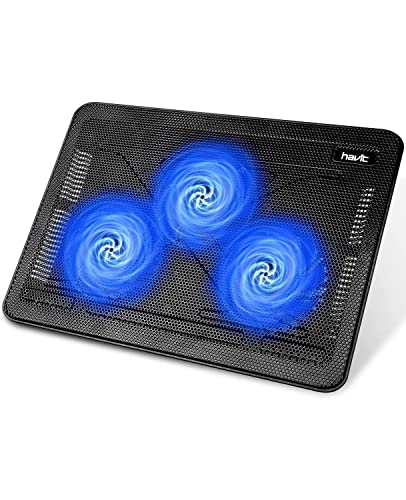
Ultra-Portable: Slim, portable, and light weight allowing you to protect your investment wherever you go
Signs Your Laptop Is Overheating
A hot bottom panel by itself is not enough to prove that a laptop is overheating. Look for several symptoms together:
- The bottom, keyboard deck, or another area becomes uncomfortable to touch during ordinary light tasks.
- Fans run loudly and continuously even when CPU and GPU demand is low.
- Performance suddenly drops during a sustained workload because the system may be reducing processor power or clock speed.
- The laptop freezes, crashes, displays a thermal warning, or shuts down unexpectedly.
- A fan makes grinding, rattling, or other abnormal mechanical noises.
- Display distortion appears at the same time as severe heat or instability, although display artifacts can also come from graphics drivers, the display panel, GPU faults, or other causes.
Performance slowdowns can appear when internal thermal-control systems reduce CPU or GPU performance to keep components within their operating limits. Intel describes this behavior as internal thermal control associated with the processor’s model-specific junction-temperature limit.
Unexpected shutdowns can also occur when a laptop gets too hot, but heat is not the only possible cause. Battery problems, power-delivery faults, drivers, memory errors, operating-system crashes, and other hardware faults can produce similar symptoms. Repeated shutdowns therefore justify troubleshooting or hardware diagnostics rather than assuming heat is automatically responsible.
Warning: Stop using the laptop and disconnect external power if you see battery swelling, case separation, a raised keyboard or trackpad, leaking, smoke, an unusual odor, unusual noises from the battery area, or extreme localized battery heat. Do not puncture, crush, bend, or pry on a swollen lithium-ion battery. Follow the laptop manufacturer’s battery-service instructions.
Why Your Laptop Is Overheating
A laptop becomes excessively hot when its components produce heat faster than the cooling system can remove it. High-demand work such as gaming, 3D rendering, software compilation, video editing, AI workloads, and large file processing can keep the CPU and GPU at high power for long periods.
Background activity can do the same thing more quietly. Operating-system updates, file indexing, cloud synchronization, antivirus scans, browser tabs, virtual machines, and malfunctioning apps can all increase CPU or GPU use while the laptop appears to be doing very little.
Dust buildup is another common cause. Dust can narrow airflow passages, coat heatsinks, and make a fan work harder to move the same amount of air. Using the laptop on beds or couches can make the problem worse by covering intake vents.
Other possible causes include:
- A cooling fan that is damaged, obstructed, or no longer reaching its expected speed
- Dried, poorly applied, or disturbed thermal-interface material on an older or previously serviced laptop
- Loose or damaged heatsink hardware
- High room temperature or direct sunlight
- A performance or turbo mode configured for maximum power
- Outdated firmware, BIOS/UEFI, drivers, or thermal-control software
- A battery fault that produces unusual localized heat
Thermal paste should not be the first assumption. Replacing it requires opening the laptop and, on some systems, removing the heatsink. Follow the manufacturer’s service manual or use a qualified repair technician if routine airflow, software, and diagnostic checks do not solve the problem.
[Amazon Products Picked for You]

Super Laptop Cooling Fans: ICE COOREL laptop Cooling Pad with the mesh design and the 6 fans (70mm) spinning at adjustable speed from 2400-2600 RPM, greatly dissipate the heat from the laptop, enable it in good working condition, and prolong the lifespan of your laptop; Six ultra-quiet fans create a noise-free environment for you !

Eight Super Cooling Fans: The newest 8-core laptop cooling pad can efficiently cool your laptop down, this laptop cooler has the air vent in the top and bottom of the case, you can set different modes for the cooling fans.

【12-Core Deep Cooling Fans】The Trullypine F12 Laptop Cooling Pad is equipped with 12 high-speed silent fans, providing excellent cooling effect and temperature control, 360 degrees all-round dynamic cooling; The large metal mesh provides great heat dissipation performance. Four diamond-shaped groove designs bring better heat dissipation space, being built to accelerate heat dissipation.At the same time, these high-end laptop cooling fans are all equipped with capacitor components to reduce working noise, very quiet and create a low noise environment for you!
How to Set Up Your Laptop for Better Airflow
Physical placement directly affects cooling when a laptop relies on bottom, side, rear, keyboard, or hinge-area ventilation. A firm work surface keeps vents exposed and gives warm exhaust air room to escape.
Soft materials such as bedding or upholstery can deform around the laptop and block openings. They can also allow warm exhaust air to circulate back toward an intake.
- Use a solid desk, table, laptop tray, or stand.
- Keep books, walls, fabric, cables, and other objects away from side and rear exhaust vents.
- Do not place blankets, covers, or clothing over the laptop while it is running.
- Keep the workspace away from strong direct sunlight and excessive ambient heat.
- Clean dusty exterior vents periodically using the procedure recommended for your laptop model.
- Consider a stand or cooling pad if the laptop has bottom air intakes and regularly runs demanding workloads.
This setup reduces airflow restriction without modifying the laptop. Better clearance can reduce the effort required from the internal fan and help the cooling system maintain more consistent component temperatures.
[Amazon Products Picked for You]

【Adjustable & Ergonomic】:The laptop holder elevates your notebook from 2.78” to 6.5” height (7 level height) for a perfect eye level, letting you fix posture and reduce your neck fatigue, back pain and eye strain. Very comfortable for working in home, office and outdoor.

Advanced Cooling with 2 Quiet Fans & RGB Lighting:The YICOSUN Laptop Cooling Stand features 2 ultra-quiet fans and advanced RGB lighting to help maintain optimal laptop temperature. With 3-speed adjustable cooling, it provides efficient airflow for devices compatible with MacBook, Lenovo, ASUS, and Dell laptops (10-16 inches), making it suitable for gaming, DJ setups, and office tasks

1.Sturdy Aluminum Alloy Laptop Stand: StDiscover the essence of simplicity and strength with our laptop stand. Meticulously crafted from robust aluminum alloy, it ensures unwavering durability while maintaining an elegant, minimalist design. Office essential! Elevate your laptop experience with our tilted ventilated stand, compatible with laptops up to 17/17.3 inches.
When Is a Hot Laptop Normal?
A laptop can become noticeably warm during gaming, video editing, rendering, charging, software updates, or other processor-intensive tasks. Warmth alone is therefore not proof of a fault.
The important distinction is between ambient temperature, surface temperature, and internal sensor temperature. For example, Apple specifies an ambient operating range of 50–95°F (10–35°C) for current Mac laptops. That 35°C figure describes the surrounding environment; it is not a universal maximum temperature for the bottom panel.
Likewise, an internal CPU temperature cannot be compared directly with an external case temperature. Intel states that processor maximum operating temperature varies by model, with many Intel processors having junction limits around 100–110°C. Thermal control occurs according to these internal component limits and the laptop manufacturer’s design, not according to a universal 45°C, 50°C, or 60°C chassis threshold.
| What You Notice | What It May Mean | What to Do |
|---|---|---|
| Warm underside during heavy work | Often normal heat transfer | Keep vents clear and monitor performance |
| Constant loud fans during light use | Background load, dust, cooling problem, or software issue | Check processes, vents, updates, and diagnostics |
| Performance drops as heat rises | Possible thermal throttling | Reduce load and compare internal sensor readings with model-specific limits |
| Repeated shutdowns or thermal warnings | Cooling or another hardware/software fault may exist | Shut down, cool the laptop, and run manufacturer diagnostics |
| Swelling, odor, smoke, or case separation | Possible battery problem | Stop use and follow manufacturer battery-safety instructions |
If heat remains excessive after the vents are clear and background load is low, check your laptop manufacturer’s support page. Run its fan or hardware diagnostic if one is provided. Persistent grinding noises, a nonworking fan, repeated shutdowns, or overheating during simple tasks can justify professional service.
Frequently Asked Questions
Is It Normal for the Bottom of a Laptop to Get Hot?
Yes. The underside can become warm or hot during charging and demanding tasks because heat from the CPU, GPU, power circuitry, and battery must leave the chassis. Persistent excessive heat during light use, nonstop fan noise, major throttling, thermal warnings, or shutdowns deserve further investigation.
Should I Worry if My Laptop Is Hot?
Worry about the pattern rather than one generic temperature number. Excessive heat during light work, repeated thermal warnings, severe slowdowns, a failing fan, random shutdowns, battery swelling, or case separation are stronger warning signs than ordinary warmth under load.
How Do I Cool Down the Bottom of a Laptop?
Move it to a hard surface, uncover all vents, close unnecessary high-load apps, choose a lower-power mode when suitable, and clean dusty vents with the laptop powered down. A stand or cooling pad may also help if it improves airflow around the laptop’s actual intake vents.
Can an Overheated Laptop Start a Fire?
Ordinary CPU or GPU heat does not mean a laptop is about to catch fire. The more serious fire concern is a defective, damaged, or abnormally overheating lithium-ion battery. Stop using a laptop that has battery swelling, case separation, unusual odor, leaking, smoke, or other signs of battery failure and follow the manufacturer’s safety instructions.
What CPU Temperature Is Too Hot for a Laptop?
There is no single limit for every laptop processor. Maximum junction temperature depends on the exact CPU and the laptop manufacturer’s thermal design. Intel notes that many of its processors have maximum junction limits around 100–110°C, but the specification for the exact processor and laptop should be used.
Does a Cooling Pad Fix Laptop Overheating?
A cooling pad can improve airflow on some laptops, particularly models with bottom intake vents, but it cannot repair a failed fan, clogged internal heatsink, damaged thermal interface, battery fault, or other hardware problem. Treat it as an airflow aid rather than a substitute for repair.
Conclusion
A hot laptop underside can be normal during demanding work, but there is no universal 35°C, 45–50°C, or 60°C external-case threshold that diagnoses overheating across every model. Pay more attention to unusually high heat during light use, nonstop fan activity, thermal throttling, warnings, crashes, or shutdowns. Move the machine to a hard, ventilated surface, clear blocked vents, reduce unnecessary CPU/GPU load, and check manufacturer updates and diagnostics.
For example, a laptop rendering 4K video on a bed may lose airflow through its underside vents, causing its fans to speed up and performance to fall. Moving it to a desk or ventilated stand can restore airflow. If the same symptoms continue on a clear work surface, the next steps are vent cleaning, software and firmware checks, fan diagnostics, and professional service if a hardware fault remains.
Battery symptoms require a different response. If the chassis is separating, the keyboard or trackpad is lifting, the battery area is swelling, or there is unusual odor, leaking, smoke, or extreme localized heat, stop using the laptop and follow the manufacturer’s battery-safety instructions rather than continuing ordinary overheating troubleshooting.
Sources
- Apple Support — Keep your Mac laptop within acceptable operating temperatures — ventilation, ambient operating range, fan behavior, Activity Monitor, and the distinction between internal sensor readings and case temperature.
- Dell Support — How to Prevent Overheating: Tips for Cooling Your PC or Laptop — overheating symptoms, airflow, power settings, software updates, BIOS updates, cooling pads, and hardware diagnostics.
- Dell Technologies — How to Clean a Laptop Fan Safely — safe vent cleaning, compressed-air precautions, dust, and fan maintenance.
- Intel — Maximum Operating Temperature of Intel Processors — model-specific processor temperature limits and Tjunction guidance.
- U.S. Consumer Product Safety Commission — Batteries — battery overheating, thermal-burn, and fire hazards associated with battery and charging failures.
