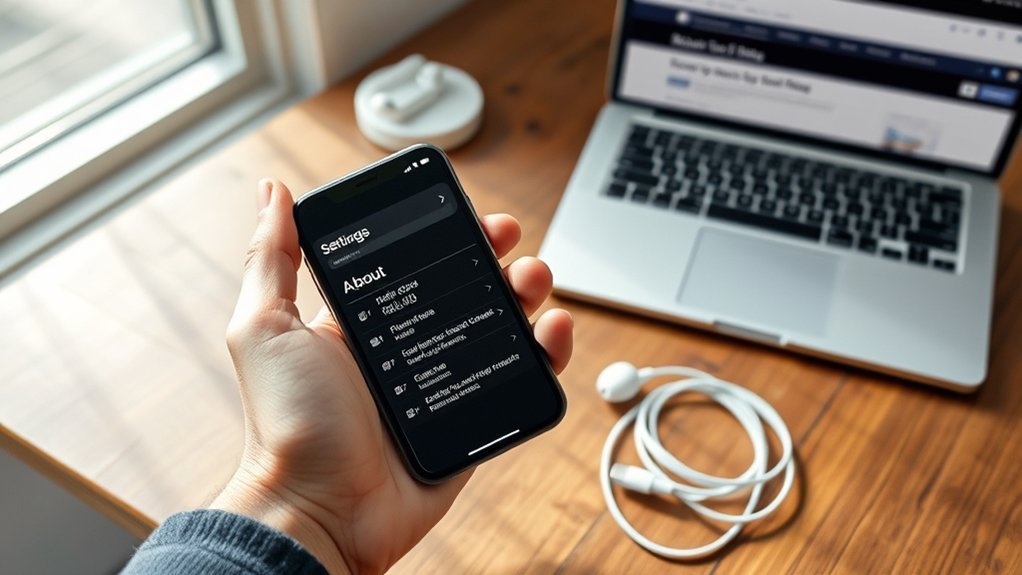
An iPhone’s TLS support is determined by its iOS version, not the hardware. TLS 1.2 is supported from iOS 5 onward, while TLS 1.3 begins with iOS 13. To verify, open Settings > General > About and check the installed iOS version, then compare it with these protocol baselines. A secure HTTPS site showing a padlock in Safari also confirms TLS negotiation is working. Additional steps can clarify compatibility issues and possible fixes.
Does Your iPhone Support TLS 1.2 or Higher?
Whether an iPhone supports TLS 1.2 or higher depends primarily on its iOS version. Devices running iOS 5.0 or later implement TLS 1.2, while anything earlier lacks that protocol capability. For secure app traffic and browser sessions, that threshold is the decisive baseline.
Users seeking liberation from weak legacy encryption really need to recognize that TLS 1.2 is not optional in modern networks.
Anyone serious about escaping weak legacy encryption should understand that TLS 1.2 is indispensable on modern networks.
TLS 1.2 remains essential because it hardens connections, reduces exposure to known vulnerabilities, and protects sensitive data in transit. An iPhone on iOS 9.0 or above also supports TLS 1.2 and benefits from stronger cryptographic handling across many services.
Practical confirmation can come from attempting connections to websites that require TLS 1.2 or higher; successful negotiation indicates support at the protocol layer.
In technical terms, compatibility is less about hardware branding and more about the operating system’s implemented transport security stack and maintained cipher negotiation behavior overall.
How Do You Check Your iPhone’s iOS Version?
To check an iPhone’s iOS version, the user opens Settings and selects General.
In the About section, the installed release appears next to Software Version, which provides the exact iOS number.
This value should then be verified against current update availability under Settings > General > Software Update to maintain TLS compatibility and security.
Locate Settings Menu
- Opening Settings establishes control, replacing uncertainty with a clear path toward secure communication.
- Accessing General moves the process forward, giving the user practical autonomy over device maintenance.
- Reaching About confirms that critical software details are within reach, supporting liberation from outdated, weaker protocols.
Automatic updates under Settings > General > Software Update help maintain compatibility with secure TLS standards consistently.
Find Software Version
The process is simple: open Settings, select General, then About. The listed version identifies the installed operating environment and helps assess software compatibility with services requiring current protocol support.
Because iPhones on iOS 9.0 or later support TLS 1.2, checking this field is operationally relevant.
If needed, Settings > General > Software Update**** provides access to iOS updates, preserving security features, stable connectivity, and long-term device autonomy.
Verify IOS Number
- A current version provides confidence: iPhone security aligns better with modern encrypted services.
- An outdated version creates constraint: absent software updates, secure access may be limited.
- A capped device signals a hard boundary: if it cannot update further, newer TLS protocols may remain unavailable.
For users seeking digital independence, version verification is a precise control point for maintaining compatibility and reducing avoidable exposure online today.
Which iOS Versions Support TLS 1.2 and 1.3?
TLS support on iPhone depends on the installed iOS version and the protocol revision required by the app or service.
TLS 1.2 became available with iOS 7, while TLS 1.3 support was added in iOS 13 for newer security and handshake performance improvements.
Version verification under Settings > General > About provides the baseline for determining TLS 1.2 and 1.3 compatibility.
TLS 1.2 Support
Which iOS versions matter for transport security support? TLS 1.2 arrived with iOS 5, establishing the minimum baseline for secure sessions on iPhone.
Devices from iPhone 4s onward support it; iPhone 4 and earlier do not. This boundary determines practical TLS benefits, exposure to TLS vulnerabilities, and acceptable TLS configurations across apps and services.
- A user seeking freedom from interception should confirm the device runs at least iOS 5.
- A cautious administrator should note Apple expects modern iOS apps to use TLS 1.2 or higher.
- A concerned owner can verify readiness through Settings > General > About, then compare the installed iOS version.
For protocol assurance, TLS 1.2 support is the key threshold when evaluating legacy iPhones for protected network communication and trust today.
TLS 1.3 Compatibility
Beyond the TLS 1.2 baseline, version support splits at iOS 13: iPhones on iOS 9 and later support TLS 1.2, while TLS 1.3 is available only on iOS 13 and newer. Devices on iOS 12 or earlier remain confined to TLS 1.2, restricting access to the newest protocol defenses and cipher behavior.
For verification, the user checks Settings, then General, then About, and confirms the installed iOS version.
TLS benefits overview: TLS 1.3 tightens cryptographic negotiation, removes legacy handshake elements, and strengthens privacy.
Security implications explained: older systems cannot use these protections, leaving fewer modern safeguards against downgrade and interception risks.
Performance enhancements discussed: TLS 1.3 reduces handshake latency and accelerates secure session establishment.
Regular iOS updates thus function as a practical path toward stronger, freer, standards-aligned transport security today.
How Can You Test TLS Support in Safari?
To test TLS support in Safari, a user can open an HTTPS site and verify that a padlock appears in the address bar, confirming that a secure session was established. This illustrates basic transport protection and highlights padlock icon significance within Safari security settings.
Opening an HTTPS site in Safari and seeing the padlock confirms secure transport protection is active.
For deeper verification, the user can tap the padlock and choose “Show Certificate” to inspect certificate data, negotiated protocol details, and cipher information.
- A visible padlock delivers immediate confidence that encrypted access remains under the user’s control.
- TLS testing tools, such as SSL Labs’ SSL Test, provide independent validation by analyzing the accessed domain and reporting supported TLS versions.
- Security warnings in Safari can feel restrictive, yet they also signal freedom from obsolete protocols by refusing weaker TLS connections.
Because iPhones generally support TLS 1.2 and newer, maintaining an updated iOS build is essential for current protocol capability, stronger cipher negotiation, and reliable encrypted browsing in Safari.
Why Do Some Secure Websites Fail on iPhone?
Even when Safari shows standard HTTPS behavior, some secure websites can still fail on iPhone because TLS negotiation depends on protocol version, cipher suite compatibility, device software level, and network path conditions.
If an older iPhone lacks support for TLS 1.2 or newer, the handshake may terminate before any content is delivered. That directly limits secure connections and reduces website compatibility across modern services.
Failures also occur when a server offers weak or obsolete ciphers the device will not accept, or when the site enforces stricter encryption protocols than the iPhone can satisfy.
Outdated iOS builds further constrain trust stores, algorithm support, and extension handling, which can break validation under current security policies. Some operators intentionally deny access from clients below their minimum TLS baseline to protect transport integrity.
Network intermediaries matter as well: firewalls, captive portals, filtering layers, or VPN tunnels can interrupt negotiation, alter certificates, or block required ports entirely.
How Do You Fix TLS Errors on iPhone?
Start with the device baseline: TLS errors on iPhone are often resolved by installing the latest iOS version, since platform updates expand protocol support, refresh trust components, and patch negotiation defects.
Start with iOS updates: they often resolve iPhone TLS errors by restoring trust and modern protocol compatibility.
If failure persists, practical TLS troubleshooting techniques begin with resetting network settings to remove corrupt DNS, proxy, Wi‑Fi, or VPN parameters affecting secure sessions and iPhone security settings.
When errors appear in one app only, deleting and reinstalling it can correct app installation issues, damaged certificates, or stale connection profiles.
For Safari-specific failures, clearing cache and cookies removes corrupted state that can break the TLS handshake with secure websites.
- Update iOS first to regain control and restore trust.
- Reset network settings to break free from hidden misconfiguration.
- Reinstall the affected app or clear Safari data to remove persistent friction.
If none of these actions work, escalation is efficient: contact the carrier, network administrator, or site owner, because the fault may be remote.
Which TLS Protocols and Ciphers Are Outdated?
Which protocols and cipher suites are now considered obsolete is largely settled by current security guidance: TLS 1.0, TLS 1.1, SSL 2.0, and SSL 3.0 should be disabled because they contain known weaknesses and are no longer supported by many modern services.
These outdated protocols expose sessions to documented downgrade risks, handshake flaws, and broad security vulnerabilities, with SSL 3.0 particularly vulnerable to POODLE.
Cipher selection is equally decisive. Weak ciphers such as RC4 and Triple DES no longer meet acceptable cryptographic standards, because practical attacks and reduced effective security make compromise easier.
DES CBC SHA is particularly unsuitable, since Sweet32 demonstrates collision risks in 64-bit block ciphers under real traffic conditions.
Systems that continue to permit these algorithms can fail compliance audits and lose interoperability with hardened platforms.
Current policy consequently favors TLS 1.2 or higher, paired with strong cipher suites, as the baseline for secure, modern transport without unnecessary legacy exposure today.
How Do You Keep iPhone TLS Support Updated?
Because protocol safety depends not only on disabling obsolete TLS versions and ciphers but also on receiving current platform updates, iPhone TLS support is kept current primarily through iOS maintenance.
Apple delivers TLS updates and related patches through iOS releases, so users should verify the installed version at Settings > General > About. Since TLS 1.2 and higher became standard in iOS 10 and later, device compatibility should be confirmed against that baseline.
- Install every iOS update to preserve iPhone security and avoid being trapped by known TLS weaknesses.
- Enable Automatic Updates in Settings > General > Software Update to gain continuous protection without delay or dependency.
- Review Apple’s security updates page to monitor disclosed vulnerabilities, patch status, and protocol changes affecting transport security.
This disciplined update routine strengthens trust negotiation, maintains modern cipher support, and helps the device remain free from outdated cryptographic exposure and downgrade risk over time.
Frequently Asked Questions
How Do I Enable TLS on My iPhone?
TLS cannot be manually enabled on an iPhone; iPhone security relies on iOS and apps automatically using supported protocols. For TLS benefits and encryption basics, one should update iOS, update apps, and verify secure HTTPS connections.
How to Check if TLS Is Enabled?
To check whether TLS is enabled, one reviews Safari for HTTPS padlocks, tests secure sites, and updates iOS. TLS versions comparison aids iPhone security, while troubleshooting TLS may require browser tests or online verification tools.
What Does TLS Error Mean on iPhone?
A TLS error on iPhone means secure session negotiation failed, indicating protocol or cipher incompatibility. TLS implications affect iPhone security; troubleshooting tips include updating iOS, checking server compliance, and resetting network settings to restore autonomous access.
How to Enable TLS Settings?
To enable TLS settings, one checks Safari Experimental Features, activates relevant options, installs current iPhone updates, and reviews app-level secure transport controls. Because TLS security is usually automatic, resetting network settings may restore autonomous encrypted connectivity.
Conclusion
TLS capability on an iPhone is determined less by the device itself than by its iOS build, Safari networking stack, and server-side protocol negotiation. A quick version check, followed by a controlled HTTPS test, usually reveals whether TLS 1.2 or 1.3 is available. Yet failures do not always mean missing support; obsolete ciphers, certificate chains, or misconfigured servers often hide the real cause. The final answer appears only when client and server complete the handshake.
