
Yes, an Intel 11th-gen laptop can reach 90°C under heavy workloads such as gaming, rendering, or stress testing, and this is often within normal operating limits for thin laptop designs. Brief peaks are usually acceptable, but sustained 90°C may indicate thermal throttling or marginal cooling performance. If the system reaches 90°C during light tasks, that is less typical and suggests airflow, dust, or thermal paste issues. The causes, limits, and corrective steps become clearer just ahead.
Is 90°C Normal for an Intel 11th-Gen Laptop?
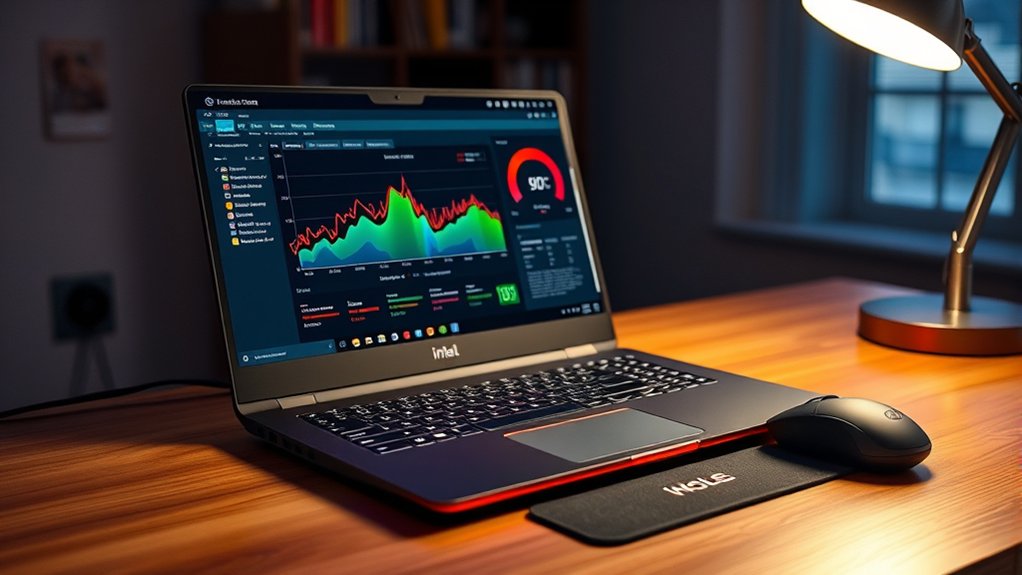
Why do many Intel 11th-gen laptops approach 90°C under load? Their processors are engineered to extract high performance within thin chassis, concentrating substantial heat during gaming, rendering, and other sustained workloads. As a result, 90°C is a common operating point in many systems, especially where compact designs restrict airflow and heatsink volume.
This behavior reflects design tradeoffs rather than immediate failure, giving users clearer control over expectations.
Still, thermal behavior is not fixed destiny. Reliable monitoring software allows users to verify whether temperatures stabilize or keep climbing during intensive use. Dust accumulation, degraded thermal paste, and obstructed vents reduce heat transfer efficiency over time.
Routine cleaning of fans and internal pathways can restore better cooling, while disabling overclocking features or adding a cooling pad may lower peak temperatures. Reapplying thermal paste every few years also improves interface conductivity, supporting sustained performance and extending component service life without surrendering operational autonomy.
When Is 90°C Normal and When to Worry
When, then, does 90°C remain within normal operating behavior and when does it signal a problem? In analytical terms, 90°C can be acceptable during sustained gaming, compiling, or rendering, because modern laptop silicon is engineered for short periods near this threshold. The liberating takeaway is control through observation, not panic.
| Scenario | Interpretation | Response |
|---|---|---|
| Gaming/rendering peaks | Usually normal at 90°C | Monitor trends |
| Long sessions at 90°C | thermal throttling may appear | Improve airflow |
| Above 90°C repeatedly | Possible cooling weakness | Inspect system |
| 90°C during light use | Abnormal thermal behavior | Reassess cooling solutions |
Concern rises when 90°C persists outside heavy workloads, or when clocks drop, fans surge constantly, and responsiveness declines. Those patterns suggest thermal throttling or degraded thermal transfer. Regular vent and fan cleaning, plus a cooling pad, often restores margin. If temperatures remain elevated during ordinary browsing or office work, the thermal management system merits inspection and possible thermal paste service.
Why Your Intel 11th-Gen Laptop Reaches 90°C
Under sustained load, an Intel 11th-generation laptop can reach 90°C because the processor is engineered to maximize boost behavior within tight thermal limits, while the compact chassis restricts heat dissipation. This design prioritizes short-term performance, allowing the CPU temperature to climb rapidly during gaming, rendering, or multicore productivity workloads.
The processor’s thermal design power encourages aggressive frequency scaling, which converts electrical demand into concentrated heat. Laptops amplify this behavior because cooling capacity is constrained by thin enclosures, small heatsinks, and limited airflow paths. As a result, higher temperatures are not necessarily anomalous; they often reflect the intended operating envelope of 11th-gen Intel silicon.
Once the die approaches its thermal threshold, firmware intervenes through thermal throttling, reducing clock speeds to preserve stability and prevent damage. This mechanism is not a defect but a control system, balancing performance, safety, and autonomy within the hardware’s engineered limits under prolonged computational pressure.
How to Lower Intel 11th-Gen Laptop Temps
Reduce thermal load first by targeting airflow, power behavior, and heat transfer efficiency. For Intel 11th-gen laptops, the most immediate gains usually come from cleaning vents and fans, which restores unrestricted intake and exhaust paths.
A cooling pad can further improve underside airflow during gaming, compiling, or other sustained loads, helping surface and internal temperatures decline measurably.
Power settings also matter. Disabling overclocking options and Turbo Boost reduces peak voltage and clock behavior, cutting heat generation at the source. This tradeoff often frees the system from unnecessary thermal stress while preserving stable performance for most workloads.
To maintain efficient heat transfer over time, replacing thermal paste about every two years helps the heatsink interface remain effective.
Users seeking greater control should monitor temperatures with reliable software rather than guessing. The practical target is to keep sustained load temperatures below roughly 85°C, creating a wider margin from thermal throttling and long-session discomfort.
When 90°C Means a Cooling System Repair
Although brief spikes to 90°C can occur during heavy workloads, an Intel 11th-gen laptop that remains at or above that level consistently is often exhibiting cooling-system underperformance rather than merely normal thermal behavior. Sustained 90°C exceeds the usual 70°C to 85°C load range and indicates compromised thermal management capacity, not simply aggressive boosting.
Sustained 90°C on an Intel 11th-gen laptop generally signals cooling underperformance, not merely normal boost-driven thermal behavior.
Persistent heat can trigger thermal throttling, reducing CPU frequency and limiting liberated performance under sustained computational demand.
Dust accumulation in vents and fans degrades airflow, so periodic cleaning is a primary corrective step within any cooling system assessment.
Aging thermal paste weakens heat transfer; renewal roughly every two years can restore thermal management efficiency measurably.
If temperatures still remain above 90°C after maintenance, the evidence points toward a repair-grade fault: worn fans, misaligned heatsinks, or inadequate factory design.
In such cases, cooling system repair or upgrade becomes a rational intervention to avoid accelerated wear, instability, and shortened hardware lifespan.
Frequently Asked Questions
Is It Normal for My Laptop CPU to Reach 90C?
Yes, it can be normal under heavy load; however, sustained 90°C indicates laptop cooling limits and possible performance throttling. Independent monitoring, dust removal, and renewed thermal paste help verify safe operation and preserve long-term reliability.
Is 90C Too Hot for a CPU?
Yes, 90°C is generally too hot for sustained CPU operation; it increases thermal throttling effects, creates measurable performance impact, and signals inadequate cooling solutions. Liberation from overheating requires maintenance, airflow optimization, and vigilant temperature monitoring.
How Long Will a CPU Last at 90C?
A CPU at 90°C may last several years, yet lifespan commonly shortens from thermal stress. Analysis of thermal throttling effects, impact on performance, and cooling solutions comparison enables users to pursue greater autonomy, reliability, and control.
Is 90 C Too Hot for GPU?
Yes—90°C is too hot for a GPU; how delightfully efficient at hastening wear. Such temperatures invite thermal throttling effects, measurable performance impact, and indicate inadequate cooling solutions, undermining sustained stability, lifespan, and autonomous, uncompromised operation.
Conclusion
An Intel 11th-generation laptop reaching 90°C can be normal under short, sustained loads, but persistent operation at that temperature during light use indicates inadequate cooling, poor airflow, dust buildup, or degraded thermal interface material. Temperature must be evaluated against workload, clock behavior, and throttling frequency. For example, a student rendering a final project on a thin ultrabook may accept brief 90°C spikes; the same temperature during web browsing would strongly suggest a cooling fault requiring inspection, servicing, or repair.

