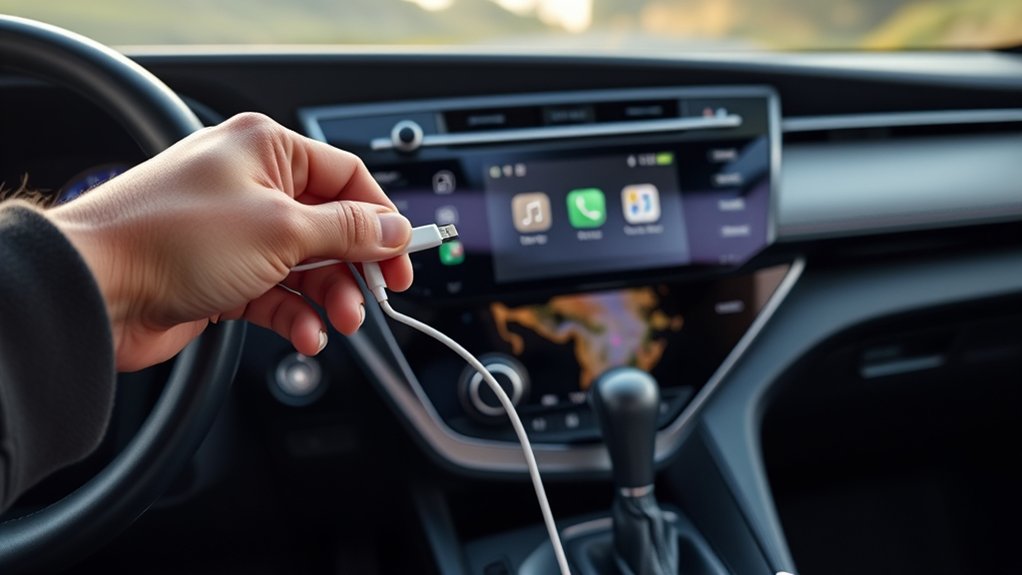
Connecting an iPhone to a Toyota RAV4 via USB offers several advantages, including seamless access to Apple CarPlay, faster data transfer, and continuous charging. Users should locate the designated USB port, often found in the armrest, and verify compatibility with a data transfer cable. Initial setup involves activating CarPlay and Siri on the iPhone. In case of issues, restarting devices or checking the cable is recommended. Additional insights on troubleshooting and enhancements follow for ideal use.
Benefits of Connecting Your iPhone to Your RAV4 Via USB
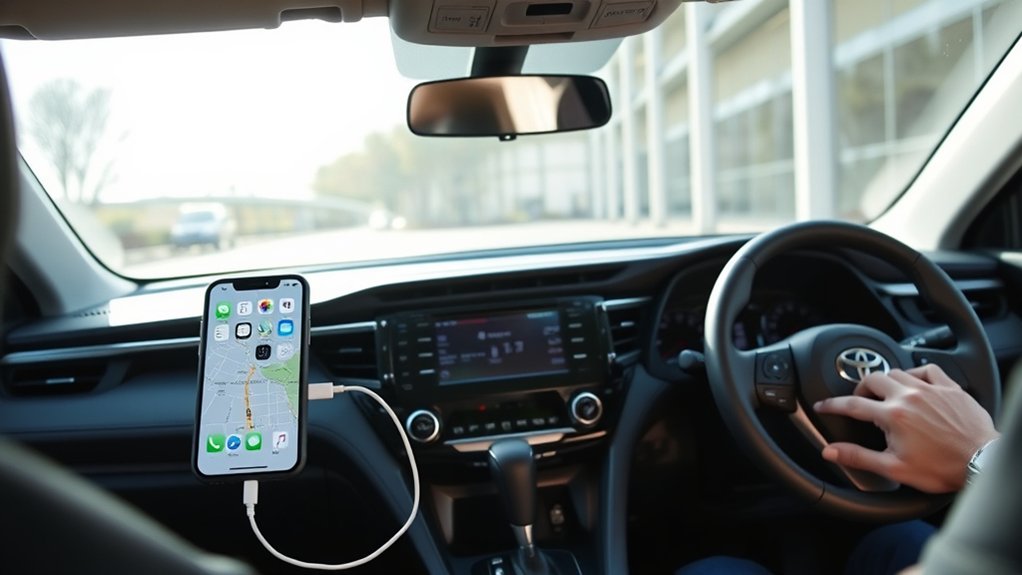
Connecting an iPhone to a Toyota RAV4 via USB provides numerous advantages that enhance the driving experience. Primarily, this connection enables seamless access to Apple CarPlay, allowing drivers to utilize navigation, music, and messaging directly through the vehicle’s touchscreen display.
The USB connection not only facilitates faster data transfer compared to Bluetooth, minimizing app lag and improving responsiveness, but it also continuously charges the iPhone through the charging cable, ensuring the device remains powered throughout the journey.
Utilizing the designated USB port labeled for CarPlay further reduces potential connectivity issues, promoting a smoother user experience. Additionally, after the initial setup, connecting the iPhone typically requires no further adjustments, streamlining access to its features.
Identifying the Correct USB Port in Your RAV4
Understanding the correct USB port for connecting an iPhone in a Toyota RAV4 is vital for ensuring peak functionality. The designated USB port is typically located inside the armrest, marked with either a smartphone or CarPlay icon. This port is essential for enabling data transfer, particularly for Apple CarPlay, allowing seamless integration of your device with the vehicle’s system.
In contrast, the ports visible beneath the touchscreen primarily serve for charging and do not support data transfer, which can lead to connection issues if misidentified.
To avoid complications, it is advisable to consult the vehicle’s manual and confirm the port type. If connection problems arise, double-checking the selected USB port and ensuring the use of a compatible data transfer cable can resolve many issues, ensuring that the Toyota RAV4 delivers peak performance while using Apple CarPlay.
Step-by-Step Guide to Setting Up Apple CarPlay
Setting up Apple CarPlay in a Toyota RAV4 involves several precise steps to guarantee a smooth connection.
First, make sure your iPhone is running the latest iOS version and activate CarPlay and Siri Eyes Free in the settings.
Next, connect your iPhone to the RAV4’s USB port using a Lightning cable; this should be the data-enabled port located inside the armrest.
Connect your iPhone to the RAV4’s data-enabled USB port inside the armrest using a Lightning cable for optimal performance.
Upon connection, select Apple CarPlay from the Toyota Entune 3.0 touchscreen for an automatic setup.
If the connection fails, verify that Siri is enabled and that CarPlay restrictions are not set in the iPhone’s Screen Time settings.
Restarting both the vehicle and iPhone can also resolve issues.
Finally, consider testing a different Lightning cable if problems persist.
Following these steps ensures an efficient integration of Bluetooth and USB technologies, facilitating a seamless Apple CarPlay experience within the Toyota RAV4.
Troubleshooting Common USB Connection Issues
Troubleshooting USB connection issues between an iPhone and a Toyota RAV4 requires a systematic approach to identify and resolve potential problems.
First, confirm that the correct USB port is used, typically labeled for data transfer, as other ports may only provide charging functionality.
Restarting both the iPhone and the Toyota RAV4 can refresh the connection and eliminate temporary glitches.
Additionally, inspect the Lightning to USB cable for any damage that could hinder the connection.
It is essential to verify that Siri is enabled on the iPhone, as this feature is necessary for Apple CarPlay to operate correctly.
Finally, updating both the iPhone’s iOS and the vehicle’s firmware to the latest versions can address compatibility issues, confirming a seamless connection.
When USB Fails: Alternatives With Bluetooth and Entune Audio
When USB connectivity fails between an iPhone and a Toyota RAV4, users can explore alternative methods to maintain access to mobile features. One effective solution is utilizing Bluetooth and the Entune Audio app. Before attempting to connect, confirm Bluetooth is turned off to prevent interference with the USB connection. If needed, download the Entune Audio app for seamless access to mobile features via Bluetooth.
| Method | Description | Tips |
|---|---|---|
| Bluetooth | Connect wirelessly for audio and navigation. | Turn off Bluetooth before USB use. |
| Entune Audio App | Access mobile features without USB. | Download and pair with your iPhone. |
| Consult Manual | Check vehicle manual for detailed troubleshooting. | Refer to dealership for support. |
For persistent USB issues, restarting both devices may resolve glitches, confirming smoother connectivity alternatives.
Top Tips for Ensuring a Smooth USB Connection
To guarantee a smooth USB connection between an iPhone and a Toyota RAV4, proper port usage and cable quality are essential.
Connecting the iPhone to the designated USB port marked with a CarPlay icon can prevent functionality issues.
Additionally, utilizing a certified Lightning to USB cable minimizes the risk of connectivity problems, enhancing overall performance.
Proper USB Port Usage
Connecting an iPhone to a Toyota RAV4 via USB requires attention to several key factors to guarantee peak performance.
First, utilize the USB port labeled with a smartphone or CarPlay icon, typically located inside the armrest. It is imperative to employ a genuine Apple Lightning cable, as third-party alternatives may lead to connectivity issues.
Additionally, disabling Bluetooth on the phone prior to connection can prevent conflicts with the USB link. Regular inspection of the USB port for debris or damage secures a stable connection.
Finally, keeping the vehicle’s firmware updated is vital, as outdated software can adversely affect USB functionality, impacting the overall user experience with the iPhone.
Cable Quality Matters
Securing a reliable USB connection between an iPhone and a Toyota RAV4 hinges greatly on cable quality. Using an Apple-certified Lightning to USB cable is vital for optimal data transfer and compatibility with the latest version of Apple CarPlay. Users should avoid generic or third-party cables, as they may hinder the necessary data speeds. Additionally, inspecting the cable for wear or damage is important; frayed cables can disrupt connections. Users must also confirm that the USB port in the RAV4 is clean. Connecting directly to the data-enabled USB port, usually found in the armrest, is recommended.
| Cable Type | Recommendation |
|---|---|
| Apple-certified cable | Best for peak performance |
| Generic cables | Avoid for reliability |
| Damaged cables | Replace immediately |
| Clean USB ports | Vital for connection quality |
When to Ask Your Toyota Dealer for Help
When connection issues arise despite following the established setup procedures, it may be prudent to consult a Toyota dealer for expert assistance.
Complex setup problems can often be traced to software incompatibilities or hardware faults that require professional evaluation.
Engaging with a dealer can provide clarity on potential solutions and necessary updates.
When Connection Fails
Troubleshooting connection failures between an iPhone and a Toyota RAV4 can be frustrating, especially when initial steps do not yield results. Users should first verify that Siri is enabled and that they are using a data-enabled USB port, typically located inside the armrest. Additionally, make certain the iPhone is updated with the latest iOS version. If issues persist after restarting both devices, testing a different Lightning to USB cable might reveal potential damage. Users should also check that CarPlay is not restricted. If these steps do not resolve the issue, consulting a local Toyota dealer may be necessary for expert assistance and potential firmware updates for the car’s stereo system.
| Step | Action | Notes |
|---|---|---|
| 1. Enable Siri | Check settings | Essential for connection |
| 2. Update iOS | Verify latest version | Outdated software hinders connectivity |
| 3. Restart Devices | Reboot both iPhone and RAV4 | Simple yet effective |
| 4. Test Cable | Use a different Lightning to USB cable | Check for damage |
| 5. Consult Dealer | Seek expert assistance | Possible firmware updates needed |
Complex Setup Issues
Persistent connection issues with Apple CarPlay can often signal underlying complexities that require professional intervention. When users encounter persistent problems, consulting a Toyota dealer becomes essential.
Dealers possess the expertise to update the vehicle’s firmware, potentially resolving compatibility issues with Apple CarPlay. If multiple USB cables and ports have been tested without success, the dealer can diagnose hardware issues within the audio system.
Additionally, conflicts between Bluetooth settings and USB connections may hinder performance; in such cases, a dealer can reset and reconfigure the system for peak functionality. For complex setup issues, the dealer offers tailored solutions specific to the Toyota RAV4, ensuring users can fully harness their vehicle’s technological capabilities.
Frequently Asked Questions
How Do I Connect My iPhone to My Toyota RAV4?
To connect an iPhone to a Toyota RAV4, utilize a Lightning to USB cable, activate Apple CarPlay, and guarantee Bluetooth pairing. For best performance, address any USB troubleshooting and explore infotainment features thoroughly.
How Much Does Toyota Connect Cost per Month?
Toyota subscription plans typically range from $8 to $20 monthly, depending on mobile app features. Connectivity benefits and vehicle compatibility issues may influence costs, making it essential for users to verify pricing with local dealerships.
How to Connect iPhone to Car With USB Cable?
Connecting an iPhone via USB cable involves selecting the correct cable type and adjusting car audio settings. Troubleshooting tips can resolve potential compatibility issues, ensuring a seamless connection and enhanced driving experience.
Why Can’t I Connect My iPhone to My Toyota?
Incompatibility issues may arise from Bluetooth settings, cable compatibility, outdated software, or incorrect iOS settings. Ensuring all elements are updated and configured correctly is essential for successful connection between an iPhone and a Toyota vehicle.
Conclusion
To summarize, connecting an iPhone to a Toyota RAV4 via USB enhances the driving experience, allowing for seamless access to apps and navigation. By understanding the correct port and following the setup guide, users can avoid common pitfalls. However, when technical issues arise, it’s crucial to troubleshoot effectively or consider alternatives like Bluetooth. Ultimately, knowing when to seek professional assistance guarantees drivers won’t be left in the lurch, making for a smoother journey every time.

