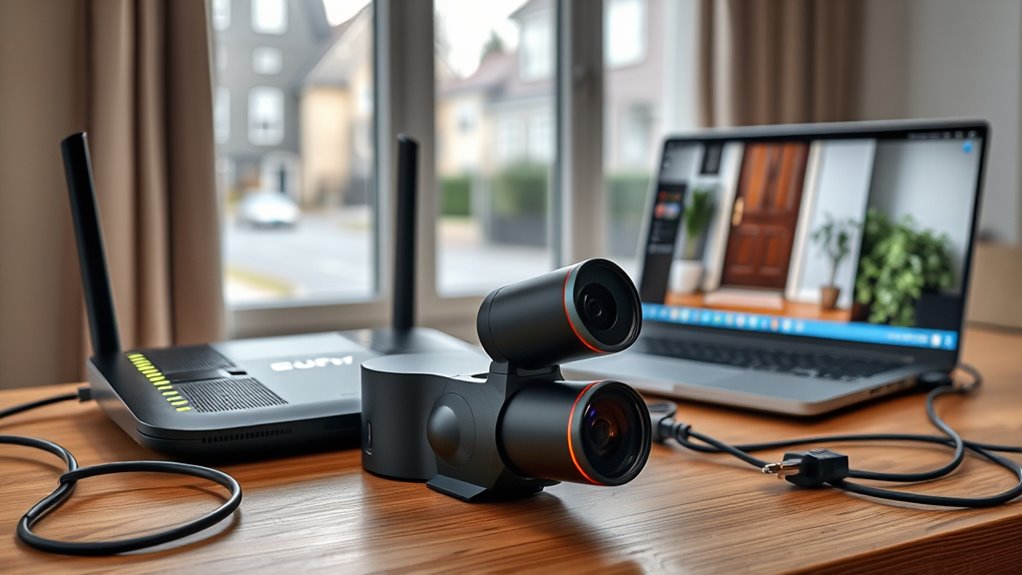
Yes, the Eufy E340 does require a router connection to work properly. It depends on a stable 2.4GHz Wi-Fi network for setup, live video, alerts, remote access, and recorded clips. Wired power alone is not enough, because the doorbell still needs internet access through the home router. If the signal is weak or settings are blocked, performance can suffer. A closer look shows how HomeBase, guest Wi-Fi, and router settings can help.
Key Takeaways
- Yes, the Eufy E340 needs a router connection for setup, live video, alerts, and remote access.
- It works on 2.4GHz Wi-Fi only, so 5GHz networks will not connect.
- Wired power alone is not enough; internet access is still required for normal operation.
- A strong router signal is important, and Wi-Fi extenders can help if coverage is weak.
- HomeBase can improve storage, motion detection, and notification reliability, but it does not remove the router need.
Does the Eufy E340 Need Wi-Fi?
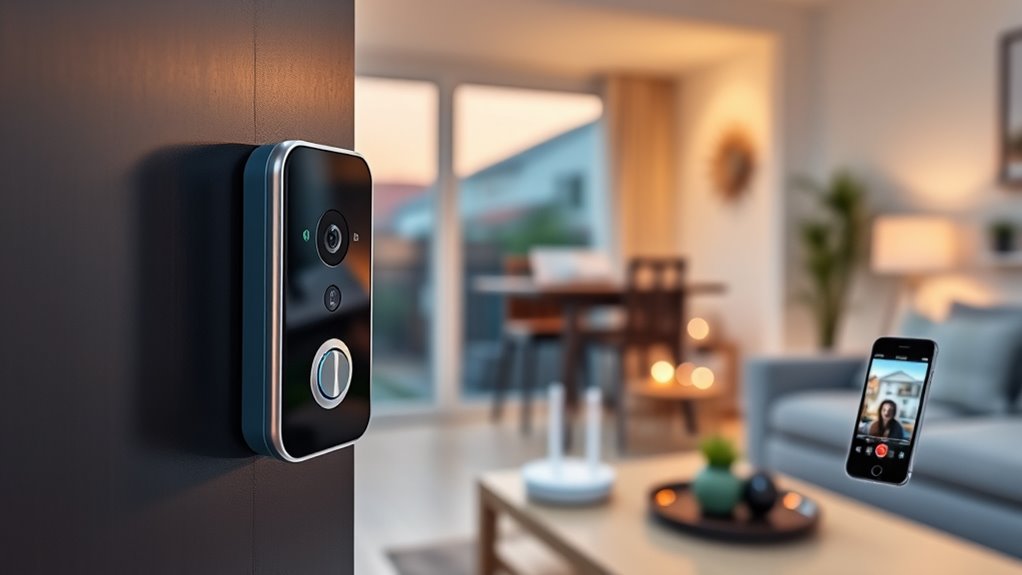
Yes—the Eufy E340 doorbell needs Wi-Fi to function. The Eufy E is designed to stay connected to wifi through a home wireless router, and it supports 2.4GHz networks. Without that connection, it cannot deliver the core features that make the device useful: live video streaming, alerts, and remote access.
The Eufy E340 needs Wi-Fi to work, enabling live video, alerts, and remote access.
A wired power link alone does not free it from the need for wireless data; Wi-Fi remains essential for operation.
For users seeking more control over their entryway, this means the Eufy E340 depends on a stable network to work as intended. If the unit is placed too far from the router or if network settings are misconfigured, performance problems may appear.
In practical terms, the device functions only when connected to the internet, keeping notifications and video available. This requirement is not optional; it is fundamental to how the doorbell operates.
Why the E340 Won’t Work Without a Router
Because the Eufy E340 relies on Wi-Fi for its core functions, it will not work properly without a router managing that connection. The Doorbell does not operate as a self-contained device; it depends on a home wireless router to reach the internet and exchange data.
Notifications, live video, and recorded clips all pass through that network path. If the router is unavailable, or if the signal is too weak, the E340 loses the link needed to send alerts or capture usable video.
Its performance also depends on a stable 2.4GHz connection, so poor router settings can interrupt service. UPnP, port forwarding, and signal range can all influence whether the device stays online.
Without that router bridge, the E340 cannot complete its primary tasks, leaving the system unable to defend a doorway or support free access to real-time awareness.
How to Set Up the E340 on 2.4GHz Wi-Fi
Setup begins with a stable 2.4GHz Wi‑Fi network, since the Eufy E340 does not support 5GHz for initial connection.
The mobile device should also be on the same 2.4GHz network before opening the eufy Security app and creating an account.
From there, the app’s instructions guide the user through adding the doorbell to the router connection.
4GHz Network Prep
To connect the Eufy E340 doorbell successfully, the home router must broadcast a stable 2.4GHz Wi-Fi signal, since the device does not support 5GHz networks. This 4GHz Wi-Fi path preserves connectivity and keeps setup straightforward.
| Prep step | Why it matters |
|---|---|
| Confirm 2.4GHz broadcast | The doorbell can join only this band |
| Match phone to same network | It supports smooth setup and control |
| Check router settings | UPnP and port forwarding aid communication |
A strong signal also matters. If the doorbell sits far from the router, a Wi-Fi extender may help maintain reliable access. This preparation reduces frustration and supports freer, more dependable use.
Adding The Doorbell
With the 2.4GHz network ready, the Eufy E340 doorbell can now be added through the eufy Security app. The app guides the setup, linking the unit to Wi-Fi and, when used, to an eufy Security HomeBase.
During installation, the router should be within range, UPnP enabled, and parental controls checked so access is not blocked. If the connection fails, the router’s IP range should also be verified.
Once the doorbell is mounted, the live view screen in the app can confirm it is connected. This process keeps the system free from unnecessary barriers while giving the homeowner direct control over the device.
A stable 2.4GHz signal remains essential for reliable operation and for keeping the doorbell fully connected to the network.
How HomeBase Changes E340 Setup
Although the Eufy E340 can connect directly to a home wireless router and operate without a HomeBase, adding one changes the setup by enabling features such as remote answering, improved porch motion detection, and built-in video storage.
Adding a HomeBase unlocks remote answering, sharper motion detection, and local video storage for the Eufy E340.
For many Eufy users, HomeBase shifts the doorbell from a basic connected device into a more capable system with greater freedom from limited local handling. It supports alerts for household members when the button is pressed and strengthens notification delivery through integration.
The built-in storage also gives recordings a backup path, reducing dependence on a single point of access. In homes crowded with smart devices, HomeBase may also help stabilize performance and responsiveness.
The result is a setup that is still simple, yet more independent in function.
Why Guest Wi-Fi Can Fix E340 Connection Issues
Guest Wi-Fi can help the Eufy E340 connect when the main network blocks it through router rules, parental controls, or stricter IP settings.
Because guest networks often use separate isolation and different address ranges, they may bypass the limits affecting the primary network.
If the doorbell works on guest Wi-Fi but not the main Wi-Fi, the router configuration likely needs adjustment.
Guest Network Isolation
A guest Wi-Fi network can sometimes help the Eufy E340 connect when the main network does not, because it often uses a different IP range and bypasses settings that may be blocking access.
In a guest network, the doorbell may gain a clean path to the internet, reducing connectivity issues and restoring basic operation. However, isolation controls on that network can still restrict communication.
If the E340 is denied access to required network services, it may appear connected while remaining unable to function fully. A proper setup should allow the device to communicate through the guest network without unnecessary barriers.
When the E340 works there, the result can help reveal that the primary router settings need adjustment. This approach offers a practical, temporary route toward reliable access and greater control.
Main Network Blocks
Main network settings can be the reason an Eufy E340 fails to connect even when a guest network works. The doorbell needs Wi-Fi, but main network blocks may stop access through IP range rules or parental controls. A Guest network often uses 192.168.x.x, while a main network on 10.0.x.x can create friction.
| Check | Effect |
|---|---|
| UPnP enabled | Helps the E340 reach services |
| MAC/IP blocking | May prevent connection on main network |
| Guest network test | Confirms router restrictions |
If the device joins the Guest network, the issue is likely not the doorbell itself. Instead, the main network settings need review. Enabling UPnP and removing address blocks can restore freer access and stable operation.
Which E340 Router Settings Matter Most
The most important router settings for the Eufy E340 are the ones that directly affect network access and device discovery. A stable 2.4GHz Wi-Fi connection is essential during setup and daily use, so the router must allow that band without forcing the doorbell onto 5GHz.
UPnP should stay enabled, because it helps the device announce itself and connect cleanly. If the network still limits access, port forwarding for 12306 and 12308 may be needed.
- 2.4GHz Wi-Fi support for setup and operation
- UPnP enabled for easier discovery
- Open ports 12306 and 12308 when required
It also matters whether the E340 sits on a guest network or a main network with restrictive rules. Guest networks often use friendlier addressing, while blocking by MAC or IP can quietly shut the door.
Disabling parental controls and other restrictions preserves freer access and keeps the device reachable.
How to Fix E340 Internet Problems
Restoring the Eufy E340’s internet connection starts with verifying that it is on a stable 2.4GHz Wi‑Fi network, since it will not connect to 5GHz and cannot function without internet access.
Begin by confirming the Eufy E340 is on a stable 2.4GHz Wi‑Fi network, not 5GHz.
If connectivity issues remain, the next step is reviewing router settings for anything that blocks the doorbell. UPnP should be enabled, and parental controls should not enforce MAC or IP blocking.
A Wi‑Fi Analyzer app can reveal weak signal areas and help identify a stronger placement for the router or doorbell. Better signal often restores reliable performance without unnecessary intervention.
If the device still struggles after these checks, a factory reset may be useful, especially when firmware updates have not completed properly.
Each adjustment should be made deliberately, so the doorbell can regain independent access to the network and operate with fewer interruptions.
When to Reset the E340 and Your Router
When Wi‑Fi checks, signal placement, and router settings do not restore the Eufy E340’s connection, a reset may be the next practical step.
Because the doorbell depends on stable Wi‑Fi, ongoing connectivity issues can signal a local fault or a wider network problem. A reset can clear the path to reliable operation and restore control.
- Reset the E340: Press and hold the setup button for 2 seconds to begin a factory reset.
- Reset the router: If several devices are affected, consider resetting the router by unplugging it for 10 seconds.
- Reconnect and verify: After resetting, use the eufy Security app to reconnect the E340 to Wi‑Fi and confirm normal status.
This approach is direct and practical.
It helps remove barriers without unnecessary delay, giving the system another clean chance to work as intended.
Where to Get Eufy E340 Support
For Eufy E340 support, users can contact Eufy customer service by email for general questions, including issues related to baby products and DIY projects.
Eufy customer support also provides 24/7 live chat on the website, which can help resolve setup, app, and warranty concerns without delay. This is useful when a router connection is causing trouble, since the E340 needs Wi-Fi for initial setup and normal operation.
If the doorbell fails to connect, support can guide users through network checks, reset steps, and account verification. For warranty claims or other service needs, the same contact options remain available.
Eufy also offers fast, free shipping and a 30-Day Money-Back Guarantee, giving customers more freedom to buy with confidence.
Clear support channels matter because dependable access should not depend on guesswork.
Frequently Asked Questions
Can I Use My Eufy Camera Without Wi-Fi?
No, it cannot fully function without Wi‑Fi. The Eufy camera needs internet for notifications, remote access, and camera features. Battery life may still power the device, but its core capabilities remain limited offline.
Can I Use an Eufy E340 Without Homebase?
Yes, the Eufy E340 can work without HomeBase, using direct Wi-Fi instead. Its Eufy camera features and Eufy app functionality still deliver alerts, live viewing, and chime support, though stable internet remains essential.
Can the Eufy E340 Be Wired or Wireless?
Yes—like a chameleon, the Eufy E340 can shift modes. It supports wired connection through existing doorbell wiring or wireless connectivity via 2.4GHz Wi‑Fi, giving users flexible installation and freedom from one fixed setup.
What Was the Eufy Camera Scandal?
The Eufy camera scandal involved reports that some cameras exposed recorded footage without proper authentication, raising camera security and privacy concerns. Critics said marketing about local storage and privacy was misleading, prompting scrutiny and reform demands.
Conclusion
To sum up, the Eufy E340 does require a router connection to function properly, since it depends on Wi‑Fi for setup, alerts, and reliable operation. A 2.4GHz network is usually the key, and HomeBase can simplify the process in some setups. If connection problems arise, router settings, guest Wi‑Fi, or a reset may help restore stability. In practice, the E340 without Wi‑Fi is like a doorbell without a voice—present, but unable to do its job.
