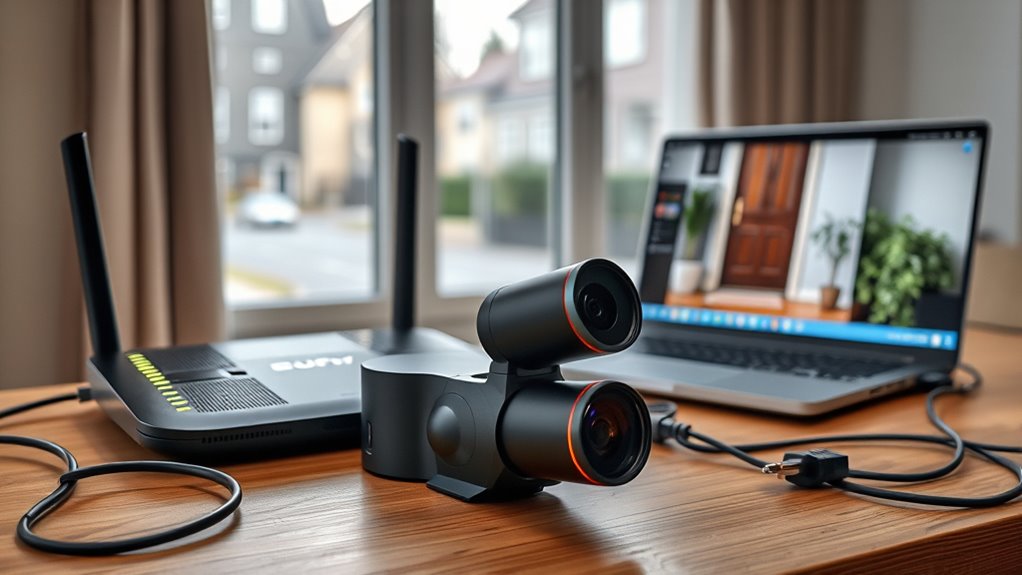
Does the Eufy E340 need a router? If you’re installing this dual-camera video doorbell, you need to understand how its Wi-Fi connection works and whether HomeBase can replace it. The answer depends on whether you want remote access, local recording, or a traditional doorbell chime. Knowing the difference helps you avoid setup problems and unnecessary router changes.
Quick Answer
Yes, the Eufy Video Doorbell E340 needs a home network connection for normal smart features. When used independently, it connects directly to a router’s 2.4 GHz Wi-Fi network. HomeBase 2 or HomeBase 3 is optional, not required. Without internet access, remote viewing and phone notifications become unavailable, although local recording may still be possible.
Key Takeaways
- The Eufy E340 supports 2.4 GHz Wi-Fi, not 5 GHz Wi-Fi.
- It can connect directly to a home router without requiring HomeBase.
- The doorbell includes 8 GB of built-in eMMC storage for recorded events.
- HomeBase 2 and HomeBase 3 are compatible options for integrated storage and system management.
- Battery power or existing doorbell wiring supplies electricity, not an internet connection.
- Guest Wi-Fi can help diagnose router restrictions, but network isolation can create new problems.
- UPnP and manual port forwarding should not be enabled automatically as part of routine setup.
Does the Eufy E340 Need Wi-Fi?
)
Yes. The Eufy Video Doorbell E340 uses Wi-Fi for its connected features. When operating without HomeBase, it connects directly to your home wireless router.
According to the official Eufy E340 product specifications, the doorbell supports 2.4 GHz Wi-Fi only. A 5 GHz-only network cannot provide its direct wireless connection.
With a working internet connection, you can use the Eufy Security app to:
- Watch live video from the doorbell.
- Receive motion and doorbell-press notifications.
- Answer visitors using two-way audio.
- View recorded events remotely.
- Manage settings and supported firmware updates.
The E340 also has two cameras and 8 GB of built-in storage. Its main camera monitors visitors, while the second camera covers the lower doorstep area, including packages.
That local storage is useful because saving a clip does not always require uploading the entire video to cloud storage.
However, local storage and internet access are different things. The E340 can store recordings on the device, but reliable remote access requires a functioning network and internet connection.
Why the E340 Won’t Work Fully Without a Router
The Eufy E340 needs a working network path to communicate with your phone and Eufy’s connected services. In standalone mode, your router provides that path through Wi-Fi.
A router connects devices within your home network. Your internet service provides access beyond that network. These two parts can fail independently.
For example, your router may continue broadcasting Wi-Fi even when your internet provider has an outage.
In that situation, the doorbell may remain connected locally while remote functions stop working.
Eufy’s official power and internet outage guidance explains that offline behavior varies by camera model and system configuration.
For the E340, it is helpful to separate three situations:
- Router and internet working: Normal connected features should be available when the device is configured correctly.
- Wi-Fi working but internet unavailable: Remote access and app alerts are interrupted. Local recording may continue, depending on the doorbell’s operating state.
- Router or Wi-Fi unavailable: The doorbell loses its normal network connection. Its built-in storage does not guarantee uninterrupted recording during every outage.
When the connection returns, check the Events section in the app to see which recordings were saved.
You should not treat the E340 as a fully independent security system that guarantees complete surveillance without networking.
If uninterrupted remote monitoring is essential, consider how your router, internet connection, and power supply will remain available during outages.
How to Set Up the E340 on 2.4 GHz Wi-Fi
To connect the Eufy E340 directly to your router, prepare an active 2.4 GHz wireless network and use the Eufy Security app. You do not need a HomeBase for this setup.
Eufy’s 2.4 GHz Wi-Fi setup instructions recommend connecting your phone to the same wireless network during initial pairing.
Prepare the 2.4 GHz Network
Before adding the doorbell, confirm that your router broadcasts a usable 2.4 GHz signal.
Many modern routers support both 2.4 GHz and 5 GHz networks. Some combine them under one network name, while others broadcast separate names.
If the E340 cannot connect to a combined network, temporarily separating the bands can make troubleshooting easier.
| Prep step | Why it matters |
|---|---|
| Confirm 2.4 GHz broadcast | The E340 cannot directly connect to a 5 GHz-only network. |
| Connect your phone to the intended network | Helps the app transfer the correct Wi-Fi information during setup. |
| Check the network password | An incorrect password prevents the doorbell from joining. |
| Check Wi-Fi security compatibility | A WPA2-compatible setting may help if a newer security-only configuration fails. |
| Confirm internet access | The device needs access to connected services for normal remote operation. |
| Check signal strength | Weak coverage can cause slow video, failed pairing, and disconnections. |
Keep the doorbell near your router during initial setup if possible. Its removable battery allows you to test the connection before final mounting.
Add the Doorbell Through the Eufy App
Once your network is ready, use the Eufy Security app to register and connect the doorbell.
- Charge and insert the battery. Make sure the doorbell has enough power for setup.
- Open the Eufy Security app. Sign in to your account or create one.
- Select Add Device. Choose the Video Doorbell E340 when prompted.
- Scan the QR code. Use the code located on the back of the doorbell.
- Activate pairing. Follow the app’s instructions. If prompted, hold the rear SYNC button for 2 seconds until you hear a beep.
- Select your 2.4 GHz network. Enter the correct Wi-Fi password.
- Complete the connection. Follow the remaining instructions shown in the app.
- Test live view. Confirm that video loads and a doorbell press produces the expected response.
The official E340 user guide confirms that the rear SYNC button supports setup and that the doorbell can work independently through a home wireless router.
After connecting, test the camera at your intended mounting location. A connection that works close to the router may become unstable when installed behind walls or near metal surfaces.
If pairing fails, check the network settings before removing the device or performing a factory reset.
How HomeBase Changes E340 Setup
HomeBase is optional for the Eufy E340. The doorbell already supports direct router connectivity, built-in storage, live viewing, motion detection, and remote answering.
However, connecting it to a compatible HomeBase lets you integrate the doorbell with a larger Eufy Security system.
Eufy’s E340 HomeBase compatibility guidance confirms support for HomeBase 2 and S380 HomeBase, also called HomeBase 3.
Here is how the options compare:
- Standalone E340: Connects to your router through 2.4 GHz Wi-Fi and stores event recordings in its built-in 8 GB memory.
- E340 with HomeBase 2: Integrates with a compatible HomeBase system and can store video clips on the HomeBase.
- E340 with HomeBase 3: Supports compatible HomeBase storage and system integration. Additional features depend on supported software and configurations.
HomeBase does not eliminate the need for a home network and internet connectivity when you want remote app features.
It also does not guarantee that motion notifications or video performance will improve. Those results depend on the connection, device configuration, and network conditions.
The E340 can also work with compatible doorbell chimes. Depending on the installation, options include an existing mechanical chime, supported Eufy accessories, or compatible Alexa devices.
For most users who only need one video doorbell, direct router connection is a complete supported setup.
HomeBase becomes more useful when you already own compatible Eufy devices or want a shared storage system.
Why Guest Wi-Fi Can Fix E340 Connection Issues
A guest Wi-Fi network can help identify why the Eufy E340 fails to connect to your main router network. It provides a separate configuration that may have different access rules.
If the E340 joins the guest network but fails on the main network, the problem may involve the main network’s security settings, device restrictions, or wireless configuration.
However, a guest network is not automatically better. Some guest networks block communication between connected devices.
Check Guest Network Isolation
Guest isolation is a router feature that limits communication between devices connected to the same guest network or other local devices.
It can improve privacy by keeping visitors away from personal devices. However, strict isolation may interfere with local discovery or setup for smart-home products.
To test the E340:
- Enable a separate 2.4 GHz guest network on your router.
- Make sure the network allows internet access.
- Connect your phone to that guest network.
- Try adding the E340 through the app.
- Test live view and doorbell notifications after pairing.
If pairing succeeds but some features fail, check whether guest isolation prevents required local communication.
A successful guest-network test helps narrow down the issue. It does not prove that every setting on the main network is incorrect.
Check Main Network Blocks
Router access controls can prevent the E340 from connecting even when the Wi-Fi password is correct.
Common examples include parental controls, device blacklists, DHCP problems, or security rules that limit internet access.
| Check | Effect |
|---|---|
| MAC address filtering | May reject the doorbell before it joins the network. |
| Parental controls | May block or restrict the doorbell’s internet access. |
| DHCP settings | Can prevent the device from receiving a valid local IP address. |
| Guest network test | Helps identify differences between router configurations. |
| UPnP and port forwarding | Should not be changed automatically without a confirmed need. |
A main network using addresses such as 10.0.x.x is not inherently incompatible with the E340. Likewise, a guest network using 192.168.x.x is not automatically more suitable.
Both are common private IP address ranges.
If your router blocks the doorbell, review the specific restriction and allow only the access that is necessary.
Which E340 Router Settings Matter Most?
The most important Eufy E340 router settings are the Wi-Fi band, compatible security mode, DHCP, and internet access. These determine whether the doorbell can connect and communicate reliably.
Start with the settings most likely to cause a connection failure:
- 2.4 GHz enabled: The router must provide a 2.4 GHz wireless network for direct E340 connection.
- Compatible Wi-Fi security: If pairing fails on a newer security-only mode, test a WPA2-compatible configuration.
- DHCP enabled: The router should automatically assign a usable local IP address.
- Device access allowed: Make sure the doorbell is not blocked by MAC filtering, access schedules, or parental controls.
- Stable internet connection: Confirm connected services work on other devices.
- Adequate wireless coverage: Check the signal at the actual doorbell location.
Some Eufy troubleshooting instructions for older wired doorbell models mention TCP ports 12306 and 12308. However, those instructions do not establish that the E340 requires you to manually forward those ports from the internet.
Similarly, Universal Plug and Play, or UPnP, can let devices request network connections automatically. It is not something you should enable without a specific need.
The Canadian Centre for Cyber Security’s UPnP guidance explains that this feature can introduce security risks, especially when used on home routers.
Warning: Do not disable your router’s firewall, enable UPnP, or open internet-facing ports simply because the doorbell fails to connect. These changes can increase network exposure. Confirm the specific requirement with Eufy support and your router manufacturer before making advanced security changes.
For most households, a correctly configured 2.4 GHz network with working internet access is the right starting point.
How to Fix E340 Internet Problems
If the Eufy E340 keeps disconnecting, begin with the simplest checks. Weak Wi-Fi coverage, incorrect network credentials, and router restrictions are more useful starting points than changing advanced firewall settings.
Work through these steps in order:
- Check the doorbell’s power. Make sure the rechargeable battery has sufficient charge, even if the device is connected to existing doorbell wiring.
- Test your internet. Connect another device to the same network and confirm that websites load.
- Confirm the correct Wi-Fi band. Make sure the E340 is connected to a 2.4 GHz network.
- Check the saved Wi-Fi password. Re-enter it if the router’s network name or credentials have changed.
- Review signal strength. Test the doorbell closer to the router before assuming the hardware is defective.
- Inspect router restrictions. Check device blocking, DHCP, guest isolation, and security compatibility.
- Try another network. A compatible phone hotspot or guest Wi-Fi network can help distinguish a router problem from a device problem.
- Check updates. Once connected, review available updates through the Eufy app and router management interface.
- Restart affected equipment. Reboot the router or doorbell if earlier checks do not restore service.
Eufy’s Wi-Fi signal troubleshooting guide identifies distance, walls, metal obstacles, congestion, and connection quality as possible causes of unstable camera performance.
If the doorbell connects successfully near the router but fails at the front door, improve wireless coverage rather than repeatedly changing passwords or resetting the device.
A Wi-Fi extender or mesh access point may help when the original signal is too weak. Choose equipment that supports the E340’s 2.4 GHz connection.
A Wi-Fi analyzer can also help identify crowded channels and signal problems, although the doorbell’s own connection results are the most relevant test.
If the camera displays a strong signal but live video remains slow, check your internet upload performance and whether other devices are heavily using the network.
When to Reset the E340 and Your Router
Restarting your router is reasonable when several devices lose connectivity. Resetting the E340 should be a later troubleshooting step because it can require setting up the doorbell again.
First, distinguish a restart from a factory reset.
- Router restart: Temporarily removes power or uses the router’s restart function, then starts the same configuration again.
- Router factory reset: Erases customized settings and may require complete network reconfiguration.
- Doorbell factory reset: Clears device configuration and requires the E340 to be added again.
- SYNC setup action: A 2-second hold activates the E340’s pairing process. It should not be confused with a factory reset.
Use this troubleshooting order:
- Restart the router. Disconnect its power briefly, reconnect it, and confirm internet service is restored.
- Check the doorbell again. Test live view and notifications after the network becomes available.
- Review the Eufy app. Confirm the device is still registered and its network information is correct.
- Save important recordings. Download needed video clips before removing or resetting the doorbell.
- Perform a device reset only if necessary. Use the current E340-specific procedure supplied by the app or Eufy support.
- Reconnect and test. Add the doorbell again and confirm normal operation.
A factory reset should not be your first response to a weak signal or temporary internet outage.
Also avoid resetting the router to factory defaults unless you know how to restore its internet and Wi-Fi configuration.
If a firmware update was interrupted, contact Eufy support before repeatedly resetting the device.
Where to Get Eufy E340 Support
Eufy provides official customer support for E340 setup problems, connectivity failures, app issues, and warranty concerns.
If the doorbell cannot connect after basic troubleshooting, use Eufy’s official customer service contact guidance.
Available support options include:
- Live chat: Available through Eufy’s support website, with 24/7 chat support advertised.
- Email: Security product assistance at support@eufy.com.
- Phone: Eufy Security support in the United States at +1 (800) 988-7973.
- Support articles: Product guides, troubleshooting instructions, and compatibility information.
When contacting support, provide the exact model, explain where setup fails, and describe the steps already attempted.
Useful details include whether the doorbell connects to another network, whether the problem began after a firmware update, and whether it works near the router.
If your E340 is still covered by a warranty, support can also explain available service or replacement options.
Frequently Asked Questions
Can I Use My Eufy Camera Without Wi-Fi?
Some Eufy cameras can record locally without internet access, but their capabilities depend on the model. The E340 needs Wi-Fi for normal standalone connectivity and internet access for remote viewing and app alerts. Its built-in storage may retain local recordings during some outages, but uninterrupted offline recording is not guaranteed.
Can I Use an Eufy E340 Without HomeBase?
Yes, the Eufy E340 works without HomeBase. Connect it directly to your router’s 2.4 GHz Wi-Fi network and complete setup in the Eufy Security app. The doorbell includes 8 GB of built-in storage and supports live viewing, motion alerts, and two-way communication without a separate HomeBase.
Can the Eufy E340 Be Wired or Wireless?
Yes, the Eufy E340 supports rechargeable battery power and compatible existing doorbell wiring. However, the battery must remain installed even when using wired power. Both installation methods still use wireless networking for connected features. Doorbell wiring supplies electricity; it does not provide an Ethernet or internet connection.
What Was the Eufy Camera Scandal?
The Eufy camera privacy controversy began in 2022 after researchers and journalists raised concerns about cloud uploads, camera access, and privacy claims. Eufy later acknowledged problems and described plans for security improvements, as covered by Ars Technica’s reporting. Those historical findings should not automatically be treated as evidence of the same vulnerability in every E340 device.
Conclusion
The Eufy E340 needs a network connection for normal smart-doorbell operation. Without HomeBase, it connects directly to your router through 2.4 GHz Wi-Fi. HomeBase 2 and HomeBase 3 are optional, and the doorbell already includes local storage.
If your E340 will not connect, start with the Wi-Fi band, password, signal strength, and router restrictions. Avoid unnecessary firewall changes or factory resets. A correctly configured network is usually the best foundation for dependable alerts, live video, and remote access.
Sources
- Eufy Video Doorbell E340 Product Specifications: Supports Wi-Fi compatibility, built-in storage, power options, and HomeBase compatibility.
- Eufy Video Doorbell E340 User Guide: Supports setup instructions, SYNC button operation, and standalone connectivity.
- Eufy 2.4 GHz Wi-Fi Setup Guide: Supports wireless network preparation and mobile-device setup guidance.
- Eufy E340 HomeBase Requirements: Confirms that HomeBase is optional and identifies compatible models.
- Eufy Power and Internet Outage Guidance: Explains why offline behavior depends on the connected camera system.
- Eufy Camera Signal Troubleshooting Guide: Supports guidance on weak Wi-Fi, physical obstacles, and connection stability.
- Canadian Centre for Cyber Security: Universal Plug and Play: Explains security risks associated with UPnP.
- Eufy Customer Service Guidance: Supports official service channels and troubleshooting assistance.
- Ars Technica: Eufy Camera Security Reporting: Documents the historical privacy controversy and Eufy’s response.