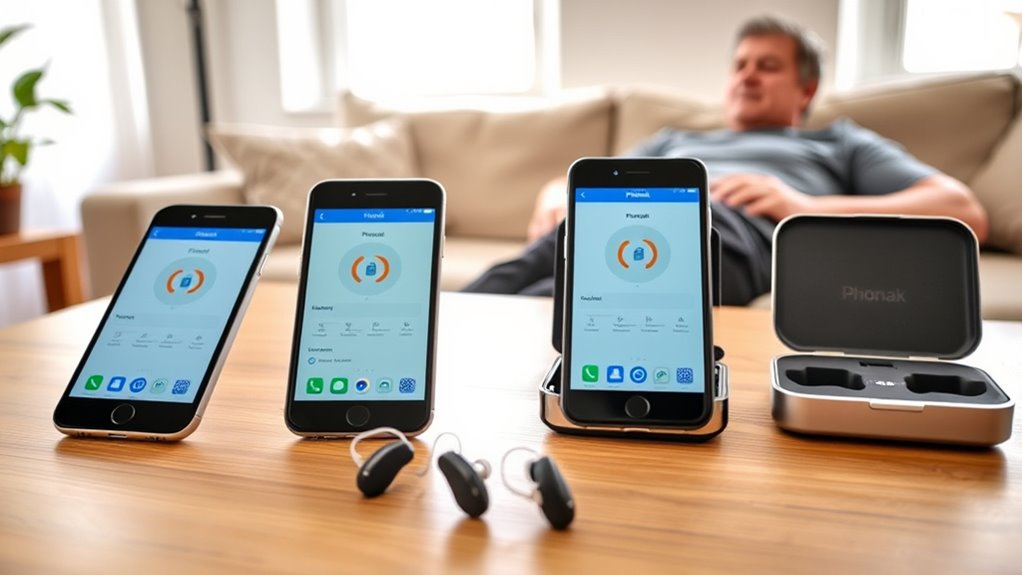
Does myPhonak work better on iPhone than Android? If you use Phonak hearing aids, your smartphone affects how you adjust sound, stream calls, and manage Bluetooth connections. Both platforms support the app, but the experience can vary with your phone model, hearing aids, and software.
Quick Answer
myPhonak works on both compatible iPhones and Android phones. iPhone may provide a more predictable experience for some users, but there is no verified evidence that it always delivers better Bluetooth stability. Phonak currently specifies iOS 16 or newer, or Android 10 or newer with Bluetooth 4.2. Your exact phone and hearing aid model matter most.
Last checked: October 23, 2026. Dates and figures were verified against official sources.
Key Takeaways
- Both iPhone and Android support myPhonak’s main hearing aid controls when the devices are compatible.
- Phonak requires iOS 16 or newer on iPhone, or Android 10 or newer with Bluetooth 4.2 and Google Mobile Services.
- Bluetooth streaming and myPhonak app control can use different connections, especially on older hearing aid generations.
- Remote Support is available on both platforms, but access depends on your hearing aids, provider, and country.
- Features such as heart rate tracking and Find My Hearing Aids have specific model or software requirements.
- Correct pairing and updated software matter more than choosing a phone based on its brand alone.
Does myPhonak Work Better on iPhone?
myPhonak can work very well on iPhone, but it is not officially established as better than Android in every situation. Phonak develops the app for both platforms and supports the same core hearing aid functions on compatible devices.
The main advantage of using an iPhone is consistency across Apple’s phone hardware and software. Android phones come from many manufacturers, each with different Bluetooth implementations, battery settings, and background app behavior.
However, that difference does not guarantee fewer disconnections on iPhone. An Android phone that Phonak has confirmed as compatible may work as reliably as an iPhone.
For example, an iPhone 14 paired with supported Phonak hearing aids may offer dependable daily control. A compatible Samsung Galaxy phone can provide the same basic functions, including volume adjustment, listening programs, and calls.
If either phone develops connection problems, the cause may involve hearing aid firmware, Bluetooth pairing, app permissions, or an operating system update.
The best choice is the phone that works reliably with your specific hearing aids. Phonak’s official compatibility requirements provide the starting point.
myPhonak on iPhone vs Android
The biggest difference between myPhonak on iPhone and Android is device compatibility, not the basic feature list. Both versions support hearing aid adjustments, sound personalization, and other functions supported by the connected hearing aids.
Android performance can vary more between manufacturers and models. iPhone compatibility also depends on the iOS version and the hearing aids being used.
| Feature | iPhone | Android |
|---|---|---|
| Minimum operating system | iOS 16 or newer | Android 10 or newer |
| Bluetooth requirements | Bluetooth Low Energy support | Bluetooth 4.2 or newer with Low Energy support |
| Additional platform requirement | Compatible iPhone hardware | Google Mobile Services certification |
| Volume and program controls | Supported | Supported |
| Calls and music streaming | Supported with compatible hearing aids | Supported with compatible hearing aids |
| Remote Support | Available where supported | Available where supported |
| Health tracking | Depends on hearing aid model | Depends on hearing aid model |
| Connection consistency | Varies by setup | Varies by phone and setup |
Phonak’s myPhonak feature information confirms that hearing aid support and available functions depend on the connected devices.
iPhone Bluetooth Stability
iPhone offers a consistent hardware and operating system environment, which can simplify Bluetooth troubleshooting. However, connection reliability still depends on the hearing aid model, pairing method, and installed software.
One common source of confusion is that Phonak hearing aids may use separate Bluetooth connections for calls and app control.
On older Phonak generations, you may see one Bluetooth connection for phone calls and media, plus two Low Energy connections for the myPhonak app.
These additional entries are normal. A connection marked “Not Connected” while the app is closed does not always indicate a fault.
Newer Infinio Ultra hearing aids and later generations use an updated pairing process that can enable app control, calls, and streaming together.
Because pairing behavior changes across generations, following the instructions for your hearing aid model is more useful than relying on a general iPhone troubleshooting guide.
Android Compatibility Differences
Android supports the same main myPhonak functions, but compatibility is less uniform across phone manufacturers. Bluetooth implementation, software restrictions, and system updates can affect the experience.
For example, an Android phone may restrict background app activity to save battery. That can interfere with how quickly an app reconnects or updates information.
Some older Android versions also lack newer myPhonak features. Phonak states that Find My Hearing Aids is unavailable on Android 10 or earlier with certain recent app versions, even though Android 10 meets the general minimum requirement.
Remote Support is not exclusive to iPhone. Compatible Android users can also receive remote hearing aid adjustments when the service is supported and arranged by their hearing care professional.
Neither platform has a guaranteed advantage in update timing. App releases and operating system changes can affect either version.
What iPhone Features Help myPhonak?
iPhone provides useful Bluetooth and accessibility settings that can complement myPhonak. These include call audio routing, display adjustments, and screen-reading tools.
However, Apple’s built-in hearing device features are not automatically compatible with every Phonak hearing aid. It helps to separate iPhone accessibility features from functions provided by myPhonak itself.
Bluetooth Audio Routing
Bluetooth audio routing determines where iPhone sends calls and other sound. With compatible Phonak hearing aids, you can listen to phone calls and media through the hearing aids rather than the phone speaker.
If incoming calls do not automatically play through your hearing aids, iPhone offers a setting that may help.
- Open Settings on your iPhone.
- Select Accessibility.
- Tap Touch.
- Open Call Audio Routing.
- Select Bluetooth Headset if you want calls directed to your paired Bluetooth hearing aids.
Apple explains these options in its call audio routing instructions.
Bluetooth Low Energy is used for myPhonak app communication. Compatible older-generation Phonak hearing aids also use Bluetooth Classic profiles for phone calls and music.
This distinction matters because your hearing aids might stream a call correctly while myPhonak shows a temporary connection problem. The reverse can also happen.
Some Phonak hearing aids can pair with more than one audio source, although active streaming and device switching depend on the model.
iOS Accessibility Tools
iPhone has accessibility features that can make myPhonak easier to use, especially if you have difficulty reading small text or using touchscreen controls.
- VoiceOver: Reads screen elements aloud and helps users move through supported controls.
- Magnifier: Uses the phone camera to enlarge nearby text and objects.
- Display adjustments: Text size, contrast, and color settings can improve readability.
- Sound Recognition: Can notify users about certain sounds, although it is not a replacement for awareness of important safety signals.
- Live Listen: Turns an iPhone into a remote microphone for compatible Apple-supported listening devices.
There is an important limitation with Live Listen. Apple’s standard Live Listen feature supports Made for iPhone hearing devices and supported AirPods or Beats products.
Phonak hearing aids that connect through standard Bluetooth should not automatically be assumed to support that feature.
Apple’s Live Listen compatibility guidance explains the requirements for Made for iPhone hearing devices.
If you want to hear a distant speaker through Phonak hearing aids, compatible accessories such as a dedicated remote microphone may be more appropriate.
How to Set Up myPhonak on iPhone
Setting up myPhonak on iPhone involves installing the app, enabling Bluetooth, and pairing your hearing aids. You do not need to create an account for ordinary remote control functions.
Before starting, make sure your iPhone meets Phonak’s current compatibility requirements and your hearing aids have enough battery power.
- Install myPhonak. Open the App Store, search for myPhonak, and install the official app from Sonova AG.
- Enable Bluetooth. Open Settings > Bluetooth and turn Bluetooth on.
- Open the app. Complete the introductory screens and accept the permissions required for the functions you intend to use.
- Start pairing. On the app’s Home screen, choose the option to pair your hearing aids.
- Restart your hearing aids. Follow the app’s instructions for your model to activate Bluetooth pairing mode.
- Find your devices. Wait for the app to detect your hearing aids. If you use two, make sure both appear before continuing.
- Confirm pairing. Select Pair and approve the Bluetooth pairing requests shown on your iPhone.
- Test the connection. Change the volume or listening program in myPhonak to confirm that your hearing aids respond.
For rechargeable models, pairing mode can generally be activated by restarting the hearing aids using their buttons or charger. Phonak’s instructions describe a three-minute discovery period.
Follow the manufacturer’s official iPhone pairing procedure for the exact sequence.
Important: Infinio Ultra and newer hearing aids can enable call streaming during app pairing. Earlier generations may need an additional Bluetooth pairing step for phone calls and music.
If the app connects but calls still play through your iPhone speaker, finish that additional audio pairing before assuming the app is faulty.
How to Fix myPhonak Connection Problems
Most myPhonak connection problems should be approached from the simplest fix to the most involved. Start by refreshing Bluetooth and restarting the devices before removing existing pairings.
First, identify whether the problem affects app controls, phone calls, or both. That distinction helps you avoid resetting connections that already work.
- Check power and distance. Make sure your phone and hearing aids have enough charge and are close together.
- Refresh Bluetooth. Turn Bluetooth off in iPhone Settings, then turn it on again.
- Restart your hearing aids. Power them off and back on using the method specified for your model.
- Reopen myPhonak. Close the app, reopen it, and allow the hearing aids to reconnect.
- Restart your iPhone. A phone restart can clear temporary connection faults.
- Update your software. Install compatible iOS and myPhonak updates. Ask your hearing care professional about hearing aid firmware updates if problems continue.
- Re-pair only if necessary. If the connection still fails, use Phonak’s model-specific instructions to forget and reconnect the hearing aids.
Phonak’s Bluetooth troubleshooting guidance explains how to reset connections on compatible earlier-generation devices.
| Step | Purpose |
|---|---|
| Toggle Bluetooth | Refresh the wireless connection |
| Restart hearing aids | Reset temporary connection faults |
| Reopen myPhonak | Restore app communication |
| Update iOS and the app | Address compatibility problems and software bugs |
| Re-pair the hearing aids | Rebuild a faulty Bluetooth connection |
Warning: Removing Bluetooth pairings or resetting the app can delete stored connections and require a new setup. Check whether your hearing aid model needs separate connections for calls and app control before removing them.
If only one hearing aid appears during pairing, restart both hearing aids and try again. If the same problem continues, the pair may need attention from your hearing care professional.
Also distinguish app disconnections from audio interruptions. Keyboard sounds, notifications, and other system audio may cause your hearing aids to switch briefly into a Bluetooth streaming program.
If your hearing aids work for calls but repeatedly fail to connect to myPhonak, focus on the app connection rather than resetting the working streaming connection immediately.
What Can myPhonak Do on iPhone?
myPhonak turns a compatible iPhone into a remote control for supported Phonak hearing aids. The app lets you manage everyday listening settings and access additional features when your hearing aid model supports them.
Its main functions include:
- Volume control: Increase or decrease hearing aid volume.
- Listening programs: Switch between available sound programs for different environments.
- Sound customization: Adjust supported settings such as equalizer levels, noise reduction, and microphone directionality.
- Custom programs: Save preferred listening adjustments when supported.
- Battery information: View the available status and charge information for compatible hearing aids.
- Remote Support: Connect with your hearing care professional for a scheduled video appointment and supported remote adjustments.
- Health features: View supported measurements such as steps, wearing time, activity, and heart rate.
- Find My Hearing Aids: Get help locating misplaced hearing aids using their last known connection location and Bluetooth signal.
Which Health Features Are Available?
Health tracking is not available in the same form on every Phonak model. The hearing aids themselves need the sensors and software required for each measurement.
For example, supported rechargeable Paradise, Lumity, Infinio, and EON hearing aids can provide selected wearing-time or activity information.
Heart rate tracking is more limited. Phonak identifies Audéo Fit as the supported hearing aid family for that measurement.
The manufacturer’s health feature compatibility list explains which models provide each measurement.
Health data also requires the relevant settings to be enabled. An account is needed to access myPhonak’s Health section.
How Does Find My Hearing Aids Work?
Find My Hearing Aids can help locate misplaced compatible Phonak devices. It combines the last known location where the hearing aids connected with Bluetooth signal strength information.
When you approach your hearing aids, the app can use the Bluetooth signal to help narrow down where they are.
However, this is not the same as continuous, real-time GPS tracking. Hearing aids outside Bluetooth range cannot simply report their current location like a phone with an active data connection.
Phonak describes this process in its Find My Hearing Aids instructions.
Availability can also depend on the app version and phone operating system. On some newer myPhonak releases, Android 10 and earlier do not support this feature.
What myPhonak Still Can’t Do on iPhone
myPhonak offers useful controls, but it does not provide every possible hearing aid function on every iPhone. Its capabilities depend mainly on the hearing aids, their software, and available services.
Several limitations are worth understanding before choosing a phone.
- Not every model has advanced controls. Older hearing aids may lack some adjustment options, health features, or newer functions.
- Remote Support is not guaranteed everywhere. Availability depends on your country, hearing aid compatibility, and hearing care professional.
- Bluetooth is not completely interruption-free. Calls, streaming, background activity, and software changes can still cause connection problems.
- There is no full Apple Watch companion app. The App Store lists myPhonak as an iPhone app rather than a dedicated watchOS app.
- Location tracking has limits. Find My Hearing Aids cannot provide a live location when the hearing aids have no way to report it.
- Live Listen is not universal. Standard Phonak Bluetooth support does not mean Apple’s MFi-specific Live Listen feature will work.
Do You Need a myPhonak Account?
You do not need a myPhonak account to use the app’s basic non-Health controls. Creating an account is optional for those functions.
However, an account is required for the Health section and its associated data features.
Phonak confirms this distinction in its account requirements.
Another limitation is compatibility with older devices. The official myPhonak App Store listing includes model-specific feature notes and can differ from broader manufacturer compatibility guidance.
Note: If your hearing aids produce uncomfortable sound, hearing performance changes suddenly, or app adjustments do not resolve a hearing problem, contact your hearing care professional. App controls do not replace a professional hearing assessment or fitting.
Is iPhone the Best Choice for myPhonak?
iPhone can be an excellent choice for myPhonak, but it is not automatically the best phone for every Phonak user. A compatible Android device may provide equally useful hearing aid control and streaming.
If you already own an iPhone that works well with your hearing aids, there is no clear reason to switch platforms just for myPhonak.
Likewise, if your Android phone maintains a stable connection and provides the features you need, switching to iPhone may offer little practical benefit.
Consider these questions before deciding:
- Does your phone meet the current operating system and Bluetooth requirements?
- Is your exact Phonak hearing aid model supported?
- Can you make calls and stream music without repeated interruptions?
- Do volume changes and listening programs respond quickly?
- Are important features such as Remote Support available with your setup?
- Does the phone remain reliable after software updates?
If you are comparing two phones, testing them with your own hearing aids is more meaningful than relying on broad claims about iOS or Android.
The main goal is dependable communication, clear sound, and easy daily control. Both platforms can provide that when the equipment and software work together correctly.
Frequently Asked Questions
What Is the Best Hearing Aid App for iOS?
The best hearing aid app for iPhone is usually the official app made for your hearing aids. If you use compatible Phonak devices, myPhonak provides volume adjustments, listening programs, and supported remote services. It is not designed to control hearing aids from other manufacturers.
Is the myPhonak App Any Good?
Yes, myPhonak is a useful app for adjusting compatible Phonak hearing aids. It offers sound customization, remote controls, and optional health features. However, users can still experience connection problems, and some functions depend on their hearing aid model, phone, and access to professional support.
Which Hearing Aid Works Best With an iPhone?
There is no single hearing aid that works best with every iPhone user. Compatible Phonak models, including Audéo Paradise and newer supported families, can provide Bluetooth streaming and myPhonak controls. Your hearing needs, fitting, comfort, battery preferences, and compatibility should determine which model is most suitable.
Which Phonak Hearing Aid Is the Best in 2026?
No single Phonak hearing aid is best for everyone in 2026. Audéo EON Sphere is a current advanced option with AI-based speech processing and broad wireless connectivity. CROS solutions serve different needs, including single-sided hearing loss. A hearing care professional can recommend the appropriate model based on your hearing test.
For a closer look at the newer model mentioned above, Phonak provides an official Audéo EON Sphere overview covering its hearing and connectivity features.
Conclusion
myPhonak can work reliably on both iPhone and Android. Although iPhone may offer a more consistent software environment, there is no verified reason to assume it always delivers fewer Bluetooth problems or better app performance.
Before changing phones, confirm your hearing aid compatibility and test the functions that matter most, especially calls, streaming, and remote controls. Keeping the app, phone, and hearing aid firmware compatible is usually more useful than choosing a platform based on general claims.
Sources
- Phonak — Smartphone Compatibility Requirements: Supported iOS and Android versions and Bluetooth requirements.
- Phonak — myPhonak App: Supported features, hearing aid compatibility, and Remote Support.
- Apple Support — Call Audio Routing: iPhone settings for directing phone audio to Bluetooth devices.
- Apple Support — Live Listen: Compatibility and operation with Made for iPhone hearing devices.
- Phonak — Pairing Hearing Aids With myPhonak on iPhone: Pairing steps and differences between hearing aid generations.
- Phonak — Bluetooth and App Troubleshooting: Recommended connection troubleshooting and resetting procedures.
- Phonak — Health Feature Compatibility: Hearing aid models supporting health measurements.
- Phonak — Finding Lost Hearing Aids: Last known location and Bluetooth-based locating.
- Phonak — Account Requirements: Optional account use and Health feature requirements.
- Apple App Store — myPhonak: App availability, supported devices, and feature information.
- Phonak — Audéo EON Sphere: Official information about the current hearing aid model and its wireless features.