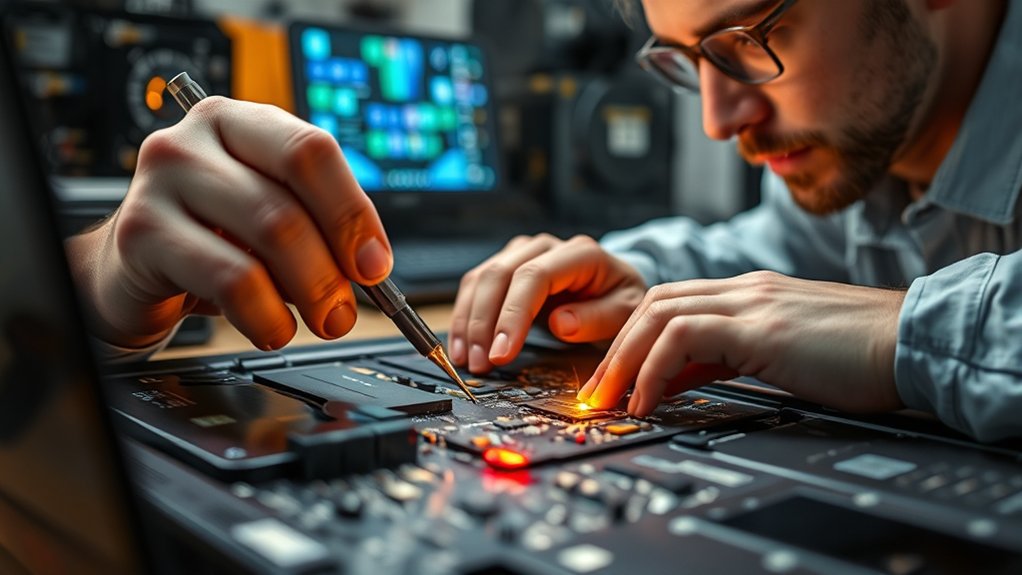
If your laptop’s USB ports are not working, first determine whether the problem is the USB device, cable, hub, Windows, or the physical port. Test a known-good device directly in another port before changing drivers or firmware settings. If the problem affects multiple devices, move to Device Manager, Windows Update, USB-C compatibility checks, and power-management testing. A port that is loose, burned, physically damaged, or unreliable when the plug moves should not be forced.
Last updated: September 21, 2026
Quick Answer
To fix laptop USB ports that are not working, test another known-good USB device and cable, connect directly without a hub, inspect the port for debris or damage, restart Windows, check Device Manager for errors, install current Windows and manufacturer updates, and confirm the port supports the USB-C feature you are trying to use. If disconnects happen after sleep or only on battery power, temporarily test the USB power-management settings. If one port remains loose, burned, or completely unresponsive with several devices, it may need repair.
Key Takeaways
- Test more than one USB device and cable before changing Windows settings.
- Separate a no-power problem from a power-but-no-data problem; they point to different causes.
- Use Device Manager to check device status and USB controller errors before reinstalling anything.
- Treat USB selective suspend changes as a temporary diagnostic test, not a permanent optimization.
- Stop using a port that is loose, burned, melted, bent, sparking, or unreliable when the connector moves.
At a Glance
| Time Required | 10 to 30 minutes for software checks; longer if hardware repair is needed |
| Difficulty | Easy to moderate |
| Tools Needed | Known-good USB device and cable, flashlight, soft brush or compressed air, Device Manager, Disk Management, and Windows Update |
| Cost | Free for software fixes; repair cost varies if the USB port is physically damaged |
Why Are My Laptop USB Ports Not Working?
A USB problem is easier to solve when you identify the exact symptom first. A dead port, a port that charges but does not transfer data, an intermittent connection, and a USB-C dock that cannot output video are not necessarily the same fault.
| What You See | Check First |
|---|---|
| No power or charging | Device, cable, hub power, port damage, firmware setting, or USB controller |
| Power or charging but no data | Data-capable cable, device mode, Windows detection, driver, or damaged data contacts |
| Only one USB device fails | The device, its cable, its driver, or compatibility |
| Several devices fail in one port | The individual port, its connection, or local hardware |
| All ports fail after Windows starts | Windows driver, controller, software, policy, update, or power-management issue |
| Connection drops when the plug moves | Loose connector, damaged cable, debris, or physical port damage |
| USB-C charges but a monitor or dock feature fails | Host-port capability, cable capability, USB4/Thunderbolt/DisplayPort support, or dock compatibility |
Check Physical Connections and BIOS Settings
Start by confirming that the USB device is securely connected. Inspect the port with a flashlight for visible damage, bent contacts, dust, lint, or debris. Then test the same device in another USB port and test a second known-good device in the suspect port.
If one accessory fails everywhere but other devices work, focus on that accessory or its cable. If several known-good devices fail only in one port, focus on that port. If multiple ports fail at the same time, a shared controller, firmware, Windows, or power issue becomes more likely.
Warning: Do not scrape inside a USB port with a metal tool. You can bend contacts, short the port, or damage the motherboard. Use a flashlight, a soft dry brush, or carefully applied compressed air instead.
If multiple USB ports do not respond, check your laptop manufacturer’s instructions for entering BIOS or UEFI. The correct method varies by model. Look for settings related to USB configuration, external ports, onboard devices, or integrated peripherals and confirm that USB support is enabled.
Do not reset the entire BIOS or UEFI configuration simply because a USB device is not working. A full firmware reset can change unrelated settings. Change only USB-related options that your laptop manufacturer’s documentation identifies for your exact model.
A basic wired USB keyboard that works in BIOS or UEFI but stops when Windows loads points toward a Windows-side problem such as a driver, software, policy, or power setting. If a known-good basic USB device also fails outside normal Windows, hardware becomes more suspicious, but that test is not absolute proof because firmware environments may support only certain ports or device types.
Restart and Run Basic Windows Checks
Restart the laptop before making deeper changes. A restart reloads Windows device drivers and USB controllers and can clear a temporary failure after sleep, hibernation, docking, or a failed connection.
Disconnect nonessential USB accessories after the restart. Connect one known-good device directly to the laptop without a USB hub or dock. If it works directly but fails through a hub or dock, troubleshoot the hub, dock, cable, power adapter, and compatibility rather than the laptop port first.
Note: If a USB keyboard or mouse works in firmware setup but stops when Windows loads, investigate Windows before assuming the physical port is broken.
What If the USB Port Has Power but No Data?
A phone that charges or a USB device whose light turns on proves that some electrical power is reaching the device, but it does not prove that data communication is working. Try another known-good data cable because some cables are intended mainly for charging, while damaged cables may still carry power after their data conductors fail.
For a phone, unlock it and select the appropriate USB data or file-transfer mode if required. For a storage device, open Disk Management by right-clicking Start and selecting Disk Management. If the volume is present but has no drive letter, right-click the volume, choose Change Drive Letter and Paths, select Add, and assign an available letter.
Data warning: Do not initialize, repartition, or format a USB drive containing files you need simply because it is missing from File Explorer. Formatting can destroy the existing file-system data.
Update Drivers and Device Manager
Open Device Manager by right-clicking Start and selecting Device Manager. Expand Universal Serial Bus controllers and look for a yellow warning icon, an Unknown USB Device entry, or another device showing an error.
Test the device, cable, direct connection, and port before changing drivers. That order makes it easier to identify the actual failing part.
If a device shows an error, right-click it, choose Properties, and read the message and error code under Device status. You can then try Update driver. Also check Human Interface Devices, Disk drives, and Portable Devices when the problem affects only a mouse, keyboard, storage device, or phone.
If a USB device or controller appears corrupted and simpler tests have failed, you can uninstall the affected entry and restart Windows so Plug and Play can detect it again. Avoid uninstalling every controller unnecessarily. Removing a controller can temporarily disable connected USB keyboards, mice, docks, or other input devices until Windows restarts and redetects the hardware.
Next, go to Settings > Windows Update and install applicable Windows updates and optional hardware updates. Also check your laptop manufacturer’s support utility or support page for current chipset, firmware, Thunderbolt, USB4, dock, and BIOS updates that apply to your exact model.
September 2026 USB Audio Note
If other USB devices work but a USB audio device stopped working after the September 8, 2026 Windows security updates, check Windows Update before reinstalling every USB controller. Microsoft has documented an issue affecting some USB Audio Class 1.0 devices. A September 14 out-of-band update addressed the reported multichannel-audio symptom, while Microsoft continued working on other affected symptoms as of this article’s update date.
Adjust Power Management Settings
Power management is most relevant when a USB device works normally after a restart but disconnects after sleep, fails after waking the laptop, or behaves differently on battery power. Do not disable Windows USB power saving permanently as a first step. Microsoft normally recommends keeping USB selective suspend enabled.
If your symptoms strongly point to power management, use the following changes temporarily as diagnostic tests:
- Open Control Panel > Power Options.
- Open the advanced settings for the active power plan.
- If USB settings > USB selective suspend setting is available, temporarily set it to Disabled.
- Restart the laptop and retest the same device under the same conditions.
- If the problem does not change, restore the previous setting.
You can also open Device Manager, expand Universal Serial Bus controllers, open the properties for the relevant USB Root Hub or Generic USB Hub, and check whether a Power Management tab is available. As a troubleshooting test, clear Allow the computer to turn off this device to save power, restart, and retest. Not every USB controller or modern laptop exposes the same Power Management options.
| Diagnostic Action | When to Try It | What It Tests |
|---|---|---|
| Restart Windows | Temporary or post-sleep failure | Driver/controller state |
| Temporarily disable selective suspend | Sleep or battery-related disconnects | USB power-state behavior |
| Test USB Root Hub power option | Device repeatedly powers down | Hub-level power management |
| Restore defaults if unchanged | Test did not fix the problem | Avoid unnecessary battery impact |
Pro Tip: If a USB device fails only after sleep or only while the laptop is on battery power, reproduce that exact condition after each change. This is more useful than changing several settings at once.
Try a Powered USB Hub or Different Cable
External hard drives, capture cards, webcams, audio interfaces, docks, and other accessories can depend on adequate USB power. If the device repeatedly connects and disconnects, first try another known-good cable and a direct laptop connection.
If the accessory needs more power than the laptop connection can reliably provide, test it with a powered USB hub that has its own power adapter. If the device works through the powered hub but not directly from the laptop, power requirements deserve closer investigation. Do not use an unpowered hub as your first diagnostic test because it adds another possible failure point.
For USB-C, connector shape alone does not guarantee every USB-C feature. Check the laptop’s specifications, the dock or accessory requirements, and the cable specifications. Depending on the hardware, a USB-C connection may support some combination of charging, USB data, DisplayPort video, USB4, or Thunderbolt rather than every feature.
If a USB-C dock is the only device failing, test the dock’s power adapter, host cable, individual accessories, and the laptop’s USB-C capabilities separately. A cable that charges the laptop is not automatically proof that it supports the data speed, display mode, USB4, or Thunderbolt feature required by the dock.
What If USB Works in BIOS but Not Windows?
If a simple wired USB keyboard works in your laptop’s BIOS or UEFI interface but stops responding after Windows loads, the physical port can at least communicate with that device outside normal Windows. Focus next on Device Manager, Windows updates, manufacturer chipset or USB drivers, recently installed device software, and power-management behavior.
You can also compare normal Windows with Windows Recovery or Safe Mode when practical. If the USB device works in a reduced software environment but fails during a normal Windows session, third-party drivers, utilities, security software, USB-redirection software, or another Windows configuration becomes more likely than a completely dead physical connector.
This is still an isolation test rather than absolute proof. Firmware and recovery environments may initialize ports differently from normal Windows.
When to Suspect Hardware Damage
Hardware damage becomes more likely when several known-good devices fail in one specific port, the connector feels loose, the device disconnects when the plug moves, or the port has visible physical damage. Liquid exposure, rough cable removal, debris, or repeated sideways pressure on a connected plug can also damage the connector.
Stop using the port if you see sparks, burning marks, melted plastic, a damaged internal tongue, or badly bent contacts. Continuing to connect devices to a visibly damaged port can create additional electrical or mechanical damage.
If every USB port remains unavailable after controlled device and cable tests, firmware checks, Windows troubleshooting, and applicable manufacturer updates, the fault may involve a controller, motherboard connection, firmware, or internal power delivery. Professional diagnosis is appropriate at that point. If the laptop is under warranty, contact the manufacturer before opening it.
Related Guides
Frequently Asked Questions
How do I fix a laptop USB port that is not working?
Test a known-good USB device and cable, connect it directly without a hub, restart the laptop, inspect the port for damage, and check Device Manager for errors. Then install applicable Windows and manufacturer updates. Test power-management changes only when the problem happens after sleep or on battery power. If one port remains loose, damaged, or unresponsive with multiple devices, it may need repair.
How do I fix an unresponsive USB device?
Restart Windows, connect the device directly to the laptop, and test another port and cable. If other USB devices work, check the affected device in Device Manager and review its status or error code. Update the applicable driver and check the device manufacturer’s compatibility requirements before changing every USB controller.
Can laptop USB ports be repaired?
Yes. Software-related USB problems may require only a driver, firmware, Windows, or configuration fix. A physically loose connector, bent internal contact, liquid damage, burning, or board-level failure usually requires hardware repair. Check the laptop warranty before opening the computer.
How do I fix a defective USB port?
First prove that the port itself is the problem by testing several known-good devices and cables. Inspect the connector, restart Windows, check Device Manager, and confirm applicable firmware settings and updates. If the port is physically loose, burned, melted, bent, or disconnects when the plug moves, stop using it and arrange a repair.
Why does my USB port work sometimes and then stop?
Intermittent USB problems can come from a loose connector, failing cable, unstable hub, power-state problem, driver issue, or an accessory that needs more power. Notice whether the failure happens when the cable moves, after sleep, on battery power, or only through a hub. That pattern tells you which cause to test first.
Why is my USB flash drive not showing in File Explorer?
Open Disk Management and check whether Windows detects the drive. If the existing volume is healthy but has no drive letter, use Change Drive Letter and Paths to assign one. Do not initialize, repartition, or format a drive containing files you need simply because it is missing from File Explorer.
Why does my USB port charge my phone but not detect devices?
Power and data use different parts of the USB connection, so charging does not prove that data communication is working. Try a known-good data-capable cable, unlock the phone and select its file-transfer mode if required, and check Device Manager. If several data devices fail only in that port, damaged data contacts or another port-level fault becomes more likely.
What does it mean if USB works in BIOS but not Windows?
If a basic wired USB device works in BIOS or UEFI but stops when Windows loads, investigate Windows drivers, software, updates, policies, and power management before assuming the port is physically dead. The test is useful evidence but not absolute proof because firmware environments can support ports and devices differently from Windows.
Conclusion
When laptop USB ports are not working, diagnose the symptom before changing settings. Test a known-good device, cable, direct connection, and another port first. Then use Device Manager, Disk Management, Windows Update, manufacturer updates, and USB-C compatibility information to isolate the Windows or hardware cause.
Use power-management changes only as targeted tests when the failure happens after sleep or on battery power, and restore the normal setting if the change does not help. If a port is physically loose, burned, bent, melted, or repeatedly disconnects when the connector moves, stop using it and arrange professional repair.

1 thought on “Repair Laptop USB Ports Not Working in 3 Targeted Steps”