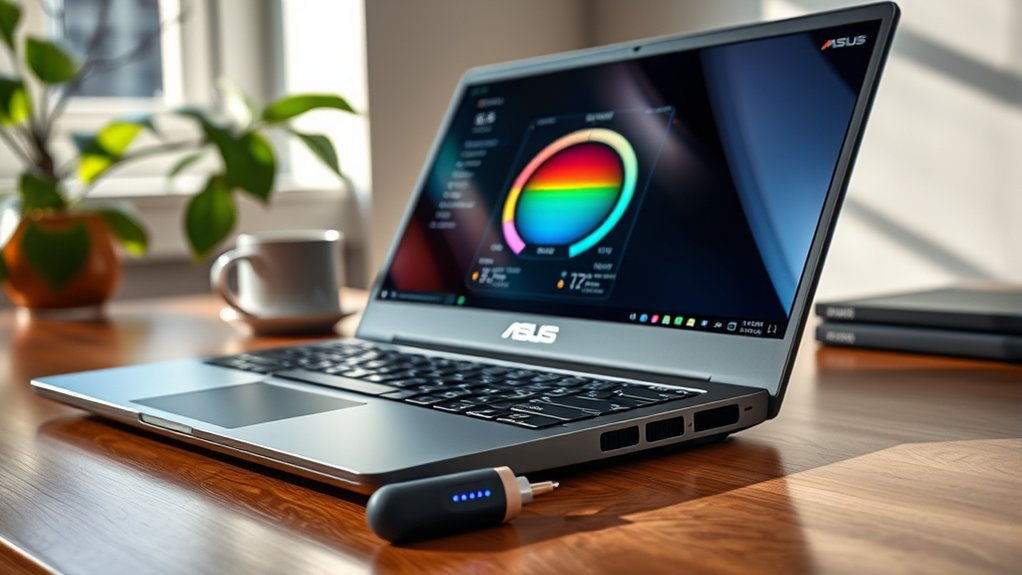
The normal operating temperatures for ASUS Vivobook laptops typically range from 30°C to 70°C during regular workloads. Idle temperatures are generally between 30°C and 50°C, while intensive tasks may cause CPU temperatures to rise to 70°C to 85°C. It is essential to monitor temperatures regularly, as consistent readings above 85°C may lead to thermal throttling and performance issues. Further information on managing and optimizing temperatures can enhance the laptop’s longevity and efficiency.
Understanding Normal Operating Temperatures for ASUS Vivobook

Understanding the normal operating temperatures for an ASUS Vivobook is essential for ensuring ideal performance and longevity. Typically, the normal operating temperature range for these laptops falls between 30°C to 70°C during regular workloads, with idle temperatures around 30-50°C.
However, during intensive tasks like gaming or video editing, CPU temperatures may safely rise to 70-85°C. Peaks up to 90°C can occur but require careful monitoring.
Consistently high temperatures exceeding 85°C can trigger thermal throttling, considerably affecting performance and potentially shortening component lifespan.
To maintain safe temperatures, proper airflow is key; using the laptop on hard surfaces can enhance cooling efficiency. Additionally, routine cleaning of vents and fans, along with timely thermal paste reapplication, plays an important role in preventing overheating and ensuring that the ASUS Vivobook operates within a safe temperature range.
Factors Affecting CPU Temperature in ASUS Vivobooks
Several factors influence CPU temperature in ASUS Vivobooks, impacting overall performance and longevity. The efficiency of the cooling system, including fan design and the condition of thermal paste, plays an essential role in maintaining ideal CPU temperatures.
Under light usage, temperatures typically range from 40°C to 70°C, with idle states around 30°C to 50°C. High-performance tasks can push CPU temperatures up to 85°C, risking thermal throttling if sustained.
Ambient temperature markedly affects cooling efficiency; using the laptop on flat, hard surfaces enhances airflow. Additionally, dust accumulation in vents and fans can obstruct airflow, leading to elevated CPU temperatures. Regular cleaning is vital to guarantee efficient performance and prevent overheating.
Signs of Overheating in ASUS Vivobooks
ASUS Vivobooks can exhibit several signs of overheating that warrant attention.
Common symptoms include excessive fan noise, performance degradation, and physical heat on the laptop’s surface.
Recognizing these indicators is essential for maintaining peak functionality and preventing potential damage.
Common Overheating Symptoms
Overheating in ASUS Vivobooks can manifest through various alarming symptoms that users should be vigilant about. High temperatures, particularly when the CPU exceeds 90°C, may lead to frequent shutdowns during intensive tasks. Additionally, users often experience performance drops due to thermal throttling when temperatures surpass 85°C. Excessive fan noise is another clear indicator, especially if fans operate at maximum speed for prolonged periods. The laptop surface may feel overwhelmingly hot, signaling potential internal hazards. Visual artifacts or graphical glitches may also occur, particularly during demanding applications like gaming or video editing.
| Symptom | Description |
|---|---|
| Frequent Shutdowns | Occurs when CPU hits critical temperatures above 90°C |
| Performance Drops | Sluggishness due to thermal throttling above 85°C |
| Excessive Fan Noise | Fans running at maximum speed for extended periods |
| Hot Surface | Laptop exterior feels excessively hot to the touch |
| Visual Artifacts | Graphical glitches during intensive applications |
Performance Degradation Indicators
Experiencing performance degradation in a laptop can be a frustrating ordeal for users, often signaling underlying issues. In ASUS Vivobooks, signs of overheating may include sudden lag or stuttering during tasks that once ran smoothly, indicating a potential threat to performance stability.
Elevated CPU temperature can compromise the effectiveness of cooling systems, leading to excessive heat. Users may notice the laptop chassis becoming excessively hot to the touch, further confirming overheating concerns.
Additionally, random shutdowns or reboots during intensive tasks are critical indicators that require immediate attention. Idle temperatures consistently above 60°C suggest cooling problems that could escalate into significant performance degradation, demanding prompt resolution to maintain peak functionality.
Excessive Fan Noise
In many cases, excessive fan noise in Asus Vivobooks serves as a critical warning sign that the system is struggling to manage heat effectively. This noise often correlates with high temperatures, typically exceeding 85°C, as the cooling system works overtime, especially during intensive tasks like gaming or video editing.
If the fan operates at maximum speed consistently, it may indicate that heat dissipation is insufficient. Users should be vigilant if excessive fan noise accompanies performance drops or thermal throttling, which occurs when temperatures surpass 90°C to safeguard hardware.
Regular dust buildup in vents can worsen overheating issues, heightening fan noise. Utilizing monitoring tools like HWMonitor or Core Temp can help users track temperature fluctuations and identify potential overheating problems.
Safe Operating Temperature Ranges for ASUS Vivobooks
Maintaining ideal performance in ASUS Vivobooks relies heavily on understanding safe operating temperature ranges. The normal operating temperature for these devices typically spans from 30°C (86°F) when idle to 85°C (185°F) under heavy loads, such as gaming or video editing.
For lighter tasks like browsing or streaming, users should aim for CPU temperatures between 50°C (122°F) and 70°C (158°F). Sustained CPU temperatures exceeding 85°C may signal cooling issues, potentially leading to thermal throttling, which can degrade performance.
To guarantee safe temperatures, regular maintenance is essential; cleaning dust from vents and ensuring proper airflow can greatly enhance cooling efficiency.
Utilizing monitoring tools, such as HWMonitor or Core Temp, allows users to track real-time CPU temperatures, confirming their ASUS Vivobook operates within safe limits. Understanding these ranges empowers users to maintain ideal performance and prolong the lifespan of their devices.
How to Monitor CPU Temperature on Your ASUS Vivobook
Monitoring CPU temperature on an ASUS Vivobook is vital for guaranteeing peak performance and longevity. Users can access temperature readings by entering the BIOS/UEFI during startup, typically by pressing F2 or Delete.
For ongoing monitoring, third-party tools like Core Temp and HWMonitor are effective, providing real-time temperature data and detailed metrics. ASUS also offers its own software, ASUS AI Suite, which enables users to track CPU temperatures and adjust fan speeds for ideal cooling.
For those engaged in gaming or intensive tasks, MSI Afterburner can display real-time temperature, allowing for effective heat management. Regularly checking CPU temperature is essential, particularly under heavy loads, to maintain safe operating ranges, preferably below 85°C.
Common Causes of High CPU Temperatures in ASUS Vivobooks
High CPU temperatures in ASUS Vivobooks can often stem from several common issues. One significant factor is dust accumulation in the vents and fans, which obstructs airflow and raises operating temperatures.
Additionally, poor ventilation can occur when laptops are used on soft surfaces like beds or couches, restricting vital cooling airflow.
Background applications also play an essential role; those consuming CPU resources can elevate temperatures, especially during demanding tasks such as gaming or video editing.
The compact design of ASUS Vivobooks means that powerful components operate in a limited space, generating more heat without adequate cooling solutions.
Lastly, deteriorated thermal paste, particularly in older models, diminishes heat transfer efficiency, causing the CPU to run hotter than normal.
Addressing these issues can help maintain ideal performance and prolong the lifespan of the device.
How to Cool Down Your ASUS Vivobook If It’s Overheating
When an ASUS Vivobook begins to overheat, effective cooling solutions and proper dust cleaning techniques become essential.
Ensuring adequate ventilation and regularly removing dust from vents can greatly improve airflow and reduce temperatures.
Additionally, utilizing a quality cooling pad can enhance performance during intensive tasks, providing an extra layer of heat management.
Dust Cleaning Techniques
To prevent overheating issues in an ASUS Vivobook, regular dust cleaning is essential for maintaining peak performance. Employing effective dust cleaning techniques can considerably enhance cooling efficiency.
Here are some key practices:
- Use compressed air every 3-6 months to clear dust from vents and fans, ensuring ideal airflow.
- Gently dislodge stubborn dust from heat sinks and fan blades with a soft brush to improve cooling performance.
- Position your laptop on a hard, flat surface to avoid airflow blockage, and consider a cooling pad for resource-heavy tasks.
Additionally, it’s wise to monitor your CPU temperature regularly to detect any overheating signs, allowing for timely interventions.
These steps can help maintain your ASUS Vivobook’s longevity and performance.
Effective Cooling Solutions
Overheating can severely impact the performance and longevity of an ASUS Vivobook. To effectively cool down your device, regular maintenance is essential.
Begin by cleaning the vents and fans to remove dust that obstructs airflow, leading to increased temperatures. Utilizing a cooling pad with built-in fans can enhance airflow and lower temperatures by 5-10°C during intensive tasks.
Additionally, place the laptop on hard, flat surfaces to promote ventilation and prevent heat retention. For long-term performance, reapply thermal paste every 5-8 years to improve heat transfer between the CPU/GPU and heat sinks.
Finally, optimize software settings by closing unnecessary background applications and adjusting power settings to reduce CPU load and heat generation, ensuring your Vivobook operates efficiently.
Maintain Your ASUS Vivobook to Prevent Overheating
Maintaining an ASUS Vivobook is vital for preventing overheating and guaranteeing peak performance. Regular upkeep can greatly improve heat management, thereby promoting ideal laptop temperature. Adopting a proactive approach helps in monitoring temperature and addressing potential issues.
- Clean the vents and fans every 3-6 months to eliminate dust buildup, enhancing airflow.
- Position the laptop on a hard, flat surface to facilitate ideal ventilation and prevent overheating.
- Utilize monitoring tools like HWMonitor to track CPU temperatures, keeping them within 30-50°C while idle and below 85°C during intensive tasks.
Additionally, consider reapplying thermal paste every 5-8 years for effective heat transfer. Using a cooling pad can also lower temperatures by 5-10°C during demanding activities.
These practices guarantee the ASUS Vivobook remains efficient, ultimately extending its lifespan and functionality.
When to Get Expert Help for ASUS Vivobook Temperature Problems?
When should one consider seeking expert assistance for temperature issues in an ASUS Vivobook? If the device consistently idles above 60°C or approaches 90°C during normal use, it’s essential to consult a professional to prevent potential hardware damage.
Signs such as frequent random shutdowns or noticeable performance drops during intensive tasks may indicate overheating, necessitating expert evaluation. Additionally, if the laptop feels excessively hot to touch or produces excessive fan noise, this could signify a cooling system failure that requires immediate attention.
Persistent high CPU temps, even after regular cleaning, point to underlying hardware issues, further warranting a technician’s expertise.
Finally, if thermal throttling occurs at temperatures exceeding 85°C, professional intervention is recommended to guarantee peak performance and longevity of the ASUS Vivobook.
Conclusion: Ensuring Optimal Performance and Longevity of Your ASUS Vivobook
Maintaining ideal temperatures is crucial for the performance and longevity of the ASUS Vivobook.
Implementing effective temperature management strategies and regular maintenance practices can greatly reduce the risk of overheating.
Temperature Management Strategies
Ensuring ideal temperature management is essential for the performance and longevity of an ASUS Vivobook.
Implementing effective temperature management strategies can greatly enhance device functionality.
Key practices include:
- Positioning the laptop at least 4 inches from walls to improve airflow and cooling efficiency.
- Regularly cleaning vents and fans every 3-6 months to prevent dust buildup, which can raise CPU temperature and lead to thermal throttling.
- Utilizing a cooling pad during resource-intensive tasks to provide additional airflow, potentially reducing temperatures by 5-10°C.
Regular Maintenance Practices
Effective temperature management sets the stage for regular maintenance practices that can significantly enhance the performance and longevity of an ASUS Vivobook.
Regular maintenance involves cleaning vents and fans every 3-6 months to prevent dust buildup, which can obstruct airflow and elevate CPU temperatures. Additionally, reapplying thermal paste every 5-8 years guarantees efficient heat transfer between the CPU and cooling solution.
Monitoring CPU temperatures with tools like HWMonitor can help detect overheating issues early. Confirming proper ventilation by using the laptop on hard, flat surfaces is essential, as soft materials can block airflow.
Finally, keeping the operating system and drivers updated minimizes unnecessary background processes, further optimizing performance and maintaining ideal operating temperatures.
Frequently Asked Questions
Is 70 Degrees Celsius Too Hot for a Laptop?
Seventy degrees Celsius is on the higher side for a laptop. Insufficient laptop cooling can lead to thermal throttling, impacting performance. Enhanced heat dissipation is essential, as increased temperatures may also raise fan noise levels considerably.
What’s the Normal Operating Temperature for a PC?
A well-tuned PC thrives between 30°C and 80°C. Effective laptop cooling, proper thermal paste application, and vigilant temperature monitoring mitigate overclocking risks, ensuring peak hardware performance and a liberated computing experience.
How to Check PC Temps on ASUS?
To check PC temps on an ASUS, utilize temperature monitoring tools like HWMonitor. Implement laptop cooling solutions, adjust fan speed, and consider thermal paste application to optimize hardware performance and prevent overheating. Regular monitoring is essential.
Is 82 Degrees Hot for a Laptop CPU?
Eighty-two degrees can be alarming for a laptop CPU, hinting at potential thermal throttling risks. This temperature may compromise laptop performance and CPU lifespan, necessitating effective cooling solutions, especially during demanding tasks like gaming.
Conclusion
In summary, maintaining the ideal operating temperature of an ASUS Vivobook is essential for its performance and longevity. As the saying goes, “A stitch in time saves nine.” Regular monitoring and preventive measures can help avert overheating issues, ensuring your device runs smoothly. By understanding temperature ranges and addressing potential problems early, users can safeguard their investment and enjoy a reliable computing experience for years to come.

