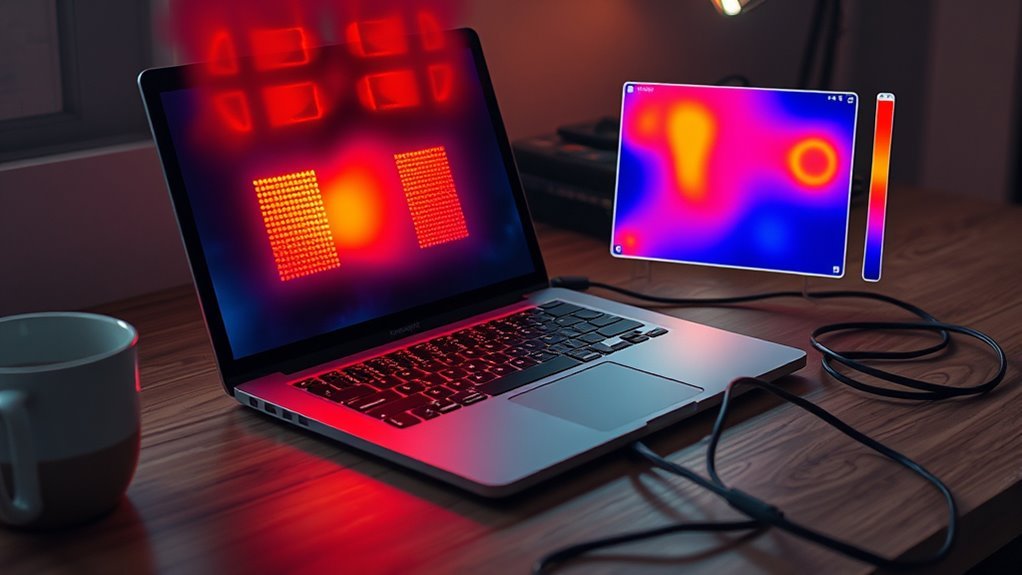
How hot can a gaming laptop get before overheating or suffering damage? Gaming laptops often reach 70–85°C during demanding games, and some processors normally run hotter. The safe limit depends on the exact CPU, GPU, cooling design, and workload. Understanding those differences helps you spot real overheating instead of worrying about every temperature spike.
Quick Answer
A gaming laptop commonly reaches 70–85°C under heavy load. Some modern laptop CPUs can operate at 90–95°C without damage, while many gaming GPUs usually run cooler. CPU thermal limits often approach 100°C or higher, depending on the model. Persistent throttling, unusually high idle temperatures, crashes, or shutdowns matter more than one brief temperature spike.
Key Takeaways
- CPU and GPU temperatures have different limits. Always check the specifications for your exact hardware.
- A CPU reaching 90–95°C during gaming is not automatically overheating.
- Thermal throttling lowers processor speed to control heat and prevent damage.
- Blocked vents, dust, high room temperatures, and demanding workloads increase heat.
- Monitor sustained temperatures and performance rather than relying on a single peak reading.
How Hot Can a Gaming Laptop Get?
A gaming laptop can reach 90–95°C on its CPU during demanding gameplay without necessarily operating outside its intended limits. Many systems run cooler, but high-performance processors often use available thermal headroom to maintain faster clock speeds.
The important distinction is between high operating temperature and actual overheating.
A CPU running at 92°C while delivering stable performance may be working normally. Another laptop running at a lower temperature but suffering repeated shutdowns may have a cooling or hardware problem.
According to ASUS ROG’s explanation of gaming laptop temperatures, even CPU readings around 90–95°C can be expected during demanding workloads when the computer is performing as designed.
GPU temperatures are usually lower than CPU temperatures during gaming. Many gaming graphics processors operate around 65–85°C, although exact readings depend on the graphics chip, power settings, and cooling system.
Three factors determine whether a temperature is acceptable:
- Component specifications: Each CPU and GPU has its own maximum operating temperature.
- Duration: A brief temperature spike is different from a consistently high reading.
- System behavior: Stable performance is reassuring, while repeated throttling, crashes, or shutdowns require investigation.
A useful approach is to establish your laptop’s normal gaming temperatures and compare future readings under similar conditions.
Safe Gaming Laptop Temperature Ranges
Gaming laptop temperature ranges vary by component and model. A CPU temperature of 80°C is often normal during gameplay, while a sustained GPU temperature near 90°C deserves closer attention.
The following ranges are general reference points, not universal hardware limits.
| Component or condition | Temperature | What it means |
|---|---|---|
| CPU or GPU at idle | 30–50°C | A common range in cooler conditions; some laptops idle warmer. |
| CPU during gaming | 70–85°C | Common operating range for many systems. |
| High-performance CPU | 90–95°C | Can be normal under heavy load on supported processors. |
| GPU during gaming | 65–85°C | Common range, with the acceptable maximum varying by GPU. |
| GPU near 90°C | Around 90°C | Check the specific GPU limit, sensor type, and throttling behavior. |
| CPU near its thermal limit | Model-dependent, often around 100°C or higher | Thermal protection may reduce power or clock speed. |
Why CPU Temperature Limits Differ
Modern processors have a maximum junction temperature, commonly called Tjunction Max or Tjmax. This is a thermal control threshold, not a temperature at which immediate physical damage is guaranteed.
Intel’s processor temperature documentation explains that maximum junction temperatures vary by processor and commonly fall between 100°C and 110°C.
AMD processors also have model-specific limits. For example, the AMD Ryzen 9 7945HX specification lists a maximum operating temperature of 100°C.
These examples explain why a single universal CPU temperature limit cannot accurately describe every gaming laptop.
GPU limits also differ by model. Compare the GPU’s core temperature with its own specification, and avoid treating a hotspot or junction sensor as identical to the main GPU temperature.
Why Gaming Laptops Run Hot
Gaming laptops run hot because powerful processors generate substantial heat inside compact cases. CPUs and GPUs consume more electricity during demanding games, and much of that energy becomes heat.
A desktop can accommodate larger fans, heatsinks, and open airflow paths. A laptop must remove comparable heat through a much smaller cooling assembly.
This difference explains why a gaming laptop may operate at higher temperatures than a desktop using similar hardware.
High Performance Heat
High-performance gaming creates sustained heat as the CPU processes game logic and the GPU renders frames. Higher power consumption usually produces more heat that the cooling system must remove.
Several gaming conditions increase the workload:
- High frame rates: The CPU and GPU may work continuously when a game runs without a frame-rate limit.
- Demanding graphics settings: Complex shadows, lighting, and visual effects place more load on the GPU.
- Overclocking: Higher operating speeds or increased power limits can raise temperature.
- Background applications: Additional programs can increase CPU usage while gaming.
During a demanding scene, the processor may briefly increase its clock speed using a boost feature. This can cause a sharp temperature rise even when the cooling system is working normally.
Higher temperatures are therefore not always evidence of a fault. The real concern is whether the laptop can sustain reasonable performance without repeated cooling-related problems.
Cooling Limits Explained
A gaming laptop’s cooling system has a limited ability to remove heat. If the processor generates heat faster than the fans and heatsink can dissipate it, temperatures rise until the system adjusts its performance or reaches thermal balance.
Thermal protection mechanisms help manage this situation.
For example, a processor may reduce its clock speed and power consumption when it reaches a thermal limit. This process is called thermal throttling.
Throttling can lower frame rates, but it is also an important safety feature.
Some gaming laptops are designed to operate close to these thresholds. Dell’s Alienware thermal guidance confirms that certain gaming laptop CPUs can reach around 100°C under heavy workloads without automatically indicating damage.
Thermal throttling is not the same as hardware failure. However, unusually severe or worsening throttling may indicate insufficient cooling.
Common Causes of Laptop Overheating
Laptop overheating occurs when heat generation exceeds the cooling system’s ability to remove it effectively. The most common causes involve demanding hardware workloads, restricted airflow, and poor thermal contact.
Identifying the cause helps you choose the right solution without making unnecessary hardware changes.
Hardware Heat Load
Hardware heat load increases when the CPU and GPU remain busy for long periods. Games, rendering, compilation, and other demanding applications can keep both processors working near their power limits.
Common workload-related causes include:
- Running demanding games at maximum graphics settings.
- Using uncapped frame rates when higher frame rates provide little benefit.
- Applying CPU or GPU overclocking settings.
- Running background applications that consume processor resources.
- Using performance profiles that prioritize maximum power consumption.
High load is not necessarily a problem by itself. However, reducing unnecessary power use can lower temperatures without substantially affecting your gaming experience.
Poor Cooling Conditions
Poor cooling conditions prevent heat from escaping efficiently. Even a well-designed gaming laptop can overheat when airflow is blocked or the cooling system becomes dirty.
Common causes include:
- Dust buildup: Dust and hair collect around fans and heatsinks, reducing airflow.
- Blocked intake vents: Beds, blankets, and soft cushions can cover ventilation openings.
- High ambient temperature: Warm room air reduces the cooling system’s ability to remove heat.
- Fan problems: Damaged or malfunctioning fans cannot provide sufficient airflow.
- Poor thermal contact: Degraded thermal material or an improperly seated heatsink can reduce heat transfer.
The ASUS overheating and fan troubleshooting guide identifies blocked vents, dust, and cooling problems as common reasons for rising temperatures and reduced performance.
A laptop that previously maintained stable temperatures but now runs much hotter during the same game may need cooling-system maintenance.
Signs Your Laptop Is Too Hot
A gaming laptop may be overheating if high temperatures occur alongside abnormal performance, fan behavior, or system instability. A warm keyboard or loud fan does not prove overheating by itself.
Look for these warning signs:
- Repeated frame-rate drops: Gaming performance becomes noticeably worse after the laptop heats up.
- Severe thermal throttling: CPU or GPU clock speeds drop significantly as temperatures rise.
- Fans running constantly: Fans remain at high speed even during relatively light workloads.
- Unusually hot surfaces: The keyboard, palm rest, or underside becomes uncomfortable to touch.
- Unexpected shutdowns: The system powers off during demanding workloads.
- Frequent crashes: Games or the operating system become unstable when the system gets hot.
Sudden shutdowns deserve particular attention. Processors include thermal protection systems, but repeated shutdowns may indicate that the cooling system cannot control temperatures properly.
High temperatures at idle can also point to a problem, especially when the computer previously ran cooler under similar conditions.
However, short temperature spikes during background activity are normal on many processors. Check sustained readings before deciding that your laptop has a cooling fault.
How to Check Laptop Temperature
You can check gaming laptop temperatures using monitoring software that reads the CPU and GPU’s built-in sensors. Compare readings during idle use and demanding gameplay to understand how your laptop behaves under different workloads.
Useful tools include HWMonitor, Core Temp, NZXT CAM, and compatible manufacturer monitoring applications.
CPUID’s HWMonitor displays hardware information such as processor temperatures, clock speeds, power consumption, and fan readings where supported.
Core Temp focuses on CPU temperature monitoring, while NZXT CAM can display temperature and performance information on compatible systems.
Steps to Monitor CPU and GPU Temperatures
- Install a monitoring tool. Choose software that supports your laptop’s processor and graphics hardware.
- Check idle temperature. Allow the laptop to settle after startup, then record CPU and GPU temperatures.
- Launch a demanding game. Use a title that normally puts substantial load on your hardware.
- Monitor temperatures during gameplay. Record both sustained temperatures and the highest readings.
- Check processor behavior. Look for clock-speed reductions or thermal throttling indicators.
- Compare results. Check the component’s specifications and compare current readings with earlier results under similar conditions.
Some laptops also display temperature information through their BIOS or UEFI setup. However, these readings are usually taken outside normal gaming conditions and may not reflect temperatures under heavy load.
Use monitoring software during actual gameplay for a more useful comparison.
Remember that different programs may display different sensors. CPU package temperature, individual core temperature, GPU core temperature, and GPU hotspot temperature are not interchangeable.
When comparing temperatures, use the same sensor and similar test conditions each time.
How to Cool a Laptop Fast
The fastest way to cool an overheating gaming laptop is to reduce its workload and restore unobstructed airflow. You can usually try these actions without opening the computer or changing advanced hardware settings.
Follow these steps in order.
- Move the laptop onto a hard, flat surface. Keep the bottom and side ventilation openings unobstructed.
- Pause the game or demanding application. Reducing CPU and GPU activity allows heat generation to fall.
- Close unnecessary background programs. Remove workloads that consume processor power without helping your current task.
- Choose a balanced power profile. Use a manufacturer-supported mode that limits unnecessary power consumption.
- Reduce gaming workload. Lower demanding graphics settings or set a reasonable frame-rate limit.
- Improve surrounding airflow. Use the laptop in a cooler, well-ventilated room, and consider a compatible cooling pad.
- Check temperatures again. Resume gaming and confirm whether sustained readings and performance have improved.
A cooling pad can help a laptop draw in additional air, particularly when its intake vents are on the underside. However, a fixed temperature reduction cannot be guaranteed.
Some setups may improve by several degrees, while others show little difference. A cooling pad cannot repair a failed fan, damaged heatsink, or poor thermal contact.
For advanced users, undervolting can sometimes reduce heat by lowering the voltage supplied to the processor. This option depends on hardware and firmware support.
The ASUS ROG gaming laptop cooling guide recommends practical steps such as improving airflow, limiting frame rates, selecting suitable performance modes, and considering undervolting on supported systems.
Warning: Do not change CPU or GPU voltage settings without understanding your laptop’s supported controls. Unstable settings can cause crashes or data loss. If the system repeatedly shuts down from heat, stop demanding workloads and investigate the cooling problem before continuing.
After applying the basic fixes, compare temperatures during the same game and similar settings. Better temperature stability and fewer performance drops suggest that the cooling changes helped.
How to Prevent Heat Damage Long Term
Long-term heat problems are best prevented through regular cleaning, proper ventilation, and monitoring. The goal is not to keep the CPU unusually cold, but to ensure that the laptop performs reliably within its designed operating limits.
Routine maintenance also helps prevent dust and airflow restrictions from becoming serious problems.
| Action | Interval | Effect |
|---|---|---|
| Inspect and clean vents | Every 3–6 months, or sooner in dusty conditions | Helps maintain airflow |
| Assess thermal paste | When cooling performance worsens or during qualified service | Identifies poor thermal contact |
| Use cooling pad | As needed | May improve intake airflow |
| Hard surface use | Always | Prevents ventilation blockage |
Before cleaning vents, shut down the laptop and disconnect its power adapter. Follow the manufacturer’s cleaning instructions.
A suitable compressed-air can may help remove loose dust, but avoid high-pressure air compressors or directing powerful airflow at delicate fan blades.
Thermal paste also requires care. It transfers heat between processors and their cooling assemblies, but replacement is not automatically necessary every few years.
Some gaming laptops use specialized thermal interfaces, including liquid-metal compounds. Those systems may require professional handling rather than ordinary thermal-paste replacement.
The ASUS liquid-metal handling guidance warns that conductive liquid metal can damage components if applied or handled incorrectly.
Note: If cleaning and basic settings changes do not resolve overheating, consult the laptop manufacturer or a qualified repair technician. Internal fan repair, heatsink removal, and thermal-material replacement require model-specific care.
Watch for changes over time. If the same game begins running significantly hotter or slower than before, investigate the cause rather than assuming the temperature is normal.
Consistent cooling maintenance can improve performance stability and reduce avoidable thermal stress on the system.
Frequently Asked Questions
What Temperature Is Too Hot for a Laptop?
A laptop is too hot when a component exceeds its specified thermal limits or cannot maintain stable operation. Many gaming CPUs can run at 90–95°C under heavy load. However, persistent throttling, unusually high idle temperatures, or repeated shutdowns suggest a cooling problem that needs attention.
Is 90 C Too Hot for a CPU?
No, 90°C is not automatically too hot for a gaming laptop CPU. Some modern processors are designed to operate near that temperature during demanding workloads. Whether it is acceptable depends on the processor’s thermal limit, cooling design, workload, and whether performance remains stable.
What Temperature Will Damage a Laptop?
There is no single temperature that guarantees damage to every laptop. Many processors reduce power near their thermal limits and may shut down if overheating cannot be controlled. Repeated overheating can stress components, but reaching 95°C or 100°C briefly does not automatically mean permanent damage.
Is 80 C Too Hot for a CPU Laptop?
No, 80°C is generally a normal temperature for many gaming laptop CPUs under heavy load. It is usually well below their maximum operating limits. However, 80°C during light use or while idle may deserve investigation, especially if the laptop previously operated at much lower temperatures.
Conclusion
A gaming laptop can operate safely at temperatures that would seem unusually high for a desktop computer. Many systems run around 70–85°C during gaming, while some CPUs normally reach 90–95°C under demanding workloads.
The most reliable way to judge overheating is to compare temperatures with your hardware’s specifications and watch for performance problems. Keep vents clear, monitor sustained readings, and address abnormal throttling or shutdowns before they become recurring issues.
Sources
- ASUS ROG — Why Is My Laptop Overheating? It’s Probably Not: Explains why high CPU temperatures can be normal during gaming and how to distinguish heat from overheating.
- Intel — Information about Temperature for Intel Processors: Explains maximum junction temperatures, thermal protection, and model-specific operating limits.
- AMD — Ryzen 9 7945HX Specifications: Confirms the processor’s maximum operating temperature.
- Dell — Resolving High CPU Temperature Issues on Alienware Laptops: Documents expected thermal behavior, throttling, and temperature limits for supported gaming laptops.
- ASUS — Troubleshooting Overheating and Fan Issues: Explains cooling problems, blocked ventilation, fan behavior, and safe cleaning guidance.
- CPUID — HWMonitor: Official documentation for CPU, GPU, temperature, and hardware sensor monitoring.
- ASUS ROG — How to Keep a Gaming Laptop Cool: Provides practical recommendations for airflow, workload reduction, performance modes, cooling pads, and undervolting.
- ASUS ROG — Gaming Notebook Liquid Metal: Explains liquid-metal thermal interfaces and the risks of improper handling or replacement.

