
If your laptop feels hot, its fan runs constantly, or apps lag, the CPU may be handling more work than it needs to. Learning how to reduce CPU stress on a laptop starts with finding the cause, not simply forcing the processor to run faster. These Windows steps help you cut unwanted activity, check for problems, and keep cooling effective.
Quick Answer
Open Task Manager, sort processes by CPU use, and close apps you no longer need. Then restart, limit startup and background activity, install Windows and driver updates, and scan for malware. Use a balanced power mode and keep vents clear. If heavy CPU use continues while idle, identify the specific process before changing more settings.
At a Glance
| Difficulty | Basic Windows settings; hardware servicing may need a technician |
| Tools Needed | Task Manager, Windows Security, and Windows Settings |
| Cost | Free for the built-in software checks |
Key Takeaways
- A short CPU spike while opening a program or running a demanding task is not the same as constant high usage at idle.
- End a task only when you recognize it and have saved your work; avoid shutting down unknown Windows services.
- Best Performance mode can increase speed but may also raise heat and fan noise.
- Storage cleanup helps most when the drive is running out of space; it does not replace finding CPU-heavy software.
- Dust, blocked vents, and failing fans can cause thermal throttling even when CPU usage looks normal.
How to Reduce CPU Stress on a Laptop: Find the Cause
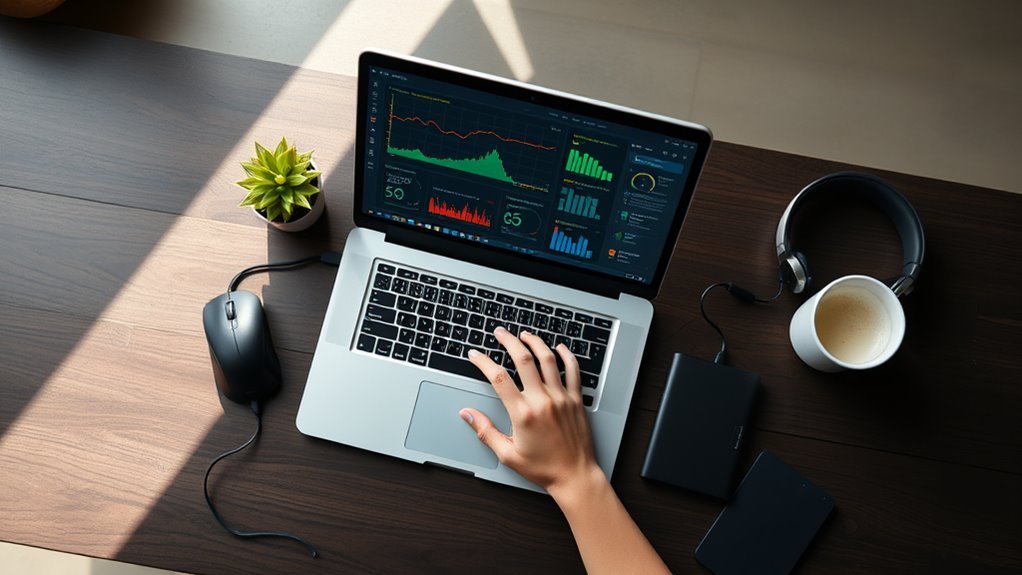
Task Manager is the best starting point for finding an overloaded processor. It shows which apps and background processes use the most CPU, memory, and disk resources.
- Press Ctrl + Shift + Esc to open Task Manager.
- Open Processes and select the CPU column to sort the busiest processes to the top.
- Watch the list while the laptop feels slow. Note whether one app stays high or several apps share the load.
- Open Performance > CPU to view overall utilization and how it changes over time.
- Close an unneeded app normally. If it will not respond, save other work before selecting End task for that app.
Check usage both while the laptop is idle and during your usual work. Video editing, games, updates, and other demanding tasks may push CPU usage high for a while. A process that remains near the top when you have stopped working deserves closer attention.
For deeper inspection, Process Explorer shows process relationships and technical details. It is useful when a process name in Task Manager is unclear; Microsoft’s Windows performance guide also recommends checking resource use before making changes.
Warning: Do not end unfamiliar system processes or security services just to make the CPU percentage drop. Closing the wrong task may interrupt Windows or cause unsaved work to be lost.
Restart Your Laptop
A restart can end stuck background processes, release occupied memory, and restore normal responsiveness. It is an easy test after closing unused apps fails to reduce unusual CPU activity.
Why Restarting Helps
Restarting stops running software and starts a fresh Windows session. This can clear the effects of a buggy program or a memory leak, where software keeps using memory it no longer needs.
- Stuck processes: A restart ends them rather than leaving them active in the background.
- Memory use: The system can reclaim RAM held by closed programs.
- Pending updates: Windows can complete fixes that require a restart.
A restart does not automatically delete every temporary file stored on your drive. Use the storage tools later in this guide if disk space is the problem.
When to Restart
Restart when CPU usage stays high after a workload ends, apps become unresponsive, or Windows requests it after an update. A weekly restart is a reasonable personal routine for a laptop that is rarely powered off, but it is not a requirement for CPU health.
If the same problem returns immediately after rebooting, note which process rises to the top. That helps separate a short-lived software glitch from a recurring startup task or background service.
Restart Safely
Save open documents and allow active downloads or file transfers to finish. Select Start > Power > Restart, then check Task Manager again once Windows settles.
If the computer cannot respond, use a forced shutdown only as a last resort. It can interrupt file writes and cause data loss.
Update Windows and Drivers
Windows and driver updates may fix inefficient processes, compatibility issues, and device errors that raise CPU use. Start with official update channels instead of installing unknown driver-fix programs.
- Open Start > Settings > Windows Update and select Check for updates.
- Install applicable updates, then look under Advanced options > Optional updates for relevant drivers.
- If a specific device still misbehaves, obtain its driver from the laptop or hardware manufacturer’s support site.
- Restart when prompted and check whether the CPU load changes.
Update the operating system and relevant drivers before assuming that constant CPU activity means the processor is failing.
For laptops with NVIDIA graphics, the manufacturer’s graphics utility, such as NVIDIA GeForce Experience where supported, may help manage graphics driver updates. Only install drivers that match the device. BIOS or firmware changes need extra care: use your laptop maker’s exact model instructions and avoid interrupting the update.
Scan for Malware
Malware can consume CPU resources without opening a visible app. Run a Windows Security scan when you see unexplained, persistent usage or an unfamiliar process that behaves suspiciously.
- Open Start > Settings > Privacy & security > Windows Security > Virus & threat protection.
- Check that security protection and its definitions are current.
- Choose Quick scan first.
- If the problem continues, select Scan options > Full scan for a broader check.
- Follow the results in Protection history, and restart if instructed.
Microsoft’s Windows Security scan guidance also describes an offline scan for stubborn suspected threats. Save your work before using that option because it restarts the computer.
| Action | Purpose | Effect |
|---|---|---|
| Quick scan | Check common threat locations | First screening step |
| Full scan | Scan files and programs | Broader threat check |
| Update antivirus software | Refresh security intelligence | Improve current threat detection |
| Monitor CPU usage | Spot recurring unusual activity | Guide follow-up checks |
Close Unused Apps and Tabs
Close programs and browser tabs you are not using to reduce unnecessary activity. Not every idle tab uses much CPU, but pages with video, animations, scripts, or active extensions can keep working in the background.
Start with the apps at the top of Task Manager, especially before gaming, editing, or running several demanding tools together. If you need to keep pages open, use built-in browser tab-sleeping features where available.
Microsoft’s sleeping-tabs guidance explains how inactive pages can pause activity and free resources. A trusted tab-management extension can offer similar control, but do not install extra software unless the built-in options fall short.
Turn Off Startup Apps and Background Tasks
Startup apps can launch as soon as you sign in and keep using CPU afterward. Disable nonessential entries so the laptop loads fewer services before you begin working.
- Open Task Manager > Startup apps.
- Review each item and its startup impact.
- Select an app you do not need immediately after sign-in and choose Disable.
- Restart later to see whether startup becomes smoother.
Disabling startup is different from uninstalling: the app remains available when you choose to open it.
You can also use Settings > Apps > Startup; Microsoft’s startup-app instructions explain both methods.
To review background activity, check Settings > System > Power & battery > Battery usage. Supported apps may show a Manage background activity option. Choose a restrictive setting only when you do not need that app to sync files or send notifications. Traditional desktop apps may instead need their own settings changed.
Choose the Right Power Mode, Not Always Best Performance
Best Performance can increase responsiveness during gaming, rendering, or other demanding work, but it does not make the CPU do less work. It may use more power, raise temperatures, and make fans louder.
If the goal is less heat and fan noise, start with Balanced. Best Power Efficiency can save battery and limit some performance. Switch to Best Performance only when you need the extra speed and cooling is adequate.
- Open Start > Settings > System > Power & battery.
- Find Power mode.
- Select Balanced for everyday use, or another mode suited to your workload.
- Observe CPU usage, responsiveness, heat, and fan behavior after the change.
On some laptops the available modes differ. Microsoft’s power-mode documentation explains the options. Older Windows setups may show a High performance plan in Control Panel’s Power Options instead.
Free Up Space and Optimize Drives
Low disk space can make a laptop feel slow and interfere with updates. Cleaning storage helps when the drive is nearly full, but it usually will not stop a single app from consuming excessive CPU cycles.
Clear Temporary Files
Use the built-in cleanup tools to remove files you no longer need. Check every selection before deleting anything, especially downloads, old system files, or items in the Recycle Bin.
- Open Settings > System > Storage > Temporary files.
- Review the listed categories and choose only files you can safely remove.
- Select Remove files.
- Alternatively, search for Disk Cleanup, select the drive, and review its cleanup choices.
Enable Storage Sense
Storage Sense automates cleanup so temporary data is less likely to fill the system drive. It can remove old Recycle Bin items and, if you explicitly allow it, content from Downloads or locally stored cloud files.
- Open Start > Settings > System > Storage.
- Switch on Storage Sense.
- Choose when it runs and which temporary files it removes.
- If desired, set the Recycle Bin cleanup interval to 30 days, then review the Downloads setting separately.
Review Microsoft’s Storage Sense instructions before turning on automatic deletion. The default choices do not automatically apply every cleanup option to every folder.
Optimize Drive Performance
Windows handles hard drives and solid-state drives differently. An HDD may benefit from defragmentation, which reorganizes files for faster access. An SSD mainly uses TRIM, which tells the drive which storage blocks are no longer needed.
Search for Defragment and Optimize Drives to check drive type, status, and the optimization schedule. Windows already schedules optimization, so there is usually no need for aggressive manual changes. Microsoft’s drive-optimization explanation confirms that the built-in tool handles HDDs and SSDs appropriately.
If file operations stay unusually slow, use Windows Performance Monitor to examine disk activity, or have a technician check storage health. A failing drive is a different problem from high CPU usage.
Improve Cooling and Ventilation
Good airflow helps a laptop carry heat away from its CPU. When cooling cannot keep up, the processor may reduce its speed to protect itself, a behavior called thermal throttling.
Heat can build up even when CPU use is moderate if dust blocks the vents or a fan is failing. A cooling pad may improve airflow, especially during long games, video exports, or other sustained work.
Clean airflow paths and a hard, flat work surface matter more than forcing the processor into its highest performance mode.
- Place the laptop on a hard, flat surface with its intake and exhaust vents uncovered.
- Shut it down and disconnect power before checking for dust.
- Clean accessible vents carefully, following the manufacturer’s instructions for compressed air.
- Consider a cooling pad if the laptop draws air through the underside.
- Watch temperatures and fan behavior with a monitoring tool such as HWMonitor or Core Temp, where compatible.
Warning: Do not block a running laptop’s vents with bedding or clothing. Avoid vacuum cleaners and unapproved disassembly; follow the model’s service instructions to prevent damage.
Dell’s official cooling guide covers vent cleaning, surface choice, fan checks, and overheating symptoms. On older laptops, dried thermal paste or a poorly working fan may require professional service. Replacing thermal paste is not routine maintenance every user should attempt.
What If CPU Usage Remains High?
Persistent high CPU use needs a targeted fix. Compare what Task Manager shows when the laptop is idle, during updates, and while running a demanding app.
| What you notice | What to check next |
|---|---|
| High CPU only while gaming or exporting | A heavy workload may explain it; watch temperatures and responsiveness. |
| High CPU while the laptop is idle | Identify the top process, check startup items, and run a security scan if needed. |
| High usage after a reboot | Check update activity and recurring startup processes. |
| Very hot chassis, shutdowns, or unusual fan noise | Stop the workload, let the laptop cool, and seek service if it continues. |
If software checks do not explain the problem, consider whether limited RAM, an aging HDD, or faulty cooling hardware is causing the slowdown. Adding RAM or switching from an HDD to an SSD can improve some laptops, but most laptop CPUs are not practical upgrade parts.
Frequently Asked Questions
How to Reduce CPU Stress?
Reduce CPU stress by stopping unnecessary CPU-heavy apps, disabling unneeded startup tasks, keeping Windows updated, and checking cooling. Start with Task Manager so you address the process causing the load. If usage stays high while the laptop is idle, look for faulty software or malware.
How to Reduce CPU on Laptop?
To reduce CPU usage on a laptop, close unused apps and tabs, restart the system, and limit background activity. For lower heat, use Balanced or Best Power Efficiency rather than assuming Best Performance will help. Check vents and fans if the laptop remains unusually hot.
How to Make a Laptop CPU Better?
You usually cannot make the laptop processor itself faster without changing the device. You can improve overall performance by removing software bottlenecks, updating drivers, adding compatible RAM, or replacing an HDD with an SSD where upgrades are supported. Better cooling may help the CPU maintain speed during heavy work.
Why Is 90% of My CPU Being Used?
A laptop showing 90% CPU usage may be running a demanding game, video export, update, or another active task. The number alone does not prove a fault. If it stays near 90% while idle, sort processes by CPU in Task Manager to identify the cause and check suspicious activity.
Is 100% CPU Usage Bad for a Laptop?
Brief periods at 100% CPU usage can be normal during demanding work. It becomes a concern when performance remains poor, the processor stays busy after the task ends, or the laptop overheats or shuts down. Check what is running and whether cooling works before assuming hardware damage.
Does Clearing Disk Space Reduce CPU Usage?
Clearing disk space can improve a laptop that is nearly full, but it usually does not lower CPU usage directly. If Task Manager shows one app using most of the processor, close or repair that app first. Use Storage Sense and drive optimization for storage-related slowdowns.
Conclusion
The fastest way to lower laptop CPU stress is to identify the workload, close what you do not need, and keep software and cooling in good condition. Begin with Task Manager, then follow the fixes that match what you find rather than changing every setting at once.
Sources
- Microsoft Support: Tips to Improve PC Performance: Task Manager, updates, cleanup, and general Windows troubleshooting.
- Microsoft Support: Virus and Threat Protection: quick, full, and offline scans.
- Microsoft Support: Browser Performance Features: sleeping tabs and reduced background activity.
- Microsoft Support: Startup Applications: Task Manager and Settings startup controls.
- Microsoft Support: Change Power Mode: performance and efficiency options.
- Microsoft Support: Storage Sense: automatic cleanup and deletion settings.
- Microsoft Support: Optimize Drives: HDD defragmentation and SSD TRIM.
- Dell Support: Prevent Overheating: ventilation, safe vent cleaning, and heat troubleshooting.

