A laptop processor under heavy load typically runs between 70°C and 85°C. Brief spikes near 90°C are usually acceptable, but sustained temperatures above 90°C can signal cooling problems and may trigger thermal throttling. Heat rises because laptops have compact cooling systems, limited airflow, dust buildup, and high power draw. Monitoring tools such as Core Temp or HWMonitor help confirm whether temperatures stay within a safe range, and further details explain how to improve them.
Key Takeaways
- A laptop CPU under heavy load typically runs around 70–85°C.
- Brief spikes to 90°C can be normal, especially during demanding tasks or gaming.
- Sustained temperatures above 90°C often signal cooling problems or restricted airflow.
- Thermal throttling may begin around 85°C, reducing speed to control heat.
- Keep temperatures lower with clean vents, good airflow, and cooling pads if needed.
What Is a Normal Laptop CPU Temperature?
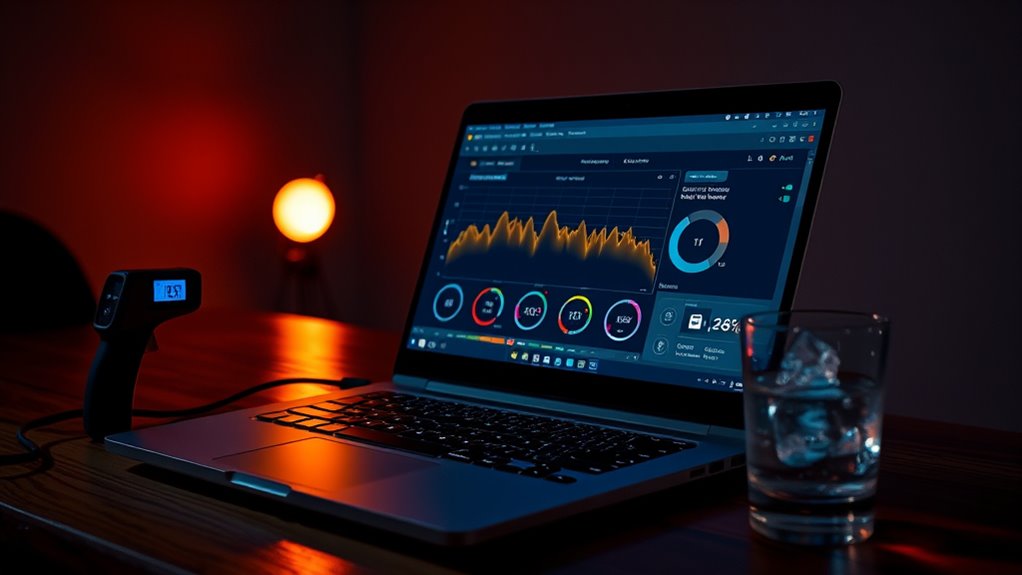
A normal laptop CPU temperature typically falls between 70 and 85°C under heavy load, with brief spikes to 90°C still considered acceptable. This range indicates that the cooling system is functioning within expected limits while the processor delivers full output.
During lighter use, CPU temperature should generally settle between 30 and 50°C, reflecting efficient heat dissipation and minimal strain. Sustained readings above 90°C suggest insufficient cooling, which can trigger thermal throttling and reduce computational freedom by limiting performance.
During lighter use, CPU temperature should settle between 30 and 50°C, while sustained 90°C readings suggest cooling problems.
For that reason, safe temperatures are best kept below 85°C during gaming or other intensive tasks. Consistent monitoring provides a clear diagnostic baseline, especially in systems used for demanding work.
Cleaning vents and renewing thermal paste can help preserve normal operating conditions, supporting stable performance and longer hardware life.
How Hot Can a Laptop CPU Get Under Load?
Under heavy load, a laptop CPU typically operates between 70 and 85°C, with brief excursions into the 90–95°C range still considered the upper safe limit for short periods.
In practical terms, these temperatures define the ceiling for sustained work on a gaming laptop without immediate concern. Modern processors are engineered to tolerate short thermal spikes, but repeated operation above 90°C signals constrained thermal headroom and may trigger throttling.
For users seeking performance without unnecessary restriction, staying below 85°C during gaming or other intensive tasks is the most reliable target.
Idle values usually sit near 30–50°C, and light workloads often remain within 50–70°C, making load temperatures clearly distinct.
Older CPUs may run hotter due to different design tolerances, yet the same analytical rule applies: lower steady-state temperatures preserve responsiveness, reduce stress, and support longer hardware life.
Why Do Laptop CPUs Run So Hot?
Laptop CPUs run hot because high-performance components must process demanding workloads within a tightly constrained thermal envelope.
The compact cooling design of laptops restricts airflow and limits heat dissipation from the CPU and GPU.
Heat buildup is further intensified by ambient temperature, dust accumulation, and sustained high-load operation, especially when clocks or settings are pushed to maximum levels.
Compact Cooling Design
Heat buildup in portable computers is largely a consequence of constrained thermal design: high-performance CPUs can produce substantial waste heat under load, often reaching 70–85°C during demanding workloads such as gaming, while the limited internal volume leaves little room for the airflow and heatsinking capacity found in desktops.
Compact cooling modules, shared with the GPU, rely on thin heat pipes, small fans, and brief exhaust paths, so cooling efficiency is inherently limited. As thermal temperatures rise, dust accumulation, cramped chassis geometry, and restricted vent placement impede convection.
Hot ambient rooms further reduce heat transfer, trapping energy inside the enclosure. Under sustained stress, these constraints can push processors toward their safe ceiling; if temperatures exceed roughly 90°C, firmware may reduce clock speed to preserve stability and maintain control.
High Performance Demands
Powerful laptop CPUs often run hot because their architecture is designed to deliver high computational throughput within a very small chassis. Under sustained load, CPU temp commonly rises into the 70-85°C range, especially in Gaming Laptops running modern titles or heavy workloads.
High frame rates, complex simulations, and other demanding applications increase power draw, which in turn produces more heat and drives high temperatures closer to thermal limits. When overclocking or peak-performance modes are enabled, readings can exceed 90°C, at which point thermal throttling may reduce clock speed to protect the silicon.
This behavior reflects a tradeoff: users gain performance and responsiveness, yet the system must continuously manage heat to preserve stability, efficiency, and long-term freedom from unnecessary performance constraints.
Heat Buildup Factors
Several factors cause laptop CPUs to run hot under load, especially during gaming, video editing, and other resource-intensive tasks. Their dense architecture converts power into heat rapidly, while restricted chassis volume limits airflow and slows dissipation. Under sustained demand, CPU temperatures commonly reach 70-85°C, and high frame rates or overclocking can drive them toward 90-95°C.
- Poor thermal paste application reduces contact efficiency.
- Dust-clogged fans and vents obstruct cooling airflow.
- Ambient heat and weak ventilation trap thermal energy.
These conditions create a system where liberation from heat stress depends on efficient cooling design and maintenance. When thermal pathways degrade, the processor remains constrained by its own output, and sustained performance becomes less stable.
When Do Laptop CPU Temps Throttle?
Thermal throttling typically begins when a laptop CPU approaches 85°C under sustained load, marking the upper edge of the safe operating range.
Around 90–95°C, the processor will often reduce clock speeds to limit heat output and prevent hardware stress.
The exact threshold depends on the CPU model, cooling capacity, and chassis design, so persistent readings above 85°C warrant attention.
Thermal Throttling Triggers
Laptop CPUs typically begin thermal throttling when core temperatures climb into the 90–95°C range, where the system actively reduces clock speeds to limit further heat buildup. At this point, thermal control is no longer passive; the CPU and GPU workload becomes constrained, and performance drops emerge as a measurable trade-off for heat management.
Sustained temperatures above 85°C during demanding gaming or processing can already signal strain, especially when load remains continuous.
- Clock reductions lower heat output immediately.
- Frame rates and responsiveness can decline.
- Fan noise and power draw often rise first.
Monitoring tools such as HWMonitor let users identify impending throttle events with precision, enabling cooling adjustments before limits are crossed.
Safe Load Thresholds
Under heavy load, laptop CPUs generally remain within safe operating temperatures of about 70–85°C, with brief spikes to around 90°C still considered acceptable. Within this range, laptop temps usually preserve full performance and stable responsiveness.
Once sustained readings exceed 90°C, thermal throttling may begin, reducing clock speeds to prevent heat damage and restore thermal margin. Persistent values above 95°C are a strong indicator of inadequate cooling, clogged fans, degraded thermal paste, or restricted airflow.
During gaming or other intensive workloads, throttling often appears as abrupt frame drops and slower task completion. GPU temp can also rise in the same chassis, compounding heat load.
Regular cleaning and timely repasting help keep the system within safe limits and preserve user autonomy.
How Do You Check Laptop CPU Temperature?
CPU temperature on a laptop is typically checked with monitoring software such as Core Temp, which provides real-time readings and can trigger alerts when temperatures approach unsafe levels.
For precise oversight, Core Temp displays the CPU temperature per core, enabling immediate assessment under load. MSI Afterburner is another practical tool, extending monitoring to GPU temperatures and supporting undervolting adjustments for users who want more control over thermal behavior.
- BIOS/UEFI access can show basic temperature data during startup, but it lacks detailed tracking.
- Warning thresholds are often set near 85°C to signal rising thermal stress before limits are exceeded.
- Sustained readings above 90°C deserve attention, because they may initiate thermal throttling and reduce performance.
Regular checks during intensive tasks help identify patterns early, keeping the system transparent and manageable.
For those seeking liberated, informed hardware use, temperature monitoring provides a clear view of processor behavior without relying on guesswork.
How Can You Lower Laptop CPU Heat?
Reducing processor heat starts with improving airflow, since a laptop’s cooling system depends on unobstructed intake and exhaust paths. Elevating the chassis on a hard surface or stand increases ventilation and limits recirculation of warmed air.
A cooling pad can add forced airflow, often cutting temperatures by 5-10°C under sustained gaming or rendering loads. Dust accumulation in fans and vents should be removed every 3-6 months, because even minor obstruction raises thermal resistance and forces higher fan speeds.
Over longer intervals, degraded thermal paste can reduce heat transfer from the CPU and GPU to the heatsink; renewing it with a high-quality compound restores contact efficiency.
Power management also matters: selecting a Balanced plan in Windows lowers clock demand during lighter tasks, reducing heat generation without stripping capability.
For modern CPUs, these measures preserve thermal headroom and support quieter, more responsive operation.
What Cooling Fixes Work Best?
Among the most effective cooling fixes, a quality cooling pad can reduce laptop temperatures by about 5-10°C by improving intake airflow and limiting heat recirculation. That gain is usually immediate and low risk.
For sustained control, internal maintenance matters: compressed air used every 3-6 months removes dust from vents, fans, and heatsinks, restoring airflow paths that otherwise trap heat. If thermal transfer remains poor, replacing thermal paste with a high-quality compound can reduce the CPU-to-heatsink thermal resistance and lower operating temperature under load.
- Cooling pad: best for rapid, external airflow gains.
- Compressed air: essential for routine dust removal.
- Thermal paste: effective when contact performance has degraded.
Software and power tuning further strengthen thermal freedom. Custom fan curves, such as those set through MSI Afterburner, increase cooling response before temperatures climb.
Undervolting the CPU or GPU reduces power draw and heat output, often preserving performance while easing thermal stress.
When Is Laptop CPU Heat a Problem?
Laptop processor heat becomes a concern when temperatures move beyond the normal heavy-load range of about 70-85°C and remain there persistently.
On a Laptop, readings above 90°C under heavy load usually signal cooling inefficiency, airflow restriction, or degraded thermal paste. At that point, thermal throttling may begin, reducing clock speeds and limiting performance during demanding work.
If temperatures approach 100°C or hold there, the risk escalates sharply: shutdowns can occur, and sustained exposure may damage the processor. This is where serious cooling matters, not as comfort but as a condition of operational freedom.
Regular monitoring with tools such as Core Temp or MSI Afterburner helps identify dangerous trends before they become failures.
Cleaning fans, vents, and heat sinks every 3-6 months can restore thermal headroom, lower component stress, and preserve long-term reliability without unnecessary intervention.
What Laptop CPU Temperature Should You Aim For?
A practical target for laptop CPU temperature under heavy load is roughly 70-85°C, where performance and thermal safety remain balanced. Within this range, the laptop CPU temperature is usually high enough to sustain boost behavior without forcing immediate throttling.
Idle readings often sit near 30-50°C, and light workloads may rise to 50-70°C, so load temperatures should be judged against that baseline. Consistent readings above 85°C indicate constrained airflow, degraded thermal paste, or insufficient heat dissipation. A cooling pad can improve intake airflow and help restore margin.
Idle temperatures set the baseline; sustained readings above 85°C usually signal airflow or cooling issues.
- 70-85°C: acceptable under sustained load
- Above 90°C: throttling risk rises sharply
- Below 85°C: more room for longevity and freedom
Regular monitoring gives users control over thermal limits. Dust removal, fan cleaning, and thermal paste renewal are practical maintenance steps that keep temperatures within safe operating ranges and preserve performance over time.
Frequently Asked Questions
What Is Too Hot for a CPU Under Load?
Too hot is typically above 90°C, with sustained 95°C+ triggering thermal throttling and measurable performance impact. Temperatures near 100°C suggest inadequate cooling solutions and warrant immediate monitoring, because repeated exposure shortens processor lifespan.
How Hot Should a CPU Get in a Laptop?
A laptop CPU should usually run 70–85°C under load; 90°C is a warning, not destiny. Beyond that, thermal throttling effects often appear. Cooling solutions and performance benchmarks help assess whether liberation from heat loss is needed.
Is 92 Degrees Hot for a CPU Laptop While Gaming?
Yes, 92°C is hot for a laptop CPU while gaming; it may trigger thermal throttling and reduce gaming performance. He should inspect dust, improve airflow, and consider cooling solutions to restore thermal headroom.
Is 80 C Too Hot for a CPU Laptop?
80°C is generally not too hot for a laptop CPU under load, despite alarm. It can remain acceptable, though thermal throttling effects may emerge near higher limits. Better cooling solutions help preserve ideal performance and user freedom.
Conclusion
In the bright hum of a loaded laptop, the CPU often climbs into the warm 80s or low 90s Celsius, a controlled heat that signals hard work rather than immediate danger. Like a compact engine under a closed hood, it sheds heat through throttling and cooling systems. When temperatures surge beyond safe limits or linger there, performance falters. The practical target remains steady: keep the processor hot enough to work, but cool enough to breathe.

