
Knowing how to check laptop health helps you spot problems before they interrupt your work. On Windows, you can review your device’s condition using built-in reports, battery diagnostics, startup checks, and hardware inspections. The goal is to confirm that your laptop runs reliably, stays cool enough for its workload, and has no signs of failing parts.
Quick Answer
To check laptop health in Windows, open Windows Security and select Device performance & health. Review the report, generate a battery report using powercfg /batteryreport, and check startup speed, storage, memory, and cooling. Also test the screen, keyboard, charging port, and hinges. Use manufacturer diagnostics when you suspect hardware failure.
At a Glance
| Time Required | About 5 minutes for an initial check; longer for detailed diagnostics |
| Difficulty | Beginner for basic checks |
| Tools Needed | Windows Security, Task Manager, Command Prompt, and File Explorer |
| Cost | Free with built-in Windows tools |
How to Check Laptop Health in Five Minutes
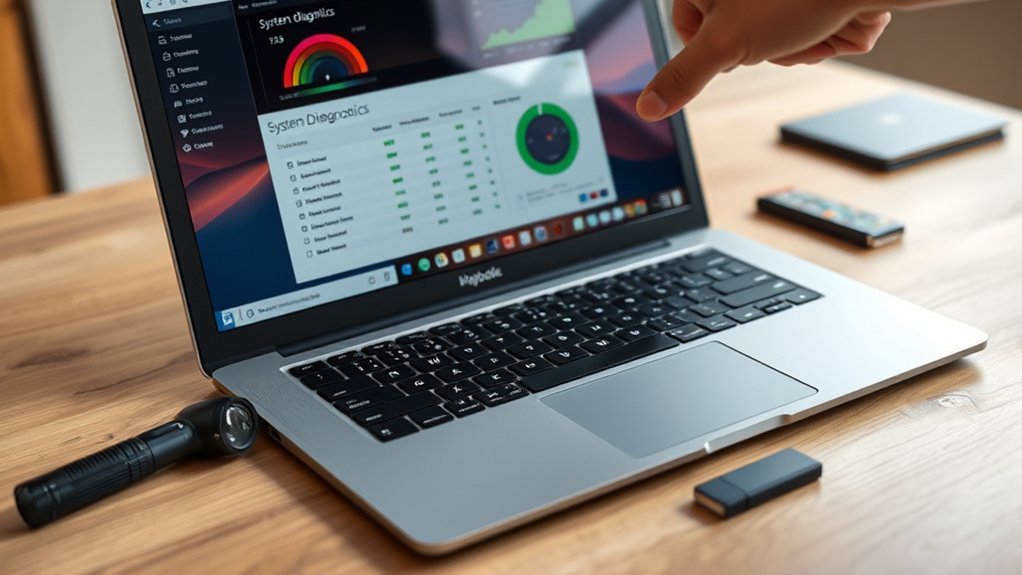
You can complete a basic laptop health check without installing extra software. Start with Windows Security, then check the parts most likely to affect daily performance.
- Open Windows Security. Search for Windows Security in the Start menu and select Device performance & health.
- Review the health report. Check the scan time, status icons, and any recommendations.
- Check your storage. Open Settings > System > Storage and look at the available space on your main drive.
- Review memory and CPU activity. Press Ctrl + Shift + Esc to open Task Manager. Check the Processes and Performance tabs.
- Test basic performance. Open your usual browser, applications, and files. Watch for freezes, long delays, or unexpected errors.
- Inspect the laptop. Listen for unusual fan noise and check the screen, keyboard, hinges, and charging connection.
If all checks look normal, your laptop has passed a useful initial inspection. However, this does not prove that every internal component is healthy.
A green Windows health report is a good starting point, but battery wear, drive faults, and physical damage may require separate tests.
If a problem appears, investigate that area before changing settings or replacing hardware. For example, high memory use calls for a different solution than a noisy cooling fan.
Check Windows Device Health Report
Windows Security includes a Device performance & health report that identifies common problems with storage, battery use, software, and system services. Microsoft explains these checks in its Device performance and health documentation.
To open the report, search for Windows Security, select the app, and choose Device performance & health. The report should show a recent scan time because Windows runs a scan when you open this page.
The report covers four main areas:
- Storage capacity: Warns when the system is running low on drive space.
- Battery life: Looks for conditions that place extra strain on the battery and suggests improvements.
- Apps and software: Identifies certain software failures and update-related problems.
- Windows Time service: Checks whether the system clock is being synchronized correctly.
What Do the Health Report Status Icons Mean?
A green check means Windows has not found a problem requiring attention in that category. A yellow warning means Windows has a recommendation or has detected an issue that needs review.
Select any warning to read the explanation and suggested action. For a storage alert, this may involve removing unnecessary files. For a software warning, Windows may recommend installing updates.
Remember: this report is not a complete test of your RAM, cooling fan, display, or motherboard. A green status does not guarantee that the battery retains its original capacity or that every hardware component will pass a diagnostic test.
Check for Past Crashes and Reliability Problems
If Windows looks healthy but your laptop keeps freezing, check its reliability history. This provides a record of application failures and other system events.
- Press Windows + R to open Run.
- Type
perfmon /reland press Enter. - Review the Reliability Monitor timeline.
- Select dates with failures to see which applications or Windows components were affected.
- Look for repeated problems involving the same program or device.
Microsoft documents the Reliability Monitor command as part of Windows performance monitoring.
A single application crash is not proof of failing hardware. Repeated unexplained crashes, especially across different applications, deserve further testing.
Measure Laptop Boot Speed and Performance
Startup speed helps you judge whether a laptop still performs normally. Time how long it takes to turn on, reach the Windows desktop, and become responsive enough to use.
A startup time under 30 seconds can be encouraging on a modern laptop with an SSD, but it is not a universal health requirement. Hardware, startup applications, updates, and security software all affect boot time.
Compare the result with the laptop’s usual behavior instead of relying on a fixed number. A laptop that suddenly takes much longer to start deserves investigation.
The following tools can help identify startup problems:
| Tool | Diagnostic Use |
|---|---|
| Task Manager | Reviews startup impact and CPU, memory, and disk activity |
| BootRacer | Measures startup timing and helps compare boot performance |
| Windows Security | Identifies selected system health and software issues |
| PC Health Check | Displays startup information and other device health details |
Find Applications That Slow Down Startup
Press Ctrl + Shift + Esc and select Startup apps in Task Manager. Review which applications have a high startup impact.
Disable unnecessary startup applications that you recognize and do not need immediately after signing in. Do not disable unfamiliar security or system components without checking their purpose.
Microsoft’s Windows performance guide also recommends checking for updates, reducing background activity, and freeing storage space.
Check Overall Performance
Try opening several everyday programs and switching between them. The laptop should respond without repeated freezing or unexplained crashes.
You can also use Microsoft’s PC Health Check app to review startup time, storage, update status, and available battery information.
If performance is poor, check Task Manager for high CPU, memory, or disk usage. Heavy resource use may come from active programs rather than failing hardware.
Test if the Laptop Battery Is Healthy
The most useful battery health measurement is the difference between design capacity and full-charge capacity. Design capacity is the amount of energy the battery was built to store. Full-charge capacity is its current estimated maximum.
As the battery ages, its full-charge capacity usually decreases. Windows can show these values in a battery report.
Generate a Windows Battery Report
- Open the Start menu and search for Command Prompt.
- Right-click Command Prompt and select Run as administrator.
- Enter
powercfg /batteryreportand press Enter. - Read the file location shown in the Command Prompt window.
- Open the generated HTML report in your browser.
- Find the Installed batteries section and compare DESIGN CAPACITY with FULL CHARGE CAPACITY.
Microsoft confirms this procedure in its battery care and reporting guide.
To estimate remaining battery capacity, divide full-charge capacity by design capacity and multiply by 100.
For example, if the full-charge capacity is 40,000 mWh and the design capacity is 50,000 mWh, the battery retains about 80% of its original capacity.
What Battery Health Percentage Is Good?
A battery retaining close to its design capacity has relatively little measured capacity loss. A reading around 80% indicates noticeable wear, but it does not automatically mean the battery is unsafe or must be replaced.
Replacement becomes more practical when reduced capacity affects your work or the manufacturer recommends service.
Battery cycle counts also help explain wear. For example, ASUS battery guidance describes an approximate 300–500-cycle lifespan for lithium-ion notebook batteries under its stated conditions. Actual cycle life varies by model, battery chemistry, temperature, and charging habits.
Warning Signs of a Weak Battery
- The laptop drains unusually quickly during light tasks.
- The battery percentage drops suddenly.
- The laptop shuts down unexpectedly while operating on battery power.
- The battery no longer charges normally.
- The battery report shows a large decline in full-charge capacity.
- The casing or touchpad area appears raised because of possible battery swelling.
Warning: If the battery appears swollen, stop using and charging the laptop. Do not puncture, compress, or attempt to flatten the battery. Contact a qualified repair provider or the manufacturer for safe handling and replacement.
Keep the laptop properly ventilated and avoid unnecessary deep discharges. Routine full discharge and recharge cycles are not required to keep a modern lithium-ion battery healthy.
If the charge percentage is clearly inaccurate, follow your laptop manufacturer’s specific calibration instructions rather than repeatedly draining the battery to zero.
Check Laptop Heat and Fan Noise
Heat and fan behavior provide useful clues about the cooling system. A healthy laptop should manage its temperature without persistent overheating, unexpected shutdowns, or severe performance drops.
Fans may run faster during games, video editing, updates, and other demanding work. That behavior alone does not indicate a problem.
What CPU Temperature Is Too High?
There is no single CPU temperature that proves every laptop is overheating. The safe operating range depends on the processor, laptop design, and workload.
A CPU temperature around 85°C during heavy processing is not automatically a fault. However, sustained high temperatures during light work, especially with severe slowdown or unexpected shutdowns, deserve attention.
According to Intel’s processor temperature guidance, maximum operating limits vary by processor and are often around 100–110°C. These maximum limits are not recommended everyday temperature targets.
Use a compatible temperature-monitoring utility to check CPU readings, then compare the results with the specifications for your particular processor and laptop.
High temperature readings matter most when combined with unusual fan behavior, thermal throttling, or repeated shutdowns.
Signs the Cooling System Needs Attention
- Grinding or rattling: May indicate worn fan bearings or an obstruction.
- Constant high fan speed: Can result from heavy background activity, blocked airflow, or cooling problems.
- Hot surfaces during light work: May suggest poor airflow or unusual processor activity.
- Sudden slowdown under load: Could mean the processor is reducing performance to control heat.
- Unexpected shutdowns: Can indicate thermal protection or another power-related fault.
How to Check Laptop Cooling
- Place the laptop on a firm, flat surface.
- Inspect the intake and exhaust vents for dust or obstructions.
- Open Task Manager to see whether an application is causing high CPU usage.
- Monitor processor temperature during both idle periods and normal work.
- Listen for unusual fan sounds and check whether warm air exits the vents.
A contactless infrared thermometer or a proper thermal camera may help identify surface hot spots. However, a phone app without temperature-sensing hardware cannot reliably measure actual surface temperature.
If the vents are blocked, follow the manufacturer’s cleaning instructions. Do not insert sharp objects into the fan or spray liquids inside the laptop.
If temperature problems continue after basic checks, a technician can inspect the fan, heatsink, and thermal interface material.
Check Storage, RAM, and Free Space
Storage and memory problems can make a laptop feel slow even when the processor is working normally. Start by checking available drive space and memory use during your usual tasks.
Check Available Storage
Open File Explorer and select This PC to see how much space remains on each drive. You can also open Settings > System > Storage for a more detailed breakdown.
Keeping roughly 15–20% of your main drive free is a useful planning target, especially when you frequently install programs or download large files. It is not a universal Windows requirement, and performance depends on the drive and workload.
When space becomes tight, try these steps:
- Open Settings > System > Storage to identify large storage categories.
- Review Temporary files and remove items you no longer need.
- Use Storage Sense or Disk Cleanup to clear unnecessary system files.
- Move large personal files to another drive if appropriate.
- Uninstall applications you no longer use.
Review selected files before deleting them, particularly in Downloads or other folders containing personal documents.
Check RAM Usage
RAM is the short-term memory your laptop uses to keep applications running. When RAM fills up, Windows may need to move some data to disk, which can reduce responsiveness.
- Press Ctrl + Shift + Esc to open Task Manager.
- Select Performance, then Memory.
- Check total installed memory and current usage.
- Open the applications you normally use together.
- Look for memory use that remains close to full while the laptop slows down.
High RAM use is not automatically unhealthy. Windows also uses available memory for caching. The important question is whether memory pressure causes delays, excessive disk activity, or application errors.
Close unnecessary applications first. If your normal workload regularly exceeds available RAM, a memory upgrade may help, provided your laptop supports it.
Check for RAM or Drive Errors
If the laptop repeatedly crashes or produces unexplained errors, investigate possible memory and storage faults.
For RAM, save your files, press Windows + R, type mdsched, and choose the option to restart and check for problems. Microsoft provides instructions for running Windows Memory Diagnostic.
For storage hardware, use your manufacturer’s diagnostic utility to inspect drive health. Some tools report Self-Monitoring, Analysis and Reporting Technology (SMART) information, which can warn about certain drive problems.
Utilities such as CCleaner may help review cleanup options, but they are not necessary for these basic checks. Windows already includes tools for storage management and resource monitoring.
Pro Tip: If a drive reports serious health warnings, back up important files before attempting repairs or running additional intensive tests. A passing quick test does not guarantee that a drive cannot fail later.
Inspect the Laptop Screen, Keyboard, and Ports
Software reports cannot reveal every physical defect. A hands-on inspection helps you find problems with the screen, hinges, keyboard, casing, and connections.
Inspect the Screen
Open a plain white background, then a dark background, and look across the display for defects.
- Dead or stuck pixels that remain visibly different from surrounding pixels
- Uneven brightness or unusual backlight patches
- Discoloration, lines, or flickering
- Pressure marks, scratches, or cracks
- Unexpected display changes when adjusting the lid angle
Some display differences are normal for certain panel types. Persistent lines, strong flicker, or image loss may indicate a panel, cable, or graphics problem.
Check the Hinges and Laptop Casing
Open and close the lid gently. The hinges should move smoothly and hold the screen securely without excessive looseness or grinding.
Look for cracked plastic, separated seams, uneven gaps, or a warped base. Damage near a hinge can worsen with repeated movement.
Also inspect the area around the keyboard and touchpad for unusual bulging, which may indicate an internal battery problem.
Test the Keyboard and Touchpad
Open a text editor and press each key to check for missing, repeated, or incorrect characters. Test the spacebar, Enter, Backspace, and function keys as well.
Move the pointer across the screen using the touchpad. Check clicking, scrolling, and supported gestures.
Sticking keys, unreliable clicks, or intermittent touchpad response may indicate dirt, physical damage, or a driver issue.
Check the Ports and Charging Connection
Test each port with a known-working accessory. Use a USB device for USB ports, an external display for a video connection, and headphones for an audio jack.
For the charging connection, confirm that the laptop charges normally without requiring the cable to be held at a particular angle.
Inspect ports for bent contacts, excessive looseness, corrosion, or visible debris. Never force a connector into a port.
Finally, test the speakers, microphone, webcam, Wi-Fi, and Bluetooth if your laptop includes them. These checks help identify faults that Windows Security may not detect.
Run a Deeper Hardware Diagnostic if Problems Continue
If the basic checks suggest a hardware problem, use the laptop manufacturer’s diagnostic tools. These can test certain components directly and may identify faults that ordinary Windows performance checks miss.
Many laptops include preboot diagnostics, which run before Windows starts. The exact procedure depends on the manufacturer and model.
For example, Dell explains how to run its preboot hardware diagnostics. On supported Dell models, repeatedly pressing F12 at the Dell logo opens a boot menu where you can select Diagnostics.
When a diagnostic utility is available, follow this process:
- Save your work and connect the laptop to a reliable power source.
- Start the manufacturer-recommended diagnostic utility.
- Run the available quick hardware tests.
- Read the results and note any reported error codes.
- Run a more detailed component test when the initial result or symptoms justify it.
- Contact the manufacturer or a qualified technician if a component fails.
A passed hardware test is encouraging, but intermittent failures may not appear during every test. Keep a record of repeat symptoms, error messages, and the conditions that trigger them.
Tell If Your Laptop Is Still in Good Shape
A laptop is generally in good shape when it starts reliably, performs everyday work without repeated errors, and has no obvious physical or electrical problems. Battery capacity, storage headroom, and cooling behavior should also meet your practical needs.
You do not need perfect performance numbers to have a useful laptop. Consistent behavior and the absence of serious warning signs are more valuable than meeting an arbitrary benchmark.
Performance Warning Signs
Pay attention when normal laptop behavior changes and the problem continues after a restart or basic troubleshooting. Repeated symptoms can indicate software conflicts, insufficient resources, or failing hardware.
Watch for these warning signs:
- Increasing boot time: Startup takes much longer than it did before.
- Frequent freezing: Applications repeatedly stop responding without a clear reason.
- Unexpected shutdowns: The laptop turns off during ordinary tasks.
- Persistent overheating: The laptop becomes unusually hot or slows sharply under light loads.
- Unusual fan sounds: Grinding or rattling continues after the laptop cools down.
- Storage errors: Files become difficult to open, or drive health tools show warnings.
- Charging problems: Power disconnects unexpectedly or the battery does not charge as expected.
One symptom does not always mean that the laptop needs replacement. Investigate software and maintenance causes first when it is safe to do so.
Battery and Storage Check
Battery and storage measurements help you decide whether to maintain, repair, or replace a laptop. Review the results together rather than treating one measurement as a final verdict.
- Good signs: Battery capacity meets your needs, storage has useful free space, and no drive faults appear in available diagnostics.
- Monitor closely: Battery capacity has declined, the drive is nearly full, or everyday performance is becoming less consistent.
- Consider service: The laptop has sudden battery shutdowns, persistent charging failures, repeated storage errors, or a failed hardware diagnostic.
If the laptop remains responsive and has no serious faults, regular maintenance may be enough. When the cost of repairs approaches the value of the device, replacement may become a more practical choice.
Key Takeaways
- A green Windows health report does not guarantee that every hardware component is working correctly.
- Battery capacity below roughly 80% of its original value suggests meaningful wear, but replacement depends on actual performance and manufacturer guidance.
- There is no universal 30-second startup requirement or 85°C CPU failure threshold for all laptops.
- Repeated crashes, unusual fan sounds, charging problems, and storage warnings deserve more attention than an isolated slow day.
- Manufacturer diagnostics and physical inspections can reveal problems that ordinary Windows reports do not show.
Frequently Asked Questions
How to Check if a Laptop Is in Good Condition?
A laptop in good condition starts reliably, handles everyday tasks without freezing, and has working ports, keys, and a clear screen. Check its Windows health report, battery report, storage, and fan behavior. Test the charger and hinges too. Compare results with the manufacturer’s limits rather than relying on one number.
How Do I Check if My Laptop Is Healthy?
Open Windows Security and select Device performance & health to review the health report. Then run powercfg /batteryreport, check storage and memory in Task Manager, and inspect heat and fan noise. A green status is useful, but it does not replace a full hardware test.
How to Know if a Laptop Is Good Quality?
Good laptop quality comes from a solid build, dependable components, a clear display, and performance that suits your work. Check hinge strength, keyboard feel, ports, cooling, battery condition, and warranty support. Independent benchmarks and long-term owner reviews can help when you compare models.
How to Run a Laptop Diagnostic Test?
Use Windows Security for an initial check and Windows Memory Diagnostic if you suspect RAM errors. Many manufacturers also provide preboot hardware tests. For example, some Dell laptops open Diagnostics from the F12 boot menu. Save your work before running any test that restarts the device.
Conclusion
Checking laptop health takes more than looking at startup speed or battery percentage. Windows reports, battery capacity measurements, temperature monitoring, storage checks, and physical inspections work together to show the condition of your device.
Start with the free built-in tools and investigate any repeated warning signs. If the laptop has serious battery damage, persistent hardware errors, or unexplained shutdowns, arrange a professional inspection before the problem becomes worse.
Sources
- Microsoft Support: Device Performance and Health: Windows Health Report categories, scan status, and recommendations.
- Microsoft Support: PC Health Check: Startup information, battery capacity information, and device health features.
- Microsoft Support: Improve PC Performance: Startup management, storage cleanup, updates, and resource checks.
- Microsoft Support: Caring for Your Battery: Battery reporting, capacity, charging care, and swelling safety.
- ASUS: Battery Information Center: Battery aging, cycle-life estimates, and factors affecting battery capacity.
- Intel: Maximum Processor Operating Temperature: Model-dependent CPU temperature limits.
- Microsoft Learn: Perfmon: Reliability Monitor commands and diagnostic functions.
- Microsoft Support: Windows Memory Diagnostic: Running built-in RAM diagnostics.
- Dell Support: Preboot Hardware Diagnostics: Running hardware tests and interpreting diagnostic results.

