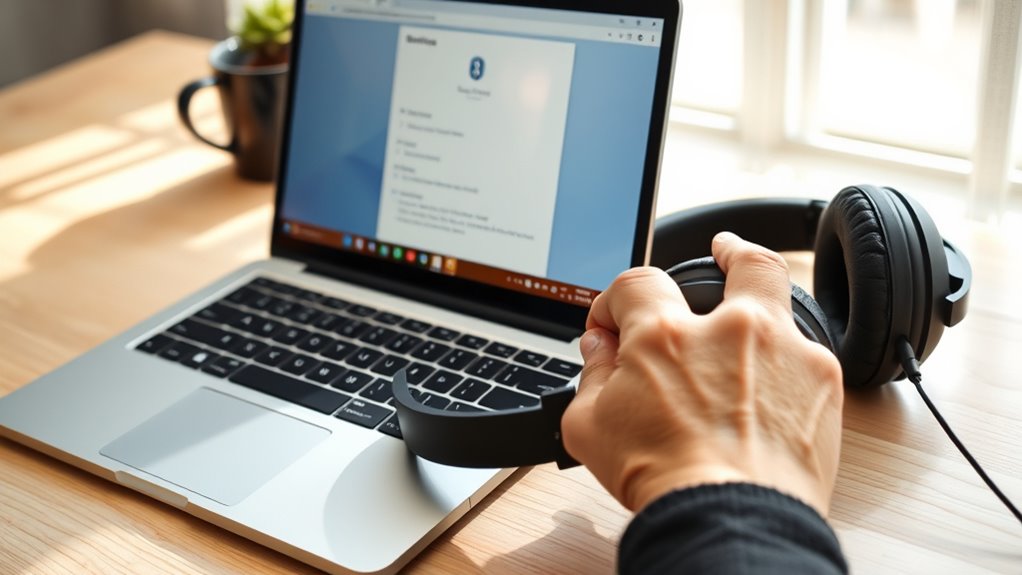
To connect Seythm headphones to a Chromebook, first open the Chromebook status bar and make sure Bluetooth is available and turned on. Then power on the headphones and hold the multi-function button until the LED flashes, showing pairing mode. On the Chromebook, select Bluetooth settings, choose Pair new device, and tap the headphones when they appear. Once connected, test audio playback and adjust volume. If problems continue, more detailed fixes and device options can help.
Key Takeaways
- Open your Chromebook’s Bluetooth settings from the status bar and confirm Bluetooth is available.
- Put your Seythm headphones in pairing mode by holding the multi-function button until the LED flashes.
- On the Chromebook, choose Pair new device and select your Seythm headphones when they appear.
- Follow any on-screen prompts or PIN requests to complete pairing and confirm the headphones are connected.
- Test audio playback, and if needed, disconnect and reconnect the headphones to fix connection issues.
Check Chromebook Bluetooth Support
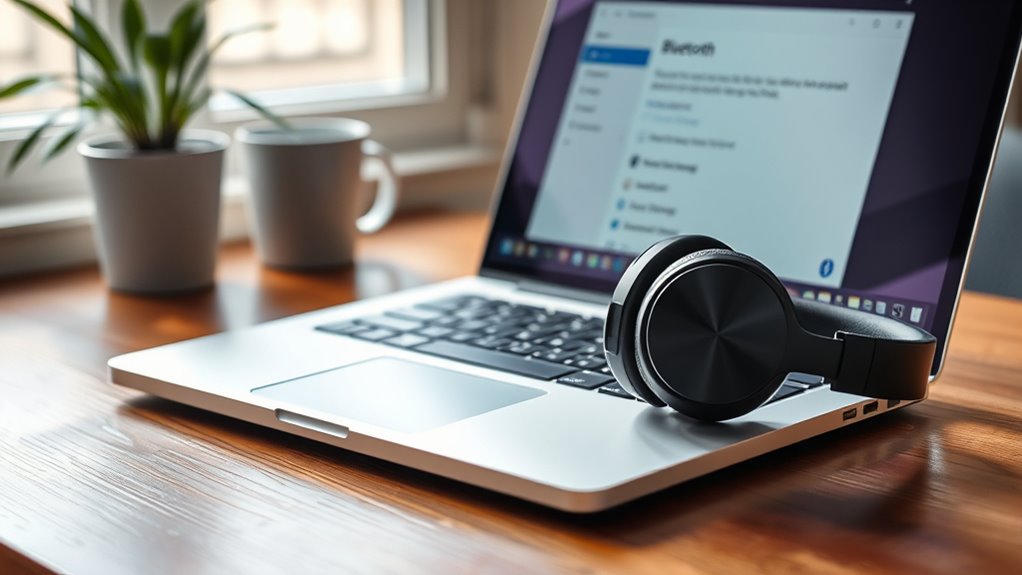
To check whether a Chromebook supports Bluetooth, the status bar in the bottom-right corner should be opened first. From there, the Bluetooth icon can be identified.
If the icon appears, the Chromebook supports a Bluetooth connection and can communicate with a Bluetooth device. If the icon is missing, Bluetooth capability is not available on that machine, and another method must be used.
When the icon is present, it may also be used to switch Bluetooth on or off, depending on the current setting. Before any accessory is paired, the Chromebook should be verified as compatible with the intended device name.
This simple check protects the user from wasted effort and facilitates a more autonomous setup. A clear confirmation of Bluetooth support creates the conditions for a smooth connection and helps guarantee that the Chromebook is ready for the next step in connecting Seythm headphones.
Put Seythm Headphones in Pairing Mode
The Seythm headphones should first be powered on.
Then the multi-function button should be held for about five seconds to activate pairing mode.
A flashing LED light confirms that Bluetooth pairing is ready.
During this step, the headphones should remain close to the Chromebook for a stable connection.
Activate Pairing Mode
Press and hold the Multi-function button on the Seythm headphones until the LED indicator flashes blue and red. This signals that the device is ready to activate pairing mode** for bluetooth pairing** with a Chromebook.
If the headphones are off, the user should power them on first with the Power button. They should also verify the headphones are not already connected to another device, since that can block pairing.
On some models, pairing mode may require pressing Multi-function and Volume Up together for a few seconds. Once active, the headphones become discoverable to nearby Bluetooth devices, creating a clear path to connect without unnecessary limits.
Confirm Bluetooth Indicator
A quick check of the Chromebook’s status bar in the bottom-right corner can confirm whether Bluetooth is available; if the Bluetooth icon is missing, the device may not support Bluetooth connections.
Please use the icon to open Bluetooth settings, then select Pair new device when the menu appears.
Please note that Seythm headphones must be in pairing mode, usually shown by a blinking light after the power button is held.
Once the headphones are ready, they should appear in the pairing list. Choose them to begin the connection.
For exact button behavior, please refer to the headphone guide.
This step helps establish a clear path to wireless access, allowing the Chromebook and headphones to recognize each other without confusion or delay.
Keep Device Nearby
Keeping the Chromebook and Seythm headphones within a few feet of each other can help the Bluetooth signal stay stable during pairing. Good pairing tips also include charging the headphones first and confirming Bluetooth is enabled on the Chromebook. To place the Seythm headphones in pairing mode, press and hold the power button until a blinking LED appears. This means the device is ready to connect.
| Step | Action | Purpose |
|---|---|---|
| 1 | Charge headphones | Reliable power |
| 2 | Enable Bluetooth | Device discovery |
| 3 | Hold power button | Enter pairing mode |
| 4 | Stay nearby | Strong Bluetooth range |
If the headphones do not appear, remove nearby interference and keep the devices close. This supports fast connection and better audio quality for liberated listening.
Pair Seythm Headphones With Your Chromebook
Begin by putting the Seythm headphones into pairing mode according to the manufacturer’s instructions. On the Chromebook, open the Status bar and select the Bluetooth icon to reach Bluetooth settings.
There, choose Pair new device and wait as the Chromebook scans for nearby devices. When the Seythm headphones appear, click their name to start pairing. If a prompt appears, follow the on-screen steps and enter a PIN only if requested.
- Check headphone compatibility before pairing to avoid delays.
- Use Bluetooth settings to preserve audio quality during setup.
- Consider battery life, since low power can interrupt pairing.
After the connection is accepted, the Chromebook may list the headphones under connected devices.
This simple process helps the user claim control over private sound, free from cables and unnecessary limits, while keeping the setup clean and direct.
Confirm the Connection and Test Audio
For better audio quality, make sure no other Bluetooth devices are connected that could interrupt playback or weaken the signal.
Simple troubleshooting tips include pausing playback, checking volume again, and confirming the device remains connected during use.
If the connection seems unstable, open Bluetooth settings and disconnect, then reconnect the headphones to refresh the link.
These steps help keep the setup reliable and support a clear listening experience.
Fix Bluetooth Pairing and Sound Issues
If the Chromebook does not detect the Seythm headphones, Bluetooth should be checked first by clicking the Bluetooth icon in the Status bar; if no Bluetooth icon appears, the Chromebook may not support Bluetooth.
Then open Bluetooth settings, select Pair new device, and make sure the headphones are in pairing mode so they can be found. When connected, verify them in the Currently connected section. If sound is weak or uneven, adjust volume on both devices to improve audio quality.
- Check headphone compatibility before repeated attempts.
- Use troubleshooting tips: re-enter pairing mode and reconnect.
- Reset the headphones if problems persist by inserting and removing the audio cable, or holding Multi-function and Volume Down for five seconds.
These steps help restore clear sound and keep the setup under the user’s control.
Connect Seythm Headphones to Two Devices
To pair Seythm headphones with two devices, both devices should have Bluetooth enabled and be within range.
The first device can be connected through Bluetooth settings, then the same pairing process can be repeated on the second device while the headphones remain in pairing mode.
Once connected, the headphones should switch automatically between audio sources, with better performance when only one device plays sound at a time.
Pairing Dual Devices
Once both devices have Bluetooth enabled and are within range, the first device should be paired with the Seythm headphones through its standard Bluetooth settings.
This dual-device setup depends on Bluetooth compatibility, supports audio quality, and preserves connection stability when configured correctly.
- Pair the first device, then return the headphones to pairing mode.
- Connect the second device through its Bluetooth menu.
- Confirm both devices show as connected in their settings.
After the second pairing is complete, the headphones can recognize both sources and respond to active audio from either device.
If another device must be added later, one current connection may need to be disconnected in Bluetooth settings first.
This method gives listeners greater freedom without sacrificing a clean, controlled setup.
Switching Active Connections
Switching between two connected devices on Seythm headphones is straightforward: when both devices have Bluetooth enabled and are within range, the headphones will usually favor the most recently connected source. For seamless device switching, pause audio on the active device, then play from the other. These audio prioritization methods help preserve freedom without extra steps.
| Step | Action | Result |
|---|---|---|
| 1 | Confirm both devices are on | Ready to switch |
| 2 | Keep devices close | Stable signal |
| 3 | Pause current audio | Releases priority |
| 4 | Start audio on second device | New source plays |
| 5 | Check battery level | Better dual-device support |
If switching fails, disconnect one device in Bluetooth settings and reconnect. These headphone connection tips keep use efficient and independent.
Managing Bluetooth Sources
Managing Bluetooth sources on Seythm headphones begins with ensuring both devices have Bluetooth enabled and are within pairing range. On the Chromebook, open the Status bar, select Bluetooth, and choose Pair new device to add the first source.
Repeat the pairing steps for the second device; Seythm headphones support multi-device functionality through multi-point connectivity. Confirm both devices appear under Currently connected in Bluetooth settings.
- Check each device for device compatibility issues before pairing.
- Keep both sources close to preserve Bluetooth audio quality.
- Play audio from the desired device; the headphones switch automatically.
This setup allows a freer, less restricted listening flow, with no need to reconnect each time. When managed well, dual-source pairing keeps movement simple and communication uninterrupted.
Manage Paired Devices in Chromebook Settings
To view and adjust paired devices on a Chromebook, the user can open Settings by clicking the Status bar in the bottom-right corner and selecting the gear icon. From there, they should choose Bluetooth in the left sidebar. A list of previously connected devices will appear, giving clear access for device management tips.
With Bluetooth toggled on, each paired item can be selected to rename it or disconnect it as needed. If Seythm headphones are no longer wanted, the Forget option removes them from the pairing list and helps prevent clutter. This also supports bluetooth connection troubleshooting when a device refuses to reconnect.
Checking paired devices regularly can reduce headphone compatibility issues and keep the Chromebook ready for independent, uninterrupted listening. By managing the list directly, the user maintains control over connections and limits confusion caused by old or unused devices.
Frequently Asked Questions
How to Put Srhythm Headphones in Pairing Mode?
Srhythm headphones enter pairing mode by powering on, then holding the Multi-function button until the LED blinks red and blue. For Bluetooth troubleshooting tips, check Headphone battery maintenance and avoid Connecting multiple devices during setup.
Why Won’t My Headphones Connect to My Chromebook?
Outdated Bluetooth or pairing mode usually blocks connection. As the adage says, “A stitch in time saves nine.” Apply Bluetooth troubleshooting tips, check common connection issues, and verify headphone compatibility concerns before retrying.
How Do I Connect Bluetooth Headphones to My Chromebook?
Open Bluetooth settings on the Chromebook, verify Headphone compatibility, and place the headphones in pairing mode. Select Pair new device, choose the headphones, and connect. Good Audio quality should follow once the status bar confirms pairing.
How to Put Chromebook in Pairing Mode?
He should open Quick Settings, select Bluetooth settings, then choose Pair new device; the theory that pairing mode is hidden is false. Device compatibility and Wireless connectivity determine whether nearby devices appear.
Conclusion
With the Seythm headphones paired, a Chromebook becomes more than a screen—it is a small bridge to clearer sound and calmer focus. Like a door closing on outside noise, the connection can turn everyday listening into something simple and steady. If the audio ever drifts or fades, the settings offer a quick path back. In the end, a few careful steps create a reliable link, carrying music, calls, and lessons with ease.

