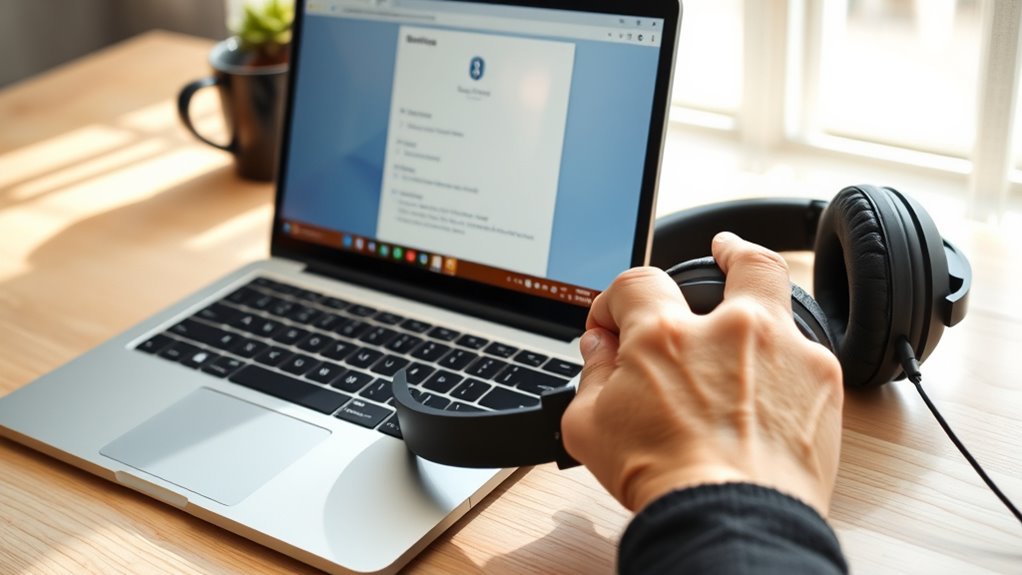
To connect Srhythm headphones to a Chromebook, you need Bluetooth enabled on the Chromebook and the headphones in pairing mode. The setup uses ChromeOS’s built-in Bluetooth controls, so no extra application is required. This guide covers pairing, choosing the correct audio output, fixing connection problems, and switching between devices.
Quick Answer
Turn on your Srhythm headphones and hold their multi-function button until the pairing light flashes. On your Chromebook, select the time, open Bluetooth, and choose Pair new device. Select your headphones from the list and follow the prompts. Once connected, select them as your audio output if sound still plays through the Chromebook speakers.
At a Glance
| Difficulty | Easy |
| Tools Needed | Bluetooth-enabled Chromebook and charged Srhythm headphones |
| Cost | No paid software required |
Key Takeaways
- Srhythm headphones use standard Bluetooth pairing and do not require a separate Chromebook driver.
- The Srhythm NC25 enters pairing mode after holding its multi-function button for about 3–5 seconds.
- A rapidly flashing red-and-blue LED indicates pairing mode on the NC25.
- If the headphones connect without sound, check the Chromebook’s selected output device.
- For repeated connection failures, forget the saved Bluetooth pairing before attempting a model-appropriate reset.
Check Chromebook Bluetooth Support
)
Before pairing your headphones, make sure your Chromebook supports Bluetooth and that the feature is enabled. Most modern Chromebooks include Bluetooth, but you should confirm availability in the system settings.
- Select the time in the bottom-right corner of the Chromebook screen.
- Find the Bluetooth icon in Quick Settings.
- Select Bluetooth to open its controls.
- Turn Bluetooth on if the toggle is disabled.
- Confirm the Chromebook is ready to discover nearby devices.
Google’s official Chromebook Bluetooth instructions explain that the Bluetooth icon indicates whether a Chromebook supports the feature.
If the icon is missing, check the full Settings menu before assuming Bluetooth is unavailable. On a school- or workplace-managed Chromebook, an administrator may restrict certain wireless features.
If the Chromebook genuinely lacks Bluetooth support, its built-in Bluetooth pairing controls cannot connect wireless headphones. An appropriate wired audio connection may be an alternative if both devices support it.
Put Srhythm Headphones in Pairing Mode
Srhythm headphones must be discoverable before your Chromebook can find them. This usually means turning on the headphones and holding the appropriate button until the Bluetooth indicator flashes.
Pairing controls vary between models, so use the instructions for your specific headphones rather than assuming every Srhythm model behaves identically.
Activate Pairing Mode
For the Srhythm NC25, the official user manual provides these steps:
- Disconnect any audio cable from the headphones.
- Make sure the headphones have enough battery power.
- With Bluetooth off, press and hold the multi-function button for approximately 3–5 seconds.
- Watch for the LED indicator to flash red and blue rapidly.
- Keep the headphones powered on while completing Chromebook pairing.
The rapidly alternating lights show that the NC25 is discoverable. After a successful pairing, the NC25’s Bluetooth LED flashes blue slowly.
These details are confirmed in the official Srhythm NC25 user manual.
For NC35, NC45, NC85, NC95, and other models, check the relevant model instructions. Button functions, indicator patterns, and pairing behavior may differ.
If the headphones reconnect to a nearby phone instead of entering pairing mode, temporarily disable Bluetooth on that phone. Then turn the headphones off and restart the pairing procedure.
Confirm Bluetooth Indicator
The headphone indicator helps you distinguish pairing mode from a normal connection. A steady or slowly flashing light does not always mean the headphones are available for a new pairing.
- Rapid red-and-blue flashing: Pairing mode on the Srhythm NC25.
- Slow blue flashing: Successful Bluetooth pairing on the NC25.
- Green light: Active noise cancellation is enabled on supported models; it does not necessarily mean Bluetooth is connected.
- No indicator: Check power, battery level, and whether the headphones are charging.
On supported Srhythm models, active noise cancellation (ANC) and Bluetooth have separate functions even when they share an indicator light.
Turning ANC on does not replace the Bluetooth pairing process. You still need to activate Bluetooth through the correct headphone controls.
Keep Device Nearby
Place the headphones close to your Chromebook during the initial connection. A short distance reduces the chance that obstacles or wireless interference will interrupt device discovery.
Use this preparation checklist before pairing:
| Step | Action | Purpose |
|---|---|---|
| 1 | Charge the headphones | Prevent power-related pairing failures |
| 2 | Enable Chromebook Bluetooth | Allow device discovery |
| 3 | Hold the correct pairing button | Make the headphones discoverable |
| 4 | Keep both devices nearby | Reduce connection interference |
Metal objects, walls, nearby wireless devices, and appliances can interfere with Bluetooth connections. Moving the devices closer together is an easy way to rule out a weak signal.
Pair Srhythm Headphones With Your Chromebook
Once your headphones are in pairing mode, connect them through ChromeOS Quick Settings. The Chromebook should display the headphones under their Bluetooth device name.
Follow these steps in order:
- Open Quick Settings. Select the time in the bottom-right corner of your Chromebook screen.
- Open Bluetooth. Select the Bluetooth icon and confirm the feature is switched on.
- Start device discovery. Select + Pair new device.
- Find the headphones. Look for a name such as Srhythm NC25, or the name assigned to your particular model.
- Select the device. Choose the correct headphones from the available Bluetooth devices.
- Complete pairing. Follow any confirmation prompts shown by ChromeOS.
- Confirm the connection. Open Bluetooth again and look for the headphones under Currently connected.
If ChromeOS requests a Bluetooth PIN, follow the instructions for your model. The NC25 manual specifies 0000 when a pairing PIN is required.
Most routine connections do not require entering a PIN manually.
Do not confuse a similarly named device with your headphones. If several Bluetooth accessories appear, turn off nearby unused devices to make the correct entry easier to identify.
After the first successful pairing, the Chromebook normally remembers the headphones. You can reconnect them from the Bluetooth device list without repeating the full discovery process.
Confirm the Connection and Test Audio
A connected Bluetooth status does not always mean sound is playing through the headphones. ChromeOS may still be using its built-in speakers or a different audio output.
To verify your connection, start playing a video, song, or other familiar audio clip.
- Select the time in the Chromebook’s bottom-right corner.
- Find the volume slider and open Audio settings.
- Under Output, select your Srhythm headphones if they are available.
- Increase the Chromebook volume to a comfortable level.
- Adjust the headphone volume if the model has separate volume controls.
- Play audio again and confirm that sound comes from both earcups.
You can also open Settings → Device → Audio to manage available input and output devices. Google’s Chromebook audio settings guide confirms this path.
Test the Headphone Microphone
If your Srhythm headphones include a Bluetooth microphone, you can check whether ChromeOS recognizes it as an input device.
Open Settings → Device → Audio and inspect the Input section. Select the headphones if their microphone appears, then use the available microphone test.
If the microphone is not listed, the Chromebook may be using its built-in microphone instead. Bluetooth headset functions can also depend on the supported audio profiles and application settings.
Music playback may sound different when a Bluetooth headset microphone is active during a call. This can happen because hands-free audio uses a different Bluetooth audio mode from normal stereo listening.
Fix Bluetooth Pairing and Sound Issues
Most Chromebook headphone problems involve pairing mode, a saved connection, low battery power, or the wrong audio output. Start with the simplest fixes before resetting your headphones.
Headphones Do Not Appear in the Bluetooth List
If your Chromebook cannot find the headphones, they may not be discoverable or may already be connected to another device.
- Check that the headphones have sufficient battery power.
- Turn off Bluetooth on nearby phones or tablets that previously connected to the headphones.
- Turn the headphones off, then activate pairing mode again.
- Toggle Chromebook Bluetooth off and back on.
- Select Pair new device and check the list again.
- Restart the Chromebook if discovery still fails.
If you use a managed Chromebook, confirm that Bluetooth access is permitted by the administrator.
Headphones Connect but Produce No Sound
First check the Chromebook’s sound output. A successful Bluetooth connection can still leave audio routed through the internal speakers.
Open Audio settings, select the headphones under Output, and confirm neither device is muted.
If the connection works but the sound remains weak, try another video or audio application to rule out an application-specific problem.
Also check whether a video call is keeping the headphones in hands-free audio mode. Ending the call may restore normal stereo playback.
Bluetooth Keeps Disconnecting
Repeated disconnections can result from weak signals, low battery power, interference, or a problematic saved pairing.
Charge the headphones, move them closer to the Chromebook, and avoid nearby interference. Close unused applications if the Chromebook is struggling under heavy load.
Google’s official Chromebook hardware troubleshooting guide recommends checking the device battery, restarting Bluetooth, reducing distance, and moving away from interfering wireless devices.
Forget the Headphones and Pair Again
If the headphones previously connected but now refuse to reconnect, remove the saved Bluetooth pairing from ChromeOS.
- Open Chromebook Settings.
- Select Bluetooth.
- Find the Srhythm headphones under connected or previously connected devices.
- Open the device options and select Forget.
- Restart Bluetooth pairing on the headphones.
- Choose Pair new device and connect again.
Forgetting a device removes its stored Bluetooth connection from the Chromebook. It does not delete your Chromebook files or reset other system settings.
Reset the Srhythm Headphones if Pairing Still Fails
If ordinary troubleshooting fails, a model-appropriate headphone reset may clear the connection problem.
Srhythm documents several reset methods, including inserting and removing the 3.5 mm audio cable and holding certain button combinations.
On supported models, holding Multi-function + Volume Down or Volume Up + Volume Down for approximately five seconds can clear stored pairing information.
However, these commands are not universal across every Srhythm model. Use the official Srhythm troubleshooting FAQ and the manual for your exact model before attempting a reset.
After resetting, remove any attached audio cable, activate pairing mode, and reconnect the headphones through Chromebook Bluetooth settings.
If the headphones still fail to connect after these steps, test them with another compatible Bluetooth device. This can help you determine whether the problem comes from the headphones or the Chromebook.
Connect Srhythm Headphones to Two Devices
Some Srhythm headphones support connections with two Bluetooth devices. This feature is commonly called Bluetooth multipoint, which allows compatible headphones to maintain connections with more than one audio source.
The manufacturer’s published two-device procedure specifically describes the NC25. Other models may use different steps or offer different connection capabilities.
Pairing Dual Devices
To connect an NC25 to a Chromebook and a second device, first complete pairing with the Chromebook.
- Pair the Srhythm NC25 with your Chromebook and confirm the connection.
- Pause any audio playing through the headphones.
- Temporarily turn off Bluetooth on the Chromebook.
- Put the NC25 into pairing mode again.
- Pair the headphones with the second device, such as a phone or tablet.
- Turn Chromebook Bluetooth back on.
- Reconnect the headphones to the Chromebook from its saved Bluetooth device list.
When the model supports dual connections, both devices may remain connected after this process.
If you cannot establish both connections, confirm that your exact model supports multipoint rather than merely remembering several paired devices.
Remembering several devices is not the same as maintaining two active connections simultaneously.
Switching Active Connections
With two connected devices, the headphones may switch their active audio source based on playback and connection behavior. The exact switching method depends on the headset model.
For practical use, pause audio on the current device before starting playback on the other.
| Step | Action | Result |
|---|---|---|
| 1 | Confirm both devices are connected | Both sources are available |
| 2 | Keep devices within Bluetooth range | Reduces interruptions |
| 3 | Pause audio on the first device | Stops the current playback |
| 4 | Start audio on the second device | May switch the active source |
| 5 | Check battery and connection status | Helps diagnose switching failures |
If switching does not happen automatically, manually disconnect the current source and reconnect the headphones to the device you want to use.
Managing Bluetooth Sources
When using two devices, decide which one should provide music, video, or call audio. This helps prevent unexpected interruptions when one device starts playback.
For example, you might use the Chromebook for online lessons while keeping your phone connected for calls.
If your particular headphone model supports switching between those sources, pause Chromebook playback before answering a call on the phone.
If another device repeatedly takes over the connection, temporarily disable Bluetooth on that device or remove its saved headphone connection.
You can also disconnect an unused device without forgetting it. This preserves its saved pairing for future use.
Manage Paired Devices in Chromebook Settings
ChromeOS lets you view, reconnect, rename, disconnect, and forget previously paired Bluetooth devices. These controls are useful when switching accessories or fixing old pairing records.
To manage your Srhythm headphones:
- Select the time in the bottom-right corner.
- Open the Settings app using the gear icon.
- Select Bluetooth.
- Find the headphones in the connected or previously connected device list.
- Select the headphones to open the available device controls.
The exact options shown can depend on the ChromeOS interface and the selected device.
Use Disconnect when you want to stop using the headphones temporarily without deleting their saved pairing.
Use Forget when you want the Chromebook to remove the saved device association or when troubleshooting requires fresh pairing.
If ChromeOS offers a device-name option, you can also rename the headphones to make them easier to identify in the Bluetooth menu.
Keep in mind that Bluetooth devices can remain paired to a Chromebook even when another person uses that computer. Forget accessories that you no longer want connected to a shared device.
Frequently Asked Questions
How to Put Srhythm Headphones in Pairing Mode?
Turn off your Srhythm headphones, then hold the correct multi-function or power button until the Bluetooth pairing indicator starts flashing. On the NC25, holding the multi-function button for about 3–5 seconds produces a rapidly flashing red-and-blue light. Other models may use different controls, so confirm the button instructions for your model.
Why Won’t My Headphones Connect to My Chromebook?
Your headphones may not be in pairing mode, may already be connected to another device, or may have low battery power. Charge them, disable competing Bluetooth connections, and restart pairing. If the Chromebook remembers an old connection, forget the headphones in Bluetooth settings and pair them again.
How Do I Connect Bluetooth Headphones to My Chromebook?
Select the time in the bottom-right corner of your Chromebook, open Bluetooth, and turn it on. Put your headphones in pairing mode, choose Pair new device, and select their name. Follow any confirmation prompts. Once connected, open Audio settings and select the headphones as the sound output if necessary.
How to Put Chromebook in Pairing Mode?
You do not need to activate a separate headphone-style pairing mode on your Chromebook. Instead, open Quick Settings, turn on Bluetooth, and select Pair new device. The Chromebook searches for nearby discoverable accessories. Your headphones must already be in their own pairing mode to appear in the device list.
Conclusion
Connecting Srhythm headphones to a Chromebook is straightforward once Bluetooth is enabled and the headphones are discoverable. The key is to use the pairing method for your specific Srhythm model and confirm that ChromeOS sends sound to the correct output.
If the connection fails, start with battery power, pairing mode, and audio settings before forgetting the device or resetting the headphones. Once paired correctly, you can use them for music, videos, lessons, and compatible voice calls.
Sources
- Google Chromebook Help: Connect to Bluetooth Devices: Bluetooth availability, device discovery, pairing, and connection confirmation.
- Srhythm NC25 Official User Manual: Pairing button instructions, LED indicators, PIN requirements, and dual-device setup.
- Google Chromebook Help: Adjust the Volume: Audio output selection, input devices, and microphone controls.
- Google Chromebook Help: Fix Hardware and System Problems: Bluetooth troubleshooting, interference, connectivity, and audio problems.
- Srhythm Official FAQ: Headphone resets, pairing failures, multipoint setup, and sound troubleshooting.