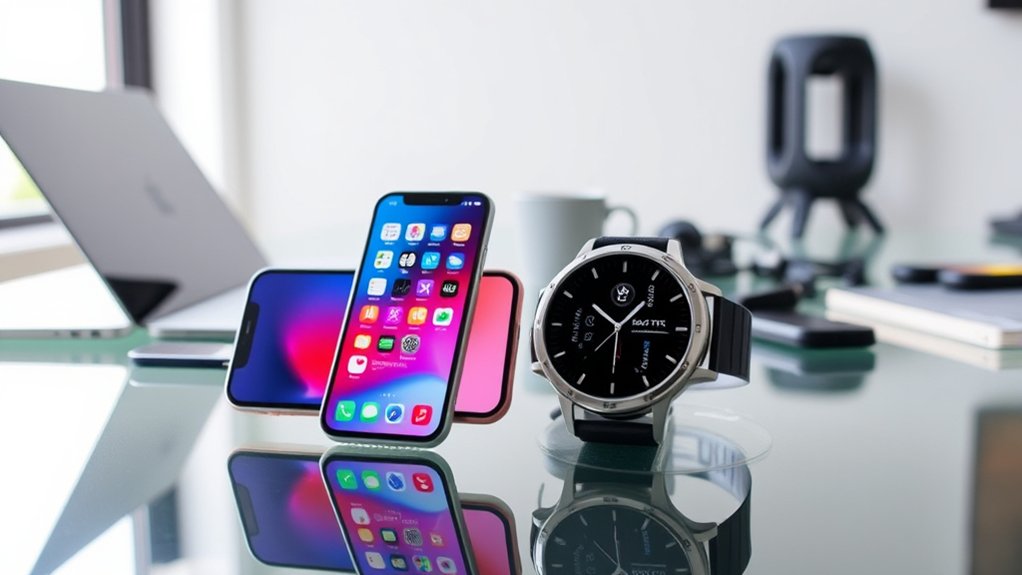
The Samsung Galaxy Watch 7 is incompatible with the iPhone 16, offering no support for basic features like notifications and music playback. Previous models provided limited iOS compatibility, but the Galaxy Watch 7 has completely discontinued support. iPhone users seeking smart functionality are better off choosing alternatives like the Apple Watch series, Fitbit, or Garmin. Understanding these compatibility challenges is essential for users hoping to maximize their smartwatch experience. Exploring further will reveal additional insights and options.
Is the Samsung Galaxy Watch 7 Compatible With iPhone 16?
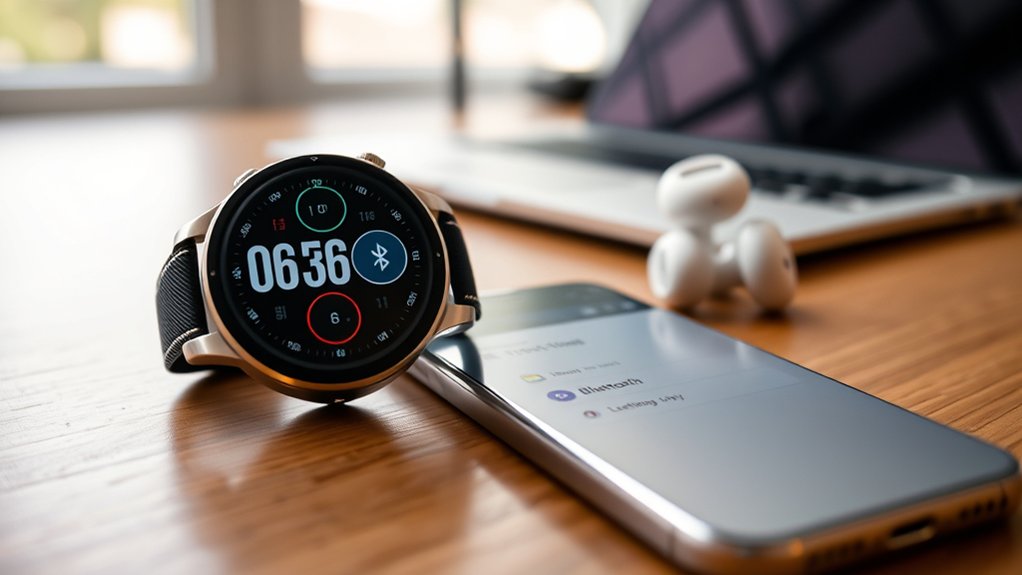
Is the Samsung Galaxy Watch 7 truly compatible with the iPhone 16? The answer is a definitive no.
Unlike earlier models, such as the Galaxy Watch 3, which offered limited functionality with iOS, the Galaxy Watch 7 has completely discontinued support for iPhones.
Users seeking a seamless smartwatch experience with their iPhone 16 will find the Samsung Galaxy Watch underwhelming, as basic features like notifications and music playback are no longer available.
Users with an iPhone 16 will find the Samsung Galaxy Watch lacking, as essential features like notifications and music playback are no longer supported.
Designed to work effectively with Android devices, particularly Samsung phones, the Galaxy Watch 7 harnesses its full potential through this compatibility.
This leaves iPhone users at a crossroads, as they are better served by the Apple Watch, which integrates effortlessly with iOS.
For those who crave smartwatch functionality that liberates rather than confines, aligning with the Apple ecosystem remains the most advisable choice.
Alternatives for iPhone Users Seeking Smartwatch Functionality
While the Samsung Galaxy Watch 7 may not cater to iPhone users, a variety of alternative smartwatches offer robust functionality tailored for the iOS ecosystem. The Apple Watch series remains the gold standard, providing seamless integration with iOS, fitness tracking, notifications, and Apple Pay.
For those seeking alternatives, the Fitbit Versa and Garmin smartwatches excel in health and fitness tracking, though they come with limited app functionalities. The Samsung Galaxy Watch 3 is a viable option, delivering basic features like notifications and music playback, but it lacks full compatibility with newer iPhones.
Additionally, the TicWatch Pro and Amazfit Bip cater to iPhone users with impressive health monitoring capabilities and battery life. For a unique blend of classic design and modern tech, the Withings Steel HR offers hybrid functionality, combining fitness tracking and smartphone notifications while remaining compatible with iOS devices.
Step-by-Step Guide to Connecting Your Galaxy Watch 7 to Android Phones
Connecting the Galaxy Watch 7 to an Android phone requires specific compatibility criteria and a straightforward setup process.
Users must guarantee their device meets memory and OS requirements, download the necessary app, and follow prompts for a seamless connection.
Additionally, being aware of potential troubleshooting steps can enhance the overall user experience, particularly for those using non-Samsung phones.
Compatibility Requirements
To guarantee a seamless connection between the Galaxy Watch 7 and an Android phone, users must first verify that their device meets specific compatibility requirements.
The phone should possess at least 1.5GB of memory and run on Android 11 or later. Additionally, downloading the Galaxy Wearable app from the Play Store is essential for functionality.
Users must also confirm that Google Mobile Services (GMS) are installed to access the full potential of the watch.
While the Galaxy Watch 7 operates with various Android phones, it is fine-tuned for Samsung Galaxy devices, as some features may not function efficiently on non-Samsung models.
Awareness of these compatibility requirements enhances user experience and satisfaction.
Connection Process Steps
After verifying compatibility requirements, users can proceed with the connection process for the Galaxy Watch 7 and their Android phones.
First, make sure the Android device has at least 1.5GB of memory and runs Android 11 or later. Download the Galaxy Wearable app from the Google Play Store and activate Bluetooth on the phone.
Opening the Galaxy Wearable app will guide users through on-screen prompts to pair their Galaxy Watch 7, while granting any necessary permissions.
For peak functionality, particularly regarding health features, installing the Samsung Health app is recommended.
This seamless process empowers users to enhance their connected experience, utilizing their Galaxy Watch 7’s full potential effectively and effortlessly.
Troubleshooting Connection Issues
Troubleshooting connection issues with the Galaxy Watch 7 can be essential for users seeking to maximize their device’s capabilities. To successfully connect the watch to an Android phone, users should follow these steps:
| Step | Description | Tips |
|---|---|---|
| Check Phone Specs | Confirm at least 1.5GB memory and Android 11+ | Verify settings in “About Phone” |
| Install Galaxy Wearable | Download from Google Play Store | Use a stable internet connection |
| Activate Bluetooth | Enable Bluetooth on your phone | Check for interference from other devices |
| Follow Prompts | Complete setup in Galaxy Wearable app | Grant necessary permissions |
| Restart Devices | Restart both watch and phone if issues arise | Disconnect previously paired devices |
Top Features of Galaxy Watch 7 for Enhanced Android Experience
The Galaxy Watch 7 stands out as a significant advancement in wearable technology, particularly for Android users seeking an enhanced experience. Powered by the robust five-core Exynos W1000 chip, it delivers three times the performance of its predecessor, the Galaxy Watch 6.
This smartwatch is equipped with upgraded health sensors that guarantee precise tracking of fitness metrics and introduces the first FDA-authorized Sleep Apnea feature, catering to health-conscious individuals.
Enhanced GPS capabilities allow for accurate location data during outdoor activities, making it an ideal companion for fitness enthusiasts. Users can also benefit from advanced AI features that optimize functionality, especially when paired with Samsung Galaxy phones.
Additionally, features like Energy Score and Wellness Tips, available for those running Android 10 or above, further enrich the health management experience. The Galaxy Watch 7 is an all-encompassing tool, designed to empower users in their wellness journey.
How to Fix Common Connection Issues With Your Galaxy Watch 7
Connecting a Galaxy Watch 7 to an iPhone 16 can sometimes present challenges, but understanding a few key troubleshooting steps can streamline the process.
First, make sure Bluetooth is activated on both devices, as this is vital for pairing. Disconnect any previous devices from the Galaxy Watch 7 to prevent conflicts that may hinder the connection.
Ensure Bluetooth is enabled on both devices and disconnect any previous connections to avoid pairing conflicts.
If an invalid connection status arises, checking for software updates on both the watch and iPhone is fundamental to guarantee compatibility.
Should connection issues persist, a simple reboot of both devices can often resolve temporary glitches. This step is frequently overlooked but can be incredibly effective.
For those still experiencing difficulties, consulting the Samsung Health app provides tailored troubleshooting resources that can guide users through more complex issues.
Can You Set Up Your Galaxy Watch 7 Without a Phone?
The Galaxy Watch 7’s setup process is inherently linked to a smartphone, as initial configuration cannot be completed independently.
Users can streamline their experience by restoring settings from a previous connection or, for LTE models, opt for mobile data setup.
However, without a smartphone, users will face significant limitations in functionality and setup options.
Compatibility Requirements Overview
Setting up the Galaxy Watch 7 necessitates a compatible smartphone, as this device cannot be configured independently. Users must download the Samsung Galaxy Watch app from either the App Store or Google Play Store to establish a connection with their Samsung phone.
For those opting for LTE models, a mobile data plan is vital to access full functionality. Significantly, Galaxy Fit and Wear OS watches share this requirement, highlighting the importance of an initial phone connection for activation.
Additionally, to guarantee a seamless setup experience, any previous device connections must be disconnected before pairing the Galaxy Watch 7 with a new phone. This compatibility framework is fundamental for users seeking a liberated and efficient smartwatch experience.
Setup Process Steps
Establishing the Galaxy Watch 7’s functionality hinges on its initial setup, which mandates a compatible smartphone. This setup process is vital, as the watch cannot be fully configured without one.
Users can streamline their experience by following these essential steps:
- Restore settings from a previous Galaxy watch backup, if applicable.
- Access the setup guide by swiping up on the watch for additional instructions.
- For LTE models, set up a mobile data plan during configuration.
- If mobile data is unnecessary, users can opt to skip this step.
- Complete the setup process to enable the watch’s full potential.
The Galaxy Watch 7 invites users to embrace connectivity while highlighting the importance of a smartphone in its initial configuration.
Limitations Without Smartphone
Without a smartphone, the Galaxy Watch 7 remains an underutilized device, unable to fully deliver on its promises of connectivity and functionality. This smartwatch requires pairing with a compatible smartphone via the Galaxy Wearable app for essential features, including notifications and health tracking.
Users opting for the LTE model can set up a mobile data plan, but without this, capabilities are greatly diminished. Attempting to configure the Galaxy Watch 7 independently leads to a frustrating experience, lacking the integration that enhances usability.
Furthermore, restoring previous settings necessitates a smartphone connection, further emphasizing the watch’s dependency. For those seeking liberation from conventional smartphone use, the Galaxy Watch 7 may not offer the autonomy they desire.
Frequently Asked Questions
Where Can I Find the Manual for the Galaxy Watch 7?
The manual for the Galaxy Watch 7 can be accessed via Samsung’s official website, the Samsung Members app, or the Galaxy Wearable app, which detail watch features and provide troubleshooting resources for enhanced user experience.
What Are Some Tips and Tricks for Using the Galaxy Watch 7?
To access the Galaxy Watch 7’s potential, users should embrace battery optimization techniques, personalize notifications, explore health tracking features, and utilize app shortcuts, transforming the device into a powerful ally for daily wellness and efficiency.
Can I Use My Samsung Galaxy Smart Watch With My iPhone?
The Samsung Galaxy Watch 7 faces significant compatibility concerns with iPhones, as it lacks full functionality. Users seeking a seamless experience should consider the Apple Watch, which offers ideal integration and performance tailored for iPhone devices.
Where Can I Find the Manual for My Samsung Galaxy Watch?
The manual for a Samsung Galaxy Watch can be found on the official Samsung website, through the Samsung Members app, and in the Galaxy Wearable app, enhancing user experience through a thorough feature comparison across models.
Conclusion
In exploring the landscape of smartwatches, the Samsung Galaxy Watch 7 presents a compelling option, though it may not sync seamlessly with the iPhone 16. For users entrenched in the Apple ecosystem, alternatives abound that can bridge the gap. Ultimately, understanding the strengths and limitations of the Galaxy Watch 7 allows consumers to make informed choices. As the saying goes, “it’s not all sunshine and rainbows,” and careful consideration is essential in selecting the right device for personal needs.

