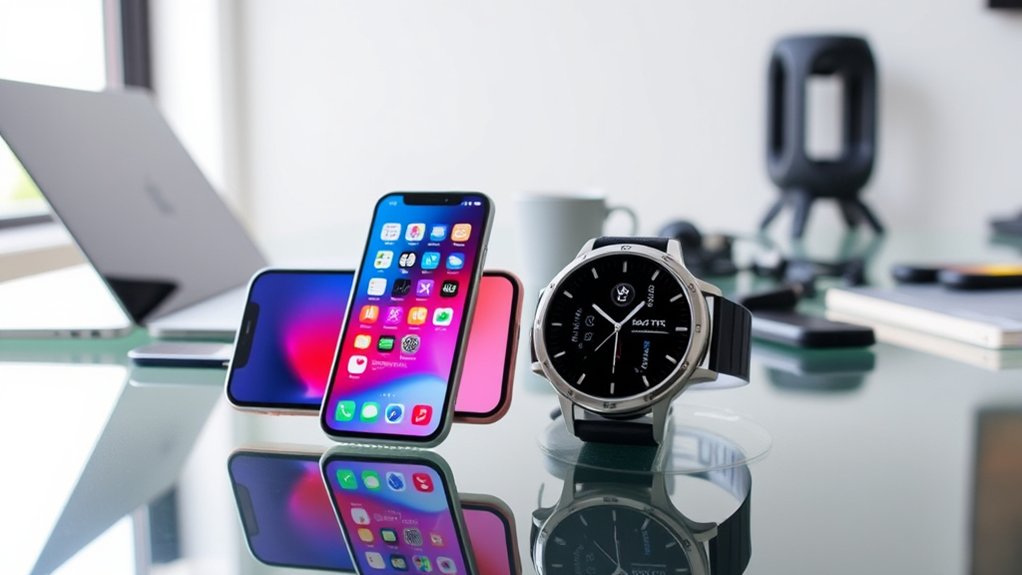
The Samsung Galaxy Watch 7 and iPhone 16 may look like a good combination, but Samsung does not support pairing them. This matters if you want phone notifications, calls, fitness syncing, or music controls on your wrist. Before buying a smartwatch or trying to fix a failed connection, it helps to understand which features require Android and which alternatives work with iOS.
Quick Answer
No. The Samsung Galaxy Watch 7 cannot officially pair with an iPhone 16 or any other iPhone. It uses Wear OS and requires a compatible Android phone for supported setup and syncing. Bluetooth pairing tricks and software updates cannot remove this restriction. iPhone users should choose an Apple Watch or another smartwatch with confirmed iOS support.
Is the Samsung Galaxy Watch 7 Compatible With iPhone 16?
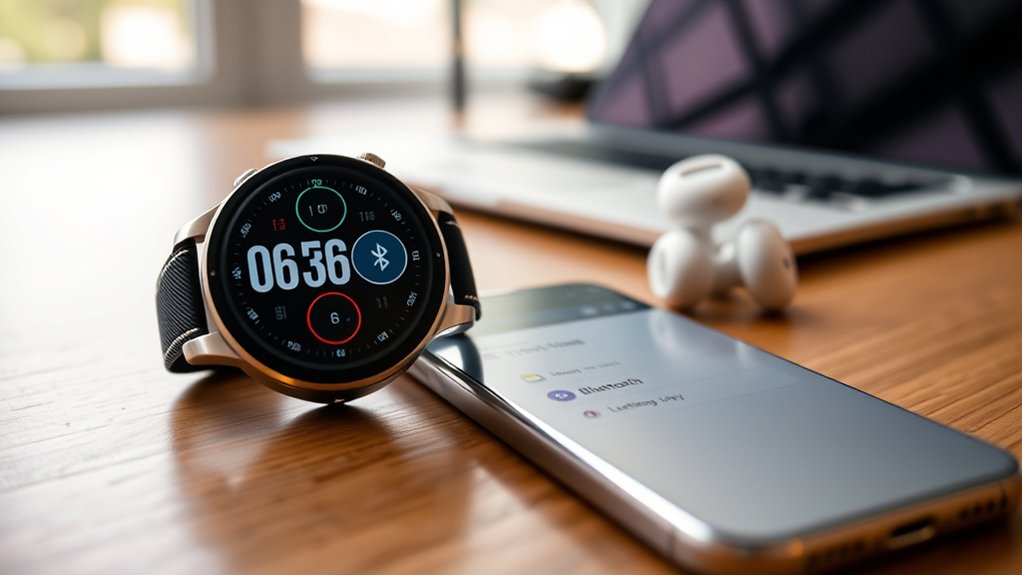
No, the Samsung Galaxy Watch 7 does not support iPhone 16 pairing. Samsung’s official compatibility requirements list Android smartphones as supported devices and iOS as unsupported.
The Galaxy Watch 7 runs Google’s Wear OS with Samsung’s One UI Watch software. Its initial setup and phone-connected features depend on the Galaxy Wearable app and services that are not available for this watch on iOS.
Samsung confirms these restrictions in its official Galaxy Watch compatibility chart.
Unlike older Samsung watches, the Galaxy Watch 7 cannot officially connect to an iPhone to receive phone notifications, synchronize calls or messages, or control the iPhone’s music playback.
Connecting Bluetooth headphones to a configured Galaxy Watch 7 is not the same as pairing that watch with an iPhone. Independent watch features do not provide iOS integration.
This does not mean the Galaxy Watch 7 lacks useful hardware or software. It means its smartphone integration is designed for Android, especially Samsung Galaxy phones.
Which Samsung Galaxy Watches Work With iPhones?
Some older Samsung Galaxy Watches supported iOS before Samsung switched to Wear OS. The Galaxy Watch3, original Galaxy Watch, Galaxy Watch Active, and Galaxy Watch Active2 were designed with limited iPhone compatibility.
However, compatibility with older models does not guarantee that their companion apps will continue working reliably with every newer iPhone or iOS release.
| Samsung Watch | Official iPhone Support | Important Detail |
|---|---|---|
| Galaxy Watch7 | No | Requires compatible Android phone |
| Galaxy Watch4, Watch5, Watch6 | No | Wear OS models without official iOS pairing |
| Galaxy Watch Ultra and Watch FE | No | Designed for compatible Android phones |
| Galaxy Watch3 | Older iOS support | Limited features; verify current companion-app support |
| Original Galaxy Watch and Watch Active series | Older iOS support | Basic syncing and notification features on supported setups |
For an iPhone 16 owner buying a watch now, choosing a model with active iOS support is more practical than relying on older Samsung hardware.
Alternatives for iPhone Users Seeking Smartwatch Functionality
The Apple Watch offers the most complete iPhone integration, while Garmin, Fitbit, Amazfit, and Withings offer different strengths. The best alternative depends on whether you value messaging, fitness tracking, battery life, or a traditional watch design.
Best Smartwatch Alternatives for iPhone 16
| Smartwatch | Best For | iPhone Considerations |
|---|---|---|
| Apple Watch Series, SE, Ultra | Smart features, communication, Apple ecosystem | Strong native integration; required iOS version depends on model |
| Garmin smartwatches | Running, outdoor activities, fitness metrics | iOS syncing and notifications; some message-reply features are Android-only |
| Fitbit Versa series | Everyday activity, sleep, heart-rate tracking | iPhone support through Google Health; phone-message replies are limited |
| Amazfit Bip 5 | Affordable fitness tracking and everyday notifications | Supports iOS through Zepp; certain functions differ from Android |
| Withings Steel HR | Traditional watch style and basic health tracking | Compatible with iOS, but fewer smartwatch functions |
Apple Watch: Choose an Apple Watch if answering calls, receiving messages, using Apple Pay, and accessing iPhone-connected apps matter most. Apple’s watch and iPhone compatibility guide lists the required iOS version for each Apple Watch generation.
Garmin: Garmin watches are particularly useful for structured workouts, GPS activity tracking, and outdoor exercise. The Garmin Connect compatibility requirements confirm iPhone support, although the exact functions depend on the watch.
Fitbit Versa: The Versa series focuses on activity, sleep, and health trends. Google’s health app setup requirements confirm iOS support. However, replying to ordinary phone messages directly from Fitbit is more restricted on iPhone than on Android.
Amazfit Bip: The Amazfit Bip 5 specifications confirm iOS compatibility through the Zepp app. It offers fitness tracking, notifications, and convenient daily features, with some functions limited to Android.
Withings Steel HR: Withings combines an analog watch face with activity tracking, heart-rate monitoring, and smartphone notifications. Its official compatibility guidance supports iOS 16 and later.
The TicWatch Pro family requires extra caution. Compatibility varies by generation, and newer models such as the TicWatch Pro 5 are Android-only, as confirmed by Mobvoi’s product specifications.
For most iPhone 16 users, an Apple Watch is the easiest overall choice. Garmin is a strong alternative when detailed fitness tracking and battery endurance matter more than full iOS integration.
Step-by-Step Guide to Connecting Your Galaxy Watch 7 to Android Phones
You can connect the Galaxy Watch 7 to a supported Samsung or non-Samsung Android smartphone using the Galaxy Wearable app. Before pairing, confirm that your phone meets Samsung’s requirements and has the services needed for setup.
Compatibility Requirements
The Galaxy Watch 7 requires an Android smartphone running Android 11 or later with at least 1.5GB of RAM, according to Samsung’s compatibility documentation.
You will also need the Galaxy Wearable app, Bluetooth connectivity, and access to the Google services used during setup.
- Operating system: Android 11 or newer.
- Phone memory: At least 1.5GB RAM.
- Companion app: Samsung Galaxy Wearable.
- Connectivity: Bluetooth and an internet connection for app downloads and account setup.
- Services: Google Mobile Services on supported Android phones.
- Device restrictions: Tablets and certain Android phone models are not supported.
Samsung Galaxy smartphones generally provide the broadest feature support. Other Android brands can handle many everyday features, although Samsung-specific services may not be available.
Connection Process Steps
Once your phone meets the requirements, the Galaxy Wearable app guides you through the pairing process. Keep both devices nearby and make sure they have enough battery power.
- Turn on the watch. Charge the Galaxy Watch 7 if necessary, then power it on.
- Prepare your Android phone. Enable Bluetooth and connect to the internet.
- Install Galaxy Wearable. Download Samsung’s official app from Google Play or Galaxy Store.
- Start pairing. Open Galaxy Wearable and select Start or the option to add a device.
- Select Galaxy Watch 7. Choose the watch when it appears in the list of available devices.
- Confirm the connection. Verify the matching pairing information on the phone and watch, then approve the prompts.
- Complete account and permission setup. Follow the instructions for supported Google and Samsung services.
- Install Samsung Health. Add or open Samsung Health to manage supported fitness and wellness data.
- Finish watch configuration. Adjust notifications, watch faces, app settings, and other supported preferences.
Samsung’s official Galaxy Watch setup instructions explain the supported pairing process and the differences between Android and older iOS-compatible models.
Pairing has succeeded when the Galaxy Wearable app shows the watch as connected and supported watch settings become available. You can then test a notification or synchronization through Samsung Health.
Troubleshooting Connection Issues
If the Galaxy Watch 7 cannot connect to a compatible Android phone, begin with Bluetooth, app updates, and device restarts. These steps can fix normal pairing problems, but they will not make an iPhone compatible.
| Step | Description | Tips |
|---|---|---|
| Check Phone Specs | Confirm Android 11+ and at least 1.5GB RAM | Check Android version in About Phone |
| Install Galaxy Wearable | Install or update the official Samsung app | Use Google Play or Galaxy Store |
| Activate Bluetooth | Enable Bluetooth and keep devices close | Avoid unnecessary interference |
| Follow Prompts | Approve pairing and required permissions | Check both device screens |
| Restart Devices | Restart the watch and Android phone | Reopen Galaxy Wearable afterward |
If the watch remains connected to a previous Android phone, use the watch’s supported transfer process before trying another device. Depending on its software and setup state, you may need to back up data or reset the watch.
A factory reset should be a last resort because it can erase watch data and settings that have not been backed up.
Top Features of Galaxy Watch 7 for Enhanced Android Experience
The Galaxy Watch 7 offers advanced health tracking, location features, and improved processing hardware when paired with Android. These strengths make it a capable smartwatch, even though it cannot provide the same connected experience on an iPhone.
Its Exynos W1000 processor uses a five-core, 3nm design. Compared with the Galaxy Watch6’s dual-core Exynos W920, the newer processor supports faster and more responsive operation.
The Galaxy Watch 7 also includes:
- Dual-frequency GPS: Uses L1 and L5 satellite signals to improve location tracking under suitable conditions.
- BioActive health sensors: Support heart-rate measurements and other wellness metrics.
- Sleep tracking: Provides sleep information and related health insights.
- Energy Score: Uses supported sleep and activity data to summarize readiness and wellness trends.
- Wellness Tips: Offers guidance based on supported Samsung Health information.
- Exercise tracking: Supports workouts, activity records, and fitness monitoring.
- Apps and music: Provides compatible Wear OS apps and supported audio features.
Samsung’s Galaxy Watch7 specifications and Watch6 comparison confirm the processor, improved GPS hardware, and expanded health capabilities.
Which Health Features Require a Samsung Phone?
Not every Galaxy Watch 7 health feature works with every Android device. General activity tracking and Samsung Health functions are available on supported Android phones, but some advanced measurements depend on Samsung Health Monitor.
Features such as electrocardiogram (ECG), irregular heart rhythm notifications, and sleep apnea detection require compatible Samsung Galaxy phones and supported regions.
Samsung’s Health Monitor compatibility instructions specify compatible Samsung smartphones running Android 12 or later for the supported medical-monitoring functions.
The Galaxy Watch’s sleep apnea feature received FDA authorization to detect signs of moderate to severe obstructive sleep apnea. Availability and eligibility requirements still apply.
Note: Sleep apnea screening and other smartwatch health measurements do not replace a medical diagnosis. If you have symptoms or concerning readings, discuss them with a qualified healthcare professional.
Energy Score and Wellness Tips also require supported Samsung Health versions, account setup, and available data. Their availability can vary by region and software version.
Why Won’t Galaxy Watch 7 Connect to iPhone 16, and Can You Fix It?
The Galaxy Watch 7 will not connect to an iPhone 16 through Samsung’s official setup process because the devices are incompatible. This is not a temporary Bluetooth problem, an incorrect permission, or a missing iPhone setting.
As a result, typical pairing fixes are not effective for this particular combination.
Restarting the devices, resetting Bluetooth, or updating iOS cannot add official iPhone support to the Galaxy Watch 7.
If you already purchased the watch, here is what to do:
- Confirm your watch model. Check whether you own a Galaxy Watch7 rather than an older iOS-compatible Samsung watch.
- Stop repeated iPhone pairing attempts. The supported Galaxy Wearable setup for this model requires Android.
- Use a compatible Android phone. Set up the watch on an Android device that meets Samsung’s requirements if you want to keep using it.
- Consider a return or exchange. If you only use an iPhone, an officially compatible smartwatch is the more reliable solution.
Can a Third-Party App Make Galaxy Watch 7 Work With iPhone?
Some third-party apps claim to provide limited communication between Wear OS watches and iPhones. However, Samsung does not officially support or guarantee these connections.
Even if a third-party method provides an isolated feature, it does not establish full Galaxy Wearable compatibility, Samsung Health integration, or dependable iPhone notification syncing.
These methods may also introduce privacy, security, and reliability concerns. They are not a substitute for supported pairing when choosing a smartwatch.
Can You Set Up Your Galaxy Watch 7 Without a Phone?
For the standard supported setup, the Galaxy Watch 7 needs a compatible Android smartphone. Once configured, the watch can perform certain tasks independently, but that is different from completing its first setup without a phone.
Compatibility Requirements Overview
The Galaxy Watch 7 uses Samsung’s Galaxy Wearable app during initial configuration. This allows the phone and watch to exchange pairing information, complete account setup, and enable supported services.
The basic requirements are a compatible Android smartphone, Galaxy Wearable, Bluetooth, and the services needed for activation.
An iPhone 16 cannot replace the Android phone in this process.
Samsung’s documentation also separates older standalone-capable Galaxy Watches from newer Wear OS models. Older setup instructions for particular models should not be assumed to apply to the Galaxy Watch 7.
Setup Process Steps
The most reliable approach is to complete the Galaxy Watch 7 setup with a supported Android phone first. After that, you can use available watch features without keeping your phone beside you at all times.
- Turn on the Galaxy Watch 7 and start its setup process.
- Open Galaxy Wearable on a compatible Android smartphone.
- Pair the watch and approve the required permissions.
- Restore an available compatible backup if the setup process offers that option.
- Finish Samsung Health and other supported app configuration.
- If you have an LTE model, follow the carrier’s mobile-plan activation instructions when available.
- Complete setup and test the features you want to use independently.
If you do not need mobile connectivity, you can use the Bluetooth model or skip an optional mobile-plan activation step on a supported LTE setup.
Limitations Without Smartphone
After initial configuration, several Galaxy Watch 7 functions can operate without a nearby phone. Their availability depends on the watch model, installed apps, network access, and existing setup.
Examples include checking the time, alarms, supported workout recording, and certain locally available apps or music features.
An LTE model can also use supported mobile network services when activated with a compatible carrier plan. However, LTE connectivity does not make it an iPhone-compatible smartwatch.
Without a supported paired phone, the watch cannot provide normal iPhone notification synchronization or full Galaxy Wearable integration.
For users who want a smartwatch that works independently of a nearby phone, checking the exact standalone and cellular capabilities before purchasing is essential.
Frequently Asked Questions
Where Can I Find the Manual for the Galaxy Watch 7?
You can find the Galaxy Watch 7 user manual through Samsung’s official support website. Search for Galaxy Watch7 or your exact model number, then open its manuals and downloads section. Samsung Members and Galaxy Wearable may also provide access to helpful setup instructions and troubleshooting resources.
What Are Some Tips and Tricks for Using the Galaxy Watch 7?
You can improve your Galaxy Watch 7 experience by customizing notification settings, choosing a practical watch face, and exploring Samsung Health features. Adjust screen brightness and always-on display settings to manage battery use. Keep the watch software updated and review which advanced features your paired Android phone supports.
Can I Use My Samsung Galaxy Smart Watch With My iPhone?
It depends on the Galaxy Watch model. Older models such as the Galaxy Watch3 and Galaxy Watch Active2 offered limited iPhone support, while Galaxy Watch4 and newer Wear OS models do not officially support iOS. For an iPhone 16, choose a smartwatch with confirmed support for your installed iOS version.
Where Can I Find the Manual for My Samsung Galaxy Watch?
Samsung provides user manuals for different Galaxy Watch generations through its support pages. Find the exact model name or model number before selecting a manual, because button controls, app requirements, and supported features vary. Samsung Members may also offer product guidance and troubleshooting information for supported devices.
Can a Third-Party App Connect Galaxy Watch 7 to iPhone 16?
Third-party apps may offer limited connections, but they cannot provide Samsung’s official iPhone support for the Galaxy Watch 7. Features can be unreliable or incomplete, and Samsung does not guarantee these methods. If phone notifications, health syncing, and everyday reliability matter, choose a smartwatch that officially supports iOS.
Conclusion
The Galaxy Watch 7 is not compatible with the iPhone 16 for official pairing, notifications, health syncing, or other phone-connected functions. Its advanced hardware and fitness features are best used with a compatible Android smartphone, particularly a Samsung Galaxy phone.
If you plan to keep your iPhone 16, the Apple Watch offers the most complete integration. Garmin, Fitbit, Amazfit, and Withings provide other useful choices depending on your fitness needs, preferred design, and battery-life priorities.
Before choosing a watch, confirm both its iOS requirements and the specific features you want. That simple check can prevent purchasing a smartwatch that cannot connect to your phone.
Sources
- Samsung Galaxy Watch Compatibility: Official Android and iOS support requirements for Galaxy Watch models.
- Samsung Galaxy Watch Setup Guide: Supported pairing, older iPhone-compatible watches, and phone-free use limitations.
- Apple Watch and iPhone Compatibility: Supported Apple Watch models and required iOS versions.
- Garmin Connect Compatibility: Garmin smartphone app support requirements.
- Google Health Setup Requirements: iPhone compatibility and companion-app requirements for Fitbit devices.
- Amazfit Bip 5 Specifications: iOS support, Zepp app, and supported features.
- Withings Steel HR Compatibility: Supported smartphone operating systems.
- Mobvoi TicWatch Pro 5: Official Android compatibility information.
- Samsung Galaxy Watch7 Specifications: Processor, GPS, hardware, and health feature comparison.
- Samsung Health Monitor Requirements: Compatible smartphones and advanced health-monitoring limitations.