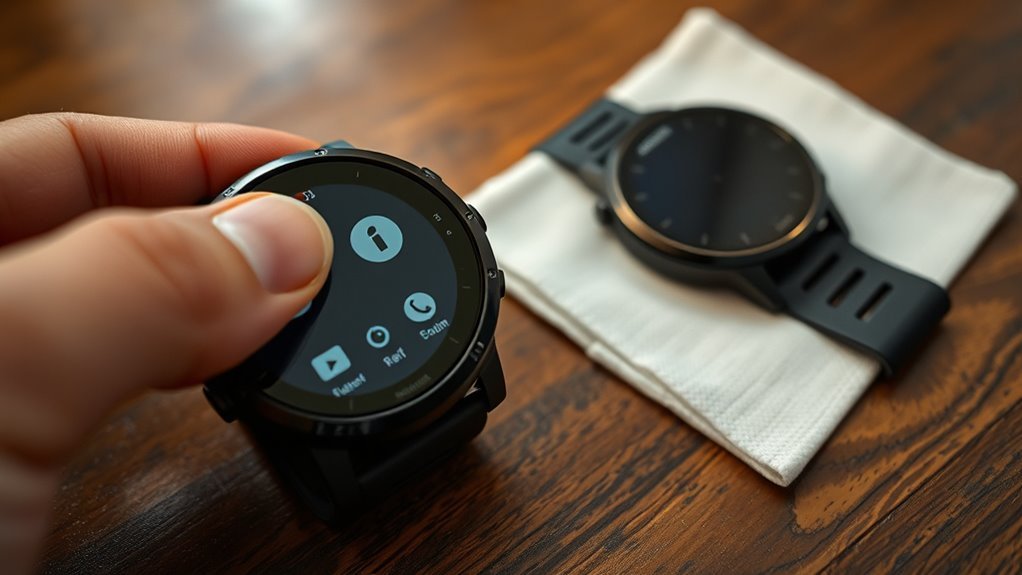
A Garmin watch can be reset in three ways: a soft reset, a reset of default settings, or a factory reset. A soft reset restarts the watch and keeps data intact, which helps with freezes or GPS glitches. A factory reset erases activities, profiles, music, and Garmin Pay, so it is best before selling or starting over. Back up data first, then reconnect Garmin Connect after the reset. More details can help with model-specific issues.
Key Takeaways
- A soft reset restarts the Garmin watch and fixes minor glitches without deleting your data.
- Hold the power button about 15 seconds, or choose Power off and Restart from the menu.
- A factory reset erases all user data, settings, activity history, Garmin Pay, music, and apps.
- Use Settings > System > Reset > Delete Data and Reset Settings for a full factory reset.
- Back up with Garmin Connect first, and re-pair the watch in the app after resetting.
Soft Reset Vs Factory Reset
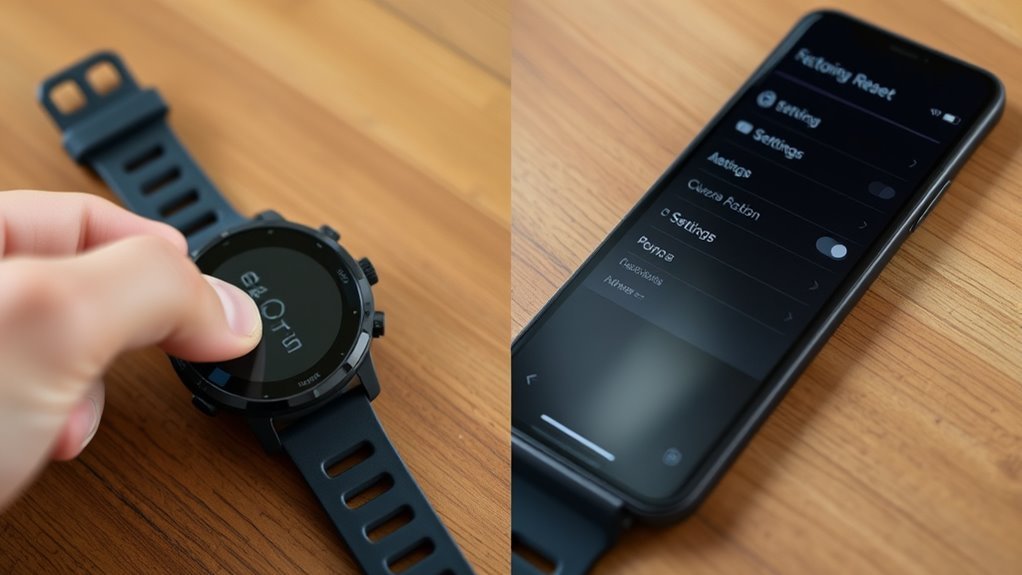
A Garmin watch can be reset in different ways depending on the problem. A soft reset is the lighter option. It simply restarts the watch, clears temporary glitches, and leaves all data intact. This makes it useful when the device freezes, becomes unresponsive, or shows GPS trouble.
A soft reset simply restarts the watch, clears temporary glitches, and keeps all data intact.
A soft reset is usually done by holding the power button for a short time until the watch powers down and begins again.
A factory reset is more drastic. It erases user-entered information, activity history, and settings, returning the watch to its original state. This option is reached through the settings menu and should be used only when complete clearing is needed, such as before selling or transferring the device.
A hard reset may restore defaults while keeping some data, but a factory reset removes everything. Knowing the difference gives the user control, clarity, and freedom over the device.
Back Up Your Garmin Data First
Before any reset, the Garmin watch should be synced with the Garmin Connect app so activity data is uploaded and محفوظ. That first step helps protect workouts, routes, and records from being lost.
Users should then back up important data in Garmin’s cloud storage, where it can be restored after the device is cleared. For extra security, exporting activity history and personal records from the app is a wise move.
Custom settings, watch faces, and other preferences should also be reviewed, because they may need to be entered again later. If a factory reset is planned, this preparation matters even more, since it can delete all user-entered information on the watch.
A careful back up process gives the wearer more control and less dependence on memory. It keeps data available, reduces risk, and makes the reset process cleaner, simpler, and easier to recover from later.
How to Soft Reset a Garmin Watch
To perform a soft reset on a Garmin watch, the user can hold the power button for about 15 seconds until the device powers off. Then press the power button again for two seconds to restart it.
This simple soft reset can clear minor glitches without erasing saved activity, settings, or personal data. It is often useful when the screen stops responding or GPS takes too long to lock on. For many users, it offers a quick path back to a functional device without unnecessary interruption.
If preferred, the same reset can sometimes be done from the menu by selecting Power off and then choosing restart.
Before starting, it is wise to sync the watch with the Garmin Connect app so recent activity is safely stored. After the device shuts down, it should power back on normally, restoring smooth operation and helping the user stay free from avoidable frustration.
How to Force a Soft Reset on a Frozen Garmin
When a Garmin watch freezes, the user can force a soft reset by holding the POWER/LIGHT button for about 30 seconds until the device shuts off. This simple move restores control without erasing settings, giving the user back freedom from a stuck screen.
- Keep pressing the POWER/LIGHT button steadily.
- Ignore any assistance alert that appears; continue holding.
- If nothing changes, connect the Garmin watch to a charger or computer.
- After it powers off, wait briefly, then press POWER/LIGHT again.
If the Garmin watch still refuses to start, leave it on the charger for at least an hour before trying again.
The soft reset works best when the battery has enough power to complete the restart. Used calmly, this method can release the watch from a frozen state and return it to normal use.
How to Factory Reset a Garmin Watch
A factory reset on a Garmin watch erases all user data and restores the device to its original settings. To begin, open Settings, tap System, then select Reset and choose Delete Data and Reset Settings. The watch will ask for confirmation before the factory process starts, giving a final chance to stop it.
Once approved, the Reset removes activity history, user profiles, stored music, and Garmin Pay wallet data from the device.
Before proceeding, all important files should be backed up, because the deletion is permanent.
After the factory reset completes, the watch returns to default condition and must be set up again. Resyncing with the Garmin Connect app can restore needed settings and applications.
This Reset path offers a clean break for users who want a fresh device, free from old data and clutter.
When to Use Reset Default Settings
Reset Default Settings is the better choice when the goal is to troubleshoot minor glitches or restore normal performance without wiping personal data. It returns factory default values while keeping profile data and activity history intact, so the user stays free from the burden of a full Delete Data reset.
It can also refresh settings when menus, alerts, or sensors behave oddly, without removing downloaded apps or files.
- Performance feels slow or unresponsive.
- Settings seem misconfigured after changes.
- Small bugs appear, but data must remain.
- A cleaner setup is needed without losing records.
On a Garmin watch, the path is usually Settings > System > Restore & Reset > Reset Default Settings. This option offers a safer reset path for anyone seeking relief from everyday issues while preserving the stored record of progress.
When to Wipe Everything and Start Over
A full wipe can help when performance problems, syncing errors, or a frozen screen continue after other reset attempts.
It will erase activity history, personal data, and saved settings, so it is best used only when a fresh start is truly needed.
Before proceeding, the user should back up anything important and confirm that the watch is no longer needed in its current state.
When Full Wipe Helps
Sometimes a full wipe is the best choice when a Garmin watch keeps acting up after simpler resets have failed. A full wipe returns the device to factory default values, clearing stubborn software problems and letting it start clean.
It can also free the watch from accumulated bugs that slow performance or cause random glitches. Consider it when:
- persistent errors remain after a soft reset
- the watch is being sold or transferred
- forgotten passwords or settings block normal use
- a clean slate is needed for renewed control
This option restores order when the device feels stuck. It gives the user a fresh beginning and removes the clutter that limits smooth operation.
Data You’ll Lose
Before wiping everything and starting over, it helps to know what disappears in the process. A factory reset removes user-entered data, including personal profiles, activity history, saved workouts, training metrics, and Garmin Pay wallet details.
A hard reset is less final: it clears settings and activity data, but downloaded apps and files remain. That makes it useful for troubleshooting when freedom from glitches is needed without total loss.
If the goal is a full Reset Default, the watch will be returned to a clean state, and any unsynced information is gone for good. Syncing with Garmin Connect first is the practical safeguard, because it preserves important records and settings before the wipe.
Before You Reset
When a Garmin watch starts acting up, the first step is usually to sync it with Garmin Connect so any activity data is safely backed up.
Before you reset, the Garmin Connect app should confirm that workouts, routes, and settings are uploaded.
Then the choice becomes clear:
- Use a soft reset for glitches or freezing, since it restarts without erasing data.
- Choose a factory reset for persistent problems that survive other fixes.
- Wipe everything before selling or transferring the watch, so no personal history remains.
- Review whether personal settings should be preserved or removed.
This check helps the user decide with confidence, rather than surrendering useful data by mistake.
A reset can be a clean break, but only when the reason justifies it.
What Gets Erased During a Factory Reset
A factory reset on a Garmin watch removes all user data, including activity history, profiles, personal records, and saved preferences.
It also clears watch settings, so any custom configuration must be set up again.
Garmin Pay, stored music, and downloaded apps are erased as well, requiring re-entry or re-download after the reset.
Erased User Data
A factory reset wipes the watch back to its original settings and removes all user-entered information, including personal profiles and customized settings.
This reset default action is designed to delete data completely, giving the device a clean slate. It suits anyone ready to hand off the watch or start fresh without baggage.
The following items are erased:
- Personal profiles and preference settings
- Activity history, workouts, and achievements
- Garmin Pay wallet payment details
- Stored music and downloaded apps
After the reset, the watch no longer holds private records or added content.
Reinstallation and setup are needed before use again. For those seeking freedom from clutter and old records, the process delivers a full release from prior data.
Lost Watch Settings
Lost settings are part of what disappears during a Garmin factory reset. Profiles, preferences, and other user-entered options are cleared, returning the watch to its Reset Default state. This makes the device feel fresh, but it also means the owner must rebuild personal setup choices afterward.
A factory reset will also delete data tied to activity history, including workouts and tracked metrics, so nothing stored on the watch survives the process. Any synced information already sent to Garmin accounts may remain available online, yet it must be re-uploaded to the watch if needed.
The reset is thorough, designed to wipe custom configuration and restore a clean starting point. For anyone seeking a clean break, this level of removal offers a practical reset.
Deleted Wallet And Music
During a Garmin factory reset, the watch’s Garmin Pay wallet is wiped completely, so all saved payment methods must be entered again afterward.
This Delete Data and Reset process also removes music stored on the device, restoring a blank slate. A factory reset permanently clears user-entered information, activity history, and workout records, so nothing tied to past performance remains.
To stay free from irreversible loss, backup important files before proceeding.
- Wallet deleted
- Music removed
- Activity history erased
- Settings and preferences cleared
After the Delete Data step, the watch requires fresh setup, including reloading audio and re-adding cards.
That tradeoff brings a clean restart, but only for users who have already protected what matters.
Reconnect Garmin Connect After Reset
| Step | Action | Result |
|---|---|---|
| 1 | Open Garmin Connect | Prepare pairing |
| 2 | Tap Add Device | Find the watch |
| 3 | Follow prompts | Complete sync |
If the watch shows a pairing code, enter it in the app to confirm a secure link. Once accepted, the watch and phone reconnect, and activity data plus settings can resync. That restores the user’s freedom to track, train, and move without carrying old friction. The process is brief, but each prompt matters. No extra setup is needed beyond patience and accurate entry.
What to Do If Your Garmin Still Has Problems
If the watch still acts up after reconnecting to Garmin Connect, the next step is to check for updates and basic fixes. A current firmware version can remove bugs and restore performance, helping the device function with less friction.
- Open Garmin Connect and install the latest firmware.
- Try a soft reset by holding the power button for 15 seconds.
- Inspect buttons, ports, and the case for debris or damage.
- Review Garmin manuals and forums for model-specific guidance.
If trouble continues, the watch may be signaling a deeper hardware issue. At that point, support resources can offer targeted steps before more drastic action.
A factory reset is the last resort, because it erases all user data and activity history. Back up important information first.
With careful troubleshooting, the device can often be returned to working order without losing personal progress.
Frequently Asked Questions
How to Do Hard Reset on Garmin Watch?
For watch troubleshooting, he or she powers off the Garmin, holds Back/Lap, then turns it on until the blue triangle appears. The reset benefits include factory defaults while preserving activity history; sync first.
Will I Lose Everything if I Reset My Garmin Watch to Factory Defaults?
Yes, a factory defaults reset erases nearly everything: settings, profiles, apps, music, and Garmin Pay. Activity history may remain with a hard reset. Sync first for data backup, and understand reset differences before proceeding.
How Do I Do a Soft Reset on My Garmin?
Measure twice, cut once: for Garmin troubleshooting tips, press and hold POWER/LIGHT about 15 seconds until it powers off, then restart it. This soft reset often brings watch performance improvements without erasing personal data.
Is There a Way to Reset Your Garmin Watch?
Yes, a Garmin watch can be reset through watch settings using several reset methods. A soft reset restarts it, while factory reset erases data. Syncing with Garmin Connect first preserves activity history and personal settings.
Conclusion
In most cases, a soft reset is the safer first step because it can fix minor freezes without erasing settings or activity data. A factory reset should be reserved for persistent glitches, sync failures, or a watch that will not respond normally. Some users worry that resetting will make the problem worse, but when troubleshooting has stalled, starting fresh often restores stable performance and saves time. If issues remain, Garmin support may be needed.
