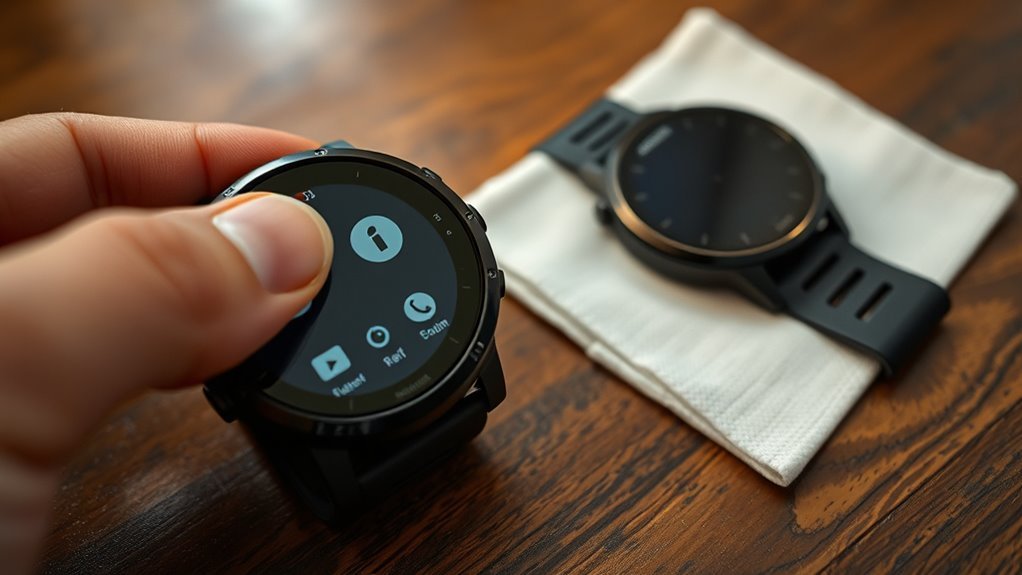
A Garmin watch can usually be fixed or cleared in several different ways, from a simple restart to a full factory reset. The safest choice depends on whether the watch is frozen, its settings are misbehaving, or you need to erase personal data before selling it. Because Garmin menus and button combinations vary by model, use the general steps below and check your exact watch manual before performing a destructive master reset.
Quick Answer
To reset a Garmin watch safely, start with a normal restart or forced restart because these usually keep your saved data. If that does not fix the problem, try Reset Default Settings where supported. Use Delete Data and Reset Settings only when you need a factory reset, and sync your watch first.
Key Takeaways
- A normal restart or forced restart is the best first step for a frozen or unresponsive Garmin watch.
- On a frozen watch with a physical power button, Garmin may instruct you to hold the power button for up to 30 seconds until it shuts off.
- Reset Default Settings can restore factory settings while keeping user-entered information and activity history on supported models.
- Delete Data and Reset Settings is the destructive option and can erase user-entered information, activity history, Garmin Pay data, stored music, and other watch data.
- Sync with Garmin Connect before resetting. Select watches also support a separate Device Backups feature.
- Master-reset button combinations vary by Garmin model, so never use a random button sequence intended for another watch.
At a Glance
| Time Required | Usually a few minutes for a restart; setup after a factory reset takes longer |
| Difficulty | Easy, but model-specific master resets require care |
| Tools Needed | Garmin watch; charging cable if the watch will not respond; phone with Garmin Connect for syncing and pairing |
| Cost | Free |
Soft Reset Vs Factory Reset
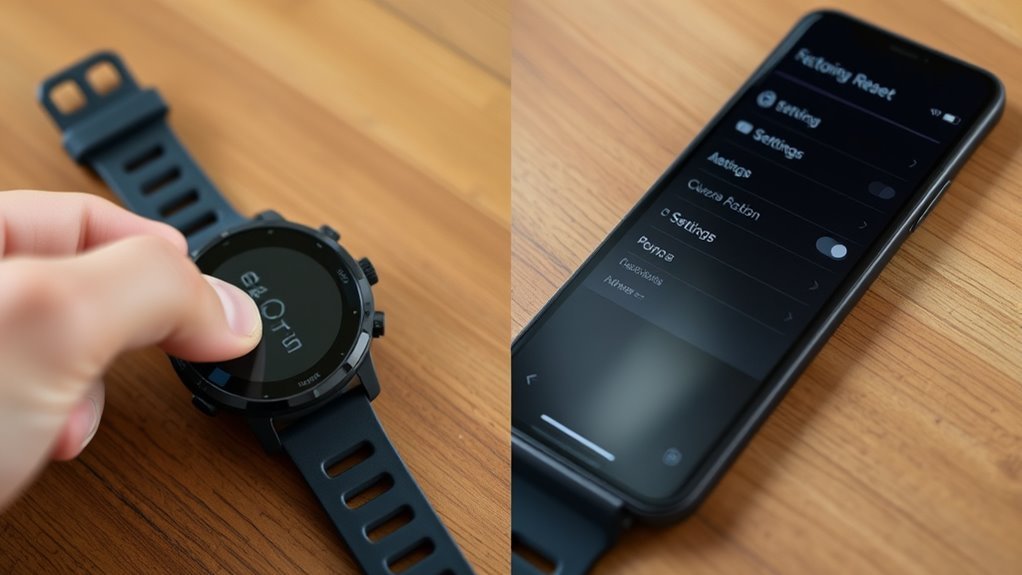
Garmin watches offer different levels of resetting. The least disruptive option is a normal restart. It turns the watch off and back on without intentionally deleting activity history, settings, or personal information.
A forced restart, sometimes casually called a soft reset, is useful when the screen is frozen and the normal power controls do not work. On Garmin watches with a physical power button, Garmin’s troubleshooting guidance may require holding that button until the watch shuts down, sometimes for up to 30 seconds.
Reset Default Settings is a separate option available on many Garmin models. Where supported, it restores watch settings to factory-default values while retaining user-entered information and activity history.
A factory reset, commonly labeled Delete Data and Reset Settings on supported Garmin watches, is much more destructive. It restores factory-default settings and deletes user-entered information and activity history. On compatible watches, Garmin also states that this option removes the Garmin Pay wallet and music stored on the device.
There is no single master-reset button combination that applies to every Garmin watch. The correct buttons and menu names depend on the exact model.
| Reset Type | Best For | Data Impact |
| Normal restart | Minor glitches or routine troubleshooting | Does not intentionally erase stored data |
| Forced restart | Frozen or unresponsive watch | Normally non-destructive, although very recent unsaved information may be lost |
| Reset Default Settings | Misconfigured settings or persistent software behavior | On supported models, settings reset while user-entered information and activity history remain |
| Factory/master reset | Starting over, severe troubleshooting, selling or transferring the watch | Potentially destructive; exact behavior depends on the model and reset option |
Note: Garmin documentation sometimes uses terms such as reset, hard reset, master reset, restore defaults, and Delete Data and Reset Settings differently across product generations. Check the instructions for your exact model before using a button-based master reset.
Back Up Your Garmin Data First
Before performing any destructive reset, sync the watch with Garmin Connect. Garmin specifically recommends syncing before resetting supported watches so recent activity data can be uploaded to your account.
Do not confuse a normal Garmin Connect sync with a complete device backup. Synced activities that have already reached your Garmin Connect account are separate from information that exists only on the watch.
Some newer Garmin watches also support a dedicated Back Up & Restore feature. Garmin says supported backups can preserve items such as activity and app lists, activity settings, watch-face customization, glances, selected Connect IQ content, alarms, timers, and paired sensors.
To see whether your watch supports that feature, check its System settings or owner’s manual. Garmin notes that the feature is available only on select watches.
Pro Tip: Before a factory reset, open Garmin Connect and confirm that your latest activity has actually synced. If your watch supports Device Backups, create or confirm a recent backup as an additional safeguard.
If you need an independent archive of Garmin account information, Garmin also provides data-export tools through Garmin Connect. That is different from restoring a watch after a reset, but it can provide another copy of important records.
How to Soft Reset a Garmin Watch
For minor problems, start with a normal restart rather than immediately resetting settings or deleting data.
- Use the watch’s power control to turn it off normally. Depending on the model, this may mean holding the power/LIGHT button and selecting the power icon.
- Wait briefly after the watch shuts down.
- Press the power button again to turn it on.
- Check whether the original problem is gone before trying a more disruptive reset.
Some one-button Garmin wearables can also restart when the button is held for several seconds. Because the button layout varies across the Garmin lineup, use your owner’s manual if your watch does not behave as described.
A normal restart is useful for temporary Bluetooth, display, menu, or GPS-related glitches and does not intentionally erase your activity history or personal settings.
How to Force a Soft Reset on a Frozen Garmin
If a Garmin watch is frozen and will not respond to normal controls, a forced restart is the next step.
- If possible, connect the watch to a working charging cable and power source.
- Press and hold the physical power button until the watch powers off. Garmin’s general frozen-device guidance says this may require holding it for up to 30 seconds.
- Release the button once the watch shuts down.
- Press the power button again to turn the watch back on.
A forced restart is not intended to factory-reset the watch. However, Garmin warns on some models that recent information, such as unsynced steps or the current time state, can be affected by a forced shutdown.
Note: A Garmin wearable without a physical button may use a different restart procedure. Garmin’s general troubleshooting guidance for some buttonless wearables is to connect the device to its charging cable and then disconnect it.
If the watch remains completely unresponsive, leave it connected to a known-good charger and inspect the cable and charging contacts for debris, corrosion, or damage before assuming a factory reset is necessary.
How to Factory Reset a Garmin Watch
A factory reset should be used when you intentionally want to remove personal data or when less-destructive troubleshooting has failed.
Warning: A destructive factory or master reset can permanently erase unsynced activities, settings, payment information, music, and other locally stored data. Sync first and verify the instructions for your exact Garmin model before confirming the reset.
On many current Garmin watches, the reset menu is found under Settings > System. Depending on the model, you may then see Reset directly or a Restore & Reset submenu.
Where the option is available, Delete Data and Reset Settings resets the watch to factory-default values and deletes user-entered information and activity history. Garmin states that on compatible watches it also deletes the Garmin Pay wallet and stored music.
- Sync the watch with Garmin Connect.
- Open the watch’s Settings menu.
- Open System.
- Open Reset or Restore & Reset, depending on your model.
- Select the destructive option labeled Delete Data and Reset Settings, or the equivalent factory-reset option documented for your model.
- Read the confirmation message carefully.
- Confirm only when you are ready to erase the watch.
- After the reset, complete initial setup and pair the watch with Garmin Connect again.
If your watch cannot reach its menu because it is stuck at the Garmin triangle or will not boot normally, Garmin may provide an unprompted master-reset button sequence. Those button combinations are highly model-specific. For example, Garmin documents different sequences for fēnix and quatix generations, so a sequence found for another watch should not be assumed to work safely on yours.
When to Use Reset Default Settings
Reset Default Settings is often the better troubleshooting choice when you want to return settings to their original values without intentionally erasing your activity history.
On Garmin models that provide this option, Garmin describes it as restoring watch settings to factory-default values while saving user-entered information and activity history.
Consider it when:
- Menus or alerts have become misconfigured.
- Settings changed unexpectedly after troubleshooting.
- The watch behaves abnormally but your stored activity history should remain.
- A normal or forced restart did not solve a settings-related problem.
The exact menu path varies. One current Garmin layout uses Settings > System > Restore & Reset > Reset > Reset Default Settings, while other watches place Reset directly under System.
Do not choose Delete Data and Reset Settings when your goal is only to restore default preferences.
When to Wipe Everything and Start Over
A complete reset makes sense when the watch is being sold or transferred, or when persistent software problems continue after ordinary troubleshooting.
Because a full reset can erase locally stored information, it should normally come after syncing, restarting, checking updates, and trying less-destructive reset options where available.
When Full Wipe Helps
Consider a full factory or master reset when:
- persistent software problems remain after ordinary restart and settings troubleshooting;
- the watch is being sold, gifted, or transferred to another person;
- Garmin’s model-specific troubleshooting procedure explicitly calls for a master reset;
- the watch reaches recovery or startup troubleshooting where a factory reset is one of Garmin’s documented options.
A reset can remove corrupted settings or user configuration, but it is not a repair for physical damage, a failed battery, damaged charging contacts, or other hardware faults.
Data You’ll Lose
What disappears depends on the exact reset option and Garmin model.
For watches using Delete Data and Reset Settings, Garmin documents deletion of user-entered information and activity history along with restoration of factory settings. Compatible models can also lose Garmin Pay wallet information and stored music.
A model-specific master reset may also erase substantially more than settings. Garmin’s documentation for several watch families describes master resets that clear user data and return the device to its factory state.
For that reason, do not assume that something called a “hard reset” will preserve your activities, apps, or files. Garmin uses different terminology across different products and generations.
Before You Reset
Use this checklist before a destructive reset:
- Sync the watch with Garmin Connect and confirm the latest activity appears in your account.
- If your watch supports Device Backups, confirm that a recent backup is available.
- Make a note of important custom settings you may need to recreate.
- Remember that Garmin Pay cards may have to be added again.
- Expect locally stored music to require restoration or re-downloading on affected models.
- Verify that the reset instructions match your exact Garmin model.
- If you are troubleshooting rather than selling the watch, try a normal restart and software updates first.
This check reduces the risk of deleting information that could have been synced or preserved first.
What Gets Erased During a Factory Reset
A destructive Garmin factory reset can remove user-entered data, activity history, watch settings, and other locally stored information. The exact list varies with the watch and reset option.
Garmin specifically documents Garmin Pay wallet deletion and stored-music deletion when Delete Data and Reset Settings is used on compatible watches.
Information that had already synced successfully to your Garmin Connect account is separate from the copy stored locally on the watch. Resetting a watch does not mean deleting your entire Garmin Connect account.
Erased User Data
Depending on the watch, a factory or master reset may clear items such as:
- user profile information stored on the watch;
- locally stored activity history and workouts;
- custom watch settings and preferences;
- Garmin Pay wallet information on compatible devices;
- music stored locally on compatible music watches;
- pairings and other model-specific locally stored information.
Connect IQ content and other downloaded material can also be affected by certain model-specific master resets. Garmin’s fēnix 5 master-reset documentation, for example, states that its reset clears Connect IQ content along with settings, records, and activity history. This is another reason not to generalize one model’s reset behavior to every Garmin watch.
Lost Watch Settings
Factory resetting a Garmin watch returns its configuration to factory values. Expect to review items such as activity settings, alerts, watch-face preferences, sensors, phone connections, and other personalized options during setup.
Some Garmin watches support Device Backups that can restore selected settings after a reset. Garmin says supported backups can include activity/app lists, activity settings, watch-face customization, glance lists, certain Connect IQ content, alarms, timers, and paired sensors.
If your watch does not support that feature, you may have to rebuild those settings manually.
Deleted Wallet And Music
On supported watches, Garmin states that Delete Data and Reset Settings removes the Garmin Pay wallet from the watch. Your cards therefore need to be added again before you can resume wrist payments.
Music stored locally on compatible Garmin music watches is also deleted by that reset option and must be restored or downloaded again afterward.
Warning: Do not rely on a factory reset as a backup method. Anything that exists only on the watch and is removed by the selected reset may be unrecoverable afterward.
Reconnect Garmin Connect After Reset
| Step | Action | Result |
| 1 | Open Garmin Connect | Prepare the app for pairing |
| 2 | Open Garmin Devices and choose Add Device | Search for the watch |
| 3 | Put the watch into pairing mode and confirm the displayed code | Complete pairing and begin syncing |
Garmin’s current pairing instructions generally use Garmin Connect > Garmin Devices > Add Device. Put the watch into pairing mode when prompted and confirm the pairing code shown on the watch.
If resets are becoming a monthly ritual, the hardware is usually the problem rather than the software. Our vivoactive and Venu comparison covers the current models if you are ready to move on.
If Garmin Connect cannot find the watch, stale Bluetooth pairing information may be the problem. Garmin recommends removing the device from Garmin Connect and from the phone’s Bluetooth settings when troubleshooting a failed connection, then restarting the devices and pairing again through Garmin Connect.
Pro Tip: Pair the watch through Garmin Connect rather than creating a partial connection directly from the phone’s Bluetooth menu. Garmin’s troubleshooting documentation specifically recommends completing the watch setup through Garmin Connect.
If a supported Device Backup exists, Garmin Connect may offer the backup during the restoration process. Allow the watch to finish syncing before assuming settings or content are missing.
What to Do If Your Garmin Still Has Problems
If the watch still freezes, reboots, will not sync, or fails to start after a reset, continue with basic troubleshooting before repeatedly factory-resetting it.
- Install available software updates. Garmin recommends keeping watch software current when troubleshooting repeated reboots and related problems.
- Restart the phone and watch. This can clear temporary Bluetooth connection problems.
- Check charging hardware. Inspect the cable and charging contacts for debris, corrosion, or physical damage.
- Remove stale Bluetooth pairings. If syncing fails, remove the device from Garmin Connect and the phone’s Bluetooth list, then pair it again through Garmin Connect.
- Check the exact Garmin model’s support page. Startup failures and master-reset procedures are model-specific.
- Use Recovery Mode only where supported. Select Garmin watches offer recovery options that can attempt repair, connect to a computer, remove problematic maps, or perform a factory reset.
- Contact Garmin Support when the problem remains. Continuing to erase the watch will not repair failed hardware.
A factory reset should therefore be treated as one troubleshooting tool rather than a guaranteed solution.
Frequently Asked Questions
How do I do a hard reset on a Garmin watch?
There is no universal Garmin hard-reset button sequence. Garmin master-reset procedures vary by watch family and generation. Some require different combinations of LIGHT, BACK, START/STOP, or other buttons. Use the instructions for your exact model because a master reset can erase personal data and settings.
Will I lose everything if I reset my Garmin watch to factory defaults?
It depends on the reset option. On supported watches, Reset Default Settings can restore settings while preserving user-entered information and activity history. Delete Data and Reset Settings is destructive and removes user-entered information and activity history; compatible watches also lose Garmin Pay wallet data and stored music. Sync first.
How do I soft reset my Garmin without deleting data?
Start with a normal restart by powering the watch off and back on. If it is frozen, Garmin’s general troubleshooting guidance for watches with physical power buttons is to hold the power button until the watch shuts down, which may take up to 30 seconds, then power it on again. This is different from choosing a factory-reset option.
Is there a way to reset Garmin settings without deleting activity history?
Yes, on Garmin watches that provide Reset Default Settings. Garmin documents this option as restoring watch settings to factory values while saving user-entered information and activity history. The exact menu path varies by model.
Does factory resetting a Garmin watch delete Garmin Connect data?
A watch factory reset deletes data from the device according to the reset option being used; it does not delete your entire Garmin Connect account. Activities that successfully synced to your account before the reset remain separate from unsynced information stored only on the watch.
What should I do if my Garmin will not pair after a factory reset?
Restart the watch and phone first. If pairing still fails, remove the Garmin device from Garmin Connect and from the phone’s Bluetooth settings, restart both devices, put the watch into pairing mode, and add it again through Garmin Connect.
Should I factory reset a Garmin before selling it?
Yes. Garmin recommends performing a factory reset before selling or giving away a wearable so personal data and settings are removed. Use the reset procedure for the exact model, and sync anything you want to keep before erasing the watch.
Conclusion
For most Garmin watch problems, begin with the least-destructive option: restart the watch, install available updates, and check its connection to Garmin Connect. If the watch is frozen, a forced restart may recover it without requiring a factory reset.
Use Reset Default Settings where supported when you need to restore configuration without intentionally deleting activity history. Reserve Delete Data and Reset Settings or a model-specific master reset for situations where a complete reset is actually necessary, such as preparing the watch for a new owner or following Garmin’s troubleshooting instructions.
Most importantly, do not copy a master-reset button combination from a different Garmin model. Sync first, verify your exact watch instructions, and contact Garmin Support if repeated resets do not resolve the problem.
Sources
- Garmin Support — Garmin Fitness Device Is Frozen or Will Not Power On — supports forced-restart and frozen-device troubleshooting.
- Garmin Support — Resetting All Default Settings — supports Reset Default Settings, Delete Data and Reset Settings, Garmin Pay, and stored-music guidance.
- Garmin Support — Using the Back Up and Restore Feature on Select Garmin Watches — supports Device Backups and restoration guidance.
- Garmin Support — Remove and Add a Device From the Garmin Connect App — supports Bluetooth removal and re-pairing steps.
- Garmin Support — fēnix 6 Stuck on Blue Triangle — demonstrates that master-reset button sequences are model-specific.

