
Recovering photos from a broken iPhone starts with one careful question: what still works? A cracked screen, a dead display, water damage, or a phone that will not turn on can each require a different recovery method. Before you try random apps or repairs, check the damage, protect the phone from further harm, and look for backups that may already contain your pictures.
Quick Answer
To retrieve pictures from a broken iPhone, first check iCloud Photos, iCloud Backup, Finder, or iTunes backups. If the phone still powers on, connect it to a trusted computer and copy photos directly. If the device is physically damaged, avoid risky DIY fixes and contact a reputable phone repair or data recovery specialist.
Key Takeaways
- Start by checking whether the iPhone powers on, responds to touch, charges, or connects to a computer.
- Look for existing iCloud Photos, iCloud Backup, Finder, or iTunes backups before trying recovery software.
- Use third-party recovery software only from reputable companies, and avoid tools that ask for unnecessary account access.
- Do not charge or turn on a water-damaged iPhone until it has been professionally inspected or fully dried.
- If the damage is severe, a professional data recovery service may be safer than repeated DIY attempts.
At a Glance
| Time Required | 10 minutes to several days, depending on damage and backup availability |
| Difficulty | Easy if backups exist; advanced if the iPhone has physical damage |
| Tools Needed | Apple ID, iCloud access, USB cable, Mac or PC, SIM eject tool, and optional recovery software |
| Cost | Free for backups and direct transfer; paid for software, repair, or professional data recovery |
Understand the Extent of the Damage
When a smartphone is damaged, the first step is to assess the extent of that damage. This evaluation matters because it determines what you should try next. If the iPhone has a cracked screen but still turns on, your photos may still be accessible through the Photos app, a computer connection, iCloud Photos, or a recent backup.
If the phone has water damage, severe impact damage, a black screen, or no response at all, the situation becomes more complex. Check whether the device can power on, vibrate, charge, respond to touch, make sounds, receive calls, or connect to another device. These signs can help you understand whether the issue is mainly display-related, battery-related, software-related, or a deeper hardware failure.
Many users assume a badly damaged iPhone means their photos are gone forever. That is not always true. A phone with a broken screen may still be fully functional internally. A device with a damaged charging port may still contain recoverable photos if a technician can repair the connection or power the device safely. Even a phone that seems dead may have recoverable data if the storage chip and security components remain intact.
For example, a device that has been submerged in water may not turn on immediately, but the data may still be recoverable after proper handling. However, water damage is also one of the easiest situations to make worse. Turning the device on too soon, charging it, using heat, or shaking it can increase the risk of short circuits and corrosion.
Warning: If your iPhone has water damage, do not plug it in, charge it, or try to force it on. Power and moisture can cause more damage. Keep the phone powered off and seek professional help if the photos are important.
It is also helpful to separate hardware issues from software issues. Hardware problems include a cracked display, broken charging port, damaged battery, liquid exposure, or impact damage. Software problems include a frozen screen, failed update, boot loop, forgotten passcode, or corrupted system files. Hardware issues may require physical repair before photo recovery is possible, while software issues may be easier to resolve through backups, recovery mode, or computer-based tools.
Back Up Your Data Before Damage Happens
Backing up data is a fundamental practice that every smartphone user should prioritize. Regular backups can protect you from data loss caused by accidental deletion, device theft, hardware failure, or physical damage. If your iPhone breaks today, the easiest recovery path is usually a backup you created before the damage occurred.
iPhone users have several backup and photo-sync options. iCloud Photos can keep photos and videos synced to your Apple account. iCloud Backup can save device data, settings, app data, and other information. Finder on newer macOS versions and iTunes on Windows or older macOS versions can create local backups on a computer.
Cloud services such as Google Photos, Dropbox, OneDrive, or Google Drive may also contain copies of your pictures if you installed them and enabled automatic uploads before the phone broke. These platforms make it easier to access your photos from another phone, tablet, or computer.
You can set up automatic backups to ensure that your data is consistently updated without manual work. This proactive approach to data management can save you from the stress and potential loss of important information after device failure.
Pro Tip: Use more than one backup method. For example, keep iCloud Photos enabled and also create an occasional encrypted computer backup. This gives you a second recovery option if one method fails.
Check iCloud Photos First
Before connecting cables, paying for software, or visiting a repair shop, check whether your photos are already stored in iCloud Photos. On another device or computer, sign in with the same Apple ID you used on the broken iPhone. If iCloud Photos was enabled, your photos and videos may already be available without needing access to the damaged phone.
This is different from an iCloud Backup. iCloud Photos is a syncing service. When it is turned on, photos can appear across your Apple devices and on iCloud through a browser. An iCloud Backup is a stored copy of device data that you restore to another iPhone or iPad. Both can help, but they work in different ways.
If you find your pictures in iCloud Photos, download the most important images to a computer or another storage location. Do not rely on a single account or single device for long-term storage. Saving a second copy helps protect your photos if you lose account access later.
Use iCloud Backup, Finder, or iTunes Backup
For Apple users, iCloud and iTunes provide strong options for backing up and restoring data. iCloud offers a convenient way to back up data wirelessly, including device settings, app data, and other information. Users can enable automatic backups by going to their device settings and turning on iCloud Backup.
This feature allows regular updates without manual intervention, making it useful for people who may forget to back up their devices. If your broken iPhone had iCloud Backup turned on, you may be able to restore that backup to another iPhone during setup. After the restore completes, check whether your photos return.
Finder and iTunes provide an alternative for users who prefer local backups on their computers. On newer Macs, Finder handles iPhone backups. On Windows and older macOS versions, iTunes is commonly used. By connecting an iPhone or iPad to a computer, users can create backups that include much of the device’s data.
This method is especially useful for those who have limited internet access or prefer not to rely only on cloud storage. If your broken iPhone was previously backed up through Finder or iTunes, restoring that backup to another compatible iPhone may bring back your photos, messages, and other saved information.
Note: Restoring a backup to another iPhone can replace the current data on that device. If the replacement phone already contains important information, back it up before restoring anything.
Connect the Broken iPhone to a Computer
Connecting a damaged smartphone to a computer can open up another route for data recovery. Many smartphones allow file transfer through USB connections, which can let users access photos, videos, and documents stored on the device. This method works best when the iPhone still turns on and has already trusted the computer before.
If the screen is broken but the iPhone still works, connect it to a Mac or PC with a reliable USB cable. On a Mac, check Finder, Photos, or Image Capture. On a Windows computer, check File Explorer or the Photos app. If the phone appears, you may be able to import photos directly.
However, iPhones usually require you to unlock the device and trust the computer before data transfer works. If the screen does not respond and the computer was never trusted before, direct access may not be possible. In that case, backups, iCloud Photos, screen repair, or professional recovery may be better options.
Once connected, users can explore available storage through built-in operating system features such as Finder on macOS or File Explorer on Windows. This direct access can provide an immediate way to copy important photos to a computer. If the device is not recognized, try a different cable, USB port, computer, or charging adapter before assuming the data is lost.
Use Third-Party Software Carefully

In situations where traditional recovery methods fall short, third-party software can sometimes help with data recovery. Some applications are designed to scan iPhone backups, extract photos from existing backup files, or help recover data from devices that are still partially accessible. These tools often provide user-friendly interfaces and step-by-step instructions, making them accessible to users with limited technical knowledge.
For example, software like Dr.Fone, EaseUS MobiSaver, iMyFone D-Back, and PhoneRescue may help users scan for recoverable files, preview available data, or extract photos from backups. These tools are most useful when the iPhone can still be recognized by a computer or when a backup already exists.
However, it is essential to choose reputable software to avoid further complications. Some applications may promise complete recovery but provide little value, charge high fees, or ask for sensitive account information. Poor-quality tools could also create privacy risks or encourage steps that make recovery harder.
Before installing any recovery program, research the company, read recent user reviews, check refund policies, and avoid tools that make unrealistic promises. Many recovery programs offer trial versions that let you scan or preview recoverable files before you pay. Use that preview feature before committing to a purchase.
Warning: No software can guarantee recovery from every broken iPhone. If the phone has serious liquid damage, motherboard damage, or power issues, repeated software attempts may waste time while the hardware problem gets worse.
[Amazon Products Picked for You]
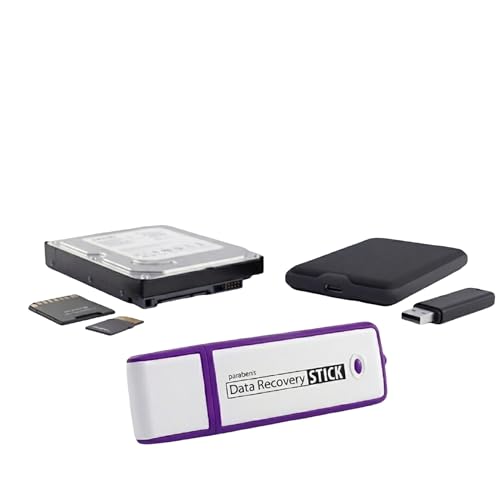
The Data Recovery Stick requires no technical skills — simply plug it into your Windows computer, click Start, and the software automatically begins scanning and recovering lost files within minutes. Compatible with Windows Vista, 7, 8, 10, & 11, it's designed to be a reliable first step when accidental deletion occurs.

Recover Existing Android Data - Retrieve text messages, call logs, contacts, calendar entries, notes, photos, videos, and more from supported Android phones and tablets. Designed to help access important files and information quickly through an easy-to-use recovery process. Ideal for personal, business, or technical data recovery needs.
![iFonebox for Windows – Recover lost iPhone, iPad or iPod Touch Data [Download]](https://m.media-amazon.com/images/I/81RUy4CzRqL._SL500_.png)
Retrieve up to 16 types of data from iOS devices as well as iTunes/iCloud backup (Text content: Contacts, Messages, WhatsApp, Call history, Calendar, Notes, Reminder, Safari bookmark; Media content: Photos, Message attachments, WhatsApp Attachment, Voice memos.)
Try Screen Repair If the Phone Still Works
If your iPhone turns on, charges, vibrates, rings, or receives notifications, but the display is cracked or black, the photos may still be safe inside the device. In that case, a screen repair may be the simplest way to regain access. Once the display works again, you can unlock the phone, trust a computer, open the Photos app, upload images to cloud storage, or create a fresh backup.
This approach is often better than trying to bypass the screen with complicated tools. iPhone security is designed to protect your data. Without the passcode, Face ID, Touch ID, or a trusted computer connection, direct access can be limited. A working screen restores your ability to unlock the phone normally.
Choose a repair provider carefully. A reputable technician should explain the repair risks, discuss data protection, and avoid wiping the phone unless you approve it. Tell the technician that photo recovery is your priority before they begin. Ask them not to restore, erase, or update the device without your permission.
[Amazon Products Picked for You]

📲 [ Compatibility ] This 3D touch LCD screen replacement Only fits for 6.1 inch iPhone 11, fit for models A2111, A2223, A2221, NOT for XR, 11 Pro Max, 12 or any other models. The display iphone 11 is designed according to the model, please make sure you identify the model of your device correctly before purchase.

Remind:Compatible with: ONLY for iPhone 11 screen replacement with model (A2111, A2223, A2221) (6.1inch). Please DO NOT use it on any other models.

[Description]: This is an excellent replacement for your broken, faulty, cracked or dead pixeled touch screen! This product will be professionally quality tested after production, and will only be shipped if it passes the test. Since this product is fragile, it may be damaged during fulfillment. If you receive a damaged product, please feel free to contact us and we will give you a solution.
Seek Professional Help
| Recovery Situation | Best Next Step |
|---|---|
| Cracked screen, phone still powers on | Repair the screen or connect to a trusted computer |
| Photos synced to iCloud | Sign in to iCloud from another device and download them |
| Recent Finder, iTunes, or iCloud backup exists | Restore the backup to another compatible iPhone |
| Water damage or no power | Keep the phone off and contact a professional recovery service |
When all else fails, seeking professional help may be the best course of action for recovering lost data. Data recovery specialists have tools and experience for complex recovery scenarios that average users may not be equipped to manage. These professionals can often attempt recovery from severely damaged devices or phones that have experienced major hardware failure.
For instance, if a smartphone has been physically damaged beyond normal repair, specialists may be able to inspect the logic board, repair damaged connections, or recover data using specialized equipment. iPhone data recovery can be more complicated than simple memory-chip extraction because modern iPhones use strong hardware-based encryption. In many cases, successful recovery depends on keeping the original storage and security components working together.
Professional data recovery services can be costly, and success is not guaranteed. Users should weigh the value of their lost photos against the expense of recovery attempts. Family photos, business images, legal records, or once-in-a-lifetime memories may justify the cost, while less important files may not.
Choose a reputable service provider with a clear track record, privacy policy, and diagnostic process. Ask whether they charge a diagnostic fee, whether they need your passcode, how they protect your data, and whether they will avoid wiping the phone. Never approve a repair or restore process unless you understand whether it could erase your pictures.
[Amazon Products Picked for You]


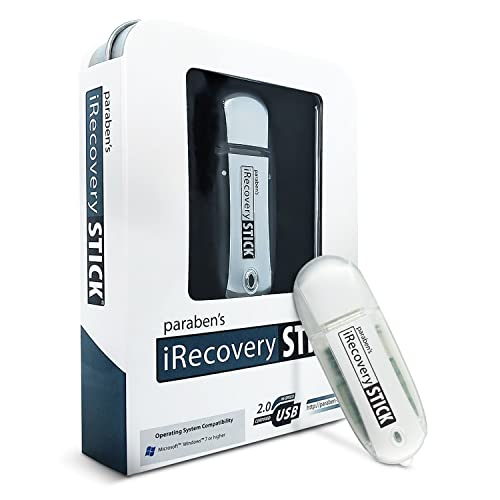
ULTIMATE KIT: Whether you need deleted files or want to discover hidden content on an iPhone, Android, or SIM card, our external recovery system has the right device for your needs, all with free updates for life, no subscriptions necessary, and unlimited use. We offer five (different) unique sticks for an amazing and complete digital data recovery set.
Extract the SIM Card

Extracting the SIM Card
In instances where a smartphone is damaged but still somewhat functional, extracting the SIM card can be a helpful step. A SIM card may store limited contact information on some phones and carriers, although iPhones usually store most photos, messages, and app data on the device or in cloud accounts rather than on the SIM card.
Removing the SIM card is typically straightforward. Most iPhones have a small SIM tray that can be opened with a SIM eject tool or a straightened paperclip. Insert the tool gently into the tray hole, remove the tray, and keep the SIM card in a safe place.
Accessing Contacts and Messages
Once removed, users can insert the SIM card into another compatible device to regain cellular service or check whether any contacts are stored on the card. This process highlights the importance of understanding what information lives in different parts of a smartphone. Photos are normally not stored on the SIM card, so this step will not recover pictures directly.
Still, the SIM card can be useful during the recovery process. It may help you receive verification codes, sign in to cloud accounts, contact Apple support, or activate another phone while the broken iPhone is being repaired.
Prioritizing SIM Card Extraction
By extracting the SIM card during recovery efforts, users can keep access to their phone number and account verification options. This can be especially important if you need two-factor authentication codes to sign in to iCloud, Google Photos, Dropbox, or another backup service that may contain your pictures.
Check Other Cloud and App Backups
Your iPhone photos may exist outside Apple’s backup system. Many people install Google Photos, Amazon Photos, Dropbox, OneDrive, Facebook, Instagram, WhatsApp, Messenger, or other apps that automatically save or share images. Even if your iPhone is completely unusable, these services may still contain copies of some pictures.
Sign in to each account from another device and check photo folders, camera uploads, shared albums, chat attachments, and archived media. Messaging apps can also store images that friends or family sent to you, even if they are no longer available on the broken phone.
Do not forget email attachments. Search your email for common photo-related terms, file names, or attachments. You may find important pictures you previously sent to someone else, uploaded for a form, or saved in a cloud folder.
What Not to Do With a Broken iPhone
Some recovery mistakes can reduce your chances of getting photos back. Do not erase the iPhone, restore it, update it, or reset it before you confirm that your photos are safely backed up somewhere else. A factory reset can remove local data and make recovery much harder or impossible.
Avoid entering the wrong passcode repeatedly. Too many failed attempts can trigger security delays or, if erase settings are enabled, data loss. If you do not remember the passcode, stop and consider your backup options before taking further action.
Do not use heat guns, ovens, hair dryers, rice, or aggressive drying tricks on a water-damaged iPhone. These methods can cause additional damage or leave moisture trapped inside. If the pictures matter, keep the phone off and consult a qualified repair or recovery professional.
Also avoid giving your Apple ID password, recovery key, or sensitive account information to unknown software providers or unverified repair shops. Your photos are personal data, and recovery should not come at the cost of account security.
Protect Your Photos in the Future
As technology continues to evolve, so do the methods available for protecting personal data on smartphones. Users should consider implementing a complete data protection strategy to reduce the risk of photo loss from device damage, theft, or account problems.
Regularly scheduled backups are essential. Setting reminders or automating the process can help ensure that important information is consistently saved. If you take many photos, check your cloud storage plan before it fills up. A full storage account may stop syncing new pictures without you noticing.
Using multiple backup methods provides an extra layer of security. For instance, combining iCloud Photos with local computer backups creates redundancy that can protect against different types of data loss. You can also download important albums to an external drive for long-term storage.
Educating yourself about malware, phishing, weak passwords, and account recovery options can improve overall digital security. Use a strong Apple ID password, keep two-factor authentication enabled, and make sure your trusted phone number and recovery email stay updated.
Investing in protective accessories such as screen protectors, waterproof pouches, and durable cases can also reduce the chance of physical damage. By taking proactive steps and staying consistent with backups, users can significantly decrease the risk of losing irreplaceable photos in the future.
If you are looking for ways to retrieve pictures from a broken iPhone, you may also be interested in learning about the 5 best outdoor dinnerware for entertaining. Having durable and stylish dinnerware for your outdoor gatherings can enhance the overall experience. Check out the article here for some great options to consider.
Frequently Asked Questions
What are the common reasons for a broken iPhone?
Common reasons for a broken iPhone include dropping the device, cracking the screen, water damage, battery failure, charging port damage, failed updates, and internal hardware malfunctions.
Can I retrieve pictures from a broken iPhone?
Yes, it is often possible to retrieve pictures from a broken iPhone. The best method depends on the damage. You can check iCloud Photos, restore an iCloud or computer backup, connect the iPhone to a trusted computer, use reputable recovery software, repair the screen, or seek professional data recovery help.
How can I retrieve pictures from a broken iPhone using iTunes or iCloud backup?
To use iCloud, sign in with the same Apple ID on another device and check iCloud Photos or restore an iCloud Backup to another iPhone. To use iTunes or Finder, connect a replacement iPhone to the computer that contains the backup and restore from the most recent backup file.
What third-party software can I use to retrieve pictures from a broken iPhone?
Some third-party software options include Dr.Fone, iMyFone D-Back, PhoneRescue, and EaseUS MobiSaver. These tools may help scan backups or recover accessible files, but they cannot guarantee recovery from every broken device. Use trial scans first and avoid software that makes unrealistic promises.
Can I recover photos if my iPhone screen is black?
You may be able to recover photos from an iPhone with a black screen if the phone still powers on, has trusted a computer before, or has iCloud Photos enabled. If the screen is the only major issue, screen repair may restore access so you can unlock the phone and back up your photos.
Can a SIM card recover my iPhone photos?
No, iPhone photos are not normally stored on the SIM card. However, the SIM card may help you keep your phone number active and receive verification codes needed to access cloud accounts that contain backed-up photos.
What should I do if I am unable to retrieve pictures from a broken iPhone on my own?
If you cannot retrieve pictures on your own, contact a reputable phone repair service or data recovery specialist. Tell them that photo recovery is your main goal, and ask them not to erase, restore, update, or reset the iPhone without your approval.
Sources
- Apple iCloud Support — backs up iCloud photo and backup recovery options.
- Apple iPhone Support — supports iPhone repair, backup, and device-access guidance.
- Apple iTunes Support — supports iTunes-based backup and restore guidance.
- Apple Mac Support — supports Finder and Mac-based iPhone management guidance.
