Disclosure: As an Amazon Associate, we earn from qualifying purchases. If you click a link on this page and make a purchase, we may receive a small commission at no extra cost to you.
A laptop docking station can clean up your desk, expand your ports, and make a multi-monitor setup easier to manage. The Anker Laptop Docking Station is built around a 13-in-1 USB-C hub design, with support for dual 4K HDMI, DisplayPort, Ethernet, USB ports, SD card access, and laptop charging. It is a strong option if you want one hub for monitors, accessories, and power, but macOS and iPadOS display limits matter before you buy. This review breaks down the features, real-use performance, pros, cons, and key buying details so you can decide if it fits your setup.
Quick Verdict
Rating: Recommended with caveats
Best For: Windows laptop users, desk-based multitaskers, remote workers, and users who need multiple ports from one USB-C connection.
Bottom Line: The Anker Laptop Docking Station gives you a broad port selection, laptop charging, and triple-display potential in one hub. The main tradeoff is that macOS and iPadOS users may get mirrored displays instead of fully extended screens because of Single-Stream Transport limits.
Before You Buy: Check your laptop’s USB-C video output support before ordering. The dock can support triple displays, but macOS and iPadOS are limited by Single-Stream Transport, which can cause connected monitors to mirror instead of extend independently.
Overview
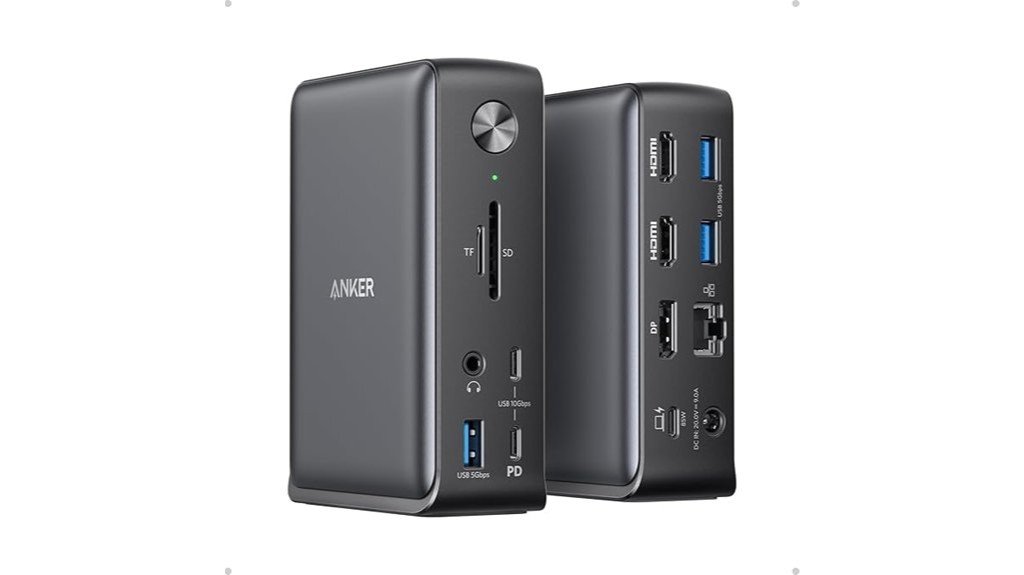
The Anker Laptop Docking Station is a 13-in-1 USB-C Docking Station designed to turn one compatible laptop connection into a wider desktop workstation. Instead of plugging your monitor, keyboard, mouse, Ethernet cable, storage cards, and charger into separate places, you can route many of those connections through one hub.
The main appeal is the combination of triple display support, 85W USB-C laptop charging, 18W Power Delivery for a mobile device, and a broad selection of ports. It is made for users who work with more than one screen, transfer files from SD or microSD cards, need wired internet, or want a cleaner desk with fewer loose cables.
Its biggest limitation is not the number of ports. It is compatibility. The docking station works best when your laptop, operating system, USB-C port, and monitor setup can support the display mode you expect. For buyers using macOS or iPadOS, the article-supported limitation is important: those systems may use Single-Stream Transport, which can limit display behavior to mirrored screens.
Key Specifications
| Specification | Detail |
|---|---|
| Brand | Anker |
| Product type | Laptop USB-C docking station |
| Design | 13-in-1 hub for expanded laptop connectivity |
| Display output | 2 x 4K HDMI and 1 x DisplayPort |
| Display support | Up to three monitors, depending on laptop and operating system support |
| Laptop charging | 85W USB-C charging |
| Mobile device charging | 18W Power Delivery port |
| Connectivity | USB-C, USB-A, HDMI, DisplayPort, Ethernet, SD card slot, and microSD card slot |
| Power adapter cable | 1 meter, based on the source article |
| Operating system note | macOS and iPadOS may be limited to mirrored displays through Single-Stream Transport |
| Warranty | 18-month warranty, based on the source article |
What Is the Anker Laptop Docking Station?
The Anker Laptop Docking Station is a USB-C docking hub made for people who need more ports than their laptop provides. Many modern laptops are slim, but that often means fewer built-in connections. This dock helps solve that problem by adding display outputs, USB ports, Ethernet, card slots, and charging support through one central accessory.
Its strongest feature is the triple display setup. With dual 4K HDMI ports and a DisplayPort, it can help you build a broader workstation for spreadsheets, research, video calls, editing tools, dashboards, or daily office work. That kind of setup can save time when you often switch between windows.
The dock also supports 85W USB-C charging for a laptop and 18W Power Delivery for a mobile device. That means it is not just a port extender. It can also reduce cable clutter by helping power your main laptop and one smaller device from your desk setup.
Detailed Features
Impressive functionality defines the Anker Laptop Docking Station, as it offers a wide range of features for efficiency and flexibility. The device supports triple display capability, allowing you to connect up to three monitors when your laptop and operating system support the needed video output. It also provides practical connectivity with USB-C, USB-A, HDMI, DisplayPort, Ethernet, and SD/microSD card slots.
| Feature | Specification | Benefit |
|---|---|---|
| Triple Display | 2 x 4K HDMI, 1 x DisplayPort | Enhanced multitasking |
| Charging | 85W USB-C, 18W Power Delivery | Simultaneous device charging |
| Connectivity | Extensive port selection | Versatile device connection |
The Anker Docking Station offers a useful solution for modern work environments, especially when you want one desk hub for power, displays, storage cards, and wired internet. The best results come from checking your device compatibility before you rely on it as your main workstation dock.
Who Should Buy It?
Best For
- Desk users who want one USB-C dock for monitors, USB accessories, Ethernet, and charging.
- Windows laptop users who need a multi-monitor setup for productivity work.
- Remote workers, students, creators, and office users who transfer files from SD or microSD cards.
Skip If
- You use macOS or iPadOS and need three fully extended independent displays.
- Your laptop’s USB-C port does not support display output.
- You want a dock mainly for travel and do not need Ethernet, card slots, or multiple monitor outputs.
Display Support and Multitasking
The biggest reason to consider this dock is display expansion. The Anker Laptop Docking Station includes 2 x 4K HDMI ports and 1 x DisplayPort, giving you the hardware connections needed for a triple-monitor workstation. For many users, that can make daily work feel faster because you can keep a video call on one screen, a document on another, and browser research on a third.
For productivity, this setup is most useful when you deal with spreadsheets, editing timelines, customer dashboards, coding windows, research tabs, or multiple communication apps. You spend less time dragging windows around and more time working in a stable layout.
The limitation is that your laptop and operating system still control what the monitors can do. The source article notes that macOS and iPadOS users may face Single-Stream Transport restrictions, which can result in mirrored displays. That is not a small detail if your goal is independent extended screens.
Charging Performance
The dock includes an 85W USB-C port for laptop charging. That is useful if your laptop normally needs USB-C power and you want one cable connected to the dock instead of a separate charger on your desk. It can help reduce cable clutter and keep your workstation cleaner.
The added 18W Power Delivery port is useful for a phone, small tablet, earbuds case, or other mobile accessory that supports USB-C charging. This gives the dock a second role as a desk charging point, not just a port expander.
You can use the docking station without the power adapter, but the article notes that performance limitations may arise. For the strongest charging and connectivity experience, the power adapter should be connected, especially when you are using multiple ports at the same time.
Ports and Connectivity
The 13-in-1 design is the core value of this docking station. It includes a mix of modern and practical ports, including USB-C, USB-A, HDMI, DisplayPort, Ethernet, and SD/microSD card slots. That combination is helpful because many laptops now require adapters for common accessories.
USB-A ports are useful for older keyboards, mice, flash drives, printers, and webcams. USB-C ports help with modern accessories and charging. Ethernet is useful when Wi-Fi is unstable or when you want a more reliable connection for meetings, uploads, downloads, or cloud work.
The SD and microSD card slots are helpful for creators, photographers, dash cam users, drone users, and anyone who moves files from storage cards. Instead of carrying a separate card reader, you can keep the dock on your desk and transfer files through the same hub.
Design and Desk Setup
A docking station is not only about specs. It also changes how your desk works. With this Anker dock, your laptop can become the center of a cleaner desktop setup. You can connect monitors, wired internet, input devices, storage cards, and power through one hub instead of plugging everything directly into the laptop.
The included power adapter cable is listed as 1 meter, which gives some flexibility for placement. Still, your final setup depends on where your wall outlet, monitor cables, laptop stand, and desk accessories sit. Before setting it up, check cable length and decide whether the dock should sit near your laptop, behind a monitor, or at the edge of the desk for easier card access.
Pro Tip: Before connecting every accessory, test your monitors first. Confirm whether your laptop extends or mirrors the displays, then add USB devices, Ethernet, and card readers after the display layout works correctly.
Setup Tips Before First Use
Start by connecting the dock to power, then connect it to your laptop’s compatible USB-C port. After that, add your primary monitor first and confirm that it displays correctly. If the first monitor works, connect the second and third displays one at a time.
Next, add lower-risk accessories such as keyboard, mouse, Ethernet, and storage card readers. This step-by-step setup makes troubleshooting easier because you can identify which connection causes a problem if something does not work as expected.
For macOS and iPadOS, check display settings after connection. If the screens mirror instead of extend, the issue may be tied to Single-Stream Transport behavior rather than a broken dock. For Windows users, also check display settings to arrange monitor order and scaling.
How It Performs in Real Use
For Home Office Work
For home office work, the Anker Laptop Docking Station is most useful when your desk stays mostly in one place. You can leave your monitor cables, Ethernet, USB keyboard, mouse, and charger connected to the dock. When you sit down, you connect your laptop to the dock and get a fuller workstation.
For Multi-Monitor Productivity
The triple display support is ideal for users who need more screen space. You can use one display for your main task, another for reference material, and another for communication apps. The benefit is strongest when your laptop supports the display mode you want.
For File Transfers
The SD and microSD card slots help if you often move files from cameras, drones, dash cams, or portable devices. You do not need a separate card reader on the desk. This is a practical advantage for creators and users who handle media files often.
For Travel or Shared Workspaces
This docking station can be used outside a permanent desk, but it makes the most sense as a main workstation hub. If you travel light and only need one HDMI port or one USB-A port, a smaller adapter may be easier to carry. If you move between two workstations with multiple displays, this dock can still be useful if both locations have compatible monitors and cables.
Pros and Cons
Many users find the Anker Laptop Docking Station to be a compelling choice because it combines display expansion, power delivery, and a broad port selection. The station’s ability to support triple displays with 4K HDMI and DisplayPort options gives strong flexibility for multitaskers seeking better productivity. Its 85W USB-C port can power laptops, while the 18W Power Delivery port supports mobile devices. However, macOS and iPadOS users may find limitations because these systems only support Single-Stream Transport, which can lead to mirrored displays.
Pros
- 13-in-1 design gives you many desk connections from one USB-C dock.
- Dual 4K HDMI ports and DisplayPort support a strong multi-monitor setup.
- 85W USB-C charging helps power a compatible laptop from the dock.
- 18W Power Delivery is useful for charging a phone or smaller mobile device.
- Ethernet plus SD and microSD card slots add value for work and file transfers.
Cons
- macOS and iPadOS display behavior may be limited to mirrored screens.
- Full performance depends on your laptop’s USB-C port and display support.
- Using it without the power adapter may limit charging and overall performance.
Compatibility and Safety
This docking station is made for laptops with USB-C ports, but not every USB-C port works the same way. Some USB-C ports support charging only, some support data, and some support video output. If your laptop does not support video output over USB-C, the monitor features may not work as expected.
For safety and stable use, place the dock where it has room around it and where cables do not pull against the laptop. Avoid stacking it under heavy items or trapping it in a tight space. Like any powered electronics accessory, it should be used with the included power setup and according to the product instructions.
The source article says the dock has thermal management to handle heat. Even so, warmth can be normal when a hub is powering a laptop, driving displays, and handling several ports. If the dock becomes unusually hot, disconnect it and check the setup.
Concluding Thoughts
Anker’s Laptop Docking Station is a versatile tool for users who need broad connectivity and charging from one hub. Its strongest value is its ability to bring displays, power, USB accessories, Ethernet, and storage card access into one desk setup. Key considerations include:
- Comprehensive Port Selection: The 13-in-1 design gives you broad device compatibility and can improve desk productivity.
- Powerful Charging Capabilities: Dual USB-C charging functions help support a laptop and a mobile device at the same time.
- Media Display Limitations: While triple display is supported, macOS and iPadOS users face Single-Stream Transport restrictions.
- Warranty and Support: An 18-month warranty reflects Anker’s stated support window in the source article.
This docking station is a practical asset for tech-savvy professionals, remote workers, and desk users who want fewer cables and more usable ports.
Is It Worth the Price?
The Anker Laptop Docking Station sits in the higher-value category for users who need more than a simple USB adapter. Its value comes from the full mix of display output, charging, Ethernet, USB connectivity, and card slots. If you use several of those features every day, it can be a smart buy for everyday desk use.
It is especially worth considering if you need triple display potential and 85W USB-C laptop charging from the same dock. Buying separate adapters for HDMI, Ethernet, SD cards, USB-A, and charging can create more clutter and may cost more over time.
It is not the best fit if you only need one extra port or if your device cannot use the display features properly. macOS and iPadOS users should be especially careful if the goal is multiple independent extended displays.
How It Compares to Alternatives
Compared with a basic USB-C adapter, the Anker Laptop Docking Station is much more complete. A small adapter may give you one HDMI port and one or two USB ports, while this dock gives you multiple display outputs, Ethernet, SD and microSD access, and charging support.
Compared with larger desktop docks, this Anker model makes sense if you want a strong mix of ports without moving into a complex enterprise-style dock. If you need the easiest multi-display experience on macOS, you should compare your options carefully because Single-Stream Transport can limit what this model does on Apple devices.
Related Guides
Frequently Asked Questions
Is the docking station compatible with all laptop brands?
The docking station is designed for laptops with USB-C ports, but full function depends on what that USB-C port supports. For display output, your laptop must support video through USB-C. macOS and iPadOS users may also face display limits because of Single-Stream Transport.
How does the docking station handle overheating?
The source article notes that the docking station uses thermal management to help maintain stable performance. It may still feel warm during heavy use, especially when charging a laptop and driving multiple displays. Keep it in an open area and avoid covering it.
Can the docking station be used without the power adapter?
Yes, it can function without the power adapter, but performance limitations may arise. For laptop charging, stronger port performance, and a fuller desk setup, you should use the power adapter.
What is the length of the included power adapter cable?
The included power adapter cable measures 1 meter, based on the source article. That should work for many desk setups, but you should still check your outlet position before deciding where the dock will sit.
Does the docking station support Linux operating systems?
The source article states that the Anker Laptop Docking Station supports Linux operating systems. As with any dock, the final experience may depend on your laptop hardware, distribution, display settings, and driver support.
Will it give Mac users three separate extended displays?
Not necessarily. The article notes that macOS and iPadOS support only Single-Stream Transport for this type of display setup, which can result in mirrored screens. If you need independent extended displays on a Mac, check compatibility carefully before buying.
What common setup mistake should you avoid?
Do not plug in every monitor and accessory at once before testing the basic connection. Start with power, laptop connection, and one monitor. Then add the second monitor, third monitor, Ethernet, USB accessories, and card slots one by one.
The Bottom Line
The Anker Laptop Docking Station is a strong choice if you want a 13-in-1 USB-C dock with triple-display potential, 85W laptop charging, 18W mobile charging, Ethernet, USB ports, and SD/microSD access. It is best for Windows laptop users and desk-based multitaskers, while macOS and iPadOS users should be cautious because of mirrored display limitations. If your laptop supports the needed USB-C display features, this dock can make your workspace cleaner and more productive.

