Disclosure: As an Amazon Associate, we earn from qualifying purchases. If you click a link on this page and make a purchase, we may receive a small commission at no extra cost to you.
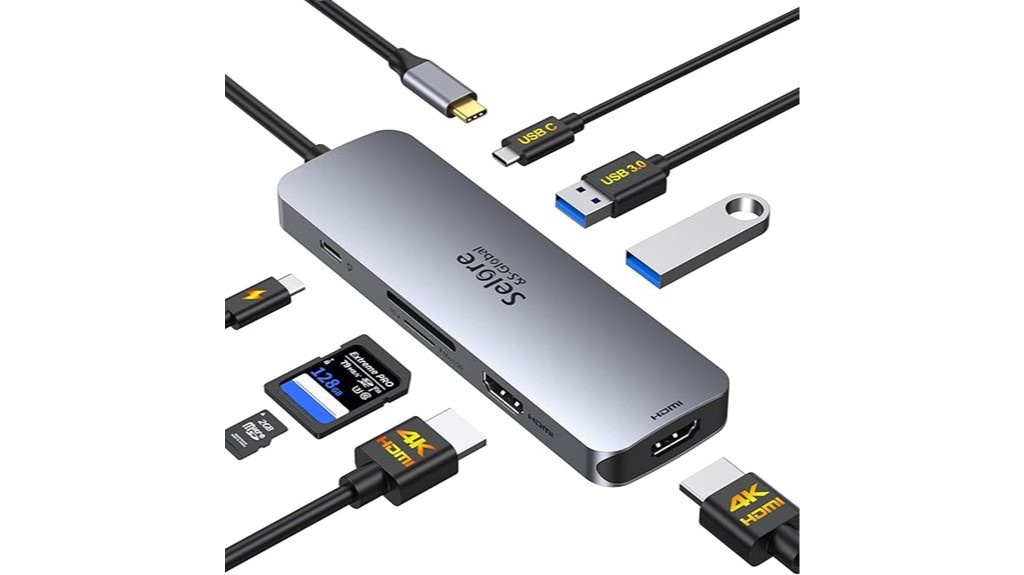
A laptop with only a few ports can slow you down fast, especially when you need two monitors, USB accessories, charging, and card access at the same time. This USB C Docking Station is built around dual HDMI monitor support, 8-in-1 connectivity, and a 100W power delivery port, making it useful for desk setups, home offices, and travel workstations. Its biggest strength is the ability to connect two 4K60Hz HDMI displays, while its main limitation is that it does not include a power charger and may not extend displays on Mac systems. This review helps you decide whether its port layout, compatibility needs, and charging limits match your laptop.
Quick Verdict
Rating: Recommended with caveats
Best For: Laptop users who need dual HDMI output, USB accessories, SD/TF card access, and USB-C power delivery from one compact hub.
Bottom Line: This docking station is a practical choice if your laptop supports USB-C or Thunderbolt display output and you want a cleaner dual-monitor setup. Skip it if your laptop lacks the required USB-C functions, you need a charger included, or you rely on Mac extended dual-display support.
| Specification | Detail |
|---|---|
| Product Type | USB-C docking station / laptop hub |
| Port Layout | 8-in-1 design |
| Display Output | Dual HDMI ports |
| Supported Display Claim | Dual 4K60Hz HDMI support, when the connected laptop and cables support it |
| Power Delivery | 100W USB-C power delivery port, with article-supported charging output up to 85W to the laptop |
| USB Ports | Three USB ports for accessories and data transfer |
| Data Transfer | Up to 5Gbps through USB 3.0 support |
| Card Access | SD and TF card slots |
| Setup | Plug-and-play design |
| Compatibility | USB-C or Thunderbolt laptops, including article-mentioned Dell XPS and Lenovo models |
| Main Limitation | Power charger and cable are not included, and Mac systems may not support extended dual displays |
| Best Use | Desk setups, dual-monitor work, USB accessories, card transfer, and laptop charging through one USB-C hub |
Overview
The USB C Docking Station with Dual HDMI Monitor support is designed to expand the limited ports on modern laptops. Instead of plugging monitors, USB drives, card readers, and power into separate adapters, you can use one compact hub to build a more complete workstation.
Its key feature is dual 4K60Hz HDMI output, which can help you run two external screens for spreadsheets, editing tools, browser tabs, dashboards, or video calls. The article-supported design also includes a 100W power delivery port, three USB ports, and SD/TF card slots, so it covers the main connections many laptop users need each day.
The docking station is best suited for laptops with a USB-C or Thunderbolt port that supports display output and charging. It is not a fix for older laptops without USB-C, and Mac users should pay close attention to display-extension limits before buying.
Before You Buy: Make sure your laptop’s USB-C or Thunderbolt port supports video output and power delivery. A USB-C shape alone does not guarantee dual-monitor support, and this docking station does not include a power charger.
Who Should Buy It?
Best For
- You want to connect two HDMI monitors from a compatible USB-C or Thunderbolt laptop.
- You use USB accessories, SD cards, or TF cards often and want fewer adapters on your desk.
- You need a plug-and-play hub for home office work, creative tasks, or everyday multitasking.
Skip If
- Your laptop does not have a USB-C or Thunderbolt port with display output.
- You need a charger included in the box.
- You use a Mac and need two external displays in extended mode.
Detailed Features
The USB C Docking Station is built around an 8-in-1 functionality layout. That makes it useful when you want one adapter to handle display output, USB accessories, laptop charging, and card access without filling your bag or desk with several smaller dongles.
Dual HDMI Display Support
The strongest reason to consider this docking station is its dual HDMI capability. The article states that it can support two 4K60Hz monitors at the same time, which is a major benefit if your work depends on screen space.
A dual-monitor setup can help you keep a video meeting on one screen while working on documents, code, spreadsheets, or research on another. It also reduces the need to switch between windows, which can make everyday laptop work feel less cramped.
The important detail is compatibility. Your laptop must support video output through its USB-C or Thunderbolt port, and your HDMI cables and monitors must also support the resolution and refresh rate you want.
Power Delivery and Charging
The docking station includes a 100W power delivery port. The article also notes that it can provide efficient charging up to 85W, which means some power is likely reserved for the hub’s operation while the rest passes through to your laptop.
This is useful if you want one USB-C connection to handle both docking and charging. Still, the product does not include a power charger or cable, so you need to use a compatible USB-C charger that can supply enough wattage for your laptop and the dock.
USB Ports and Data Transfer
The hub includes three USB ports for wired accessories and storage devices. These ports are helpful for connecting a keyboard, mouse, USB drive, external storage, webcam, or other desk accessories.
The article states that the USB ports support data transfer up to 5Gbps. That is useful for moving documents, photos, and general files, though real transfer speed can vary based on the drive, cable, port type, and the laptop you use.
SD and TF Card Slots
The included SD/TF card slots make the docking station more useful for photographers, content creators, students, and anyone who moves files from cameras, drones, dash cams, or portable devices. You can access media cards without carrying a separate card reader.
This is one of the more practical features for a compact laptop hub because many thin laptops no longer include built-in card slots. If you often move photos or videos, the card slots can save time and reduce extra accessories.
Plug-and-Play Setup
The docking station is described as plug-and-play, which means it is designed for simple setup without a complicated installation process. In most basic setups, you connect the hub to your compatible laptop, attach your monitors and accessories, then adjust display settings on your operating system.
Plug-and-play does not remove the need for compatibility checks. Display behavior, charging support, and resolution limits can still depend on your laptop hardware, USB-C port features, operating system, monitor settings, and cables.
Pro Tip: Before you set up both monitors, test one HDMI display first, then add the second display after your laptop recognizes the dock. This makes it easier to find whether a problem comes from the laptop port, the dock, the HDMI cable, or the monitor settings.
Compatibility and Safety
This docking station is made for laptops with a USB-C or Thunderbolt port. It cannot work with non-USB-C laptops unless those laptops have a compatible port through a supported adapter setup, and even then, display and charging functions are not guaranteed.
The article mentions compatibility with major laptop brands, including Dell XPS and Lenovo models. Brand compatibility alone is not enough, though. You should check your exact laptop model to confirm USB-C display output, charging support, and the number of external displays it can handle.
For charging, use a power adapter that matches your laptop’s power needs. Avoid using weak, damaged, or uncertified cables, especially when running displays, USB accessories, and power delivery through one hub.
How It Performs in Real Use
For Home Office Work
In a home office, the docking station can turn a thin laptop into a fuller desktop setup. You can connect two HDMI monitors, a keyboard, a mouse, storage, and power through one USB-C connection, which keeps your workspace cleaner.
This setup is especially useful if you move your laptop between rooms or between home and office. You can leave the monitors and accessories connected to the dock, then plug in one cable when you sit down to work.
For Productivity and Multitasking
The dual HDMI design is useful for multitasking. You can place your main work on one screen and keep reference material, chat, email, video calls, or file folders on the second screen.
For users who work with spreadsheets, dashboards, coding windows, research tabs, or editing tools, the extra display space can be more useful than a faster USB port or a smaller adapter. The dock’s main value comes from combining screen expansion with everyday connectivity.
For Photo and Media Transfer
The SD and TF card slots make the docking station practical for media workflows. You can move files from a memory card while keeping monitors and USB accessories connected.
This helps if your laptop lacks a built-in card reader. It also reduces the need to carry a separate card adapter when you are working with camera footage, product photos, school media, or travel files.
For Travel or Shared Desks
The dock can work well in a travel bag or shared workspace because it combines several common ports into one device. It is useful for hotel desks, temporary workstations, conference rooms, or office hot desks where port access is limited.
The tradeoff is that you still need the right charger, cables, and laptop support. If you forget the charger or use a laptop with limited USB-C functions, you may not get the full docking experience.
Setup Tips Before First Use
Start by checking your laptop’s USB-C or Thunderbolt specifications. Look for display output support, power delivery support, and the maximum number of external displays allowed by your laptop.
Next, use HDMI cables that are suitable for 4K60Hz if that is your target resolution. Lower-quality or older cables may work at lower resolutions but struggle with sharper display settings.
After connecting the dock, open your laptop’s display settings and choose the correct mode. Windows users can often choose duplicate or extend options. Mac users should confirm what their system supports because the article notes that the dock may not extend displays on Mac systems.
Pros and Cons
Pros
- Dual HDMI support helps you build a two-monitor workspace from a compatible laptop.
- 8-in-1 layout reduces the need for several separate adapters.
- 100W power delivery port supports laptop charging when paired with the right charger.
- Three USB ports support wired accessories and data transfer up to 5Gbps.
- SD and TF card slots are useful for media files, camera cards, and quick file access.
Cons
- Power charger and cable are not included.
- Mac systems may not support extended dual-display output through this dock.
- Your laptop must support the required USB-C or Thunderbolt display and charging functions.
Is It Worth the Price?
This USB C Docking Station offers strong value if your main goal is a cleaner dual-monitor workstation. The combination of dual HDMI, USB ports, power delivery, and SD/TF card access makes it more useful than a basic HDMI-only adapter.
It is worth considering if you need dual 4K60Hz HDMI support and want one hub for desk accessories. It is not the best fit if you only need one monitor, already own a separate card reader, or need a dock that includes its own power charger.
The best value goes to buyers who already have a compatible laptop and charger. Without those, you may need extra accessories before the dock can perform as expected.
How It Compares to Alternatives
Compared with a basic USB-C to HDMI adapter, this docking station gives you more flexibility because it adds dual HDMI, USB ports, power delivery, and card slots. That makes it better for a full desk setup than a single-purpose dongle.
Compared with larger powered desktop docks, it may be easier to carry and simpler to use, but it also has limits. A full-size Thunderbolt dock may be better if you need more ports, Ethernet, higher-end display support, or a dedicated power supply included in the package.
Concluding Thoughts
A careful look at this USB C Docking Station shows that it can be a useful tool for both home and office setups. Its main advantage is that it combines dual HDMI support, USB 3.0 data transfer, card access, and power delivery in one compact hub.
- Dual HDMI support: Helps you create a larger workspace with two compatible external monitors.
- Charging support: Uses a 100W power delivery port, with article-supported charging output up to 85W.
- Broad laptop use: Works with compatible USB-C or Thunderbolt laptops from major brands.
- Data transfer efficiency: Supports USB 3.0 transfer up to 5Gbps and includes SD/TF card slots.
This docking station is a practical pick if you know your laptop supports the required USB-C features. It becomes less appealing if you need a charger included or need guaranteed Mac extended dual-monitor support.
Frequently Asked Questions
Can the docking station work with non-USB-C laptops?
No. This docking station is designed for laptops with a USB-C or Thunderbolt port. Older laptops without a compatible USB-C port will not be able to use its display, charging, and hub functions properly.
Does it support 4K resolution on both monitors at the same time?
The article states that it supports 4K resolution on both HDMI monitors at 60Hz. To get that result, your laptop, HDMI cables, and monitors also need to support the same display output.
Is the docking station compatible with Linux operating systems?
The article states that the docking station can work with Linux systems. Even so, display behavior can vary by laptop hardware, graphics support, drivers, and desktop environment, so you should check your setup before relying on dual displays.
Does it work with Mac laptops?
The article notes an important Mac limitation: it may not extend displays on Mac systems. If you need two independent external screens on a Mac, confirm your exact Mac model and display support before buying.
What is the maximum HDMI cable length supported?
The article recommends up to 15 feet for reliable 4K60Hz performance. Cable quality, monitor settings, and the laptop’s output support can also affect stability.
Can it connect to Bluetooth devices?
No. This docking station focuses on wired connections, such as HDMI, USB, USB-C power delivery, SD cards, and TF cards. Bluetooth keyboards, mice, headphones, or speakers should connect through your laptop’s built-in Bluetooth or a separate Bluetooth adapter.
Does it include a charger?
No. The article lists the lack of a power charger and cable as a limitation. You need to use a compatible USB-C charger and cable if you want power delivery through the dock.
Who should skip this USB-C docking station?
Skip it if your laptop does not support USB-C video output, you need a charger included, or you need guaranteed Mac extended dual-display support. It is also more than you need if you only want a single HDMI adapter.
The Bottom Line
The USB C Docking Station is a strong option if you want dual HDMI monitor support, USB accessories, card access, and power delivery from one compact hub. It is best for compatible USB-C or Thunderbolt laptops, but it is not ideal if you need a charger included or need full Mac extended dual-display support.
