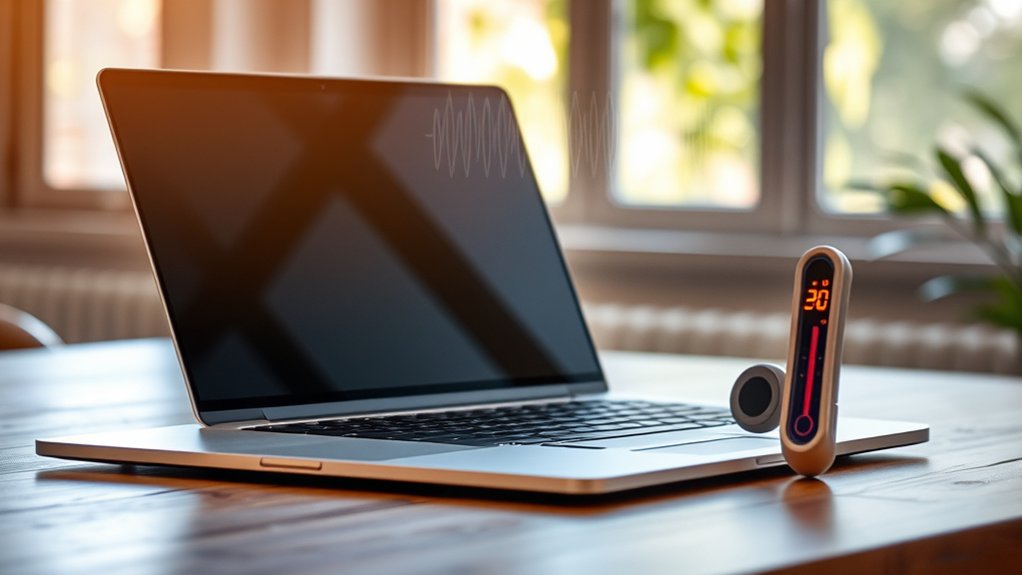
Yes. A laptop can generally run safely in a 30°C room because that ambient temperature sits within the common 10°C to 35°C operating range. Idle temperatures usually remain around 30°C to 50°C, while heavier workloads may reach 70°C to 85°C without indicating failure. Risk rises when CPU or GPU temperatures stay above 90°C, causing throttling, loud fans, or shutdowns. Clear vents, good airflow, and regular monitoring remain important, with further practical guidance outlined below.
Is 30°C Safe for a Laptop?
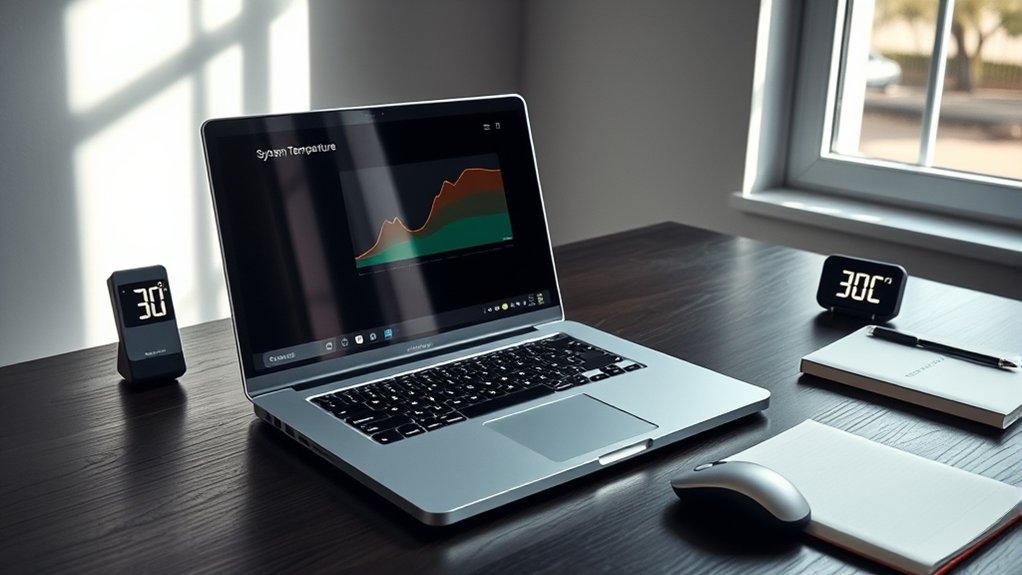
Yes, 30°C is generally safe for a laptop because it remains within the commonly recommended ambient operating range of 10°C to 35°C. From a technical standpoint, this places the device inside established safe temperature ranges for routine operation, without imposing unusual thermal stress on internal components.
At 30°C, most laptops still maintain efficient baseline behavior, particularly when idle CPU temperatures commonly span 30°C to 50°C. This condition supports stable CPU and GPU function while reducing the likelihood of overheating under normal workloads.
It also minimizes condensation risk associated with abrupt environmental changes, an often overlooked factor in hardware reliability. Battery performance may also benefit, since lithium-ion cells generally operate more effectively in moderate conditions than in extreme heat or cold.
For users seeking operational independence rather than avoidable constraints, 30°C represents a controlled, acceptable environment. Proper ventilation remains essential, but the temperature itself does not inherently threaten standard laptop performance or component safety.
What a 30°C Room Means for Your Laptop
A room temperature of 30°C places a laptop in a generally favorable operating environment, since it remains comfortably within the standard ambient range of 10°C to 35°C specified for most systems. In practical terms, this temperature is safe and does not inherently impose stress on core components. CPUs and GPUs can sustain efficient operation, while lithium-ion batteries typically retain stable behavior under such moderate conditions.
- A desk surface open to circulating air
- Vents unobstructed, drawing and exhausting freely
- A battery working in measured, moderate warmth
- Monitoring software tracing internal thermal data
- A confined nook where heat quietly accumulates
The decisive variable is airflow. Even in a safe room, restricted ventilation can trap heat and undermine thermal balance. An open workspace preserves mechanical freedom and supports consistent cooling.
Periodic checks with temperature-monitoring tools provide useful verification that internal conditions remain within manufacturer targets, preserving operational autonomy and reducing avoidable thermal constraints over time.
Normal Laptop Temperatures at Idle and Load
When thermal behavior is evaluated across typical workloads, a well-functioning laptop usually idles between 30 and 50°C, reflecting low power demand and effective heat dissipation. This range defines normal laptop temperatures during inactivity and signals that airflow, fan response, and power management remain effective. Under light productivity loads, readings commonly move into the 50-70°C bracket without indicating instability. During demanding computation, observed temperatures often settle around 70-85°C, a practical ideal usage temperature for sustained performance.
| Workload | Typical Temperature |
|---|---|
| Idle | 30-50°C |
| Light load | 50-70°C |
| Heavy use | 70-85°C |
These figures empower users to interpret heat logically rather than react to every fluctuation. A laptop operating in a clean, ventilated environment is more likely to remain within these bands, preserving responsiveness and avoiding thermal buildup. Sustained operation well beyond typical heavy-load levels often precedes reduced performance and constrained system freedom.
Safe Laptop CPU and GPU Temperatures
Define safe thermal limits by separating normal operating ranges from thresholds that trigger degradation. For laptop CPUs, a safe temperature commonly spans about 30°C at idle and 70–85°C under sustained workload. Once readings remain above 90°C, thermal throttling becomes likely, and prolonged exposure may accelerate silicon wear.
Laptop GPUs follow similar discipline: roughly 30–50°C when idle, ideally below 85°C during demanding graphics tasks. Components generate heat according to load, voltage, and cooling efficiency.
- A cool chassis at idle, with airflow moving cleanly through vents
- Fans ramping under load, preventing trapped thermal buildup
- Monitoring software tracing CPU spikes during compilation or gaming sessions
- A cooling pad lifting the base, feeding cooler ambient air upward
- Heat dispersing before it saturates the motherboard and nearby storage
Regular monitoring preserves autonomy from preventable failure. Clear vents and supplemental cooling help maintain each processor within a safe temperature envelope, protecting performance stability and service life over time.
What Are the Signs of an Overheating Laptop?
Early warning signs of laptop overheating appear in both sensor data and observable behavior. A sustained CPU reading above 90°C typically indicates thermal stress, often followed by throttling that cuts clock speeds and weakens performance. This reduction is not random; it is a protective response against escalating temperature extremes that threaten component stability.
Physical evidence is equally important. Noticeable hot spots on the laptop chassis suggest concentrated internal heat and merit prompt intervention. Loud, persistent fan noise usually means the cooling system is operating near capacity yet failing to expel heat efficiently.
Noticeable chassis hot spots and persistent fan noise often indicate a cooling system struggling to expel concentrated internal heat.
In more severe cases, abrupt shutdowns near or above 100°C function as emergency safeguards against hardware damage. These events signal a system no longer operating within safe thermal margins. Taken together, throttling, surface heat, aggressive fan activity, and shutdowns form a clear diagnostic pattern.
Recognizing these signs supports more autonomous, informed device use before overheating progresses toward permanent failure.
How Can You Check Laptop Temperature?
How can laptop temperature be verified with reasonable accuracy? Several methods allow a user to check your laptop’s temperature without relying on guesswork.
BIOS or UEFI menus expose basic sensor data during startup, offering a controlled reference point before the operating system loads. Within the system itself, specialized utilities deliver continuous temperature readings for critical components.
- BIOS/UEFI screens showing stark numeric values before the desktop appears
- HWMonitor tracking CPU and GPU heat in real time like instrument gauges
- Core Temp isolating processor cores with precise thermal figures
- MSI Afterburner overlaying live temperatures across a game in motion
- Manufacturer software presenting thermal status beside performance controls
These tools grant visibility rather than dependence on intuition. Gaming overlays are particularly useful under load, while vendor applications consolidate telemetry in one interface.
Alert thresholds near 90°C can signal abnormal heat early, enabling informed decisions before stability, performance, or hardware freedom becomes constrained.
How Can You Keep a Laptop Cool?
Although modern laptops are engineered to tolerate substantial thermal load, maintaining lower operating temperatures depends primarily on airflow, cleanliness, and heat-transfer efficiency. Proper ventilation begins with placement on hard, flat surfaces, since beds, cushions, and laps can obstruct intake or exhaust vents and trap heat.
Additional thermal control can be gained through cooling pads equipped with fans, which often lower component temperatures by roughly 5-10°C under sustained demand. Internal temperatures should be monitored with utilities such as HWMonitor or MSI Afterburner to verify that the system can work within a safe temperature, commonly around 70-85°C during heavy use.
Dust accumulation inside vents and heatsinks should be removed with compressed air every three to six months, because buildup degrades airflow and cooling performance. Over longer intervals, replacing thermal paste on the CPU and GPU restores efficient heat transfer.
If temperatures spike abnormally, reduce workload and let it cool before resuming operation safely.
Why Gaming Laptops Run Hotter at 30°C
Why do gaming laptops run hotter when the room itself is already at 30°C? The answer lies in thermal headroom. Gaming laptops house powerful CPUs and GPUs that generate dense heat during rendering and intensive gameplay. When ambient air starts warm, cooling systems receive less temperature differential, so heat leaves the chassis more slowly. Under heavy loads, CPU temperatures commonly climb to 70–85°C, still a safe temperature, yet close enough to demand observation.
- A cramped chassis traps heat like machinery in a sealed workshop.
- Twin chips surge like compact engines under sustained boost.
- Warm intake air weakens the fan system’s cooling leverage.
- Dust-lined vents behave like clogged filters in a factory wall.
- Soft surfaces smother airflow like fabric over an exhaust grate.
Their compact construction restricts airflow pathways, reducing dissipation efficiency. Dust accumulation further insulates internal components.
For users seeking freedom from performance loss, understanding these constraints allows more disciplined placement, cleaning, and monitoring without surrendering mobility.
When a 30°C Room Can Overheat a Laptop
A 30°C room becomes a genuine overheating risk when laptop heat output during sustained workloads pushes internal temperatures beyond their safe operating range, typically about 50°C to 95°C depending on the component.
Under these conditions, ambient heat reduces the temperature gradient needed for efficient dissipation, so more energy remains trapped inside the chassis. Compact designs are especially constrained, because limited internal volume and smaller cooling assemblies restrict airflow and heat exchange.
Risk intensifies during gaming, rendering, compilation, or other sustained loads that drive CPU and GPU temperatures past 85°C.
At that threshold, thermal throttling often intervenes, cutting clock speeds to preserve stability and reclaim thermal headroom. In a 30°C environment, this protective behavior may appear sooner and persist longer.
Dust in vents further obstructs airflow, compounding overheating pressure.
Over time, repeated exposure to elevated internal temperatures can accelerate component wear, reducing long term reliability and shortening useful service life, limiting independent, uncompromised performance.
When Should You Clean or Service a Laptop?
A laptop should typically be cleaned every 3 to 6 months to remove dust from vents and cooling paths that would otherwise restrict airflow and increase operating temperatures.
Service becomes advisable when load temperatures repeatedly exceed 90°C, when fan noise becomes abnormally loud, or when unexpected shutdowns occur, as these conditions can indicate cooling system degradation.
For systems older than a year, periodic thermal paste replacement should also be considered to preserve efficient heat transfer between the processor components and the heatsink.
Signs It Needs Service
When a laptop begins operating consistently above 90°C, emits unusually loud fan noise, or shuts down unexpectedly, these are clear indicators that the cooling system requires inspection and likely service. Such behavior reflects restricted airflow, degraded thermal transfer, or failing fan operation.
Persistent thermal throttling under load also signals compromised heat dissipation. Performance anomalies, including sluggish response or gaming frame-rate collapse, often accompany rising internal temperature and suggest hardware stress requiring decisive intervention.
- A vent choked with gray dust, starving components of air
- Fans surging like turbines, fighting trapped heat
- A chassis hot enough to unsettle prolonged contact
- Frame rates stuttering as clocks drop under thermal throttling
- Sudden black-screen shutdowns interrupting work and control
These signs indicate the machine is no longer operating freely within thermal design limits safely.
Cleaning And Service Schedule
Maintain a cleaning interval of roughly every 3 to 6 months to limit dust accumulation that obstructs vents, impairs airflow, and reduces cooling efficiency. An effective cleaning and service schedule preserves autonomy, performance, and thermal stability by reducing avoidable failures.
| Trigger | Action | Threshold |
|---|---|---|
| Routine dust | Clean vents, fans | Every 3–6 months |
| High heat | Monitor temperature the laptop | Near 90°C |
| Old system | Reapply thermal paste | Over 1 year |
| Fan noise | Inspect internals | Persistent |
| Shutdowns | Professional service | Immediate |
Service becomes advisable when temperatures repeatedly exceed 90°C under load, suggesting compromised heat transfer or fan degradation. Thermal paste renewal benefits older systems with sustained overheating. Persistent fan noise, throttling, performance decline, or unexpected shutdowns justify internal cleaning or professional diagnostics and repair.
Frequently Asked Questions
What Temperature Is Too Cold for Laptops?
Temperatures below 10°C are generally too cold for laptops, as cold weather can impair laptop performance, reduce battery efficiency, and increase condensation risk during warming. Allowing acclimation before use supports more reliable, autonomous operation and longevity.
Is 30 Degrees Celsius Hot for a CPU?
Like a calm engine, 30°C is not hot for a CPU; it indicates excellent CPU performance. Such temperatures remain safely below thresholds associated with thermal throttling, granting the system operational freedom, stability, efficiency, and longevity.
What Temperature Is Too Hot for a Laptop?
A laptop is too hot when CPU temperatures exceed 90°C consistently or approach 100°C, risking laptop overheating, throttling, and shutdowns. Sustained GPU temperatures above 85°C are also excessive, making monitoring and cooling solutions technically essential.
Can a Laptop Survive in a Cold Car?
Yes—a laptop can survive, like a ship iced in harbor, but cold-car exposure stresses batteries, invites condensation, and embrittles parts. Proper laptop insulation helps; unlike a car battery, it should reach room temperature before activation.
Conclusion
A laptop can generally operate safely in a 30°C room if its cooling system is functioning correctly and internal temperatures remain within manufacturer limits. However, ambient heat reduces thermal headroom, especially under gaming or sustained workloads. Monitoring CPU and GPU temperatures, ensuring clear airflow, and cleaning dust buildup are key preventive measures. In thermal management, the devil is in the details: small issues in ventilation or maintenance can quickly turn acceptable conditions into overheating risk.

