
Last updated: July 15, 2026
Affiliate disclosure:. As an Amazon Associate I earn from qualifying purchases. This roundup is reader-supported. When you click an Amazon link, we may earn a commission on qualifying purchases at no extra cost to you.
You work with images because detail and color matter, and your monitor can make or break an edit. A dependable display should give you accurate color, even brightness, useful calibration options, and connections that fit your computer.
This guide compares five color-focused monitors for photo editing, design, print preparation, and creative work. It helps you choose based on color space, calibration, screen size, connectivity, and budget.
Quick Verdict
Choose the EIZO ColorEdge CG2700X when repeatable professional color and automated calibration matter most. Choose the BenQ SW272U for a photography-first workflow with wide Adobe RGB and P3 coverage.
Choose the BenQ PD3205U for a large 31.5-inch sRGB and Rec.709 workspace. Choose the Dell U2723QE for strong USB-C hub features and wide-gamut everyday creative work. Choose the Apple Studio Display for a polished 5K Mac setup with integrated camera and audio.
Top Picks
|
Category |
Product |
Why It Stands Out |
|---|---|---|
|
🏆 Best Professional Pick |
Built-in calibration sensor, 99% Adobe RGB, and strong panel-uniformity controls |
|
|
🎯 Best for Photographers |
Wide Adobe RGB and P3 coverage, hardware calibration, and a nano-matte panel |
|
|
💼 Best Large Creative Workspace |
31.5-inch 4K screen, validated sRGB and Rec.709 modes, and 90W USB-C |
|
|
💰 Best USB-C Hub Value |
IPS Black panel, 98% DCI-P3 coverage, 90W USB-C, KVM, and Ethernet |
|
|
⭐ Best Mac Integration |
Sharp 5K Retina image, Mac reference modes, Thunderbolt 5, camera, and speakers |
Selection Criteria
We prioritized color-space coverage, calibration support, panel uniformity, resolution, and practical connectivity. Adobe RGB matters most for many print-focused photographers, while sRGB and Rec.709 are common targets for web design and standard video work. P3 coverage can be useful for modern digital content and Apple-centered workflows.
We also considered USB-C power delivery, KVM or hub features, stand adjustment, glare control, and honest limitations. A premium monitor is not automatically the right choice if its color space, size, or connection options do not match your work.
Before You Buy
- Choose your working color space before comparing monitors.
- Confirm your laptop supports the monitor’s resolution and USB-C or Thunderbolt features.
- Budget for a compatible colorimeter unless the monitor has a built-in calibration sensor.
- Check desk depth, stand adjustment, screen finish, and room lighting.
- Read the current warranty terms and seller details before ordering.
Dell UltraSharp U2723QE: Best USB-C Hub Value
The Dell U2723QE fits editors who want one display to handle creative work, office tasks, and laptop docking. Its 27-inch 4K panel gives you crisp detail, while the IPS Black design offers stronger contrast than a typical IPS office monitor.
The wide sRGB, Rec.709, and DCI-P3 coverage makes it flexible for web, video, and general photo work. Its 90W USB-C connection, KVM switch, USB hub, DisplayPort output, and Ethernet port can also reduce cable clutter in a multi-computer setup.
Why You’ll Like It
- Sharp 27-inch 4K image with a matte anti-glare coating
- 100% sRGB and Rec.709 plus 98% DCI-P3 coverage
- 90W USB-C power delivery for compatible laptops
- KVM, Ethernet, USB hub, and DisplayPort output
- Height, tilt, swivel, and pivot adjustment
Who Should Buy This
Choose it when you need a capable creative monitor and a practical docking hub in one unit. It is especially useful for people who switch between a laptop and desktop.
Who Should Avoid This
Skip it when you need built-in hardware calibration or near-complete Adobe RGB coverage for demanding print production. You may still want a separate colorimeter for color-critical work.
Review Themes to Check
Commonly discussed strengths include the crisp 4K image, matte surface, single-cable USB-C setup, and KVM features. Before buying, check current owner feedback for firmware behavior, USB-C compatibility, and panel uniformity.
Source sentiment snapshot: Generally positive, but the original chart does not show its sample size or methodology.
Ease of Use
|
Feature |
Ease Level |
|---|---|
|
Setup and Stand Adjustment |
Easy |
|
USB-C Charging and Docking |
Easy |
|
Color Profiling |
Moderate |
|
KVM and Multi-Computer Setup |
Moderate |
Check Product Details on Amazon
BenQ SW272U: Best for Photographers
The BenQ SW272U is the strongest photography-focused option in this group for most buyers. Its wide Adobe RGB and P3 coverage supports print, fine-art, and commercial workflows that demand more than standard sRGB coverage.
Hardware calibration, a 16-bit 3D LUT, a nano-matte coating, uniformity technology, and the included shading hood help you build a more controlled editing setup. The 90W USB-C port, SD card reader, KVM switch, and Hotkey Puck G3 add practical workflow benefits.
Why You’ll Like It
- 99% Adobe RGB and 99% P3 coverage
- 100% sRGB and Rec.709 coverage
- Hardware calibration and 16-bit 3D LUT
- Nano-matte panel and included shading hood
- 90W USB-C, SD card reader, KVM, and Hotkey Puck G3
Who Should Buy This
Choose it for print-focused photography, retouching, proofing, and other color-managed work where Adobe RGB coverage and repeatable calibration are important.
Who Should Avoid This
Skip it when you only edit casual web images or do not plan to use a color-managed workflow. Its advanced features may be unnecessary for basic office and entertainment use.
Review Themes to Check
Commonly discussed strengths include color fidelity, the low-reflection surface, useful accessories, and photography-focused controls. Check current owner feedback for input switching, software compatibility, and support experiences.
Source sentiment snapshot: Mixed-to-positive, with no sample size or methodology shown in the original chart.
Ease of Use
|
Feature |
Ease Level |
|---|---|
|
Setup and Stand Adjustment |
Easy |
|
Hardware Calibration |
Moderate |
|
Input Switching and KVM |
Moderate |
|
SD Card and USB-C Workflow |
Easy |
Check Product Details on Amazon
Apple Studio Display: Best Mac Integration
The current Apple Studio Display is built for a simple, high-resolution Mac workspace. Its 5120-by-2880 panel delivers very sharp text and image detail, while P3 wide color and built-in reference modes support common photography, print, web, and video targets.
It also combines a 12MP Center Stage camera with Desk View, a three-mic array, and a six-speaker system. One upstream Thunderbolt 5 port provides 96W host charging, while the downstream Thunderbolt 5 and USB-C ports support accessories and expansion.
Why You’ll Like It
- 27-inch 5K Retina resolution at 218 pixels per inch
- P3 wide color, 600-nit brightness, and built-in reference modes
- 12MP Center Stage camera with Desk View
- Six-speaker audio and studio-quality microphones
- Thunderbolt 5 connectivity with 96W host charging
Who Should Buy This
Choose it when you use a compatible Mac and want sharp 5K scaling, clean single-cable connectivity, and strong built-in camera and audio features.
Who Should Avoid This
Skip it when you need Adobe RGB coverage, a built-in calibration sensor, broad Windows feature support, or a standard stand with height adjustment. The standard-glass model can also show more reflections than a dedicated matte photo monitor.
Color-work note: Turn off True Tone and use a fixed reference mode when you need a stable white point. For strict print matching, profile the display in your actual workspace.
Review Themes to Check
Commonly discussed strengths include 5K sharpness, Mac integration, camera quality, and speaker convenience. Check current owner feedback for stand choice, reflections, compatibility, and firmware behavior before buying.
Source sentiment snapshot: Generally positive, but the original chart does not disclose its sample size or method.
Ease of Use
|
Feature |
Ease Level |
|---|---|
|
Mac Setup and Integration |
Easy |
|
Reference Modes |
Moderate |
|
Built-in Camera and Audio |
Easy |
|
Physical Adjustment |
Depends on Stand |
Check Product Details on Amazon
BenQ PD3205U: Best Large Creative Workspace
The BenQ PD3205U gives designers, editors, and video creators a large 31.5-inch 4K workspace. Its 99% sRGB and Rec.709 coverage makes it a practical choice for web graphics, UI work, standard video, and general photo editing.
Factory calibration, Delta E ≤3 accuracy, Pantone and Calman validation, and uniformity technology strengthen its creative credentials. The 90W USB-C port, KVM switch, DualView, picture-by-picture support, and Hotkey Puck G2 can also streamline a multi-device desk.
Why You’ll Like It
- Large 31.5-inch 4K workspace
- 99% sRGB and 99% Rec.709 coverage
- Delta E ≤3 factory calibration
- Pantone and Calman validation
- 90W USB-C, KVM, PIP/PBP, and Hotkey Puck G2
Who Should Buy This
Choose it for a roomy design or editing setup centered on sRGB and Rec.709. It is well suited to web design, content creation, and standard video production.
Who Should Avoid This
Skip it when Adobe RGB or wide P3 coverage is essential. It is not the strongest option here for wide-gamut print photography or demanding P3 color grading.
Review Themes to Check
Commonly discussed strengths include the large workspace, useful Hotkey Puck, factory-calibrated modes, and USB-C convenience. Check current owner feedback for speaker quality, input switching, software, and panel uniformity.
Source sentiment snapshot: Generally positive, but the original chart does not explain its sample or scoring method.
Ease of Use
|
Feature |
Ease Level |
|---|---|
|
Setup and Mounting |
Easy |
|
Factory Color Modes |
Easy |
|
Hotkey Puck G2 |
Easy |
|
KVM and Input Switching |
Moderate |
Check Product Details on Amazon
EIZO ColorEdge CG2700X: Best Professional Pick
The EIZO ColorEdge CG2700X is the most specialized color-management monitor in this roundup. Its built-in calibration sensor can run scheduled recalibration, while ColorNavigator 7 stores calibration data in the monitor for a consistent workflow across computers.
The panel covers 99% of Adobe RGB and 98% of DCI-P3. It also supports 10-bit display from a 16-bit LUT, a 3D LUT, Digital Uniformity Equalizer technology, HDR gamma curves, 500-nit typical brightness, 94W USB-C power delivery, and wired LAN.
Why You’ll Like It
- Built-in sensor for scheduled self-calibration
- 99% Adobe RGB and 98% DCI-P3 coverage
- 10-bit display from a 16-bit LUT plus a 3D LUT
- Digital Uniformity Equalizer and HDR gamma support
- 94W USB-C, LAN, DisplayPort, HDMI, and USB hub
Who Should Buy This
Choose it for professional photography, proofing, print production, post-production, or studio environments where repeatable color and centralized management can justify the investment.
Who Should Avoid This
Skip it when your work is mostly casual, office-based, or limited to standard sRGB output. It is a premium specialist tool, and many users will not need its full calibration and management system.
Review Themes to Check
Commonly discussed strengths include consistent color, panel uniformity, the integrated sensor, and confidence in print matching. Check current owner feedback for support, service, software compatibility, and warranty handling.
Source sentiment snapshot: Mixed-to-positive, with no sample size or methodology shown in the original chart.
Ease of Use
|
Feature |
Ease Level |
|---|---|
|
Initial Setup and Color Targets |
Moderate |
|
Scheduled Self-Calibration |
Easy |
|
USB-C and Network Connection |
Easy |
|
Advanced Color Management |
Moderate |
Warranty note: EIZO lists a five-year manufacturer warranty for ColorEdge monitors, subject to stated limits and regional terms. Review the current warranty and seller coverage before ordering.
Check Product Details on Amazon
How to Choose the Right Monitor for Photo Editing
Match the Color Space to Your Work
Choose Adobe RGB coverage for print-focused photography and proofing. Choose sRGB for web images, interface design, and common online content. Rec.709 is important for standard video, while P3 can matter for digital cinema, modern Apple workflows, and wide-gamut content.
Understand Calibration
Factory calibration gives you a useful starting point, but it does not prevent color from drifting over time. Hardware calibration changes the monitor’s internal behavior, while software profiling creates an operating-system profile. A built-in sensor can make regular recalibration easier.
Check Uniformity and Room Lighting
Uneven brightness or color can affect edits across the screen. Uniformity compensation, a matte or nano-matte surface, a shading hood, and controlled ambient light can make color judgments more repeatable.
Choose the Right Size and Resolution
A 27-inch 4K monitor gives you high pixel density and a compact footprint. A 31.5-inch 4K monitor gives you larger interface elements and more physical workspace. A 27-inch 5K display gives compatible Macs very sharp scaling, but it does not automatically provide wider Adobe RGB coverage.
Confirm Connectivity and Power Delivery
USB-C can carry video, data, and power through one cable, but your computer must support the required display mode. Check charging wattage, port bandwidth, KVM features, Ethernet, card readers, and daisy-chaining before you buy.
FAQ
How Important Is Color Accuracy?
Color accuracy helps reduce surprises when you print or deliver files. A stable display, a controlled workspace, and regular calibration give you more reliable results than relying on vivid factory settings alone.
Do I Need Adobe RGB or Is sRGB Enough?
sRGB is enough for most web content, online stores, social media, and general design work. Adobe RGB is more useful for print-focused photography and workflows that preserve the wider color space from capture through output.
What Features Should I Look For?
Look for the color spaces you use, calibration support, good panel uniformity, suitable resolution, and a screen finish that works in your room. Also compare USB-C power delivery, input options, stand adjustment, warranty terms, and included accessories.
How Do I Match Screen to Print?
Use controlled lighting, disable adaptive color features, calibrate to a suitable white point and luminance, and soft-proof with the printer and paper ICC profile. Judge the print under appropriate viewing light instead of comparing it beside an overly bright monitor.
How Often Should I Calibrate My Monitor?
The right interval depends on the monitor, workload, and tolerance for drift. Many color-managed workflows use a recurring schedule, then shorten or extend it based on validation results. Follow the monitor and calibrator guidance instead of assuming one interval fits every setup.
Is a 5K Monitor Better Than a 4K Monitor for Editing?
5K can provide sharper scaling and more pixels, especially on a 27-inch Mac display. However, color-space coverage, calibration, uniformity, contrast, and workflow compatibility can matter more than resolution alone.
Final Recommendation
The EIZO ColorEdge CG2700X is the best choice here for professional color management and automated calibration. The BenQ SW272U is the most balanced photography-focused alternative for wide-gamut editing and print work.
The BenQ PD3205U gives you the largest workspace for sRGB and Rec.709 projects. The Dell U2723QE combines capable color coverage with excellent docking features. The Apple Studio Display is the strongest fit for a clean 5K Mac workspace with integrated camera and audio.
| Product Name | Image | Screen Size | Resolution | Color Gamut | Connectivity | Best For | Amazon |
|---|---|---|---|---|---|---|---|
| Dell UltraSharp U2723QE 27″ 4K UHD Monitor |
 |
27 Inches | 3840 x 2160 | 100% sRGB, 100% Rec.709, 98% DCI-P3 | USB-C 90W, HDMI, DisplayPort, USB hub, Ethernet | USB-C hub value | Check Price |
| BenQ SW272U 27″ 4K Photographer Monitor |
 |
27 Inches | 3840 x 2160 | 99% Adobe RGB, 99% P3, 100% sRGB and Rec.709 | USB-C 90W, HDMI, DisplayPort, SD card reader, USB hub | Photographers and print | Check Price |
| Apple Studio Display 27″ |
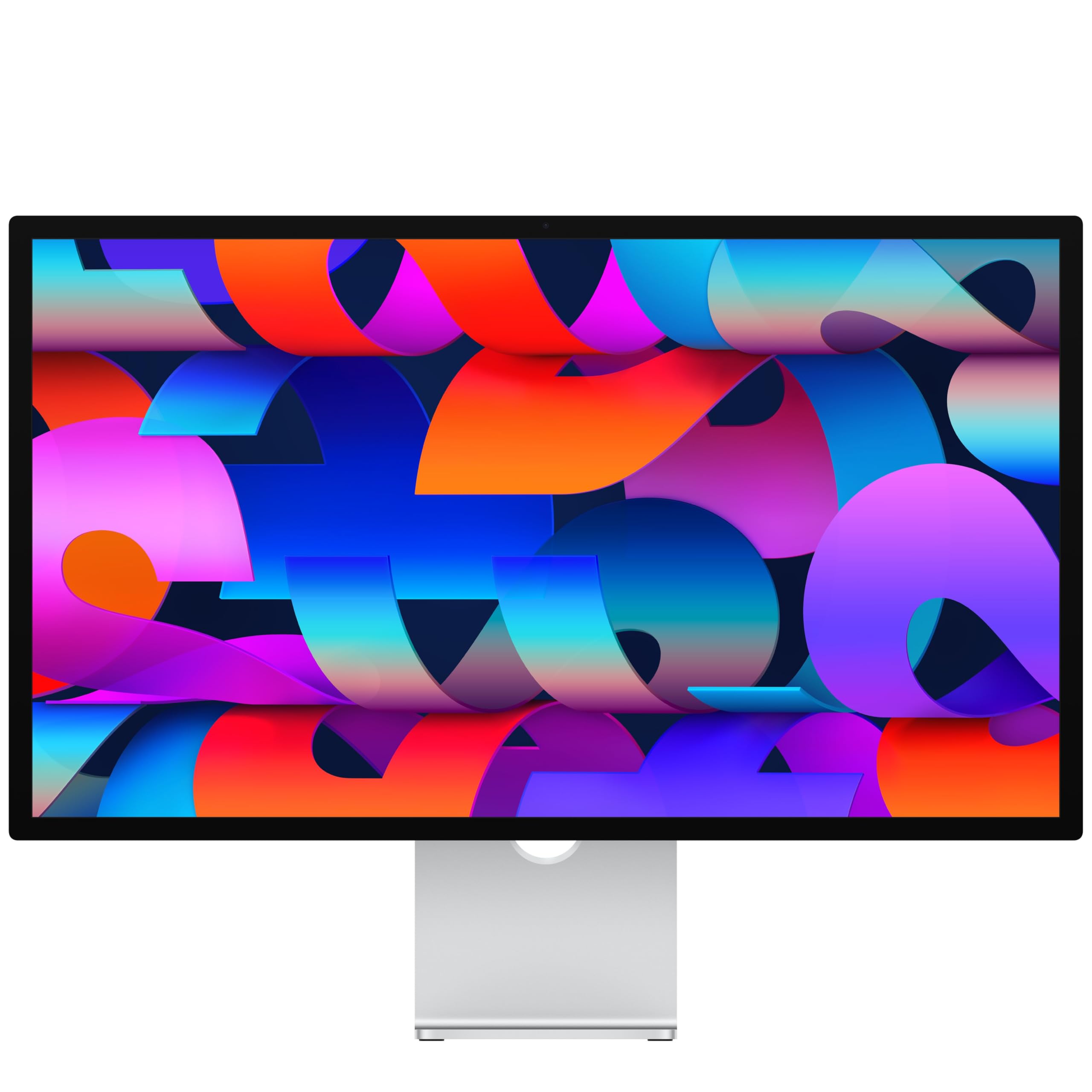 |
27 Inches | 5120 x 2880 | Wide Color P3 | Two Thunderbolt 5 ports, two USB-C ports, 96W charging | Mac integration | Check Price |
| BenQ PD3205U 31.5″ 4K Monitor |
 |
31.5 Inches | 3840 x 2160 | 99% sRGB, 99% Rec.709 | USB-C 90W, HDMI, DisplayPort, USB hub, KVM | Large sRGB and Rec.709 workspace | Check Price |
| EIZO ColorEdge CG2700X 27″ Monitor |
 |
26.9 Inches | 3840 x 2160 | 99% Adobe RGB, 98% DCI-P3 | USB-C 94W, HDMI, DisplayPort, USB hub, Ethernet | Professional color management | Check Price |

