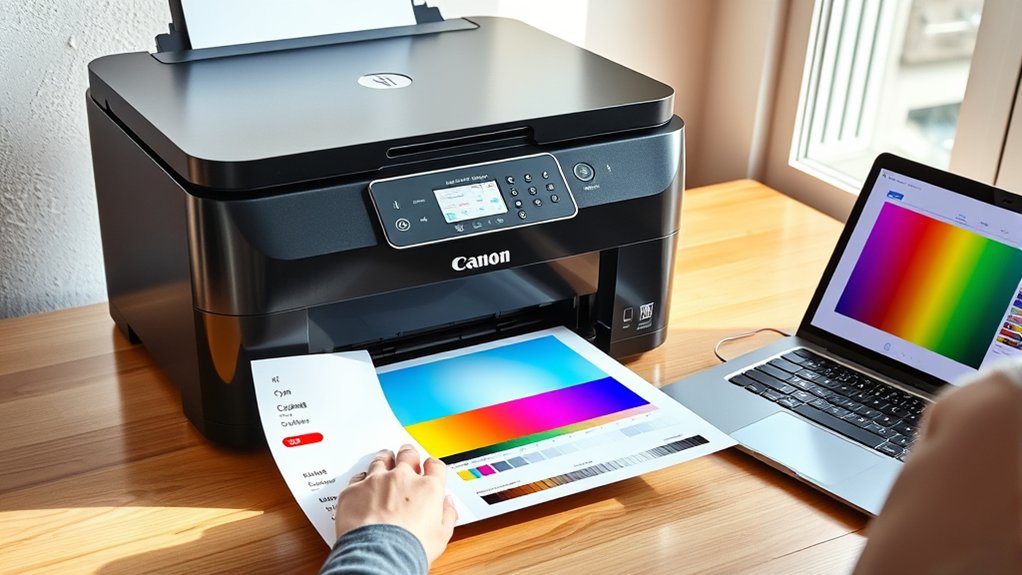
Canon MegaTank G3270 light or dull prints usually trace to driver settings, paper mismatch, or weak ink delivery. Best results come from changing Print Quality to Best, disabling Economy mode, and selecting the exact media type used. Color intensity, brightness, and contrast can then be raised in small steps. A nozzle check should confirm that all channels fire correctly before deeper adjustments. If black text or sticker colors still look faded, the next sections outline targeted fixes.
Why Canon G3270 Prints Look Too Light
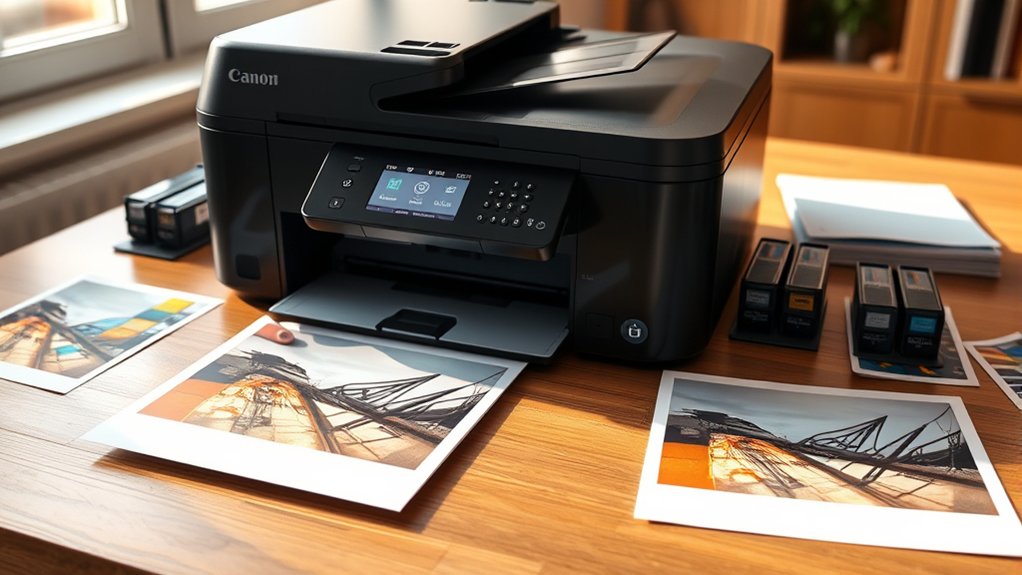
Light output from a Canon G3270 is typically traced to media interaction, print settings, or ink delivery rather than a single hardware fault. The model uses dye-based inks, and those inks often appear less dense on plain paper because the sheet absorbs liquid quickly, reducing visible saturation.
Matte paper can produce a similar effect when the selected media type does not match the actual stock in the printer driver.
Matte paper often prints lighter when the driver media setting does not match the paper actually loaded.
Configuration also influences perceived darkness. If Economy mode is enabled, ink laydown is intentionally reduced, which weakens color strength. Standard or High quality generally restores fuller output. The factory default, Better, may still leave some users wanting stronger color on absorbent media.
Ink delivery must also be verified. A nozzle check is a necessary diagnostic step because any missing cyan, magenta, yellow, or black channel will lighten the entire image.
Correct diagnosis frees troubleshooting from guesswork and directs attention to the real limiting variable.
Set G3270 Print Quality to Best
Open the G3270’s printer properties from the computer’s print dialog and change Print Quality from the default Better setting to Best before sending the job. This adjustment on the Canon G increases ink application density, producing darker text, stronger tonal separation, and cleaner edge definition.
It is a direct method for reclaiming control when output appears weak, pale, or visually constrained by factory defaults.
Best quality is most useful for photographs, saturated color areas, and detailed graphics where subtle gradients and fine structures must print with maximum clarity. Proper media selection should accompany this setting because the driver uses paper type to regulate ink load, saturation, and sharpness.
Users should expect slower print speed than under Better mode; this is normal, not a fault. The Canon G3270 also resets Print Quality to Better after each completed job, so the Best option must be deliberately reselected whenever consistently stronger, more liberated print results are required.
Turn Off Economy Mode
Even with Print Quality set to Best, Economy mode can still suppress output density by limiting ink delivery, causing colors and text to print lighter than expected. For color correction, Economy should be disabled and replaced with Standard or High quality. This change permits fuller ink application, producing richer saturation and stronger tonal separation.
| Setting | Diagnostic effect |
|---|---|
| Economy On | Lighter graphics and faded text |
| Standard | Balanced density and color |
| High | Maximum vibrancy and deeper blacks |
| After printing | Driver may revert to Economy |
| Canon support | Confirms draft-only intent |
Because the driver can silently return to Economy after a completed job, verification before each print run is essential. Users seeking liberation from washed-out output typically observe an immediate improvement once Economy is turned off. Standard is usually sufficient for everyday color accuracy, while High is useful when stronger visual impact is required. The result is output that better reflects the file on screen.
Match Paper Type to Your Media
Because ink absorption varies by substrate, matching the Canon G3270’s media setting to the paper in use is a primary step in correcting weak or inaccurate color output.
Different paper stocks receive and hold ink differently, so color saturation depends heavily on selecting the proper media type before printing. Glossy or coated paper typically yields stronger, cleaner color than plain or matte paper, which absorbs more ink and often produces lighter, flatter images.
- Select the exact media type in the Canon G3270 driver so ink distribution aligns with the paper surface.
- Use Standard or High quality on photo or sticker paper, since reduced-ink settings can suppress color density.
- Test multiple paper options systematically to identify the combination that delivers the most accurate and liberated output.
This diagnostic approach removes guesswork.
When paper selection and media settings correspond correctly, the printer operates with greater control, allowing color performance to break free from preventable limitations and inconsistency.
Adjust G3270 Color Intensity
Increase color intensity on the Canon G3270 methodically by verifying that the driver is using the correct media type, disabling Economy mode, and confirming through a nozzle check that all color channels are printing normally. This isolates weak saturation causes before any software change and prevents misdiagnosis on a new printer or established Canon printer.
To adjust G3270 color intensity, open the Canon driver or Canon PRINT utility within the Operating System and raise intensity in small increments. Test after each change using the same file and paper.
Select glossy paper for maximum vibrancy, or matte paper and matte sticker paper profiles when those stocks are installed, because absorption behavior differs. Standard or High quality on the PIXMA G platform generally produces fuller chroma than reduced-ink modes.
Coated media remains preferable when stronger color is the objective. The disciplined approach gives the operator more control, fewer wasted sheets, and liberation from washed-out output without pushing prints into oversaturation.
Fine-Tune Brightness and Contrast
When color intensity alone does not resolve a flat-looking print, brightness and contrast should be adjusted in the Canon G3270 print settings to better align output with the selected media and target image balance. This step enables more independent control over tonal separation, highlight lift, and shadow density without relying on broad saturation changes.
- Confirm that the selected paper type exactly matches the loaded media, because incorrect media profiles can shift brightness, mute contrast, and reduce color fidelity.
- Increase or decrease contrast gradually in small increments, then compare test prints; minor changes often produce disproportionate effects on perceived depth, saturation, and edge definition.
- Set print quality to High rather than Economy, since reduced ink delivery commonly lightens output and undermines intended contrast structure.
Brightness should then be fine-tuned conservatively to preserve detail in pale areas while avoiding washed midtones. A disciplined, iterative approach gives the operator greater freedom from dull, constrained output.
Run a Nozzle Check First
Run a nozzle check before adjusting any color settings, since nozzle restriction can mimic low saturation, uneven density, and inaccurate color balance. On the Canon G3270, this diagnostic should precede any software correction because clogged nozzles distort output at the hardware level. The check is available through the printer’s maintenance menu, either from the control panel or the driver interface.
The printed pattern presents colored lines or blocks for each channel. A complete pattern indicates normal ink delivery; gaps, breaks, or missing segments identify obstruction and isolate the affected color path. This allows corrective action based on evidence rather than guesswork, freeing the user from compensating for a mechanical fault with unnecessary profile changes.
As part of disciplined Nozzle Maintenance, regular checks are advisable after inactivity, when ink flow may become unstable. If defects appear, the appropriate response is the printer’s cleaning cycle, which is designed to restore proper distribution before further color adjustment.
Fix Faded Black Text and Labels
Correct faded black text and labels by evaluating the print quality setting first, because the Canon G3270 often defaults to Better rather than Best, which can leave black output lighter than expected.
Fix faded black text by checking print quality first—Canon G3270 often defaults to Better instead of the darker Best setting.
A diagnostic approach begins by disabling Economy mode and selecting Standard or High quality, then confirming the appropriate Print Media type so ink density matches the label stock or paper surface.
- Print a controlled test page from Windows Notepad using Consolas 11, since this combination has produced darker black output for some users.
- Run a nozzle check to verify full color delivery; missing channels can reduce composite density and make black text appear weak.
- Inspect ink levels and perform printhead cleaning if the pattern shows gaps, because maintenance directly affects text darkness and edge definition.
These steps free the user from guesswork.
If darkness improves only in specific applications, the issue is likely software-side rendering or driver settings rather than a hardware defect alone.
Improve Sticker Color on the G3270
Improve sticker color on the G3270 by verifying the media setting first, because the printer applies different ink density profiles to Plain, Glossy, and Photo stocks. For stronger saturation, Glossy or Photo should replace Plain when sticker media is coated. Economy mode should remain disabled, since reduced ink laydown produces muted output and weak contrast. Standard or High quality typically restores intended vibrancy and gives users more freedom from washed results.
| Check | Diagnostic action |
|---|---|
| Media Type | Set Glossy or Photo |
| Print Quality | Use Standard or High |
| Paper Compatibility | Choose coated sticker stock |
| Nozzle Status | Run a nozzle check |
Sticker Finish also influences absorption, so color intensity should be adjusted in small increments rather than extreme jumps. Coated papers generally hold pigment more evenly, while incompatible stocks can dull hues or shift balance. A nozzle check confirms whether every color channel is firing, preventing missing cyan, magenta, or yellow from distorting sticker graphics badly.
Clean the Printhead or Call Canon
Inspect the printhead next when faint output or persistent color imbalance remains after media and quality settings have been verified. This diagnostic step often restores proper ink flow, density, and channel balance.
Through the printer software or control panel, the user can run a cleaning cycle as part of Printhead Maintenance, reducing restrictions that cause weak saturation or uneven color.
- Run the built-in printhead cleaning from the maintenance menu.
- If defects persist, inspect nozzle status and confirm ink levels are not low.
- If output remains unstable, contact Canon at 1-800-OK-CANON for advanced troubleshooting.
This sequence helps the operator move from self-directed correction to manufacturer support without guesswork.
Regular Printhead Maintenance is not merely preventive; it extends service life and preserves consistent color reproduction.
For users seeking freedom from repetitive recalibration and wasted media, disciplined maintenance provides the most direct path to reliable, accurate printing over time with fewer interruptions.
Frequently Asked Questions
How Do I Adjust the Color Intensity on My Canon Printer?
To adjust color intensity, one accesses printer properties, matches media type, disables Economy mode, selects higher quality, and modifies intensity, contrast, and Color Profiles incrementally. A nozzle check verifies output integrity before further calibration.
How Do I Calibrate the Color on My Canon Printer?
Like tuning a telegraph, color calibration requires opening printer settings, selecting correct media and Color Profiles, adjusting intensity, running a nozzle check, and updating firmware. This precise process frees output from distortion and inconsistency.
Why Is My Canon Printer Not Printing the Correct Colors?
A Canon printer may produce incorrect colors due to Color Inconsistency from wrong media settings, Economy mode, clogged nozzles, unsuitable paper, or imbalanced intensity adjustments. Systematic checks of these variables restore accurate, unrestricted, predictable color output.
How to Change Canon Printer Color Settings?
Roughly 70% of color issues originate in settings. To change Canon printer color settings, one opens Print Properties, selects media type, adjusts quality and Color Adjustment controls, then confirms output with nozzle checks and Printer Maintenance.
Conclusion
Accurate Canon G3270 color output depends on a methodical sequence: verify nozzle health, disable economy settings, select Best quality, match media type, and fine-tune color intensity. Faded blacks, weak labels, and dull sticker colors usually trace back to one of these controllable variables. When cleaning cycles fail to restore density and balance, the printhead becomes the prime suspect. In color correction, each setting acts like a valve; small misalignment can throttle the entire image.

