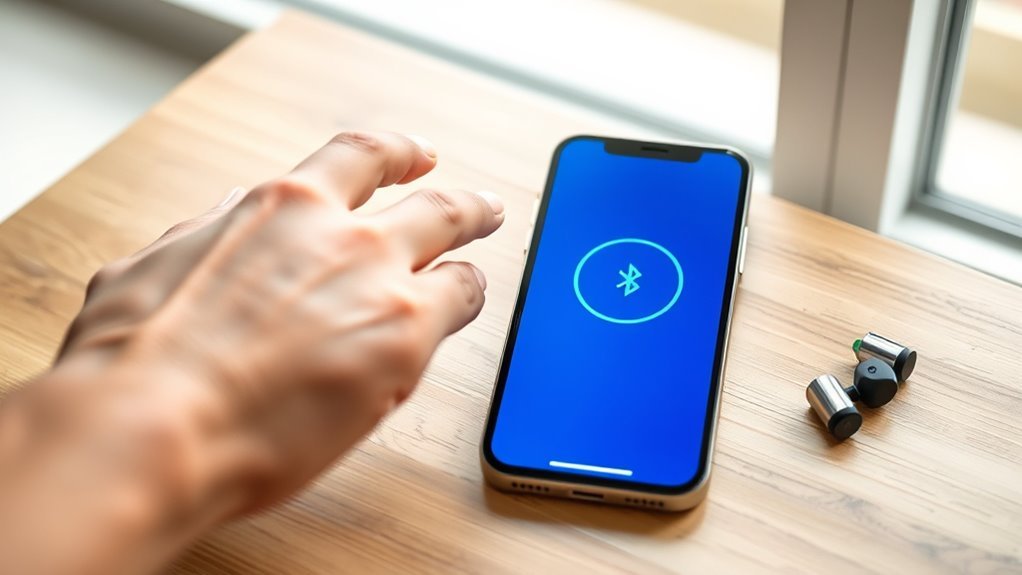
The myPhonak app not connecting on iPhone 14 Pro Max is usually a Bluetooth pairing, permission, or software issue. Sometimes calls and music still work, but the app cannot control hearing aid volume or programs. The fix depends on which connection has failed, so start with the simple checks before deleting anything.
Quick Answer
To reconnect myPhonak on an iPhone 14 Pro Max, enable Bluetooth, allow the app to access it, and restart both hearing aids. Close and reopen myPhonak. If the connection still fails, remove the old Phonak pairings from the iPhone and app, then pair both hearing aids again through myPhonak.
At a Glance
| Tools Needed | iPhone 14 Pro Max, compatible Phonak hearing aids, and myPhonak app |
| Cost | No paid troubleshooting tools required |
How to Fix myPhonak Connection on iPhone 14 Pro Max
Start by checking whether the problem affects the app, audio streaming, or both. myPhonak uses Bluetooth Low Energy for app communication, while compatible Phonak hearing aids also use a Bluetooth audio connection for calls and media.
These connections can behave differently. Hearing a phone call through your aids does not necessarily mean the app connection is working.
Try these fixes in order:
- Open iPhone Settings > Bluetooth and confirm Bluetooth is enabled.
- Make sure both hearing aids are switched on and have enough battery power.
- Close myPhonak completely and reopen it.
- Turn Bluetooth off and back on in iPhone Settings.
- Restart both hearing aids.
- Restart the iPhone if the app still cannot find them.
- Use the full unpairing and reconnection procedure below if the connection remains unsuccessful.
If myPhonak reconnects, test its volume and program controls. Then check a phone call or audio stream separately.
The official Phonak compatibility information specifies iOS 16 or newer and compatible Bluetooth hearing aids.
Compatibility depends on the hearing aid model as well as the phone. Not every Phonak hearing aid supports every app feature.
Check Bluetooth and App Permissions
myPhonak needs permission to communicate with nearby hearing aids. Bluetooth can be enabled on the iPhone while access for the app remains disabled.
Check these settings before resetting the connection:
- Open Settings > Bluetooth and turn Bluetooth on.
- Open Settings > Privacy & Security > Bluetooth.
- Find myPhonak and enable its Bluetooth permission.
- Return to the app and allow any Bluetooth access request.
- Make sure the phone and hearing aids are not in flight mode.
Apple documents the permission controls in its Bluetooth privacy instructions.
Notification permission is separate from Bluetooth access. Disabling notifications does not, by itself, prevent basic hearing aid pairing.
Also check that the iPhone has an internet connection during initial myPhonak setup. Phonak identifies internet access as a requirement for the initial pairing process.
If the app has never connected successfully, review Phonak’s initial pairing requirements before proceeding.
Restart Your Hearing Aids
Restarting the hearing aids refreshes their wireless connection and puts them back into pairing mode. The procedure depends on whether they use rechargeable or replaceable batteries.
For rechargeable hearing aids:
- Switch each hearing aid off using its model-specific power control.
- Switch it back on.
- If your charger supports automatic power-on, placing the aids in the powered charger and removing them can restart them.
- Open myPhonak and begin the pairing process.
For hearing aids with replaceable batteries:
- Open the battery door on each hearing aid.
- Close the doors to restart the devices.
- Begin pairing in myPhonak.
Phonak documents a pairing window of approximately three minutes after the hearing aids enter pairing mode.
Restart both hearing aids immediately before pairing, then complete the connection while they remain discoverable.
If a rechargeable aid shows an unexpected indicator light, follow its model-specific instructions. Avoid holding the power button longer than instructed, as this may activate flight mode on some models.
If the aids remain unresponsive, check their charge level before attempting more advanced recovery steps.
Forget Old Bluetooth Pairings
Old Bluetooth records can prevent myPhonak from establishing a fresh connection. A complete reset must account for the app connection and, where applicable, the separate phone-call and streaming connection.
Open Settings > Bluetooth and locate the entries associated with your Phonak hearing aids.
The number of entries depends on the hearing aid generation:
- Infinio Ultra and newer: Phonak documents two entries for a pair of hearing aids.
- Earlier compatible generations: You may see three entries, including a separate connection for phone calls and streaming.
Older entries may include names beginning with R-Phonak, LE_R-Phonak, or LE_L-Phonak.
To remove an entry:
- Tap its information icon.
- Select Forget This Device.
- Confirm the removal.
- Repeat for every entry associated with your hearing aids.
Leave unrelated Bluetooth accessories paired. There is no reason to remove your car, headphones, or other devices unless they are causing a separate connection conflict.
Keep Bluetooth enabled after removing the old records.
Reset the myPhonak App
If Bluetooth troubleshooting does not work, reset the hearing aid connection stored inside myPhonak. Removing iPhone Bluetooth records alone may leave the app’s own device registration unchanged.
A proper app reset removes the stored hearing aid connection and allows a new pairing session.
Clear App Data and Stored Device Connections
The iPhone does not provide a general Clear App Data button for myPhonak. Instead, remove the saved devices inside the app before considering a reinstall.
- Open myPhonak.
- Select Devices.
- Open the section showing your hearing aids or product information.
- Choose Forget my devices or Forget my device(s), depending on the app version.
- Confirm the removal.
- Return to the app’s Home section.
This removes the app’s stored pairing information. It is different from deleting the iPhone’s Bluetooth records.
Warning: Removing connections or reinstalling the app may require you to set up app preferences again. Record important custom settings before proceeding, especially if you use an older hearing aid model.
Complete both parts of the reset before attempting a fresh pairing.
Reinstall and Reconnect
Reinstall myPhonak only if the previous troubleshooting steps fail. This provides a fresh app installation and restarts the onboarding process.
The following table explains what each recovery action does.
| Action | Effect |
|---|---|
| Reset app | Removes stored hearing aid connections |
| Reinstall from App Store | Provides a fresh app installation |
| Restart iPhone | Refreshes temporary system processes |
To reinstall:
- Touch and hold the myPhonak app icon.
- Tap Remove App.
- Select Delete App and confirm.
- Open the App Store and install myPhonak again.
- Open the app and complete its initial setup.
Use Delete App rather than merely removing the icon from the Home Screen.
Apple explains the difference in its official app deletion instructions.
After installation, choose Pair hearing aids and follow the app’s instructions for your specific models.
Pair Your Hearing Aids Again
Start the new app connection through myPhonak, not by pairing random Bluetooth entries first. The app needs to register each hearing aid correctly.
Follow this sequence:
- Place both hearing aids close to the iPhone.
- Restart the hearing aids to activate pairing mode.
- Open myPhonak and tap Pair hearing aids.
- Select the correct rechargeable or replaceable-battery instructions.
- Wait until the app detects your hearing aids.
- If you wear two, confirm that both appear before continuing.
- Tap the green Pair button.
- Accept the iPhone Bluetooth pairing request for each hearing aid.
- Wait for the app to confirm successful pairing.
Confirm each Bluetooth pairing request. Finding the hearing aids does not mean the connection is complete.
If only one aid appears, select I don’t see my devices and follow the recovery prompts.
After pairing, test app-based volume and program adjustments.
Restore Phone Calls and Audio Streaming
App control and audio streaming may require different pairing steps.
For Infinio Ultra and newer hearing aids, Phonak states that calls and streaming are enabled automatically after app pairing.
Earlier generations may require another step through See instructions or Optional settings.
If the app works but phone calls do not, complete that additional setup rather than immediately deleting the app again.
Test a short audio stream and confirm that sound reaches the intended hearing aids.
Fix Problems After iOS Updates
An iOS update can leave previously working Bluetooth connections unstable. An app update or a change to the hearing aid fitting may produce similar symptoms.
Start by checking whether myPhonak and iOS are both current. Then refresh the connection before performing a complete reset.
Reset App Data After an Update
If the connection stopped working immediately after an update, follow the app’s built-in device removal process.
Phonak recommends resetting stored pairings when ordinary reconnection steps do not resolve the problem.
The manufacturer’s iPhone reconnection procedure covers app resets, Bluetooth records, and model-specific pairing.
If the app continues to crash or cannot finish onboarding, reinstall it using the procedure above.
Forget Bluetooth Pairings After an Update
Removing outdated pairings allows iOS and myPhonak to establish new connection records.
Delete the Phonak entries from iPhone Settings, then remove the saved hearing aids from the app.
Do not skip the app-side removal. Otherwise, myPhonak may continue attempting to reconnect using its previous registration.
Once both records are cleared, restart the hearing aids and begin pairing again.
Restart iPhone After Update
A full iPhone restart can clear a temporary Bluetooth or app process issue after an update.
For iPhone 14 Pro Max:
- Press and hold the side button and either volume button.
- Wait for the power-off slider.
- Drag the slider to turn off the phone.
- Allow the device to shut down.
- Hold the side button until the Apple logo appears.
After the phone starts, reopen myPhonak and check whether the hearing aids reconnect.
If they are already paired and working, you do not need to repeat the entire setup.
Use Stay Connected for More Reliable App Access
Phonak’s Stay connected feature keeps the hearing aids linked to myPhonak so the app can respond more quickly when reopened.
It is useful when you frequently adjust volume or listening programs throughout the day.
To enable it:
- Open myPhonak.
- Select Devices.
- Open Connection management.
- Enable Stay connected.
Phonak explains that the feature reduces the need to reconnect each time the app returns to the foreground.
However, keeping this connection active may slightly increase daily hearing aid battery consumption.
The official Stay connected explanation confirms both the benefit and the potential battery impact.
Stay connected is optional. You can turn it off if you prefer automatic reconnection when opening the app.
It is not a substitute for fixing failed Bluetooth pairings.
Troubleshoot Pairing After App Updates
If myPhonak still disconnects after a fresh pairing, identify the exact symptom. Different problems require different fixes.
Use this checklist:
- Neither aid appears: Check power, battery level, Bluetooth permission, and pairing mode.
- Only one aid appears: Check that both devices are registered in myPhonak.
- App controls fail but calls work: Focus on the app’s Bluetooth Low Energy connection.
- App controls work but audio fails: Check the separate streaming setup if your model requires it.
- Settings disappear: Confirm that personal adjustments were saved as a custom program.
- Connection fails after switching phones: Disconnect myPhonak from the previous device.
Why Does Only One Hearing Aid Connect?
One hearing aid may be missing because it was not paired during setup, has insufficient battery power, or is experiencing wireless interference.
Open Devices in myPhonak and confirm that both hearing aids are listed.
If only one is registered, remove the stored devices and pair both again.
Phonak also recommends checking firmware when the problem continues. Both aids in a pair should have matching firmware versions.
Follow the manufacturer’s one-hearing-aid troubleshooting guidance if only one side repeatedly connects.
Can Another Phone Interrupt the Connection?
Yes. A hearing aid can maintain only one myPhonak app connection at a time.
If you previously connected the aids to another phone or tablet, disconnect the app on that device before trying the iPhone 14 Pro Max.
In myPhonak, use Devices > Connection management > Disconnect when switching devices.
Phonak explains this limitation in its multiple-smartphone connection guidance.
Nearby wireless devices and physical obstacles may also affect Bluetooth performance. Test the connection with the phone close to the hearing aids and away from obvious sources of interference.
Why Do My Custom Settings Disappear?
Unsaved listening adjustments are not always permanent. Changing programs, disconnecting the app, or streaming audio may return the aids to another listening configuration.
Save important personal adjustments as custom programs when your model supports that feature.
If settings disappear after a professional fitting change, ask your hearing care professional whether the saved programs need to be restored or recreated.
Key Takeaways
- App control and phone-call streaming can use different Bluetooth connections.
- Older hearing aid generations may show three Bluetooth entries, while newer models may show two.
- The pairing window lasts approximately three minutes after the aids enter pairing mode.
- Stay connected can speed up app access but may slightly affect battery life.
- A hearing aid cannot maintain myPhonak app connections with two phones simultaneously.
When Should You Contact Phonak Support?
Contact Phonak or your hearing care professional when both hearing aids repeatedly fail to pair after the full reset procedure.
Professional assistance is especially useful if one hearing aid remains unresponsive, firmware updates fail, or the connection stops working after a fitting change.
Before contacting support, record:
- Your hearing aid model and whether it is rechargeable.
- Your iPhone model and installed iOS version.
- The myPhonak app version.
- Whether the issue affects app controls, audio streaming, or both.
- Any error message displayed during pairing.
- The troubleshooting steps you have already completed.
Phonak provides official technical support and contact information for hearing aid and app problems.
US technical support is available at 800-679-4871. The dedicated US Veterans Affairs customer care number is 866-230-0110.
Note: A hearing care professional can check hearing aid firmware, fitting settings, and device function. If the aids themselves stop working, do not assume the iPhone or app is the cause.
Frequently Asked Questions
Why Isn’t myPhonak App Connecting to My iPhone?
myPhonak can fail to connect when Bluetooth permission is off, the hearing aids are out of pairing mode, or old pairings remain. Turn on Bluetooth, restart the aids, and pair them inside the app. If that fails, forget both the iPhone and app records before pairing again.
What Are Some Common Problems With the Phonak App?
Common problems include pairing failures, repeated reconnection requests, missing hearing aids, and settings that do not remain saved. These issues may involve Bluetooth permissions, battery levels, software changes, or unsaved custom programs. The correct fix depends on which function has stopped working.
What Are People Saying About the myPhonak App?
User experiences vary, with some reporting reliable app controls and others describing Bluetooth reconnection problems. An individual review cannot establish how the app will perform with your hearing aids. Check the exact hearing aid model, app compatibility, and whether the reported problem affects app controls or audio streaming.
Why Is My Phonak Hearing Aid Not Connecting to My Phone?
A Phonak hearing aid may not connect because its battery is low, Bluetooth is disabled, or it is not in pairing mode. Restart the hearing aid and check the phone’s Bluetooth settings. If the problem continues, remove the previous pairing records and reconnect through myPhonak.
Conclusion
Most myPhonak connection problems on iPhone 14 Pro Max can be addressed by checking Bluetooth access, restarting the hearing aids, and restoring the correct pairing records.
Work from simple fixes toward a full reset. Once connected, test app controls and audio streaming separately. If repeated pairing failures continue, contact Phonak or your hearing care professional for model-specific assistance.
Sources
- Phonak: myPhonak Hearing Aid App: iPhone compatibility and supported hearing aids.
- Phonak: Hearing Aid Connection Problems: initial pairing requirements, battery checks, and flight mode.
- Apple: Bluetooth Privacy Settings: app Bluetooth permissions on iPhone.
- Phonak: Repair myPhonak Connection Issues on iPhone: complete reset, pairing duration, Bluetooth entries, and streaming setup.
- Apple: Delete Apps on iPhone or iPad: removing and reinstalling applications.
- Phonak: Only One Hearing Aid Connects: battery, pairing, interference, and firmware troubleshooting.
- Phonak: Stay Connected Feature: connection management and battery impact.
- Phonak: Using myPhonak on Multiple Smartphones: simultaneous connection limitations.
- Phonak: Contact Us: technical support and Veterans Affairs contact information.

