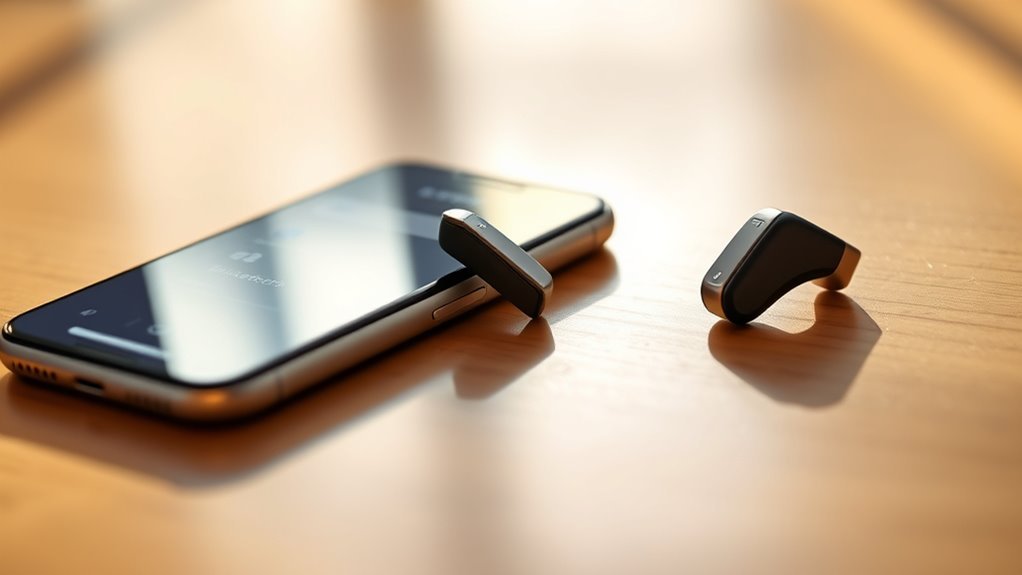
Connecting your Phonak Audéo I90-Sphere hearing aids to an iPhone 15 lets you stream music, hear phone calls, and use Bluetooth without a separate streaming accessory. The pairing process is straightforward, but phone audio and the myPhonak app can use different connections. This guide explains how to pair Phonak Sphere with iPhone 15, test the connection, and fix common problems.
Quick Answer
To pair Phonak Audéo I90-Sphere with iPhone 15, open Settings > Bluetooth and turn Bluetooth on. Place both hearing aids in their powered charger for at least 10 seconds, then remove them. Within three minutes, select the Phonak hearing aid shown under Bluetooth devices. A beep confirms successful pairing for calls and streaming.
At a Glance
| Difficulty | Easy; uses standard iPhone Bluetooth settings |
| Tools Needed | iPhone 15, charged Audéo Sphere hearing aids, and their powered charger |
| Cost | No additional streaming accessory or paid app required |
Key Takeaways
- Phonak Audéo I90-Sphere is rechargeable. Battery-door pairing instructions for other Phonak models do not apply.
- One Bluetooth pairing normally sends call and media audio to both hearing aids when both are working and fitted together.
- On original Infinio firmware, the myPhonak app uses separate Bluetooth Low Energy connections for remote control.
- After an Infinio Ultra update, pairing through myPhonak can also enable calls and streaming without a separate Bluetooth setup.
- If only one hearing aid appears in myPhonak, check that both devices are detected before completing app pairing.
How to Pair Phonak Sphere With iPhone 15
You can connect Phonak Audéo Sphere to an iPhone 15 through the phone’s regular Bluetooth menu. Once paired, the hearing aids can handle phone calls and audio from music, podcasts, and videos.
The basic process follows the manufacturer’s official iPhone Bluetooth pairing instructions.
- Open Settings > Bluetooth on the iPhone 15.
- Turn Bluetooth on and keep the Bluetooth settings screen open.
- Restart both Phonak Audéo Sphere hearing aids using their charger.
- Wait for the hearing aid name to appear under available Bluetooth devices.
- Tap the hearing aid name to connect.
- Listen for the pairing confirmation beep.
- Play audio or make a phone call to confirm the connection works.
Pairing typically needs to be completed only once. Afterward, the hearing aids should reconnect automatically when they are switched on, the iPhone’s Bluetooth is enabled, and both devices are within range.
The original Audéo I90-Sphere uses Phonak’s Infinio platform. If your hearing care professional has upgraded the aids to Infinio Ultra, pairing through myPhonak may complete the streaming connection automatically.
If you use the original firmware, you can pair the hearing aids for calls and streaming first, then connect them separately to myPhonak for app control.
Put Phonak Hearing Aids in Pairing Mode
To activate pairing mode on Phonak Audéo Sphere, switch the hearing aids off and back on. This makes them discoverable by the iPhone for approximately three minutes.
Because Audéo I90-Sphere contains built-in rechargeable batteries, use the charger or the hearing aids’ multifunction buttons.
Method 1: Restart Using the Charger
- Connect the Phonak charger to power, or confirm that a compatible portable charger has enough battery charge.
- Place both hearing aids correctly into their charging slots.
- Leave them in the charger for at least 10 seconds.
- Remove both hearing aids.
- Look for the green startup indicator.
- Return to the iPhone Bluetooth menu and select the hearing aids before the pairing window expires.
A flashing green indicator shows that a hearing aid has powered on. It does not, by itself, prove that Bluetooth pairing has succeeded.
Method 2: Restart Using the Multifunction Buttons
If the charger is unavailable, the multifunction button provides another way to restart each hearing aid.
- Press and hold the lower part of the multifunction button to switch the hearing aid off.
- Release the button after the red shutdown indicator appears.
- Press and hold the lower part again to switch the hearing aid on.
- Release the button when the green startup indicator appears.
- Repeat the procedure on the second hearing aid.
Both hearing aids should now be ready for Bluetooth discovery.
Be careful not to continue holding the button through the startup sequence. An extended press can activate flight mode, which disables Bluetooth connectivity.
The Phonak Audéo Sphere user guide explains the startup indicators, pairing process, flight mode, and hearing aid reboot procedure.
Check Before You Pair
Before connecting Phonak Sphere to iPhone 15, confirm that the phone and hearing aids are ready. A low battery, inactive Bluetooth connection, or nearby device can interrupt the process.
Complete these checks before starting:
- Charge both hearing aids: Make sure neither hearing aid is running out of power.
- Update the iPhone: Open Settings > General > Software Update and install an available compatible iOS update.
- Enable Bluetooth: Use Settings > Bluetooth rather than relying only on the Control Center shortcut.
- Keep devices nearby: Place the iPhone close to the hearing aids during pairing.
- Check flight mode: Make sure the iPhone and hearing aids have Bluetooth available.
- Consider other connections: A nearby phone or computer previously paired with the hearing aids may connect to them automatically.
Phonak hearing aids can remember multiple Bluetooth devices. This is convenient, but it can make troubleshooting confusing when the sound comes from a different connected device.
If another phone is using the hearing aids, temporarily disable Bluetooth on that phone while connecting your iPhone 15.
For original Infinio firmware, the connection for phone audio and the connections used by myPhonak serve different purposes. One can work even when the other has a problem.
Also, you do not need to open Settings > Accessibility > Hearing Devices for standard Phonak Sphere Bluetooth pairing. That Apple menu is intended for supported Made for iPhone hearing devices.
Pair Phonak Sphere in iPhone Bluetooth
Once the hearing aids are in pairing mode, select their name from the iPhone Bluetooth device list. The main audio connection usually appears with an R-Phonak or L-Phonak label.
The exact name can vary because a hearing care professional may customize the Bluetooth name during fitting.
Step-by-Step Bluetooth Connection
- Open the iPhone 15 Settings app.
- Tap Bluetooth and confirm the switch is on.
- Restart both Phonak Sphere hearing aids.
- Wait for a Phonak hearing aid name to appear under Other Devices.
- Tap the appropriate hearing aid name.
- Accept a pairing request if the iPhone displays one.
- Wait for the connected status and confirmation sound.
For a pair of Audéo Sphere hearing aids, you normally select only one hearing aid entry for phone calls and media streaming. The hearing aids work together to provide sound to both ears.
You do not need to pair the left and right hearing aids separately for standard audio streaming.
Why Do Several Phonak Names Appear?
On the original Infinio connection system, you may see multiple Bluetooth entries after completing both audio and myPhonak pairing.
| Bluetooth Entry | Purpose | What to Do |
|---|---|---|
| R-Phonak hearing aid or L-Phonak hearing aid | Phone calls and media streaming | Select during standard iPhone Bluetooth pairing |
| LE_R-Phonak hearing aid | myPhonak app connection for the right aid | Let myPhonak establish this connection |
| LE_L-Phonak hearing aid | myPhonak app connection for the left aid | Let myPhonak establish this connection |
These entries are normal on the original connection system. The LE connections may show as Not Connected when the app is closed.
After an Infinio Ultra update, the number and names of Bluetooth entries may differ. Do not delete working connections simply because more than one Phonak name appears.
Confirm Calls and Media Streaming
A pairing beep means the hearing aids have established a Bluetooth connection. However, the best confirmation is to test both media playback and a phone call.
Audéo Sphere can stream audio directly to the hearing aids and use their microphones for hands-free conversations.
Test Music and Video Audio
- Put both hearing aids in your ears.
- Open a music or video app on the iPhone.
- Start playback at a comfortable volume.
- Confirm that sound reaches the hearing aids.
- Adjust the volume if necessary.
If the iPhone speaker plays the audio instead, use the audio output selector in the playback controls to choose the connected Phonak device.
Test a Phone Call
- Make a short call to someone who can help you test the connection.
- Check that you can hear the caller through the hearing aids.
- Speak normally and ask whether your voice is clear.
- If sound comes through the iPhone, tap Audio on the call screen.
- Select the Phonak Bluetooth connection.
For compatible audio routing, the iPhone can also direct calls to a Bluetooth device automatically.
Phonak’s streaming and app connection guidance confirms that one Bluetooth audio pairing can deliver sound to both hearing aids on the original Infinio system.
If only one hearing aid produces sound, check whether the other is powered on and working normally before deleting Bluetooth settings.
Set Up myPhonak Auto-Pairing
The myPhonak app lets you adjust hearing aid settings, manage listening programs, and view supported device information. It connects through Bluetooth Low Energy, which is different from the standard audio connection used by the original Infinio firmware.
Once configured, myPhonak remembers your hearing aids and can reconnect to them when the devices are available.
How to Pair Phonak Sphere With myPhonak
- Download myPhonak from the iPhone App Store.
- Enable Bluetooth in iPhone Settings.
- Connect the iPhone to the internet for the initial app setup.
- Open myPhonak and follow its introductory setup screens.
- Choose Pair hearing aids when prompted.
- Restart both hearing aids to make them discoverable.
- Wait until the app detects both the left and right hearing aids.
- Tap Pair in the app.
- Approve the iPhone Bluetooth pairing request for each hearing aid.
- Complete the remaining setup prompts.
If the app detects only one hearing aid, restart both devices and repeat discovery. Pairing both together helps avoid one-sided app connections.
Follow the official myPhonak pairing procedure for rechargeable hearing aids if a setup screen differs from these steps.
Does myPhonak Also Set Up Phone Calls?
The answer depends on the firmware installed in your Audéo Sphere hearing aids.
- Original Infinio firmware: Pairing with myPhonak establishes app control. A separate Bluetooth audio connection may still be needed for calls and streaming.
- Infinio Ultra firmware: Pairing through myPhonak can establish the audio connection automatically.
You do not need to launch myPhonak every time you want to stream music after the audio connection has been properly established.
The hearing aids can reconnect automatically after they are removed from their charger. However, automatic reconnection is not the same as initial pairing with a new iPhone.
Why iPhone Notifications Don’t Read Aloud?
Phonak Sphere can play iPhone notification sounds, but hearing an alert does not mean the hearing aids can automatically read the complete message aloud. Spoken notification support depends on the iPhone’s Siri settings and the connected audio device.
For example, a new text message may produce an alert tone in the hearing aids without reading the message content.
Check iPhone Notification Settings
- Open Settings on the iPhone 15.
- Tap Notifications.
- Select the app whose notifications you want to receive.
- Confirm that notifications are allowed.
- Check whether notification sounds are enabled.
- Play a test notification and listen for the alert.
If alert sounds work, the iPhone is already sending notification audio through the Bluetooth connection.
Can Siri Read Notifications Through Phonak?
Apple provides spoken notification features through Siri, but automatic announcements are supported only through specified audio routes and compatible devices.
The original Phonak Sphere uses conventional Bluetooth for calls and music. It should not be assumed to have the same automatic notification-reading support as Apple’s Made for iPhone hearing devices.
Apple’s Siri accessibility documentation explains the available notification announcement features, including support through the iPhone speaker and eligible listening devices.
If you want spoken notifications, check the available Announce Notifications options in the iPhone’s Siri settings. A feature appearing on the phone does not guarantee that automatic announcements will play through Phonak Sphere.
Google Calendar and other calendar apps may also have their own notification settings. The iPhone must receive an enabled notification before any corresponding alert can reach the hearing aids.
For everyday use, a notification tone is a reliable way to know that a message arrived. Read the notification on the iPhone when spoken delivery is unavailable.
Fix One Phonak Hearing Aid That Won’t Connect
If one Phonak Sphere hearing aid works while the other does not, first determine whether the problem affects myPhonak, audio streaming, or the hearing aid itself. These problems have different causes and do not always require a complete Bluetooth reset.
When Only One Hearing Aid Appears in myPhonak
- Open myPhonak and check the Devices section.
- Confirm whether both hearing aids are listed.
- Check that the missing hearing aid is charged and switched on.
- Move the iPhone close to both hearing aids.
- Turn iPhone Bluetooth off and back on through Settings.
- Restart both hearing aids.
- Try connecting through myPhonak again.
If one hearing aid was never paired with the app, you may need to forget the current app pairing and set up both devices together.
Phonak’s one-hearing-aid connection troubleshooting guide also recommends checking flight mode, software updates, and matching firmware versions.
When Only One Hearing Aid Produces Sound
If myPhonak recognizes both hearing aids but one side sounds silent, the issue may not be Bluetooth pairing.
Check these points:
- Confirm the silent hearing aid is switched on and charged.
- Listen for its normal startup sound.
- Inspect the earpiece and wax protection for blockage.
- Clean the device according to Phonak’s maintenance instructions.
- Check whether the problem also occurs during ordinary listening without Bluetooth audio.
A blocked wax guard can reduce or stop audible output, but it does not directly prevent the Bluetooth radio from pairing.
Restart a Hearing Aid That Is Not Responding
If the device remains unresponsive, Phonak documents a separate reboot procedure for Audéo Sphere.
- Locate the multifunction button on the affected hearing aid.
- Press and hold the lower part for at least 15 seconds.
- Release the button after completing the reboot action.
- Wait for the hearing aid to restart.
- Check whether its green indicator appears and normal operation returns.
This procedure is different from placing a hearing aid in its charger for a short period. A reboot is intended for an error state and does not normally erase the hearing aid’s fitting programs.
Note: If one hearing aid remains silent, repeatedly disconnects, or fails to restart, contact your hearing care professional. They can check its firmware, fitting, and hardware instead of relying on repeated Bluetooth resets.
Fix Phonak Pairing Problems on iPhone 15
Most Phonak Sphere pairing problems can be investigated by checking power, Bluetooth discovery, existing connections, and software status. Start with simple checks before removing working pairings.
Common Problems and Their Fixes
| Problem | Possible Cause | Recommended Fix |
|---|---|---|
| Hearing aids do not appear in Bluetooth | Pairing mode expired or devices are off | Restart both aids and search again |
| Bluetooth says Connected, but there is no audio | Incorrect audio output or volume setting | Select Phonak as the audio destination and check volume |
| myPhonak cannot detect one aid | App pairing or one-sided connection problem | Restart both aids and repeat app discovery |
| Connection drops during use | Distance, interference, or competing Bluetooth connections | Keep devices closer and check other connected devices |
| Pairing stops after a phone update | Saved Bluetooth pairing or app connection needs refreshing | Restart devices, then remove and re-pair connections if needed |
Reset Bluetooth Pairing When Basic Fixes Fail
If the hearing aids still refuse to connect, remove the old pairing information and establish a fresh connection.
- Open Settings > Bluetooth on the iPhone.
- Locate the saved Phonak hearing aid entry.
- Tap the information icon beside the device name.
- Choose Forget This Device.
- Repeat for the relevant saved Phonak entries if you are performing a complete connection reset.
- Restart the iPhone.
- Restart both hearing aids to activate pairing mode.
- Pair again using the correct Bluetooth setup procedure.
If myPhonak also fails to connect, remove the app’s saved hearing aid pairing through its Devices section and complete app setup again.
On the original Infinio system, a full reset may involve removing the audio entry and the two LE entries. Deleting only one connection might leave the remaining app or audio pairing in an inconsistent state.
Phonak’s Bluetooth and app troubleshooting instructions provide the connection-reset sequence for original Infinio devices.
What If the Hearing Aids Have Infinio Ultra?
The Infinio Ultra update changes how Phonak hearing aids establish and display Bluetooth connections.
After the update, some users may see two entries with similar hearing aid names. This can be normal because the streaming and app connections are represented differently.
Use Phonak’s Infinio Ultra Bluetooth pairing guidance rather than assuming that the original three-entry setup still applies.
If connection problems continue after a complete reset, ask your hearing care professional to check that both aids have compatible firmware and are working normally.
Frequently Asked Questions
What Are the Pros and Cons of Audéo Sphere?
Phonak Audéo Sphere offers advanced speech-in-noise processing, direct Bluetooth streaming, hands-free phone calls, and rechargeable convenience. Its Spheric Speech Clarity technology is designed to make speech easier to understand in noisy places. Possible drawbacks include charging requirements, a larger body than some hearing aids, and varying benefit depending on hearing loss and fitting. Automatic spoken iPhone notifications are also not guaranteed.
Which Phonak Model Is Considered the Best?
The best Phonak model depends on your hearing loss, listening needs, comfort, and professional fitting. Audéo I90-Sphere is a premium model in the Infinio family, with technology designed for difficult listening situations. It is not an Audéo Paradise model; Paradise is a separate, older Phonak product family. A hearing care professional can help determine which model and technology level suits you.
What Does Phonak Infinio Sphere 90 Do?
Phonak Audéo I90-Sphere uses advanced sound processing, including Spheric Speech Clarity, to help users understand conversations in background noise. It also supports direct Bluetooth audio, hands-free calling, rechargeable operation, and compatible myPhonak controls. Its hearing performance depends on the user’s hearing profile, fitting, and listening environment. The device is designed to improve access to useful sounds rather than eliminate all background noise.
Do I Need the myPhonak App to Stream Music From iPhone 15?
No, you do not need to keep myPhonak open to stream music from an iPhone 15. Audéo Sphere supports a direct Bluetooth audio connection. With original Infinio firmware, standard streaming can be paired separately from the app. With Infinio Ultra, pairing through myPhonak can also establish the audio connection. Once connected, music and calls can work without opening the app.
Why Do I See R-Phonak and LE-Phonak in iPhone Bluetooth?
On original Infinio firmware, the R-Phonak or L-Phonak entry usually represents the connection for phone calls and media streaming. The LE entries represent low-energy connections used by myPhonak to communicate with the individual hearing aids. These multiple entries are normal and do not mean you have extra hearing aids. Infinio Ultra can display a different pairing arrangement.
Conclusion
Pairing Phonak Audéo I90-Sphere with iPhone 15 usually requires only Bluetooth, a restart of the hearing aids, and selecting the correct device name. Once connected, you can enjoy hands-free calls and direct audio streaming.
If something goes wrong, identify whether the problem affects Bluetooth audio, myPhonak, or one hearing aid. Checking the correct connection first can save you from unnecessary resets.
Sources
- Phonak, Audéo Sphere User Guide: rechargeable battery design, pairing window, status indicators, flight mode, and reboot procedure.
- Phonak, How to Pair Phonak Hearing Aids to iPhone: Bluetooth setup instructions and pairing confirmation.
- Phonak, Connecting to Your Smartphone for Phone Calls, Audio, and the App: separate streaming and app connections on original Infinio firmware.
- Phonak, How to Pair Rechargeable Hearing Aids to myPhonak on iPhone: app pairing and Bluetooth permission steps.
- Apple Support, Change Siri Accessibility Settings on iPhone: spoken notification features and supported audio routes.
- Phonak, Why Does Only One Hearing Aid Connect to the myPhonak App?: checks for single-aid app connection failures.
- Phonak, Troubleshoot Problems With Connectivity to Bluetooth or the App: original Infinio pairing reset steps.
- Phonak, How to Manage Bluetooth Pairing Entries After Updating Infinio to Ultra: pairing changes following an Ultra update.

