Disclosure: As an Amazon Associate, we earn from qualifying purchases. If you click a link on this page and make a purchase, we may receive a small commission at no extra cost to you.
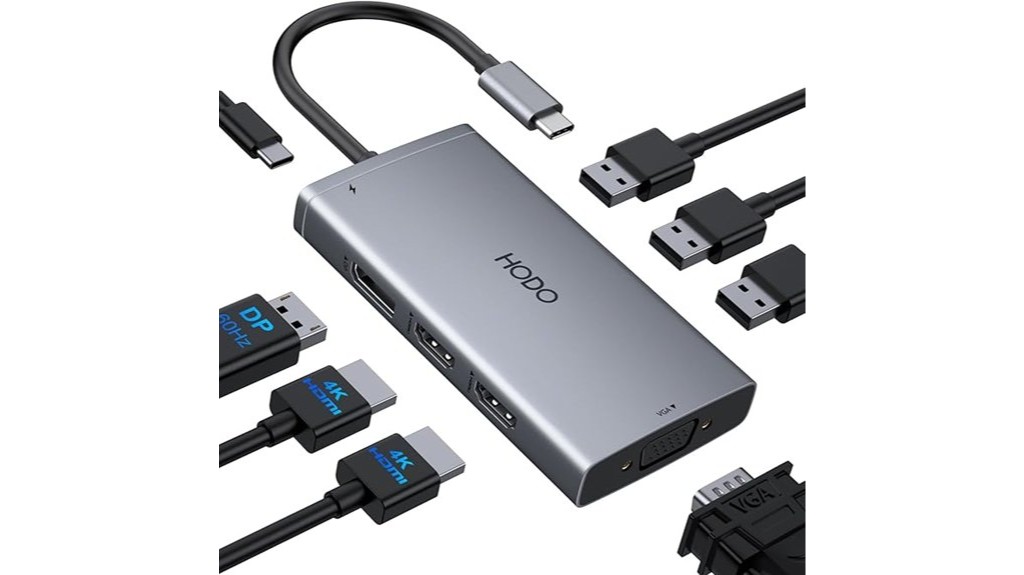
A laptop with too few ports can slow down your work, especially when you need multiple monitors, a keyboard, a mouse, storage devices, and charging from one setup. The USB C Docking Station 8 IN 1 is built to expand one full-featured USB-C connection into a more complete desk hub with dual 4K HDMI outputs, DisplayPort, VGA, USB ports, and up to 100W power delivery. This review will help you decide whether it is a smart fit for your laptop, monitor setup, and daily workflow. Its biggest strength is display flexibility, but its best performance depends on your laptop supporting the right USB-C display features.
Quick Verdict
Rating: Recommended with caveats
Best For: Laptop users who want a cleaner desk setup with multiple display outputs and basic USB peripheral support.
Bottom Line: The USB C Docking Station 8 IN 1 is worth considering if you need HDMI, DisplayPort, VGA, USB ports, and USB-C charging support in one compact hub. The main tradeoff is that triple-display performance and higher display output depend heavily on your laptop’s USB-C and DP1.4 support.
| Specification | Detail |
|---|---|
| Product Type | USB-C docking station |
| Port Layout | 8-in-1 multiport design |
| Video Outputs | Dual HDMI, DisplayPort, and VGA |
| Display Support | Dual 4K HDMI support, with triple-display setups depending on laptop compatibility |
| Power Delivery | USB-C PD charging port supports up to 100W power delivery |
| USB Ports | Three USB 2.0 ports for basic peripherals |
| Compatibility | Designed for laptops with compatible full-featured USB-C ports |
| Important Requirement | Best display performance requires a laptop that supports DP1.4 signal output |
| Power Adapter Note | A separate power adapter may be required for charging through the dock |
Overview
When evaluating the USB C Docking Station 8 IN 1, the main thing to understand is that it is made to turn one compatible USB-C port into a more useful workstation connection. Instead of plugging separate cables into your laptop every time you sit down, you can connect monitors, basic USB accessories, and power through one docking setup.
The dock is most useful for modern professionals, students, home-office users, and anyone who works with more than one screen. Its display options include dual 4K HDMI outputs, DisplayPort, and VGA, giving you more room to build a monitor layout that fits your desk. It also supports up to 100W power delivery, which can help reduce cable clutter when paired with the right charger and laptop.
The biggest limitation is compatibility. To get the best display performance, your laptop needs a full-featured USB-C port that supports video output, and peak performance depends on DP1.4 support. If your laptop’s USB-C port is charge-only or data-only, the display functions may not work as expected.
Before You Buy: Check your laptop’s USB-C specifications before ordering. A USB-C port does not always mean the laptop supports external displays, power delivery, or DP1.4 output through that port.
What Is the USB C Docking Station 8 IN 1?
The USB C Docking Station 8 IN 1 is a multiport adapter designed for laptops that need more display and accessory connections than the built-in ports provide. It combines video outputs, USB peripheral ports, and USB-C power delivery into one compact docking station.
Its main selling point is display flexibility. With dual HDMI outputs, DisplayPort, and VGA, it gives you several ways to connect external monitors, projectors, or older display equipment. This can be useful if you switch between a home office monitor setup, a meeting-room display, and standard desk accessories.
It is not a high-speed data hub for heavy file transfers because the article-supported USB ports are USB 2.0. That makes it better for accessories such as a keyboard, mouse, webcam, printer, or receiver than for fast external SSD work.
Who Should Buy It?
Best For
- Laptop users who want multiple display output options from one USB-C dock.
- Home-office users who need HDMI, DisplayPort, VGA, and basic USB accessory support.
- People who want a cleaner desk setup with charging support up to 100W.
Skip If
- Your laptop does not support video output through its USB-C port.
- You need USB 3.0, USB 3.1, or faster ports for large file transfers.
- You expect the dock to include its own power adapter for charging.
Detailed Features
Although users seek diverse functions in a single device, the USB C Docking Station 8 IN 1 focuses on the most common desk needs: display expansion, basic USB accessory support, and power delivery. It provides dual 4K HDMI outputs and a DisplayPort, along with a VGA output for older monitors and projectors.
This setup allows up to triple-display configurations, but that depends on your laptop’s ability to send the required DP1.4 signal through USB-C. If your laptop has limited USB-C display support, you may still be able to use the dock, but the display count, resolution, or refresh behavior may be reduced.
Power delivery is another useful feature. The 100W USB-C PD charging port can pass power through the dock to a compatible laptop when connected to a suitable charger. This helps reduce the number of cables on your desk, but you still need the right power adapter because the dock itself does not replace a charger.
Connectivity is enhanced with three USB 2.0 ports. These ports are practical for low-bandwidth accessories such as a mouse, keyboard, USB receiver, printer, or basic webcam. They are less ideal for users who regularly transfer large files from external drives.
Display and Monitor Support
The strongest reason to consider this dock is its display output range. Dual HDMI outputs are useful for modern monitors and TVs, while DisplayPort gives you another common connection type for office displays. VGA support is helpful if you still use an older projector, classroom display, or legacy monitor.
The dock can support advanced display setups, but your laptop controls what is possible. A laptop with the right USB-C display output and DP1.4 support can make better use of the dock’s multi-monitor design. A laptop with weaker USB-C video support may limit resolution, display count, or mirrored versus extended display behavior.
Power Delivery and Charging
The USB-C PD charging port supports up to 100W power delivery, which is useful for laptops that can charge over USB-C. In a desk setup, this lets you connect your charger to the dock and use one USB-C cable between the dock and your laptop.
That said, 100W support does not mean every laptop will charge at 100W. Your charger, cable, laptop charging limit, and dock setup all matter. For best results, use a charger that matches your laptop’s power needs and follow the laptop manufacturer’s charging guidance.
Pro Tip: For a cleaner workstation, plug your monitor cables, keyboard, mouse, and USB-C charger into the dock first. Then connect one USB-C cable to your laptop when you sit down to work.
USB Ports and Peripheral Use
The three USB 2.0 ports are best used for everyday accessories. A keyboard, mouse, USB receiver, printer cable, or conference-room accessory should work well within the limits of USB 2.0. This is enough for many office setups.
The limitation is transfer speed. USB 2.0 is not the best choice for large video files, photo libraries, external SSDs, or frequent backup drives. If fast file transfer is a priority, you may want a dock with faster USB data ports.
Compatibility and Setup Tips
Before buying, check your laptop manual or product page for USB-C video output, DisplayPort Alt Mode, Thunderbolt support, or DP1.4 support. These details matter more than the shape of the port. A USB-C port can look the same while supporting very different functions.
For setup, connect the dock directly to the laptop instead of using a long extension cable. Use quality HDMI, DisplayPort, or VGA cables that match your monitor. If charging through the dock, use a suitable USB-C power adapter and a cable rated for the power your laptop needs.
If a monitor does not display correctly, test one display at a time. Then add the second or third display after confirming that the laptop detects the first monitor. This makes it easier to identify whether the issue is the dock, laptop setting, display cable, or monitor input.
Compatibility and Safety
This docking station is an electronics accessory, so safe setup matters. Keep it on a stable, dry desk surface with enough airflow around the unit. Avoid covering the dock with papers, fabric, or other objects while it is connected to power and displays.
The article notes passive cooling for heat control. Passive cooling can be quiet because it has no fan, but the dock may still feel warm during display output and charging use. Warmth is common with docking stations, but you should unplug it and check your setup if you notice unusual heat, smell, flickering, or unstable charging.
How It Performs in Real Use
For Home Office Work
For a home office, the dock can reduce daily cable hassle. You can leave your monitor cables, keyboard, mouse, and charger connected to the dock, then connect your laptop with one USB-C cable when you start working. This is the main reason the product makes sense for productivity-focused users.
For Dual-Monitor Setups
The dual 4K HDMI support is useful if your laptop can handle the required output. This can help you keep documents, spreadsheets, browser tabs, and communication apps visible at the same time. The benefit is strongest when your laptop supports the display mode you want.
For Presentations and Shared Displays
The VGA output gives this dock extra flexibility in offices, schools, and meeting rooms that still use older display equipment. It can be helpful when you do not know whether a room will have HDMI, DisplayPort, or VGA available.
For Travel Between Workstations
The 8-in-1 format can be useful if you move between desks or work locations. Instead of carrying several separate adapters, you can keep one dock in your bag. The main caution is that you may still need to carry the right power adapter and display cable for your setup.
Pros and Cons
Pros
- 8-in-1 design reduces the need for several separate adapters.
- Dual 4K HDMI outputs support productive multi-monitor desk setups.
- DisplayPort and VGA add flexibility for modern and older displays.
- Up to 100W USB-C power delivery can simplify laptop charging.
- Three USB 2.0 ports are useful for basic desk accessories.
Cons
- Best display performance depends on laptop USB-C video and DP1.4 support.
- USB 2.0 ports are not ideal for high-speed external storage transfers.
- A power adapter is not a full replacement for checking your laptop’s charging needs.
The USB C Docking Station 8 IN 1 offers a strong set of advantages, balanced by a few practical limits. Its ability to support dual 4K displays and up to 100W power delivery stands out for users who want a cleaner and more flexible workstation. Compatibility with several laptop brands adds to its appeal, but the final experience depends on the laptop’s USB-C feature set.
The main drawbacks are not unusual for this type of dock, but they are important. Laptops that lack DP1.4 signal support may not reach peak display performance, and the absence of an included power adapter means you need to provide the correct charger. The reliance on USB 2.0 for peripheral connections also limits data speeds compared with newer USB standards.
Is It Worth the Price?
The USB C Docking Station 8 IN 1 offers strong value for the price if you need display flexibility more than high-speed USB data transfer. It is a smart buy for everyday use if your setup includes external monitors, a keyboard, a mouse, and USB-C charging.
It is better for buyers who care about monitor options, desk organization, and broad connection support. The combination of HDMI, DisplayPort, VGA, USB ports, and power delivery gives it more flexibility than a simple USB-C to HDMI adapter.
It is not the best fit if your main need is fast storage transfer or guaranteed multi-monitor output on every laptop. Your laptop’s USB-C feature support should be checked before you decide.
How It Compares to Alternatives
Compared with a basic USB-C hub, this docking station offers more display options because it includes dual HDMI, DisplayPort, and VGA. A simple travel hub may be smaller, but it usually gives you fewer monitor choices.
Compared with a premium Thunderbolt dock, this model is more focused on practical display and accessory expansion than high-end data performance. A Thunderbolt dock may be better for creative professionals moving large files, while this 8-in-1 dock makes more sense for office users who need multiple display outputs and basic peripherals.
Concluding Thoughts
Balancing the advantages and limitations of the USB C Docking Station 8 IN 1 gives a clear view of its overall utility. The device is best suited for users who want versatile display setups and simple peripheral connectivity from one USB-C connection. Its dual 4K output support, DisplayPort, VGA, and power delivery support line up well with productivity needs.
However, the dock’s value depends on compatible hardware. If your laptop does not support the required USB-C display features, you may not get the full benefit of the device. Power delivery adds convenience, but you still need the correct charger and cable for your laptop.
Frequently Asked Questions
Does the docking station support Linux operating systems?
Yes, the docking station supports Linux operating systems based on the article information. For best results, your Linux laptop should still support USB-C video output and the display configuration you want to use.
How does the docking station manage heat dissipation?
The docking station uses passive cooling to help manage heat during use. Place it on an open, stable desk surface and avoid covering it while monitors and power delivery are active.
Can this docking station be used with gaming laptops?
Yes, it can be used with gaming laptops if the laptop has a full-featured USB-C port that supports DisplayPort output and power delivery. For high-refresh gaming monitors or demanding gaming setups, check your laptop and monitor requirements carefully because bandwidth limits may affect performance.
Is there a warranty included with the purchase?
The original article suggests that a limited warranty may be included, but exact warranty terms should be checked on the seller page or product documentation before purchase. Warranty coverage can vary by seller, region, and purchase condition.
Are there any firmware updates available for the docking station?
Firmware update availability is not specified in the article. If you experience display detection, charging, or compatibility issues, check the manufacturer’s support page or contact customer support for guidance.
Do I need DP1.4 support for this dock?
You need DP1.4 support to get the best display performance described in the article. Without it, the dock may still work for some setups, but resolution, display count, or extended display behavior may be limited.
Can I use the USB ports for external hard drives?
You may be able to connect basic USB storage devices, but the USB ports listed in the article are USB 2.0. For frequent large file transfers, an external SSD, or backup drives, a dock with faster USB ports is usually a better choice.
Who should skip this USB-C docking station?
Skip it if your laptop’s USB-C port does not support video output or if you need high-speed USB data transfer. You should also compare other options if you need a dock that includes its own power adapter or advanced Thunderbolt-level performance.
The Bottom Line
The USB C Docking Station 8 IN 1 is a good fit if you want a practical desk hub with dual HDMI, DisplayPort, VGA, USB accessory ports, and up to 100W power delivery support. It is best for productivity setups where display flexibility matters more than fast USB data transfer.
You should skip it if your laptop lacks full-featured USB-C display output or if you need faster USB ports for external drives. For the right laptop and monitor setup, it is a useful docking station with clear benefits and a few important compatibility caveats.

