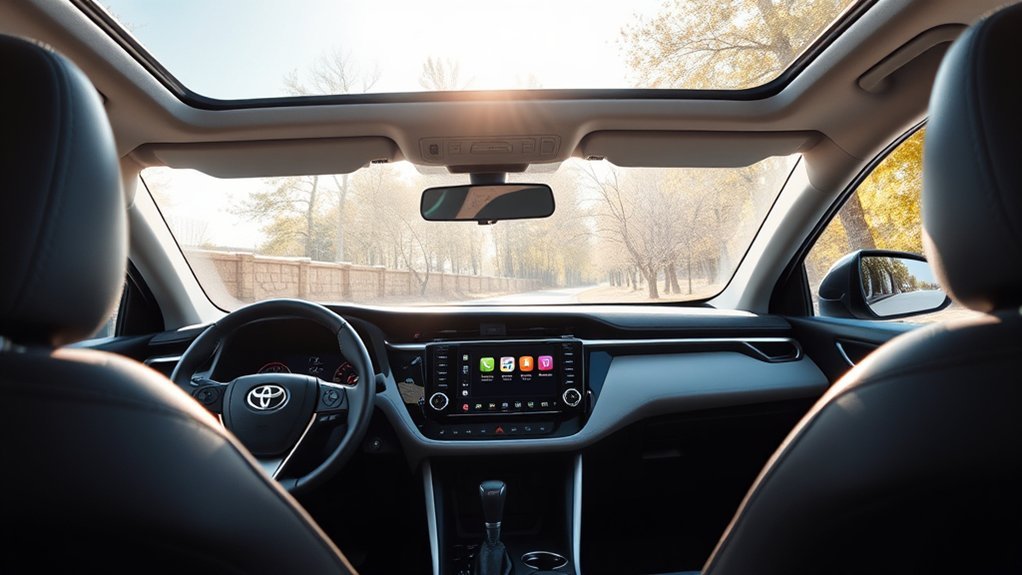
Toyota RAV4 LE Apple CarPlay is factory-supported on U.S.-market 2019–2026 models. The connection method changes by model year: 2019–2022 LE models use wired CarPlay through the USB media port, while 2023–2026 LE models use Toyota Audio Multimedia with wireless Apple CarPlay. Toyota’s current 2026 RAV4 page continues to list wireless Apple CarPlay as standard on the LE. The setup and troubleshooting steps below cover both generations.
Last updated: September 19, 2026
Quick Answer
U.S.-market Toyota RAV4 LE models from 2019 through 2026 support factory Apple CarPlay. The 2019–2022 LE uses a wired connection through the USB media port; the 2023–2026 LE supports wireless CarPlay. For wired setup, enable Siri and connect with a data-capable cable. For wireless setup, enable Siri, Bluetooth, and Wi-Fi, then pair the iPhone through the Toyota multimedia device menu.
Key Takeaways
- Toyota introduced factory Apple CarPlay across the U.S.-market RAV4 lineup for model year 2019.
- U.S. RAV4 LE models from 2019–2022 use wired CarPlay; 2023–2026 LE models support wireless CarPlay.
- Wired CarPlay requires the data-capable media USB port and a reliable cable, not a charge-only port.
- Wireless CarPlay requires Siri, Bluetooth, and Wi-Fi to be enabled during initial pairing.
- CarPlay has no separate subscription fee, although cellular data, paid apps, or streaming subscriptions may still cost money.
At a Glance
| Time Required | Usually a few minutes for the first connection |
| Difficulty | Easy |
| Tools Needed | Compatible iPhone; reliable USB data cable for 2019–2022 models; no cable required for normal wireless use on 2023–2026 models |
| Cost | No separate CarPlay fee; normal phone, data, app, and subscription charges may apply |
Which Toyota RAV4 LE Models Support Apple CarPlay?
Apple’s supported-vehicle list identifies the Toyota RAV4 as CarPlay-compatible from 2019 through 2026. Toyota’s 2019 RAV4 launch material says every 2019 RAV4 received Apple CarPlay compatibility, while Toyota’s 2023 model update says wireless Apple CarPlay became standard across all RAV4 grades.
| RAV4 LE model year | Factory CarPlay support | Normal connection method |
|---|---|---|
| 2018 and earlier | Not included in the original factory multimedia system | An aftermarket CarPlay-compatible receiver is required unless a previous owner already installed one |
| 2019–2022 | Yes | Wired connection through the designated media/data USB port |
| 2023–2026 | Yes | Wireless CarPlay through Bluetooth and Wi-Fi; Toyota’s 2026 LE continues to list wireless Apple CarPlay as standard |
If you own a 2018 or older RAV4 and want CarPlay, see our guide to adding Apple CarPlay to a Toyota RAV4. That separate guide covers retrofit and aftermarket options; this page focuses on factory CarPlay setup and troubleshooting for the RAV4 LE.
Note: This model-year split applies to normal U.S.-market factory equipment. Features can differ by country, production configuration, multimedia software, or an aftermarket stereo installed by a previous owner. Check the vehicle’s multimedia screen and owner documentation when buying a used RAV4.
How to Enable Apple CarPlay in Your RAV4 LE

Before starting, park the vehicle, turn on the infotainment system, unlock the iPhone, and install the latest iOS version available for the phone. Make sure Siri is enabled under the iPhone’s settings. The remaining steps depend on whether the RAV4 has wired or wireless CarPlay.
Warning: Complete pairing, menu changes, app organization, and troubleshooting only while safely parked. Use Siri or the vehicle’s approved controls while driving, and keep your attention on the road.
For 2019–2022 RAV4 LE Models: Connect With USB
- Enable Siri. On the iPhone, open Settings and confirm Siri is available. CarPlay relies on Siri for hands-free requests.
- Choose the correct cable. Use a dependable data-capable cable that fits the iPhone and the vehicle’s USB media port.
- Use the media USB port. Connect the phone to the USB port intended for smartphone data. Rear-seat and console charging ports may supply power without supporting CarPlay.
- Approve the prompts. Unlock the iPhone and accept the CarPlay request on both the phone and vehicle display. Select “Always Enable” when offered if you want CarPlay to launch automatically.
- Open CarPlay. Select Apple CarPlay on the RAV4 multimedia screen if the interface does not appear automatically.
After the first approval, CarPlay should start when the same unlocked or authorized iPhone is connected to the media USB port. Bluetooth pairing is not normally required for the wired CarPlay interface.
For 2023–2026 RAV4 LE Models: Connect Wirelessly
- Enable Siri, Bluetooth, and Wi-Fi. Leave all three services turned on during setup.
- Open the device menu. On the Toyota multimedia display, select the settings or Bluetooth/device option and choose to add a new device.
- Select the RAV4 on the iPhone. Open the iPhone’s Bluetooth settings and tap the Toyota multimedia system when it appears.
- Confirm the pairing code. Verify that the code shown on the iPhone matches the code on the vehicle display.
- Enable Apple CarPlay. Approve the CarPlay request and choose the option to use CarPlay wirelessly when prompted.
- Allow automatic reconnection. Keep Bluetooth and Wi-Fi on so the RAV4 can reconnect to the saved phone during future drives.
Menu wording can vary slightly by multimedia software version. Apple’s current CarPlay setup instructions also separate USB setup from wireless pairing through Bluetooth and Wi-Fi.
If wireless CarPlay pairs successfully but does not reconnect on later drives, open Settings > Wi-Fi on the iPhone, tap the information button for the CarPlay network when it is available, and confirm Auto-Join is enabled. Apple includes this check in its current wireless CarPlay guidance.
Pro Tip: An iPhone 15 or newer uses USB-C. For a wired RAV4 connection, use a single data-capable cable with the correct connector at each end whenever possible. Multi-piece adapters and charge-only cables create more potential failure points.
Why Isn’t Apple CarPlay Working?
When CarPlay does not appear, first identify whether the RAV4 uses a wired or wireless connection. A cable and media USB port are central to wired troubleshooting, while Bluetooth, Wi-Fi, pairing records, and wireless permissions matter more on newer systems.
Fast Diagnostic Path
- Phone charges but CarPlay never opens: start with the media USB port, cable data capability, Siri, and CarPlay permissions.
- Phone pairs for calls/audio but not CarPlay: confirm that the Toyota device entry is enabled for Apple CarPlay, not only Bluetooth calling or media.
- Wireless CarPlay worked before but no longer reconnects: check Bluetooth, Wi-Fi, Auto-Join, saved-device priority, and then rebuild the pairing.
- Several compatible iPhones fail in the same RAV4: the vehicle-side USB port, multimedia software, or multimedia hardware becomes a stronger suspect.
Check Device Compatibility and iPhone Settings
Use a CarPlay-compatible iPhone running the latest iOS version available for that device. Android phones cannot use Apple CarPlay; they use Android Auto when the vehicle supports it.
On the iPhone, check the following:
- Siri is enabled.
- CarPlay is not blocked under Settings > Screen Time > Content & Privacy Restrictions > Allowed Apps & Features.
- The RAV4 appears under Settings > General > CarPlay after it has been connected or paired.
- “Allow CarPlay While Locked” is enabled for the vehicle if you want CarPlay to start without unlocking the phone each time.
- Bluetooth and Wi-Fi are enabled when using wireless CarPlay.
Apple recommends updating iOS and checking that CarPlay is allowed before moving to more advanced troubleshooting.
Verify the USB Connection
For a 2019–2022 RAV4 LE, inspect the cable and confirm that the phone is connected to the data-capable media USB port. A phone that charges but does not open CarPlay may be connected through a charge-only cable or port.
| Check | Action | What it rules out |
|---|---|---|
| Cable condition | Look for bent connectors, looseness, cuts, or intermittent charging | A damaged or unstable cable |
| Data capability | Try a known data-capable cable rather than a charge-only cable | A cable that provides power but no data |
| USB port | Use the designated media or smartphone USB port | A charging-only vehicle port |
| Phone connector | Remove lint carefully and make sure the plug seats fully | A blocked or loose iPhone port |
| Direct connection | Temporarily remove hubs, extension cables, and adapters | An incompatible accessory in the connection path |
If the iPhone uses USB-C and an adapter is unavoidable, review Apple’s current CarPlay troubleshooting guidance. Apple notes that some adapter, cable, and vehicle combinations can interrupt a wired connection.
Adjust Bluetooth and Wi-Fi Settings
These checks apply mainly to wireless CarPlay on 2023–2026 RAV4 LE models:
- Confirm Bluetooth and Wi-Fi are both enabled on the iPhone.
- Open Settings > General > CarPlay and select the RAV4 if it is listed.
- Check the Toyota multimedia device list and make sure the correct phone is selected for Apple CarPlay, not only for calls or audio.
- Disconnect another phone that may have connected automatically.
- If the pairing remains stuck, remove the RAV4 from the iPhone and remove the iPhone from the vehicle, then pair them again.
Multiple phones may be saved or paired depending on the multimedia system, but only one phone supplies the active CarPlay interface at a time.
Diagnostic clue: if a 2023–2026 RAV4 can run CarPlay through a supported wired connection but wireless CarPlay fails, focus first on Bluetooth, Wi-Fi, Auto-Join, saved-device priority, and pairing records rather than replacing the iPhone cable.
Key Features of Apple CarPlay for RAV4 LE Users
CarPlay displays a driving-focused selection of iPhone functions on the RAV4’s multimedia screen. Available features depend on the iPhone, installed apps, region, and current software.
- Navigation: View turn-by-turn directions through Apple Maps and supported third-party navigation apps.
- Calls and messages: Use Siri to place calls, hear incoming messages, and dictate replies where supported.
- Music and audio: Play music, podcasts, audiobooks, and other audio from compatible apps.
- Calendar and destination suggestions: Supported information can help surface upcoming destinations without entering them manually.
- Voice control: Activate Siri with the steering-wheel voice button, “Hey Siri” or “Siri” when supported, or the on-screen control.
The simplified interface reduces the need to handle the phone, but it does not make every iPhone app available on the vehicle display. Only CarPlay-compatible apps appear.
Advantages of Using Apple CarPlay in Your Toyota RAV4 LE
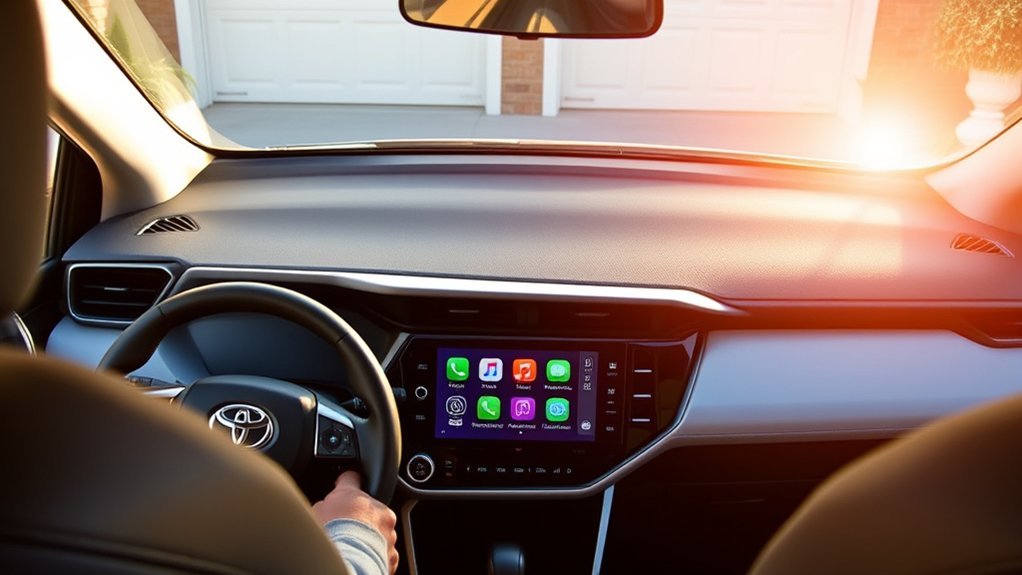
Apple CarPlay can make common phone-based tasks easier to access through the RAV4’s screen and controls.
- Familiar interface: Drivers can use supported iPhone apps without learning a completely separate navigation or audio system.
- Hands-free assistance: Siri can handle many calls, messages, directions, and audio requests.
- Current app information: Navigation and audio apps use the versions and account information stored on the iPhone.
- Flexible app choice: Drivers can choose among supported navigation, podcast, music, audiobook, and messaging services.
- Easy transfer between vehicles: A compatible iPhone can carry the same apps and preferences into another CarPlay-equipped vehicle.
CarPlay is still subject to the iPhone’s cellular coverage, app permissions, and service subscriptions. Downloaded maps, songs, podcasts, or audiobooks may remain available without cellular service, but live traffic, streaming, internet searches, and cloud-based communication normally require data.
How to Confirm CarPlay on a Used RAV4 LE
U.S.-market RAV4 LE models from 2019 through 2026 were factory-equipped with Apple CarPlay, but a used vehicle may no longer have its original multimedia hardware. Before buying, perform these checks:
- Start the vehicle and look for Apple CarPlay in the multimedia settings or device menu.
- For a 2019–2022 model, connect an iPhone to the media USB port and confirm that the CarPlay prompt appears.
- For a 2023–2026 model, open the add-device menu and look for wireless CarPlay during pairing.
- Check whether an aftermarket receiver has replaced the original Toyota unit.
- Verify the exact equipment for an imported vehicle, because regional specifications can differ.
Factory Toyota RAV4 CarPlay support begins with model year 2019, while wireless CarPlay arrives with the newer multimedia system used on 2023–2026 U.S. RAV4 LE models.
Compatibility: Which iPhones Work With RAV4 LE CarPlay?

CarPlay requires a compatible iPhone; it does not work with an iPad, iPod touch, or Android phone. Because software requirements and supported features change, the most reliable approach is to use an iPhone listed by Apple as CarPlay-compatible and install the latest iOS version offered for that device.
Before connecting, confirm that:
- Siri is enabled and allowed to operate as needed.
- CarPlay is not restricted by Screen Time settings.
- The phone has an appropriate data cable for a wired RAV4.
- Bluetooth and Wi-Fi are enabled for wireless use.
- The iPhone’s connector and the vehicle’s USB port are free of damage or debris.
An older compatible iPhone may still open CarPlay, but some newer interface features, Siri functions, apps, or wireless behaviors may require newer hardware or software.
How to Reconnect CarPlay After the First Setup
Once the first setup is complete, normal reconnection is simpler than the initial pairing process:
- Wired models: Plug the approved iPhone into the media USB port. CarPlay should start automatically or become available from the multimedia home screen.
- Wireless models: Start the vehicle with Bluetooth and Wi-Fi enabled on the saved iPhone. The Toyota system should reconnect after it finishes starting.
- Shared vehicles: If another saved phone connects first, select the preferred iPhone from the Toyota device list or temporarily disable the other phone’s connection.
If the vehicle repeatedly asks for permission, open Settings > General > CarPlay on the iPhone, select the RAV4, and check whether “Allow CarPlay While Locked” is enabled. The Toyota display may also have an automatic-connect preference for the saved device.
How to Customize the CarPlay Interface
To change which compatible apps appear and arrange their order:
- Open Settings on the iPhone.
- Select General > CarPlay.
- Choose the RAV4.
- Tap Customize.
- Add, remove, or drag supported apps into the preferred order.
The updated layout appears the next time the iPhone connects. To change the CarPlay wallpaper, open the Settings app within CarPlay on the RAV4 display and select Wallpaper.
Frequent Apple CarPlay Issues and How to Fix Them
Use the symptom-based checks below before resetting the entire multimedia system.
| Problem | Likely cause | What to try |
|---|---|---|
| The iPhone charges, but CarPlay does not open | Charge-only port or cable; CarPlay disabled | Use the media USB port, try a known data cable, unlock the phone, and check CarPlay permissions |
| Wireless CarPlay does not reconnect | Bluetooth or Wi-Fi disabled; another phone connected first | Enable both radios and select the preferred phone in the Toyota device list |
| CarPlay disconnects over bumps | Loose, dirty, or damaged wired connection | Reseat the plugs, inspect the cable, clean accessible debris carefully, and test another cable |
| CarPlay is missing from the iPhone settings | No completed connection, Siri disabled, or Screen Time restriction | Enable Siri, allow CarPlay, and repeat the initial connection while parked |
| Audio plays from the phone instead of the vehicle | Wrong audio output or incomplete CarPlay connection | Open CarPlay, select the vehicle as the audio output, and reconnect the phone |
| The screen freezes or stops responding | Temporary phone, app, or multimedia software fault | Close the affected app, restart the iPhone, and restart the multimedia system |
| CarPlay stopped after an iPhone update | Changed permission, stale pairing record, cable/adapter issue, or temporary software mismatch | Restart both systems, recheck Siri and CarPlay permissions, test the connection again, then forget and rebuild the pairing only if needed |
Restart and Reset in the Right Order
If the basic checks do not work, proceed from the least disruptive step to the most disruptive:
- Disconnect and reconnect the phone.
- Restart the iPhone.
- Restart the RAV4 multimedia system according to the instructions for that system.
- Install available iPhone and Toyota multimedia software updates.
- On the iPhone, open Settings > General > CarPlay, select the RAV4, and choose Forget This Car.
- Delete the iPhone from the Toyota device list and complete the initial setup again.
- Consult a Toyota dealer if several compatible phones fail in the same vehicle or the USB media port appears damaged.
Note: Avoid immediately resetting all vehicle settings. A full reset can remove saved phones and other preferences, and it is rarely necessary when the problem is a cable, port, permission, or single pairing record.
Frequently Asked Questions
Can I use Apple CarPlay with an Android phone?
No. Apple CarPlay requires a compatible iPhone. Android phones use Android Auto, which is also available on supported RAV4 multimedia systems. The exact Android Auto connection method can vary by model year.
Does Apple CarPlay require a data plan?
CarPlay does not require a separate data plan of its own. However, live traffic, streaming audio, internet searches, cloud messaging features, and many third-party apps use the iPhone’s cellular data. Downloaded music, podcasts, audiobooks, or offline maps may work without an active cellular connection.
Is there a subscription fee for Apple CarPlay?
Apple does not charge a separate CarPlay subscription fee. Your mobile plan, paid apps, music services, audiobook services, or other subscriptions can still have their own charges.
Can I customize the CarPlay interface in my RAV4 LE?
Yes. On the iPhone, open Settings > General > CarPlay, select the RAV4, and tap Customize to add, remove, or reorder compatible apps. To change the CarPlay wallpaper, open Settings within CarPlay on the vehicle display and choose Wallpaper.
What should I do if my iPhone is not recognized by the RAV4?
For wired CarPlay, try the media USB port and a known data-capable cable. For wireless CarPlay, confirm that Siri, Bluetooth, and Wi-Fi are enabled. Then restart the phone and multimedia system. If necessary, forget the vehicle on the iPhone, delete the phone from the Toyota device list, and pair it again.
Why does my iPhone charge in the RAV4 but CarPlay does not work?
Charging only confirms that power is reaching the iPhone. On a 2019–2022 RAV4 LE, use the designated USB media port and a data-capable cable, unlock the iPhone, confirm Siri and CarPlay permissions, and remove hubs or adapters while testing.
How do I make wireless CarPlay reconnect automatically in my RAV4?
On a 2023–2026 RAV4 LE, keep Bluetooth and Wi-Fi enabled, make sure the preferred iPhone is selected for CarPlay in the Toyota device list, and confirm Auto-Join for the CarPlay Wi-Fi network on the iPhone. If another saved phone connects first, disconnect it or change the preferred device.
Does the 2022 Toyota RAV4 LE have wireless Apple CarPlay?
The factory system in a normal U.S.-market 2022 RAV4 LE uses wired Apple CarPlay through the media USB port. Wireless Apple CarPlay was introduced with the updated multimedia system used on the 2023 RAV4 lineup. An aftermarket receiver or adapter may behave differently.
Can I add Apple CarPlay to a 2018 or older RAV4 LE?
The original factory multimedia systems in pre-2019 RAV4 models are not listed as CarPlay-compatible. CarPlay can usually be added by installing a compatible aftermarket receiver, but fit, steering-wheel controls, cameras, microphones, and factory settings should be reviewed with a qualified installer.
Conclusion
A U.S.-market Toyota RAV4 LE supports factory Apple CarPlay from model year 2019 through the current 2026 model. The key distinction is the multimedia generation: 2019–2022 models use wired CarPlay through the media USB port, while 2023–2026 models support wireless CarPlay. If CarPlay fails, start with the connection type, Siri and permission settings, then move to cable/USB checks for wired systems or Bluetooth, Wi-Fi, Auto-Join, and pairing records for wireless systems before considering a full reset or hardware repair.
Sources
- Apple CarPlay Available Models — lists Toyota RAV4 compatibility from 2019 through 2026.
- Apple: Use CarPlay with Your iPhone — explains wired and wireless setup, Wi-Fi Auto-Join, Siri controls, app organization, and wallpaper settings.
- Apple: If You Need Help With CarPlay — covers current cable, connection, permission, restart, and pairing troubleshooting.
- Toyota: All-New 2019 RAV4 — states that every 2019 RAV4 model included Apple CarPlay compatibility.
- Toyota 2022 Multimedia Getting Started Guide — documents wired Apple CarPlay setup and states that wireless CarPlay is not supported for that multimedia generation.
- Toyota: What’s New for 2023 — states that Toyota Audio Multimedia and wireless Apple CarPlay became standard across RAV4 grades.
- Toyota 2026 RAV4 Official Model Page — confirms wireless Apple CarPlay on the current 2026 RAV4 LE.
