Last updated: September 19, 2026 — 2025 U.S. RAV4 Hybrid compatibility, trim displays, and current Apple CarPlay troubleshooting guidance rechecked.
Yes. Every U.S.-market 2025 Toyota RAV4 Hybrid has standard wireless Apple CarPlay through Toyota Audio Multimedia. You can pair a compatible iPhone using Bluetooth and Wi-Fi, and Toyota also provides a USB media port for a direct data-cable connection. Equipment can differ outside the United States, so owners of other-market vehicles should confirm the multimedia specification in their Toyota manual.
Quick Answer
The U.S.-market 2025 Toyota RAV4 Hybrid comes standard with wireless Apple CarPlay across the lineup. Turn on Siri, Bluetooth, and Wi-Fi on your iPhone, then pair it through Toyota Audio Multimedia. A direct USB data connection is also available through the vehicle’s USB media port. If CarPlay will not connect, check iPhone permissions, restart both systems, forget and re-pair the vehicle, and check for Toyota multimedia updates.
Key Takeaways
- Wireless Apple CarPlay is standard on U.S.-market 2025 RAV4 Hybrid models.
- Wireless setup uses Bluetooth for initial pairing and Wi-Fi for the CarPlay connection.
- Toyota also provides a USB media port for a direct data-cable connection.
- Siri must be enabled, and Apple recommends keeping iOS current.
- If CarPlay fails, check Bluetooth, Wi-Fi, Siri, Screen Time restrictions, saved pairings, and Toyota multimedia software.
At a Glance
| Connection | Standard wireless Apple CarPlay on U.S.-market 2025 RAV4 Hybrid models; USB media connection also available |
| Difficulty | Easy |
| What You Need | Compatible iPhone, Siri enabled, Bluetooth and Wi-Fi for wireless setup, and a data-capable cable for a USB connection |
| CarPlay Fee | No separate Apple CarPlay subscription; cellular data and paid apps may have their own costs |
Does the 2025 Toyota RAV4 Hybrid Include Apple CarPlay?
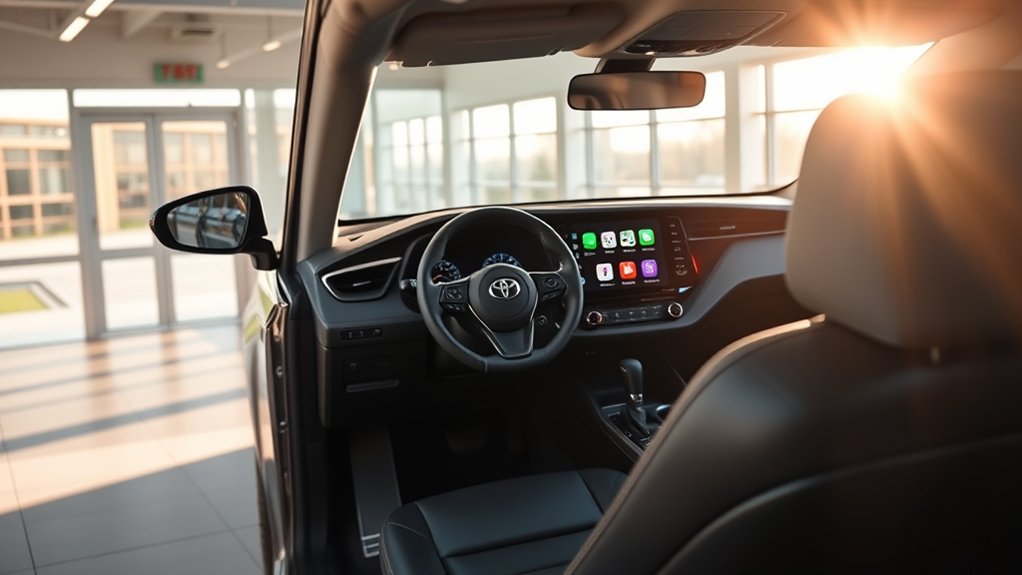
Yes. For the U.S. market, Toyota lists wireless Apple CarPlay as standard on the 2025 RAV4, including the Hybrid lineup. Apple’s current compatibility list also includes the Toyota RAV4 for model years 2019 through 2026.
CarPlay lets you use compatible iPhone functions such as Apple Maps, Google Maps, Waze, Phone, Messages, Music, Podcasts, and supported third-party apps from the Toyota multimedia display. Siri can handle many navigation, calling, messaging, and audio commands without requiring you to pick up the phone.
The connection method matters less on a 2025 U.S. model than on older RAV4s because wireless CarPlay is already factory-supported. Toyota also identifies a USB media port, so a direct data connection remains useful when you prefer a cable or need to isolate a wireless connection problem.
Equipment can differ by country. If your RAV4 Hybrid was sold outside the United States, check its original Toyota specification, owner’s manual, or multimedia settings before assuming the U.S. configuration applies.
Note: Apple CarPlay is for iPhones. U.S.-market 2025 RAV4 models also support wireless Android Auto for compatible Android phones.
How to Set Up Apple CarPlay in Your RAV4 Hybrid
Complete the first CarPlay setup while the RAV4 Hybrid is parked. Apple recommends enabling Siri before connecting, and wireless setup also requires Bluetooth and Wi-Fi.
Warning: Park in a safe place before setting up CarPlay. Do not type, pair devices, or change phone settings while the vehicle is moving.
Before You Start
- Install the latest stable iOS version available for your compatible iPhone.
- Make sure Siri is enabled.
- Turn on Bluetooth and Wi-Fi for wireless CarPlay.
- Open Settings > General > CarPlay and confirm CarPlay is available.
- If restrictions are enabled, check Settings > Screen Time > Content & Privacy Restrictions and make sure CarPlay is allowed.
- For a USB connection, use a direct data-capable cable that matches your iPhone and the RAV4’s USB media port.
Wireless CarPlay Setup Steps
Wireless Apple CarPlay is the standard factory setup on U.S.-market 2025 RAV4 Hybrid models.
- Start the RAV4 Hybrid and keep it in Park.
- Turn on Siri, Bluetooth, and Wi-Fi on your iPhone.
- Open the Toyota multimedia system’s phone or device settings.
- Choose the option to add or register a new device.
- Select your iPhone when it appears.
- Confirm that the pairing codes shown on the iPhone and Toyota screen match.
- Approve Apple CarPlay when prompted on both devices.
- Keep Bluetooth and Wi-Fi enabled so the phone can reconnect on future drives.
USB CarPlay Setup Steps
A direct USB data connection is useful if you prefer a cable or if you are troubleshooting a wireless problem.
- Start the RAV4 Hybrid and keep it in Park.
- Connect the iPhone to the vehicle’s USB media port with a data-capable cable.
- Unlock the iPhone if requested.
- Follow the prompts on the Toyota multimedia screen and iPhone.
- Allow CarPlay while the phone is locked if the iPhone asks for permission.
- Select the CarPlay icon on the Toyota screen if it does not open automatically.
Pro Tip: If wireless CarPlay repeatedly disconnects, test a direct USB data connection. If USB works normally, focus your troubleshooting on the saved wireless pairing, Bluetooth, Wi-Fi, or phone settings rather than assuming the multimedia hardware has failed.
Troubleshooting Common CarPlay Connection Issues
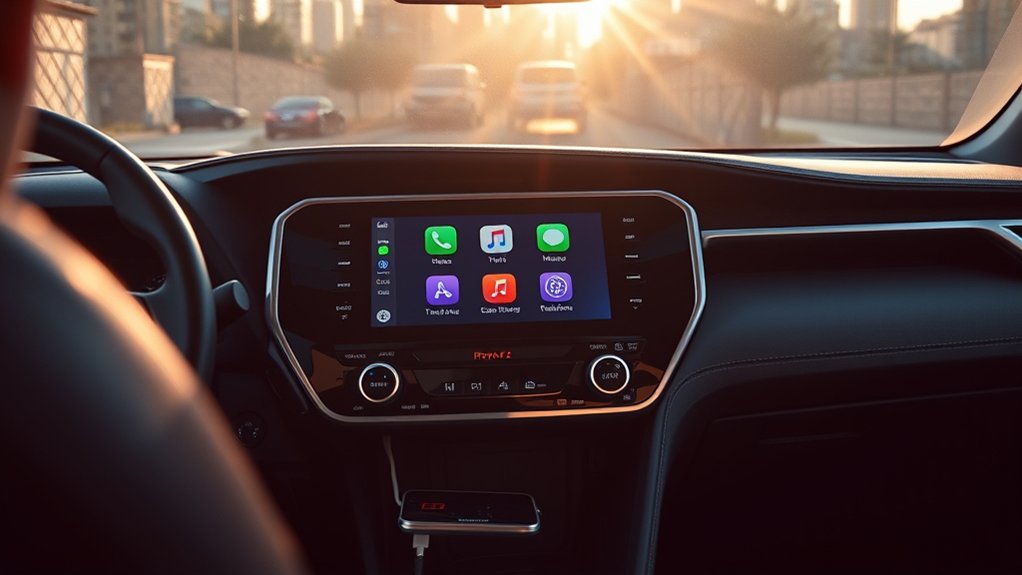
Start with the connection and iPhone settings before resetting anything. Apple recommends checking the wired or wireless connection, restarting the phone and vehicle, confirming Siri is enabled, checking Screen Time restrictions, forgetting the vehicle, and then setting up CarPlay again.
| Problem | Likely Cause | What to Try |
| CarPlay does not appear | Siri off, CarPlay restricted, or pairing not completed | Enable Siri, check Screen Time restrictions, open Settings > General > CarPlay, and pair the Toyota again. |
| Phone charges but USB CarPlay does not open | Charge-only cable, adapter issue, or wrong port | Use the USB media port and a direct data-capable cable. Try another cable if available. |
| Wireless CarPlay drops | Saved pairing, Bluetooth, or Wi-Fi problem | Confirm Bluetooth and Wi-Fi are on, forget the RAV4 on the iPhone, remove the iPhone from Toyota’s device list, then pair again. |
| Audio cuts out | Wireless connection or app problem | Restart the affected app and iPhone, reconnect CarPlay, and compare the result with a USB connection. |
| Connection worked before but stopped | Saved pairing or software issue | Restart the iPhone and vehicle, forget and re-pair the connection, update iOS, and check whether Toyota has a multimedia software update. |
What Should You Reset When CarPlay Still Does Not Work?
If the quick fixes above do not restore CarPlay, reset the connection in a controlled order. First restart the iPhone and the RAV4 multimedia system. Confirm Siri is enabled and check that CarPlay has not been blocked through Screen Time restrictions.
For a wireless problem, verify that both Bluetooth and Wi-Fi are on. Then open Settings > General > CarPlay, select the Toyota, and choose Forget This Car. Remove the iPhone from the Toyota multimedia device list as well, then pair the two devices again from scratch.
For a USB problem, use the vehicle’s USB media port and test another direct data-capable cable. If the phone charges but CarPlay still does not start, do not assume charging proves that the cable can transfer data.
If CarPlay still fails after a fresh pairing and current iOS update, check for Toyota multimedia software updates or contact Toyota support. Apple Support is the better starting point when the same iPhone also has CarPlay problems in another compatible vehicle.
How Can Apple CarPlay Reduce Phone Handling?
Apple CarPlay does not replace attentive driving and does not operate Toyota’s driver-assistance systems. Its practical advantage is that navigation, calls, messages, and audio can be accessed through the vehicle display, steering-wheel controls, and Siri instead of requiring repeated phone handling.
With Siri, you can request directions, place calls, send messages, and control compatible audio apps by voice. Set your destination and organize frequently used CarPlay apps before driving whenever possible.
Toyota systems such as collision warnings, Lane Departure Alert, and Lane Tracing Assist are separate vehicle functions. CarPlay handles compatible iPhone apps and phone integration; Toyota’s safety systems continue to run through the vehicle’s own hardware and software.
CarPlay can reduce the need to handle an iPhone for common driving tasks, but the driver remains responsible for staying focused on the road.
Practical Apple CarPlay Reliability Tips for the RAV4 Hybrid
When CarPlay becomes unreliable, change one variable at a time. That makes it easier to separate an iPhone setting problem from a wireless pairing, cable, USB media port, or multimedia software issue.
- Keep iOS current: Apple recommends using the latest available iOS version when troubleshooting CarPlay.
- Re-pair wireless CarPlay: Remove the saved vehicle from the iPhone and remove the iPhone from Toyota’s device list before creating a fresh pairing.
- Use the USB media port: A charging-only USB port or charge-only cable will not provide the same data connection.
- Compare wireless and USB: If one connection works and the other does not, you have narrowed the problem considerably.
- Check software on both sides: Update the iPhone first, then check whether Toyota has an applicable multimedia update if the problem continues.
If CarPlay still fails after these steps, Apple Support can help with iPhone-side settings while Toyota support or a dealer can check the vehicle-side multimedia system.
Does Every 2025 RAV4 Hybrid Trim Have Apple CarPlay?
Yes, in the United States. Wireless Apple CarPlay is standard across the 2025 RAV4 Hybrid lineup, so you do not need to buy a higher trim simply to get CarPlay. What changes by trim is mainly the multimedia display size and other audio or convenience equipment.
2025 RAV4 Hybrid Multimedia Screen by Trim
| 2025 RAV4 Hybrid Trim | Toyota Audio Multimedia Screen | Wireless Apple CarPlay |
| Hybrid LE | 8-inch | Standard |
| Hybrid XLE | 8-inch | Standard |
| Hybrid XLE Premium | 8-inch | Standard |
| Hybrid Woodland Edition | 8-inch | Standard |
| Hybrid SE | 8-inch | Standard |
| Hybrid XSE | 10.5-inch | Standard |
| Hybrid Limited | 10.5-inch | Standard |
What Actually Changes Between Trims?
CarPlay availability does not require a higher U.S. trim. The more meaningful differences are display size, speaker system, available JBL audio, connected-service packages, wireless charging availability, and other comfort or technology features.
If you are researching another model year rather than a 2025 Hybrid, see the Toyota RAV4 wireless Apple CarPlay guide by model year. Keeping the model-year timeline there avoids mixing older wired-only RAV4 information into this 2025-specific guide.
Does the Hybrid Powertrain Change CarPlay?
No. Apple CarPlay is part of the Toyota multimedia system, not the hybrid powertrain. Hybrid fuel economy, drivetrain behavior, EV operation, towing limits, and battery systems do not change how an iPhone connects to CarPlay.
For powertrain specifications or package details, use Toyota’s official specification for the exact trim and market. This page is intentionally limited to CarPlay and multimedia setup.
Does the Redesigned 2026 RAV4 Change Anything for 2025 Owners?
No automatic upgrade is implied. Toyota introduced a redesigned sixth-generation RAV4 for 2026 with the Arene software platform and a newer Toyota Audio Multimedia system. Those newer-model hardware and software features should not be assumed to transfer to a 2025 RAV4 Hybrid.
What Can Software Updates Fix?
A multimedia software update can address software behavior or bugs supported by the existing 2025 hardware. It should not be expected to add hardware-dependent features from the redesigned 2026 system.
How to Stay Current
Keep iOS updated, review Apple’s current CarPlay troubleshooting guidance after major iOS changes, and check Toyota multimedia notifications or dealer support if the vehicle-side system continues to malfunction.
Note: A third-party wireless CarPlay adapter is unnecessary for a U.S.-market 2025 RAV4 Hybrid because factory wireless CarPlay is already standard. Third-party hardware can also introduce its own latency, firmware, or pairing issues.
Frequently Asked Questions
Can I use Apple CarPlay wirelessly in the 2025 RAV4 Hybrid?
Yes. Wireless Apple CarPlay is standard on U.S.-market 2025 Toyota RAV4 Hybrid models. Turn on Siri, Bluetooth, and Wi-Fi, then pair the iPhone through the Toyota multimedia device settings.
Does every 2025 RAV4 Hybrid trim have Apple CarPlay?
Yes for U.S.-market models. Wireless Apple CarPlay is standard across the 2025 RAV4 Hybrid lineup. The main multimedia difference is screen size: most Hybrid trims use an 8-inch display, while Hybrid XSE and Hybrid Limited use a 10.5-inch display.
Does Apple CarPlay work with Android devices?
No. Apple CarPlay works with compatible iPhones. Compatible Android phones use Android Auto instead; U.S.-market 2025 RAV4 models support wireless Android Auto.
Are there subscription fees for using Apple CarPlay?
Apple does not charge a separate CarPlay subscription fee. Cellular data and individual apps or services used through CarPlay may have their own charges or subscriptions.
How does wireless Apple CarPlay affect my phone’s battery?
Wireless CarPlay keeps Bluetooth and Wi-Fi active and can use cellular data for navigation or streaming, so battery use may be higher than when the phone is idle. Use a charger when needed during longer drives.
Can I customize Apple CarPlay apps in my RAV4 Hybrid?
Yes. On the iPhone, go to Settings > General > CarPlay, select your Toyota, and use the customization controls to add, remove, or reorder supported apps.
Why does my iPhone charge but USB CarPlay does not start?
Charging alone does not prove that the cable and port are transferring data. Use the RAV4’s USB media port and a direct data-capable cable, then check Siri, CarPlay permissions, and Screen Time restrictions on the iPhone.
Do Toyota safety features run through Apple CarPlay?
No. Apple CarPlay handles compatible iPhone apps and phone integration. Toyota driver-assistance and safety systems operate separately through the vehicle’s own hardware and software.
Conclusion
Every U.S.-market 2025 Toyota RAV4 Hybrid comes with standard wireless Apple CarPlay, so no higher trim or aftermarket wireless adapter is required. Enable Siri, Bluetooth, and Wi-Fi, pair the iPhone through Toyota Audio Multimedia, and use the USB media port when you want a direct data connection or need to isolate a wireless problem.
If CarPlay stops working, check Siri and Screen Time permissions, restart the phone and vehicle, forget and re-pair the connection, test the USB media connection, and update iOS. If the problem remains, Apple Support can troubleshoot the iPhone side while Toyota support can check vehicle multimedia software.
Sources
- Toyota USA Newsroom: 2025 Toyota RAV4 — standard wireless Apple CarPlay, 2025 multimedia screen sizes, and trim-level multimedia information.
- Apple Support: Use CarPlay with your iPhone — Siri, wired and wireless connection guidance.
- Apple Support: If you need help with CarPlay — connection checks, Screen Time restrictions, restart, Forget This Car, and software guidance.
- Apple: CarPlay Available Models — Toyota RAV4 compatibility listing.
- Apple CarPlay Overview — CarPlay functions and supported driving experience.
- Toyota USA Newsroom: All-New 2026 RAV4 — sixth-generation redesign, Arene platform, and newer Toyota Audio Multimedia context.
