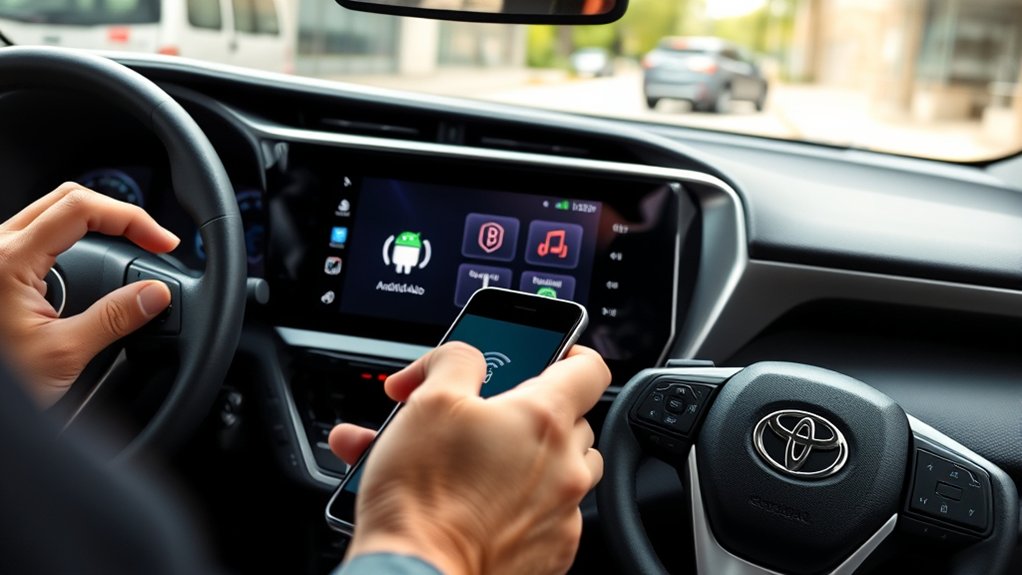
To activate wireless Android Auto in a 2026 Toyota RAV4 GXR GCC, the vehicle should be in Park and the Android phone must have Bluetooth enabled. On the multimedia screen, open Settings, then Bluetooth & devices, and pair the phone using Add another device. After pairing, select the phone in the device list and approve Android Auto prompts. If wireless setup fails, restart both devices or connect with a certified USB cable for initial activation and further checks.
What You Need for Wireless Android Auto
Preparation begins with three essentials: the 2026 RAV4 GXR GCC must be stationary in Park (P), Bluetooth must be enabled on the Android phone, and the phone must support Android Auto.
These prerequisites establish the baseline for Wireless Android Auto and remove avoidable restrictions before activation starts. Devices running Android 10 or later include Android Auto natively. Devices on Android 9 or earlier require the Android Auto app to be installed first. This distinction determines readiness and prevents setup failure.
The vehicle side also requires access to the multimedia interface. The user should open Settings, enter Bluetooth & devices, and verify that Add another device is available for discovery.
At that stage, both systems must be capable of presenting and accepting confirmation prompts. If capability is blocked, corrective actions are simple: verify Bluetooth configuration, restart the phone and multimedia system, and apply pending software updates.
Proper preparation enables a freer, uninterrupted in-cabin connection experience.
Pair Your Android Phone With the RAV4 GXR
With the prerequisites verified, pairing can begin by placing the 2026 RAV4 GXR in Park (P) and confirming that Bluetooth is active on the Android phone. This establishes the stable baseline required for a clean, cable-free connection and removes unnecessary friction from the process.
Start with the RAV4 in Park and Bluetooth enabled on the Android phone to ensure a smooth wireless pairing process.
On the vehicle’s multimedia screen, open Settings, then select Bluetooth & devices. Choose Add another device to start discovery. When the list populates, select the Android phone’s name. A pairing prompt will appear on both the RAV4 system and the phone. Verify that the displayed codes match, then approve the request on each device. This confirmation authorizes the Bluetooth link required for Android Auto readiness.
If the phone does not appear, or the request fails, restart both the phone and the multimedia system. Then recheck Bluetooth permissions and visibility on the phone before repeating the sequence.
Accurate pairing here creates the foundation for independent, wireless operation later.
Enable Wireless Android Auto on the RAV4 Screen
Open the multimedia screen and navigate to Settings > Bluetooth & devices**, then select the paired Android phone from the device list to initiate wireless Android Auto** on the 2026 RAV4 GXR GCC.
Before proceeding, the vehicle should remain in Park (P), and Bluetooth must be active on the phone. This sequence grants the driver a cable-free link through the Audio Multimedia System.
If the phone does not appear, use the add-device function within Bluetooth & devices and wait for the multimedia screen to discover it.
Select the phone’s name, confirm the pairing prompts on both devices, and approve Android Auto access when requested.
Once accepted, the RAV4 screen should switch to the Android Auto interface and enable navigation, calls, messaging, and media control without physical tethering.
If activation stalls, restart both the phone and the multimedia system, verify Bluetooth permissions, and install available software updates on the vehicle and phone for stable compatibility.
Use a USB Cable if Wireless Android Auto Fails
Connect the Android phone to the 2026 RAV4 GXR multimedia system using a manufacturer-certified USB cable when wireless Android Auto does not initialize correctly. This wired path restores control quickly. The user should confirm the phone’s USB mode is set to File Transfer, or an equivalent data mode, before proceeding. Next, the multimedia display should be observed for Android Auto prompts and Connected Services permissions.
| Step | Vehicle Display | Phone Action |
|---|---|---|
| 1 | USB detected | Access device |
| 2 | Android Auto prompt | Set File Transfer |
| 3 | Connection confirmed | Accept permissions |
If activation does not occur, the cable should be tested for proper data function, then replaced with another certified cable if needed. Persistent failure calls for a restart of both the phone and the multimedia system. After rebooting, the same sequence should be repeated. Available software updates on the phone or vehicle should also be installed to stabilize operation.
Fix Wireless Android Auto If It Won’t Connect
When the USB fallback works but wireless Android Auto still refuses to start, the fault should be isolated methodically.
First, confirm Bluetooth is enabled on the Android phone and on the RAV4 multimedia system, since wireless Android Auto depends on that link. Next, restart the phone and the vehicle head unit to clear stalled sessions and force a fresh handshake.
If the connection still fails, inspect software status on both sides. Pending Android updates or outdated Toyota multimedia firmware can block pairing behavior, app launch, or background permissions. After updates, test again.
If failure persists, delete the vehicle from the phone’s Bluetooth list, forget the phone inside the RAV4, then pair both devices again from the beginning. This reset often removes corrupted profiles that trap users in recurring errors.
If wireless operation remains unavailable, consult Toyota Audio & Connected Services Support for model-specific procedures. This preserves access to navigation, media, and Safety Features without unnecessary restrictions.
Frequently Asked Questions
Does the 2026 RAV4 Have Wireless Android Auto?
Yes, the 2026 RAV4 includes wireless Android Auto. To verify Wireless Features, one places the vehicle in Park, enables Bluetooth, opens the multimedia pairing menu, selects the phone, and confirms prompts for cable-free operation.
Why Isn’t Android Auto Connecting to My 2026 Toyota RAV4?
Android Auto may not connect due to Connection Issues involving Park mode, Bluetooth pairing, software versions, or system glitches. One should confirm P mode, re-pair the phone, restart both devices, update software, and seek support.
How Do I Connect My Android Phone to Android Auto in My RAV4?
To connect Android Auto in the RAV4, one places the vehicle in Park, enables Bluetooth, verifies Phone Compatibility, opens Bluetooth settings, adds the phone, confirms pairing, then follows Android Auto prompts; alternatively, a certified USB cable works.
Does Toyota Support Wireless Android Auto?
Yes, Toyota supports Wireless Android Auto; Tech Compatibility is confirmed for 2026 RAV4 GXR GCC models. Activation proceeds by parking, enabling Bluetooth, pairing through multimedia settings, and granting Android Auto access for navigation, calls, and media.
Conclusion
To activate wireless Android Auto in a RAV4 GXR 2026 GCC model, the user should first confirm phone compatibility, Bluetooth pairing, and Wi-Fi readiness. Next, the vehicle infotainment menu should be used to enable Android Auto permissions and complete the wireless connection sequence. If pairing fails, a verified USB cable should be tested to isolate setup issues. Like a key turning in a lock, systematic troubleshooting usually restores connection stability and guarantees reliable Android Auto operation.