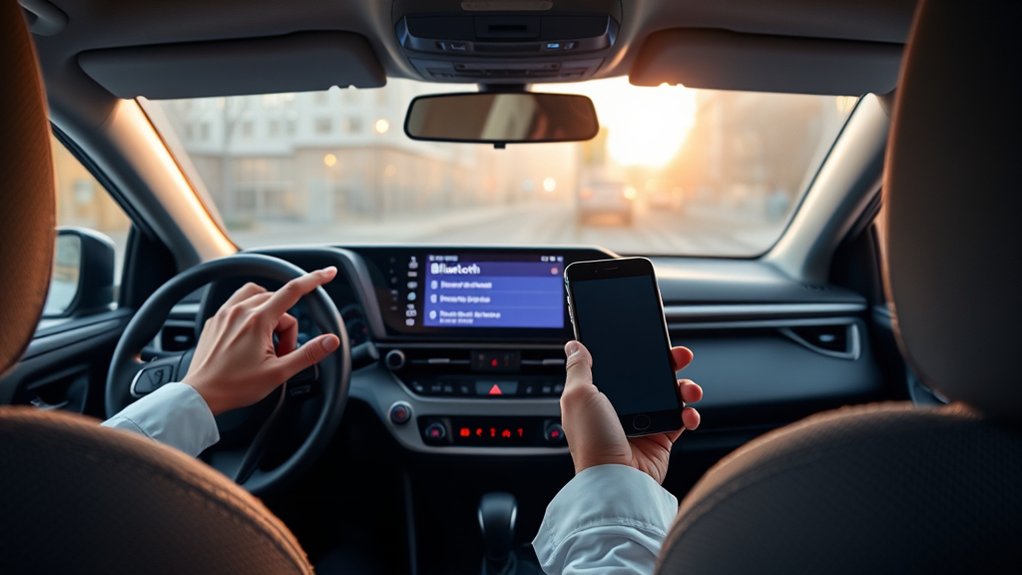
How to Connect Bluetooth to a Toyota RAV4
Last updated: September 11, 2026
To connect Bluetooth to a Toyota RAV4, park the vehicle, turn on Bluetooth on your phone, open the RAV4’s Bluetooth settings, select or search for your phone, and approve the connection only when the pairing code matches on both screens. The exact menu names depend on the RAV4’s multimedia generation, so use the screen labels in your vehicle rather than assuming every model year follows the same path.
Quick Answer
On newer Toyota Audio Multimedia systems, open Bluetooth & Devices, choose Search for devices or Add another device, select your phone, and confirm the matching code. On many 2019–2022 RAV4 systems, use Menu > Setup > Bluetooth > Add New Device. Complete pairing while parked, then test both calls and Bluetooth audio.
Safety: Complete Bluetooth registration and settings changes while the RAV4 is parked. Toyota’s multimedia instructions restrict device registration while driving.
Which Bluetooth Menu Does Your RAV4 Use?
Toyota has used several multimedia interfaces in the RAV4. If an instruction does not match the buttons on your screen, identify the interface first instead of repeatedly retrying the same menu path.
| RAV4 multimedia system | Typical Bluetooth path | What to look for |
|---|---|---|
| Current RAV4 Audio Multimedia | Main menu > Bluetooth & Devices > Add another device > Search for devices | Bluetooth & Devices screen with separate phone, media, CarPlay, or Android Auto settings |
| Recent Toyota Audio Multimedia | Settings > Bluetooth & Devices > Search for devices | If a device is already registered, you may first see Add another device |
| Many 2019–2022 RAV4 systems | Menu > Setup > Bluetooth > Add New Device | Physical Menu button and Entune-style interface |
| Older RAV4 audio systems | Varies by audio unit and market | Look for Phone, Setup, Bluetooth, or Pair Phone controls and check the vehicle manual |
Equipment can vary by market, trim, installed audio system, and software version. If your screen labels differ, follow the closest matching Bluetooth or phone menu in the vehicle’s multimedia manual.
Understanding the Bluetooth Pairing Process in Your RAV4

Start with the RAV4 parked and the multimedia system on. Enable Bluetooth on your phone and keep the phone’s Bluetooth settings screen open so the vehicle can discover it.
- Open the RAV4’s Bluetooth or Bluetooth & Devices menu using the path that matches your multimedia system.
- Select Search for devices, Add another device, or Add New Device.
- Wait for your phone’s name to appear on the RAV4 display.
- Select the phone.
- Compare the pairing code shown by the RAV4 with the code on the phone.
- Approve the request only when the codes match.
- Allow contact, call, message, and media permissions you want the vehicle to use.
- After pairing finishes, test a call and play audio through the Bluetooth Audio source.
Keep the phone’s Bluetooth settings screen open during discovery, select the correct device, and approve the connection only when both screens show the same code.
After successful registration, supported RAV4 multimedia systems normally attempt to reconnect to a previously paired device automatically when the vehicle is started. Connection priority can depend on the multimedia generation, driver profile, and previously selected primary or secondary device.
Verify Your Bluetooth Pin for RAV4 Connection
The pairing code is a security check between your phone and the RAV4. When both devices display a code, compare every digit before approving the connection.
- Confirm that the code on your phone matches the one on the RAV4 screen.
- If the codes match, approve the pairing request on both devices when prompted.
- If they do not match, cancel the request and start a new pairing attempt.
- Do not approve a connection request for an unfamiliar device.
A successful code confirmation registers the phone with the multimedia system. Depending on the phone and RAV4 system, you may then be asked for permission to synchronize contacts, call history, messages, Bluetooth audio, Apple CarPlay, or Android Auto.
Using Bluetooth for Hands-Free and Multimedia in Your RAV4
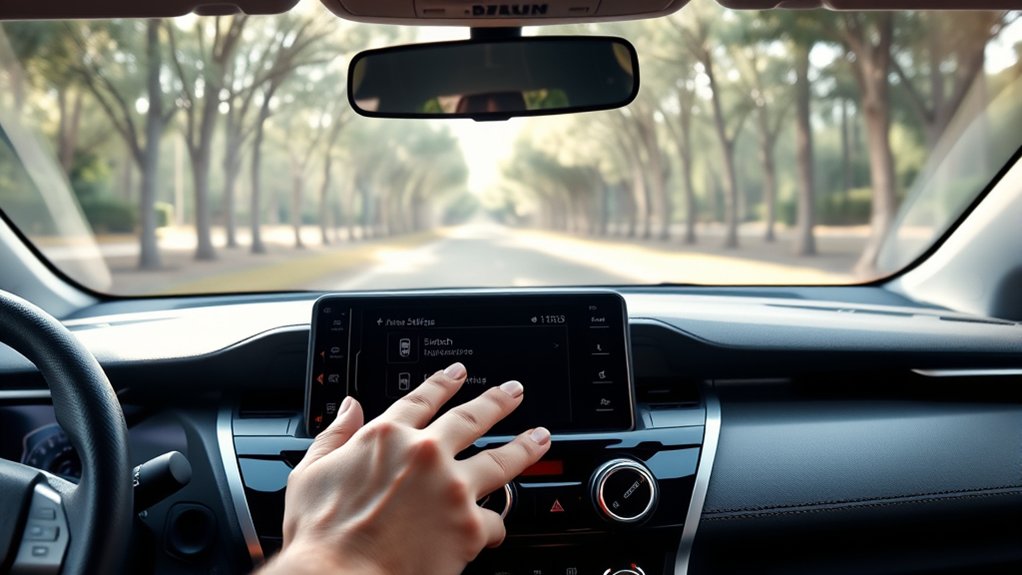
Once the phone is paired, the RAV4 can use Bluetooth for hands-free calling and audio streaming when those functions are enabled for the device.
For calls, the multimedia system may synchronize your contacts and call history after you grant the required phone permissions. You can then place or receive calls through the vehicle’s supported controls instead of handling the phone.
If calls work but music does not, the pairing itself may be fine. Check that media access is enabled for the phone and select Bluetooth Audio as the vehicle’s audio source.
For music, podcasts, and other phone audio, select the appropriate Bluetooth audio source on the RAV4. Newer Toyota systems can expose separate settings for using a paired device for phone and media, so one function can work even when the other is disabled.
Keep phone interaction to a minimum while driving. Use the vehicle’s supported steering-wheel controls, touchscreen controls when safe, or compatible voice functions rather than operating the phone by hand.
Troubleshooting Bluetooth Connection Issues
If your RAV4 Bluetooth is not connecting, identify the symptom first. A phone that is not discovered, a failed pairing code, missing audio, and failed automatic reconnection have different likely fixes.
| Problem | What to try |
|---|---|
| Phone does not appear in the RAV4 | Confirm Bluetooth is on, keep the phone’s Bluetooth settings screen open, choose Search for devices again, and restart the phone if the vehicle still cannot find it. |
| Pairing code does not match | Cancel the request on both devices and start a fresh pairing attempt. Do not approve mismatched codes. |
| RAV4 says the device is saved but will not connect | Remove or forget the RAV4 on the phone and remove the phone from the vehicle, then pair the two devices again. |
| Calls work but music does not | Check that media or Bluetooth audio is enabled for that phone and select Bluetooth Audio as the vehicle’s source. |
| Music works but calls do not | Check the phone/call permission for the paired device and make sure the correct phone is selected for hands-free calling. |
| Connection drops or audio skips | Restart both devices, disconnect unnecessary wireless devices, and temporarily disable unneeded Wi-Fi functions while testing for 2.4 GHz wireless interference. |
| Connection stopped working after an update | Delete the saved pairing from both sides and pair again. Also check the RAV4 multimedia system for applicable software updates. |
If a second known-compatible phone also fails to connect, the problem is more likely to involve the multimedia system, its settings, or its software rather than the original phone. If only one phone fails, check that phone’s Bluetooth permissions, operating-system settings, and compatibility.
How Do You Remove a Paired Phone From the RAV4?
On current RAV4 multimedia systems, open Bluetooth & Devices, select the registered device, and choose Forget. Confirm the removal when prompted. On older systems, the same function may be called Remove Device or Delete Device.
For a clean troubleshooting reset, also open the Bluetooth settings on the phone and forget the saved Toyota/RAV4 connection before pairing again.
Setting Up Apple CarPlay and Android Auto for Enhanced Connectivity
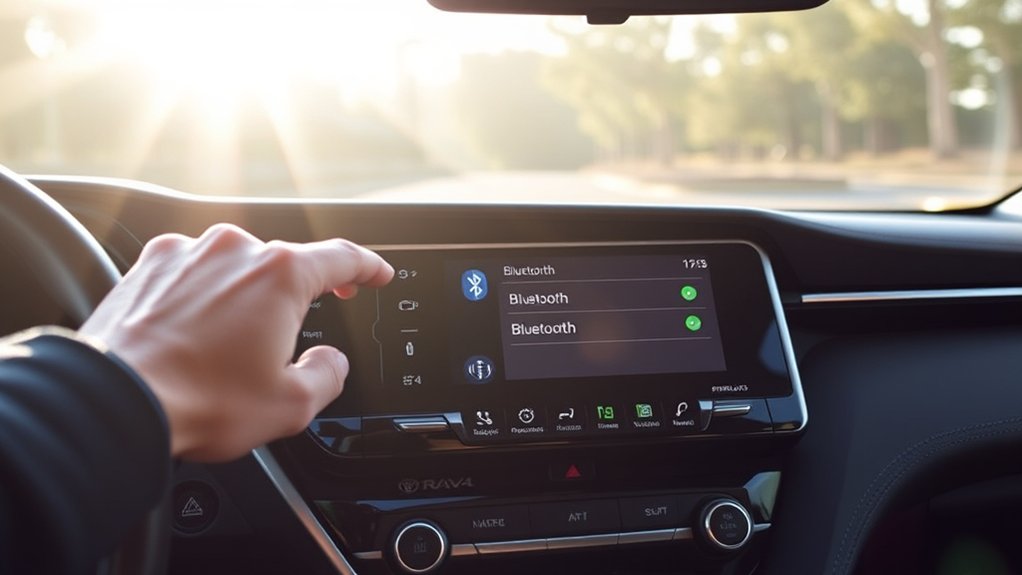
Apple CarPlay and Android Auto are not the same thing as ordinary Bluetooth audio. Bluetooth can handle calls and audio streaming, while CarPlay and Android Auto provide a smartphone-projection interface for compatible navigation, messaging, media, and voice functions.
The setup method depends on your RAV4’s multimedia system. Current U.S.-market RAV4 models support wireless Apple CarPlay and Android Auto compatibility, while some earlier RAV4 systems use a USB data connection for smartphone projection. If your vehicle prompts you to enable CarPlay or Android Auto during Bluetooth registration, follow the on-screen setup instructions.
For a wired connection, use the vehicle’s supported USB media/data port and a data-capable cable rather than a charging-only cable. For a wireless connection, Bluetooth and Wi-Fi are normally involved in the initial smartphone-projection setup.
If you are specifically checking which RAV4 years support wireless Apple CarPlay, see Does the Toyota RAV4 Have Wireless Apple CarPlay?.
If CarPlay or Android Auto fails while ordinary Bluetooth still works, troubleshoot smartphone projection separately. Check the relevant phone permissions, Wi-Fi/Bluetooth settings, cable capability when using USB, and the vehicle’s smartphone-projection setting.
Frequently Asked Questions
Can I Connect Multiple Devices to My RAV4 at Once?
Yes, on newer RAV4 multimedia systems. Toyota’s current Audio Multimedia platform can store up to five Bluetooth devices, and supported configurations can connect two phones at the same time. The 2026 RAV4 system can use up to two hands-free phones when the required driver setup is configured. Older multimedia systems may have different limits.
What Should I Do if My Phone Doesn’t Appear on the List?
Make sure Bluetooth is turned on, keep the phone’s Bluetooth settings screen open, and run Search for devices again. If the phone still does not appear, restart the phone and multimedia system. Some phones must remain on a discoverable Bluetooth screen before the vehicle can find them.
How Can I Delete a Paired Device From My RAV4?
On current RAV4 systems, open Bluetooth & Devices, select the device, choose Forget, and confirm the removal. Older systems may use a command such as Remove Device. If you are fixing a failed connection, forget the RAV4 from the phone as well before pairing again.
Is Bluetooth Connection Available for Older Toyota RAV4 Models?
Yes, some older RAV4s have Bluetooth. In the U.S., Toyota made Bluetooth hands-free phone capability, phone-book access, and music streaming standard on every 2012 RAV4. Earlier availability depends on the model year, market, trim, and installed audio system, so check the original vehicle or multimedia manual instead of assuming every pre-2013 RAV4 lacks Bluetooth.
Can I Use Bluetooth for Phone Calls Without the Car’s Audio System?
Bluetooth hands-free calling through the RAV4 normally routes the call through the vehicle’s microphones and speakers. During a call, many phones let you change the audio output back to the handset, but doing that means you are no longer using the RAV4’s hands-free audio path.
Why Does My RAV4 Bluetooth Connect but Not Play Music?
The phone may be connected for calls while its media function is disabled. Check the device’s Bluetooth settings on the phone and the RAV4, enable media or Bluetooth audio access, and select Bluetooth Audio as the vehicle’s audio source.
Toyota Bluetooth References
- Toyota Bluetooth Support and Audio Multimedia guidance
- Current Toyota RAV4 features and multimedia information
- Toyota’s 2012 RAV4 Bluetooth equipment announcement
Conclusion
To connect Bluetooth to a Toyota RAV4 successfully, use the menu path that matches your multimedia system, confirm the same pairing code on both devices, and grant the phone and media permissions you actually need. If pairing fails, identify whether the problem is device discovery, code confirmation, phone access, media routing, or a saved connection before resetting everything.
After setup, test one call, play Bluetooth audio, turn the vehicle off and back on, and confirm the phone reconnects automatically. That short check catches most setup problems before you depend on the connection while driving.
