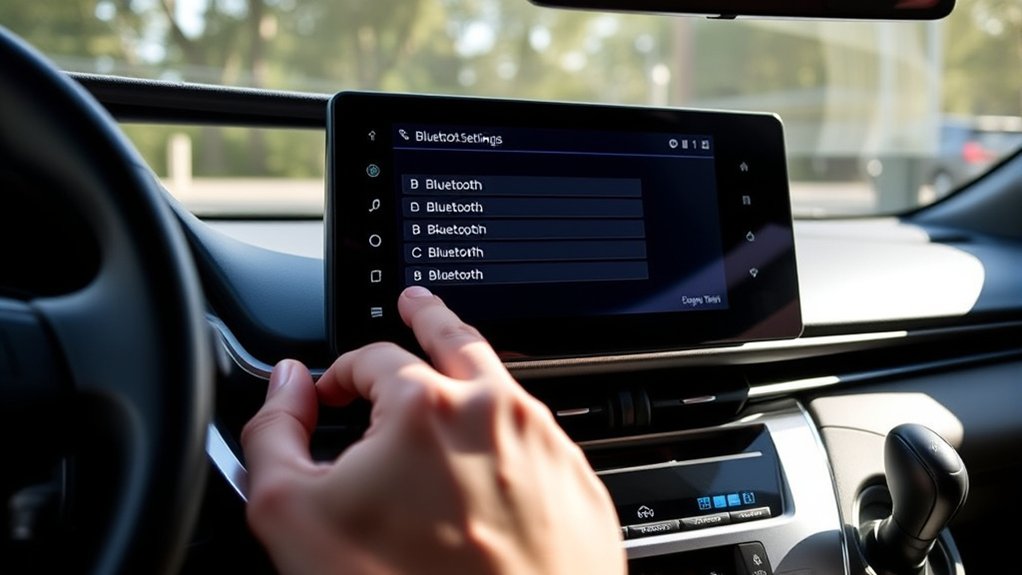
To change the Toyota RAV4 Bluetooth name, first identify which name you mean. On a 2026 RAV4, the vehicle name your phone sees during Bluetooth discovery is under Settings (gear) > Vehicle > Security > Vehicle name. On an earlier Toyota Audio Multimedia system that shows Info & Security, use Settings > Info & Security > Vehicle name. Older Toyota multimedia systems may instead use Bluetooth system settings and a System Name or Bluetooth Name field. If you want to change the name the RAV4 shows for your phone, rename the phone itself or, on supported older systems, edit its saved device label.
Last updated: September 22, 2026 — updated for the 2026 RAV4 multimedia menu and current Toyota, Apple, and Android guidance.
Quick Answer
For a 2026 RAV4, park the vehicle and open Settings > Vehicle > Security > Vehicle name. If your RAV4 uses the earlier Toyota Audio Multimedia interface with Info & Security, open Settings > Info & Security > Vehicle name. On older systems, the vehicle/system name and the saved label for a paired phone can be separate settings. To rename the phone itself, change its Bluetooth/device name on the phone.
Key Takeaways
- A vehicle name, phone name, saved device label, and Toyota profile name are not necessarily the same thing.
- On the 2026 RAV4, the Bluetooth-visible vehicle name is under Settings > Vehicle > Security > Vehicle name.
- On the earlier Toyota Audio Multimedia interface, look under Settings > Info & Security > Vehicle name.
- Older Toyota systems may let you edit both a saved phone label and the vehicle/system Bluetooth name in different menus.
- If the RAV4 keeps showing an old phone name, rename the phone itself and remove and re-pair it if necessary.
- Avoid full names, phone numbers, addresses, email addresses, or license plate numbers in a discoverable Bluetooth name.
At a Glance
| Time Required | Varies by multimedia system and whether you need to remove and re-pair the phone |
| Difficulty | Basic menu change |
| Tools Needed | Your RAV4 touchscreen, your phone, and your Toyota app login if you need to change a profile name |
| Cost | Free |
Warning: Do not try to rename, pair, or delete Bluetooth devices while driving. Park safely first, since these screens can distract you and some setup options may be disabled while the vehicle is moving.
Which Toyota RAV4 Bluetooth Name Do You Want to Change?
Before opening a settings menu, identify the name that is actually wrong. A RAV4 can use several separate names, and changing one does not necessarily change the others.
| Name | Where You Change It | What It Changes |
|---|---|---|
| Vehicle name | RAV4 multimedia settings | The Toyota system name an external Bluetooth device can see when searching for the vehicle |
| Phone name | iPhone or Android settings | The name the RAV4 can see when discovering or registering your phone |
| Saved device label | Supported older Toyota Bluetooth device-information menus | The label stored by the Toyota system for that paired device; it does not rename the phone itself |
| Toyota profile name | Toyota account/app settings on supported systems | The driver/profile identity shown by supported Toyota multimedia systems |
If your goal is simply to make your phone easier to recognize in the RAV4, rename the phone first. If an old saved name remains after that, remove the old pairing and pair the phone again.
How Do You Change the Toyota RAV4 Bluetooth Name?
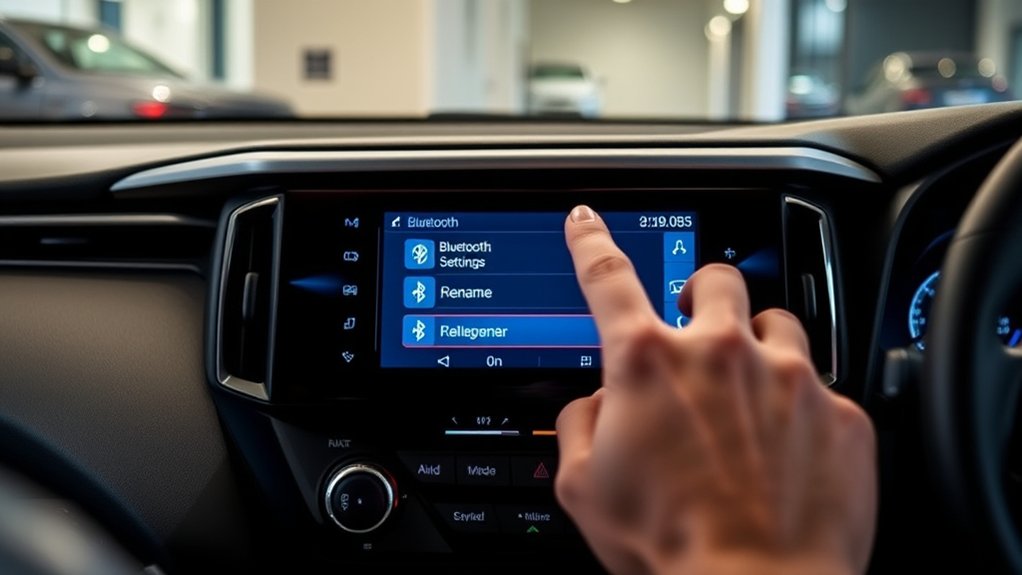
The correct procedure depends on which multimedia interface your RAV4 has. Match the menu names on your screen instead of assuming instructions for another model year use the same path.
2026 RAV4: Change the Vehicle Bluetooth Name
The 2026 RAV4 Multimedia Owner’s Manual places the Bluetooth-visible vehicle name in the vehicle security settings.
- Park the RAV4.
- Touch the Settings gear on the main menu.
- Touch Vehicle on the submenu.
- Touch Security.
- Touch Vehicle name.
- Follow the on-screen prompt to change the name.
This Vehicle name is the system name displayed when an external Bluetooth device searches for the RAV4. It is separate from the name of a paired phone.
Earlier Toyota Audio Multimedia: Change the Vehicle Name
If your RAV4 uses the Toyota Audio Multimedia interface with an Info & Security menu, use this path:
- Park the RAV4.
- Touch the Settings gear on the main menu.
- Touch Info & Security.
- Touch Vehicle name.
- Follow the on-screen prompt to change the vehicle name.
Toyota documents this Vehicle name as the system/device name displayed when an external device searches for the multimedia system over Bluetooth.
Note: Toyota menu wording can vary by multimedia generation, market, software version, and equipment. Match the instructions to the menu labels actually shown on your screen and check the multimedia owner’s manual for your exact RAV4 if they differ.
Older Entune-Style Menu Steps
Older Toyota multimedia systems can separate the saved label for a paired device from the vehicle/system Bluetooth name.
To change a saved phone label on systems that support it:
- Press Menu and open Setup.
- Select Bluetooth.
- Open Registered Device or the equivalent registered-device list.
- Select the device you want to edit.
- Open Device Info.
- Select Device Name, enter the desired label, and select OK.
On these systems, changing the saved Device Name changes the label stored by the Toyota multimedia system. Toyota specifically notes that it does not change the name registered in the Bluetooth device itself.
To change the older vehicle/system Bluetooth name:
- Open the RAV4’s Bluetooth setup screen.
- Open Detailed Settings or System Settings, depending on the multimedia unit.
- Open System Information if your system provides that submenu.
- Select System Name or Bluetooth Name.
- Enter the new name and select OK.
If your menu wording does not match these paths, use the multimedia manual for your exact model year and installed head unit rather than selecting a similar-looking setting.
Pro Tip: If the name you want to change belongs to your phone, rename the phone before pairing it. That gives the RAV4 the new phone name when it discovers or registers the device.
How Do You Rename Your Phone Before Pairing It Again?
If the RAV4 is displaying an unwanted name for your phone, change the phone’s own device name. If the Toyota system keeps an older saved label afterward, remove the existing pairing from both devices and pair again.
Rename an iPhone for RAV4 Bluetooth
Apple says the iPhone name is used by iCloud, AirDrop, Bluetooth, Personal Hotspot, and your computer. To change it, go to Settings > General > About > Name, clear the current name, and enter the new one.
Rename an Android Phone for RAV4 Bluetooth
Google’s standard Android path is Settings > Connected devices > Connection preferences > Bluetooth > Device name. Make sure Bluetooth is on, enter the new name, and tap Rename. Android manufacturers can change menu wording, so use your phone maker’s instructions if those labels are different.
Choosing a Clear and Recognizable Bluetooth Name
A good Bluetooth name should be short, clear, and easy to identify while you are parked. You do not need a long label or special characters.
Names like RAV4 Phone, Hasan iPhone, Family RAV4, or Work Android are easy to recognize. If more than one driver uses the vehicle, a first name or role can help distinguish the phones.
Avoid names that include your full legal name, phone number, home address, email address, or license plate number. Bluetooth names can appear during device discovery and pairing, so keep unnecessary personal information out of the label.
The best Bluetooth name is one you can identify quickly without exposing unnecessary personal information.
Why Is the Old Bluetooth Name Still Showing?
If the name does not update, first confirm that you changed the correct type of name. Changing the RAV4’s Vehicle name does not rename your phone, and changing an older system’s saved Device Name does not rename the actual Bluetooth device.
Common Naming Mistakes
- Renaming the wrong item: Vehicle name, phone name, saved device label, and Toyota profile name can be separate.
- Using a name that is too long: Shorten it if your system rejects or cuts off the label.
- Using emojis or unusual symbols: A simple letters-and-numbers name is easier to recognize across different systems.
- Keeping an old pairing: A previously stored phone label can remain until the old registration is removed and the phone is paired again.
- Confusing profile name with Bluetooth name: Changing the Toyota driver profile does not necessarily change the vehicle or phone Bluetooth name.
Troubleshooting Connection Issues
If the problem is more than a name mismatch, start with basic connection checks before resetting the multimedia system.
- Confirm Bluetooth is turned on and the phone is close to the vehicle.
- Restart the phone.
- Restart the vehicle or multimedia system using the procedure specified for your model if the system is not responding normally.
- Delete the old RAV4 pairing from the phone if you need a clean registration.
- Forget or delete the phone from the RAV4.
- Pair the phone again and approve the requested phone, contact, and media permissions.
- Check for phone and Toyota multimedia software updates if connection problems continue.
For the complete registration process, see how to set up Bluetooth in a Toyota RAV4. If you suspect outdated head-unit software, use the separate guide to update Toyota RAV4 software.
How Do You Remove a Bluetooth Device From a RAV4?
Removing an old pairing can help when the RAV4 continues to display an outdated phone label. On current Toyota Audio Multimedia systems, device-management controls are under Bluetooth & Devices. Toyota’s support guidance for applicable systems uses Settings > Bluetooth & devices > select the device > Forget.
Easy Removal Steps
- Park the RAV4.
- Open Settings or the gear icon on the touchscreen.
- Select Bluetooth & Devices.
- Select or open the settings for the phone you want to remove.
- Tap Forget, Forget this device, Remove, or Delete, depending on the multimedia generation.
- Confirm the removal when prompted.
The 2026 RAV4 multimedia manual also places registered-device deletion under Bluetooth & Devices, followed by the device controls and Forget this device.
On some older Toyota systems, Toyota lists the removal path as Setup > Bluetooth > Remove Device, then selecting the device name. If your RAV4 uses that wording, follow the on-screen prompts.
Confirming Device Deletion
After you remove the phone, return to the Bluetooth device list. The deleted phone should no longer appear as a registered or paired device.
Next, open your phone’s Bluetooth settings and forget the RAV4 there too if you are trying to create a completely fresh pairing. On applicable older Toyota systems, Toyota’s pairing flow may appear as Menu > Setup > Bluetooth > Add Device. Newer systems use Bluetooth & Devices and an add-device control instead.
What Does Changing the Bluetooth Name Actually Change?
A Bluetooth rename is mainly an identification change. Its effect depends on which name you edit.
- Changing the vehicle name changes the Toyota multimedia system name that an external Bluetooth device can see during discovery.
- Changing your phone name changes the device name the vehicle can see when discovering or registering that phone.
- Changing a supported older system’s saved Device Name changes the label stored by the Toyota system, not the phone’s actual Bluetooth name.
- Changing the Toyota profile name affects the supported driver/profile identity rather than automatically renaming the phone or vehicle.
- Changing any of these names does not increase Bluetooth range or signal strength.
Managing Bluetooth After You Rename a Device
After the name is correct, keep only the phones you still use and remove registrations left by previous owners. If your multimedia system supports primary and secondary Bluetooth devices, set the appropriate phone priority for the drivers who use the vehicle.
If you use Apple CarPlay or Android Auto, remember that projection settings and basic Bluetooth device settings are related but not identical. If Bluetooth shows the expected phone name but CarPlay or Android Auto still shows an unwanted device or connection, review the corresponding phone projection settings as well.
For Toyota profile-name issues, use the Toyota account/app settings provided for your system and region. Toyota support states that supported profile names can be changed in the Toyota app under Account > Personal Information. App wording can change by region and software version.
Frequently Asked Questions
How do I change the Bluetooth vehicle name on a 2026 Toyota RAV4?
Park the RAV4, touch the Settings gear, then open Vehicle > Security > Vehicle name. Touch the vehicle-name setting and follow the on-screen prompt to change it. This is the system name an external Bluetooth device sees when searching for the RAV4.
Where is the vehicle-name setting on the earlier Toyota Audio Multimedia system?
If your RAV4 has the Toyota Audio Multimedia interface with an Info & Security menu, open the Settings gear, select Info & Security, then select Vehicle name. Menu availability can vary by model year, market, equipment, and software version.
Can I change the Bluetooth name while driving?
No. Park safely before changing Bluetooth settings. Toyota restricts some Bluetooth registration and settings operations while driving, and using the touchscreen for setup can distract you from the road.
Why can’t I find a Name or Edit option in Bluetooth & Devices?
You may be looking in the paired-device menu rather than the vehicle-name menu. On the 2026 RAV4, check Settings > Vehicle > Security > Vehicle name. On an earlier Toyota Audio Multimedia interface that shows Info & Security, check Settings > Info & Security > Vehicle name. If you are trying to rename the phone itself, change its name in the phone settings.
Is there a character limit for the Bluetooth name?
Limits can vary with the multimedia or phone software. Keep the name short and simple, and shorten it if your RAV4 or phone rejects or cuts off the label.
Will changing the Bluetooth name affect existing connections?
Changing a displayed name and deleting a pairing are different actions. If you rename your phone and the RAV4 keeps showing its old saved label, remove the existing registration from both devices and pair them again.
How often can I change the Bluetooth name?
Change the name when you need a clearer device label. Avoid repeatedly creating new pairings just to change a label, because old registrations can make the device list harder to manage.
Do I need to restart my car after changing the name?
Not necessarily. If the expected name does not appear, first confirm that you changed the correct name. If an old phone label remains, restart the phone or multimedia system if needed, then remove and re-pair the phone for a clean registration.
Is the Toyota profile name the same as the Bluetooth name?
No. The Toyota driver/profile name, the vehicle Bluetooth-visible name, the phone name, and an older system’s saved device label can be separate. If the profile name is wrong, use the Toyota account/app profile settings supported in your region.
Conclusion
To change your Toyota RAV4 Bluetooth name correctly, start by identifying what you want to rename. For the 2026 RAV4’s Bluetooth-visible vehicle name, use Settings > Vehicle > Security > Vehicle name. On the earlier Toyota Audio Multimedia interface with Info & Security, use Settings > Info & Security > Vehicle name. Older systems can have separate controls for the vehicle/system name and the saved label assigned to a paired phone. If the unwanted name belongs to the phone itself, rename the phone in iOS or Android settings and re-pair it only if the RAV4 continues to show an outdated saved label.
Sources
- Toyota Manuals & Warranties — Official directory for matching RAV4 owner and multimedia manuals to the exact model year.
- Toyota RAV4 Multimedia Owner’s Manual OM0R151U — Toyota Audio Multimedia vehicle-name setting under Info & Security.
- Toyota Connected Services — Toyota multimedia and connected-services information.
- Toyota Support: Delete a paired Bluetooth device — Bluetooth & Devices and Forget removal guidance for applicable systems.
- Toyota Support: Disconnect or remove a Bluetooth device — Older Toyota removal wording.
- Toyota Support: Pair a smartphone via Bluetooth — Toyota pairing-menu reference for applicable systems.
- Toyota Support: Change profile name — Toyota profile-name guidance.
- Apple Support: Change the name of your iPhone — iPhone device name used by Bluetooth.
- Android Help: Find and set up Bluetooth devices — Official Android device-name and Bluetooth-management steps.

