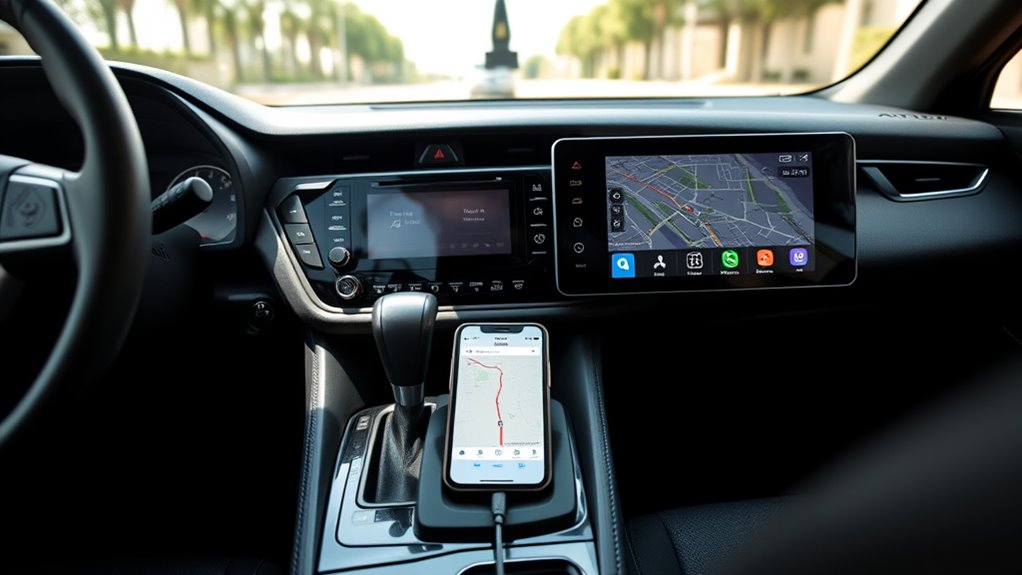
Trying to get Google Maps from your iPhone onto your Toyota RAV4 screen? You need Apple CarPlay, which shows compatible phone apps on the vehicle display rather than mirroring your entire iPhone. The connection method depends on your RAV4 model year: some use a USB cable, while newer models support wireless CarPlay.
Quick Answer
To display Google Maps on a RAV4 screen, install Google Maps on a compatible iPhone, enable Siri, and connect through Apple CarPlay. Use the USB data port on most U.S. 2019–2022 models; 2023 and newer U.S. RAV4s support wireless CarPlay. Open the CarPlay app screen, then select Google Maps to start directions.
At a Glance
| Difficulty | Easy, once CarPlay is enabled |
| Tools Needed | Compatible iPhone, Google Maps app, and a data-capable USB cable if using wired CarPlay |
Key Takeaways
- Google Maps appears inside Apple CarPlay, not through ordinary Bluetooth audio pairing or full-screen iPhone mirroring.
- U.S.-market 2019–2022 RAV4s generally use wired CarPlay. Toyota made wireless Apple CarPlay standard on U.S. RAV4 grades for 2023.
- If CarPlay works but Google Maps is missing, check the app on your iPhone and its CarPlay app list before changing vehicle settings.
- The right cable depends on the iPhone connector: Lightning on older iPhones or USB-C on newer ones.
- If CarPlay fails entirely, check the correct media USB port or wireless Wi-Fi and Bluetooth settings, then review restrictions and pairing.
Why Google Maps Won’t Show on RAV4
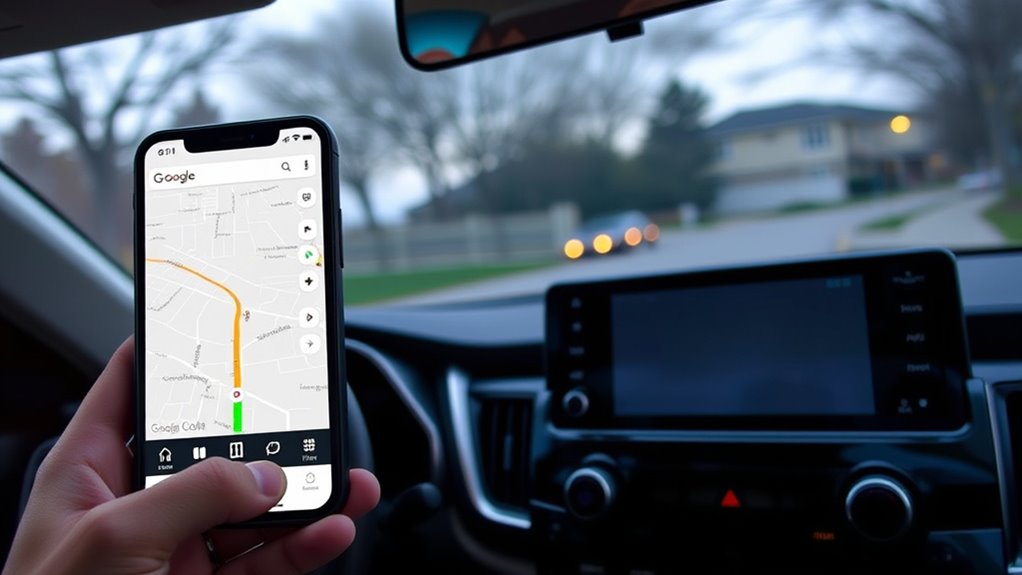
Google Maps may be missing because CarPlay has not started, the app is not shown in the CarPlay layout, or the iPhone cannot provide location data. Work out whether the whole CarPlay screen is missing or only the Google Maps icon. That distinction points to different fixes.
Google Maps runs as a CarPlay app on the RAV4 display; standard Bluetooth audio pairing by itself does not show the map.
On an older wired setup, using a charge-only USB port or cable may let the phone charge without launching CarPlay. On a wireless setup, disabled Wi-Fi or Bluetooth can stop pairing.
Also check whether your RAV4 actually has factory CarPlay. Toyota lists it as standard on the 2019 U.S. RAV4, but a 2018 or earlier factory system should not be assumed compatible. Market-specific systems and aftermarket stereos can differ.
Check Your iPhone and CarPlay Setup
First, confirm that Google Maps is installed and the iPhone is compatible with the vehicle. Then make sure Siri and CarPlay are allowed. The original Toyota Entune 3.0 menus apply to older RAV4 multimedia systems, not every newer touchscreen.
Verify CarPlay Settings
On the iPhone, open Settings > General > CarPlay and look for your Toyota. You may need to connect or pair the phone before the vehicle appears. Enable Siri in the iPhone’s Siri settings.
On older Toyota multimedia systems, the setup path is Menu > Setup > General > Apple CarPlay > On. Toyota’s CarPlay setup guide also shows the prompts to allow CarPlay while the phone is locked and to choose Enable Once or Always Enable.
If the phone was previously denied access, review Settings > Screen Time > Content & Privacy Restrictions > Allowed Apps and make sure CarPlay is allowed. These restrictions can block the entire interface even when Bluetooth calls still work.
Confirm iPhone Compatibility
Google’s Google Maps on CarPlay requirements list an iPhone 5 or newer, iOS 12 or newer, Google Maps version 5.24 or newer, and a CarPlay-compatible vehicle. For reliable use, install the current app version supported by your iPhone.
| Check | Result |
|---|---|
| iPhone and iOS | Check CarPlay compatibility; Google’s documented minimum is iOS 12 |
| Siri and permissions | Siri enabled; CarPlay allowed in Screen Time |
| Cable and updates | Data-capable Lightning or USB-C cable for wired systems; current available software |
For wired CarPlay, the connector matters. An older iPhone may need a Lightning-to-USB cable; an iPhone with USB-C needs a compatible USB-C cable or USB-A-to-USB-C cable for the car’s data port. A cable that charges successfully is not necessarily passing the data CarPlay needs.
Give Google Maps location access under Settings > Privacy & Security > Location Services > Google Maps. Choose While Using the App or another suitable permission. If location access is denied, turn-by-turn positioning will not work correctly.
Connect Google Maps Step by Step
Connect the iPhone using the method your RAV4 supports, approve the prompts, and launch CarPlay. Do the initial setup while the vehicle is parked. Once connected, you should see a CarPlay home screen with supported app icons.
- Prepare the iPhone. Install or update Google Maps, switch on Siri, and turn on Location Services.
- For wired RAV4s, connect a data cable. Plug the iPhone into the USB media or smartphone projection port, not a charging-only port. Use the cable type that matches your iPhone.
- For wireless RAV4s, pair the phone. Turn on the iPhone’s Bluetooth and Wi-Fi, open the Toyota multimedia device connection menu, and follow the CarPlay prompts. Toyota introduced standard wireless CarPlay across U.S. RAV4 grades for 2023, as described in its 2023 equipment announcement.
- Approve CarPlay. Accept the Toyota and iPhone permissions, including allowing CarPlay while the phone is locked when prompted.
- Open CarPlay. Select the Apple CarPlay icon on the RAV4 display if the interface does not open automatically.
- Choose Google Maps. Swipe through the CarPlay app pages if needed, then tap Google Maps and start a route.
If the Toyota screen opens CarPlay but only shows Apple Maps, the connection has succeeded. You need to find or restore the Google Maps icon, not repeat the whole vehicle pairing process.
Open Google Maps in Apple CarPlay
Once the CarPlay home screen appears, open Google Maps and select a destination. Google’s supported sequence is to tap Add destination, choose the place, and tap Go. You can then follow directions on the RAV4 screen.
Google Maps also lets you search for a gas station, restaurant, grocery store, or another stop while navigating, when that feature is available. Live traffic and route changes depend on your phone’s data connection. Set up your destination before driving whenever possible.
For voice control, press and hold the steering-wheel voice button or use Siri where supported. Siri is useful for CarPlay tasks, although app-specific navigation commands may behave differently from Apple’s own Maps app.
If the Google Maps icon is missing, open Settings > General > CarPlay > your Toyota > Customize on the iPhone. Check More Apps, add Google Maps if available, and move it higher in the list. Apple’s CarPlay icon instructions confirm that only compatible apps appear and that layout changes show the next time you connect.
Fix Common CarPlay Problems
Start by identifying what fails: vehicle connection, Google Maps visibility, or active navigation. Fix the simplest cause first, then move to resets and software checks. This avoids changing settings that were already working.
Check CarPlay Setup
If no CarPlay home screen appears, check that the RAV4’s multimedia system supports CarPlay and that the phone was authorized. On newer wireless systems, confirm Wi-Fi and Bluetooth are both enabled. On older wired systems, use the USB media port.
If CarPlay opens but Google Maps does not, check the app installation and its position in Customize. If Google Maps opens but shows the wrong location, review its Location Services permission and try the app on the iPhone to separate a map problem from a car-screen problem.
Apple’s CarPlay troubleshooting guidance recommends checking the connection, restarting the phone and car, confirming Siri, reviewing Screen Time restrictions, and using Forget This Car before setting up CarPlay again.
Update iPhone And Firmware
Install available iPhone and Google Maps updates if the problem began after a software change. For the vehicle, check Toyota’s update instructions for your particular multimedia system. The menus and available firmware packages differ across RAV4 model years.
| Check | Why it matters | Result |
|---|---|---|
| iPhone iOS and Google Maps | App and CarPlay compatibility | Can resolve app crashes or missing features |
| RAV4 multimedia firmware | Vehicle connection software | May address recognized connection faults |
| Siri and permissions | CarPlay access and controls | May restore the interface or navigation access |
After updating, restart the iPhone and vehicle multimedia system, then test again. If repeated pairing fails, remove the RAV4 under Settings > General > CarPlay > Forget This Car and connect it again. This clears the saved CarPlay pairing, so you will need to approve the prompts again.
Try Another Cable
For a wired RAV4, replace the cable if the phone charges but CarPlay never opens. Choose a sound, data-capable cable with the correct connector. Apple’s guidance specifically recommends trying another cable and USB port when one is available.
- Inspect the cable and phone connector for visible damage or debris.
- Connect directly with a compatible Lightning or USB-C data cable instead of a multi-adapter chain.
- Try the vehicle’s designated USB media port; other ports may supply power only.
If multiple known-good cables fail while the same iPhone works with CarPlay in another car, the RAV4’s media port or multimedia software may need inspection. Wireless users should skip cable tests and focus on pairing and Wi-Fi instead.
Try Other Navigation Apps
Apple Maps, Waze, and MapQuest provide other navigation choices for CarPlay users. Install the app on the iPhone first and confirm that its icon appears on the CarPlay app screen. App interfaces, route options, and available alerts differ.
MapQuest also documents a CarPlay setup and navigation procedure. If another navigation app works but Google Maps does not, that points toward the Google Maps app, its permissions, or its CarPlay listing rather than the Toyota connection itself.
If your trip crosses areas with poor mobile coverage, use Google Maps on the iPhone to download the route area beforehand. Google’s iPhone offline-map instructions explain that driving directions can continue within a downloaded area, but live traffic and alternative routes are unavailable offline.
Frequently Asked Questions
How to Display Google Maps on RAV4 Screen?
Connect a compatible iPhone through Apple CarPlay and choose Google Maps from the CarPlay home screen. Use the USB media port on older wired models or wireless pairing on supported newer models. Google Maps must be installed on the iPhone.
How Do I Get Google Maps on My iPhone to My Car Screen?
Open Apple CarPlay on the Toyota touchscreen, then tap Google Maps. If the icon is absent, use Settings > General > CarPlay > your Toyota > Customize on the iPhone to add it or change its position. Reconnect afterward.
How Do I Get Google Maps to Come up on My Car Screen?
First, make sure CarPlay itself is connected. If it is, check that Google Maps is installed, updated, and listed in CarPlay’s Customize menu. If CarPlay is missing too, check Siri, cable or wireless settings, restrictions, and pairing.
How Do I Mirror My iPhone to My Car Display?
Apple CarPlay is not full iPhone screen mirroring. It displays supported apps in a driving-friendly layout, including Google Maps, calls, and audio. A factory RAV4 CarPlay system does not simply duplicate every app or video playing on your phone.
Can I Use Google Maps on a RAV4 Without a Cable?
Yes, if your RAV4 supports wireless Apple CarPlay. U.S. 2023 and newer RAV4 models have factory wireless CarPlay. Most U.S. 2019–2022 factory systems instead require a compatible USB data connection, unless you have additional hardware.
Can I Use Google Maps Without Mobile Data?
You can download an offline area in Google Maps on your iPhone before leaving. Driving directions may continue within that downloaded area, but live traffic and alternate routes will not be available offline. CarPlay still needs its wired or wireless phone connection.
Conclusion
To show Google Maps on your RAV4, get Apple CarPlay working first, then open the Google Maps app inside it. If you see other CarPlay apps but not Google Maps, check the iPhone’s Customize menu. If CarPlay never opens, troubleshoot the cable or wireless connection before changing the map app.
Sources
- Toyota, 2019 RAV4 model information: original factory CarPlay support.
- Toyota, Apple CarPlay setup guide: older Entune 3.0 menus and first-time permissions.
- Toyota, 2023 RAV4 equipment announcement: wireless CarPlay became standard.
- Google Maps Help, Use Google Maps on CarPlay: app requirements and navigation steps.
- Apple Support, Rearrange the icons on CarPlay Home: app ordering and visibility.
- Apple Support, If you can’t connect your iPhone to CarPlay: connection troubleshooting and resets.
- MapQuest Help, CarPlay FAQ: alternative navigation app support.
- Google Maps Help, Download areas and navigate offline on iPhone: offline driving limits.