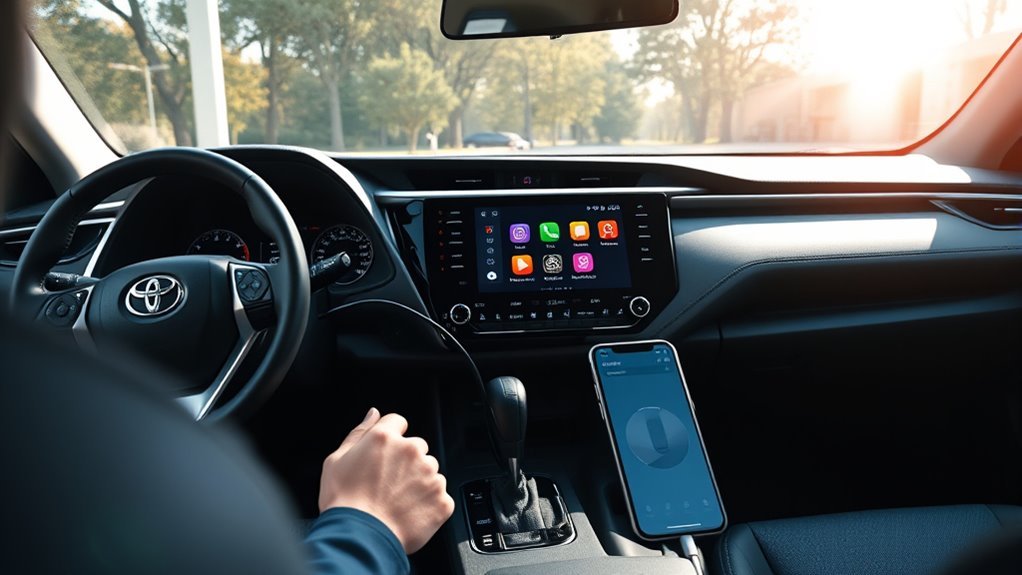
Connecting a Google Pixel 10 to a 2019 Toyota RAV4 Entune system lets you make hands-free calls and stream music through the vehicle’s speakers. The process uses Bluetooth and usually requires only a few menu selections. However, the 2019 RAV4 has an important limitation: U.S. models did not include factory Android Auto, so Bluetooth pairing and phone-screen integration are different features.
Quick Answer
To connect your Pixel 10, park the RAV4 and open MENU > Setup > Bluetooth > Add New Device. On the phone, open Settings > Connected devices > Pair new device. Select the correct device, confirm the matching pairing codes, and allow the permissions you want. Test hands-free calls and Bluetooth music before driving.
At a Glance
| Difficulty | Easy, using the phone and vehicle menus |
| Tools Needed | Google Pixel 10 and a 2019 RAV4 with factory Bluetooth |
| Cost | No fee for standard Bluetooth pairing |
Make Sure Your Devices Can Pair
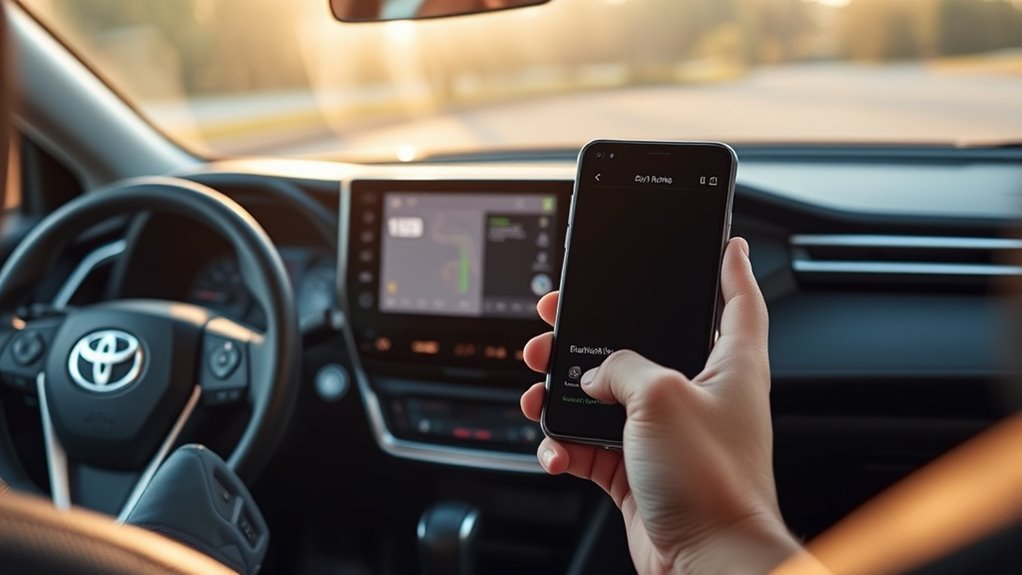
The Google Pixel 10 supports Bluetooth connections, and the 2019 RAV4 Entune system supports Bluetooth hands-free calling and wireless audio. You do not need Android Auto, an Entune app subscription, or a USB cable for these basic functions.
Before starting, make sure both devices are ready:
- Pixel 10: Open Settings > Connected devices > Connection preferences > Bluetooth and turn on Use Bluetooth.
- RAV4: Turn on the vehicle’s multimedia display and confirm that Bluetooth is enabled.
- Distance: Keep the phone inside the vehicle, close to the touchscreen, rather than relying on the maximum Bluetooth range.
- Other devices: Disconnect a previously connected phone if it interferes with the pairing attempt.
- Software: Install available Pixel system updates before troubleshooting repeated connection failures.
Google explains that keeping the phone’s Bluetooth settings open allows nearby devices to find it. Its official Pixel Bluetooth pairing instructions also cover saved devices, connection status, and removing an old pairing.
The Bluetooth connection does not require mobile data. However, streaming services and online voice features may need an internet connection.
Prepare Your 2019 RAV4
Prepare your 2019 Toyota RAV4 before opening its Bluetooth menu. Park on a safe, level surface, keep the vehicle stationary, and turn on the multimedia system.
The RAV4 uses Toyota’s Entune multimedia interface, but the exact screen appearance can vary by audio package. The same basic Bluetooth pairing process applies to supported factory systems.
Check Bluetooth Readiness
Press the RAV4’s MENU button and open Setup. Find Bluetooth and check whether the system is enabled.
If another smartphone is already connected, the system may ask whether you want to disconnect it before registering the Pixel 10. Select Yes when appropriate.
The 2019 Toyota multimedia documentation allows up to five registered Bluetooth devices. If the registration list is full, remove an unused device before adding another.
For a first-time connection, you do not need to erase every saved phone. Removing devices is mainly helpful when the list is full, the wrong phone connects, or an earlier pairing has become unreliable.
Update Entune Settings
A multimedia software update may address certain system problems, but updating Entune is not a mandatory first step for normal Bluetooth pairing. Try the basic connection procedure before changing the vehicle’s software.
If pairing repeatedly fails, use Toyota’s multimedia software update information to check the available methods. Eligible older systems may require a USB update or dealer assistance rather than an over-the-air download.
Only install software intended for your vehicle and multimedia unit. Do not assume a standard firmware update will add Android Auto or other features that the original hardware did not support.
Open Bluetooth Settings in Entune
The Bluetooth menu is where the RAV4 registers, connects, and removes phones. It also provides settings that affect automatic reconnection.
For the 2019 system, begin with the vehicle’s MENU button rather than looking for a separate Android Auto app.
Access Entune Bluetooth Menu
Follow this menu sequence while the vehicle is parked:
- Turn on the RAV4 multimedia screen.
- Press the physical MENU button.
- Select Setup on the touchscreen.
- Choose Bluetooth.
- Select Add New Device to begin registration.
The system may display the names of nearby devices or show instructions for completing registration from the phone.
If the Bluetooth screen offers Registered Device, you can also use that menu later to switch between phones already saved in the vehicle.
Enable Phone Discovery
On the Pixel 10, open Settings > Connected devices > Pair new device. Keep the screen open while the RAV4 searches for nearby Bluetooth devices.
If the car finds the Pixel 10, select its name on the touchscreen. If the car cannot find the phone, look for an option such as If you cannot find or Register from Phone in the Toyota interface.
When using the phone-based method, choose the Toyota Bluetooth device from the Pixel’s nearby-device list. The displayed vehicle name can vary based on the multimedia system’s saved settings.
Keep both screens active until you finish confirming the connection.
Pair Your Pixel 10 to the RAV4
To pair your Google Pixel 10 with the 2019 Toyota RAV4, complete the Bluetooth registration on both devices. The pairing process establishes a trusted connection so you do not need to repeat the setup on every trip.
- Unlock the Pixel 10. Make sure Bluetooth is on and the phone’s pairing screen is open.
- Start registration on the RAV4. Select MENU > Setup > Bluetooth > Add New Device.
- Select the correct device. Choose the Pixel 10 on the RAV4 screen, or choose the Toyota device on the phone when following phone-based registration.
- Compare the pairing codes. If both screens display a code, check that the numbers match before approving the connection.
- Confirm the request. Tap Pair, OK, Accept, or the matching confirmation option shown on each screen.
- Finish the setup. Approve the contact-sharing permissions you want and wait for the system to show a successful connection.
If the screen reports a pairing failure, check whether an approval request is still waiting on the Pixel. An unfinished confirmation on either device can prevent registration.
Once the connection succeeds, the RAV4 can use supported Bluetooth functions, including phone calls and audio streaming. Navigation apps remain on the Pixel’s screen unless the vehicle has a separate compatible phone-projection solution.
Grant Contact and Audio Permissions
After Bluetooth pairing, your Pixel 10 may ask whether the RAV4 can access contacts and call history. Allowing this access makes it easier to place calls from the vehicle’s contact list.
You can decline contact access and still use basic Bluetooth calling, although saved names and phonebook features may not appear as expected.
Contact sharing controls phonebook access. Phone audio and media audio are separate Bluetooth functions.
To check the settings later, open Settings > Connected devices on the Pixel 10. Find the saved Toyota connection and tap its settings icon.
Depending on the displayed options, you may see:
- Phone audio: Allows supported hands-free calling through the vehicle.
- Media audio: Allows supported music and other audio playback through the car speakers.
- Contact sharing: Controls access to saved contacts and, where supported, call history.
Turn on the functions you want to use. Contact and call-history permissions can also be controlled from the pairing prompt when the connection is first created.
If contacts do not appear immediately, give the system time to synchronize. Confirm the Pixel’s permission settings before removing the connection or resetting the multimedia unit.
Test Calls and Music Playback
Test the Bluetooth connection before driving. A successful pairing message confirms registration, but checking phone calls and media playback shows whether the functions you need actually work.
With the vehicle parked, place a test call and confirm that you can hear the other person through the speakers. Ask whether your voice sounds clear through the RAV4 microphone.
| Check | Result |
|---|---|
| Call audio | The caller’s voice plays through the vehicle speakers |
| Microphone | The other person can hear you clearly |
| Music streaming | Pixel audio plays through the selected Bluetooth audio source |
| Controls | Supported volume and track controls respond |
Next, open a music app on the Pixel 10 and start playback. Select the RAV4’s Bluetooth audio source if the speakers remain silent.
If music plays through the phone speaker instead, check the Pixel’s audio output selection and make sure Media audio is enabled for the Toyota connection.
Steering-wheel controls can handle supported call and audio functions, but track controls may vary by application and Bluetooth profile. Test the controls you normally use while the vehicle is still parked.
Fix Common Bluetooth Pairing Errors
Most Bluetooth connection problems can be traced to an incomplete pairing, conflicting saved devices, disabled audio settings, or a temporary software problem. Start with simple checks before resetting anything.
Toyota’s 2019 RAV4 troubleshooting guide identifies incorrect passcodes, old registration information, and another connected phone as potential causes.
When the Pixel 10 Does Not Appear
If Entune cannot find the Pixel 10, keep the phone’s Bluetooth pairing screen open and repeat the device search.
- Turn the Pixel’s Bluetooth off and back on.
- Return to Pair new device and keep that screen visible.
- Check whether Entune is still searching for devices.
- Disconnect another phone if it is occupying the active connection.
- Try registration from the phone if the vehicle’s search fails.
Bring the phone closer to the dashboard during the test. Also move other wireless devices away if you suspect radio interference.
When the Pairing Code Fails
A failed pairing code usually means the confirmation was rejected, expired, or not completed on both devices.
Cancel the attempt and start again. Compare the displayed numbers carefully, then approve the request on both screens. Never approve a code that does not match.
If the same error continues, remove the failed registration from the vehicle and the phone before trying again.
When the Phone Connects but Has No Sound
If the RAV4 displays the Pixel as connected but you cannot hear music, select Bluetooth as the vehicle’s audio source. Increase the volume on both the phone and the multimedia unit.
Next, check that Media audio is enabled for the Toyota connection. For calling problems, check Phone audio instead.
Google’s Pixel Bluetooth troubleshooting instructions explain these separate settings and how to clear old car pairings.
When You Need to Remove and Pair Again
If the basic checks fail, delete the RAV4 connection from the Pixel and remove the Pixel from the vehicle’s Bluetooth device list.
- On the Pixel, open the saved Toyota Bluetooth device settings and select Forget.
- On the RAV4, open MENU > Setup > Bluetooth > Remove Device.
- Select the Pixel entry and confirm its removal.
- Restart the phone and the multimedia system.
- Repeat the normal Bluetooth pairing procedure.
Warning: Removing a registered phone from Entune also deletes its associated contact data from the vehicle. A full multimedia reset can erase additional saved settings. Try removing only the affected Bluetooth device first.
If the failure continues, the Pixel 10 also offers Bluetooth diagnostics under Settings > Connected devices on supported software versions. This can help identify calling or media connection problems.
If several phones fail with the RAV4, or the multimedia unit repeatedly freezes, have a Toyota service professional inspect the system before attempting more extensive resets.
Reconnect Your Pixel 10 Automatically
Once paired, the Pixel 10 should normally reconnect when the RAV4’s multimedia system starts and the phone is nearby. You should not need to repeat the pairing-code process for every drive.
If reconnection fails, check that Bluetooth is enabled on the Pixel and that the Toyota connection remains saved.
On the RAV4, open MENU > Setup > Bluetooth > Detailed Settings. Look for Bluetooth Power and make sure it is enabled.
When Bluetooth Power is on, the system can search for registered devices when the vehicle is in ACC or ON mode.
If multiple phones are saved, check Preferred Device Settings. The RAV4 can use connection priorities, so a family member’s phone may connect before your Pixel.
Move the Pixel higher in the preferred phone list if that option is enabled and you want it to connect first.
If the Pixel remains paired but disconnected, you can also select its saved device entry and connect manually. Repeated reconnection failures may require deleting the old pairing and registering the phone again.
Can You Use USB for Media or Android Auto?
A USB cable can provide a physical connection between the Pixel 10 and the RAV4, but it does not automatically enable Android Auto. This is an important distinction for U.S. 2019 RAV4 owners.
Toyota introduced Android Auto as a factory multimedia feature across the U.S. RAV4 range for the 2020 model year. The standard U.S. 2019 Entune system does not gain Android Auto simply by connecting a newer Android phone or installing an ordinary multimedia update.
The 2019 RAV4 did include Apple CarPlay support for compatible iPhones, which is a different phone-integration system.
What Happens When You Connect a Pixel 10 by USB?
A suitable USB connection may charge the Pixel 10, depending on the port and cable. USB media recognition depends on the vehicle’s supported devices and audio formats, so a wired connection does not guarantee music playback from an Android phone.
For reliable basic music playback, use the RAV4’s Bluetooth audio connection. It does not require Android Auto.
What If You Want Android Auto on the Screen?
For a U.S. 2019 RAV4 with its original factory system, Android Auto screen projection generally requires a compatible aftermarket multimedia solution or an appropriately equipped replacement head unit.
Before buying a replacement, check compatibility with the RAV4’s factory camera, steering-wheel controls, microphone, audio amplifier, and vehicle settings. These systems can differ by trim and equipment.
Vehicles sold outside the United States may have different Toyota multimedia hardware and upgrade options. A regional retrofit offered for another market should not be assumed compatible with U.S. Entune units.
Frequently Asked Questions
How Do I Get Android Auto on My 2019 RAV4?
A U.S.-market 2019 Toyota RAV4 did not include factory Android Auto. Toyota added it for the 2020 RAV4 model year. Connecting a Pixel 10 by USB or installing an ordinary Entune update will not automatically add the feature. You would need a compatible aftermarket solution or replacement multimedia system for Android Auto screen projection.
How Do I Connect My Google Pixel 10 to My Car?
Turn on Bluetooth on the Pixel 10 and open Connected devices > Pair new device. In the 2019 RAV4, select MENU > Setup > Bluetooth > Add New Device. Select the phone or vehicle when it appears, confirm the matching pairing codes, and approve the connection. Then test Bluetooth phone calls and music playback.
Is Toyota Entune Still Supported?
The built-in Bluetooth and audio functions can still work on a 2019 RAV4, but older Entune app services are a separate issue. Some connected services have been retired or changed. Availability depends on the service, vehicle, and country. Basic Bluetooth calling and music playback do not depend on an active Entune App Suite subscription.
What Apps Work With Toyota Entune?
Entune historically offered integrations for services such as iHeartRadio, navigation, weather, and other connected features. However, older app lists should not be treated as current compatibility lists. Toyota Canada confirms that App Suite services ended in October 2023, affecting the 2019 RAV4 among other models. Ordinary phone music apps can still play through supported Bluetooth audio independently of those retired services.
Why Does My Pixel 10 Connect but Play No Music?
The phone may be connected for calls without using the Bluetooth media-audio function. Open the Toyota connection settings on the Pixel and enable Media audio. Then select Bluetooth as the source on the RAV4 multimedia system. Check both volume controls and make sure the phone is not sending audio to another connected device.
Will My Pixel 10 Automatically Connect Every Time I Start the RAV4?
Normally, yes. Keep Bluetooth enabled on the Pixel and Bluetooth Power enabled in the RAV4’s multimedia settings. The vehicle searches for previously registered devices when its system starts. If another saved phone takes priority, adjust Preferred Device Settings. If automatic connection still fails, reconnect manually or remove and repeat the pairing.
Conclusion
Connecting a Google Pixel 10 to a 2019 Toyota RAV4 Entune system is usually straightforward through Bluetooth. Start from the vehicle’s Bluetooth menu, confirm the pairing code, allow the permissions you need, and test calls and music before driving.
If connection problems continue, check the audio settings and saved-device priorities before deleting the pairing. Remember that Bluetooth calling and music are supported functions, while factory Android Auto is not included on U.S. 2019 RAV4 models.
Sources
- Google Pixel Help: Connect Through Bluetooth: Pixel pairing steps, device discovery, and saved Bluetooth connections.
- Toyota: Audio Multimedia System Updates: Available update methods and eligibility considerations.
- Toyota: 2019 RAV4 Multimedia Troubleshooting: Bluetooth registration failures, automatic connection problems, and device conflicts.
- Google Pixel Help: Fix Bluetooth Problems: Phone audio, media audio, removing pairings, and troubleshooting.
- Toyota USA Newsroom: 2020 RAV4 Multimedia Enhancements: Introduction of Android Auto for the 2020 U.S. RAV4.
- Toyota: 2019 RAV4 Apple CarPlay: Factory Apple CarPlay operation and supported connections.
- Toyota Canada: Entune 3.0 Help Centre: October 2023 App Suite retirement and affected Canadian vehicles and services.

