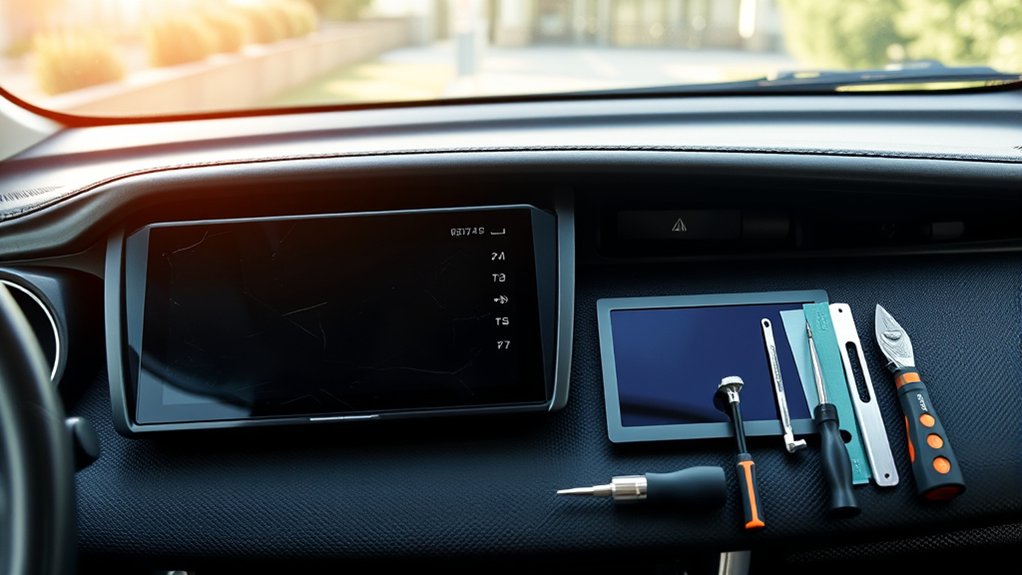
A Toyota RAV4 screen problem does not always mean you need a complete new head unit. Cracked glass, failed touch input, a black display, missing audio, and a blank backup-camera image can have different causes. Diagnose the fault first, check your VIN for updates or recalls, and confirm your exact factory equipment before buying replacement parts.
Quick Answer
First diagnose the fault and check your VIN for software updates or recalls. Replace only the display when the glass or touch layer is damaged but the radio still works. Replace or upgrade the full head unit only after confirming model-year, JBL, camera, steering-control, and factory-feature compatibility.
Key Takeaways
- Diagnose software, power, wiring, camera, and touch problems before replacing the complete multimedia unit.
- Use your model year, trim, VIN, factory-radio part number, JBL status, and camera equipment to verify compatibility.
- Check Toyota’s software portal and recall lookup before purchasing parts. Some camera-display faults may have a software remedy.
- An aftermarket unit must specifically support every factory function you expect to retain.
- Test the camera, audio, microphone, steering controls, USB ports, vehicle settings, and warning indicators before reinstalling all trim.
At a Glance
| Time Required | Plan about 1–3 hours for a straightforward head-unit swap. JBL, camera-interface, wiring, programming, or fitment problems can take longer. |
| Difficulty | Moderate for a verified plug-in replacement; advanced when factory amplifiers, Panoramic View Monitor, telematics, or custom wiring are involved. |
| Tools Needed | Plastic trim tools, screwdriver set, suitable socket set, flashlight, masking tape, microfiber cloth, and the correct vehicle-specific harness and adapters. |
| Cost | Varies widely by model year, replaceable component, OEM or aftermarket choice, audio package, adapters, programming, and labor. Obtain a VIN-specific quote. |
Why You Might Need to Replace Your RAV4 Screen
Your RAV4’s multimedia display may control audio, phone pairing, navigation, camera views, and some vehicle settings. A failure can therefore affect more than entertainment. The correct repair depends on which functions still work.
- Cracked glass but normal image and audio: The outer glass, touch layer, or display assembly may be repairable without replacing the complete receiver.
- Normal image but no touch response: The digitizer may have failed, though software or a loose internal connection can produce similar symptoms.
- Black screen with working audio: The display, backlight, display cable, or related power circuit may be at fault.
- Black screen with no audio or controls: Check power, fuses, connectors, software, and the complete head unit.
- Repeated restarts or freezing: Check for an available software update before purchasing hardware.
- Backup-camera image missing but other functions work: The camera, wiring, interface, or Parking Assist ECU may be the problem rather than the screen.
Start by checking the Toyota Audio Multimedia software portal. Eligible systems may support a USB update, while newer Toyota multimedia systems may offer over-the-air updates.
Also check your VIN through Toyota’s safety recall and service campaign lookup. NHTSA recall 25V744 includes certain 2023–2025 RAV4, 2023–2025 RAV4 Hybrid, and 2023–2024 RAV4 Prime vehicles equipped with specified Panoramic View Monitor software. The listed remedy is a dealer software update, but model year alone does not confirm eligibility.
Warning: A frozen or blank rear-camera image can reduce your view behind the vehicle. Do not assume the camera is operating correctly. Check the area around the vehicle directly, use your mirrors, and arrange diagnosis promptly.
Repair vs. Upgrade: Which Is Better?
Repairing the original unit is usually the safer choice when you value factory integration and only one serviceable component has failed. An upgrade makes more sense when the original system works poorly for your needs and a verified replacement can retain the functions you use.
| Option | Best When | Main Advantages | Main Limitations |
|---|---|---|---|
| Display or digitizer repair | The image, glass, or touch layer is damaged but the receiver still operates. | Preserves original menus, camera integration, audio behavior, and factory appearance. | Not every factory unit is designed for economical component-level repair. |
| OEM head-unit replacement | The complete original receiver has failed and factory operation is the priority. | Usually offers the most predictable fit and compatibility when the exact part number is matched. | May require programming, account setup, anti-theft procedures, or dealer assistance. |
| Aftermarket upgrade | You want newer connectivity or a different interface and have confirmed full fitment. | May add wireless smartphone integration, a larger display, additional inputs, or more audio controls. | Factory cameras, JBL audio, microphones, USB ports, telematics, and vehicle settings may require separate interfaces or may not be retained. |
Note: A screen advertised as fitting a broad range of RAV4 years may not fit every trim or audio package within those years. Vehicle-specific compatibility matters more than the advertised screen size.
Benefits of Upgrading Your RAV4 Screen Replacement
A properly matched upgrade can improve daily usability when your original system lacks the features you need. Depending on the selected unit, possible benefits include:
- A larger or brighter display that is easier to read.
- Wired or wireless Apple CarPlay and Android Auto.
- Faster startup and more responsive touch controls.
- Additional camera inputs or audio-adjustment options.
- Offline navigation or built-in navigation support.
- Modern Bluetooth calling and audio streaming.
- Customizable shortcuts and display layouts.
These benefits are not automatic. Verify each feature in the manufacturer’s documentation for the exact hardware version you are buying. Android-based units with app stores, cellular data, or user accounts also deserve extra scrutiny for update support, permissions, privacy, and long-term security.
Compatibility matters more than screen size. A large display is a poor upgrade if it disables your camera, amplifier, microphone, steering controls, or factory settings.
Essential Features to Consider When Choosing Your New Head Unit
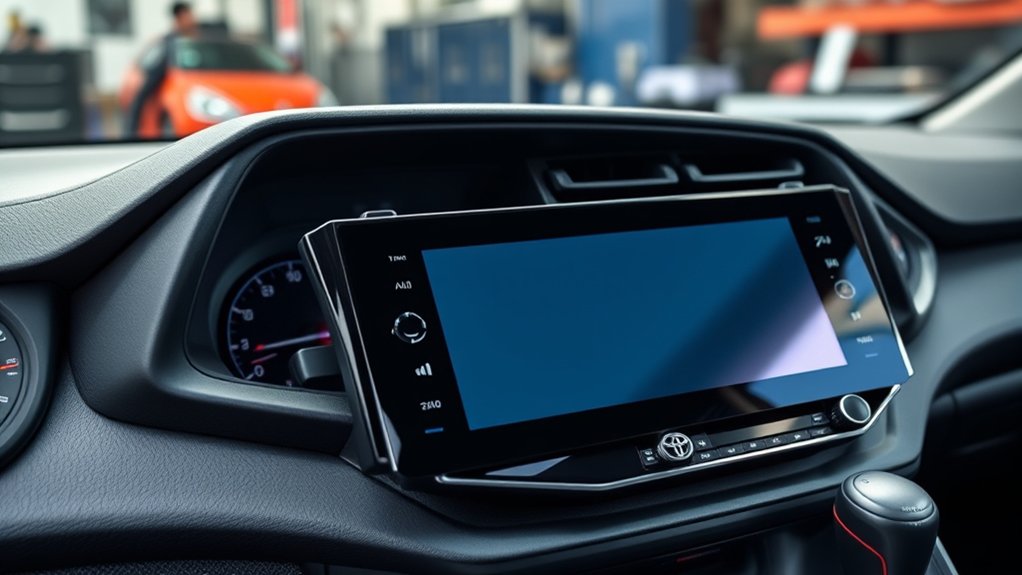
Do not choose a replacement from screen dimensions and operating-system claims alone. Work through the following compatibility checklist first.
Vehicle and Factory-System Compatibility
- Exact model year and trim: Dashboard openings and multimedia platforms change between generations and updates.
- Factory unit part number: Record the number from the original receiver or confirm it through a Toyota parts or service department using your VIN.
- JBL or non-JBL audio: A JBL-equipped RAV4 may use a separate factory amplifier that requires a compatible interface.
- Gas, Hybrid, or Prime: Confirm fitment for your exact powertrain and dashboard configuration.
- Backup camera or Panoramic View Monitor: Verify image format, camera power, switching, guidelines, and multi-camera support.
- Steering-wheel controls: Confirm that the required control interface is included and programmable.
- Factory microphone and USB ports: Some replacements require new microphones or USB adapters.
- Telematics and emergency functions: Confirm whether factory SOS, connected services, and voice functions remain operational.
- Vehicle settings: Check whether the original screen provides lighting, locking, driver-assistance, maintenance, or other settings that could be lost.
Display and Daily-Use Features
- Readable brightness in direct sunlight and automatic night dimming.
- Fast touch response without requiring excessive pressure.
- A viewing angle that does not block vents, buttons, or the driver’s view.
- Reliable wake-up and shutdown behavior.
- Clear microphone performance during road noise.
- Documented firmware updates and technical support.
- Enough physical controls or steering-control support to reduce distraction.
Pro Tip: Photograph the factory information screens, camera view, audio settings, and every connector before removing the original unit. The photos give you a reference if a function disappears after installation.
Installing Your New Head Unit: A Simple Step-by-Step Guide
The following process is a general guide rather than a substitute for the instructions for your exact RAV4 and replacement unit. Review the applicable documents through the Toyota manuals and warranties portal before beginning.
Required Tools and Materials
| Tool or Material | Purpose | Important Note |
|---|---|---|
| Plastic trim-removal tools | Release dashboard trim clips | Safer for finished surfaces than a metal screwdriver |
| Phillips screwdriver and socket set | Remove and reinstall fasteners | Fastener sizes vary by model year and replacement kit |
| Masking tape and microfiber cloth | Protect surrounding trim and the center console | Cover sharp trim edges before moving the receiver |
| Flashlight and phone camera | Inspect and document hidden connectors | Photograph every connection before unplugging it |
| Vehicle-specific harness and interfaces | Connect power, audio, controls, and cameras | Must match your exact audio and camera equipment |
| Replacement mounting brackets and trim bezel | Secure the new unit in the dashboard | Do not force a bezel that does not sit flush |
A heat gun is not normally required for a complete head-unit replacement. Excessive heat can discolor or deform dashboard trim and may damage nearby wiring or components.
Prepare the Vehicle and Verify the Fault
- Park on a level surface, apply the parking brake, and switch off the vehicle.
- Test and record the current operation of the radio, speakers, microphone, steering controls, USB ports, camera, clock, and vehicle settings.
- Remove paired phones and save any radio presets, account information, or settings you need.
- Check for software updates and open recalls.
- Confirm the replacement unit, bezel, harnesses, adapters, and mounting hardware before removing the factory unit.
- Follow the service information for your exact vehicle if the 12-volt battery must be disconnected.
Warning: Do not probe, cut, or reroute yellow airbag-system wiring. On Hybrid and Prime models, do not touch orange high-voltage cables or components. Stop and use a qualified installer if the work area includes unfamiliar safety-system wiring.
Step-by-Step Installation Process
- Protect the dashboard. Apply masking tape around vulnerable trim edges and cover the center console with a clean cloth.
- Remove the surrounding trim. Use plastic trim tools and release clips gradually. Do not twist the panel or pull against connected switches.
- Disconnect trim-mounted controls. Support the panel while unplugging hazard switches, vents, or other attached components.
- Remove the factory receiver fasteners. Keep each fastener organized so it returns to the correct location.
- Pull the receiver forward carefully. Support its weight and avoid scratching the dashboard.
- Photograph and label the connectors. Record antenna, USB, camera, microphone, amplifier, and main-harness connections before unplugging them.
- Connect the vehicle-specific interfaces. Use the supplied diagrams. Avoid cutting the factory harness when a proper adapter is available.
- Connect optional components. Install the GPS antenna, external microphone, USB extension, camera adapter, or amplifier interface only as directed by the manufacturer.
- Perform a temporary function test. Support the unit safely, restore power as instructed, and test the system before securing it in the dashboard.
- Route and secure the wiring. Keep cables away from vents, sharp brackets, airbag paths, and moving controls. Do not trap connectors behind mounting tabs.
- Install the brackets and receiver. Confirm that the unit sits squarely and does not place pressure on the display or connectors.
- Reinstall the trim. Reconnect trim-mounted switches, align every clip, and press evenly until the panel sits flush.
Common Installation Challenges Faced
A replacement described as plug-and-play may still need an amplifier interface, camera converter, steering-control module, USB adapter, or software configuration. Common problems include:
- The connector fits, but its pin arrangement or function does not match the vehicle.
- The unit powers on but produces no sound through the JBL amplifier.
- The backup camera image is blank, reversed, distorted, or missing guidelines.
- The steering-wheel buttons use the wrong commands.
- The dashboard bezel does not sit flush because wiring is trapped behind the unit.
- The original microphone or USB port no longer works.
- The receiver remains awake after the vehicle is locked and drains the 12-volt battery.
Do not solve an uncertain connection by trying random wires. Recheck the vehicle-specific diagram, adapter part numbers, and factory equipment first.
Common Installation Challenges for Your RAV4 Head Unit
Wiring Connection Complexity
Several connectors can look similar while carrying different signals. Confirm the purpose of every plug rather than relying on shape or wire color alone.
If the unit powers on but has no audio, check whether the vehicle has a factory amplifier and whether the amplifier turn-on and audio signals are supported. If only some speakers work, inspect the harness configuration and audio settings before assuming the speakers have failed.
If the backup camera does not appear, check the reverse trigger, camera power requirement, video format, camera adapter, and software setting. Panoramic View Monitor systems require explicit multi-camera compatibility and should not be treated as a basic single-camera input.
Dashboard Space Limitations
A large tablet-style screen can interfere with vents, switches, trim panels, or the driver’s view. Check physical dimensions, display angle, bracket depth, and connector clearance before installation.
Do not force the receiver into place. A trapped harness can loosen a connector, damage a cable, produce rattles, or prevent the trim from seating correctly. Remove the unit and rearrange the wiring if you feel unusual resistance.
Software Compatibility Issues
After installation, the replacement unit may require settings for the amplifier, vehicle type, camera format, steering-wheel controls, or communication interface. Apply only firmware intended for the exact model and hardware version. Installing unrelated firmware can disable the unit.
Wireless smartphone integration also depends on the phone, operating-system version, Wi-Fi, Bluetooth, and the receiver’s software. Test both wired and wireless connections when the unit supports them.
Post-Installation Testing Checklist
Complete this test before relying on the system or reinstalling any remaining trim:
- The unit starts and shuts down normally with the vehicle.
- The display responds across its full touch area.
- Radio reception and every speaker operate correctly.
- Balance, fade, volume, and factory amplifier functions work.
- Apple CarPlay or Android Auto connects as expected.
- The microphone produces clear call audio.
- All intended steering-wheel buttons work and are mapped correctly.
- The backup camera appears promptly in Reverse with the correct orientation.
- Camera guidelines and Panoramic View Monitor functions operate correctly, when equipped.
- USB ports, charging, and media playback work.
- Day and night dimming function correctly.
- Factory vehicle settings remain accessible where expected.
- No new warning lights or error messages remain on.
- The receiver shuts down after the vehicle is turned off and locked.
Note: Recheck the vehicle after it has been parked and locked. A unit that appears to shut off may remain awake in the background and cause a low 12-volt battery.
What Determines the Cost of a RAV4 Screen Replacement?
No single price range applies to every RAV4. Ask for an itemized, VIN-specific quote that identifies the part, adapters, programming, and labor. Major cost factors include:
- Replacing only the glass, digitizer, or display assembly versus the complete receiver.
- New OEM, remanufactured OEM, used OEM, or aftermarket hardware.
- The exact factory part number and model year.
- JBL amplifier integration.
- Backup-camera or Panoramic View Monitor adapters.
- Steering-control, microphone, antenna, and USB interfaces.
- Programming, calibration, firmware updates, or dealer diagnosis.
- Professional installation and troubleshooting time.
- The replacement unit’s parts and labor warranty.
Compare the total installed cost rather than the screen price alone. A cheaper unit can become more expensive if it needs several interfaces or creates problems that require additional diagnosis.
Related Guides
Frequently Asked Questions
How much does it cost to repair a RAV4 screen?
The cost depends on the model year, factory part number, failed component, audio package, camera system, part source, and labor. A display-only repair can cost less than replacing the complete receiver, but not every unit is designed for economical component-level repair. Obtain an itemized quote based on your VIN.
Can I replace the RAV4 screen myself?
You may be able to complete a verified plug-in replacement if you are comfortable removing trim, identifying connectors, and testing electrical functions. Use professional installation when the vehicle has JBL audio, Panoramic View Monitor, telematics, unfamiliar wiring, or safety-system components near the work area.
Can I replace only the cracked glass or touch layer?
Sometimes. If the image and audio still work, a repair service may be able to replace the glass, digitizer, or display assembly. Confirm that the component is separately serviceable for your exact factory unit before ordering it.
What tools do I need for the installation?
A typical installation uses plastic trim tools, a screwdriver set, a suitable socket set, masking tape, a microfiber cloth, a flashlight, and vehicle-specific wiring interfaces. A heat gun is not normally required for a complete head-unit replacement.
Will an aftermarket screen void my Toyota warranty?
Not automatically in the United States. According to the Federal Trade Commission, using an aftermarket part does not by itself cancel the vehicle warranty. Coverage may be denied for damage caused by a defective part or improper installation. Keep receipts, installation records, and the original unit.
How long does a RAV4 head-unit installation take?
A straightforward, verified plug-in replacement may take about one to three hours. Additional interfaces, unclear instructions, tight dashboard space, firmware setup, camera troubleshooting, or factory-amplifier integration can extend the job.
Why did my backup camera or steering controls stop working after installation?
The replacement may be missing the correct interface, reverse trigger, camera-power adapter, control module, or software setting. Recheck the exact vehicle configuration and adapter instructions. Do not finalize the installation until every intended safety and control function has been tested.
Conclusion
A successful Toyota RAV4 screen replacement begins with diagnosis, not shopping. Check for software updates and open recalls, identify the failed component, and record your exact factory equipment. When upgrading, confirm support for JBL audio, cameras, steering controls, microphones, USB ports, telematics, and vehicle settings before removing the original unit.
During installation, protect the trim, document every connector, follow the correct electrical-safety procedure, and test all functions before reassembly. Stop and use a qualified installer when the wiring, factory amplifier, Panoramic View Monitor, airbag system, or hybrid components fall outside your experience.
Sources
- Toyota Manuals and Warranties — model-specific owner, multimedia, and warranty information.
- Toyota Audio Multimedia System Updates — checks for eligible USB multimedia updates.
- Toyota Safety Recall and Service Campaign Lookup — VIN- or license-plate-based recall checks.
- NHTSA Recall Report 25V744 — affected camera-display systems and the listed software remedy.
- Federal Trade Commission: Auto Warranties and Auto Service Contracts — aftermarket parts and warranty-coverage guidance.
