Connecting an iPhone 17 Pro Max to a 2020 Toyota Tundra is straightforward once you use the correct USB cable and enable Apple CarPlay. However, the iPhone 17 Pro Max has a USB-C port, not the Lightning connector found on older iPhones. This guide explains the proper wired setup, Toyota’s screen settings, and what to check when CarPlay will not connect.
Quick Answer
To connect an iPhone 17 Pro Max to a 2020 Toyota Tundra, use a data-capable USB-A to USB-C cable in the truck’s USB media port. Turn on Siri, accept the iPhone’s CarPlay permission, and choose “Always Enable” on the Toyota screen. Factory CarPlay on this Tundra uses a wired connection.
At a Glance
| Difficulty | Easy |
| Tools Needed | iPhone 17 Pro Max and a data-capable USB-A to USB-C cable |
Set Up Apple CarPlay on Your iPhone
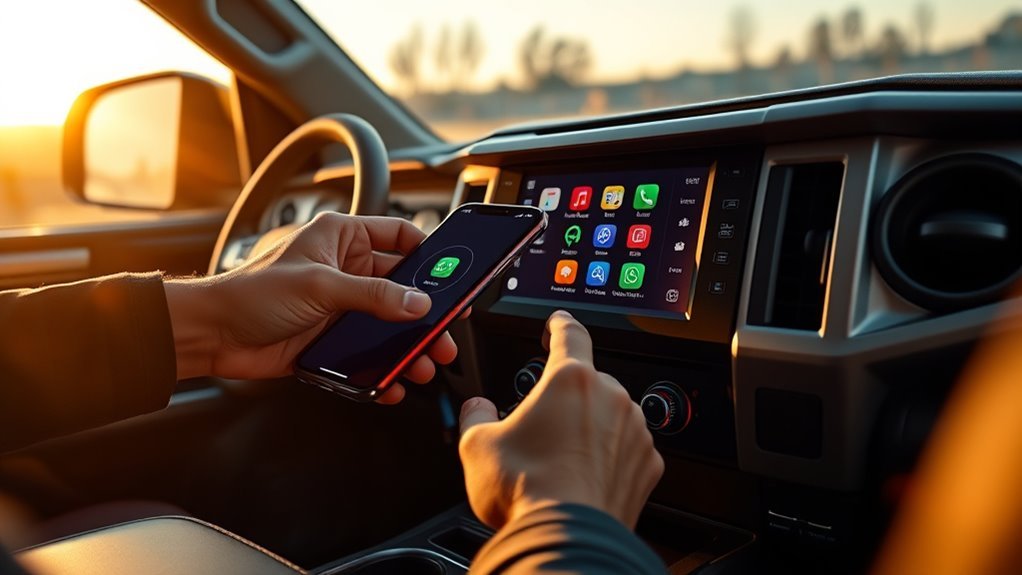
Before connecting your iPhone 17 Pro Max, make sure Siri works and CarPlay is not blocked by your phone’s settings. You do not need to download a separate CarPlay app because Apple includes the feature in iOS.
Apple’s official iPhone 17 Pro Max specifications confirm that the phone uses USB-C. This matters because the older Lightning-to-USB cable recommended in many Toyota setup guides will not plug directly into your phone.
Prepare your iPhone with these checks:
- Enable Siri: Open Settings, find Siri, and make sure Siri is turned on. The menu wording can vary with your iOS version.
- Allow CarPlay: Open Settings > Screen Time > Content & Privacy Restrictions. If restrictions are enabled, check Allowed Apps and make sure CarPlay is permitted.
- Check CarPlay settings: Open Settings > General > CarPlay to view previously connected vehicles.
- Check iOS updates: Open Settings > General > Software Update and install an appropriate available update.
For voice commands, Apple’s Siri settings guide explains how to enable voice activation or the side button. The “Hey Siri” wake phrase is useful but is not the only way to control Siri through CarPlay.
Once CarPlay is running, press and hold the Tundra’s steering-wheel voice-command button to activate Siri without handling your iPhone.
After completing these checks, keep your phone accessible for the first connection. You may need to unlock it and approve a permission request.
Connect iPhone 17 Pro Max to a 2020 Toyota Tundra
The 2020 Toyota Tundra supports factory Apple CarPlay through a wired USB connection. Use the truck’s USB media port rather than a charging-only outlet. This allows the multimedia system to exchange data with your iPhone and show supported apps on the dashboard.
Follow these steps while the truck is parked:
- Start the truck: Turn on the ignition and allow the Toyota multimedia system to load.
- Connect the cable: Insert the USB-A end of a data-capable USB-A to USB-C cable into the Tundra’s USB media port.
- Connect your iPhone: Plug the USB-C end into your iPhone 17 Pro Max.
- Approve the connection: Unlock the iPhone if prompted and allow CarPlay to work with Toyota, including while the phone is locked if you want that convenience.
- Enable CarPlay on the truck: When Toyota displays the options, select “Always Enable” for future connections or “Enable Once” for the current session.
- Open CarPlay: Press MENU on the Toyota touchscreen and select the Apple CarPlay icon if the interface does not appear automatically.
You should now see the CarPlay home screen with supported apps such as Maps, Phone, Messages, and Music. Your iPhone handles the apps while the Toyota display provides the driving-friendly interface.
Apple’s CarPlay connection guide also explains the permission process and how to open CarPlay when it does not appear automatically.
You do not need to pair Bluetooth first for the factory wired CarPlay connection. Bluetooth pairing is a separate feature for wireless calling and audio when CarPlay is not being used.
Enable CarPlay in the Tundra Settings
If the Toyota touchscreen recognizes your iPhone but does not open CarPlay, check the vehicle’s projection settings. The 2020 Tundra multimedia system includes a setting that allows or blocks Apple CarPlay connections.
Use the following menu sequence on the factory system:
- Press MENU on the Toyota multimedia display.
- Select Setup.
- Open General.
- Find Projection Settings and select Apple CarPlay.
- Set Apple CarPlay to On.
- Disconnect and reconnect the USB cable if you changed the setting while the phone was attached.
Some Toyota software screens display the Apple CarPlay switch directly under General. Toyota’s official Apple CarPlay setup instructions illustrate the switch and the first-time permission prompts.
The connection prompt offers three choices. “Do Not Enable” prevents that CarPlay connection. “Enable Once” permits a single session. “Always Enable” allows future connections without repeating the same approval.
When CarPlay starts, select a supported app to confirm that the display responds. You can return to Toyota’s native menu with the appropriate Home or Toyota icon without necessarily ending the CarPlay session.
Check Why CarPlay Won’t Connect
If your iPhone 17 Pro Max will not connect to the Toyota Tundra, first determine whether the phone charges through the USB port and whether Toyota displays a CarPlay prompt. These clues help separate cable and port problems from disabled settings.
Try these fixes in order:
- Check the USB connection: Make sure the cable is fully inserted at both ends and uses the multimedia USB port.
- Try a different data cable: A charging-only or damaged cable may power the phone without establishing CarPlay.
- Unlock your iPhone: Look for a CarPlay authorization message and approve it.
- Check Siri and restrictions: Confirm Siri works and Screen Time allows CarPlay.
- Restart both systems: Disconnect the phone, restart the iPhone, switch the truck off safely, then restart the multimedia system.
- Reset the CarPlay entry: On the iPhone, open Settings > General > CarPlay. If Toyota appears, select it and choose Forget This Car. Connect again to establish a fresh session.
Apple’s CarPlay troubleshooting instructions recommend these checks, along with confirming that the vehicle’s multimedia firmware is current.
If the iPhone charges but Toyota never shows a connection prompt, focus on the cable and USB media port. If the truck detects the phone but refuses to launch CarPlay, review projection settings and iPhone permissions.
If another compatible phone also fails through the same USB media port, the problem may be in the truck’s USB connection or multimedia equipment. A Toyota dealer can inspect the port and check for applicable software or hardware service information.
Reset Toyota Bluetooth and Pair Again
Resetting Bluetooth may help when your iPhone cannot make calls or play audio through the Tundra’s regular wireless connection. However, Bluetooth pairing is not a required step for factory wired CarPlay.
If Bluetooth has stopped working, remove the old pairing from both the truck and iPhone. Then create a fresh Bluetooth connection. Keep this process separate from troubleshooting a USB cable that CarPlay cannot detect.
Delete Old Pairings
To clear an outdated Bluetooth pairing, remove the saved iPhone entry from the Toyota multimedia system. Then remove the Toyota entry from the iPhone so neither device tries to reuse the previous connection.
- On the Tundra touchscreen, press MENU, open Setup, and find the Bluetooth device settings.
- Open the paired-device list, select the old iPhone entry, and choose the available Remove or Delete option.
- On the iPhone, open Settings > Bluetooth.
- Tap the information icon next to the Toyota connection and select Forget This Device.
- Restart the iPhone before attempting a fresh pairing.
This deletes saved Bluetooth connection information. It does not erase your iPhone’s personal files or automatically repair a faulty CarPlay USB port.
Reconnect After Reset
After clearing the saved Bluetooth entries, turn on Bluetooth in your iPhone’s settings. Open the Tundra’s Bluetooth device menu and start the process of adding a new phone.
Select the Toyota system when it appears on your iPhone. Confirm that the pairing information matches on both displays, then approve the connection and any requested permissions.
Once paired, test a phone call or audio playback through the vehicle speakers. If Bluetooth works but CarPlay does not, the remaining problem is more likely related to USB communication, CarPlay permissions, or the vehicle’s projection settings.
To restore Apple CarPlay itself, reconnect your iPhone using the correct USB-A to USB-C data cable and select the CarPlay interface on the truck’s screen.
Check the USB Port, Cable, and Updates
For an iPhone 17 Pro Max, the cable is one of the most important parts of a reliable CarPlay connection. The phone uses USB-C, while the factory 2020 Tundra’s multimedia connection uses a USB media port. A compatible data cable connects the two systems.
Before replacing any vehicle equipment, inspect these components:
- USB media port: Use the port intended for multimedia data, not a separate charging outlet.
- Cable type: Choose a USB-A to USB-C cable that supports data transfer. A cable designed only for charging may not work.
- Cable condition: Look for damaged connectors, loose ends, or an unstable fit. Try another known-working cable if needed.
- USB-C connector: Check for visible lint or debris that could prevent a full connection. Avoid forcing objects into the phone’s port.
- Software: Check for available iPhone updates and ask Toyota about applicable multimedia updates if simpler fixes fail.
A direct cable is preferable to using an old Lightning cable with several adapters. Apple’s USB-C to Lightning adapter guidance explains that some adapter and cable combinations can interrupt wired CarPlay. Apple recommends a direct USB-A to USB-C connection when those combinations cause problems.
Also check whether the connection fails only when the cable moves. If CarPlay repeatedly disconnects while driving over bumps, a loose connector, damaged cable, or worn USB port may be responsible.
If the connection remains unreliable after a cable change, permission reset, and software checks, have the vehicle’s multimedia USB port inspected.
Frequently Asked Questions
Why Is My Phone Not Connecting to My Toyota Tundra?
Your phone may not connect because of a faulty USB cable, the wrong port, disabled CarPlay permissions, or a multimedia software issue. For wired CarPlay, first try a data-capable cable in the USB media port. Then confirm Siri is enabled and restart both devices before checking the vehicle settings.
How Do I Connect My New iPhone 17 Pro Max to My Car?
Connect your iPhone 17 Pro Max using a USB-C data cable if your vehicle supports wired CarPlay. For a factory 2020 Toyota Tundra, use a USB-A to USB-C cable in the USB media port. Enable Siri, approve the CarPlay request, and select Apple CarPlay on the Toyota display.
How Do I Connect My iPhone to My Tundra Truck?
You can connect an iPhone to your Tundra through Bluetooth for supported calls and audio or through USB for Apple CarPlay. On a factory 2020 model, CarPlay requires the USB media connection. Use a cable that matches your iPhone’s connector and follow the permission prompts on both screens.
Why Can’t I Connect My iPhone to My Toyota?
An iPhone may fail to connect when CarPlay is restricted, the vehicle has not authorized it, or the USB connection cannot transfer data. Check Screen Time permissions and Toyota’s projection settings. If necessary, select Forget This Car in the iPhone’s CarPlay settings and establish the connection again.
Does the 2020 Toyota Tundra Have Wireless Apple CarPlay?
No. The factory Apple CarPlay system in the 2020 Toyota Tundra uses a wired USB connection. Bluetooth alone cannot display CarPlay on the factory touchscreen. Some aftermarket wireless adapters or replacement multimedia systems may add wireless capability, but their operation and compatibility depend on the specific equipment installed.
Conclusion
Connecting an iPhone 17 Pro Max to a 2020 Toyota Tundra should be simple with the right USB-A to USB-C data cable, enabled Siri settings, and permission to use CarPlay. Remember that factory CarPlay is wired, so Bluetooth pairing alone will not open the interface.
If the connection fails, check the cable and media port first, followed by CarPlay permissions and Toyota’s projection settings. If those steps do not help, have the multimedia USB connection checked before replacing other equipment.
Sources
- Apple: iPhone 17 Pro Max Technical Specifications: Confirms the USB-C connector.
- Apple: Change Siri Settings on iPhone: Explains Siri activation and voice settings.
- Apple: Connect iPhone to CarPlay: Covers wired setup and CarPlay access.
- Toyota: Apple CarPlay Setup Guide: Documents Toyota multimedia settings, USB connection, and first-time authorization.
- Apple: If You Need Help With CarPlay: Provides troubleshooting steps, permissions, resets, and firmware guidance.
- Apple: About the USB-C to Lightning Adapter: Explains possible adapter connection issues and direct USB-A to USB-C cable use.

