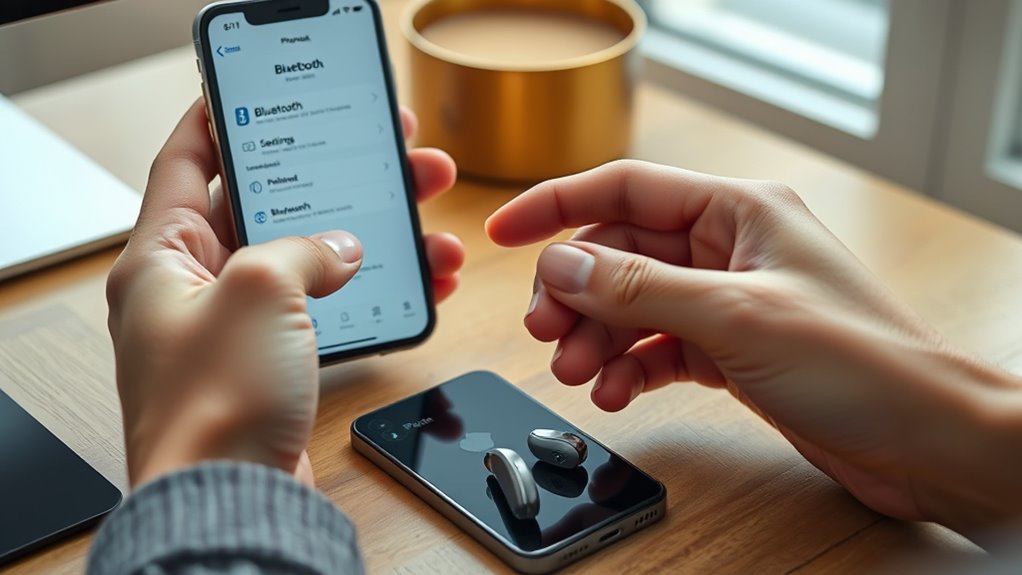
To connect Phonak hearing aids to an iPhone for telephone calls, Bluetooth should be enabled on the iPhone, and the hearing aids must be placed in pairing mode. On rechargeable models, remove them from the charger after 10 seconds; on battery models, open and close the battery doors. Then select the Phonak device in Bluetooth settings and confirm pairing. Calls can then be routed to the hearing aids, with volume adjusted as needed. Additional steps can improve reliability.
Key Takeaways
- Turn on iPhone Bluetooth in Settings and keep the Bluetooth screen open while pairing.
- Put Phonak hearing aids into pairing mode by reopening rechargeable models or cycling the battery doors on battery models.
- Select the Phonak hearing aids from the iPhone Bluetooth device list to complete pairing.
- During a call, tap the Audio button and choose your Phonak hearing aids as the sound output.
- If pairing fails, restart both devices, confirm charge and Bluetooth settings, then try pairing again.
Set Up iPhone Bluetooth for Phonak
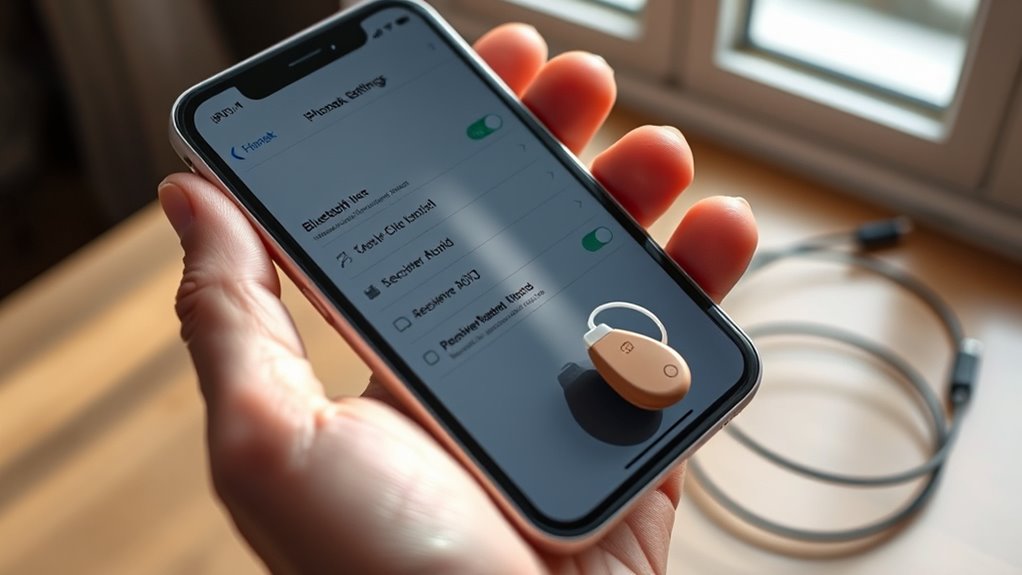
To set up iPhone Bluetooth for Phonak, the user should open the iPhone Home screen, tap Settings, and turn Bluetooth on.
On the iPhone home screen, this step activates the wireless link needed to pair Phonak hearing aids with the device. The Bluetooth menu should remain open until the hearing aids appear in the available devices list.
At that point, the user can select the Phonak entry to begin pairing. This process supports direct phone access and can reduce dependence on others for communication.
For best results, the iPhone should stay near the hearing aids while the connection is established. No additional adjustment is usually required in this stage.
If the device list does not update immediately, the user may wait briefly and check again. Once Bluetooth is enabled, the system is ready for the next pairing step, allowing the user to move toward clearer, more independent telephone use.
Put Your Phonak Hearing Aids in Pairing Mode
Pairing mode must be enabled before the hearing aids can connect to the iPhone.
For rechargeable Phonak devices, placing them in the charger for at least 10 seconds and then removing them activates pairing mode, and a green blink confirms readiness.
For models with replaceable batteries, opening the battery doors for 5 seconds and then closing them places the hearing aids in pairing mode for 3 minutes, during which connection should be completed.
Enable Pairing Mode
Phonak hearing aids must be placed in pairing mode before an iPhone can detect them. This step enables Bluetooth pairing so the iPhone® for phone calls can identify the devices.
For rechargeable models, the aids are placed in the charger for at least 10 seconds, then removed; a green blink indicates readiness. For models with replaceable batteries, the battery doors are opened for 5 seconds and closed again to trigger pairing mode.
The hearing aids should remain discoverable for 3 minutes while Bluetooth is activated on the iPhone. If pairing mode does not start, the lower button can be pressed until a red blink appears, then pressed again until green.
A confirmation beep signals successful connection and restored access.
Rechargeable Pairing Steps
For rechargeable Phonak hearing aids, pairing begins by placing the devices in the charger for at least 10 seconds and then removing them, with the charger connected to a power source.
This step places the rechargeable hearing aids in pairing mode, signaled by a green blink that lasts about 3 minutes. If the light does not appear, the hearing aids may be restarted by pressing the lower button until it blinks red, then pressing again until it blinks green.
On the iPhone, Bluetooth should be enabled through Settings. Once active, the iPhone will scan for nearby devices.
The hearing aids should then appear in the Bluetooth list. Selecting them completes pairing and restores direct, practical access to calls with reduced dependence on assistance.
Battery Door Method
A simple battery-door reset can place Phonak hearing aids into pairing mode. This method supports users seeking dependable telephone access and greater independence.
- Open the battery doors for 5 seconds.
- Close the battery doors to activate pairing mode automatically.
- On the iPhone, confirm Bluetooth is on under Settings > Bluetooth.
- Wait for the hearing aids to appear in the Bluetooth devices list, then select them.
After selection, the devices should connect. A confirmation beep from the hearing aids indicates successful pairing with the iPhone for calls.
If no entry appears, repeat the battery doors step and verify Bluetooth devices visibility again. This process is designed to be efficient, minimizing delay and restoring communication with precision.
Pair Phonak Hearing Aids With iPhone
Before pairing begins, iPhone Bluetooth should be enabled in Settings so the device can detect nearby hearing aids.
The Phonak hearing aids should then be placed into pairing mode, either by briefly charging rechargeable models or by cycling the battery doors on models with replaceable batteries.
After the devices appear in the Bluetooth list, selection of the hearing aids and confirmation of the connection should follow, with a beep indicating successful pairing.
Prepare iPhone Bluetooth
The iPhone Bluetooth setting should be turned on from the Home screen by opening Settings and selecting Bluetooth. To prepare iPhone Bluetooth for Phonak hearing aids, the device must remain discoverable and ready for connection.
- Confirm Bluetooth is switched on.
- Verify the Phonak hearing aids are charged and in pairing mode.
- Review the Bluetooth devices list for the hearing aid name.
- Select the name to begin pairing.
This process supports immediate access to hands-free communication and greater independence. If a pairing prompt appears, it should be confirmed. A brief beep from the hearing aids indicates successful connection.
The Bluetooth menu should then show the hearing aids as connected, signaling readiness for telephone calls without unnecessary delay.
Enter Hearing Aid Pairing
With Bluetooth already enabled on the iPhone, the next step is to place the Phonak hearing aids into pairing mode.
For rechargeable hearing aids, they should be set in the charger for at least 10 seconds, then removed; a green blink indicates readiness.
For models with replaceable batteries, opening and closing the battery doors for 5 seconds triggers automatic pairing mode.
After this, the iPhone may take a few seconds to display the hearing aids in the Bluetooth device list. The patient should select the hearing aids’ name to request pairing.
This process supports faster access to calls and more independent communication.
If the connection does not appear, battery levels should be checked and the pairing sequence repeated carefully.
Confirm Successful Connection
A successful Phonak-to-iPhone pairing is confirmed when the hearing aids emit a beep after selection in the Bluetooth device list. This audible signal indicates that the devices are ready to support calls and streaming without delay, helping the user confirm successful connection.
- Verify Bluetooth is on in iPhone Settings.
- Guarantee Phonak hearing aids are prepared for pairing.
- Select the hearing aids to iPhone name in the Bluetooth list.
- Check Bluetooth settings for connected status.
When the iPhone shows the hearing aids as connected, the link is established for telephone use and audio access.
For patients seeking freedom from communication barriers, this step provides clear assurance that the Phonak system is functioning as intended.
Route iPhone Calls to Your Hearing Aids
To route iPhone calls to Phonak hearing aids, Bluetooth should be enabled in the iPhone’s Settings menu before the devices are paired. The hearing aids are then placed in pairing mode and selected from the Bluetooth device list, establishing secure call routing.
After pairing, Settings > Accessibility > Hearing Devices can be checked to confirm recognition and to set the hearing aids as the default audio output for calls. During an incoming call, the Audio button on the call screen may be tapped, and the hearing aids can be chosen to direct sound appropriately. This process supports clearer communication and greater independence for the user.
If call routing does not occur as expected, both devices may be rebooted, and software updates should be verified on the iPhone and hearing aids. These steps help maintain compatibility, reduce connection errors, and preserve reliable access to telephone calls.
Adjust Call Volume for Better Clarity
Once the hearing aids are connected and calls are routed properly, the iPhone call volume can be adjusted directly during the conversation by using the device’s volume buttons.
This immediate control helps optimize clarity without interrupting the call, supporting a more independent listening experience for the user. The hearing aids should remain active and unmuted during adjustment.
- Increase call volume with the iPhone buttons if speech sounds faint.
- Decrease call volume if voices become sharp or uncomfortable.
- Confirm the hearing aids are connected and functioning, because connection issues can reduce clarity.
- Use the myPhonak app, when available, for finer volume control in some Phonak hearing aids.
If adjustment does not produce the expected result, the hearing care professional should verify the settings and device capabilities.
This measured approach allows the user to maintain control, preserve comfort, and communicate with greater freedom during telephone calls.
Set Up the myPhonak App on iPhone
After the hearing aids are connected to the iPhone, the myPhonak app can be installed from the Apple App Store to provide additional control and pairing support.
The myPhonak app gives the user direct access to settings that support clearer, more independent communication. Before opening the app, Bluetooth should be enabled in iPhone Settings and location services turned on, as both assist initial pairing and app performance.
The myPhonak app offers direct access to settings that support clearer, more independent communication.
Once launched, the app presents a Pair device option. Selecting it begins the guided process for linking the hearing aids to the phone. On-screen prompts identify compatible devices, and the hearing aids should remain in pairing mode until they appear in the list.
After selection, the app confirms the connection and supports ongoing management of the hearing aids. This setup can reduce dependence on external help and place routine control in the user’s hands.
Fix Common Phonak iPhone Pairing Issues
Even with the myPhonak app installed and pairing support in place, some users may still encounter connection problems between Phonak hearing aids and iPhone.
Clinicians recommend a structured hearing and Bluetooth check to restore pairing quickly and preserve user independence.
- Confirm the hearing aids are fully charged and in pairing mode: place them in the charger for 10 seconds or open and close battery doors for 5 seconds.
- Verify Bluetooth is enabled on the iPhone in Settings; pairing cannot occur without it.
- If the devices do not connect, restart both the iPhone and the hearing aids to clear temporary glitches.
- If the hearing aids do not appear, wait briefly, repeat pairing, select the correct device name, and check software updates on both devices.
These steps usually resolve common obstacles and support reliable telephone call access.
Frequently Asked Questions
How Can I Hear Phone Calls on My Hearing Aid?
They can hear phone calls through their hearing aid by enabling Bluetooth technology, pairing the iPhone, and selecting the device for calls. Hearing aid features like push-button answering improve call quality and preserve personal autonomy.
How Do I Connect Phonak to My iPhone?
He would open Bluetooth settings, then pair Phonak and iPhone—quiet control beside wireless freedom. With Phonak compatibility confirmed, Hearing aid features activate after pairing mode, a beep signals success, and connection appears on screen.
Why Won’t myPhonak Hearing Aid Connect to My Phone?
The myPhonak hearing aid often fails to connect because of Bluetooth issues, Device compatibility, or Hearing aid settings. He or she should confirm pairing mode, update the app, restart both devices, and reduce interference.
How Do I Pair My Hearing Aid to My Cell Phone?
Like a bridge spanning two shores, pairing begins in Bluetooth settings. Activate the hearing aid, confirm hearing aid compatibility, then select it on the smartphone for seamless smartphone accessibility, enabling patient-focused, liberated communication.
Conclusion
Connecting Phonak hearing aids to an iPhone can improve telephone communication by sending calls directly to the ears for clearer speech and less listening effort. Once Bluetooth pairing is completed, call routing, volume adjustment, and the myPhonak app can support more consistent use. Significantly, about 15% of adults in the United States report some hearing difficulty, highlighting the value of simple wireless call access for daily communication and patient-centered hearing care.

