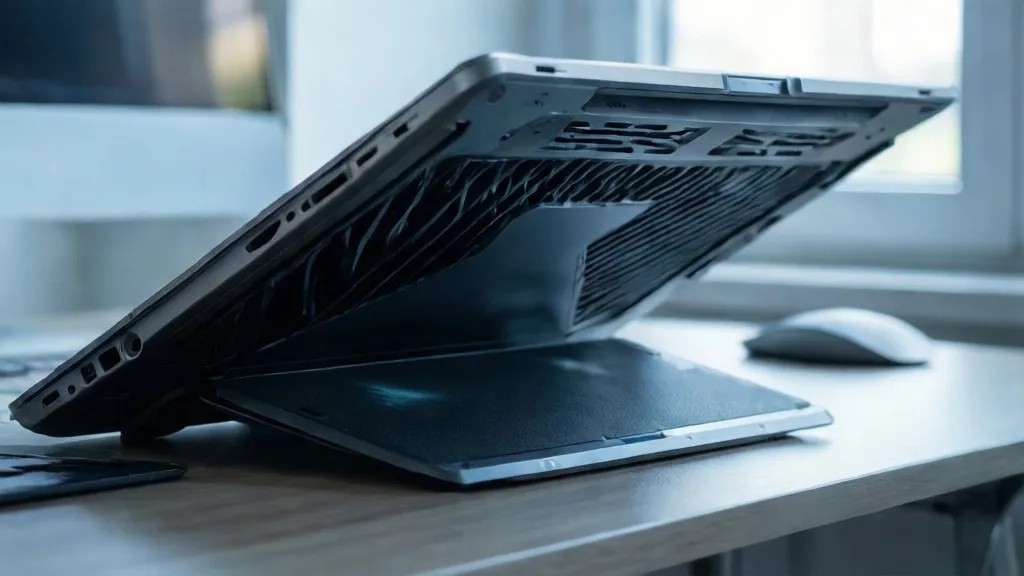
Understanding laptop CPU temperatures helps you prevent throttling, avoid damage, and extend battery and component life. This guide explains normal ranges, what pushes temps up, how to monitor them, and fast fixes if your laptop runs hot.
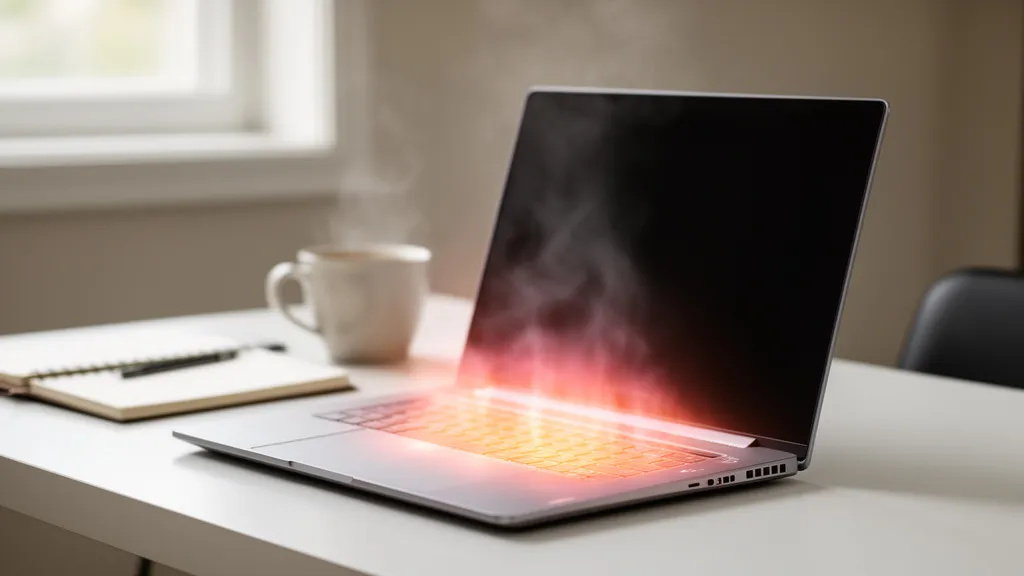
Disclosure: As an Amazon Associate, we earn from qualifying purchases. If you click an affiliate link and make a purchase, we may receive a small commission at no extra cost to you.
Quick Answer
For most laptops, expect 35–50 °C at idle, 45–65 °C with light use, and 70–90 °C during intensive workloads. Brief spikes near 95–100 °C can occur when the CPU boosts hard under heavy load — throttling then engages to manage the heat. Consistently above ~95 °C signals inadequate cooling and warrants cleaning, settings tweaks, or professional service.
Key Takeaways
- Normal temps vary by model and workload — watch trends over time, not single spikes.
- Modern mobile CPUs may approach Tjmax (≈95–100 °C) under heavy load by design to maximize performance.
- Dust, blocked vents, and hot rooms are common, fixable causes of overheating.
- Gaming laptops run hotter than ultrabooks by design; always compare your readings against your specific model’s documented limits.
Understanding CPU temperature basics
The CPU generates heat as it works. Laptops use heatpipes, fins, and fans to move that heat away. If temperature climbs too high, the processor reduces speed to protect itself — this is thermal throttling. Intel and AMD define a critical point called Tjmax, where these protections engage. Intel’s processor temperature guide and AMD’s thermal management FAQ document this behavior in detail.
Ideal temperature ranges for laptop CPUs
Ranges vary by chassis and chip, but these guidelines fit most modern laptops. As of 2025, many mobile CPUs are designed to approach 95–100 °C under sustained loads before throttling, which is normal behavior documented by Intel and AMD. (See links above.)
| Activity level | Ideal range (°C) | Warning zone (°C) |
|---|---|---|
| Idle | 35–50 | 51–65 |
| Light usage (browsing, docs) | 45–65 | 66–80 |
| Intensive tasks (gaming, render) | 70–90 | 91–95 |
| Overheating risk | ≥95 (sustained) | Critical — address cooling |
Brief spikes into the 90s can happen under heavy load. Persistent temps at or above ~95 °C indicate inadequate cooling, dust buildup, or overly aggressive power settings.
Warning: If your CPU stays above 95 °C during light tasks like browsing or document editing, that is a cooling problem — not normal operation. Check for dust blockages, switch to a lower power profile, and consider professional servicing before component damage occurs.
Factors influencing CPU temperatures
CPU temperatures are shaped by several overlapping variables. Understanding each one helps you target the right fix instead of guessing.
Ambient room temperature: Cooling works by moving heat from the CPU into the surrounding air. The warmer that air, the harder your laptop has to work. Rooms above 25–28 °C can push sustained CPU temps up noticeably — a real issue in summer or poorly ventilated spaces.
Workload intensity: A background browser tab draws a fraction of the power that a 4K export or a modern game demands. CPU power draw — and heat output — scales with clock speed and active core count. Combined workloads like gaming while recording or streaming sustain higher temps than any single task alone.
Chassis design — gaming laptops vs. ultrabooks: Gaming laptops are built with larger heatsinks, dual fans, and higher TDP (thermal design power) envelopes. Ultrabooks and thin-and-light models deliberately cap CPU power to stay slim and quiet, making them more prone to temperature spikes under the same workload. A 90 °C reading on a 17-inch gaming laptop is far less alarming than the same reading on a thin office machine — always compare your numbers against your specific model’s documented thermal limits.
Fan curves and power limits: Manufacturers set how aggressively fans spin and how much power the CPU can draw. Vendor software — ASUS Armoury Crate, Lenovo Vantage, HP Command Center, MSI Center — lets you switch between “Silent,” “Balanced,” and “Performance” profiles. Silent mode reduces temps and noise at the cost of some peak performance; Performance mode does the opposite.
Thermal paste condition: Paste fills microscopic gaps between the CPU die and heatsink to maximize heat transfer. It dries out over 2–5 years of use. A professional repaste can cut temperatures by 5–15 °C on an aging laptop.
Recommended thermal paste: If your laptop is user-serviceable and you’re comfortable opening it, ARCTIC MX-4 Thermal Paste (4 g) is a carbon-based paste that the manufacturer describes as metal-free and not electrically conductive. If you’re unsure, or opening the laptop could affect your warranty, leave the repaste to a technician.
Laptop placement: Soft surfaces — beds, couches, carpets — block bottom intake vents. On such surfaces, CPU temps can run 10–15 °C higher than on a hard, flat desk. Even propping up the rear edge slightly improves passive airflow.
Pro Tip: If your laptop has vendor software, try switching to “Silent” or “Eco” mode for light tasks like browsing and writing. Temperatures drop noticeably, fan noise nearly disappears, and for everyday work you won’t feel any performance difference.
Signs of overheating in laptops
| Sign | Description |
|---|---|
| Excessive fan noise | Fans run loudly or constantly, even at light loads. |
| Crashes or shutdowns | Unexpected freezes or power-offs during intensive tasks. |
| Hot surfaces | Keyboard deck or underside feels uncomfortably hot to the touch. |
| Sluggish performance | Apps that normally run smoothly feel laggy — a sign the CPU is throttling its clock speed to manage heat. |
How to monitor your laptop’s CPU temperature
Use built-in sensors exposed by a monitoring tool. A reliable, free option is HWMonitor by CPUID, which reads CPU core temps and fan speeds in real time on Windows. You can also use Core Temp or your laptop vendor’s built-in utility. Mac users can check CPU load via Activity Monitor (open it and click the CPU tab) or install iStatMenus for detailed per-core temperature readouts. Watch temperatures while gaming or exporting video to gauge your cooling headroom.
- Set alerts where supported (e.g., at 90 °C) to catch runaway heat before throttling or shutdown kicks in.
- Log temps during a demanding task to spot sustained 95 °C plateaus — these are a clearer warning sign than momentary spikes.
Pro Tip: Run a CPU stress test — such as Cinebench R23 — for 10–15 minutes while watching temps in HWMonitor. If your CPU immediately hits 95–100 °C and stays there, thermal throttling is actively limiting your performance. Cleaning or a repaste will often restore full speed.
Cooling solutions for overheating issues
- Use a cooling pad: Elevates the chassis and improves airflow beneath the laptop.
- Optimize fan and power settings: Set performance modes to “Balanced” or “Silent” during light work; switch to a higher fan curve only for heavy tasks.
- Improve airflow: Always work on a hard, flat surface; keep rear and side vents unobstructed.
- Limit background load: Close unused apps and browser tabs; disable unnecessary startup items.
- Adjust power limits (undervolting): Advanced users can reduce CPU voltage or power limits using tools like Intel XTU or ThrottleStop on Windows. This can lower sustained temps meaningfully with little real-world performance loss on most workloads — though it carries some risk and may affect warranty terms on certain models.
- Update BIOS/firmware: Vendors regularly release updates that tune thermals and fan behavior. Check your manufacturer’s support page for the latest firmware.
Recommended cooling pad: havit HV-F2056 Laptop Cooling Pad (15.6–17 inch) — three USB-powered fans blow air toward your laptop’s bottom intake vents, and two height settings give you a comfortable typing angle. Use it on a hard desk so the pad’s own intake stays clear. It fits 15.6–17-inch laptops and connects over USB-A, so check your screen size and ports first.
The impact of dust and dirt on CPU performance
Dust builds up on heatsink fins and fan blades over time, restricting airflow and forcing the CPU to throttle sooner. Even a moderate dust layer can raise idle and load temperatures by 5–10 °C. Clean intake and exhaust vents with short bursts of compressed air every 6–12 months — more often if you use your laptop in dusty environments, on soft surfaces, or around pets. For a deeper clean, remove the bottom panel (if the laptop is user-serviceable) to clear the heatsink fins and fan blades directly, or book a professional cleaning.
Note: Removing the bottom panel may void the manufacturer warranty on some models. Check your warranty terms before opening your laptop. If you are unsure, a professional cleaning service can handle it without putting your coverage at risk.
Recommended for dust removal: WOLFBOX MegaFlow 50 Compressed Air Duster — a rechargeable electric duster that works as a reusable alternative to disposable air cans. Its four nozzles suit PCs, keyboards and other electronics; use short bursts aimed at the intake and exhaust vents, as described above.
Best practices for maintaining optimal CPU temperatures
- Keep it clean: Dust vents and fans every 6–12 months for normal use — more often in dusty spaces or around pets. See our step-by-step cleaning guide.
- Use a cooling pad: Especially for gaming or long render sessions. Compare models in our cooling pads roundup.
- Monitor usage: Track temps during heavy work. Try the tools in CPU temperature monitoring tools.
- Match power mode to the task: Don’t run “Turbo” or “Performance” mode for basic browsing — it generates unnecessary heat with no real benefit.
- Keep OS, drivers, and firmware current: Chipset, BIOS, and firmware updates often include thermal and fan-curve improvements that directly affect operating temperatures.
When to seek professional help for overheating issues
Signs that require service
- Temperatures remain ≥85–90 °C during light tasks after cleaning and settings tweaks.
- Fans click, grind, or fail to spin; or the system power-cycles under load.
- Thermal paste replacement is due and the laptop is difficult to open safely.
Common causes
- Dust accumulation blocking fins and vents.
- Aging thermal paste or a misaligned heatsink.
- Aggressive factory power limits in thin-and-light designs.
What technicians check
- Fan health and airflow paths.
- Thermal paste condition and heatsink contact quality.
- BIOS/firmware updates and power/thermal profile settings.
Related Guides
Frequently Asked Questions
Can CPU temperature affect laptop battery life?
Yes. Higher temperatures increase power draw and can trigger throttling, reducing efficiency and shortening battery lifespan over time. Lithium-ion batteries degrade faster when the system runs consistently hot. Keeping temps within normal ranges helps preserve both battery capacity and overall component health.
How do ambient temperatures impact CPU performance?
Hot rooms make cooling less effective, so the CPU may throttle sooner and more often. Keep the laptop on a hard surface in a well-ventilated space. Working in rooms above 25–28 °C can push sustained CPU temps noticeably higher than in a cooler environment.
Is thermal paste necessary for laptop maintenance?
Yes. Thermal paste fills microscopic gaps between the CPU and heatsink to maximize heat transfer. It dries out over time — typically after 2–5 years of use. Replacing it during a service appointment often lowers temperatures by 5–15 °C on older laptops.
What are the signs of a failing cooling fan?
Listen for grinding, rattling, or clicking noises during use. A fan that fails to spin up under load — or stops entirely — is a hardware fault. Persistent overheating even after a thorough cleaning is another strong indicator. Replacing a failed fan typically restores normal cooling and performance.
Can overclocking a CPU raise temperature significantly?
Yes. Overclocking increases voltage and clock speeds, generating substantially more heat. Most laptops lack the heatsink capacity and chassis airflow to sustain overclocked speeds safely — the CPU will throttle almost immediately, eliminating any performance gain. Overclocking is best left to desktop systems with dedicated robust cooling.
How often should I clean my laptop’s cooling system?
For most users, a compressed-air clean every 6–12 months is sufficient. If you use your laptop in dusty environments, on carpeted or soft surfaces, or around pets, aim for every 3–6 months. A two-minute blast through the vents can drop temperatures several degrees and noticeably reduce fan noise.
Sources
- Intel — Processor Maximum Operating Temperature — Tjmax definition, throttling activation, and recommended operating ranges for Intel mobile CPUs.
- AMD — Processor Thermal and Power FAQs — AMD’s documented Tjmax values and thermal management behavior for Ryzen mobile processors.
- CPUID — HWMonitor — Free real-time CPU temperature and fan speed monitoring utility for Windows.