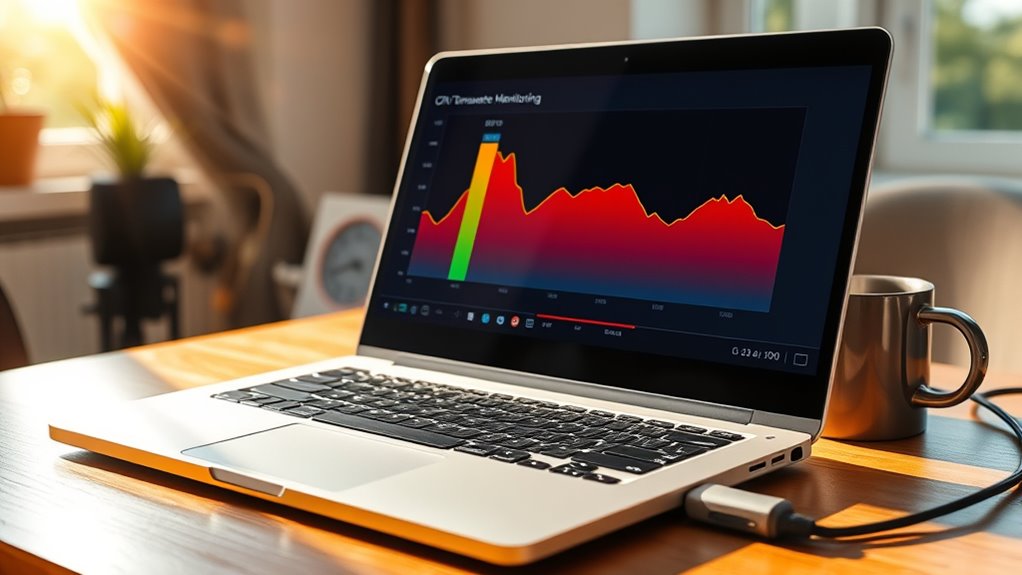
92°C is generally acceptable for a laptop CPU with a 105°C TjMax, but it is not ideal for sustained use. That temperature leaves only a small thermal margin, so heavy gaming or other long workloads can trigger throttling and reduce performance. Prolonged heat also increases wear on components. Better cooling, cleaning vents, and lowering power limits can help. The full picture depends on workload, cooling design, and whether temperatures stay there consistently.
Key Takeaways
- 92°C is below a 105°C TjMax, so it is generally safe short term but not ideal for long sessions.
- Sustained operation at 92°C can reduce component lifespan and increase wear over time.
- You are unlikely to hit thermal throttling at 92°C, but performance can still drop if temperatures rise further.
- Gaming and other heavy workloads often push laptops near this range, especially with limited cooling.
- Improve cooling with cleaning, better airflow, cooling pads, or undervolting to lower temperatures.
Is 92°C Safe for a Laptop CPU?

A CPU temperature of 92°C is generally within the acceptable operating range for many laptops, particularly when the processor’s Tjmax is 105°C, but it is not an ideal sustained temperature.
At this level, the CPU temperature leaves a narrow thermal margin, which can trigger throttling and reduce performance as the system defends itself. While 92°C is not an immediate failure point, prolonged exposure can accelerate wear on the processor and nearby components, undermining long-term reliability and the user’s freedom from avoidable hardware constraints.
A buffer of at least 10°C below Tjmax is typically preferred for stable operation and healthier thermal behavior. Regular monitoring, dust removal, and improved airflow can help keep temperatures lower.
If the laptop remains near 92°C under ordinary workloads, cooling interventions are advisable. In practical terms, it is usable, but not optimal for sustained, unrestricted performance.
What 105°C TjMax Means in Plain English
TjMax is the CPU’s maximum junction temperature, the point at which the processor begins to protect itself from excessive heat.
For chips rated at 105°C, temperatures near that limit do not imply instant failure, but they do place the processor close to its thermal throttling threshold.
In plain English, 92°C is below TjMax, yet it leaves limited thermal headroom before performance reduction begins.
TjMax Explained
At 105°C, TjMax marks the processor’s maximum safe junction temperature, the point beyond which a CPU or GPU begins protective behavior to reduce the risk of damage.
In practical terms, TjMax defines the upper thermal boundary specified by the vendor, not a target for routine use. A reading of 92°C remains 13°C below this limit, so it is technically acceptable, though elevated temperatures can still accelerate wear over time.
Because TjMax varies across processor models and manufacturers, the relevant technical documentation must be consulted for exact thresholds.
Continuous temperature monitoring during demanding workloads, such as gaming or rendering, supports informed control over hardware conditions and preserves user autonomy by exposing thermal limits clearly.
Thermal Throttling Point
Thermal throttling begins when a CPU reaches its TjMax, which is the maximum safe junction temperature before the processor reduces clock speed to prevent overheating and protect itself from damage.
At 105°C, many processors enter thermal throttling to stabilize silicon behavior and limit thermal stress. This threshold is not a target; it is a guardrail.
At 92°C, the system remains below the limit, so immediate throttle action is unlikely. Even so, sustained heat can shorten component life and erode performance margin.
CPUs tolerate brief spikes, but repeated proximity to TjMax signals constrained cooling or airflow. Monitoring temperatures is thus essential.
Where throttling appears often, the user gains practical freedom by correcting thermal bottlenecks before instability becomes routine.
Why Gaming Pushes Laptop Temps So High
Gaming imposes a sustained thermal load on both the CPU and GPU, raising power draw and forcing temperatures upward, with CPU readings in demanding titles often approaching 92°C.
Laptop cooling systems have limited surface area and airflow, so heat accumulates more quickly than in desktop systems. As a result, prolonged play can push the machine toward its thermal management thresholds, where throttling becomes necessary to prevent overheating.
Heavy Gaming Heat Load
Heavy gaming places a sustained, high-power load on both the CPU and GPU, which drives laptop temperatures sharply upward and often pushes average readings to around 92°C during play.
This temperature profile is common in demanding titles such as GTA V and Watch Dogs 2, especially on systems with Intel i7-class processors. The CPU often becomes the primary thermal burden, while many users still report GPU temperatures staying below 85°C, indicating more efficient graphics-side dissipation.
Intel CPUs generally begin thermal throttling near 100°C, so the rise toward that threshold can trigger automatic performance reduction before damage occurs.
Extended gaming sessions keep heat elevated for long periods, and restricted airflow or weak cooling can worsen long-term stress on internal components, limiting the practical freedom to play without concern.
Laptop Cooling Limits
Those elevated gaming temperatures reflect the physical limits of laptop cooling hardware under sustained CPU and GPU load. In gaming laptops, average operating temperatures near 92°C are common because compact heat pipes, small fans, and limited intake area must dissipate concentrated power from both chips.
Many Intel and AMD mobile CPUs permit brief exposure up to a 105°C Tjmax, but sustained temperatures above 90°C can trigger thermal throttling, reducing frequency to preserve silicon and system stability. Effective laptop cooling limits are thus defined by chassis geometry, fan capacity, and airflow quality.
External coolers, unobstructed vents, and periodic dust removal improve thermal headroom. For users seeking freedom from avoidable slowdowns, disciplined maintenance and better cooling are practical tools for reclaiming performance under load.
How to Tell If Your Laptop Is Throttling
Thermal throttling can be identified by watching for a CPU that repeatedly drops below its base clock speed while the laptop is under sustained load, especially as temperatures near Tjmax, which is commonly around 100–105°C on many processors.
That behavior signals protective performance reduction, not failure, and it often appears after thermal paste has aged or lost effectiveness. Monitoring should focus on sustained workloads, where the pattern becomes clear.
Protective slowdown, not failure, often emerges as thermal paste ages under sustained workloads.
- Check clock speeds against the rated base frequency.
- Watch for stuttering or sudden frame drops during heavy tasks.
- Use HWMonitor or MSI Afterburner for live temperature readings.
- Compare temperature spikes with frequency dips over time.
When these signs align, the machine is likely negotiating its own thermal limits.
Recognizing the pattern enables users to assess whether freedom from imposed slowdown is being constrained by heat, not software.
How to Lower Laptop CPU Temps
Reducing CPU temperatures is the practical response once sustained throttling has been confirmed. For those seeking how to lower laptop cpu temps, the most effective measures are direct and measurable.
Undervolting reduces operating voltage, which lowers power draw and heat output without sacrificing core functionality. Setting Maximum Processor State to 99% can disable Intel Turbo Boost, often pulling temperatures toward a safer normal temperature range while preserving adequate performance.
External airflow also matters: a laptop cooler, stand, or cooling pad acts as a CPU cooler by increasing convection and improving heat dissipation under load.
Dust control is equally important; cleaning vents and fans restores unobstructed airflow and prevents thermal resistance from rising.
Each intervention removes a constraint imposed by excess heat, allowing the machine to operate with greater autonomy and less waste energy. Together, these methods form a disciplined thermal strategy for sustained use.
When 92°C Becomes a Problem
At 92°C, a laptop CPU is operating near the upper edge of its safe thermal envelope, where short spikes may be tolerated but sustained exposure begins to trigger thermal throttling and measurable performance loss. At 92°C, the margin below Tjmax is thin, and repeated load can compress that freedom further, leaving less headroom for peak clocks and stable execution.
- Brief peaks are less concerning than prolonged 92°C operation.
- Thermal throttling reduces throughput to protect silicon.
- Repeated high heat can accelerate component wear.
- Regular temperature monitoring reveals instability early.
When 92°C appears frequently during gaming or heavy computation, the condition shifts from acceptable stress to a reliability risk. The recommended buffer is at least 10°C below Tjmax; once that margin disappears, the system is no longer operating with meaningful thermal reserve.
Over time, sustained heat can shorten lifespan and increase the probability of failure, especially if the CPU remains pinned near 92°C under continuous load.
Simple Ways to Keep Temps Down
Practical temperature control starts with improving airflow and removing avoidable heat bottlenecks. A cooling pad can supply additional intake air, especially during gaming or rendering, while a hard, flat surface preserves the chassis’ designed ventilation path. Dust removal from vents is equally critical; clogged fins increase thermal resistance and reduce fan effectiveness. When load rises, setting fan speed to maximum RPM can immediately increase heat rejection, though acoustic output will also rise. For systems with adequate voltage margin, undervolting the CPU may lower power draw and operating temperature without reducing usable performance.
| Measure | Effect | Priority |
|---|---|---|
| Cooling pad | Boosts airflow | High |
| Vent cleaning | Restores efficiency | High |
| Undervolting | Cuts heat output | Medium |
These interventions do not grant permission to ignore 92°C, but they can reclaim thermal headroom and support user autonomy over the machine’s limits.
Frequently Asked Questions
Is 92 Celsius Too Hot for a CPU?
92°C is usually too hot for sustained CPU operation, though brief peaks may be tolerated. Cooling Solutions should be improved, because prolonged heat can trigger throttling, shorten lifespan, and constrain liberated performance.
What Temperature Is Too Hot for a Laptop?
A laptop is too hot when sustained core temperatures exceed 90°C, or approach thermal limits, causing throttling and instability. Cooling Solutions, clean vents, and improved airflow preserve performance and extend component life.
What Temperature Will Damage a Laptop?
Temperatures above 90°C can damage a laptop over time; sustained heat near 100°C often triggers Thermal Throttling, accelerates component wear, and risks instability. Liberation from heat means maintaining lower temperatures through cooling and monitoring.
Is a 90 Degree CPU Too Hot?
A 90°C CPU is warm, but not inherently too hot under load. Thermal Throttling may occur, reducing performance. Sustained operation at this level warrants improved cooling, because preserving headroom supports longevity, stability, and liberated computing choices.
Conclusion
To sum up, 92°C sits below a 105°C TjMax, so the laptop is not yet in its dramatic final act of self-preservation. Technically, it is operating within specification, though with little thermal comfort to spare. Sustained use at that temperature can still accelerate throttling, fan wear, and long-term component stress. Therefore, the system may be “safe,” but only in the same sense that a sprinter is safe while gasping at the finish line.

