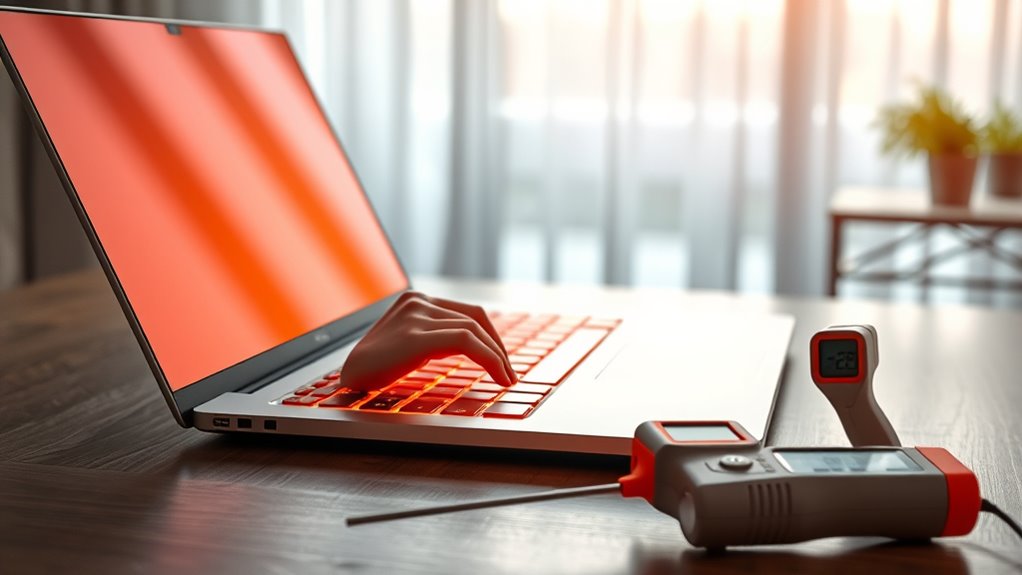
Before buying a gaming laptop, it helps to know that heat is normal, but high temperatures can signal limits. Safe gaming loads usually sit around 70°C to 85°C for the CPU and GPU, with brief spikes near 90°C acceptable. Thin designs, strong hardware, and poor airflow all raise temperatures. Signs of trouble include loud fans, hot surfaces, and shutdowns. Cooling design, vents, and user reviews can reveal much more about long-term performance.
Key Takeaways
- Check gaming laptop temperatures before buying; normal idle is 30°C–50°C and heavy gaming is usually 70°C–85°C.
- Brief spikes up to 90°C can be acceptable, but sustained temperatures above 90°C suggest cooling problems.
- Look for strong cooling features like larger vents, multiple fans, vapor chambers, and adjustable fan controls.
- Buy models that offer good airflow and use a hard, flat surface; soft surfaces and warm rooms worsen overheating.
- Read independent reviews for real-world thermal performance, since they often reveal hidden overheating issues.
What Temperature Is Safe for Gaming Laptops?
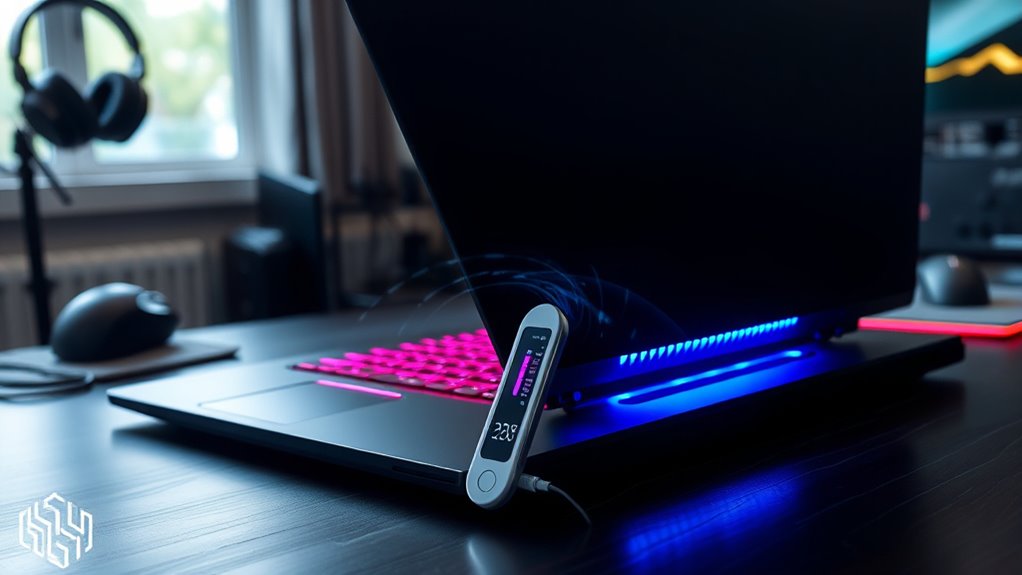
For gaming laptops, safe CPU temperatures under heavy load typically fall between 70°C and 85°C, with brief spikes up to 90°C generally considered acceptable. These safe temperatures help preserve stable performance during demanding play.
CPU temps near the upper limit are not ideal for long periods, yet they remain within normal operating range when the cooling system is functioning properly.
Temperatures near the upper limit aren’t ideal, but they can stay normal if cooling is working well.
GPU temperatures follow a similar pattern: around 30°C to 50°C when idle, and roughly 70°C to 85°C while gaming. Short peaks near 90°C can still be acceptable, but consistent readings above that level suggest strain.
At that point, thermal throttling may begin, reducing speed to control heat. Signs of trouble include sudden shutdowns, loud fans, and hot spots on the chassis.
Better airflow and clean vents support cooler operation and help maintain dependable, liberated gaming performance.
Why Do Gaming Laptops Run Hot?
Gaming laptops run hot because their high-performance CPUs and GPUs produce substantial heat, especially during demanding games or high frame-rate play.
Their compact design leaves limited room for airflow, which makes it harder to move that heat away quickly. As a result, temperatures can rise further when the system is under sustained load or used in warm conditions.
High-Performance Components
High-performance hardware is the main reason gaming laptops run hot. Powerful CPUs and GPUs drive fast frame rates, but they also raise heat quickly, pushing high temperatures and elevating CPU temperatures during play.
When workloads intensify, energy use climbs, and thermal output follows. Overclocking can add even more strain, bringing parts near 90-95°C. Environmental conditions matter too: warm rooms and soft surfaces can worsen cooling, while poor ventilation can turn heat into performance issues.
- Demanding games create sustained thermal loads.
- High frame rates increase power draw and heat.
- Ambient conditions can reduce cooling efficiency.
These machines offer freedom through portable power, yet that power must be managed carefully.
Limited Airflow Design
Many gaming laptops use compact chassis that leave little room for airflow, making it difficult to remove the heat produced by powerful CPUs and GPUs during intense play.
This limited airflow raises heat output, especially when games run at high frame rates or use demanding graphics settings. Overclocking can intensify the burden, pushing thermal management beyond what small cooling systems can handle.
Dust buildup may further block vents and weaken air circulation, adding to the strain. Hot rooms and soft surfaces, such as beds or laps, can restrict ventilation and trap warmth beneath the machine.
As a result, users seeking performance freedom must recognize that design constraints, not just component power, often determine how hot a gaming laptop becomes.
CPU vs GPU Temperature: What’s the Difference?
The CPU and GPU in a laptop both generate heat, but their temperature patterns differ slightly depending on workload. A CPU usually idles around 35-45°C and may climb to 55-65°C under load. A GPU often sits near 30-50°C at rest, then can reach 70-85°C during heavy tasks.
These temperatures are normal, yet sustained stress can still cause overheating and reduce freedom of performance.
- Intel CPUs should stay below 70°C.
- AMD CPUs should ideally remain under 61°C.
- Critical limits are about 100°C for a CPU and 90°C for a GPU.
High-demand work such as gaming or video editing pushes both parts harder. Regular monitoring with software helps detect rising temperatures early.
When cooling is managed well, the CPU and GPU can keep working without sudden throttling, shutdowns, or damage.
What Gaming Laptop Temperatures Are Normal?
Gaming laptop temperatures are usually considered normal when they stay around 30–50°C at idle and 50–70°C under light use.
During heavy gaming, readings of 70–85°C are common, with short spikes up to 90°C often remaining acceptable.
Temperatures that stay above 90°C may signal poor cooling and increase the risk of throttling or shutdown, making airflow and dust control important.
Idle And Light Use
Idle and light-use temperatures on a gaming laptop typically sit between 30°C and 50°C during inactivity, then rise to about 50°C to 70°C when browsing, streaming, or handling other low-demand tasks.
This idle temperature reflects efficient cooling and modest processing power use, keeping safe temperature ranges intact for everyday freedom.
- 30°C to 50°C at rest
- 50°C to 70°C under light use
- Above 70°C may suggest cooling concerns
Regular checks help identify changes before performance suffers.
Good airflow matters: hard, open surfaces support heat release, while soft surfaces can block vents.
Consistent monitoring supports longer component life and steadier operation, giving the machine room to work without unnecessary strain or restriction.
Gaming Load Temperatures
Under gaming load, temperatures on a gaming laptop usually rise well above idle levels and often fall between 70°C and 85°C during heavy gameplay. This temperature range is generally normal, especially when high-performance CPUs and GPUs push sustained temperatures upward. Short spikes near 90°C to 95°C may still be safe, but constant readings above 90°C can reduce freedom through thermal throttling and slower frame rates. Fan speed often increases sharply to manage the heat.
| Condition | Temperature | Meaning |
|---|---|---|
| Idle | 30-50°C | Calm |
| Gaming load | 70-85°C | Typical |
| Peak bursts | 90-95°C | Briefly safe |
Monitoring tools like HWMonitor or MSI Afterburner help users watch temperature trends and decide whether cooling is holding power steady during demanding play.
Safe Limits And Cooling
Safe limits for a gaming laptop usually fall within 70°C to 85°C under load, with brief spikes up to 90°C still considered acceptable. Within this range, the average CPU temperature remains manageable, and the GPU often follows a similar pattern.
- CPU: ideally below 85°C to avoid throttling
- GPU: generally safe at 70°C to 85°C
- Cooling: a stand, clean vents, and fresh thermal paste help
Temperatures above 90°C on a sustained basis signal inadequate cooling and may trigger slowdown or shutdown.
For users seeking freedom from performance loss, regular maintenance matters. Dust removal, airflow clearance, and thermal paste replacement support stable operation.
In practice, safe limits protect both hardware and gaming freedom, keeping heat from becoming a barrier to smooth play.
Signs Your Gaming Laptop Is Too Hot
When a gaming laptop runs too hot, the warning signs are often hard to miss. Loud fan speeds usually mean the cooling system is working at full force to reduce the core temperature, even when background processes are modest.
A drop in game performance is another clear signal; thermal throttling often begins near 85°C, where the system slows itself to protect components. If temperatures stay above 90°C, the risk of hardware damage rises, and the laptop may struggle to deliver steady frame rates.
Unexpected shutdowns are more severe and often appear as the temperature approaches 100°C, when the machine powers off to prevent internal harm.
Unexpected shutdowns often happen near 100°C, as the laptop powers off to protect itself from internal damage.
Physical hot spots on the chassis also matter. A surface that feels sharply warm or uncomfortable suggests heat is not being moved away effectively, shortening hardware life and limiting the freedom to play without interruption.
How to Check Gaming Laptop Temperature
Once a gaming laptop shows signs of excess heat, the next step is to verify the actual temperatures. During startup, BIOS or UEFI can be opened with keys such as F2 or Delete, where the current CPU temperature is shown. This gives a direct baseline before heavy use begins.
- HWMonitor, Core Temp, and MSI Afterburner provide real-time readings for CPU and GPU temperatures.
- These tools can alert users when heat climbs toward unsafe levels.
- Idle readings usually sit around 30-50°C, while gaming loads often reach 70-85°C.
Safe operation generally remains below 90-95°C, though sustained spikes deserve attention.
Temperature checks also help reveal whether clogged air vents are trapping heat, since blocked airflow can distort results and raise readings. A clear reading system lets users track performance without guesswork, keeping control in their own hands.
How to Lower Gaming Laptop Temperatures
Lowering a gaming laptop’s temperature usually starts with improving airflow: the device should rest on a hard, flat surface so its vents stay unobstructed, and a cooling pad can add extra ventilation during long gaming sessions.
Soft bedding and laps trap heat, so the machine should be given open space to breathe. Dust also matters. Cleaning vents and fans every three to six months helps preserve airflow and keeps temperatures from creeping upward.
When games push the CPU and GPU hard, lowering graphics settings can reduce heat without stealing the freedom to play smoothly.
It is also wise to monitor temperatures with tools such as HWMonitor or MSI Afterburner, especially during demanding matches. Safe load readings generally stay near 70 to 85°C. Regular checks allow quick adjustments before performance drops or heat builds into a problem.
What Cooling Features Matter Before You Buy
After understanding how to reduce heat on an existing machine, the next step is choosing a laptop with strong cooling from the start. Buyers should inspect cooling fans, vent size, and chassis layout before committing. More fans and larger vents usually move heat away faster during gaming, editing, or other demanding work.
Strong thermal management matters too; vapor chambers and heat pipes help spread heat and sustain performance without throttling.
- Check for real-time monitoring tools and fan controls.
- Review airflow design to avoid blocked intake on soft surfaces.
- Read user reports to spot models with overheating complaints.
A well-built system gives freedom to work or play without constant temperature anxiety. Software that allows real-time monitoring can reveal when a machine is struggling, while adjustable fan speeds offer more control.
Independent reviews remain valuable because they expose hidden weaknesses and confirm whether a laptop’s cooling claims match real-world use.
Frequently Asked Questions
Is 70 Degrees Safe for a Laptop?
Yes, 70 degrees is generally safe for a laptop under heavy use. If it stays there often, cooling solutions, thermal paste, airflow management, and temperature monitoring can help preserve performance and component freedom.
Is 92 Degrees Hot for a CPU Laptop?
Yes—92°C is hot for a CPU laptop. Like a marathon runner gasping at mile twenty, it risks thermal throttling effects, laptop lifespan impact, and overclocking risks; cooling solutions comparison should favor stronger airflow and monitoring.
Is 90 C Too Hot for CPU?
Yes, 90°C is too hot for a CPU; it can trigger thermal throttling, reduce laptop performance, and raise overheating risks. Better CPU cooling, like cleaning vents or replacing paste, helps protect hardware and sustain freedom of use.
How Much Temperature Is Safe for a Laptop?
A laptop is generally safe at 30°C to 85°C. For ideal performance, laptop cooling and heat management matter; sustained temperatures above 90°C risk thermal throttling, hardware wear, and sudden shutdowns, especially under load.
Conclusion
A gaming laptop’s heat can feel like a small furnace under the desk, but the right temperatures keep performance steady and hardware protected. Knowing what is normal, spotting warning signs early, and using smart cooling habits can make long gaming sessions far more comfortable. Before buying, attention to vents, fans, and thermal design helps guarantee the machine stays cool enough to deliver power without burning out too soon.

